

Discord is a VoIP app that offers many features for gamers, including the ability to stream your games. There are a few ways that you can stream in Discord, and the “Go Live” option is designed specifically for gaming.
In this article, we’ll show you how to Go Live on Discord to stream your games on Windows, Mac, Android, and iPhone. And, since Go Live only works for games, we’ll also cover how you can share your screen or stream a non-game app.
How to Go Live on Discord on Windows or Mac
To use the “Go Live” function on Discord, you’re going to need three things: A Discord account, the standalone Discord app, and access to a Discord server. Keep in mind that you’re only able to share your screen via the Discord app and not via a web browser.
To Go Live on Discord on Windows or Mac, follow these six steps:
- Make sure the game you wish to stream is open in the background, then open Discord.
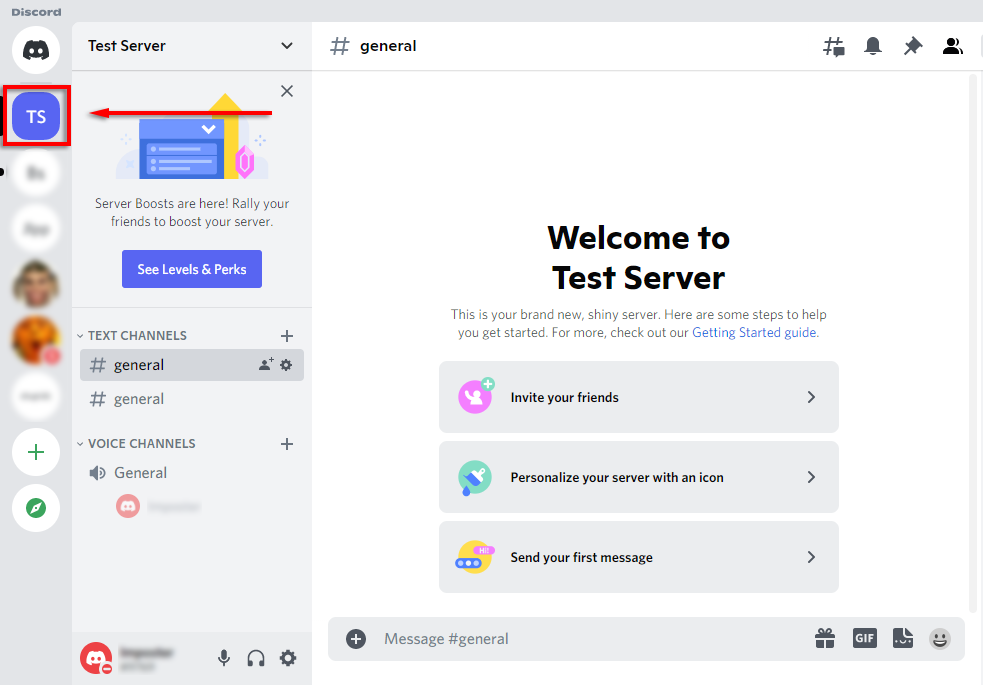
- Enter a server by selecting its icon in the sidebar.
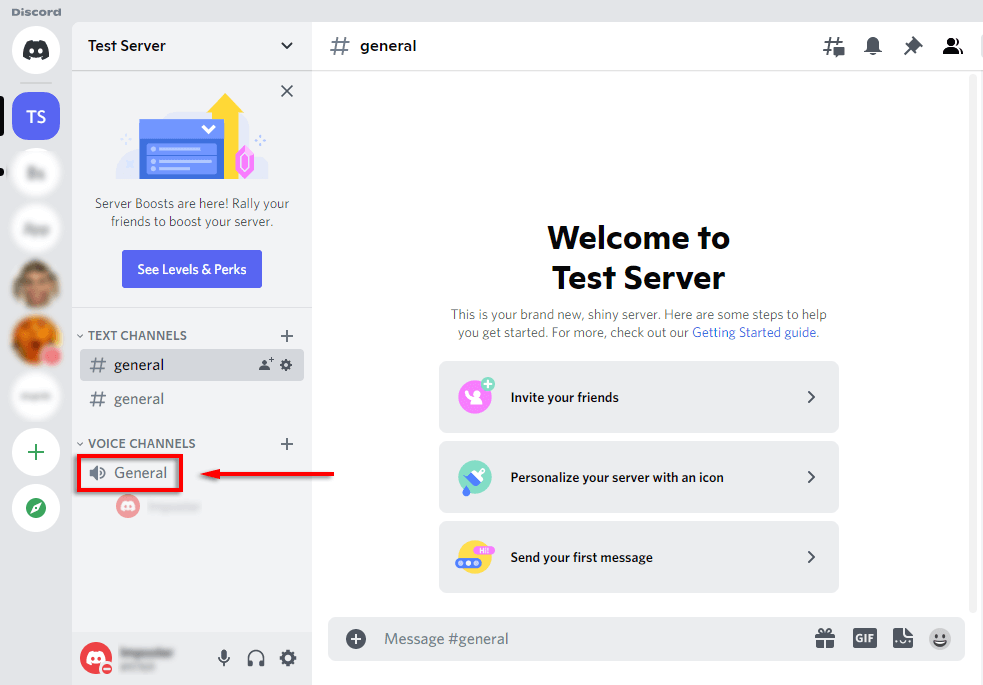
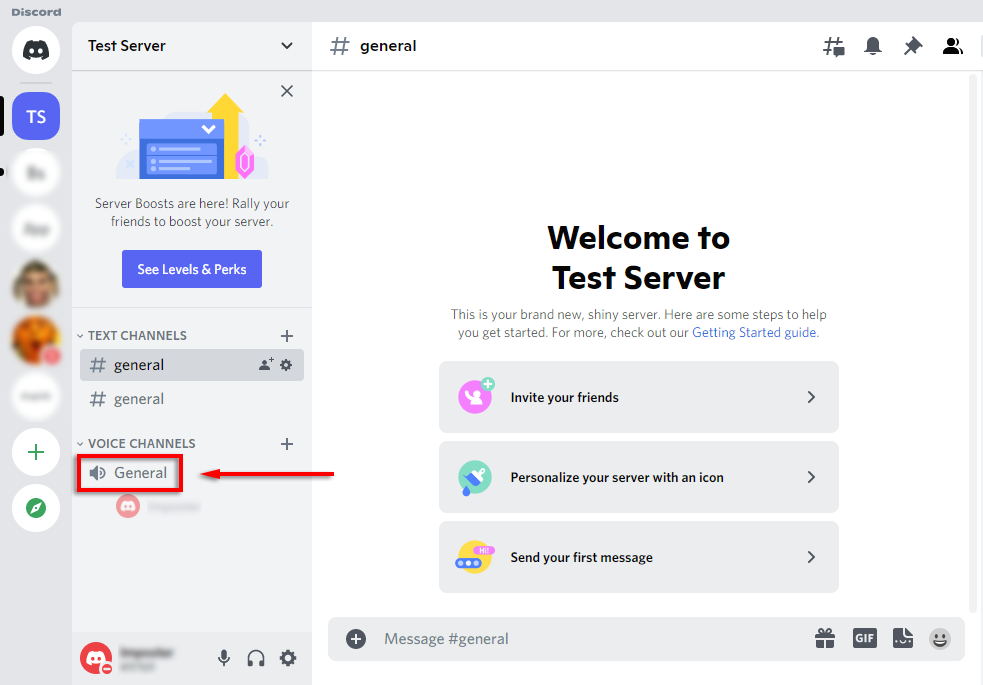
- Enter a voice channel by clicking on it. Anyone in this channel will be able to see your stream.
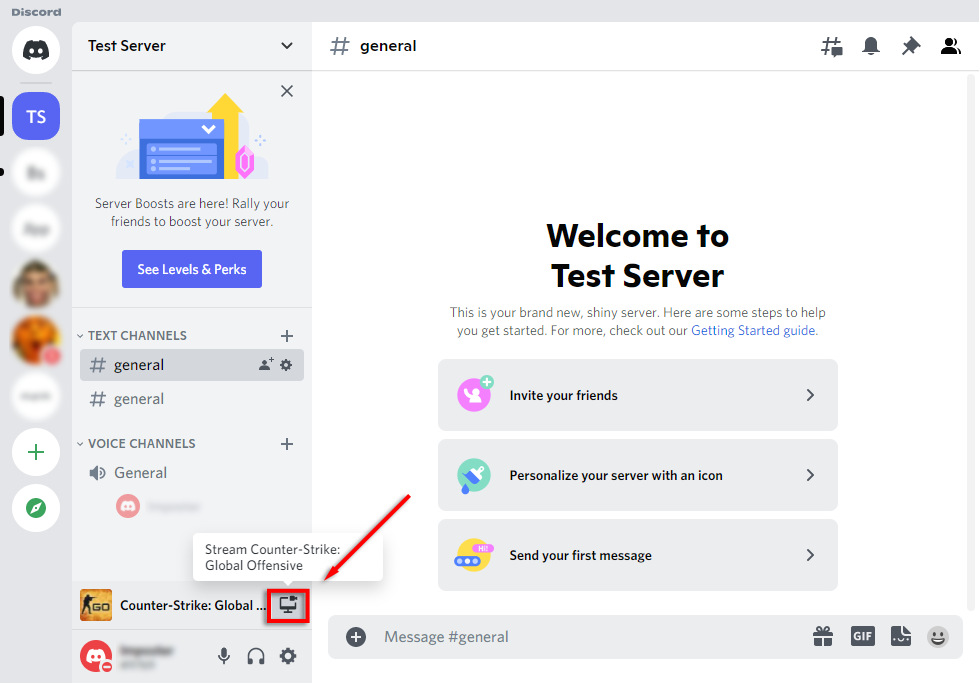
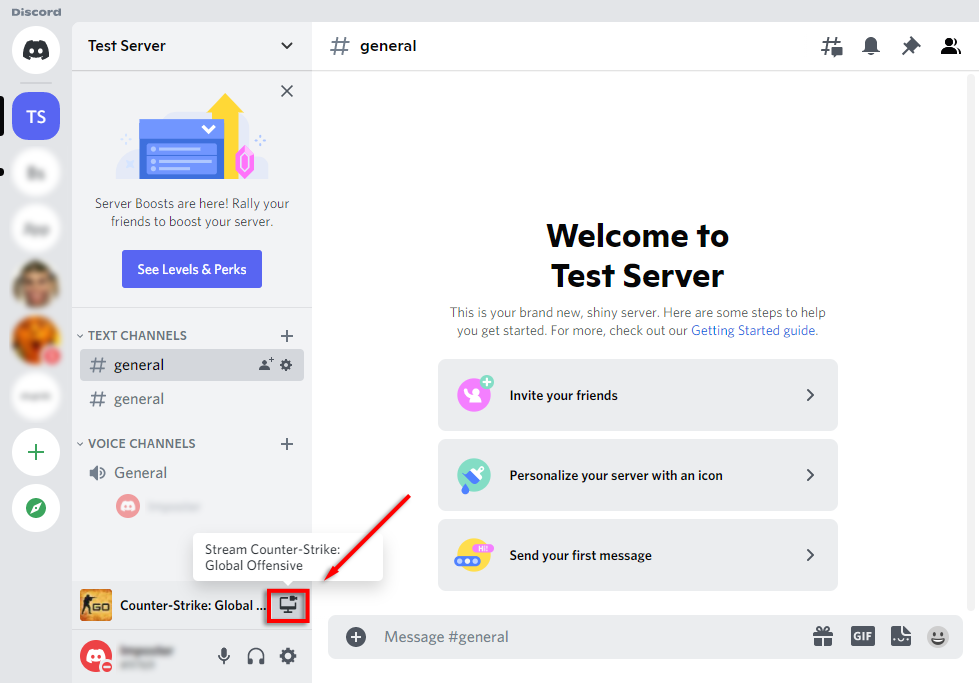
- Underneath the channel list, there should be a banner that shows the game you’re playing. Select the icon that looks like a video camera on a monitor. If this isn’t here, see how to manually add a game below.
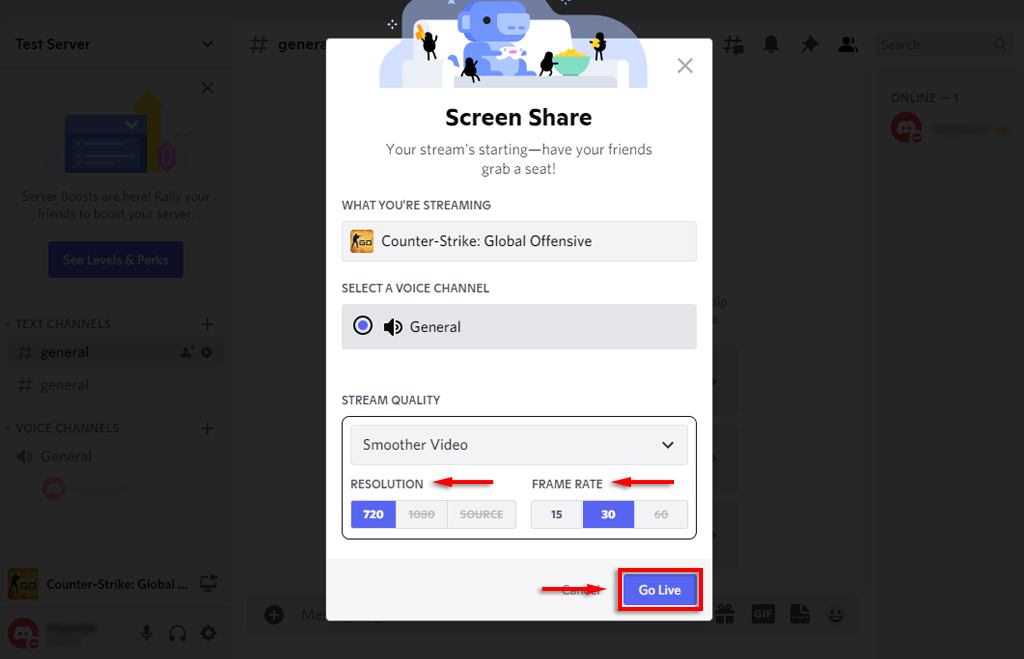
- Choose your screen resolution and frames per second (FPS) and select Go Live.
- A window should now appear inside Discord showing your live stream. At this point, any users in the same channel as you will be able to see your live stream.
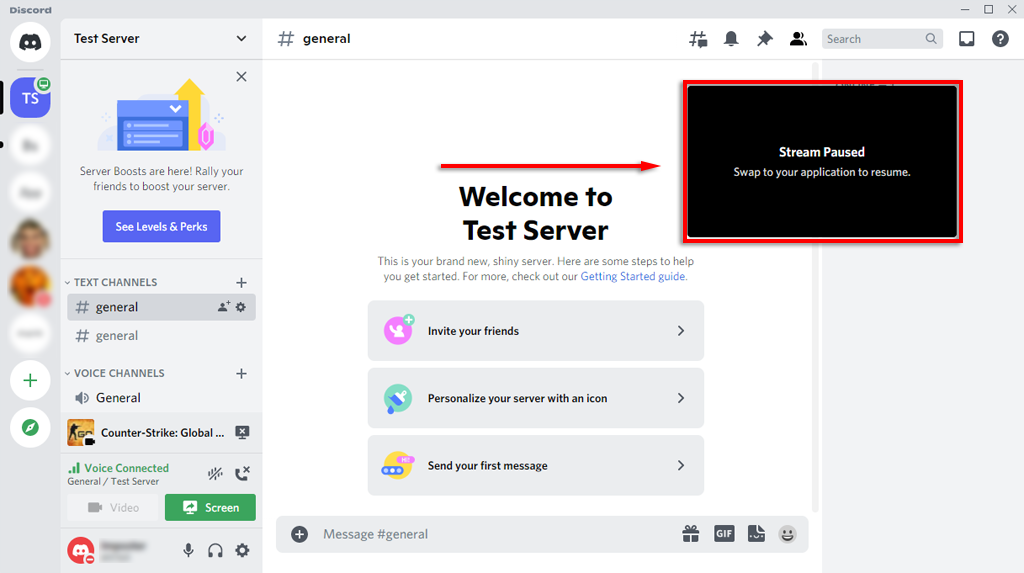
You can end the stream by selecting Stop Streaming in the banner beneath the channel list. The icon looks like a monitor with an x inside the screen.
Note: To stream at resolutions of 1080p and higher, or 60 FPS, you have to be a Discord Nitro subscriber.
How to Add a Game to Discord
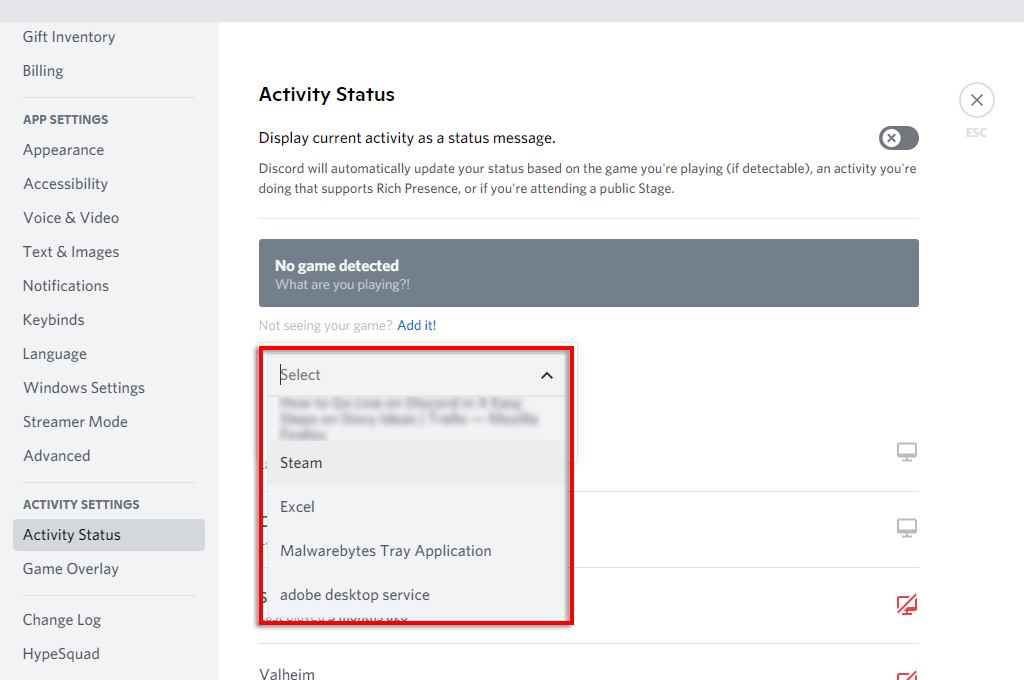
If Discord doesn’t automatically recognize your game, it won’t give you the option to “Go Live”. In this case, you’re able to add the game manually as follows:
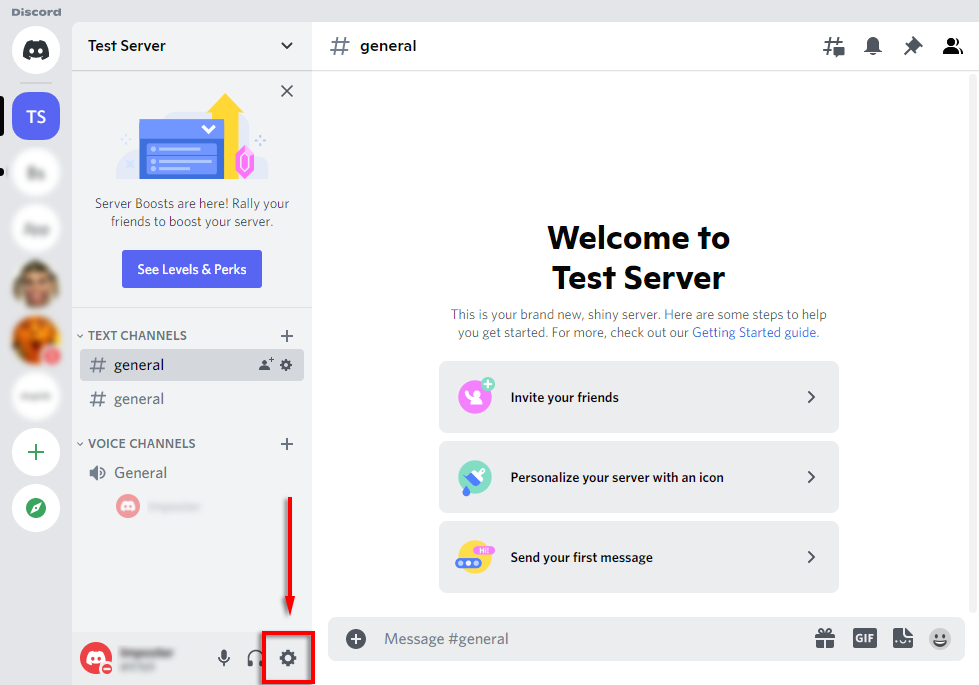
- Select Settings (the gear icon by your name at the bottom of the channel list).
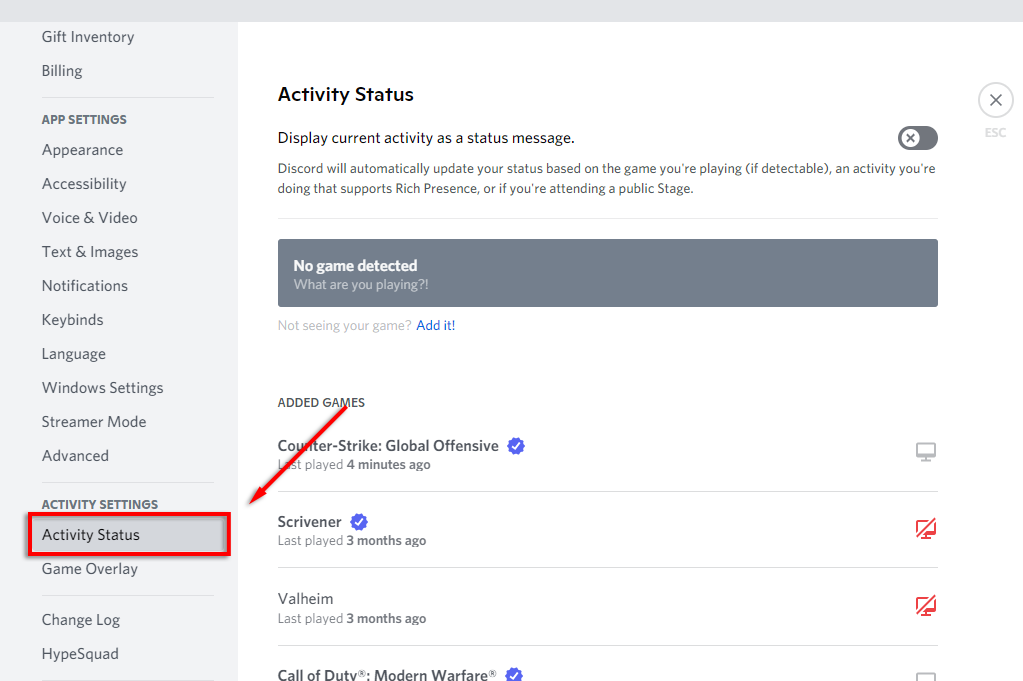
- Select Activity Status from the sidebar.
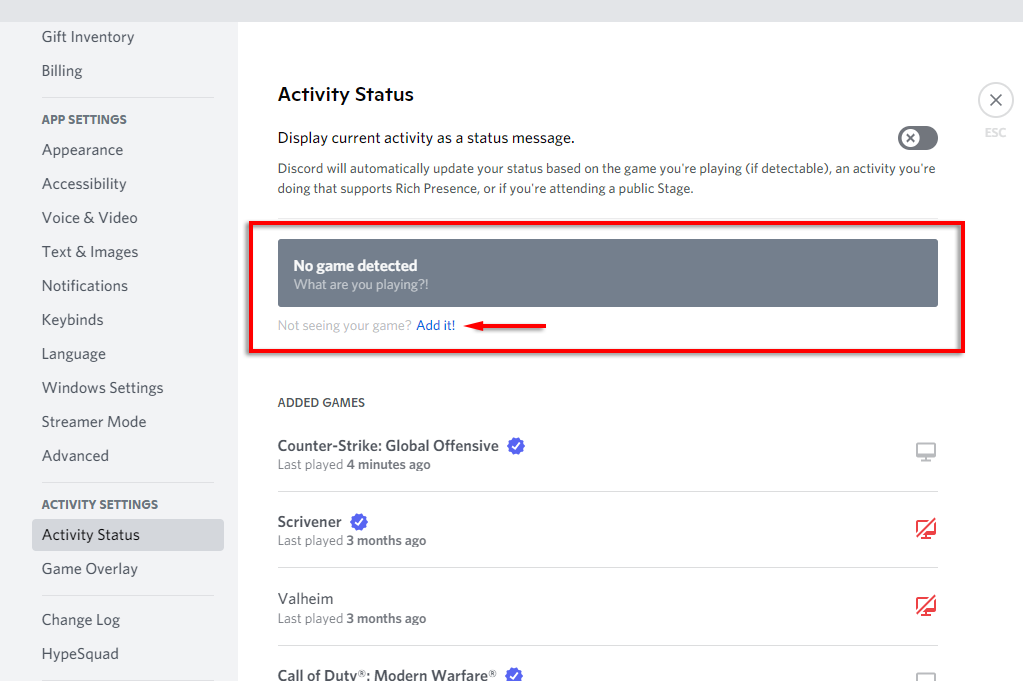
- You should see a banner saying “No game detected”. Beneath this, select Add it!
- In the dropdown box, select the game you wish to stream and select Add Game. You must have the game in the background for it to appear in the dropdown menu.
- You should now be able to Go Live on Discord.
How to Stream Any App on Discord
As we mentioned, one of the major limitations of the “Go Live” function in Discord is that you’re unable to stream anything other than games. Luckily, Discord has an ordinary screen share function that you can use for these.
- Join a voice channel by clicking on it.
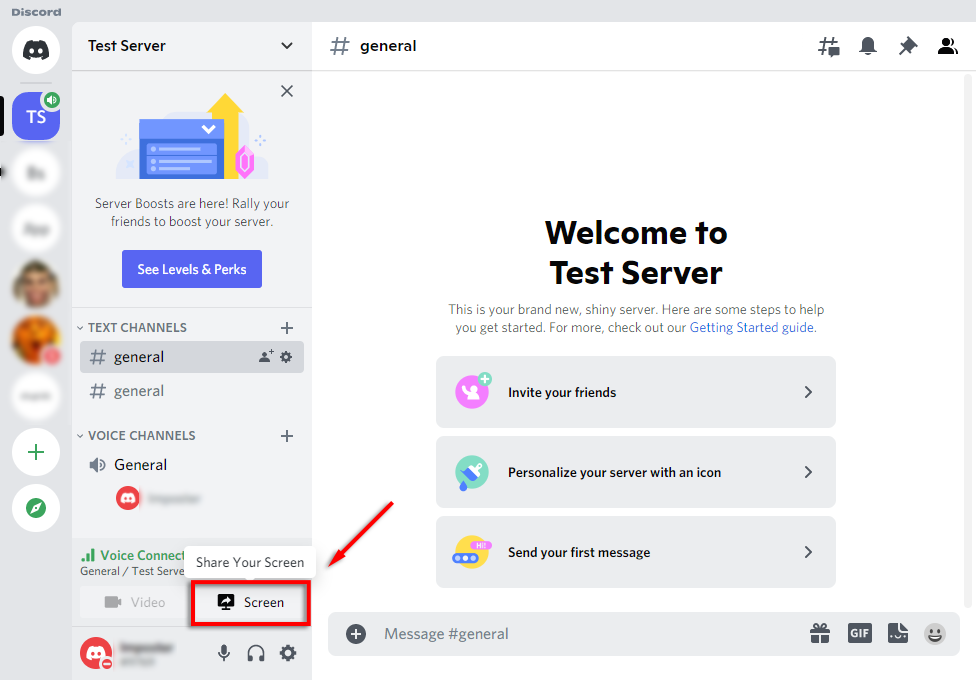
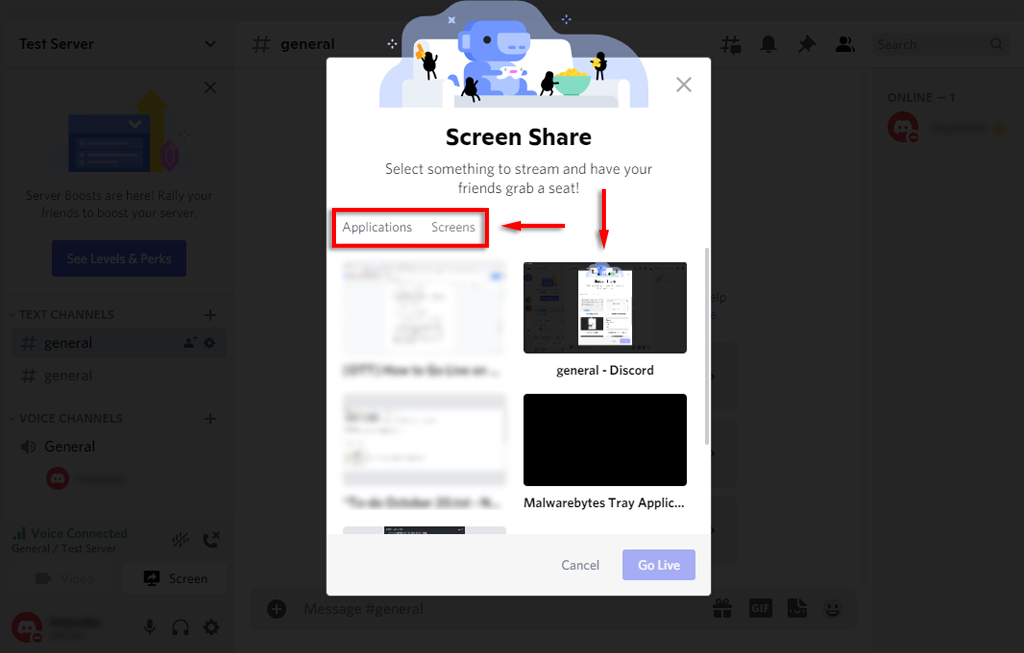
- At the bottom of the channel list, select Screen.
- In the pop-up window, select the screen or application you wish to stream.
- Set the channel, resolution, and frames per second, then select Go Live.
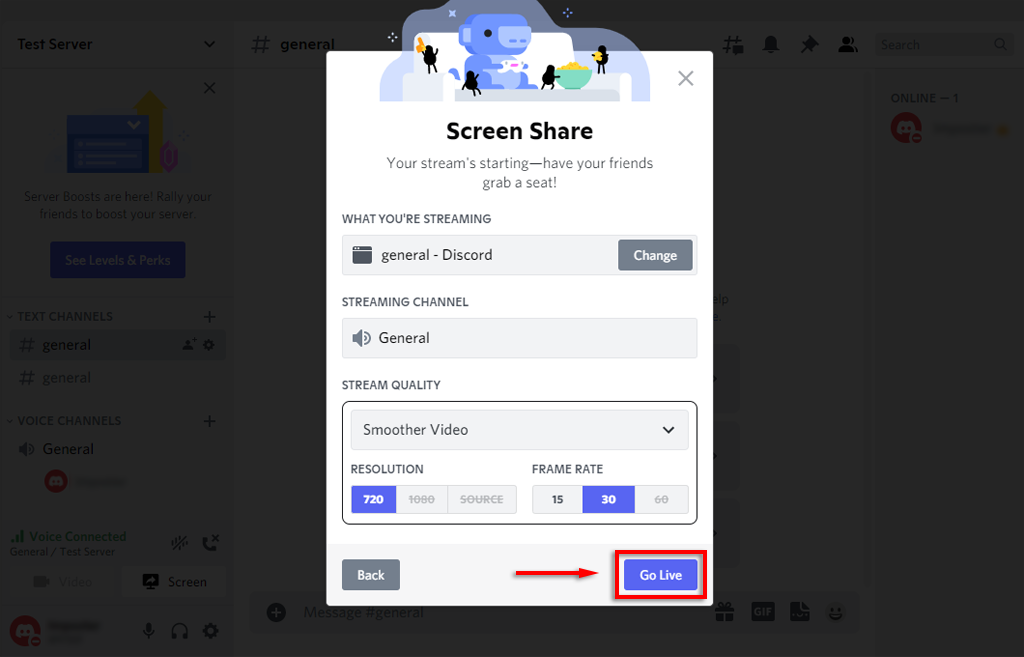
- Your stream will now appear as a window inside Discord.
You should now be sharing your screen with any people in the same voice channel. If the screen share isn’t working, try these Discord screen-sharing fixes.
Note: If you share a screen, rather than a specific app (like a game), Discord will not stream any audio coming from that app. Check out our guide on how to fix sound problems in your Discord stream.
How to Go Live on Discord on iPhone or Android
Discord also offers screen sharing to iPhone and Android users. Luckily, the process is essentially identical for either device. To share your screen, follow these steps:
- Open the Discord app. If you don’t have it, download it from the Google Play Store or Apple Store.
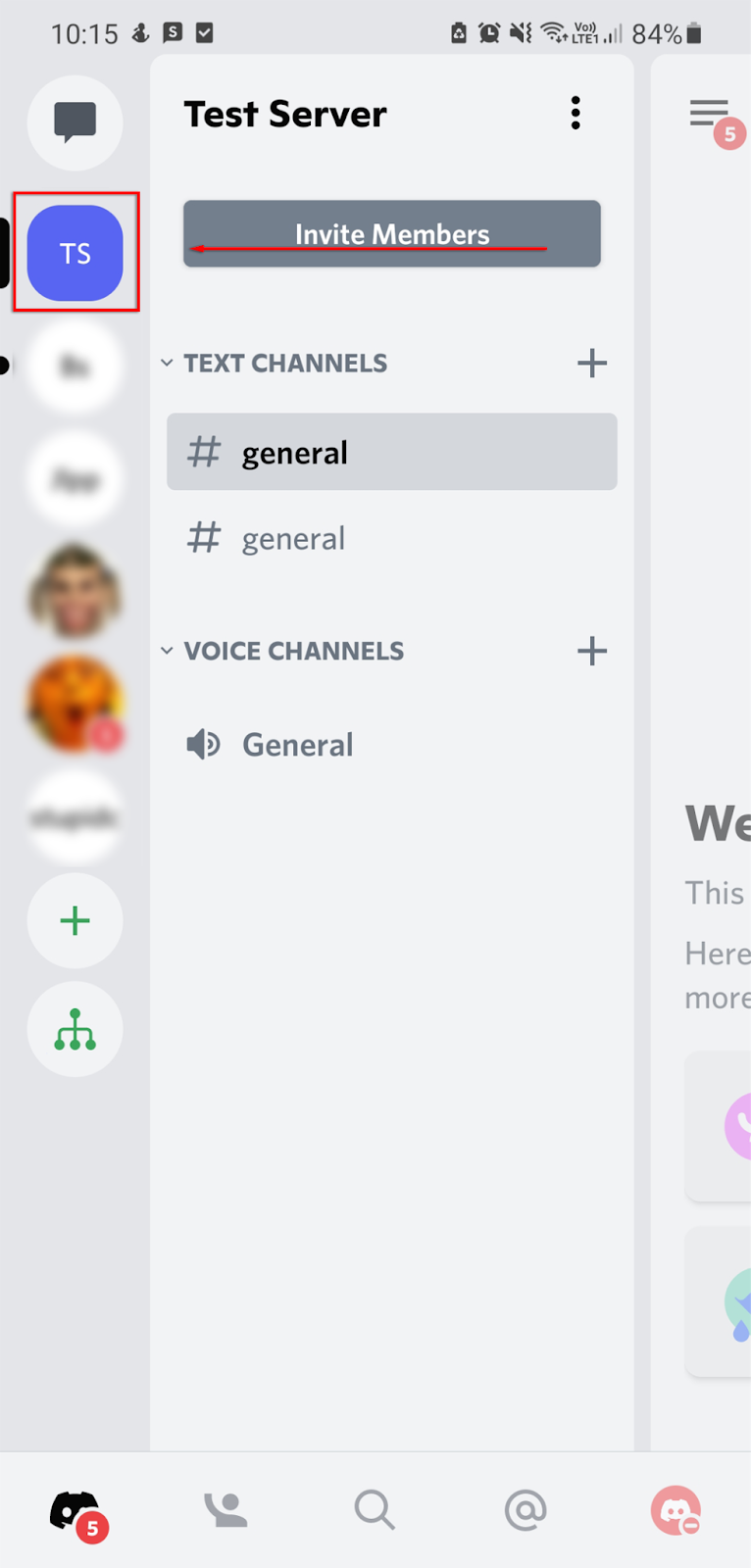
- Swipe to the left to access the server list and tap the icon of a server to join it.
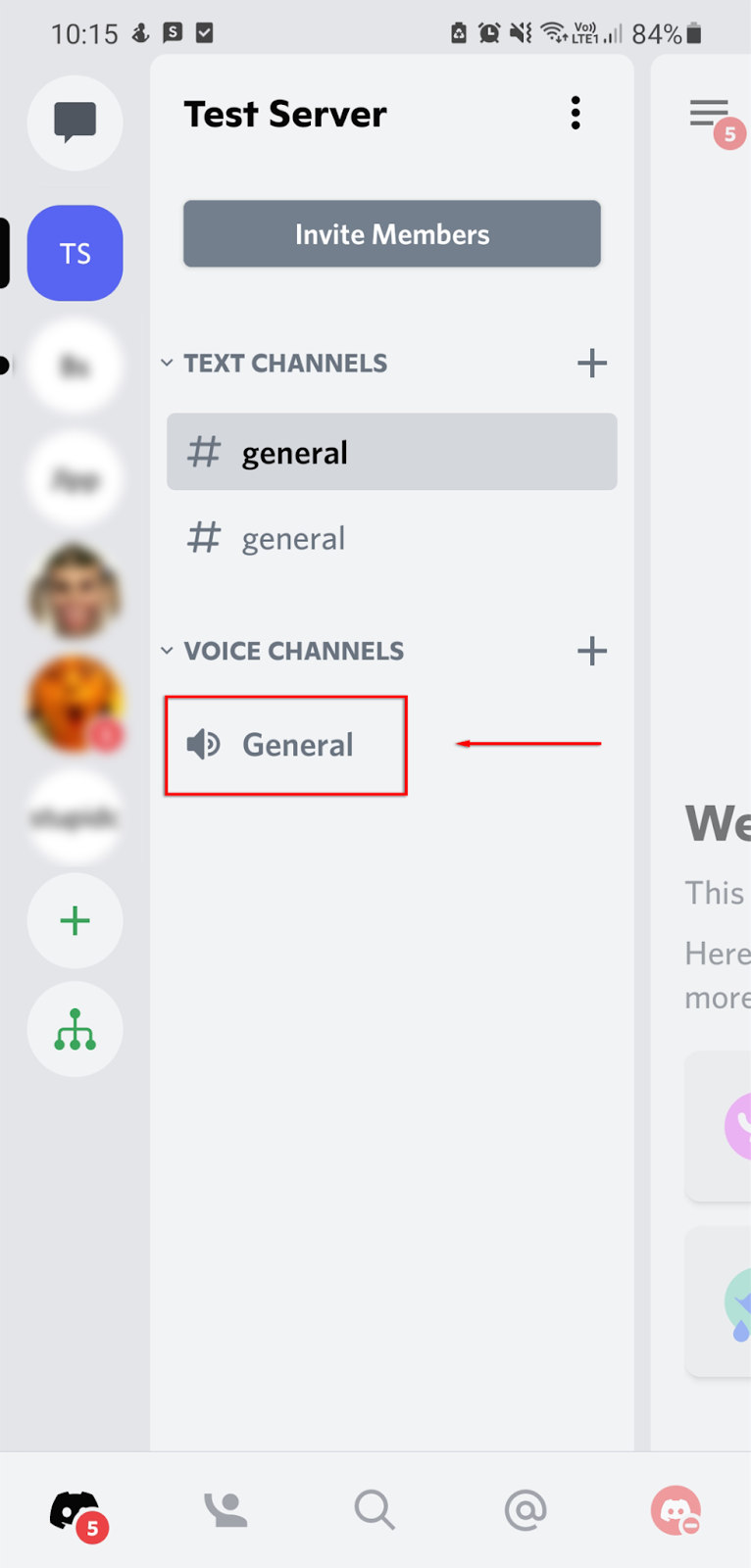
- Tap a voice channel to enter it.
- In the pop-up, select Join Voice. Allow Discord permission to access your microphone if required.

- Select the screen share icon at the bottom of the channel. It looks like a mobile phone with an arrow leaving it.
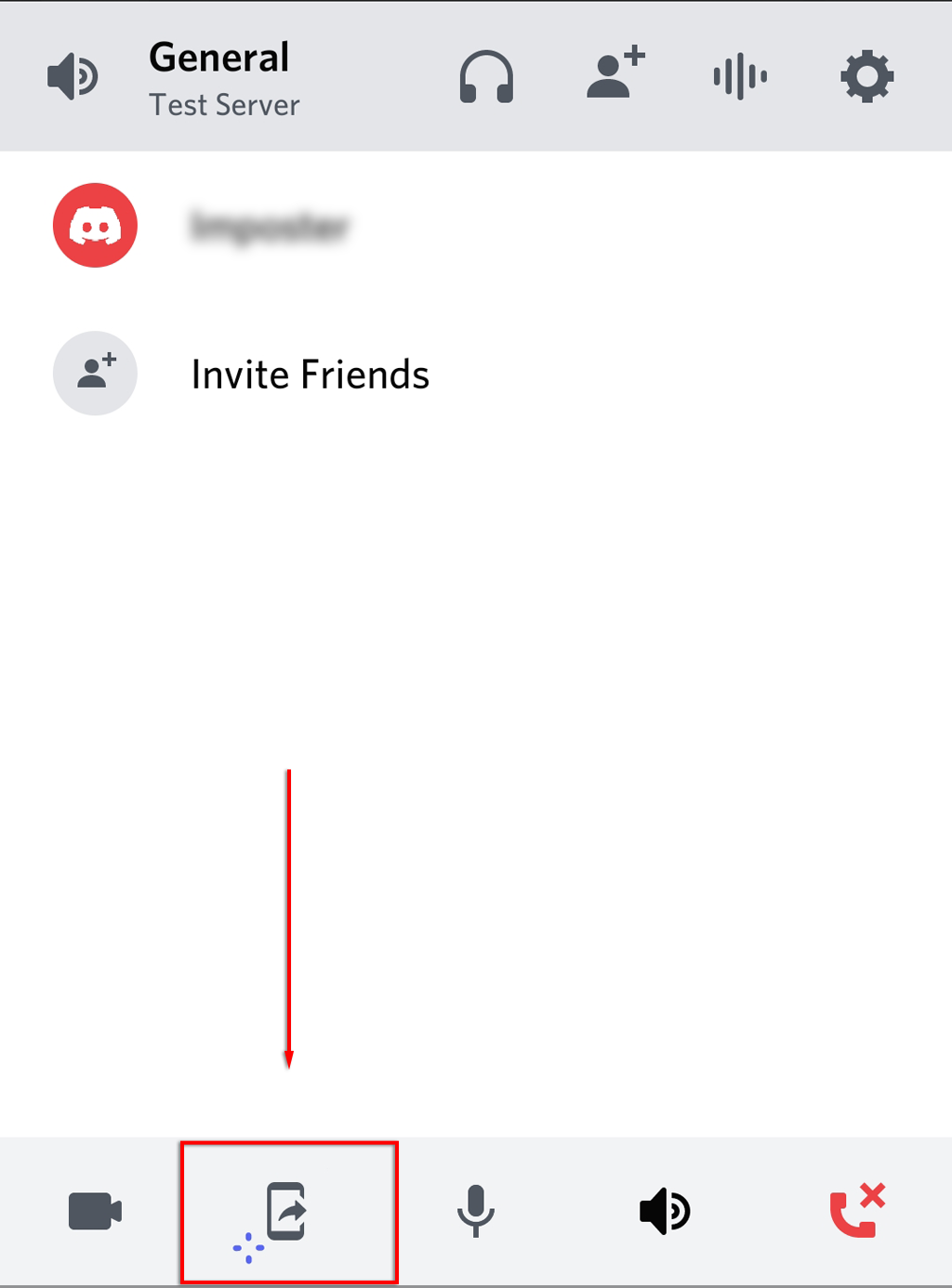
- Select Try it out! if prompted. If you’ve used this function before, disregard this step.
- Select Start now.
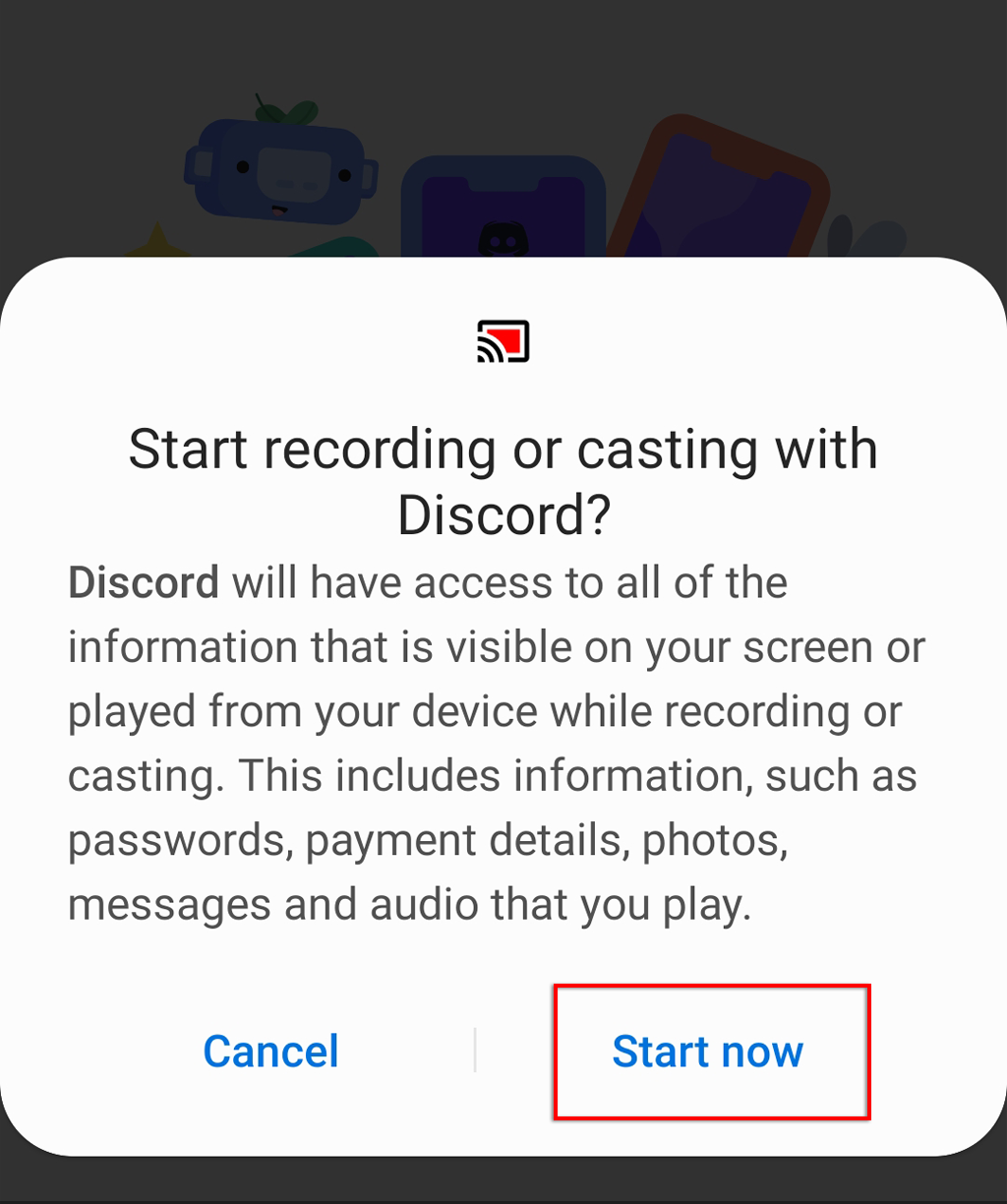
You’re now sharing your screen with anyone in the same voice channel. To stop streaming, simply select Stop sharing.

Going Live on Discord is Easy
Streaming a game on Discord is a great way to share your experiences with your friends, especially if you don’t want to commit to a public streaming service like Twitch. So, now that you know how to Go Live on Discord, what are you going to stream? Let us know in the comments!