
Is YouTube failing to open a small floating window to keep your video playing on your mobile phone or tablet? This tutorial highlights troubleshooting measures to try when YouTube picture in picture isn’t working on your iPhone, iPad, or Android device.
YouTube Picture in Picture Not Working: General Fixes
YouTube’s location and account settings can affect the app’s picture-in-picture functionality. Turning off picture-in-picture in YouTube or your device’s settings can also cause the issue. Here are some quick ways to restore YouTube’s picture-in-picture feature on your device.
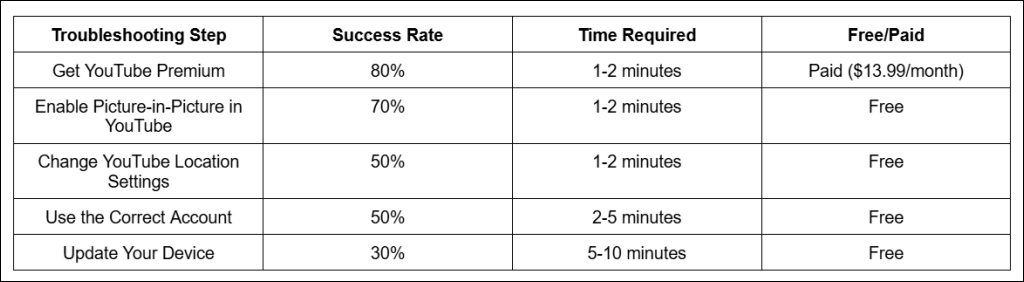
Get YouTube Premium
Picture-in-Picture (PiP) is available to all YouTube users in the United States—PiP for music videos is restricted to YouTube Premium subscribers. Outside the U.S., you need a YouTube Premium membership to watch any video in picture-in-picture mode. If you don’t reside in the U.S., subscribe to YouTube Premium to watch videos in PiP.
Turn On Picture-in-Picture on YouTube
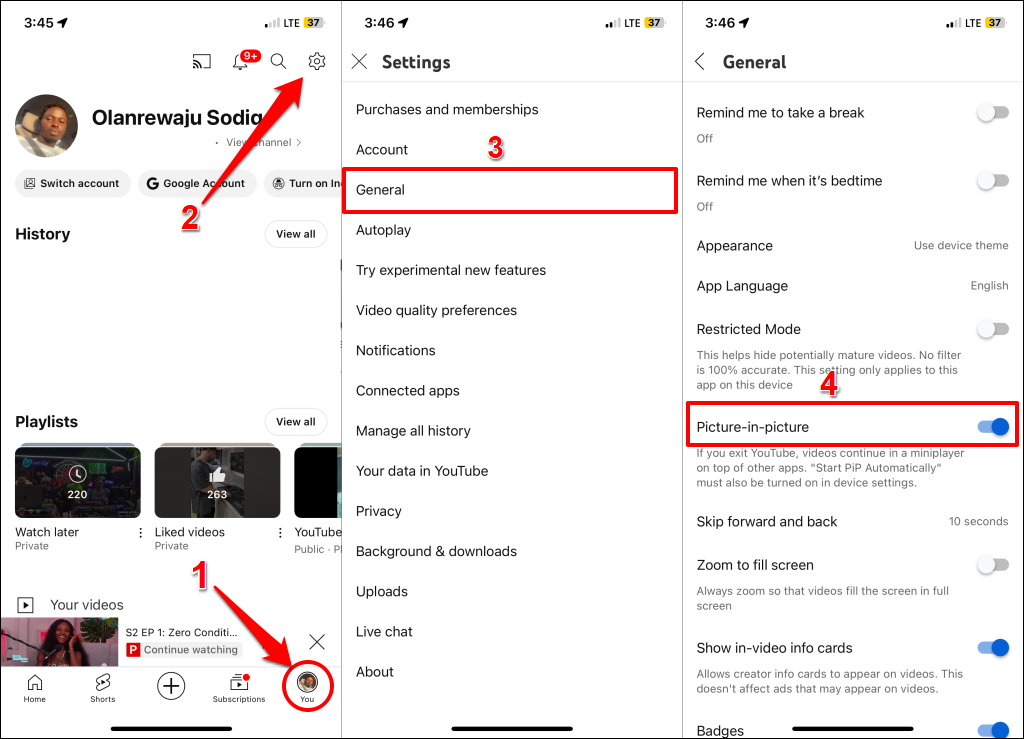
If picture-in-picture doesn’t work in YouTube Premium, verify that the feature is turned on in the YouTube app.
Open YouTube (iOS/Android) and tap your profile picture in the bottom-right corner. Next, tap the Settings icon, select General, and turn on Picture-in-picture.
Check YouTube’s Location Settings
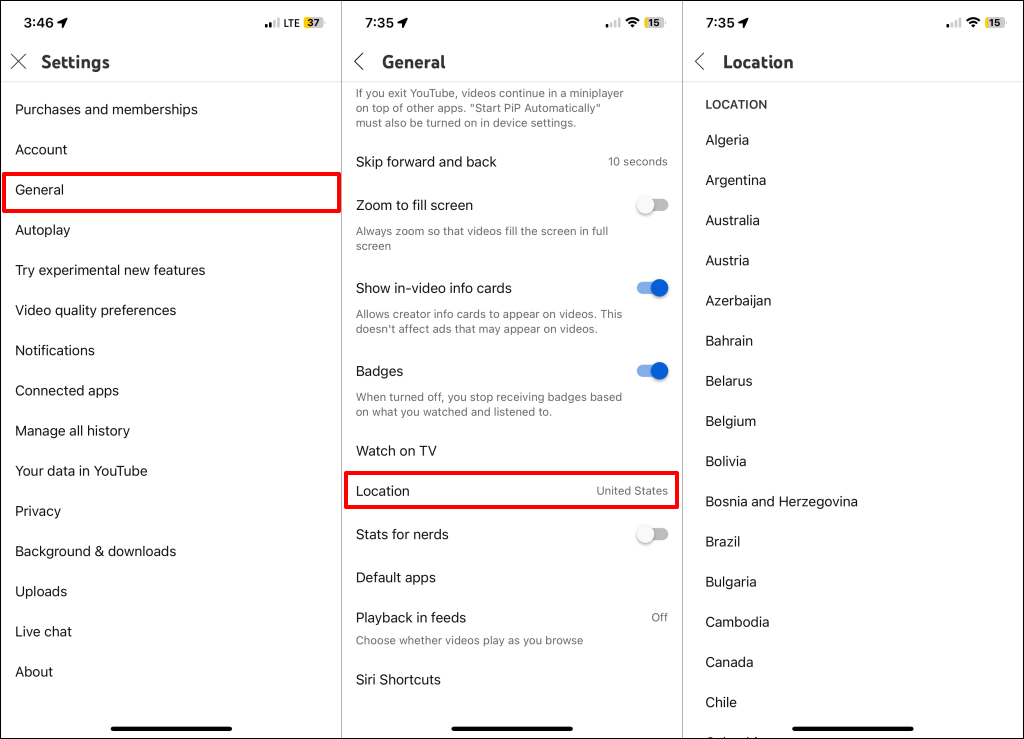
Verify that your current location matches the YouTube app’s location, especially if you have YouTube Premium.
- Open YouTube, tap your profile picture in the bottom corner, and select the gear icon in the top-right corner.
- Tap General > Location and choose your current location.

Use the Correct Account
If you use multiple Google accounts on your device, ensure YouTube uses the Premium subscription account. Tap your profile picture in the YouTube app to view your account information. Ensure the Google account displayed is the one you have your YouTube Premium subscription. To use a different account, tap Switch account and choose the account with the YouTube Premium subscription.
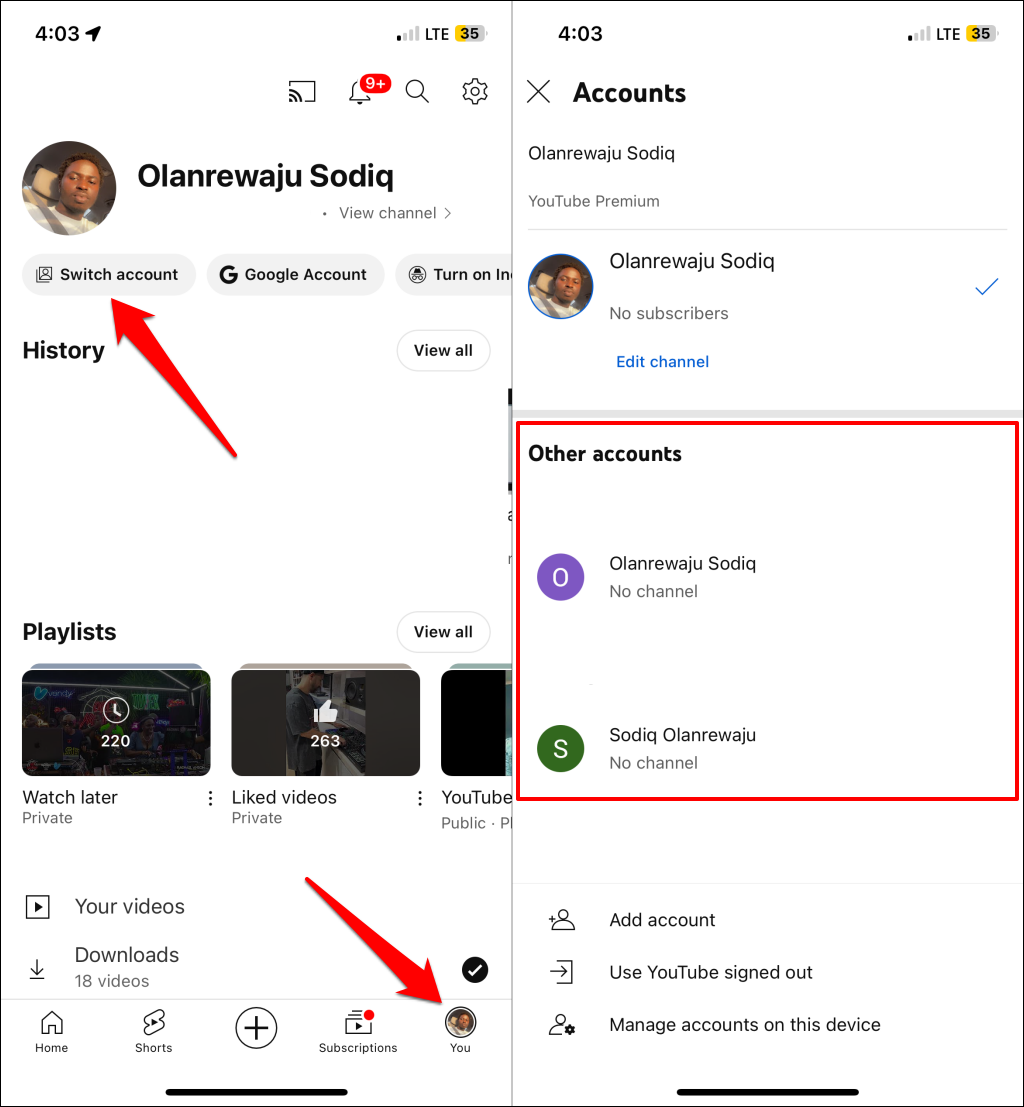
Close and reopen the YouTube app, then check if picture-in-picture mode works. If you still don’t see a floating window after minimizing YouTube, update your device’s operating system.
Update Your Device
Go to Settings > General > Software Update to install software updates on your iPhone or iPad.
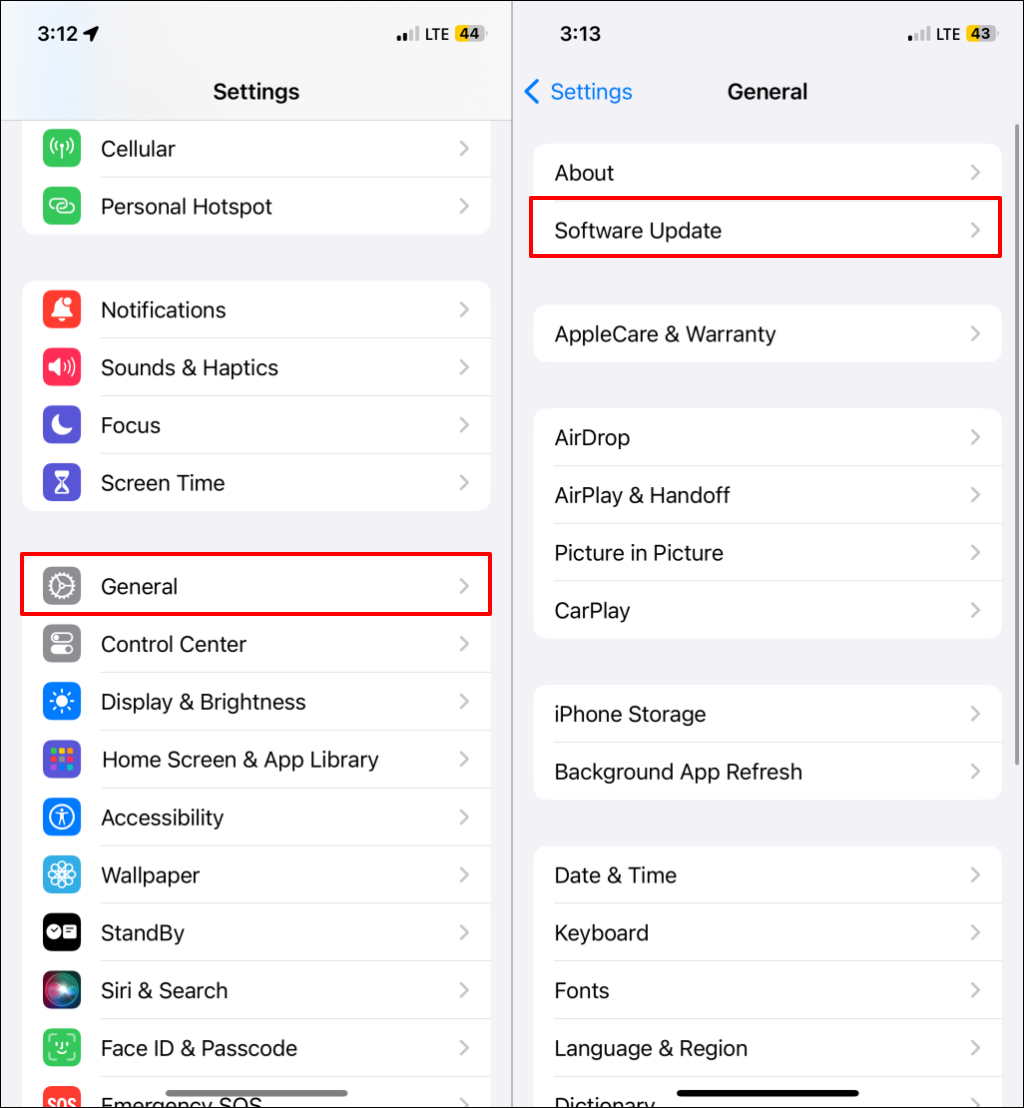
To install Android updates, head to Settings > System > Software update (or Settings > Software update).
How to Fix Picture in Picture Not Working on iPhone
Here are some fixes if YouTube’s picture-in-picture isn’t working on your iPhone or iPad.
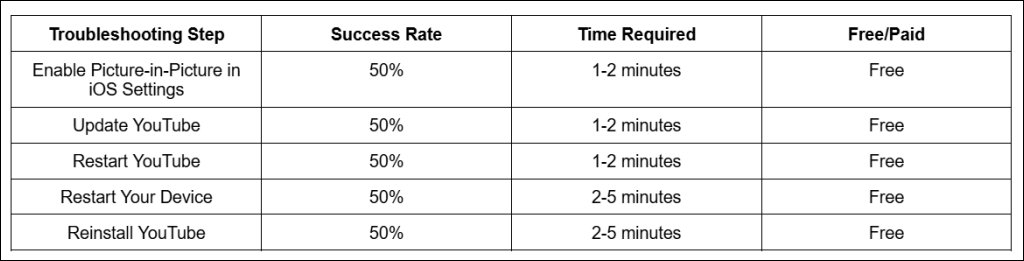
Enable Picture in Picture on iPhone/iPad
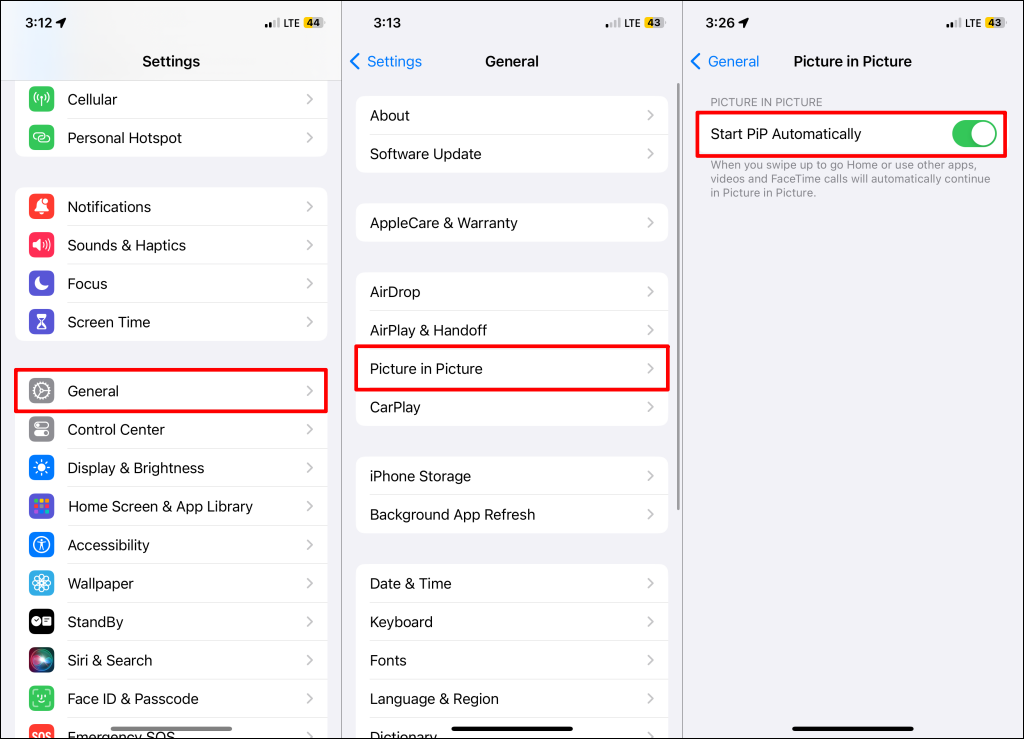
Check your iPhone/iPad settings and ensure picture-in-picture (PiP) starts automatically. Here’s how to enable PiP on iOS devices.
Open the Settings app, tap General, select Picture in Picture, and turn on Start PiP Automatically.
Update the YouTube App
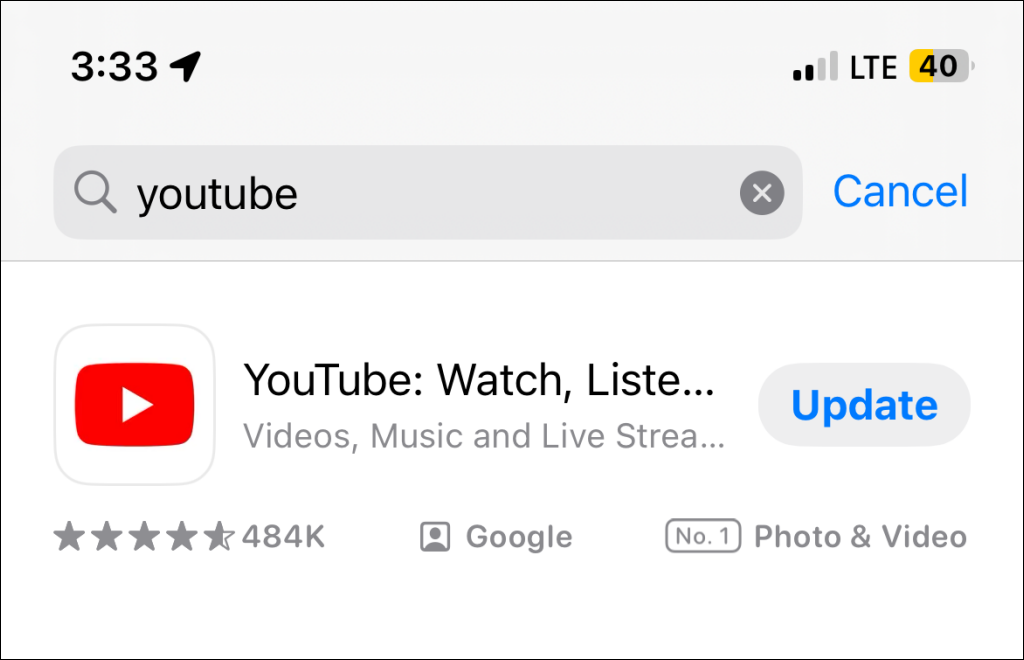
The YouTube app on your phone may be experiencing an issue, preventing PiP mode from working. This typically happens when using an outdated version of the app. Open the App Store and check for a new YouTube update.
Enter “youtube” in the search bar and tap Update to install the latest YouTube app version.
Close and Reopen YouTube
Closing the YouTube app can resolve temporary glitches preventing it from playing videos in picture-in-picture mode. Swipe up from the bottom of your screen and pause in the center of the screen. If your device has a physical Home button, double-click the button to open the App Switcher. Swipe up on YouTube to close the app.
Reopen YouTube and check if you can watch videos in PiP mode. If the issue persists, restart your iPhone or iPad.
Restart Your Device
Performing a reboot could fix system glitches that interfere with YouTube’s picture-in-picture feature.
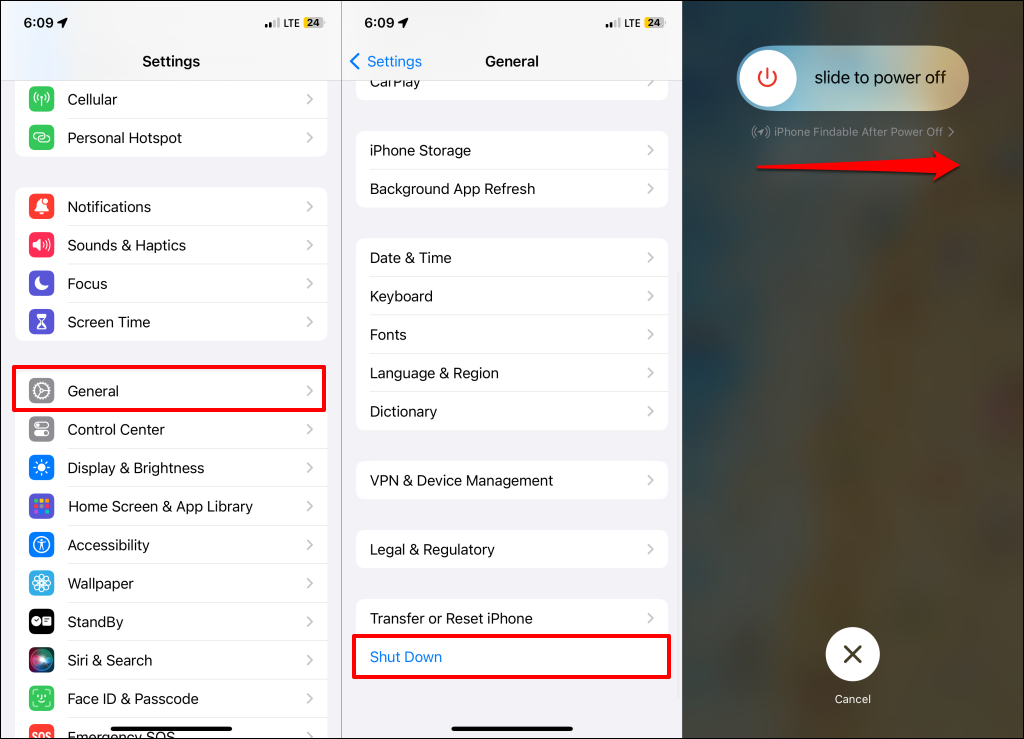
Press and hold the Volume Up/Down + Side button for 2-5 seconds, then drag the power slider to turn off your iPhone/iPad. Alternatively, go to Settings > General > Shut Down and drag the power slider. Wait 10-15 seconds, then press and hold the Side button to turn your device back on.
Uninstall and Reinstall YouTube
Applications sometimes malfunction and become unstable due to corrupt cache data. Deleting YouTube clears its cache files, which can help get the app working without issues when reinstalled.
Tap and hold YouTube in your device’s app library, then select Delete App > Delete.
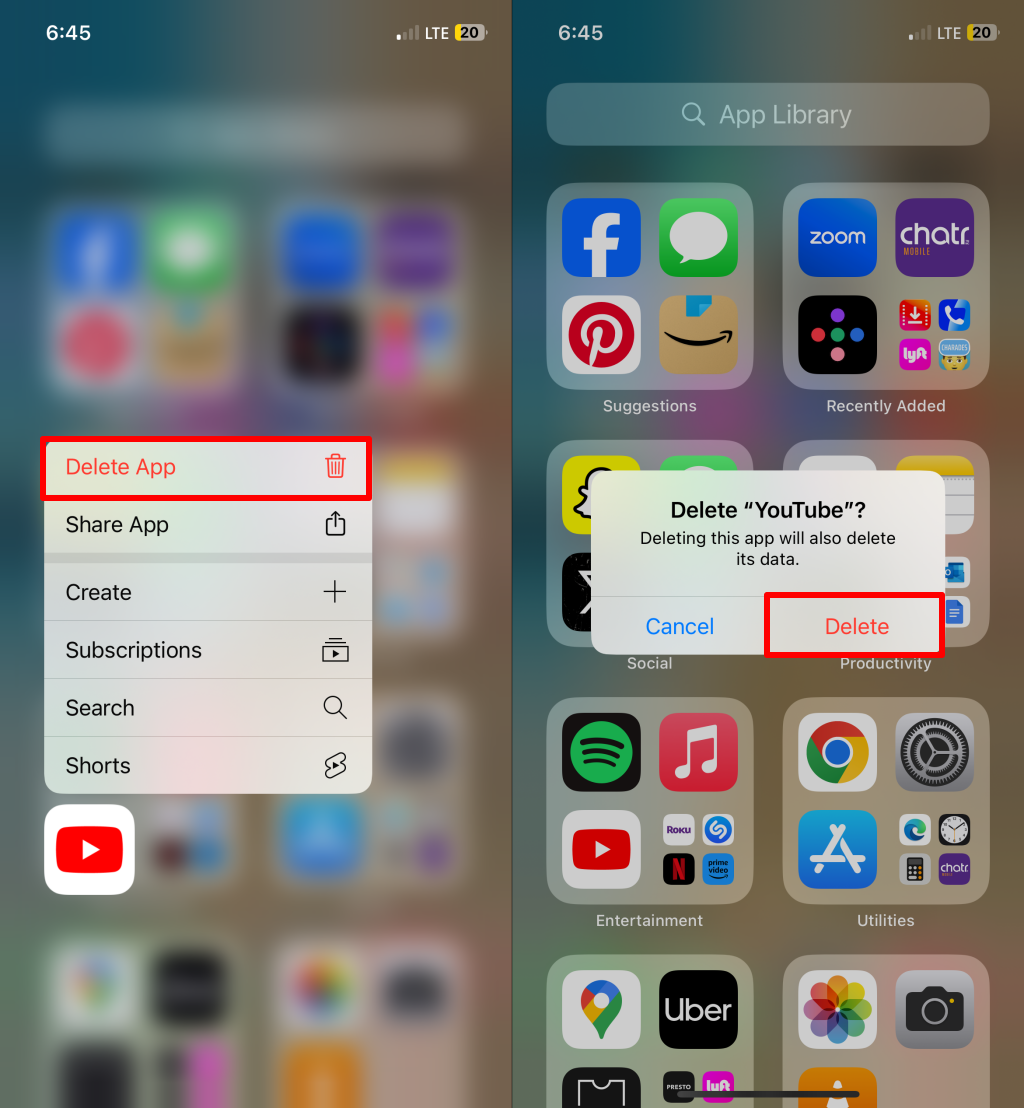
Reinstall YouTube from the App Store and sign in to your Google account. Remember, only Premium subscribers can watch YouTube videos in picture-in-picture mode.
How to Fix Picture in Picture Not Working on Android
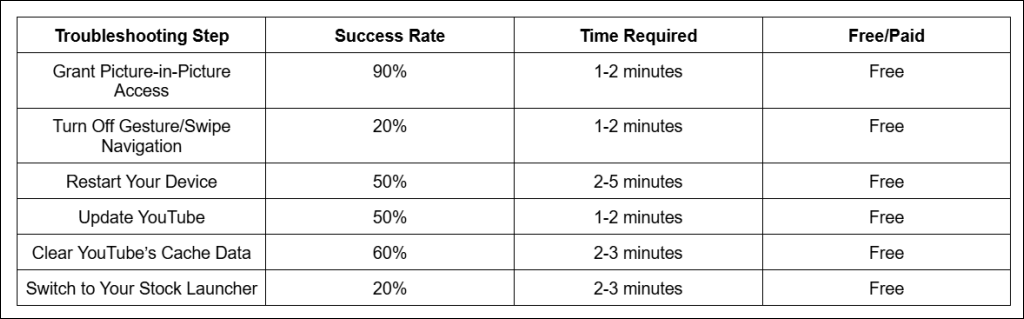
First, verify that YouTube has picture-in-picture access in your device’s settings. Next, ensure you have the latest YouTube version on your device. Force-closing YouTube, clearing the app’s cache, and restarting your device might also fix the issue. The troubleshooting recommendations below should help restore YouTube’s picture-in-picture on your Android device.
Grant YouTube Picture-in-Picture Access
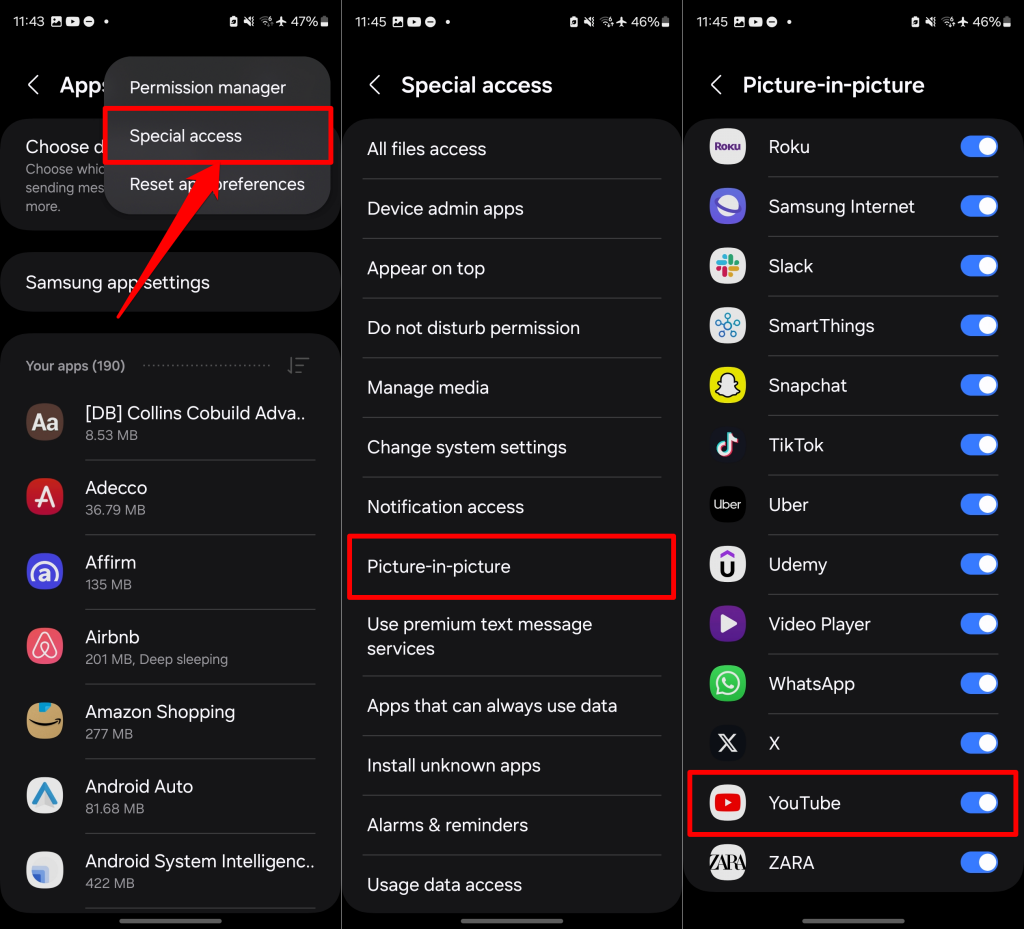
If your device runs stock Android, head to Settings > Apps & notifications > Advanced > Special app access, and select Picture-in-picture. Choose YouTube on the list of applications and toggle on Allow picture-in-picture.
On Samsung devices, go to Settings > Apps, tap the three-dot menu icon in the top-right corner, and select Special access. Next, choose Picture-in-picture and toggle on YouTube.
Turn Off Gesture/Swipe Navigation
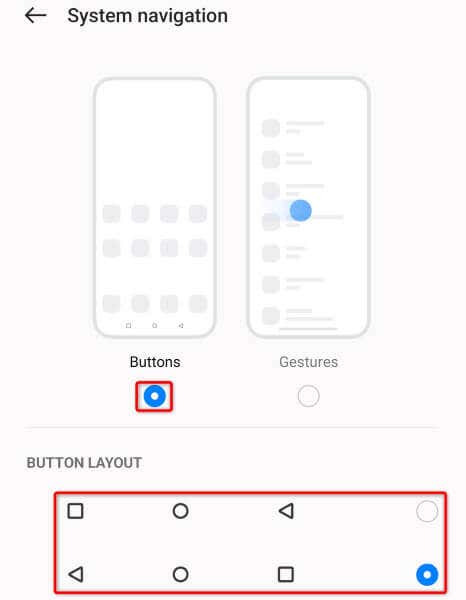
Gesture navigation sometimes prevents YouTube from playing in PiP mode, particularly on older Android versions. Use button navigation and check if YouTube goes into PiP mode when you tap the Home button.
Head to Settings > System > Gestures > System navigation and choose Buttons/2-button navigation/3-button navigation.
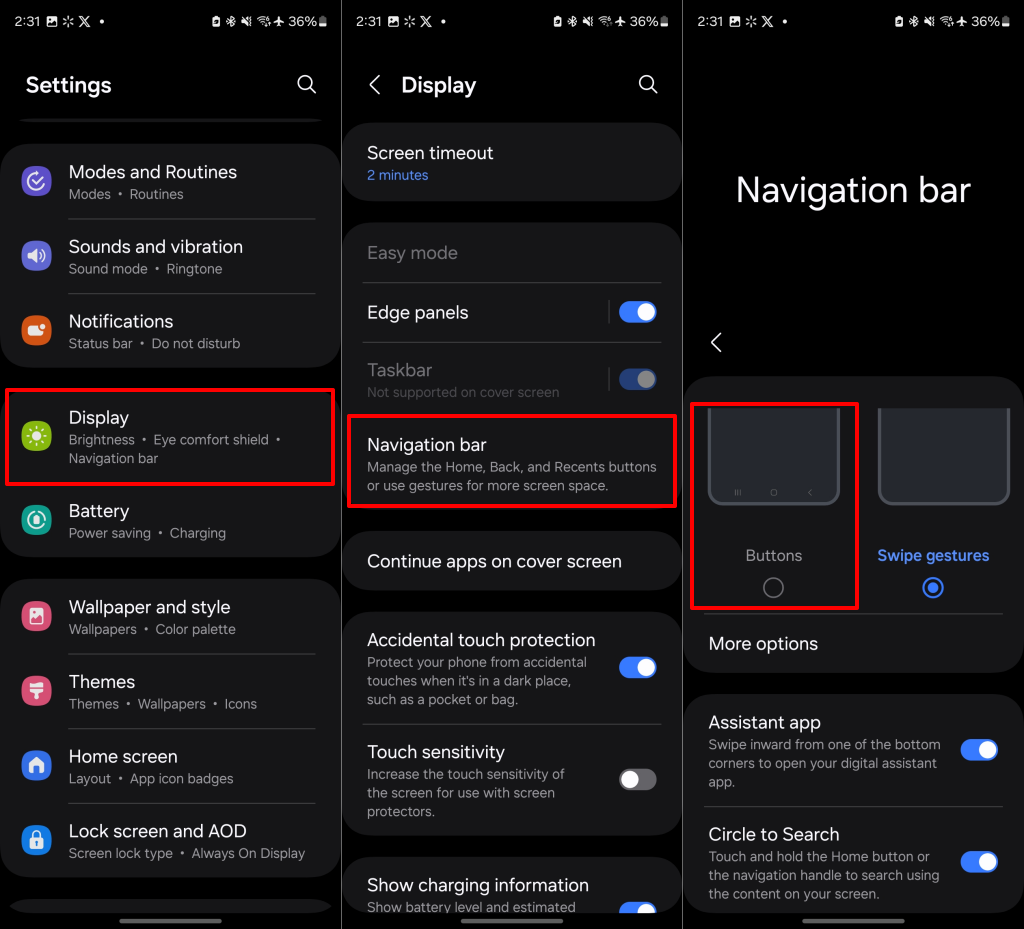
On older Android versions, go to Settings > System > Gestures and turn off Swipe up on Home button. For Samsung devices, head to Settings > Display > Navigation bar, and select Buttons.
Restart Your Device
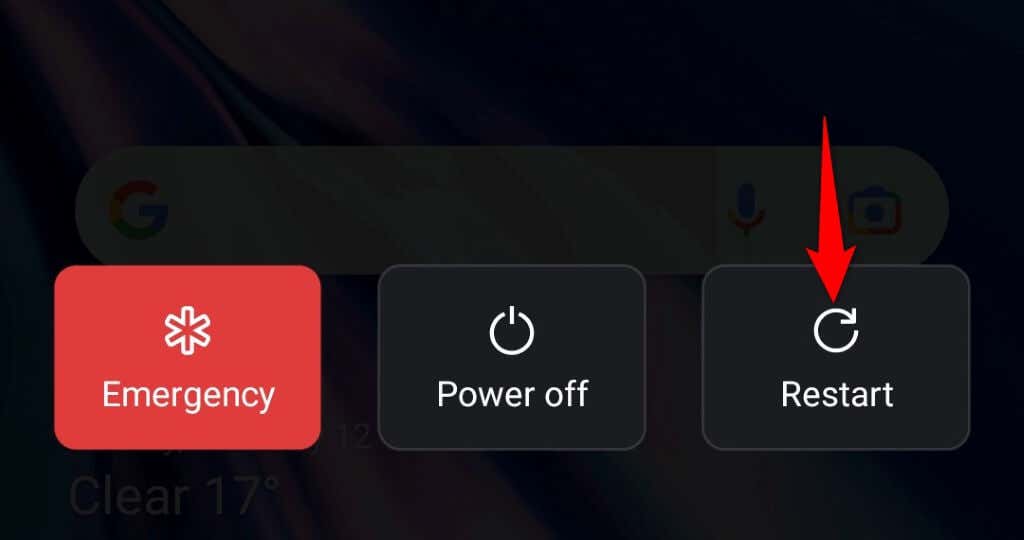
If YouTube’s picture-in-picture still isn’t working, rebooting your device could fix minor glitches causing the issue. Press and hold the Power button, then tap Restart in the power menu.
Update YouTube
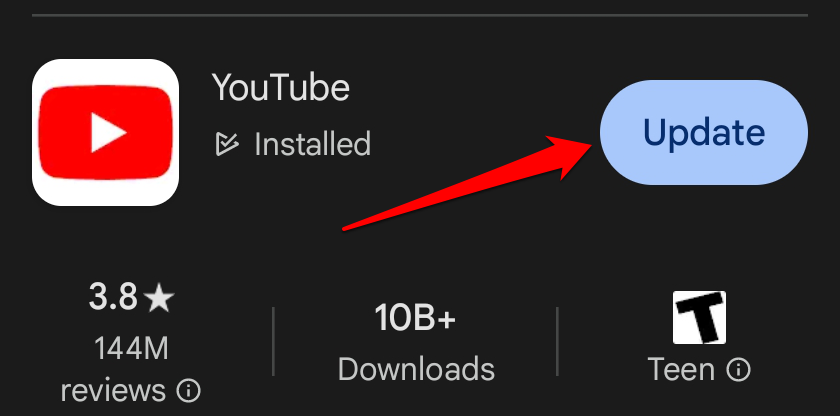
YouTube might have a bug that’s preventing PiP from working. Open your device’s app store and update YouTube to the latest version.
Launch Play Store, search for “youtube,” and tap Update.
Clear YouTube’s Cache Data
YouTube stores cache files on your device to improve your watching experience. Sometimes, corrupt files make certain features unstable. YouTube’s picture-in-picture not working could be due to corrupt cache data. Clearing the YouTube app’s cache files might resolve the problem.
Note: Clearing YouTube’s cache doesn’t remove or delete your Google account data.
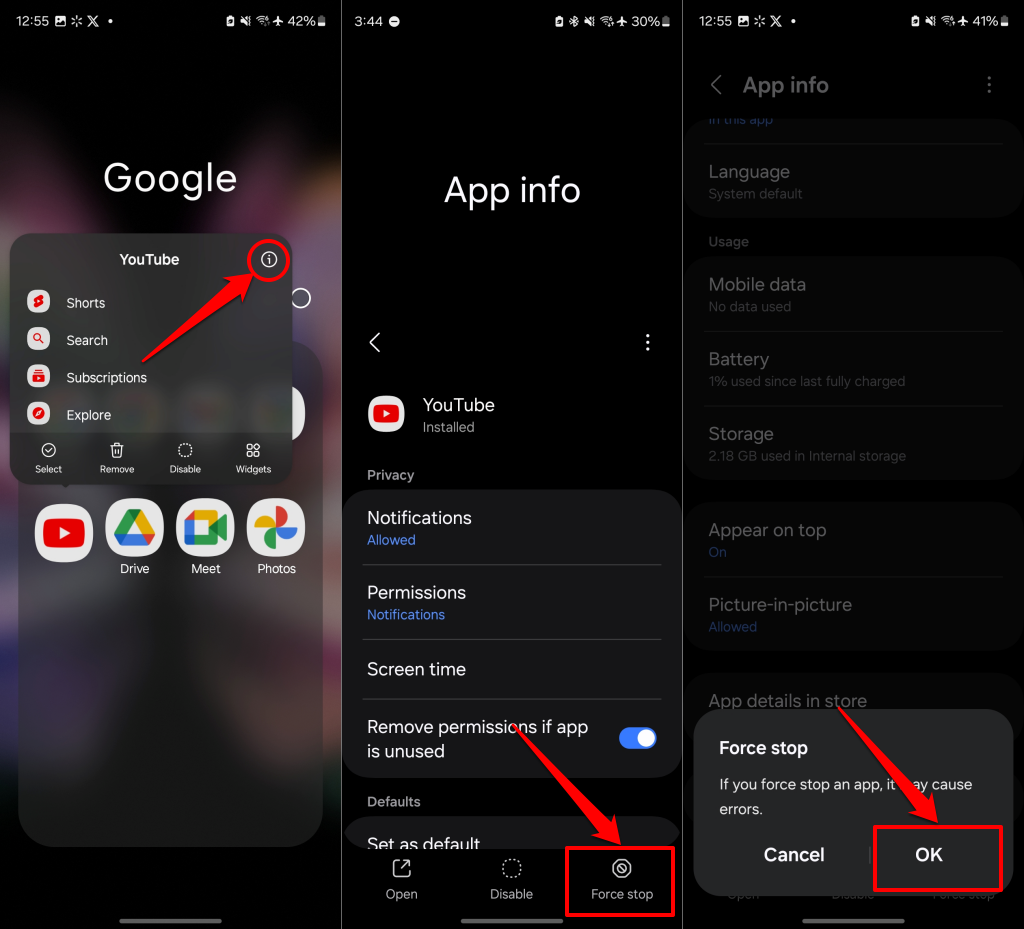
- Tap and hold the YouTube icon on your home screen or app library, then tap the Info (i) icon.
- Tap Force stop and OK to force-stop YouTube.
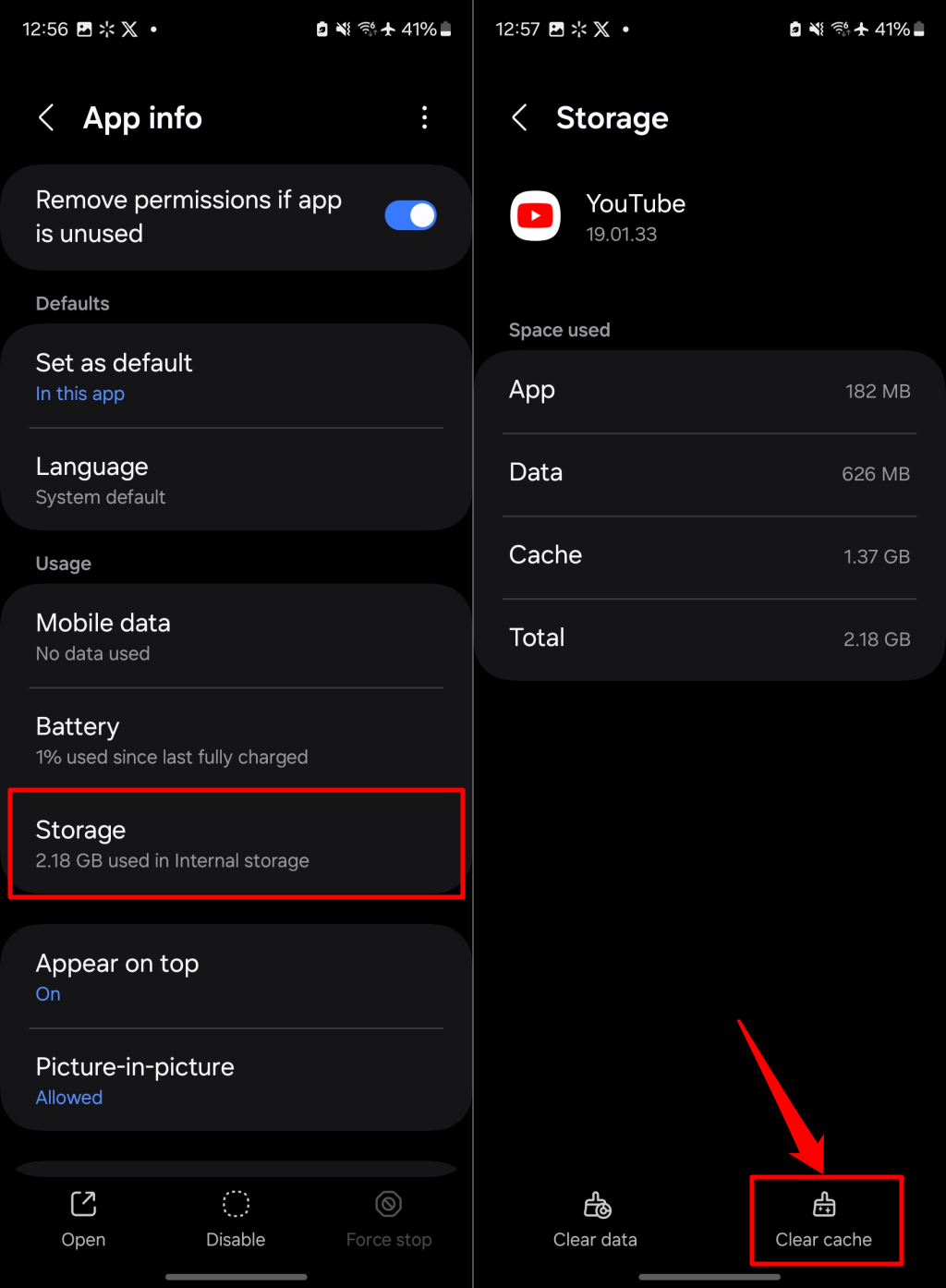
- Next, select Storage on the “App info” page and tap Clear cache.
Switch to Your Stock Launcher
Some custom launchers interfere with YouTube’s PiP mode. Use your phone’s stock launcher and check if you can watch YouTube videos over other applications.
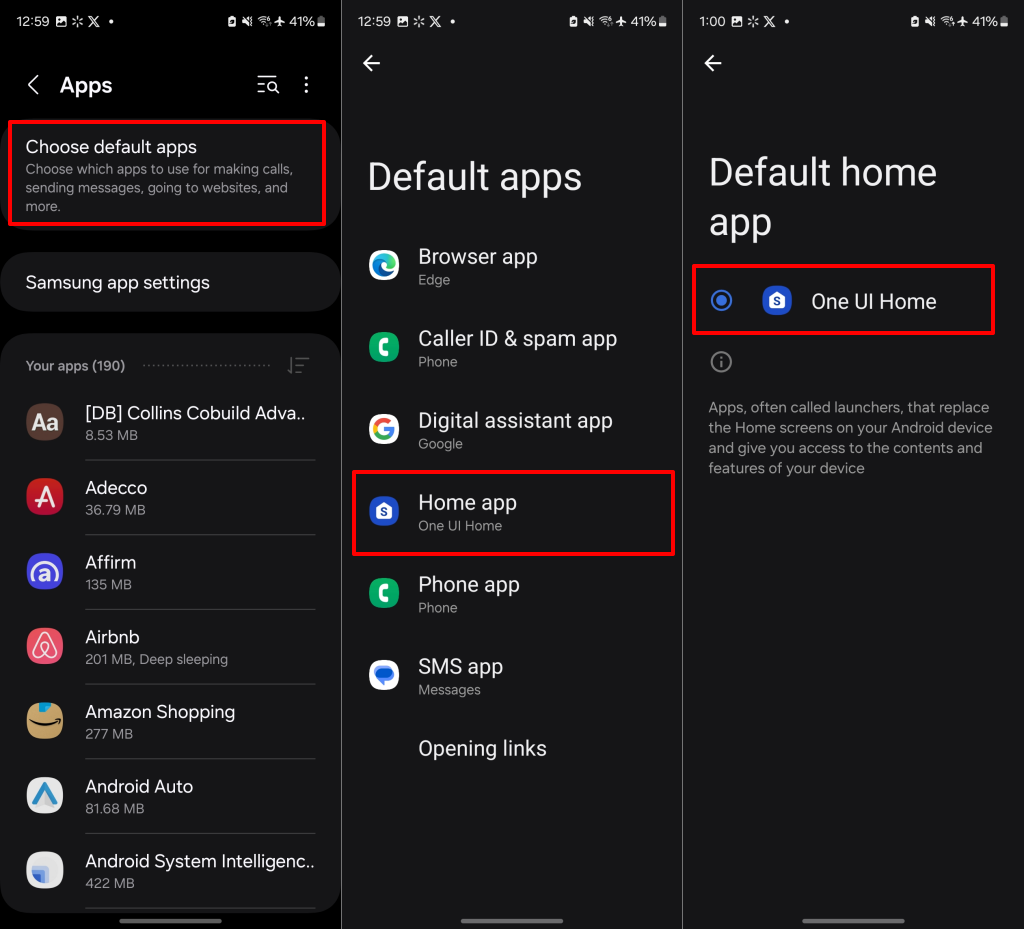
Go to Settings > Apps > Default apps (or Choose default apps) > Home app and select your device manufacturer’s launcher.
How to Fix Picture in Picture Not Working On PC
Your web browser should play YouTube videos in PiP mode when you select the Miniplayer icon in the bottom corner. Pressing i on your computer keyboard also launches the mini-player. If YouTube picture-to-picture isn’t working on your PC, follow the troubleshooting steps below.
Note: Miniplayer (or Player-in-player mode) won’t work on videos set as “made for kids.”
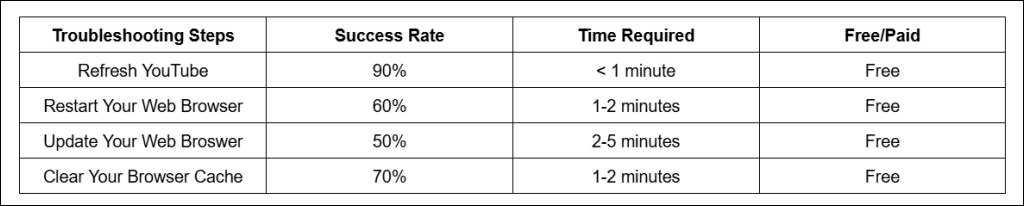
Refresh YouTube
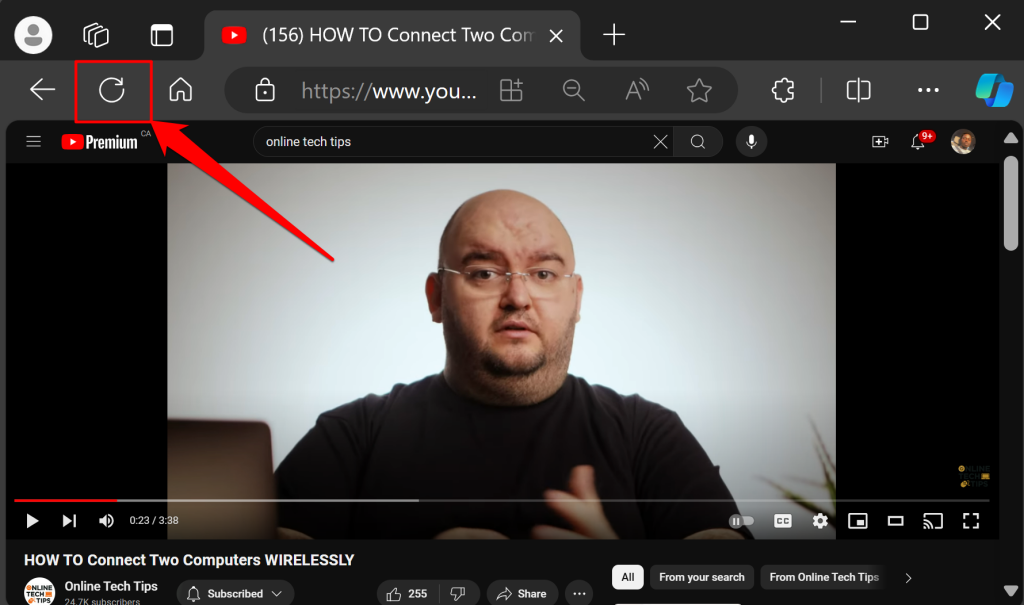
Some YouTube features won’t work if your browser doesn’t load the webpage correctly. Refreshing YouTube can get the Miniplayer working without issues. Press F5 or select the Refresh icon next to the address to refresh YouTube.
Restart Your Web Browser
Close and reopen your web browser if the issue persists. Doing so can fix performance glitches, install pending updates, and resolve problems interfering with YouTube’s Miniplayer. We recommend loading YouTube (or the video that won’t play in PiP) in a different browser. Update your browser or clear its cache data (see the sections below) if YouTube’s PiP works on other browsers or devices.
Update Your Web Browser
Watching YouTube videos in an up-to-date browser guarantees an optimal viewing experience. Open your browser settings and manually install available updates. Our comprehensive tutorial on updating web browsers has step-by-step instructions.
Clear Your Browser Cache
Corrupt or outdated cache data can prevent your browser from loading websites correctly. Clear your browser’s cache data, reload YouTube, and check if videos play in picture-in-picture mode. See how to clear cache in Microsoft Edge and other web browsers.
Resume YouTube’s Background Play on Your Smartphone
If you’re used to playing YouTube videos in the background, it’s frustrating when the feature suddenly stops working. The troubleshooting tips above should resolve the issue and resume background video play on your Android or iOS device.