
While gaming communities are front and center, their offerings are growing. Now, thanks to the thousands of active communities out there, Discord is the go-to place for chatting around any topic, location, or interest, letting users relax, chat, and have fun together. You can also use it to video call, stream your screen, play music, and more.
While you could create your own Discord server, there are no guarantees that you’ll build the community you want. It takes time to find new members, so you may find it easier to join an existing server. If you’re struggling to find the best Discord servers out there to join, here are some suggestions to help you get started.
How to Find Public Discord Servers
Discord is a combination of the many public and private servers that users can join. If you want to chat privately, you can stick to a private server (or drop into a direct message instead). However, finding a public Discord server to join is another way to create new friendships using Discord–as long as you can find them.
To help you do this, Discord offers a directory that you can search through to find public servers that might suit your interests. The directory includes servers related to gaming, music, education, science, technology, and general entertainment. The servers listed are curated by Discord and are (usually) high quality.
You can access this directory using the Discord web app or the desktop app for PC or Mac. Unfortunately, you can’t access this directory feature using the mobile app for Android, iPhone, or iPad devices at present.
- To access the Discord server directory, open the Discord web app or desktop app and sign in on your PC or Mac.
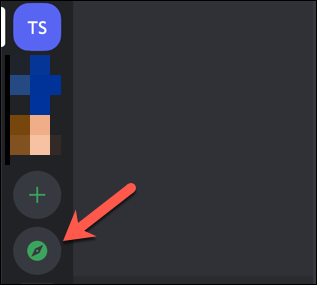
- Once you’ve signed in, select the Explore public servers icon at the bottom of your server icons list on the left.
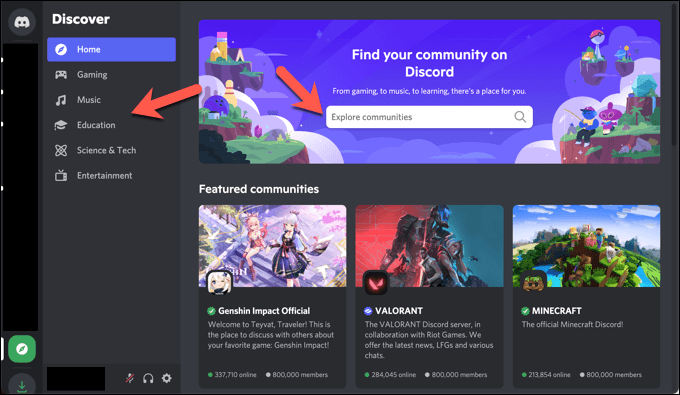
- In the Discover menu, you’ll be able to search through and join public Discord servers. Use the menu on the left to switch between preset categories, or use the Explore communities search bar at the top to find communities that match your interests.
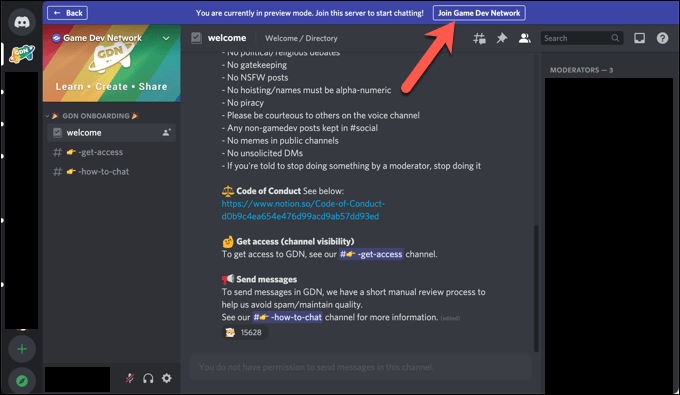
- Once you’ve found a server you wish to join, select the server card to view it. This will give you a preview of the channels and server options available to you. To join that server, select the Join button in the top menu.
Using Third-Party Discord Directories
The Discord server directory is a curated list of the best public servers for Discord, but it doesn’t have every public server listed. If you want to find the best Discord servers outside of this list, you’ll need to use a third-party Discord directory.
Several websites exist to help you find public servers on Discord that aren’t accessible through the official directory. These include Disboard, which lets you find servers based on their category tag (e.g., gaming, music, etc.) or by using its search tool.
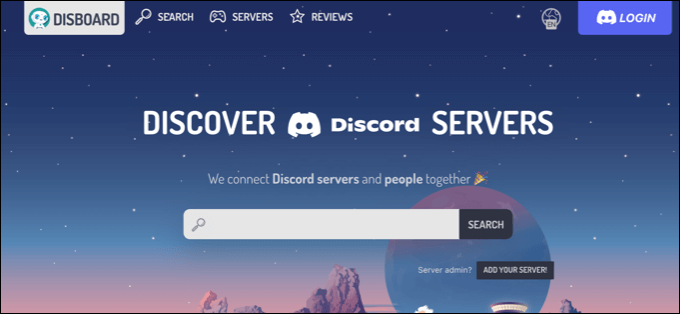
Another option is DiscordMe, which (like Disboard) offers a search feature that you can use to find servers based on name or interest. If those platforms don’t work for you, you could give top.gg a go, which allows you to find new servers to join, as well as new Discord bots you can use on your servers.
Other sites exist and can easily be found on Google, each with different servers listed. When you find a server you like on a third-party directory site, select the Join option to use that server’s invitation link.

How to Find Discord Servers Using Google
If you’re struggling to find the best Discord servers that are right for you, you may need to put your Sherlock Holmes hat on and use your advanced Google search skills to locate them on websites related to your interests.
Game development websites, community hubs, Facebook groups—whatever your interest, it’s likely that there’s a Discord server invite link online for you to click on and join. You’ll just need to find it first.
For example, if you’re looking for public Discord servers that relate to the game Call of Duty: Warzone, you might decide to open Google search and use this search query: “warzone” + “discord.gg” to find servers related to this game that have a discord.gg link, which is the domain typically used for Discord invitation links.
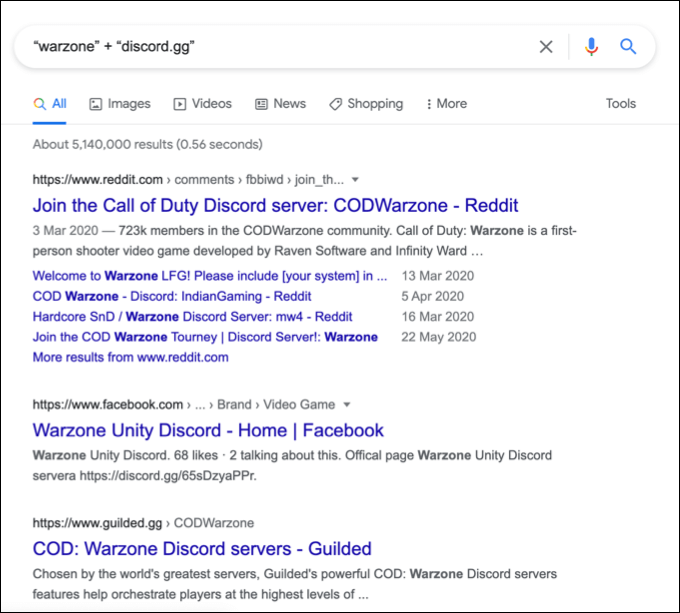
Alternatively, you could use “warzone” + “Discord invite” to find web pages, forum posts, and Reddit contributions that include relevant Discord invitation links. It works for any topic, as long as you use this formula (“interest” + “discord.gg” or “interest” + “Discord invite”), although you can try alternative queries.
Once you’ve found a relevant link, select it to join the server. If the link isn’t working or expired, you may need to repeat these steps to find an alternative.
Joining Private Discord Servers
Sometimes, the best Discord servers are the ones that you know about already. If your friends or colleagues are Discord server members on a private server, you may want to ask them for a link to join so you don’t miss out on the fun.
Joining private Discord servers is harder than joining public ones, however. If you don’t have an invite link, you don’t have a way in. You could use the steps above to search for and use a relevant link for a server if it exists, but you’ll need to speak to an existing server member to get a link if that doesn’t work.
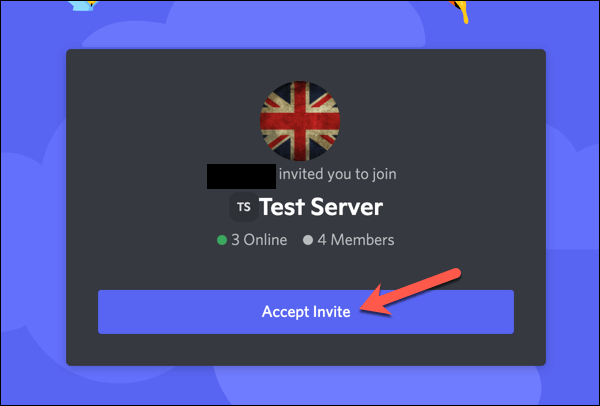
Only server owners, administrators, and selected moderators can create Discord links. If you can get a link to a private server, it’s a simple process to join—select the link and follow the on-screen instructions to join, which is usually as simple as selecting Accept invite on the page.
However, you may need to complete additional steps once you join the server, depending on the server’s rules or requirements.
Making Friends on Discord Servers
Whether you’re joining a new public Discord server or you’ve found a private community to join, you’ll be able to use Discord’s features to chat, play, and make friends with like-minded individuals from across the planet. Make sure to set a custom status on Discord to let your new friends know when you’re ready to chat.
If you’re having trouble with Discord, don’t worry—most problems are easily fixed. However, if you’re stuck on the connection screen or you’re facing other issues, such as an RTC connecting error or robotic voice issues, you should be able to fix the problem. Try changing some settings, switching clients, or using Discord Canary instead.