

TikTok videos are based on catchy tunes. After all, half the videos on there wouldn’t be as amusing were it not for the background audio. There’s something appealing about watching a dog dance to a song. But, on the other hand, it can be tough to find what the song or audio is.
It’s essential to know for a few reasons. One, maybe you liked the song. Secondly, if you’re a TikTok creator, using popular or trending audio can help your video go viral versus loitering near the bottom of the playlist. So, if you need to find a song, here’s a step-by-step guide.
Use Shazam
While Shazam can’t identify all audio, it’s great for identifying something based on just a few seconds of a song. Shazam is a free app that iOS and Android users can download, and it can identify the song used in a TikTok video.

You can search in Shazam while using TikTok, too. Long-press the Shazam button until it says “Auto Shazam is on,” then swap to the TikTok app and play the video you want to identify. If the song is in Shazam’s library, it will appear at the top of the screen. You can open it directly on Spotify, Apple Music, or another audio platform.
Check the Bottom of the Screen
When watching a TikTok video, a little ticker at the bottom of the screen will tell you what the song is. If it’s a listed audio clip or song, you’ll see it scroll across with the song’s name. If a user adds something, it will say “Original Audio” or “Original Sound.”

Try Soundhound
Like Shazam, Soundhound excels at identifying specific pieces of audio. It’s not quite as popular as Shazam, but it is a great alternative if Shazam can’t quite pinpoint the song. In fact, many users find Soundhound to be faster and more efficient at identifying songs than Shazam – but it falls short in terms of remixes and recordings of live events.
Use Musixmatch
Like Shazam and Soundhound, Musixmatch is another tool for finding audio bits. While it’s probably a better option to use the other two apps, there are some (very) rare instances when you can’t find the song in either of their databases, but it might be in Musixmatch. The service has a massive catalog of musical lyrics, and you can search by those alone.
Just enter a few lines of the song that you can remember. You might need to try different phrases, especially if multiple songs have those exact words. (In other words, “yeah, yeah, yeah baby” probably won’t yield results.)
Check Trending Sounds
One easy way to find trending audio (especially audio that isn’t a song) is to check the Trending Sounds page of TikTok.
- Open the new video creation tool, and tap Add sound.
- Look through the trending songs beneath TikTok Viral. They’re sorted into categories like “Unboxing” and “Vlog.”
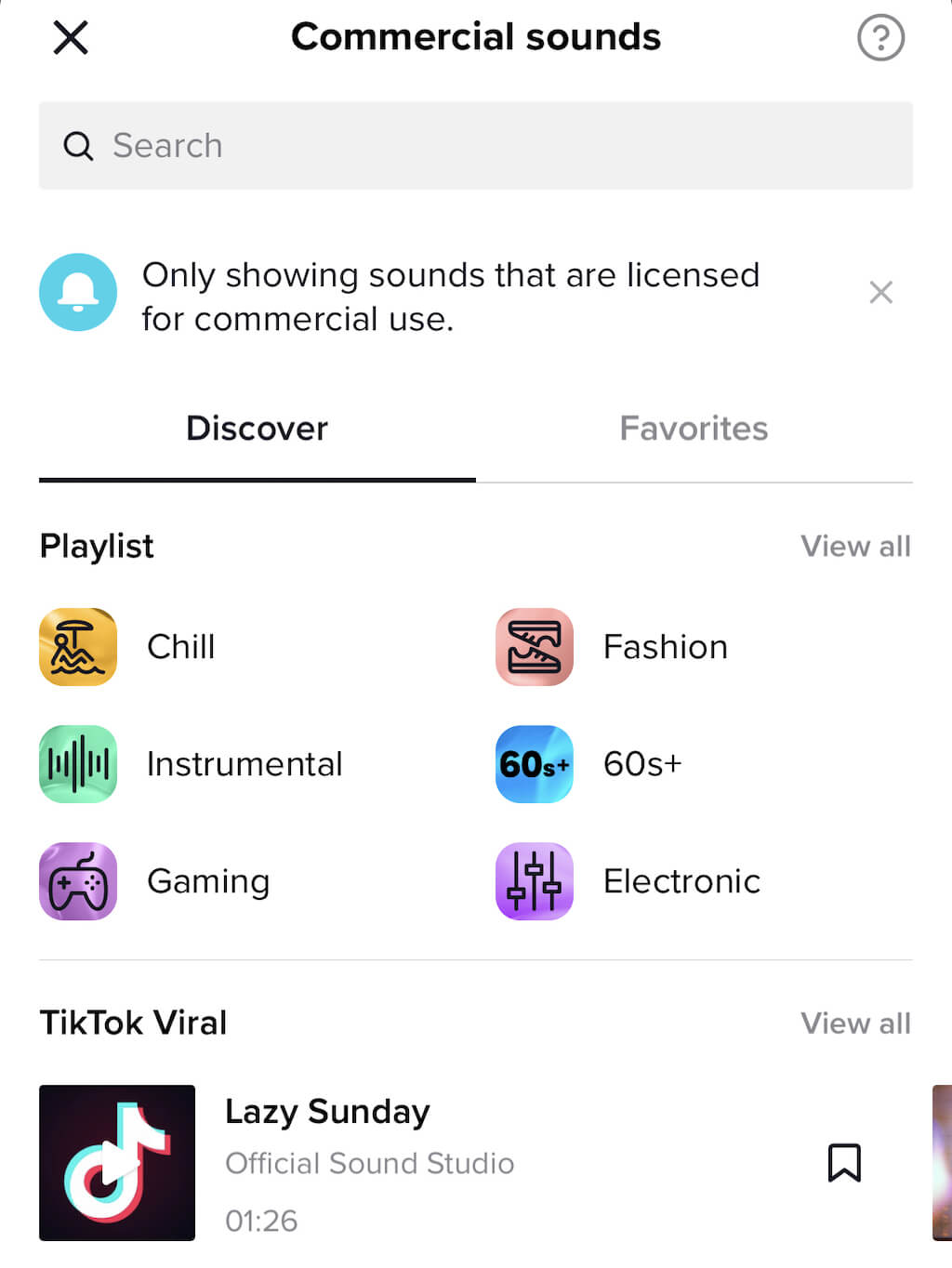
You can also type a description of the sound into the search bar. For example, if it’s a spoken word audio clip, type in a phrase you remember and see if it yields results. Bear in mind that TikTok will only show audio licensed for commercial use.
Check Hashtags
Sometimes, TikTok users might opt to make their own voiceover instead of using a song. However, if these voiceovers become popular enough, they can sometimes become part of the sound library, especially if they’re stitched frequently.
In cases like this, users might identify the sound through hashtags – especially if the original sound came from a well-known influencer.
Use the iOS Music Recognition Tool
Apple fans have an advantage when it comes to identifying songs. iOS has a built-in music recognition tool, courtesy of Apple’s acquisition of Shazam. You can enable this in settings.
- Open Settings > Control Center.
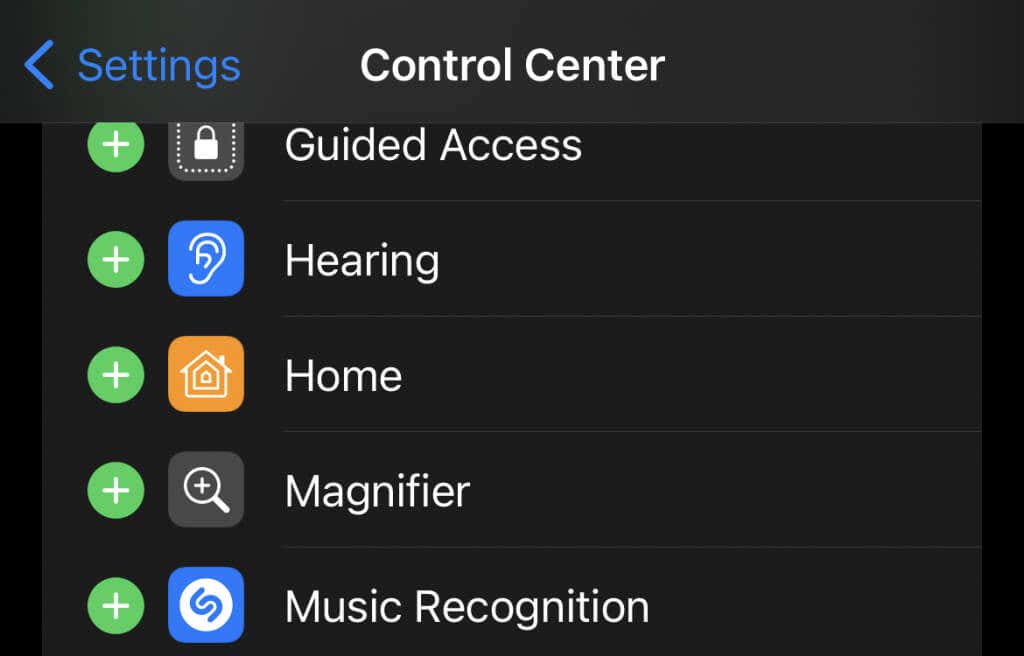
- Scroll down and tap the plus icon beside Music Recognition.
If you don’t see this option, ensure you’re on the latest version of iOS. You should also make sure you’ve downloaded Shazam to your iPhone.
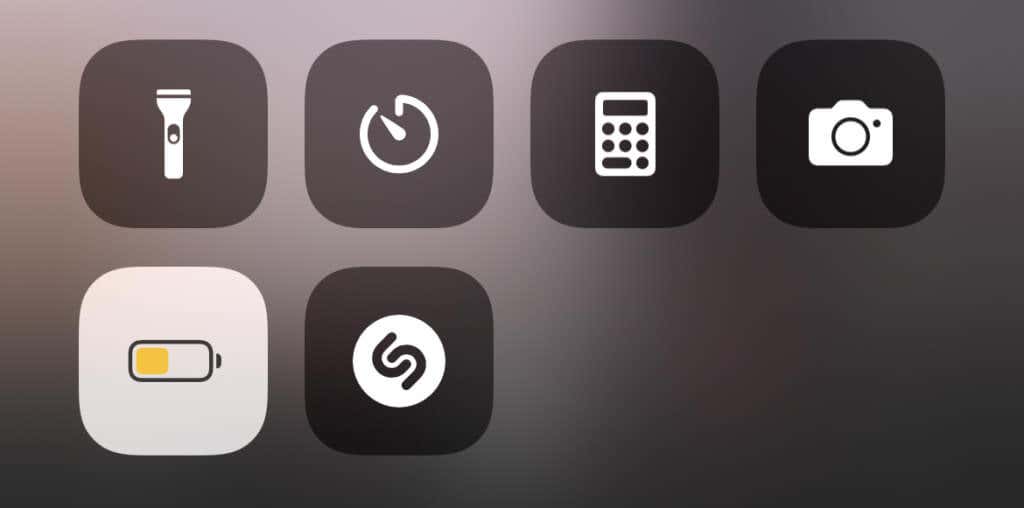
To use the tool, you must open TikTok and find a video you want to identify. Next, swipe down from the Control Center, tap the Shazam symbol, and wait for the song to be identified.
Start Searching Your Favorite Songs
If you hear a popular song, chances are it’s a TikTok song, too. Or that “I’m a hap-py, happy dog” audio clip? Yeah, that’s a TikTok sound. It’s a driving force of social media, but it’s also a way to see pop culture being created in real-time. So if a song appears on a TikTok video, then it might rocket to the top of the new music charts.