

Some social networks, and Facebook in particular, have a neat way to help you rediscover moments from your past by bringing them up right in your feed.
Like many, you’ve probably had your Facebook account for years now and might not remember some of the most heart-warming posts that you shared on the network. Even if you do, scrolling down to find that specific memory or a picture of you with a friend might be challenging. Instead, here’s how to use the Memories tool to find your memories on Facebook.
How to Find Memories on Facebook
Facebook Memories is a tool that allows you to see what you did (or rather – what you posted) on the same day years ago, back to the day you’ve created your Facebook account.
Your memories automatically refresh every day. You’ve probably seen the automatic On This Day message pop up on your feed. Facebook also sends you a notification reminding you of a new memory. To find Facebook Memories notifications, open your Facebook account and select Notifications in the upper-right corner of your screen.
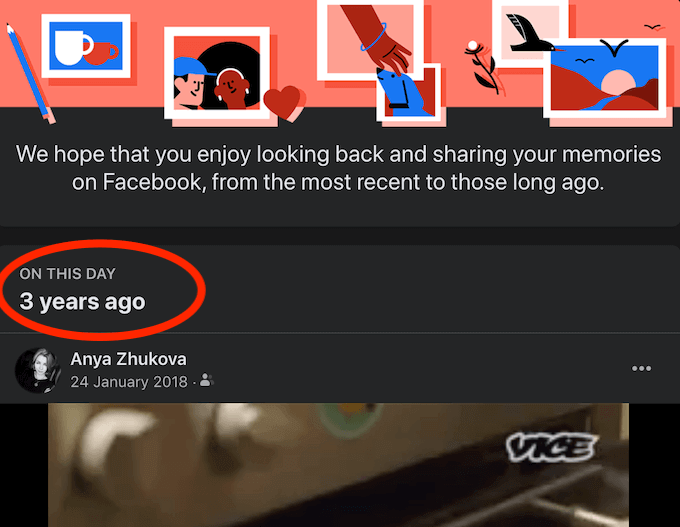
If you don’t get notifications about your Facebook Memories every day, you can access them manually both on your computer and on your smartphone.
How to Access Facebook Memories on Desktop
If you’re using your computer to find your Memories on Facebook, follow the steps below.
- Open Facebook in your browser and log into your account.
- Find the sidebar on the left side of your screen, scroll down, and select See More.
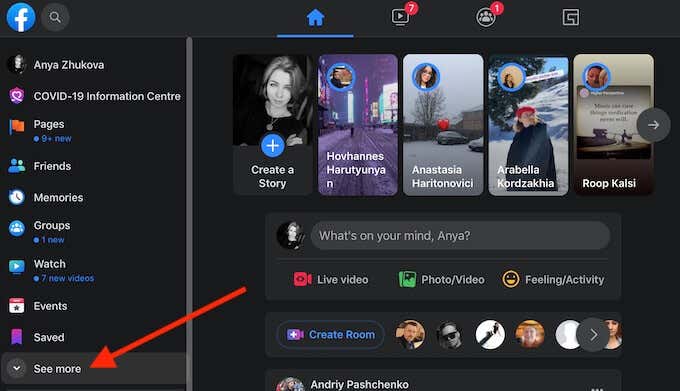
- Select Memories.
*2_facebook_select memories*
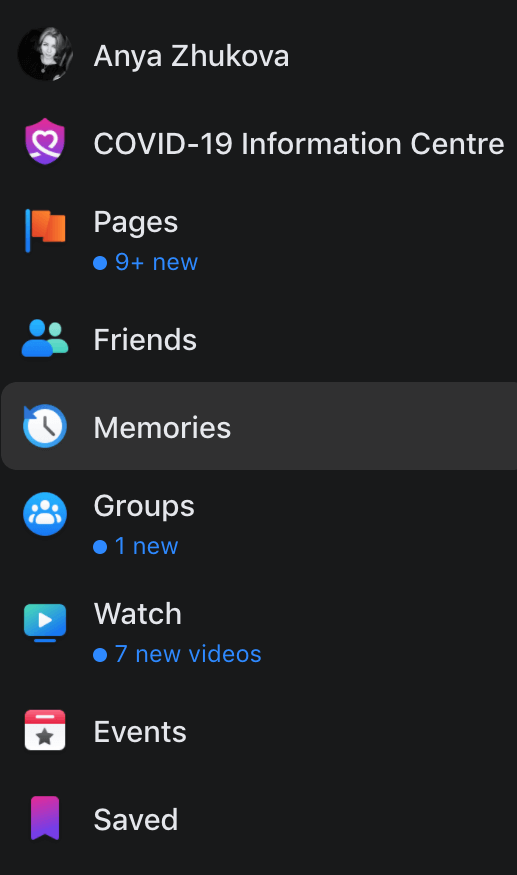
On the Memories Home page, you’ll see your memories on this day from 1 year, 2 years ago, and then as many years as you’ve had your Facebook account for. Scroll down to see all of them till you get the You’ve completely caught up message.
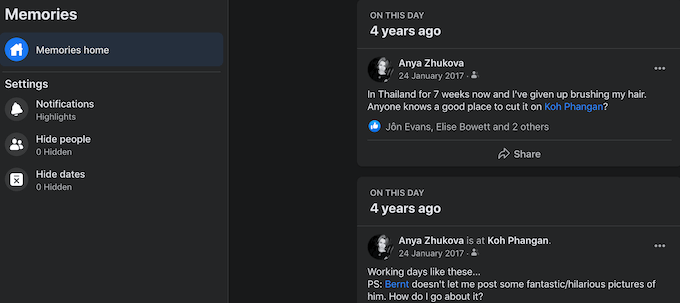
On the same page, you can use the Settings menu to set up your Facebook Memories notifications.
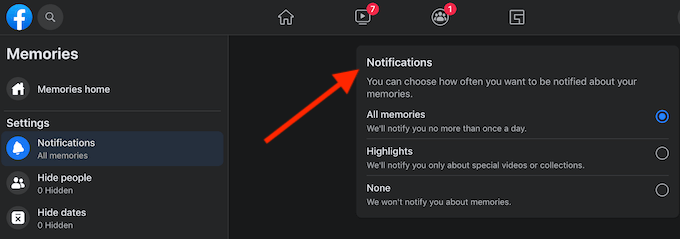
You can select one of the three options: choose Facebook to show you All memories to get notifications once a day, Highlights to get notifications only about special videos or collections, or None to skip all notifications.
How to Find Your Facebook Memories on Smartphone
If you’re using Facebook’s mobile app, follow the steps below to access your Facebook Memories.
- Open Facebook’s app on your smartphone and log into your account.
- At the upper-right corner of your screen, select the three horizontal lines to open Menu.
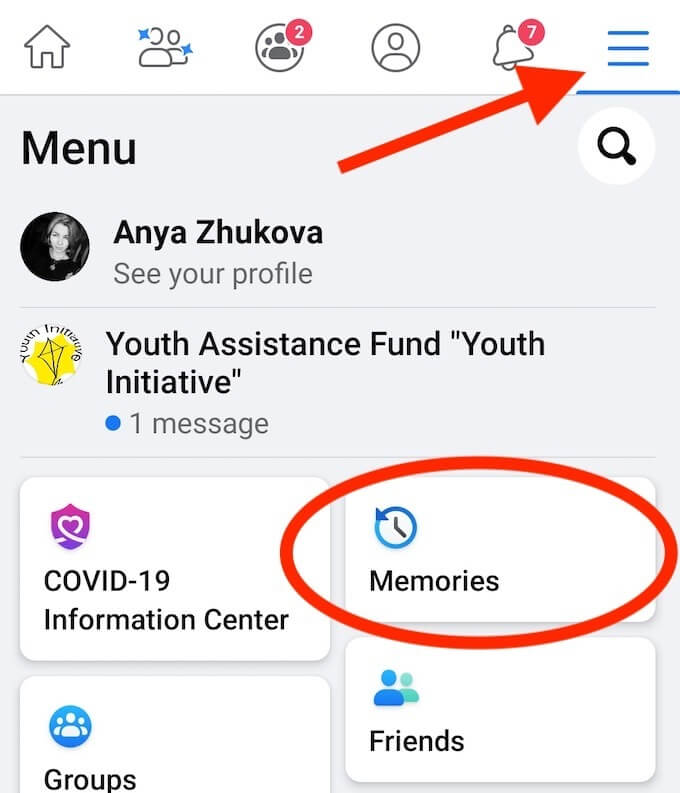
- Select Memories.

Scroll down to see all of your memories from this day for as many years as you’ve had your Facebook account.
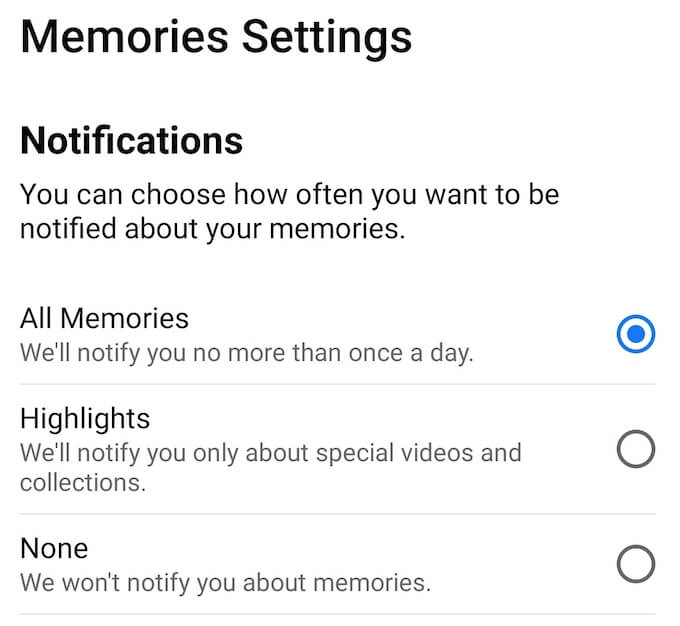
If you want to change your Memories notifications settings, select the gear icon in the upper-right corner of the screen to open Memories Settings. Then choose how often you want to be notified about your memories under Notifications.
How to Hide Memories on Facebook
While some of those memories are worth remembering, there will be some that you don’t want to see often or ever again. For instance, if you’re forced to stay in and work from home, a picture from a happy vacation at the seaside on Facebook might ruin your day.
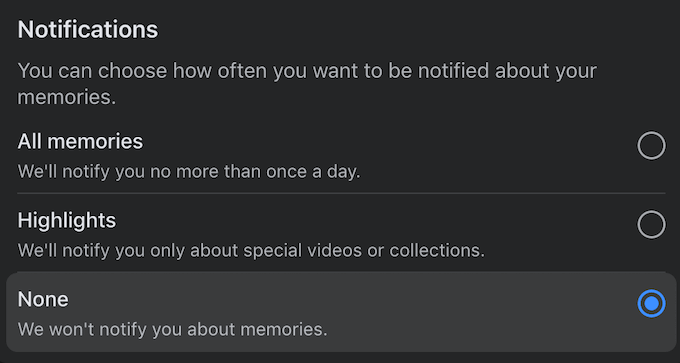
To completely hide your Facebook Memories, go to your Memories Settings. Then under Notifications select None to stop Facebook from sending you Memories notifications or showing On This Day posts.
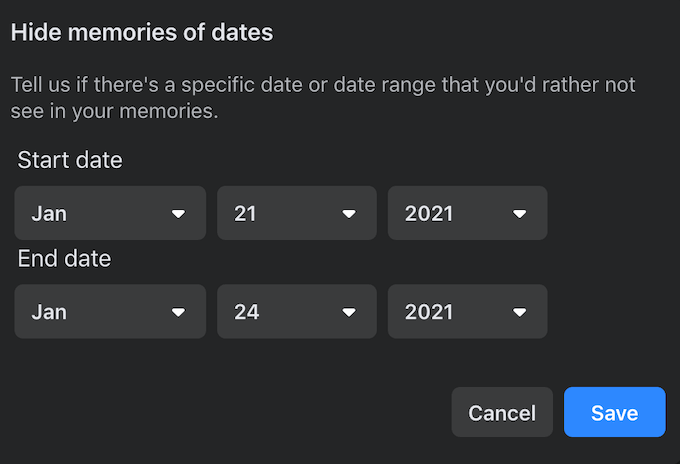
To hide Facebook Memories from specific dates, go to your Memories Settings and select Hide dates. Then select Add New Date Range, set the Start date and End date, and select Save to confirm. Facebook then won’t include memories from the date range that you add.
If you want to hide some of your Facebook friends from others, or don’t want to see specific friends on your Facebook memories, you can also set a filter for that. Go to your Memories Settings and select Hide people. Then type the name of your Facebook friend into the search bar and select Save to confirm.
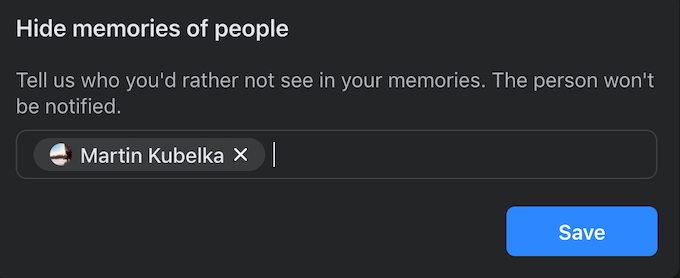
That person won’t appear in your Facebook Memories again. Don’t worry, Facebook won’t notify your friend about it.
How to Find Memories on Other Social Media Networks
After discovering Facebook Memories, you might want to find your Memories on other social media platforms. The two most popular apps that people tend to use for keeping their pictures and videos are Instagram and Google Photos. Here’s how to see your memories on both.
How to Access Your Memories on Instagram
Like Facebook, Instagram also has a Memories feature called On This Day. You can only access your Instagram Memories using a mobile app. This feature isn’t available on the PC version. To see your Memories on Instagram, follow the steps below.
- Open Instagram app on your smartphone.
- Go to your profile page.
- Select the three horizontal lines in the upper-right corner of your screen to open Menu.
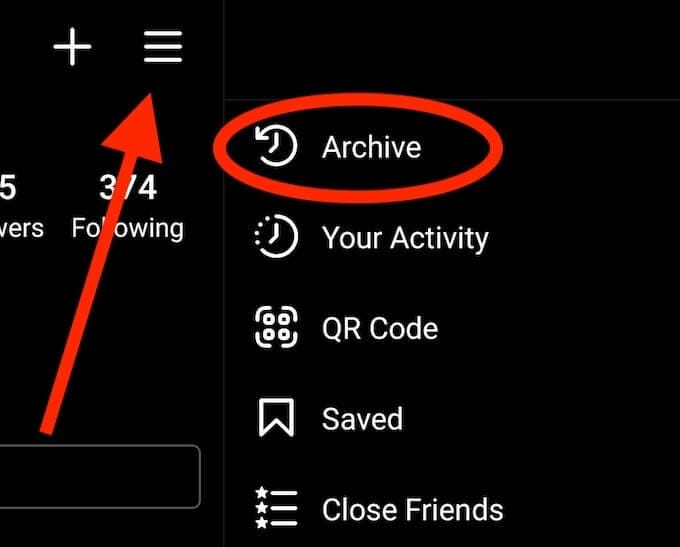
- Select Archive.

You’ll find the Memories section at the bottom of the Stories Archive page. On This Day refreshes daily and shows you a story that you posted on the same day one or more years ago. You can then select to Share the memory on Instagram as a story or delete it on the same page.
How to Find Your Memories on Google Photos
While you can use Google Photos on both your computer and your smartphone, only the mobile version supports the Memories feature. To find your Memories on Google Photos, follow the steps below.
- Open the Google Photos app on your smartphone.
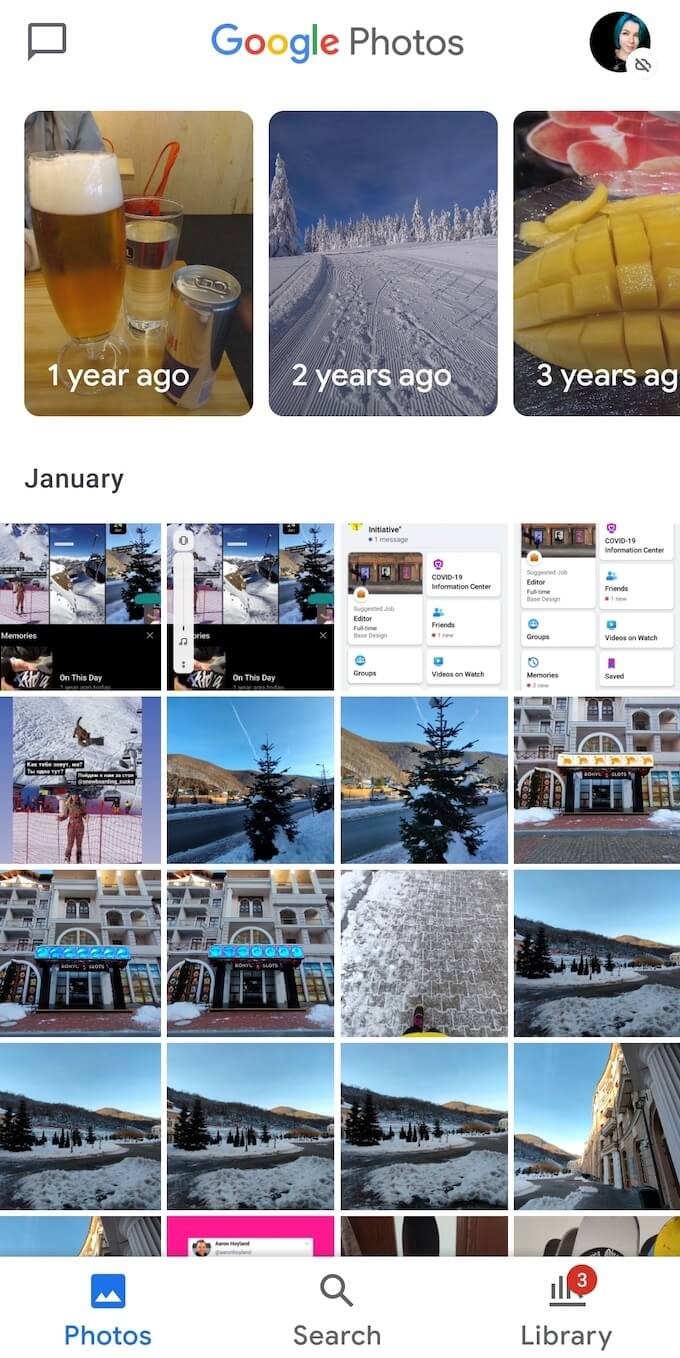
- Normally, you’ll already see Memories on top of your screen. If you don’t then select your profile icon to open Menu.
- Select Photos settings.
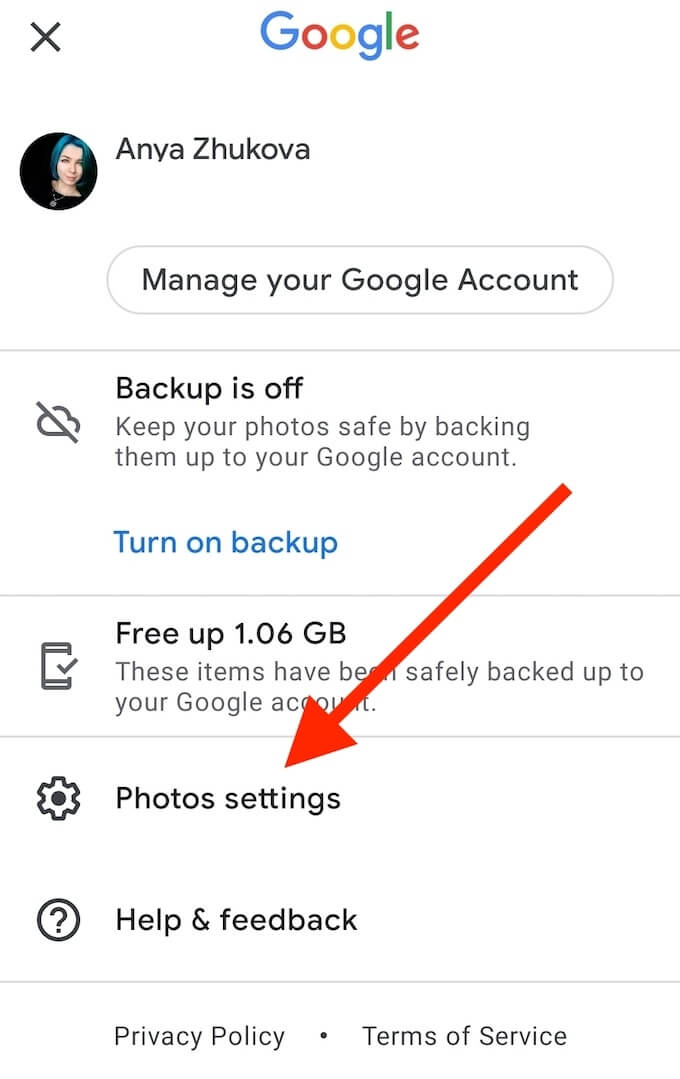
- Select Memories.
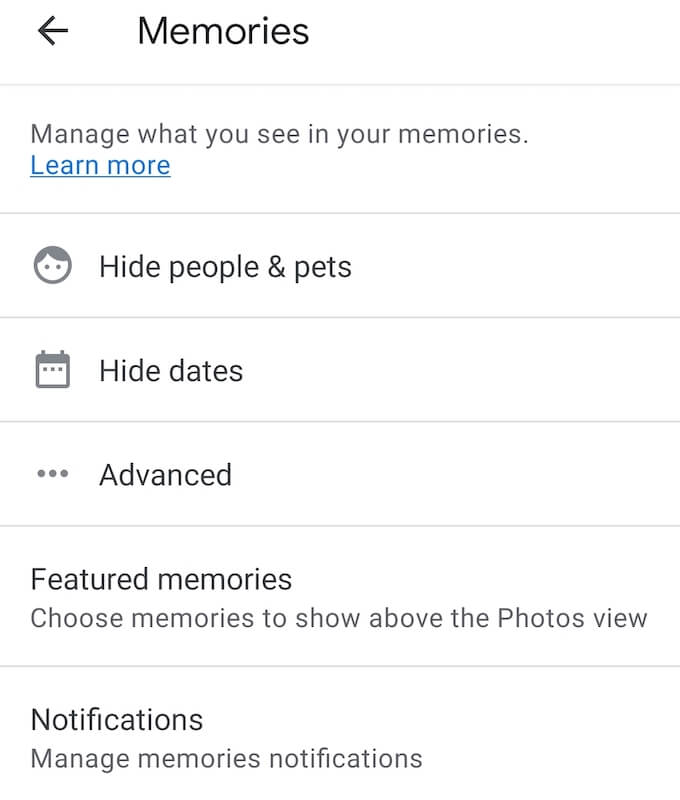
Under Featured memories, you can manage what memories Google Photos will show you. You can also manage the Memories notifications, as well as hide certain people and dates from your Memories on the same page.
Is Facebook a Good Place to Keep Your Memories?
Facebook Memories is one of the reasons people decide to keep their Facebook profile. It’s a great way to remind yourself and your friends of the fun that you had together, as well as keep in touch with someone without making it too forced.
Do you enjoy seeing your Memories on Facebook or do they make you feel uncomfortable? Share your experience with Facebook memories in the comments section below.