
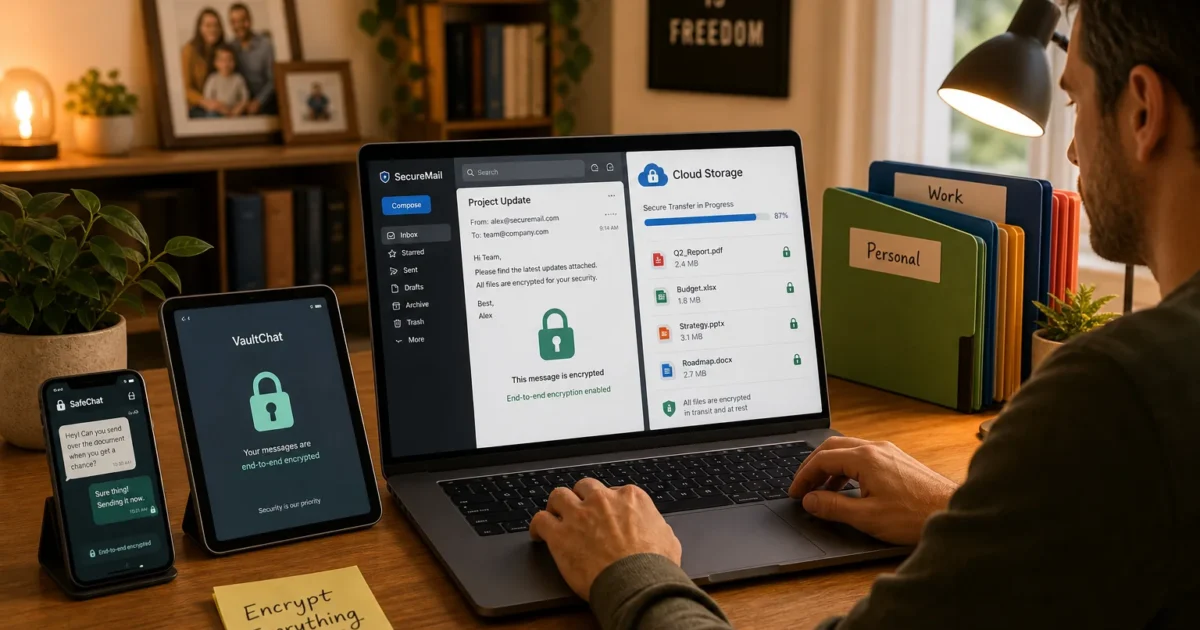
Every day you’re sending emails, storing files in the cloud, texting friends, and browsing the web. That’s a lot of data floating around, and not much thought goes into how protected it actually is. Encryption caught my eye as a topic worth revisiting because the tools genuinely work now and the setup is far less painful than you’d expect.
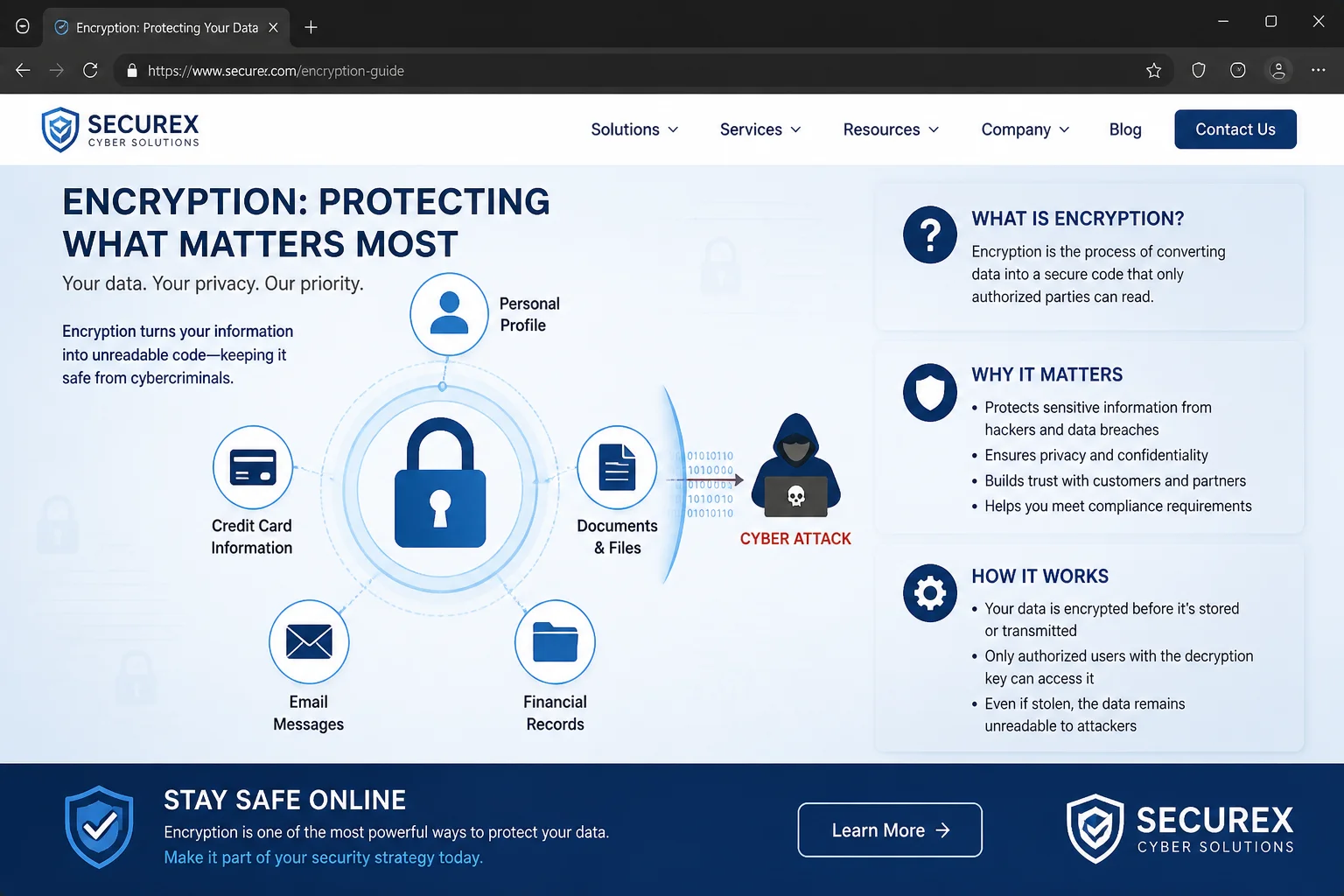
Encryption is the process of scrambling your data so only people with the right key can read it. Anyone else who gets their hands on it sees a pile of unreadable noise. By the end of this guide, you’ll know how to encrypt the data on your devices, in the cloud, in your inbox, and in your messaging apps, without needing a security background to pull it off.
Why Encryption Matters More Than Ever
The old “I have nothing to hide” argument doesn’t hold up anymore. Modern attackers don’t care whether your data is embarrassing; they care whether it’s profitable. Today’s ransomware groups steal data first, then threaten to publish it unless you pay. Unencrypted data is immediately useful to them. Encrypted data is worthless without the keys.
Cybercriminals now use AI to sift through stolen information at scale, find anything valuable, and run targeted phishing campaigns with unsettling accuracy. Your browsing habits, account logins, and personal details can be combined to build a profile useful for fraud and identity theft. Encryption doesn’t stop breaches from happening, but it turns a potentially catastrophic leak into a non-event for the attacker.
Encrypt Your Devices
Your physical devices are the obvious place to start. If your laptop gets stolen or your phone goes missing, full-disk encryption (FDE) means whoever finds it gets nothing useful: just locked hardware with scrambled data they can’t touch.
On Windows 11
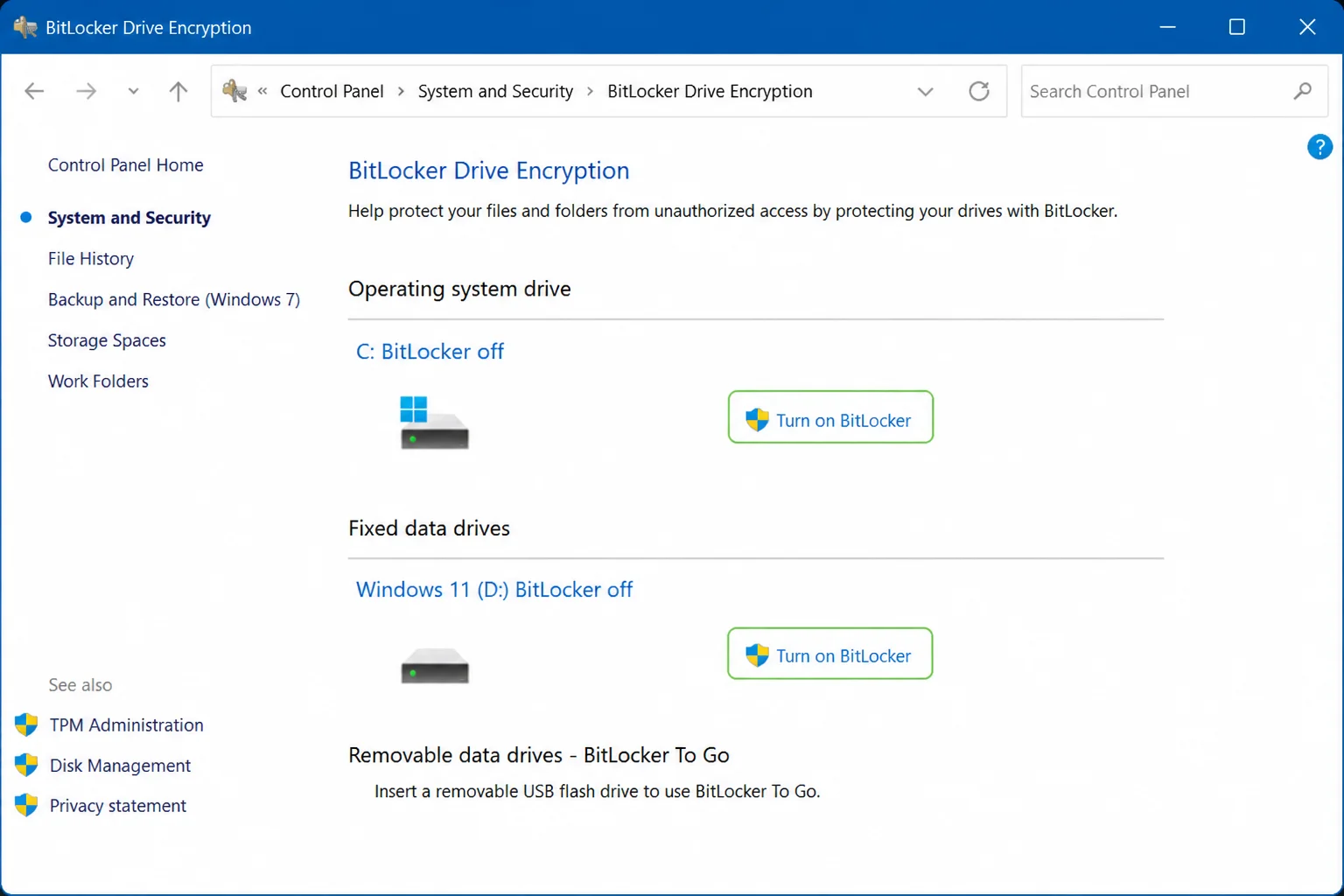
Windows 11 includes BitLocker, a full-disk encryption tool built right into the OS. On Pro and Enterprise editions, you enable it yourself. On many Home edition devices, Device Encryption may already be active if you’re signed in with a Microsoft account, worth checking before you do anything else.
To enable BitLocker on a drive:
- Open Control Panel and go to System and Security > BitLocker Drive Encryption.
- Click Turn on BitLocker next to the drive you want to encrypt.
- Choose how you’ll unlock the drive at startup, a password or PIN works for most people.
- Back up your recovery key. You can save it to your Microsoft account, print it, or write it down somewhere offline. Don’t skip this. You’ll need that key if you ever get locked out (and there’s no “forgot my key” option here).
- Choose whether to encrypt used space only or the full drive, then click Start encrypting.
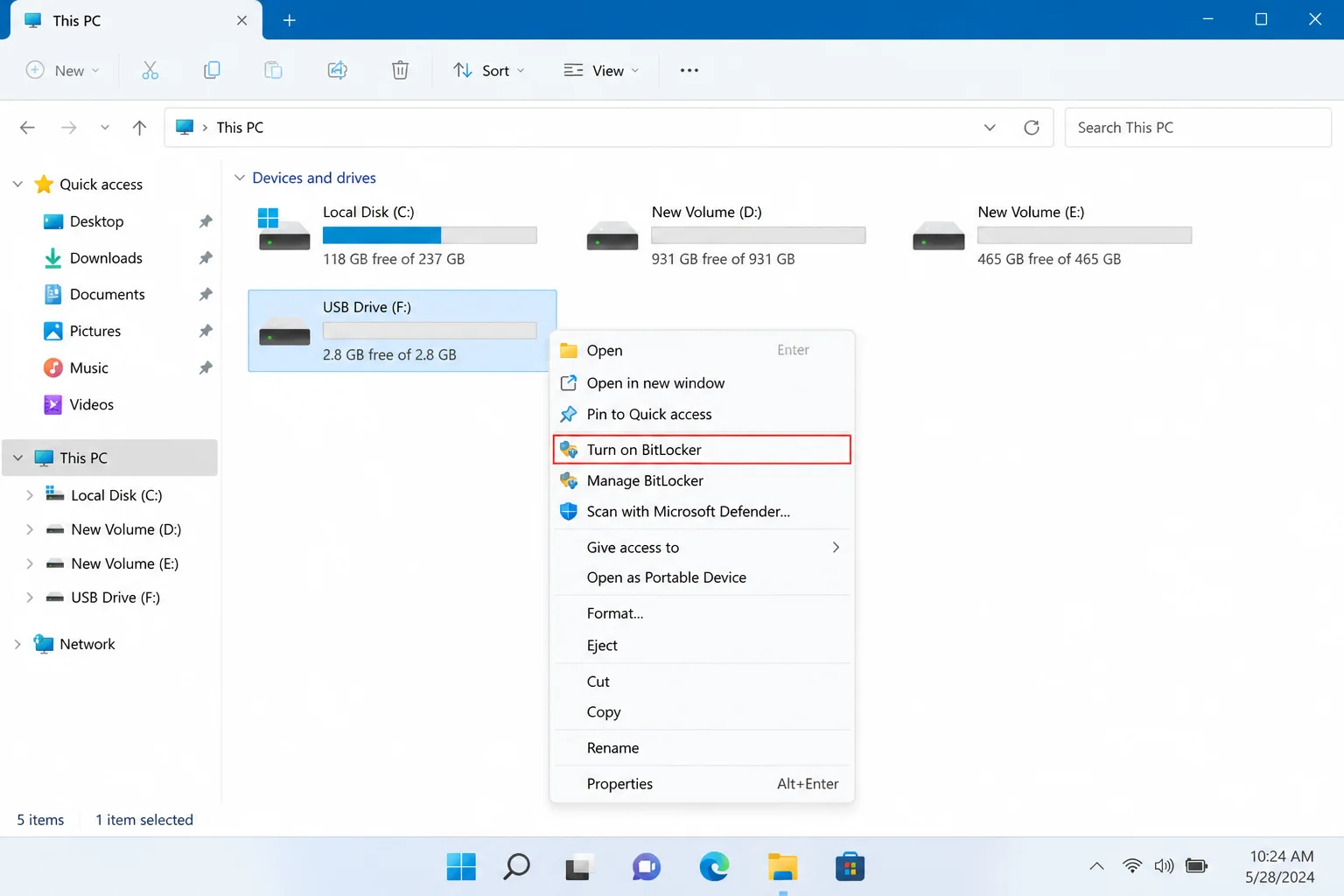
BitLocker also handles external drives through a feature called BitLocker To Go. Right-click any USB drive or portable disk in File Explorer, select Turn on BitLocker, and follow the prompts. Useful if you carry sensitive files on a thumb drive (and you probably do).
On macOS Sequoia
Mac users get FileVault, Apple’s built-in full-disk encryption. Once it’s on, it runs quietly in the background; your login password becomes the key that unlocks your disk.
To enable FileVault:
- Click the Apple menu and select System Settings.
- Click Privacy & Security in the sidebar.
- Scroll down to the FileVault section and click Turn On.
- Choose whether to allow your Apple ID to unlock the disk or generate a recovery key you store yourself.
- Click Continue. Encryption runs in the background while you use your Mac normally, no slowdown, no interruption.
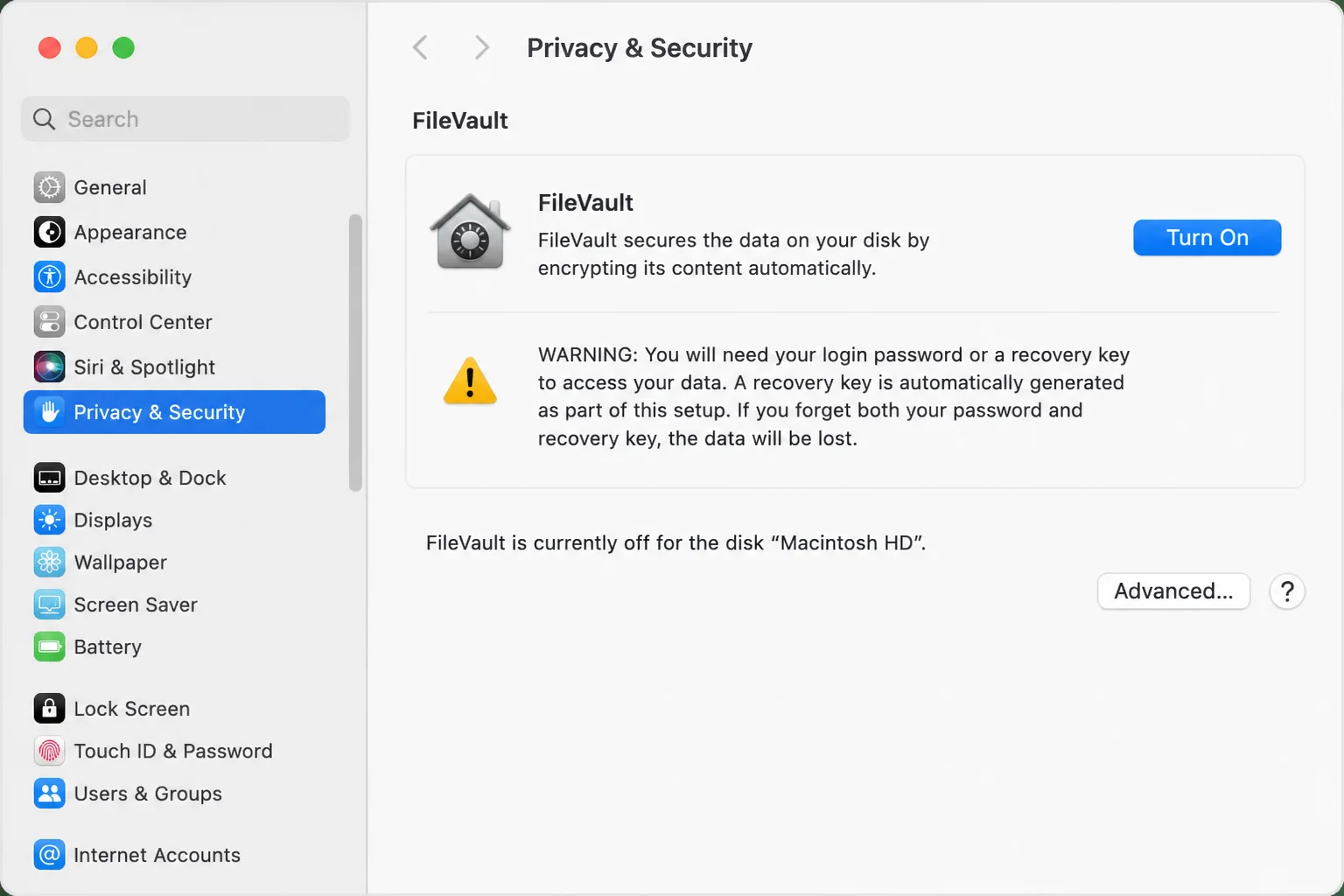
Write down your recovery key and keep it somewhere offline. If you forget your Mac password and lose that key, the data is gone permanently. Apple can’t help, and nobody else can either.
On Mobile (iOS and Android)
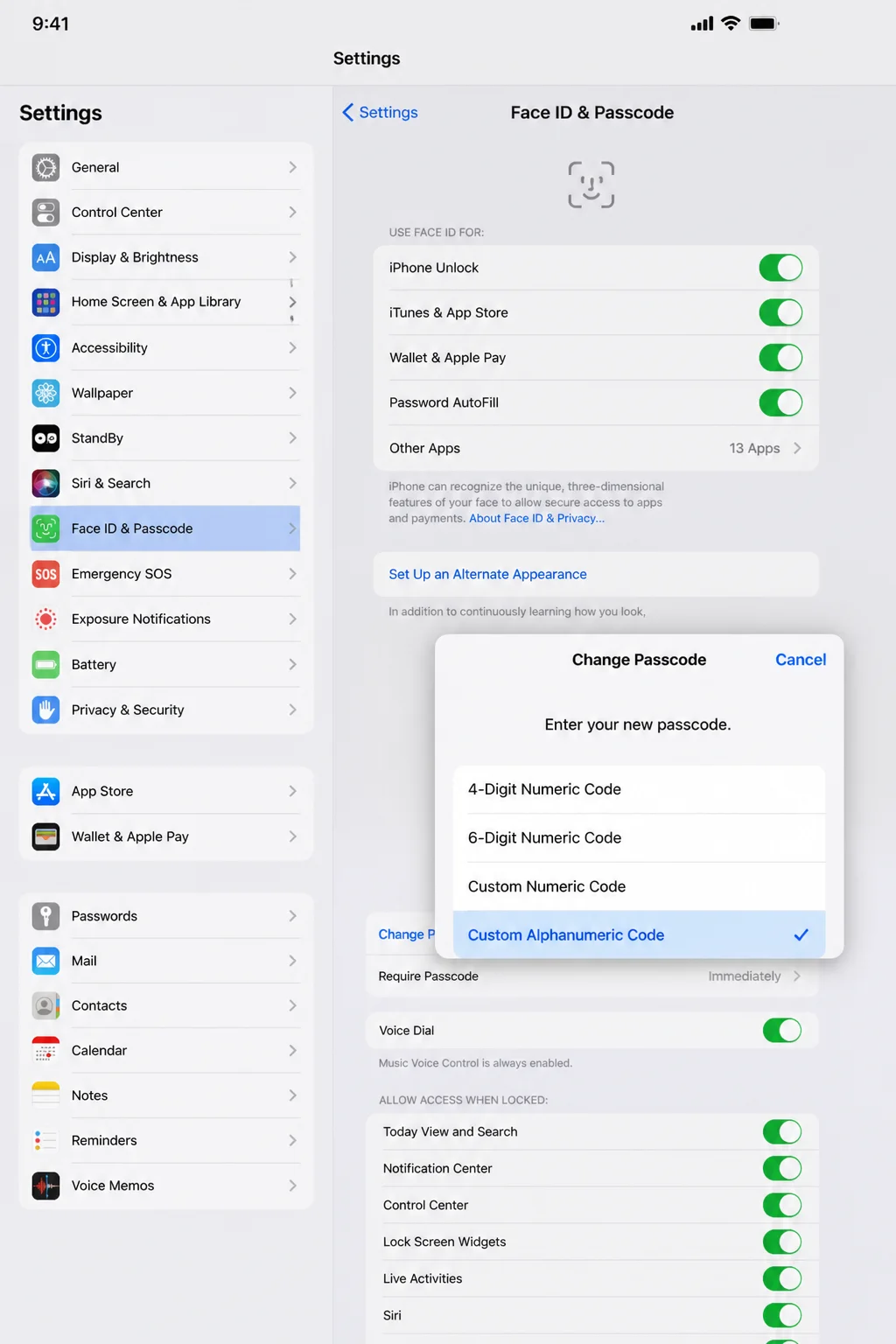
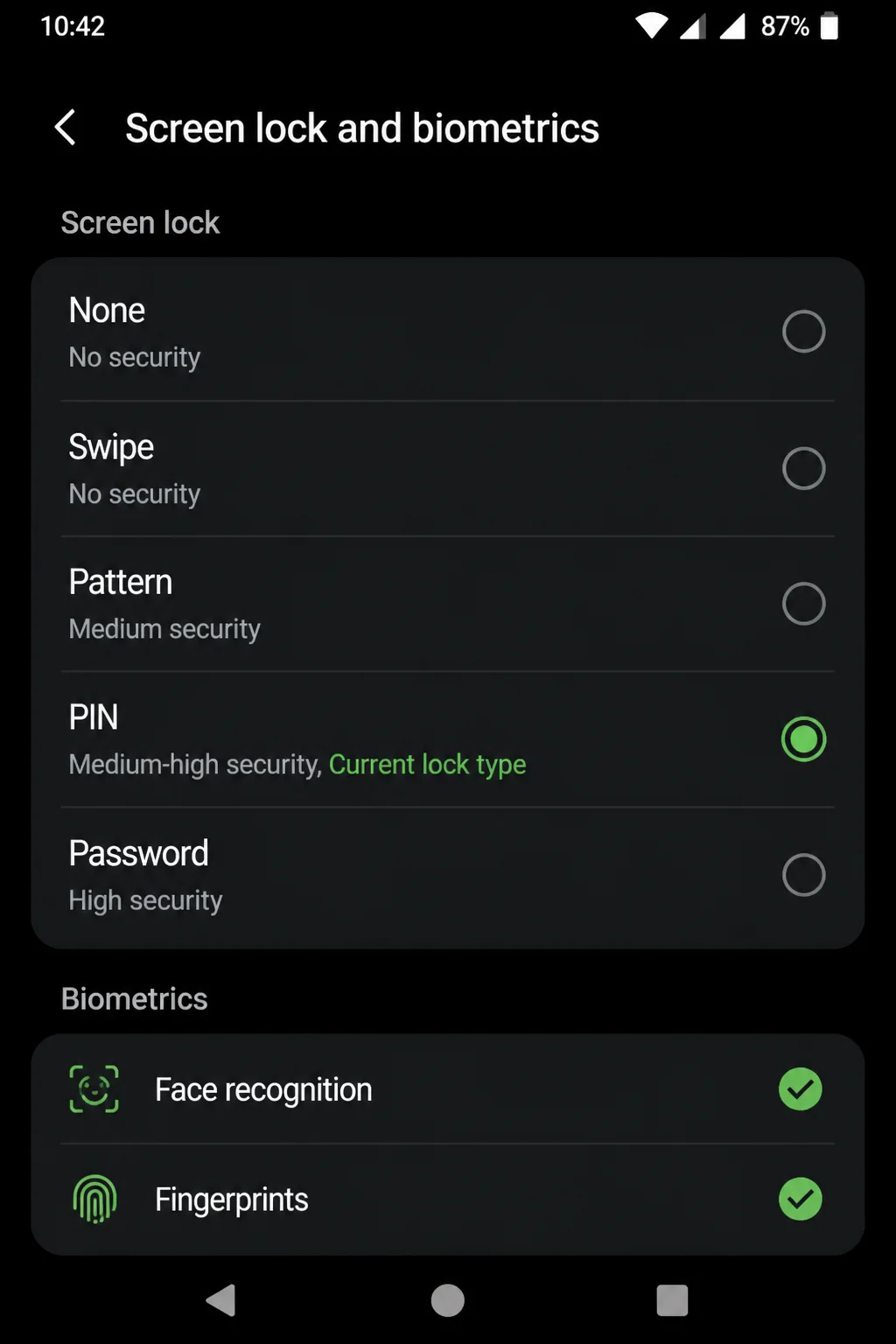
Both platforms encrypt your data by default, and that’s a solid baseline to start from. On iOS, encryption activates the moment you set a passcode. On modern Android, file-based encryption is on from the factory.
The catch is that your passcode is effectively the encryption key. A 4-digit PIN gives that encryption very little to work with. Use at least a 6-digit code, or better yet, a full alphanumeric password. Biometrics like Face ID and fingerprint unlock are convenient, but the passcode is the cryptographic foundation, so make it strong.
Encrypt Your Data in the Cloud
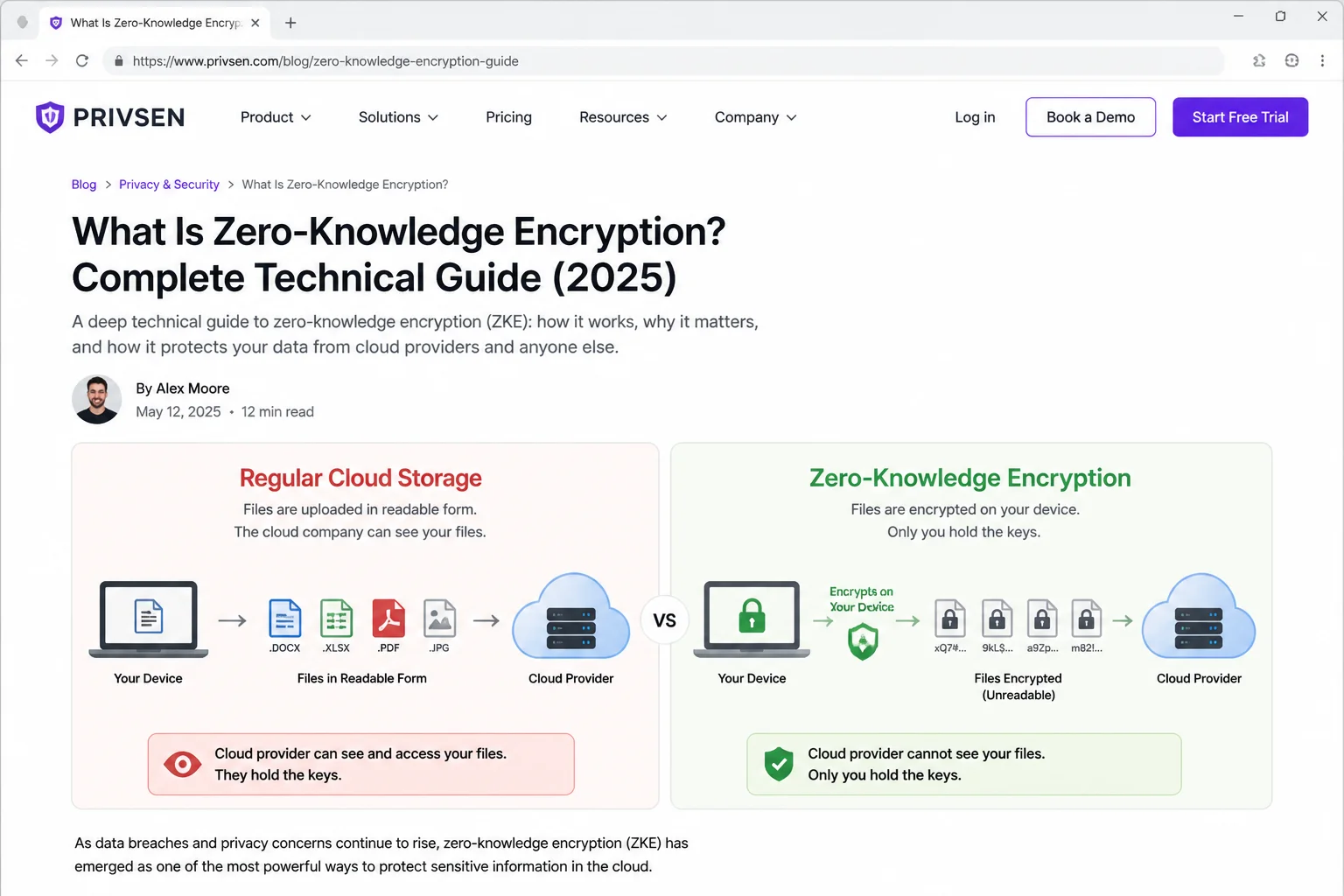
Cloud services like Google Drive, Dropbox, and OneDrive all encrypt your files, but they hold the keys. That means the provider can technically access your data, and so can anyone who compels them through legal channels or compromises their systems.
Two practical routes fix this:
- Zero-knowledge cloud storage: Services like Tresorit encrypt your files on your device before they’re uploaded. The provider never sees the unencrypted content, only you hold the keys. Even a full breach of their servers leaves attackers with nothing usable.
- Encrypt before you upload: If you’re staying with Google Drive or Dropbox, you can encrypt sensitive files yourself before syncing them. Tools that create AES-256 encrypted containers let you store one locked vault file in your cloud account. Open it locally, edit what you need, close it, the cloud provider sees an opaque blob.
Whichever option you choose, store your encryption passphrase or recovery code offline. Losing access to an encrypted vault because you forgot the password is a genuinely bad day, with no recovery path.
Encrypt Your Internet Traffic
Your internet service provider sees every site you visit and every service you connect to. On public Wi-Fi, airports, hotels, coffee shops, that information can be visible to anyone on the same network with basic tools. Neither scenario feels comfortable once you think about it.
A VPN (virtual private network) wraps your traffic in an encrypted tunnel before it leaves your device. Your ISP sees an encrypted stream going to a VPN server. The person at the next table with a packet sniffer open sees the same thing. Neither can tell what you’re actually doing.
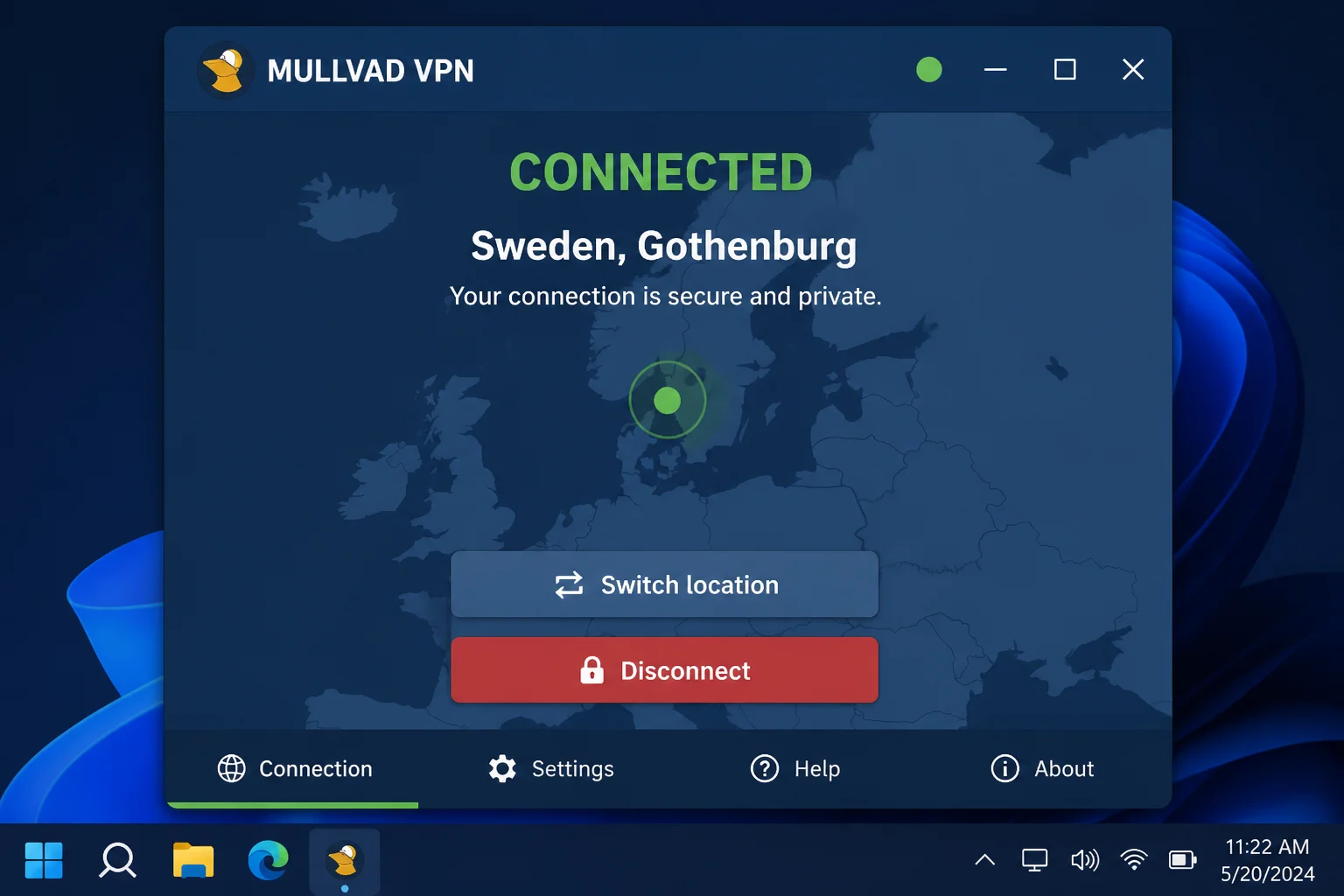
Choose a VPN provider whose no-logs policy has been independently verified. The trade-off is real, you’re shifting trust from your ISP to the VPN provider, so pick one you have a genuine reason to trust.
For a higher level of anonymity, Tor (The Onion Router) routes your traffic through several independent volunteer-run nodes. No single node knows both who you are and where you’re going. The Tor Browser handles all the routing automatically.
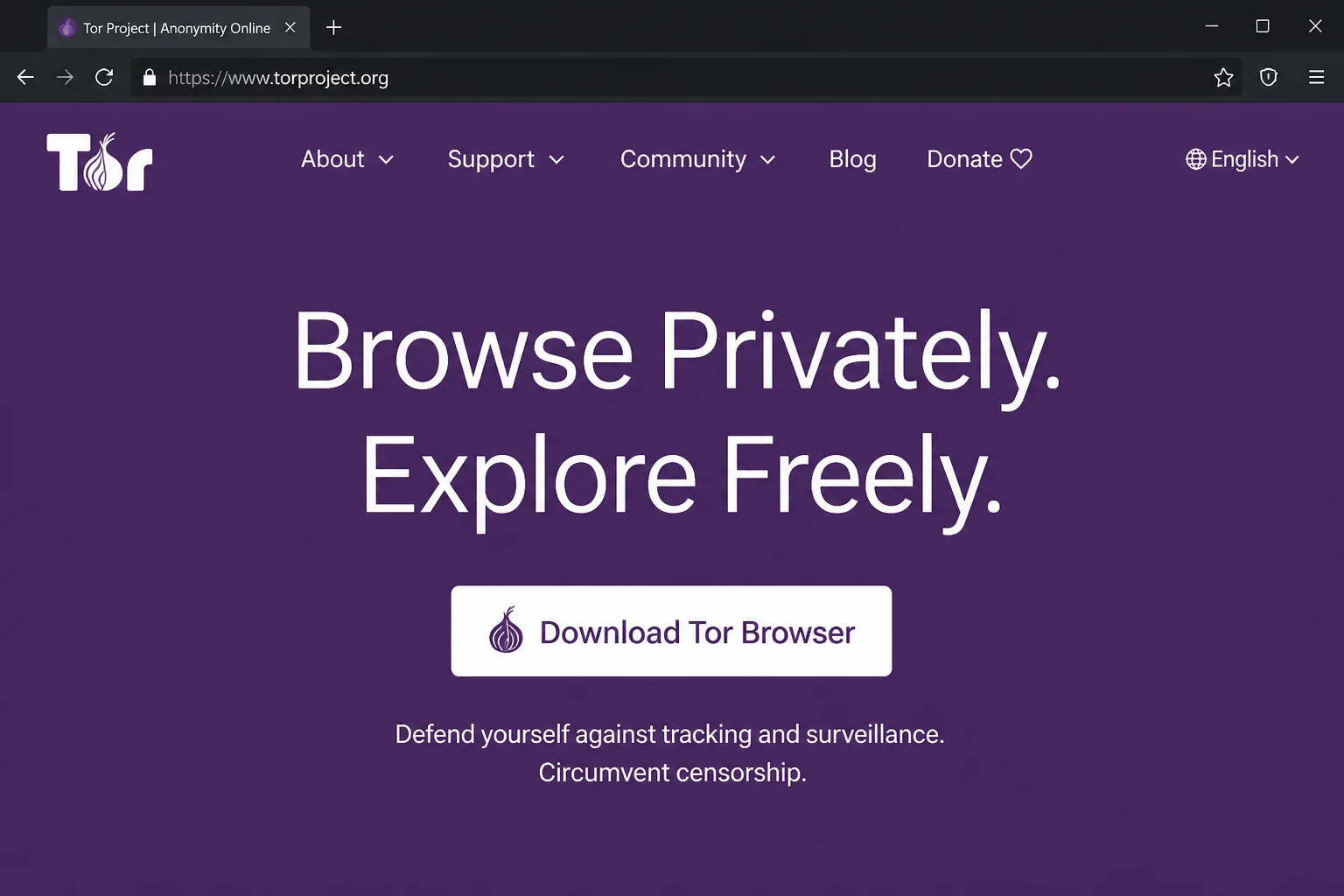
Tor is noticeably slower than a VPN, and many websites actively block Tor exit nodes (streaming platforms especially). It’s the right tool for specific high-sensitivity situations: journalists, activists, anyone with concrete reasons to need strong anonymity. For everyday browsing, it’s overkill.
One more thing that’s easy to overlook: HTTPS. Most major websites use it by default, which means the connection between your browser and the site is encrypted. You’ll see a padlock icon in the address bar. If a site asks for your password or payment details without one, close the tab.
Encrypt Your Emails
Email is ancient infrastructure, and it shows. Most providers encrypt messages in transit and at rest, but they hold the keys. A breach of their servers, or a legal order, makes those messages readable.
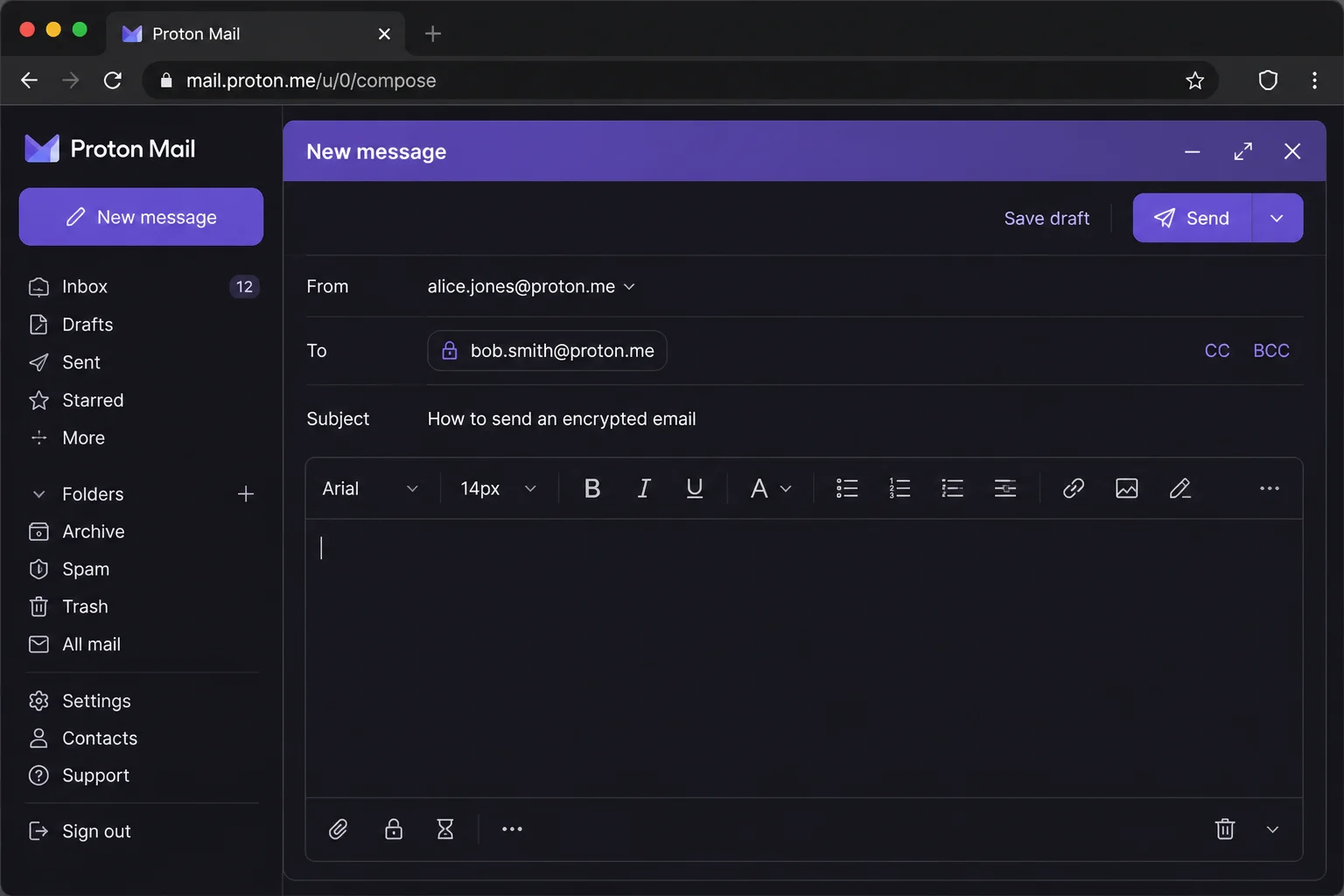
The simplest fix is switching to a provider built for privacy. ProtonMail encrypts messages end-to-end between Proton users without any extra setup on your part. Proton can’t read your emails. It works in any browser and has mobile apps for iOS and Android, and it actually works well as a daily driver for everyday email.
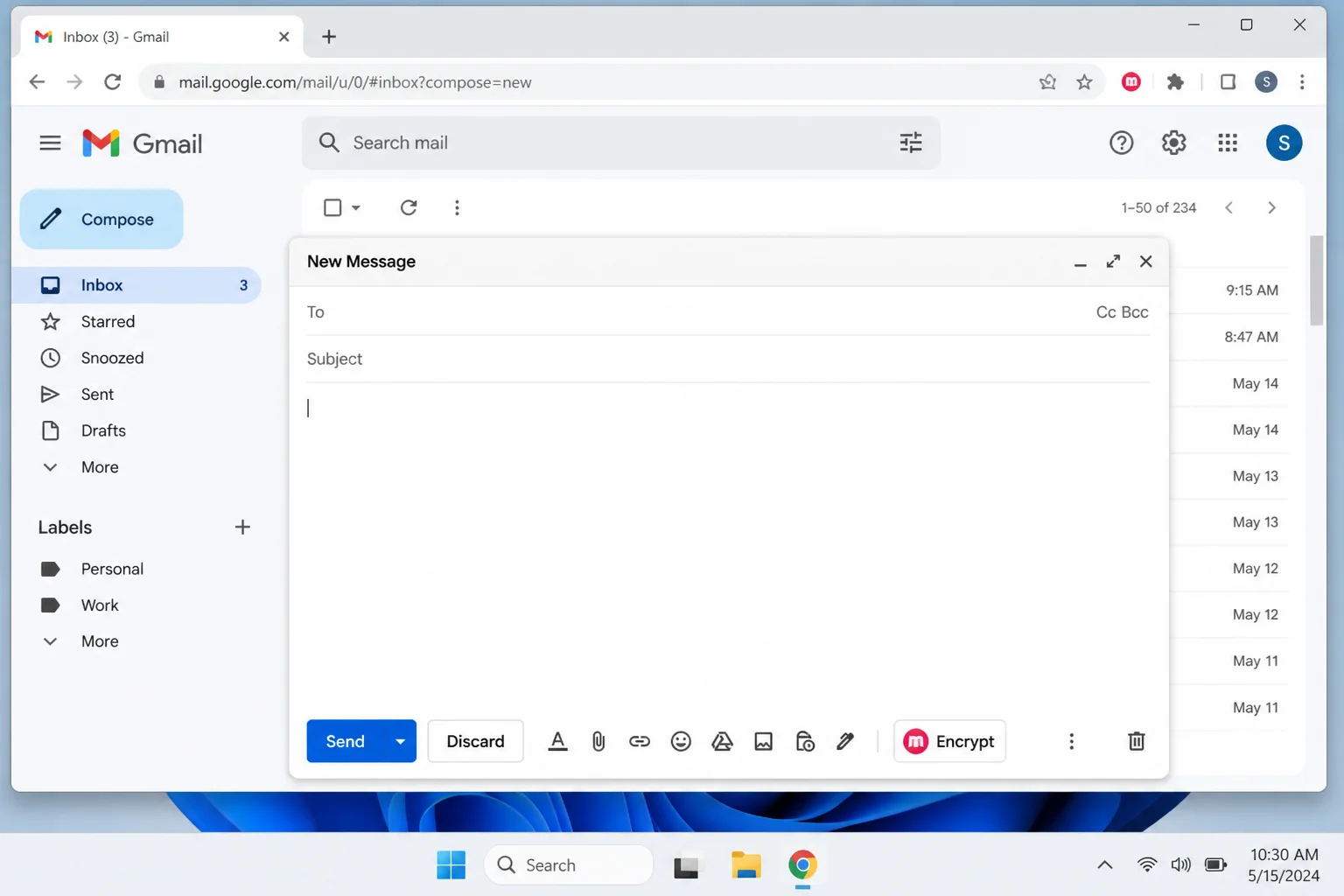
If switching email providers isn’t on the table, PGP (Pretty Good Privacy) adds encryption on top of whatever service you’re already using. PGP gives you two keys: a public key anyone can use to send you encrypted mail, and a private key, stored on your device, that’s the only thing capable of decrypting those messages. Even if someone breaks into your account, they can’t read PGP-encrypted content without that private key.
The setup takes some patience, but browser extensions like Mailvelope make it manageable. Mailvelope adds PGP support directly to Gmail, Outlook.com, and most other webmail services without requiring you to change how you use them.
Encrypt Your Messages
End-to-end encryption (E2EE) in messaging apps means only you and the person you’re talking to can read the conversation, not the company running the service, not anyone intercepting the traffic. The content is encrypted on your device and only decrypted on theirs.
Signal is the recommendation you’ll hear from security researchers without caveats. It encrypts messages, voice calls, and video calls by default, and runs on an open-source protocol that’s been independently audited. Signal also collects almost no metadata, the app doesn’t know who you’re talking to or how often.
WhatsApp uses the same Signal Protocol and encrypts all 1:1 chats by default. It’s not as privacy-preserving at the metadata level (Meta logs who you’re talking to and when), but the actual message content is end-to-end encrypted, and that part is nicely done from a technical standpoint.
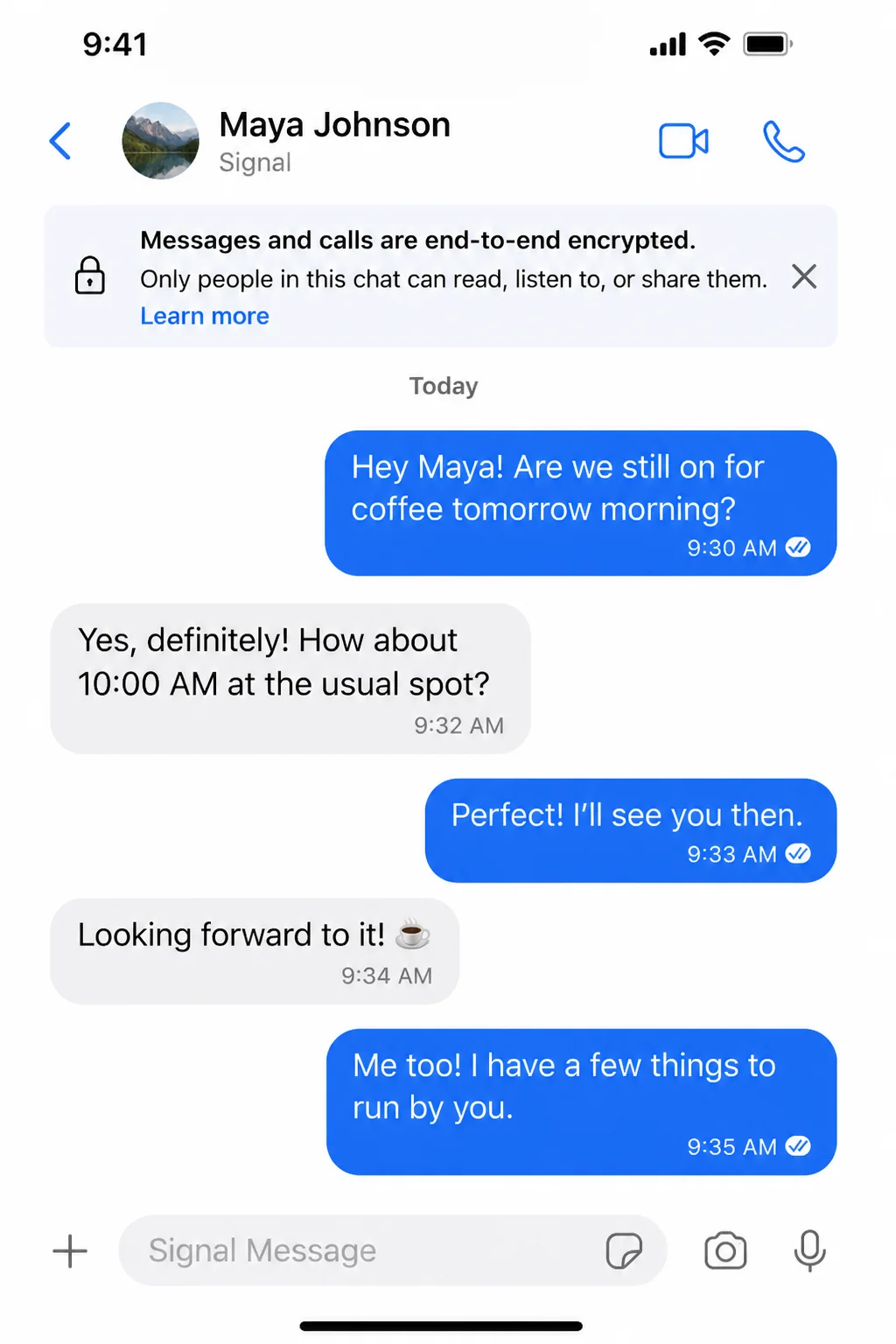
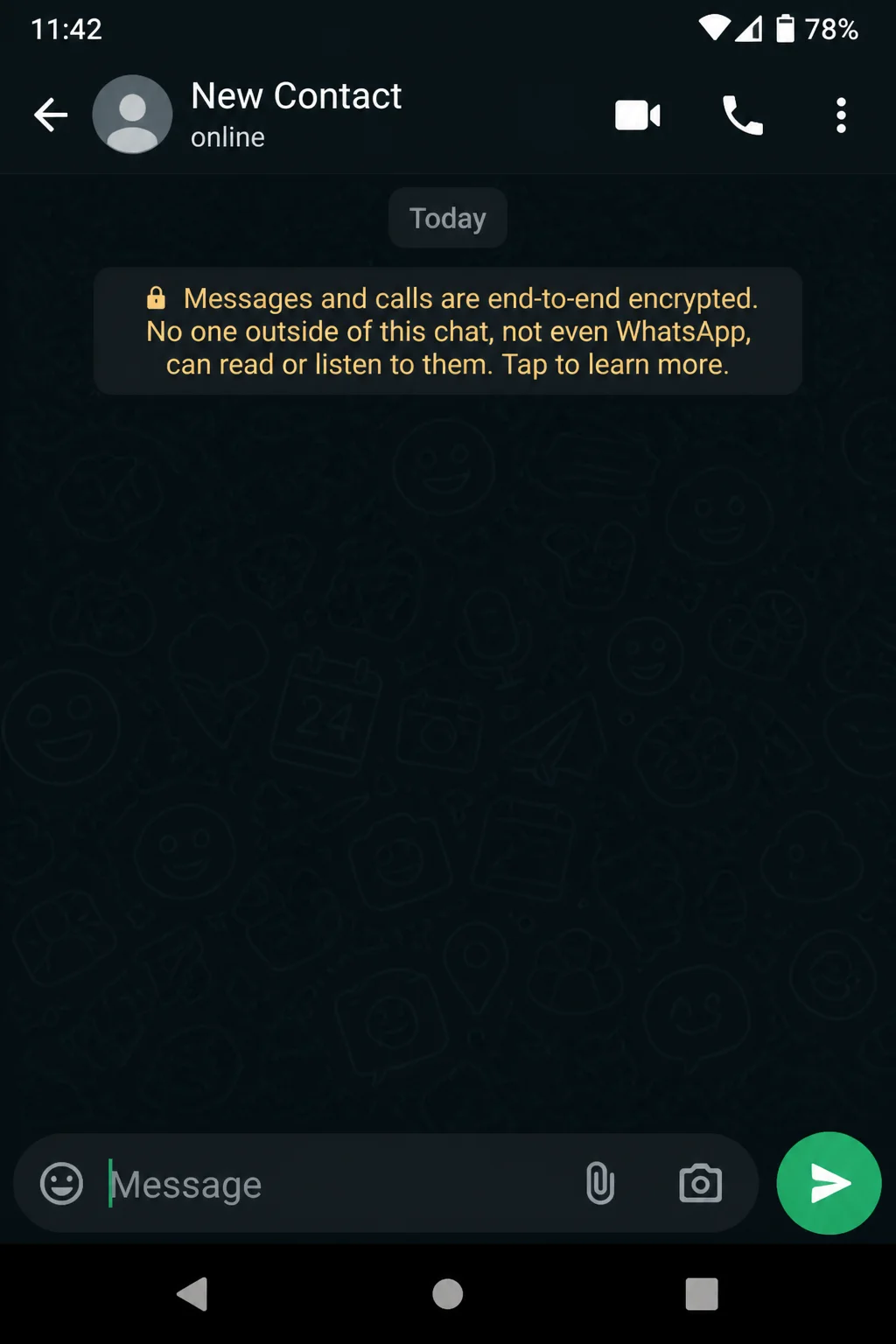
One thing worth checking across any messaging app: confirm E2EE is actually active. Some apps encrypt only certain conversation types by default, or require you to opt into a “secret chat” mode for specific threads. Look for an encryption indicator in the chat header or settings before sending anything sensitive.
Tips and Troubleshooting
Don’t Get Locked Out
The most common encryption disaster is losing access to your own data. Before encrypting anything:
- Back up your BitLocker recovery key to an offline location. A printed sheet, a USB drive kept separately from your laptop, or a secure entry in a password manager all work.
- Save your FileVault recovery key somewhere you’ll actually find it later. Apple cannot recover encrypted data if you lose your password and your key both.
- Test your recovery process before you need it in a real crisis. It feels like unnecessary effort right up until it isn’t.
Use a Password Manager
Encryption keys, recovery codes, strong unique passwords, there’s a lot to track. A password manager like 1Password or Bitwarden stores everything in an encrypted vault protected by one strong master password. Without one, most people reuse weak passwords, which undercuts every other protection here.
VPNs Are Not a Substitute for Encryption
A VPN encrypts your connection, the road your data travels on. It doesn’t encrypt the files on your laptop or the emails in your inbox. You need both. A VPN with no disk encryption is like locking your car but leaving all your valuables visible through the windows.
What About Quantum Computing?
You may have heard that quantum computers will eventually crack today’s encryption. For everyday use, current standards like AES-256 are secure against anything that exists today. Organizations storing long-lived sensitive data are planning ahead for quantum-resistant algorithms, but for personal use these tools are the right ones.
Wrapping Up
You don’t have to tackle all of this at once. Start with the highest-impact moves: turn on disk encryption, set up a password manager, and switch your main messaging app to Signal or WhatsApp. Those three changes close off the most common attack paths without requiring much ongoing effort.
From there, add encrypted cloud storage and a VPN, then sort out your email situation. The tools here are solid enough that I’d recommend this setup to anyone, regardless of whether they think they have something specific to protect. Once it’s all running, most of it stays invisible. That’s the best sign: good encryption should feel like nothing at all.
| What to Encrypt | Tool | Platform |
|---|---|---|
| Hard drive / SSD | BitLocker | Windows 11 |
| Hard drive / SSD | FileVault | macOS Sequoia |
| Mobile device data | Built-in (use a strong passcode) | iOS / Android |
| External USB drives | BitLocker To Go | Windows 11 |
| Cloud files | Tresorit or encrypted containers | All |
| Internet connection | VPN | All |
| High-anonymity browsing | Tor Browser | All |
| Emails | ProtonMail or PGP + Mailvelope | Web |
| Messages | Signal or WhatsApp | iOS / Android |