
The days when all you needed to protect yourself online was a password are gone. Today a strong password isn’t going to stop anyone. If you want to stay on top of your security, you need to start using a solid VPN service, password manager, Tor browser, and more. Sometimes it feels like it’s easier to quit the internet and social networks altogether. If only that was possible.
One effective way of protecting your online accounts is by enabling two-factor authentication in all of them. Find out how to enable and disable two-factor authentication, and how it can help protect social media accounts.
What’s Two-Factor Authentication?
If you have at least one social media account that you use on a daily basis, thinking about your online security in advance is a must. One preventative measure you can take is choosing a strong password for your account, or using a password manager if you have multiple accounts. However, that’s often not enough to stop the hackers.
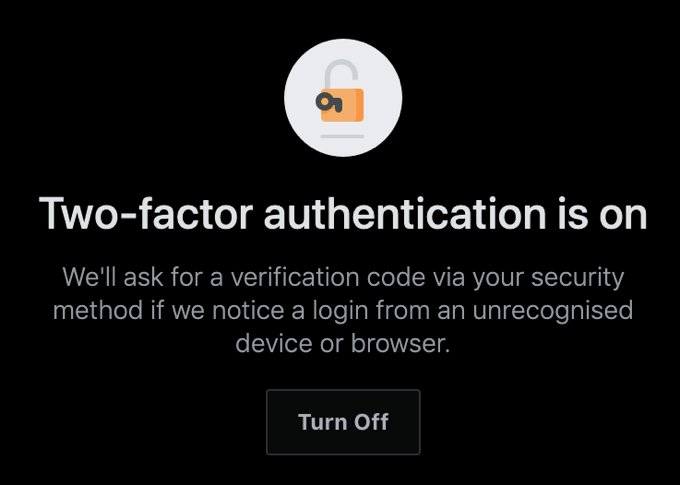
To avoid having to recover your hacked Facebook or Instagram account later on, add an extra security level with two-factor authentication (2FA). If you choose to enable two-factor authentication on all your online accounts, it will significantly improve your security and give you peace of mind.
How Two-Factor Authentication Works
Two-factor authentication, also known as two-step authentication and multi-factor authentication, is a security measure for your accounts that you can use on top of your login details to protect yourself online.
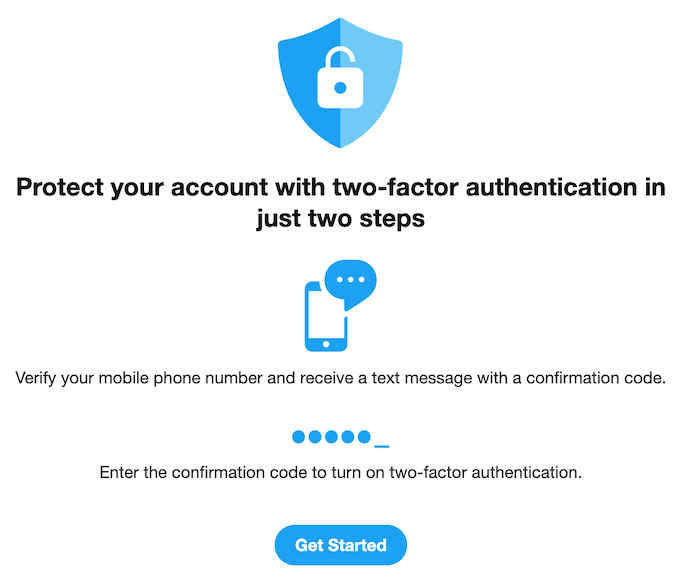
Instead of just one stage of verifying your identity (via username and password), you get the second stage where after entering a password to log in you also have to enter a code that you receive on your phone. The code is always unique and is generated via an app. Two-factor authentication makes the verification process more complicated, but it ensures that only you can access your online account.
What If I Can’t Receive the Security Code?
Some users are reluctant to turn on two-factor authentication because once you enable it, you won’t be able to log into your account without the code sent to your phone. So what happens if you lose your phone or don’t have access to it? One solution is to temporarily disable 2FA on your account(s) until you regain access to your phone. Though there’s a better way out of this situation.
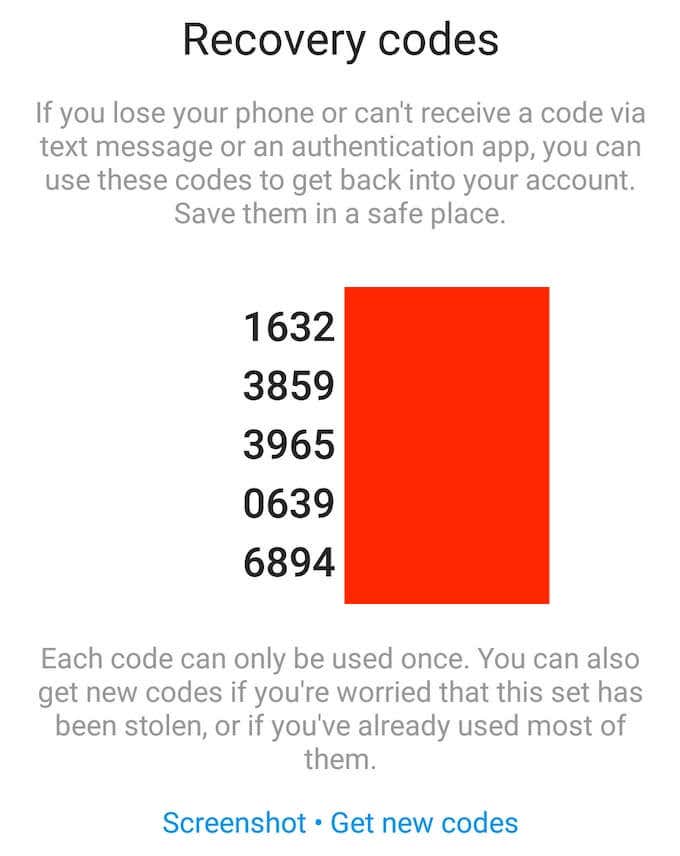
When you enable 2FA on your online account, you’ll get access to a page with Recovery codes. You can use these codes to get into your account if you lose your phone or can’t receive a code via authentication app. Make sure to save those codes and keep them somewhere safe.
Two-Factor Authentication on LinkedIn
On LinkedIn, you can set up two-factor authentication in your account settings.
You can do it both in your browser or in a mobile app by following the steps below.
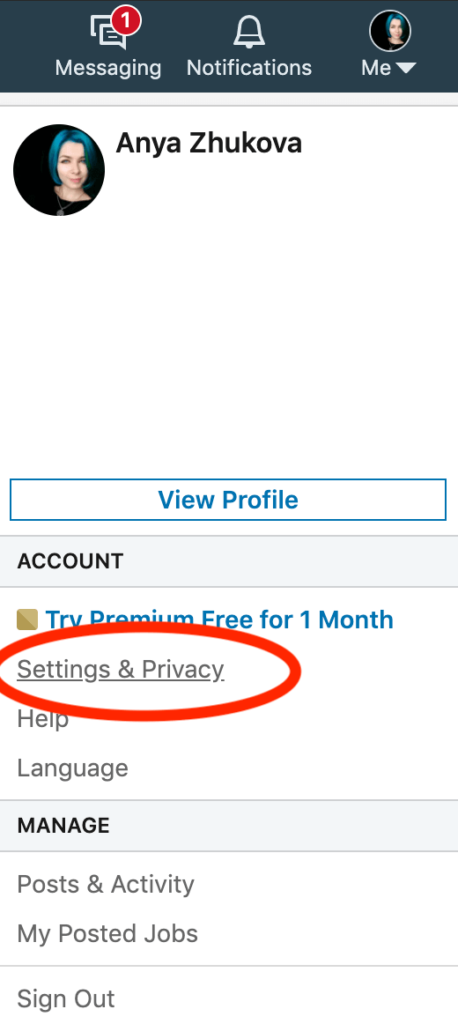
- Open LinkedIn and go to your account’s Settings & Privacy (or Settings in your mobile app).
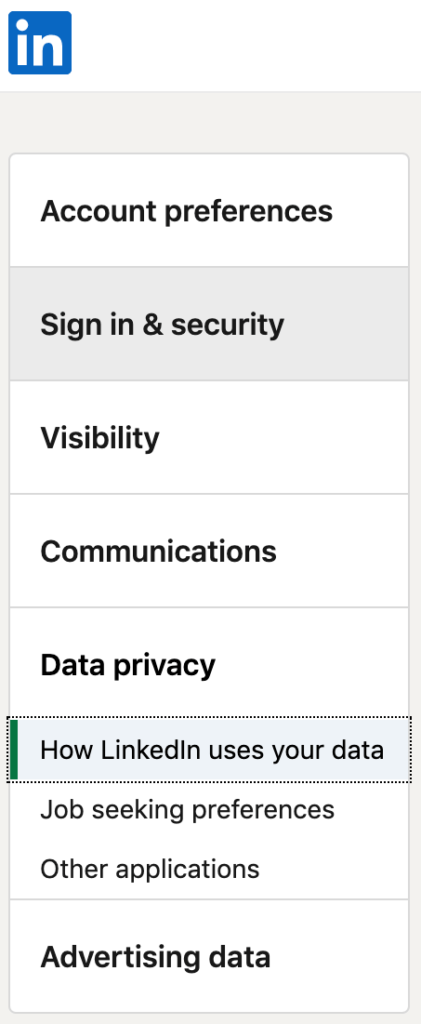
- From the menu, select Sign in & security.
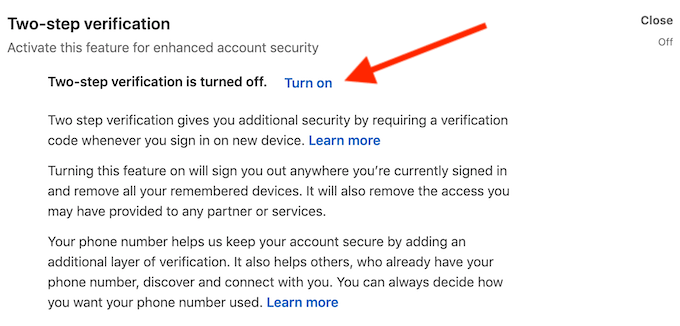
- Scroll down to find Two-step verification and select Turn on (or Set Up in mobile app) to activate it.
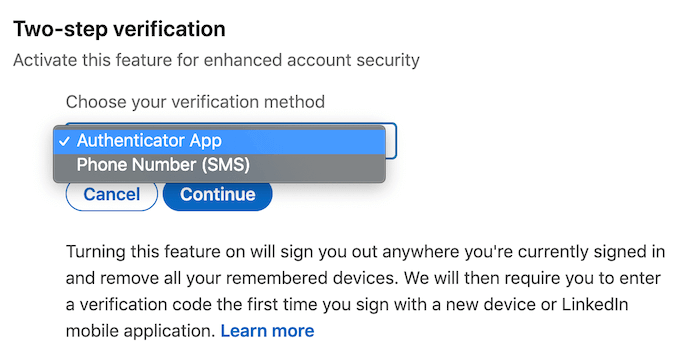
You will then have the choice to use your phone number or an authenticator app to get the code. Select one and click Continue. Then enter your password and confirm the choice.
If you choose your phone number, you’ll get the 6-digit LinkedIn security code via SMS.
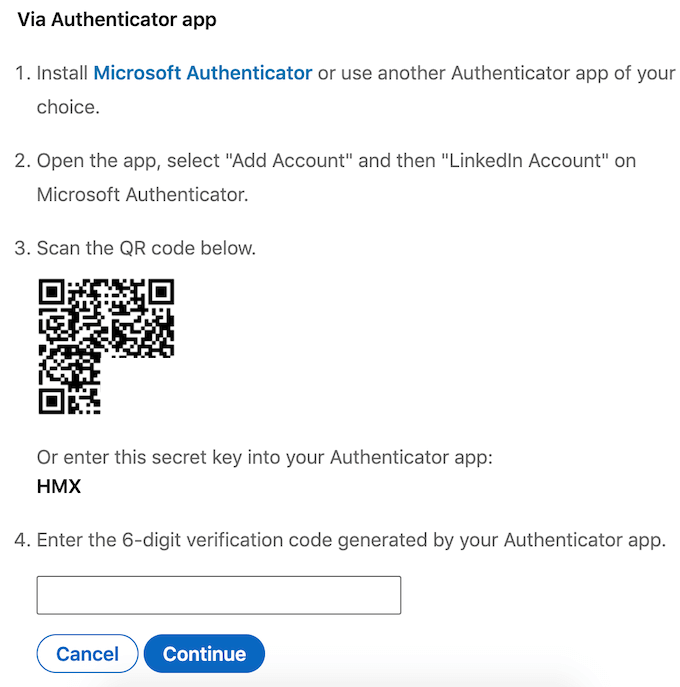
If you choose the authenticator app option, you need to install Microsoft Authenticator (or another authenticator app of your choice), then add your LinkedIn account to it, and use the app to either scan the QR code or enter a secret key manually. Use the 6-digit code to complete the process.
You can change the method or turn 2FA off completely at any time by following the same path and selecting Turn off in the settings instead.
Two-Factor Authentication on Instagram
On Instagram, you can also use both the web and mobile version of the app to set up two-factor verification. However, in your web browser you can only use the phone number 2FA method.
While that might seem convenient since normally you’ll always have your phone on you, it’s not the preferred security method and shouldn’t be your first choice. For example, you won’t be able to receive an SMS when you don’t have cellular service, hence you won’t get the code and access to your account.
In your mobile app, you can choose from two 2FA methods: receiving the code via SMS or via an authenticator app. To set up two-factor authentication on Instagram, follow the steps below.
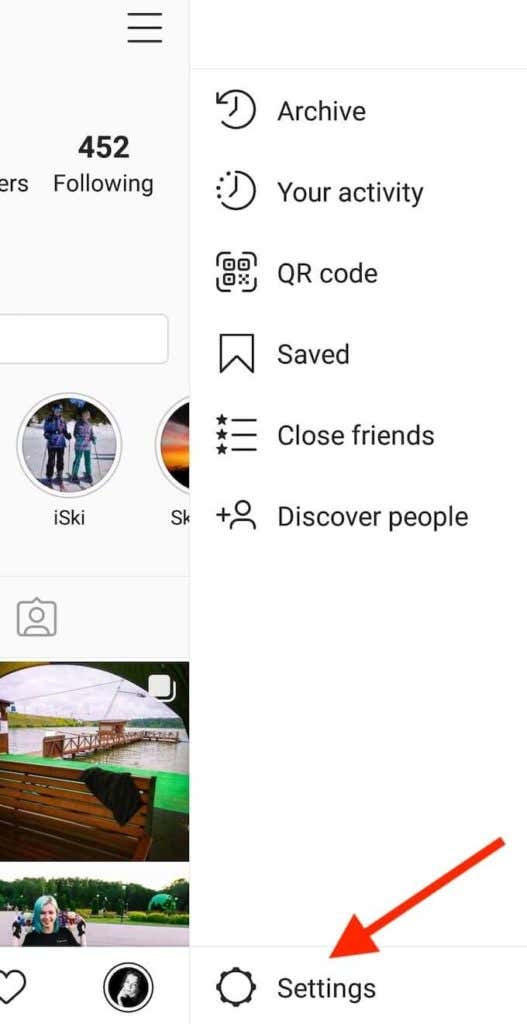
- Open Instagram and go to your profile page.
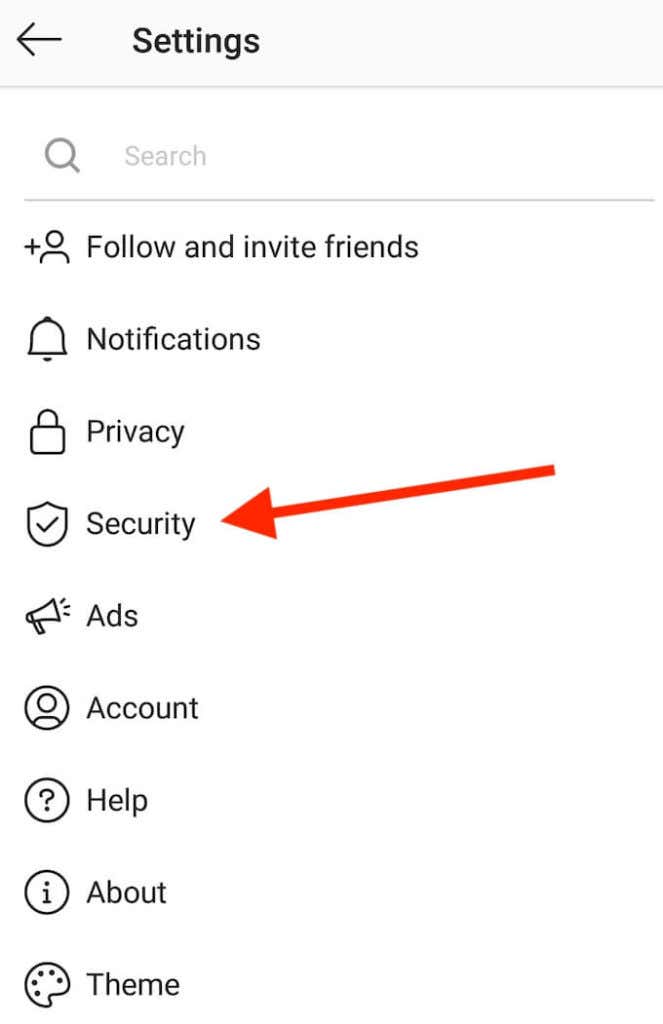
- Open the Settings menu and select Security.
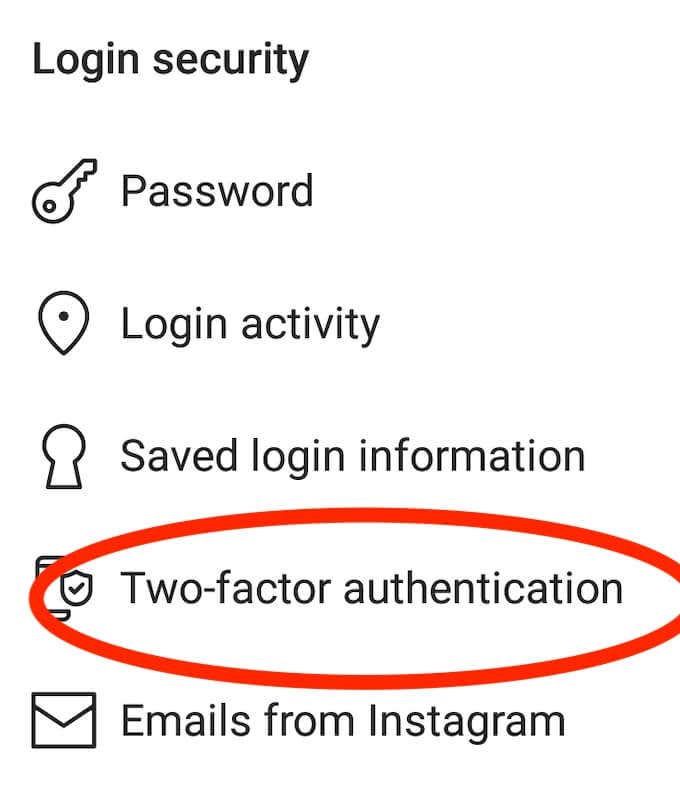
- Under Login security select Two-factor authentication.
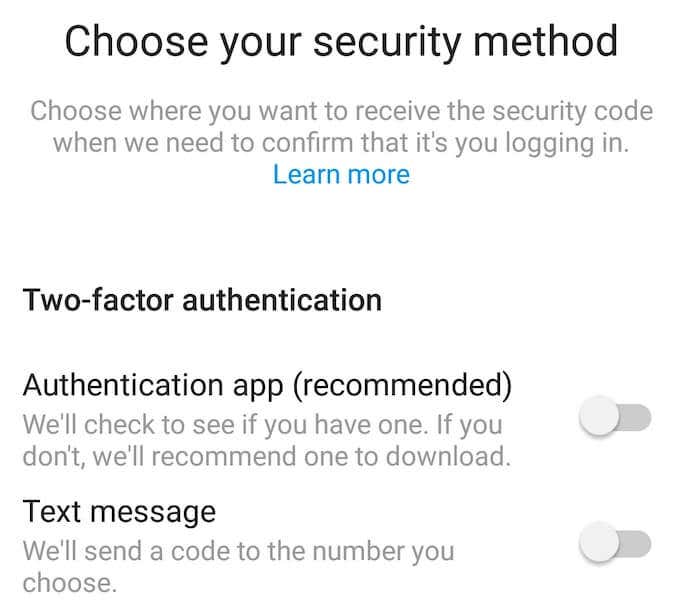
- Choose your security method: Authentication app or Text message. Then follow the on-screen instructions to receive the security code.
After you confirm the code with your preferred 2FA method, two-factor authentication is enabled on Instagram.
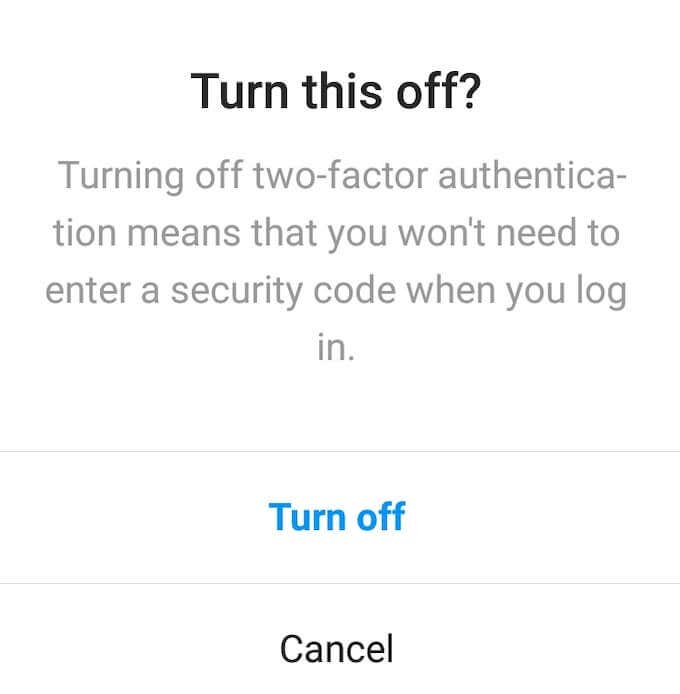
To disable 2FA on Instagram, follow the path described above to find Two-factor authentication in the app’s settings, then select the method you previously chose to turn it off.
Two-Factor Authentication on Twitter
On Twitter, you can find an option to set up two-factor authentication in your account’s settings. To access them, follow the steps below.
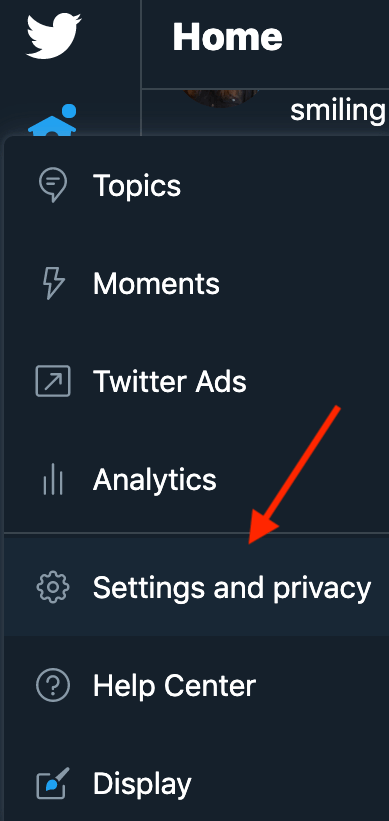
- Go to Twitter’s menu and select Settings and privacy.
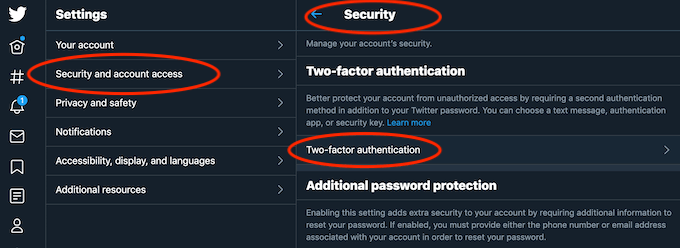
- Under Settings, select Security and account access > Security > Two-factor authentication.
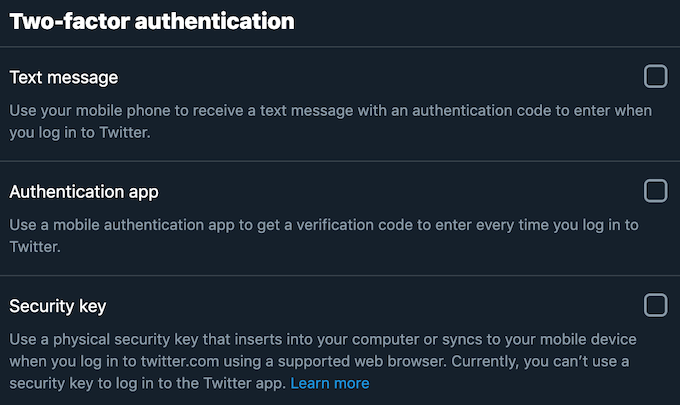
- Select your preferred 2FA method: receiving the security code via the Text message, using Authentication app, or a Security key. On Twitter, you can add more than one method for two-factor authentication. You’ll need to enter your password to confirm each of them.
You can disable 2FA on Twitter at any time by following the same path to find Two-factor authentication in the app’s settings. Then select Turn off to disable it.
Two-Factor Authentication on Facebook
To enable two-factor authentication on Facebook, follow the steps below.
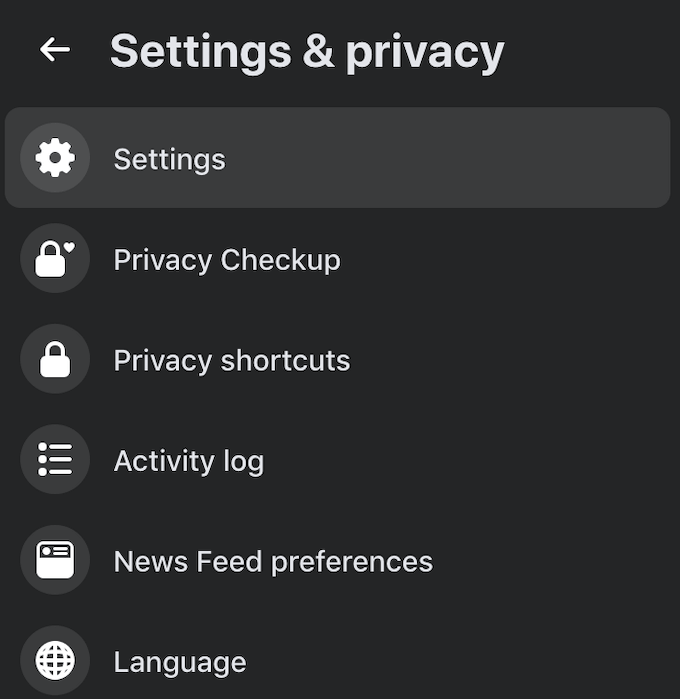
- From the app’s menu, select Settings & privacy > Settings.
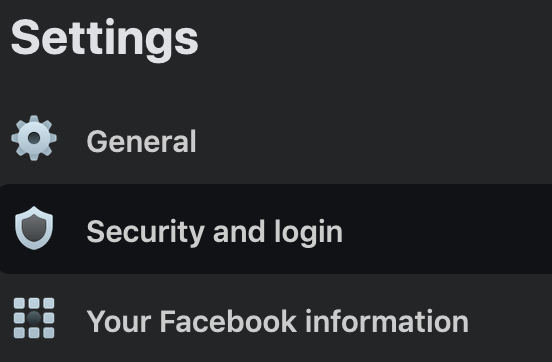
- From the Settings menu on the left, select Security and login.
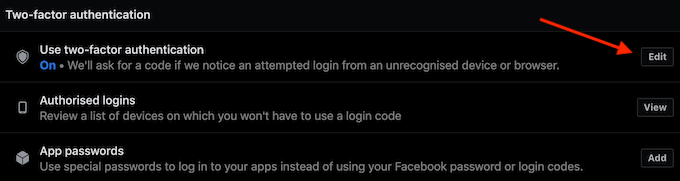
- Scroll down to find Two-factor authentication and select Edit next to Use two-factor authentication.
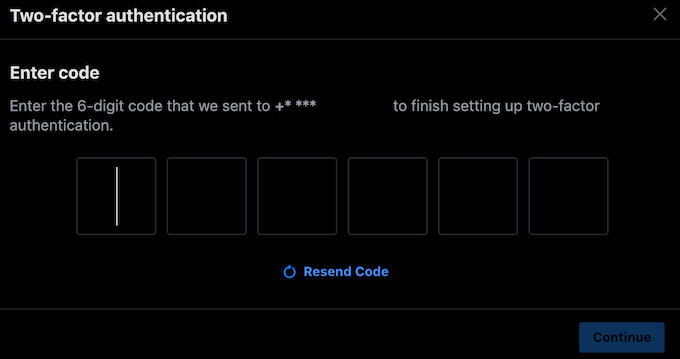
- Choose one of the security methods: an Authentication app like Google Authenticator, or Text message. Enter the security code you’ll receive to finish setting up two-factor authentication.
To disable 2FA on Facebook, follow the same path through the app’s Settings menu until you find the Two-factor authentication section. Then select Edit and re-enter your password. In the next window, you’ll be able to Turn off the 2FA, as well as add a backup security method in the form of a security key or recovery codes.
Secure Your Online Accounts Now
Finding yourself locked out of your social media account is annoying, and recovering your account after it’s been hacked is even worse. Enabling two-factor authentication can help you avoid it by adding another security level to your online accounts.
Do you have two-factor authentication enabled or disabled on your social media accounts? What security measures do you consider most effective against hackers? Share your experience with online security in the comments below.