
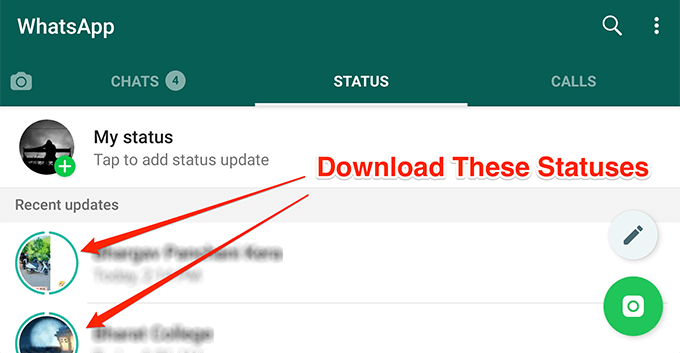
If you’re a WhatsApp user, you will likely know what the Status feature is in the app. This is the tab where you see the texts, photos, and videos posted by your contacts as statuses.
It works pretty much the same way as the Story feature on Instagram in which you add a status consisting of text, photos, and videos that lasts for up to 24 hours.
If you use the feature a lot, it’s likely that you find yourself wanting to occasionally download some of the photos and videos that people post on their WhatsApp statuses. Unfortunately, WhatsApp by default doesn’t allow you to download anything from these temporary status updates of your contacts. There’s simply no option in the app to do this.
However, a few methods have surfaced online promising to let you download these restricted photos and videos from your contacts’ WhatsApp statuses.
Download The WhatsApp Status Photos & Videos From a Hidden Folder
The way the feature works by default is that it downloads the photos and videos from your contacts’ statuses to your device. What you see in the app is actually the content that is stored on your phone’s storage.
If you could somehow get access to this location on your device, you can easily reveal all the statuses’ files to use them for other purposes.
WhatsApp has actually made this statuses folder hidden on your device so you can’t access it. There’s a workaround though to unhide the folder and access all of the contents available in it.
- Head over to the Google Play Store and download and install the Files by Google app on your device. The reason we ask you to use this app is to keep the steps common to all Android devices out there.
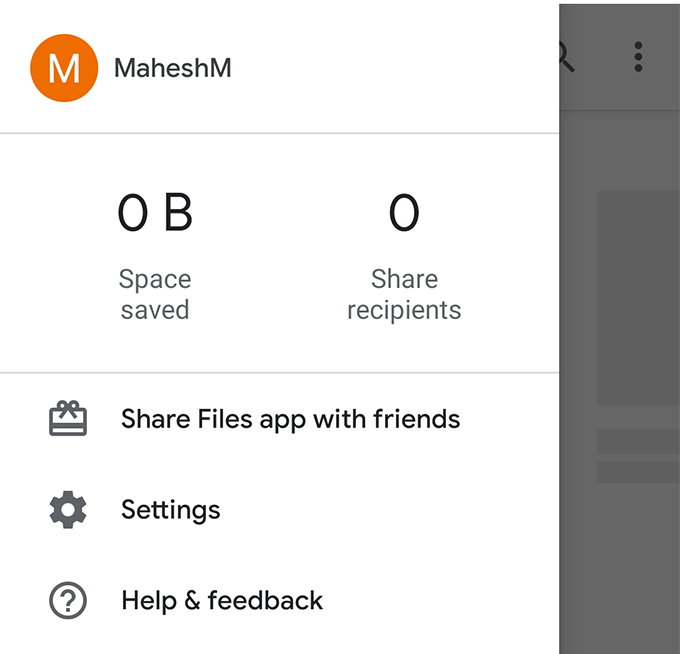
- Launch the app on your device, tap on the three horizontal-lines at the top-left corner, and select Settings.
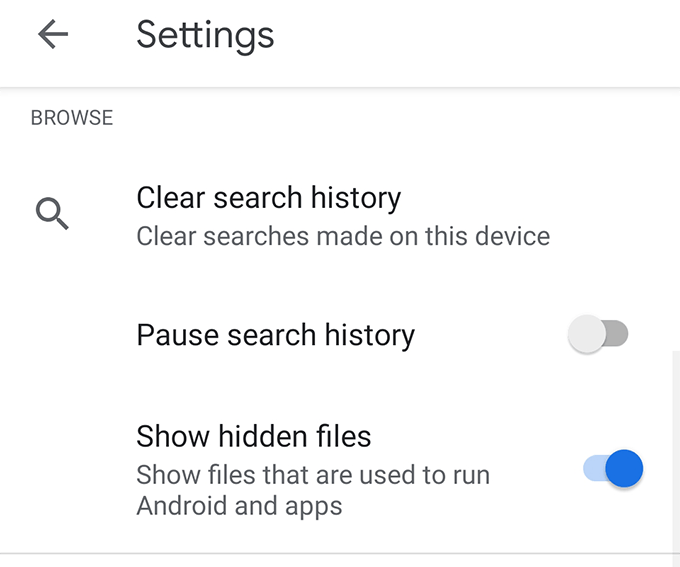
- When the settings menu opens, one of the options on your screen will be Show hidden files. Turn the toggle for this option to the ON position to enable the option.
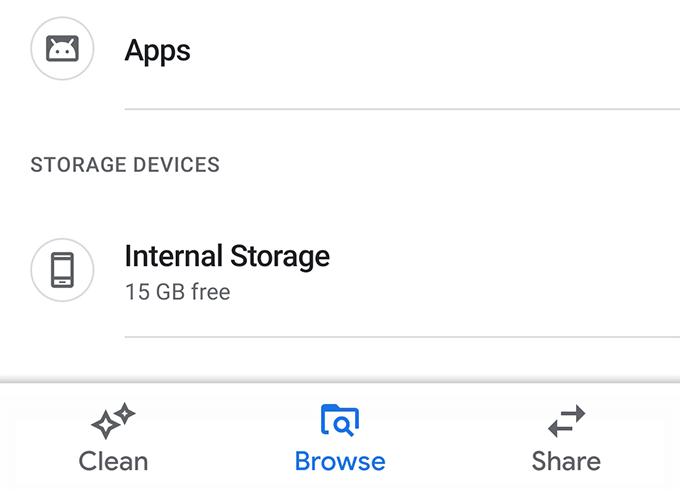
- Head back to the main app interface. Tap on the Browse option at the bottom and then select Internal Storage on the following screen.
- Find the folder named WhatsApp on the following screen and open it.
[whatsapp-directory.png]
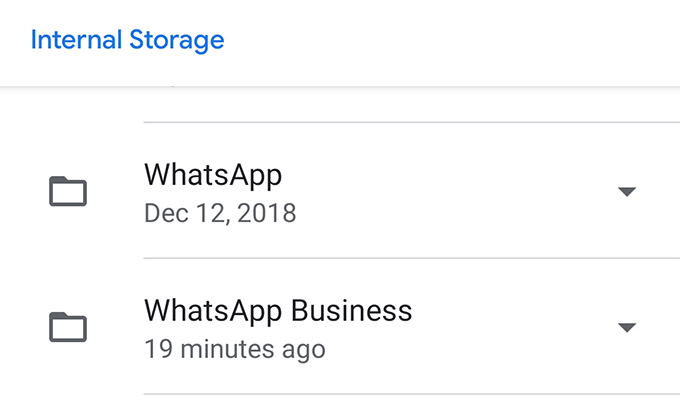
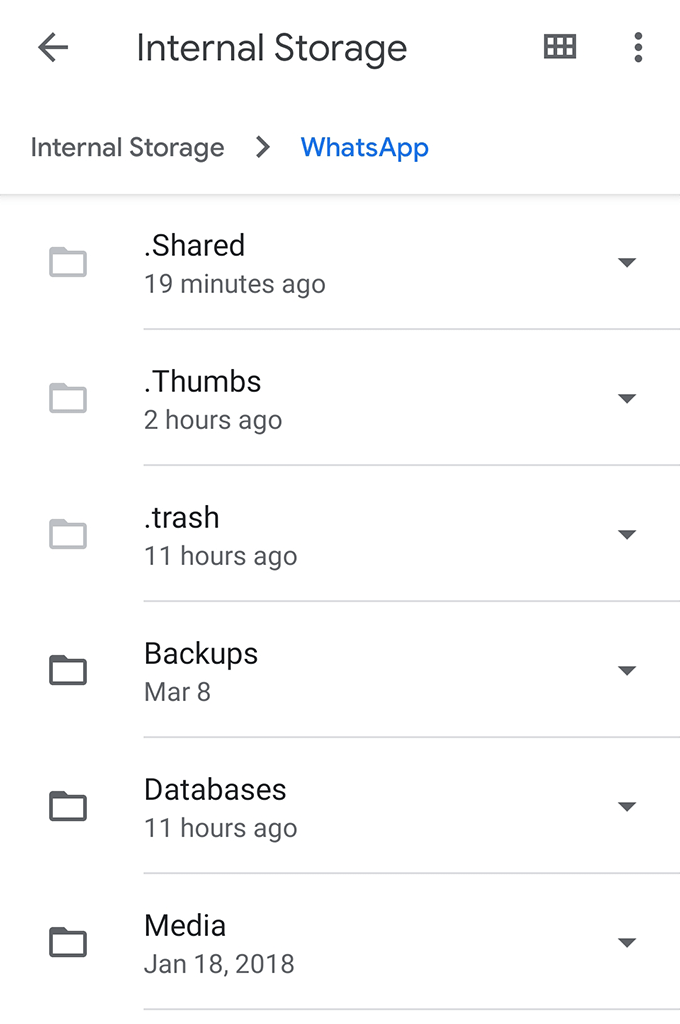
- Tap on the Media folder on the following screen.
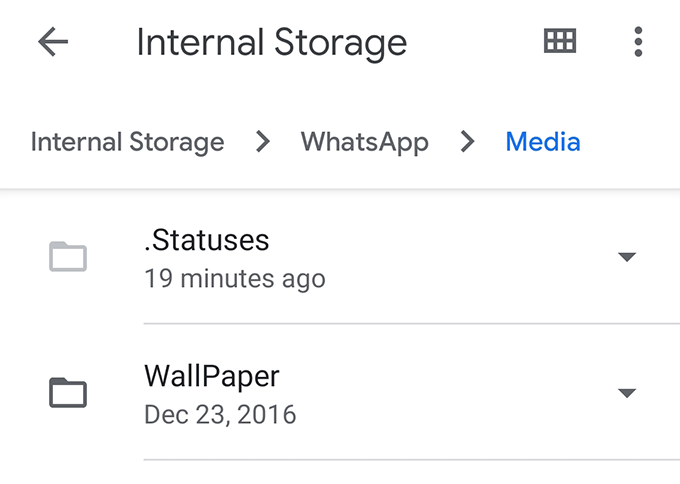
- You’ll find a folder named .Statuses. It’s the hidden folder where your statuses are saved. Tap on it to open it.
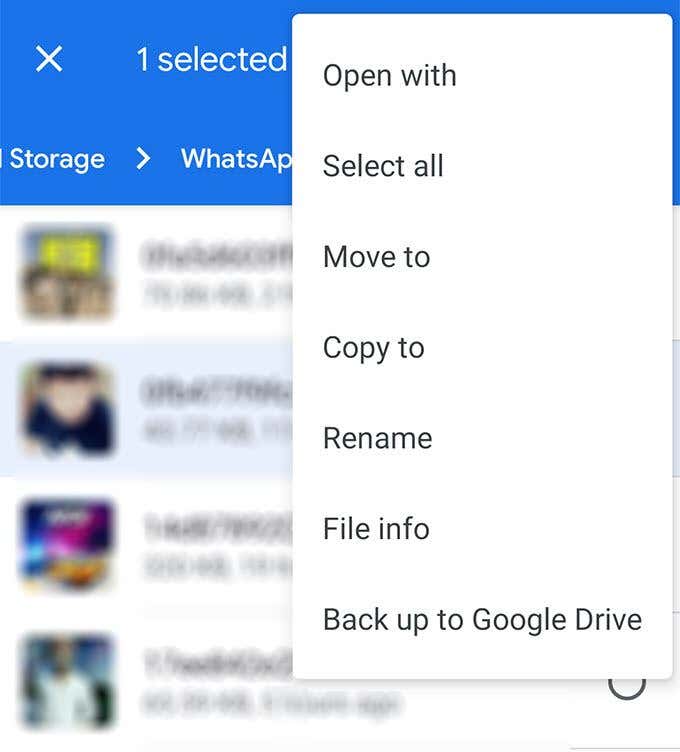
- The following screen will list out all the WhatsApp statuses available for your account. If you want to copy something from here to another folder, tap and hold on the status you want, tap on the three-dots at the top-right corner, and select Copy to.
- Navigate to the folder where you’d like to save the chosen WhatsApp status. Once you’re there, tap on Copy here to copy the status.
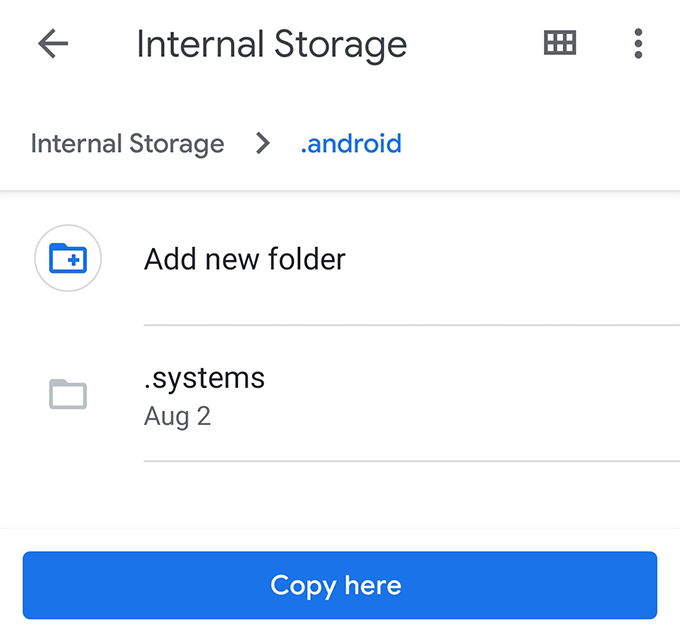
Your selected WhatsApp statuses will be copied to your chosen directory and you’ll be able to access them from there using any file manager app on your device.
Now that the status has been copied, even if the user removes the status or if the 24 hour period passes, you’ll still be able to access their status on your device.
Use Status Saver To Download WhatsApp Status Photos & Videos
If enabling the hidden folders option and manually downloading the Status sounds too much of a task for you, you have the option to use a third-party app to easily download statuses on your device.
Enter Status Saver, a free app on the Google Play Store that lets you download WhatsApp statuses on your Android device in a few taps. It doesn’t even require you to open WhatsApp on your device as it automatically fetches WhatsApp’s statuses to the app and then lets you browse and save them.
- Download, install, and launch Status Saver on your device.
- Allow the app to access files and folders on your storage.
- On the main app interface, you’ll find two tabs at the top – Images and Videos.
As you can obviously guess by their names, you can tap on Images to view WhatsApp image statuses and Videos to view WhatsApp video statuses.
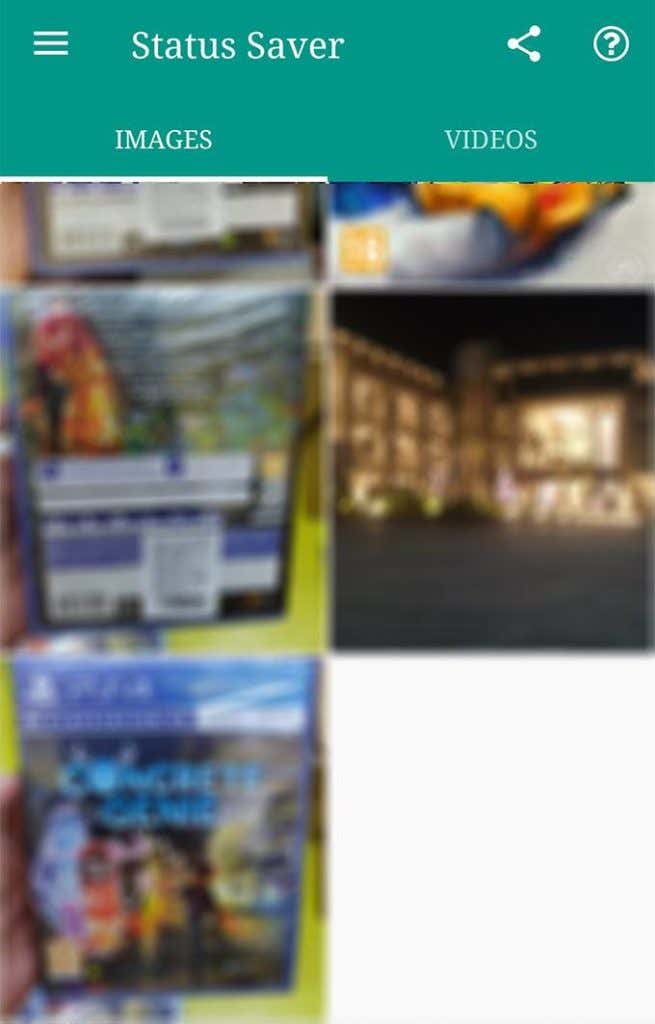
- Once you’ve tapped on an item, it’ll launch in full-screen on your device. To save the item to your gallery, tap on the + (plus) icon at the bottom-right corner and select Save.
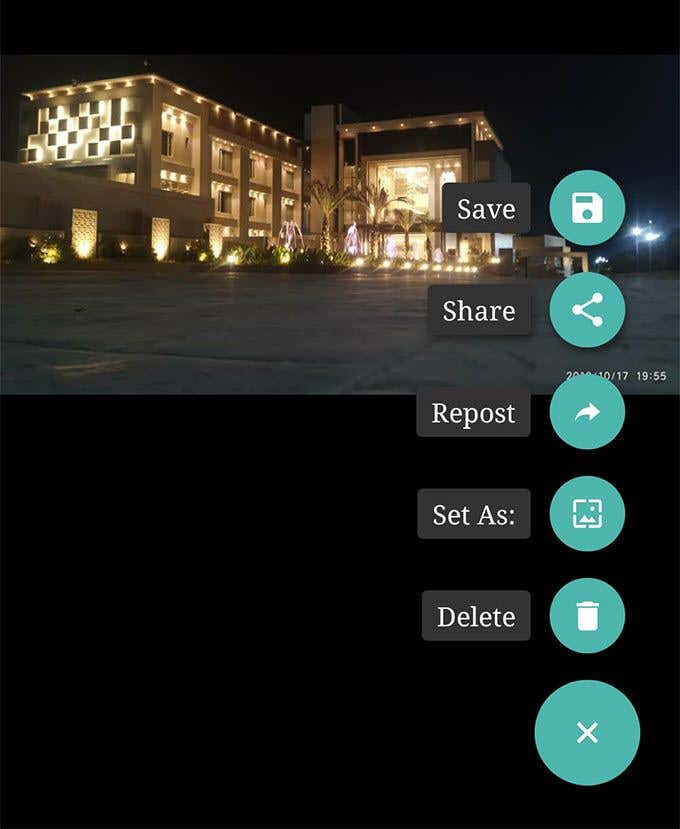
- It’ll save the item to your gallery and let you know when saving is done.
You can now use the Gallery app to view the downloaded photos and videos from WhatsApp statuses. These files are now like the regular files you have on your device.
Take a Screenshot To Save Photos From a WhatsApp Status
If what you’re looking to download is just a photo in a status, you can use the screenshot feature on your device to save the photo to your phone.
Bear in mind though this procedure won’t download the photo in its full resolution. It only captures your current screen where the photo is being displayed.
- Open the WhatsApp status where the photo you want to download is located.
- Press the Volume Down and Power buttons at the same time to take a screenshot.
If the key combination to take a screenshot doesn’t work for you, your phone likely has a different key combination for the task. There are actually multiple ways to take screenshots on Android devices and you can use one of those to get your task done.
Record Screen To Save Videos From a WhatsApp Status
Taking a screenshot of the WhatsApp status won’t work for videos. In that case, you’ll need to use a screen recorder.
- Download and install ScreenCam on your device.
- Launch the app and give it the required permissions.
- Enable the option that says Enable target app. Then tap on Choose App and select WhatsApp from the list.
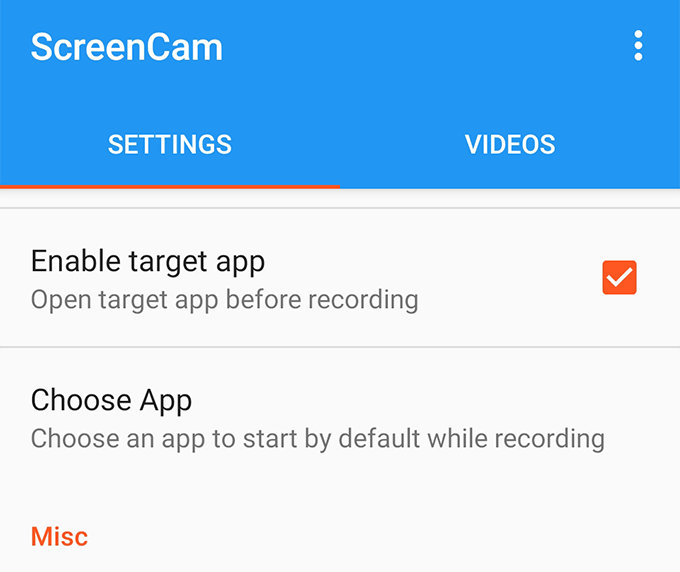
- Tap on the oval shaped record button in the bottom-right corner to begin recording.
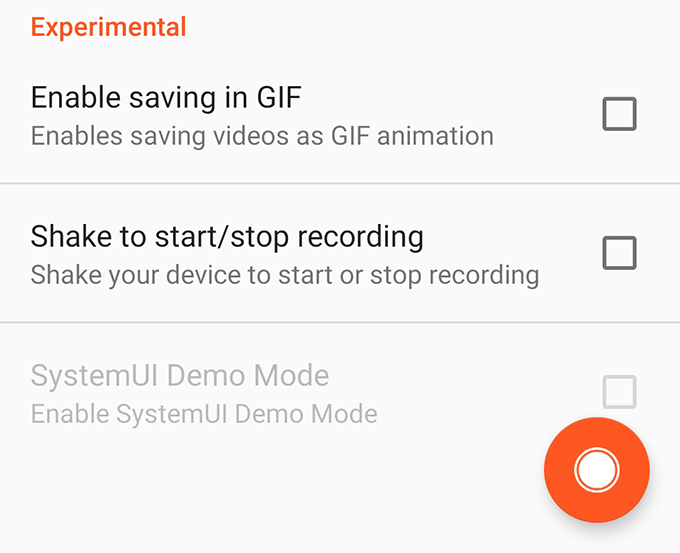
- WhatsApp will automatically launch and you’ll need to open the video status you want to download for it to be recorded using the app.
Your chosen status should now be available as a screen recorded video on your Android device.