

Since Telegram offers more features than any other messaging app, message management on this platform can be a bit more complex. Such a mundane task like deleting your messages from a chat becomes more difficult if you also want your messages gone from Telegram’s servers.
We’ll show you all of the ways that you can delete messages on Telegram, whether it’s in a regular chat with your friend or colleague, or in a group chat with many users.
How Telegram Stores Your Message History
If you’ve recently switched from a different messaging app to Telegram for security and privacy reasons, you first need to understand how Telegram stores your chat history, as well as how you can erase it.
You can have two different types of chats on Telegram: normal or cloud chats, and secret chats. Cloud chats are the chats between you and other users, group chats, and public channels. They’re stored in the cloud, which allows you to seamlessly use Telegram on different devices, since your chat history can be easily downloaded. According to Telegram, cloud chats are encrypted with encryption keys stored in several data centers in different jurisdictions.

However, if you want to eliminate the possibility of your chats being decrypted or intercepted, you should choose secret chats over cloud chats on Telegram. Secret chats are end-to-end encrypted (between only you and the recipient) and are never uploaded to a server at all.
How to Delete Cloud Chat Messages on Telegram
If you don’t want your messages to be stored in the cloud, you can easily delete them from the chats. You can delete messages from any one-on-one chat, and from any device. You can delete both the messages you sent, and the messages you received. It doesn’t matter how long ago you sent or received the message – there’s no time limit.
To delete messages from a Telegram chat, follow the steps below.
- Open Telegram and select a chat.
- Find the messages you want to delete. Select and hold the message.
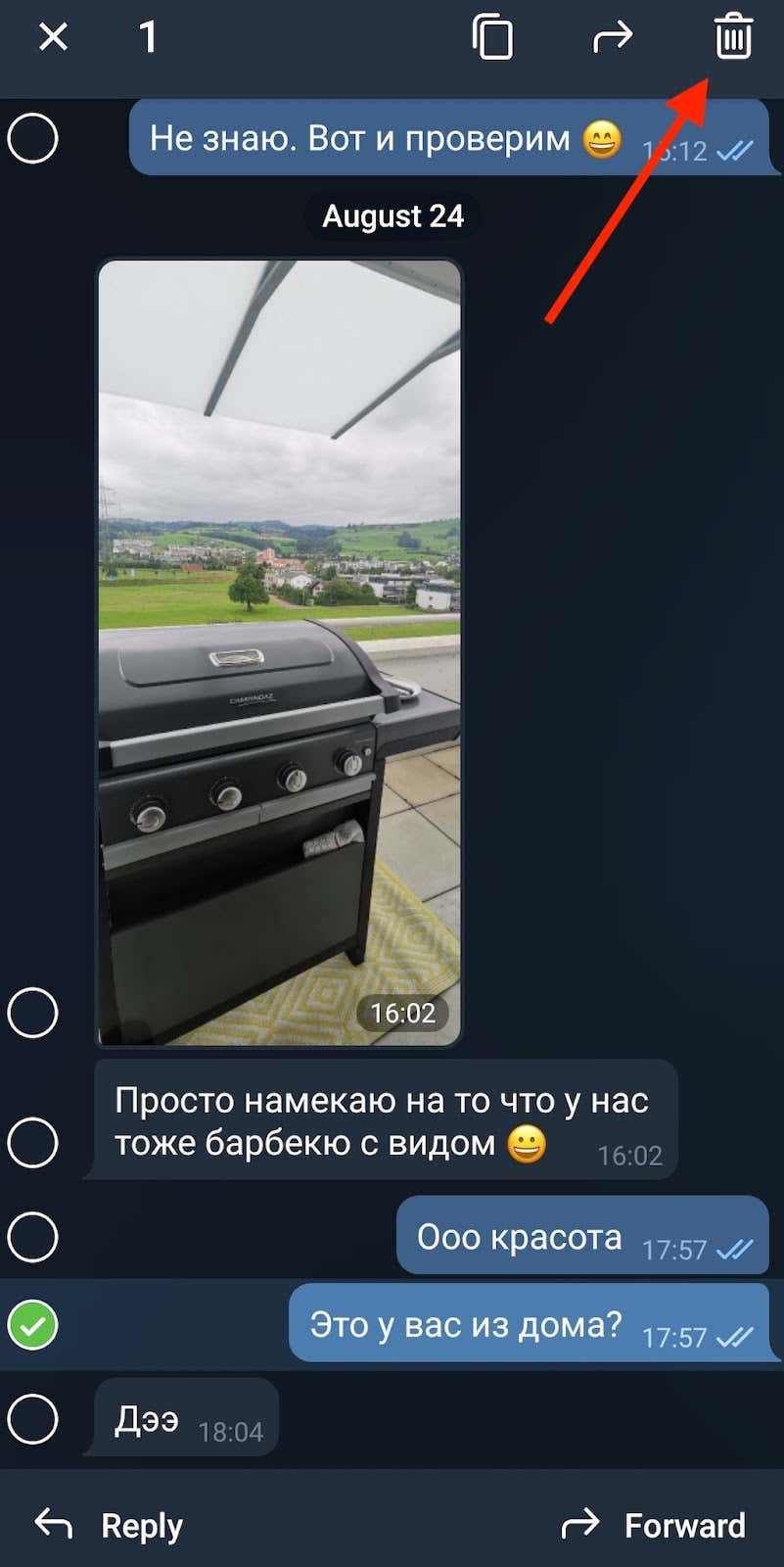
- Select Delete.

- You can opt to only delete the message for you, or for the recipient as well.
- Select Delete to confirm.
When you’re finished, the message will be gone from either just your device, or from both your and the recipient’s devices, as well as the Telegram server.
If your chat has more than 2 participants in it, you can still delete the messages that you already sent from everyone’s devices. However, there’s a time limit. You can only do it within 48 hours after sending the message. After those 48 hours, you can still delete your message, but from your device only. The message will remain on other participants’ devices, as well as on the Telegram server.
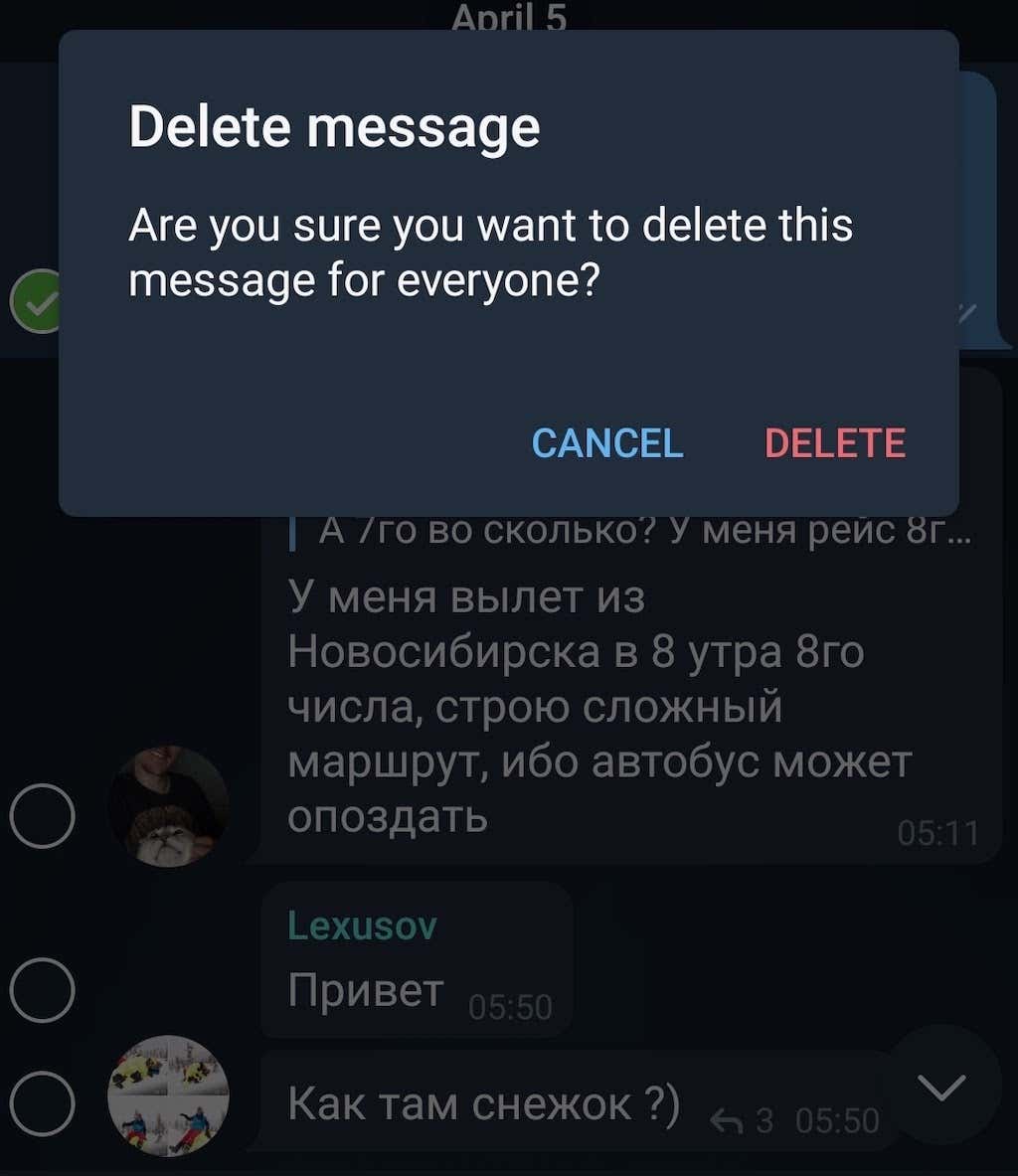
The same applies to Telegram users who are using an old version of Telegram prior to version 5.5. In that case, even if it’s a one-on-one chat, the 48-hour rule applies, and you won’t be able to delete the message for everyone afterwards.
If 48 hours have already passed since you sent the message, the only way to completely erase it is to ask the recipient (or recipients) to delete your message from their devices. After that, the message will also disappear from the Telegram server.
How to Delete Messages in Secret Telegram Chats
If complete privacy’s what you’re after, consider using secret chats in Telegram over the normal cloud chats. To open a secret chat with someone, select their username on Telegram, then select More (three vertical dots in the upper-right corner) > Start Secret Chat.

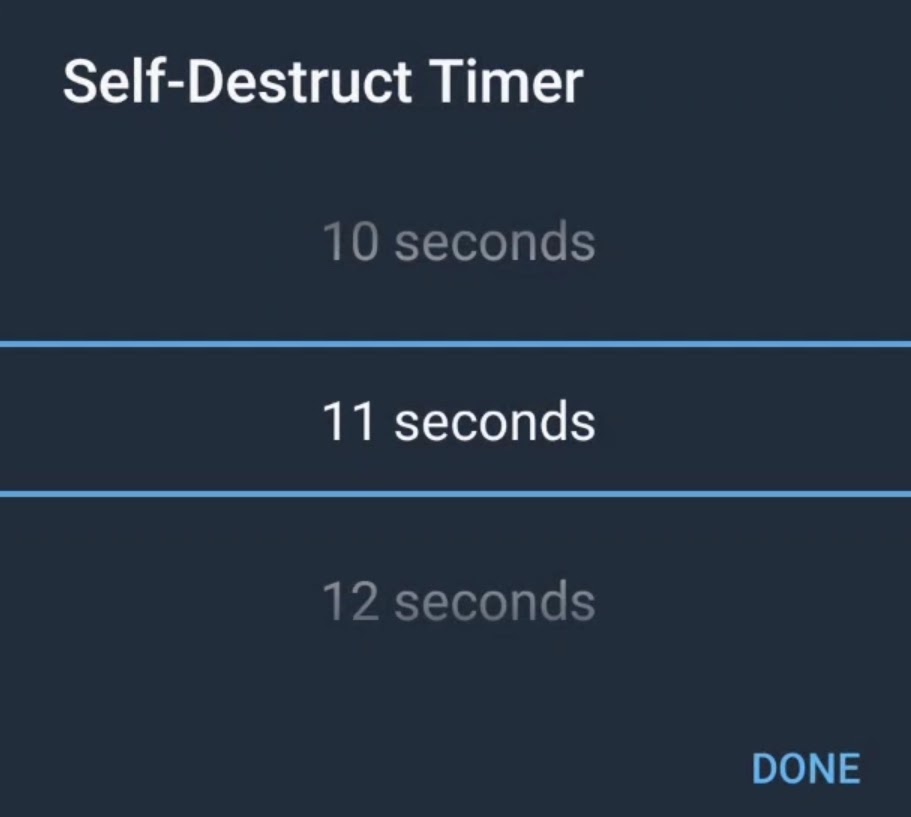
Inside the secret chat, the process of erasing messages is the same as described above. However, you might not need it if you set your messages to self-destruct. Open the secret chat and select More. Then select Set self-destruct timer. You can then choose how long the recipient will have until the message disappears from the chat.

With the self-destruct timer, the messages will automatically disappear from your secret chat after a set time. They’ll also disappear from the other person’s device, as well as from the Telegram server.
How to Auto-Delete Messages From Telegram Chats
Secret chats aren’t the only chats where you can set your messages to self-destruct. You can set your messages to automatically disappear after a certain period of time in any chat on Telegram. To enable the auto-delete feature, follow the steps below.
- Open Telegram and select a chat.
- On Android, select More > Clear History > Auto-delete messages in this chat.

- On iOS, select and hold any message in the chat. From the menu that appears, follow the path Select > Clear chat > Enable Auto-Delete.

You can choose your messages to disappear either after 24 hours, 7 days, or in 1 month after you send them.
How to Delete Entire Chats in Telegram
If you want to get rid of an entire conversation on Telegram, open the app and select it. Then select the bin icon on top of the screen. You’ll see a pop-up message asking whether you only want to delete the chat for yourself, or for both you and the recipient. If you choose the latter, the chat will disappear from both your devices and from the Telegram server.

Don’t Forget About Push Notifications
Being able to delete a message from someone else’s device after you have already sent it can potentially save you from having to explain yourself later. The feature is similar to Gmail Unsend, and is a lifesaver when you send a message to someone by mistake.
However, don’t forget that while you can prevent the recipient from seeing your message, you can’t disable push notifications on their device. When you send a message to someone, it’ll appear in their notifications. Depending on their settings, the recipient might see the contents of your message even if you already deleted it. Even though your message won’t appear in Telegram, the user can take a screenshot of the notification and keep a copy of your message that way.
Get Rid of Your Telegram Messages for Good
One final option for those who want to erase all of their messages from Telegram is to delete their account completely. If you don’t want Telegram to store copies of any of your messages, make sure you also delete all of your conversations for yourself and for other users as well.
Have you thought of deleting all of your messages from Telegram? What option do you use for deleting messages from the app? Share your experience with Telegram chats in the comments section below.