

Do you feel like the more friends you have and pages you follow, the more notifications you receive on Facebook? While some notifications are helpful, many are unnecessary.
Here, we’ll walk through how to delete notifications on Facebook and how to adjust your settings to see those notifications most important to you. Whether you use Facebook on the web, on your mobile device, or both, you can take control of your notifications.
Delete Facebook Notifications
You have the same options for deleting Facebook notifications in the mobile app and on the web.
- Access your notifications as you usually do. In the mobile app, select the Notifications tab, and on the web, use the Bell icon on the top right.
- Select the three-dot icon to the right of the notification. On the web, you’ll need to hover your cursor over the notification to see the three dots.
- Pick Remove this notification in the drop-down menu.
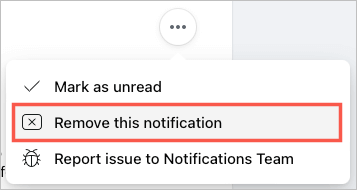
You’ll then see that particular notification removed from your list.
Depending on the type of notification you receive, you may have other options as well. These actions let you stop future notifications about that particular item.
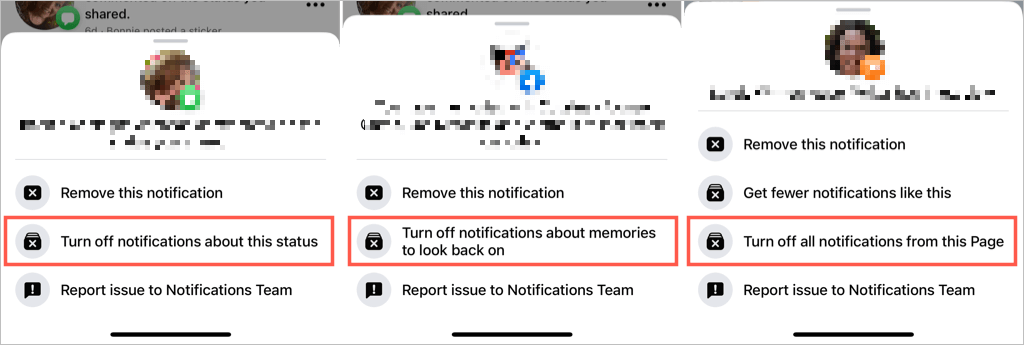
Here are some examples:
- For comments you receive on your status, you can use Turn off notifications about this status.
- For comments you receive on a photo, you can use Turn off notifications about this photo.
- For memories, you can use Turn off notifications about memories to look back on.
- For a Facebook group you’ve joined or a post you’ve commented on, you can use Turn off notifications about this post.
- For a Facebook page you manage, you can use Turn off notifications about new Messages for this page or Turn off all notifications from this Page.
Access Your Facebook Notification Settings
You have the same settings for your notifications in the mobile app and on the web. Whatever settings you change sync when you use the same Facebook account on your other devices. Here’s how to access these settings.
Access Notification Settings in the Mobile App
Open the Facebook app on your Android device or iPhone and follow these steps.
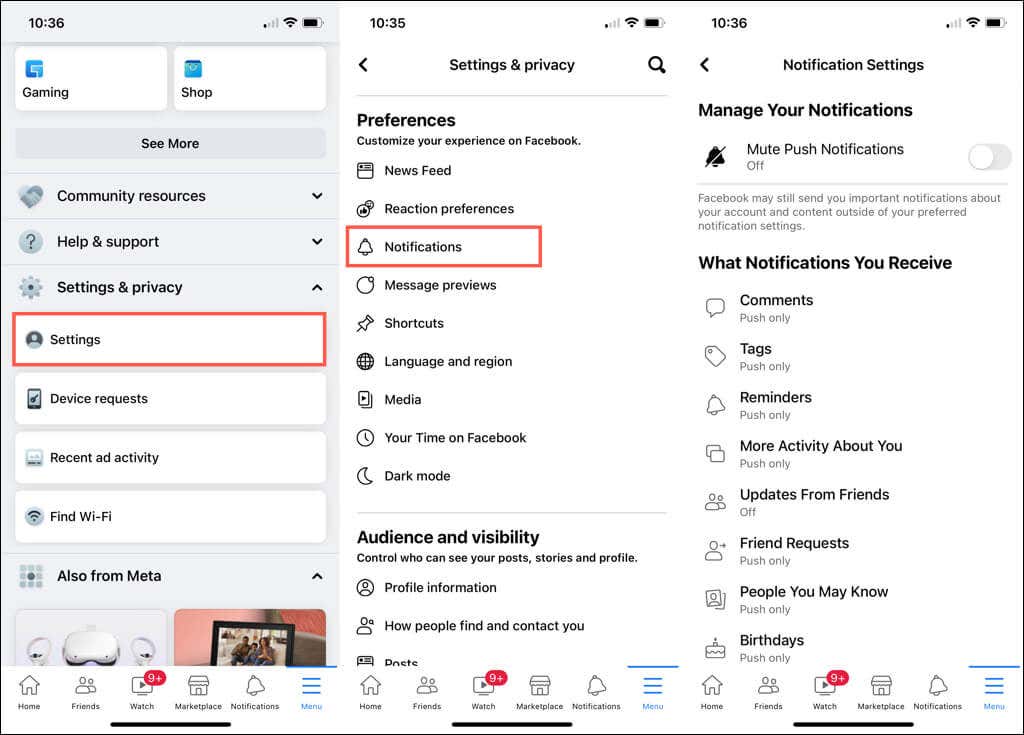
- Select the Menu tab.
- Expand Settings & privacy and choose Settings.
- In the Preferences section, pick Notifications.
Access Notification Settings on the Web
The quickest way to access these settings on Facebook.com is to open your Notifications, select the three dots at the top, and pick Notification settings.
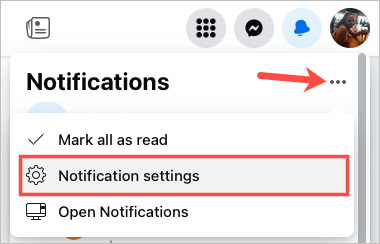
Alternatively, you can navigate there with these steps.
- Select your profile icon in the top right corner.
- Pick Settings & privacy and choose Settings.
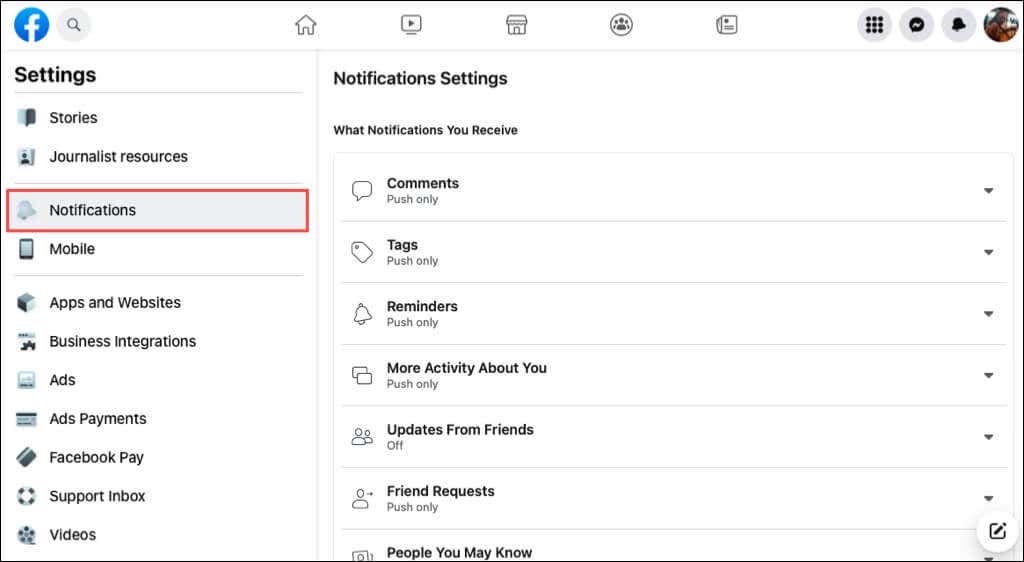
- On the Settings screen, select Notifications on the left.
Manage Your Facebook Notification Settings
You can adjust what you receive notifications for and how. Let’s start with which notifications you can receive.
Choose Which Notifications You Receive
Once you access the Notification Settings, you’ll see 18 notification types. These include Comments, Tags, Friend Requests, Groups, Marketplace, and more.
Select a notification you want to adjust. Turn on the toggle for Push, Email, or SMS for how you want to receive that notification.
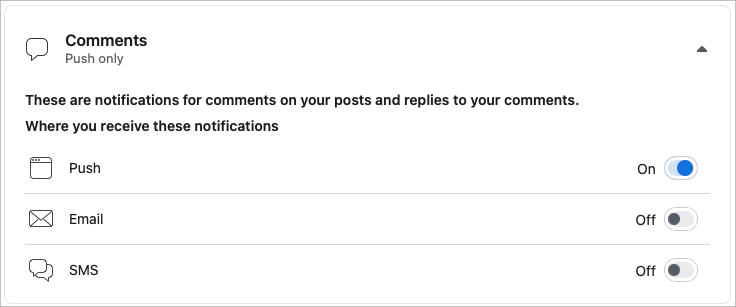
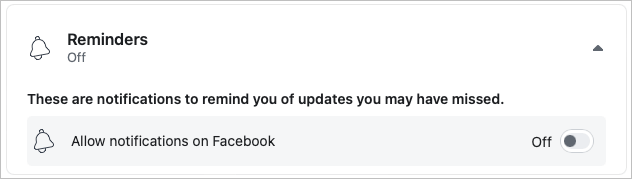
Some notifications have an on/off switch, like Reminders, Birthdays, and More Activity About You. Turn that toggle off to stop receiving the notifications. For notification types without that switch, turn each toggle off (Push, Email, SMS) to stop receiving them.
A few notifications offer additional options. For example, for Tags, you can select the notifications depending on who you’re tagged by.
How You Receive Notifications
In addition to the above settings per notification type, you can adjust your browser, push, email, and SMS alerts.
Scroll to the bottom of the Notification Settings page to the How You Get Notifications section.
- Browser (web only): Turn the toggles on or off for playing a sound with each new notification or when a message is received.
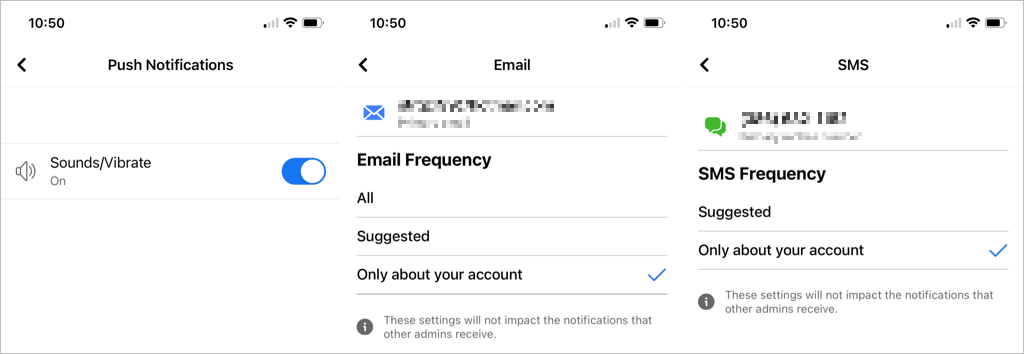
- Push (mobile only): Turn the toggle on or off for sounds and vibration via push notification. Note: You can also use the toggle at the top of the Notification Settings to Mute Push Notifications.
- Email: Choose from All, Suggested, or Only about your account for the email notifications you receive.
- SMS: Choose from Suggested or Only about your account for the text messages you receive.
Although it’s easy to delete Facebook notifications, there isn’t currently a feature to remove them in bulk. Hopefully, this is something we’ll see come to Facebook down the road.
For more, check out how to change your Facebook ad preferences to see only those that interest you.