
Have you ever watched a YouTube video and wanted to share a certain portion of it? Using the handy Clip feature, you can select the specific part of a YouTube video you want and then share it easily.
We’ll show you how to clip a YouTube video to share as well as limitations or restrictions of the feature. Luckily, you can take advantage of the feature on the YouTube website along with the mobile app.
Restrictions and Details for the YouTube Clip Feature
The Clip feature is one that must be enabled by the video creator. If you see a video without the Clip button that meets the below requirements, then it’s likely the creator doesn’t allow it.
You cannot make clips from the following:
- Videos that are shorter than two minutes, from news channels, or for children.
- Live streams without DVR or over eight hours long.
- Premieres while they are live.
To make a clip, you must be signed in with your YouTube account. Once you create the clip, it’s public. It may appear “on select search, discovery, and analytics surfaces”. This means that your clip can be seen by anyone with access to it along with the original video. The creator of the original video can also watch the clip.
The length of the clip you make must be between five and 60 seconds.
How to Clip a YouTube Video on the Web
Visit YouTube in your web browser, sign in, and choose a video to make your clip. Then, follow these steps to create the clip.
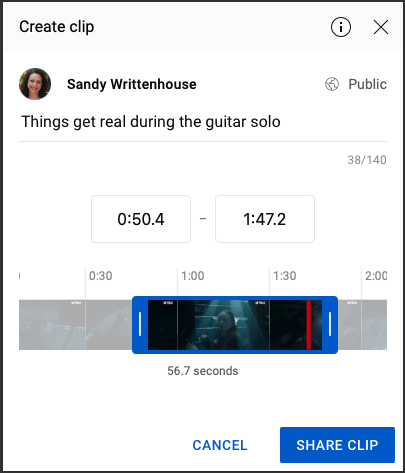
- Select the Clip button below the video.
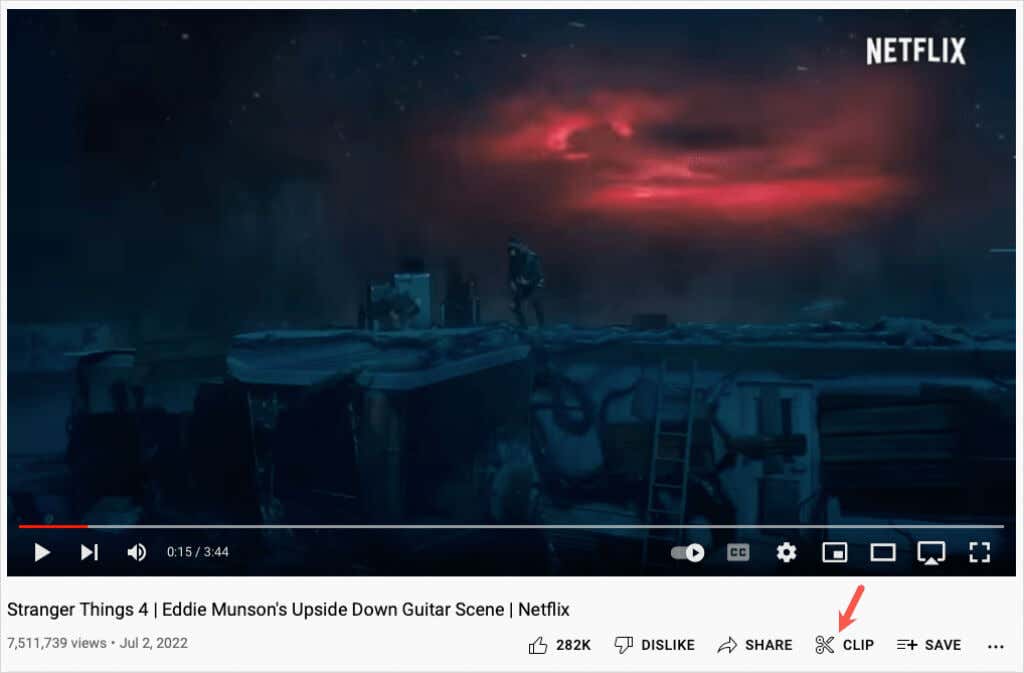
- This opens the Create clip area on the right side. The video will continue to play, so if you find it’s easier to create your clip without the playback, you can pause the video while you work on the clip.
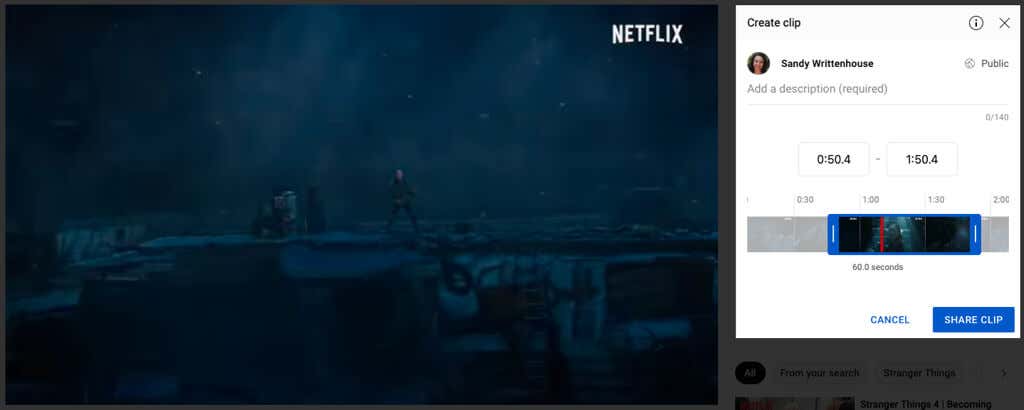
- Add a description or title for the clip up to 140 characters.
- If you have the particular start and end times you want to use for the clip, you can enter them in the boxes beneath. Otherwise, use the slider.
- Drag the left side of the blue slider to the starting point for the clip and the right side to the ending point. You’ll see a red line inside the strip for the current location of the video.
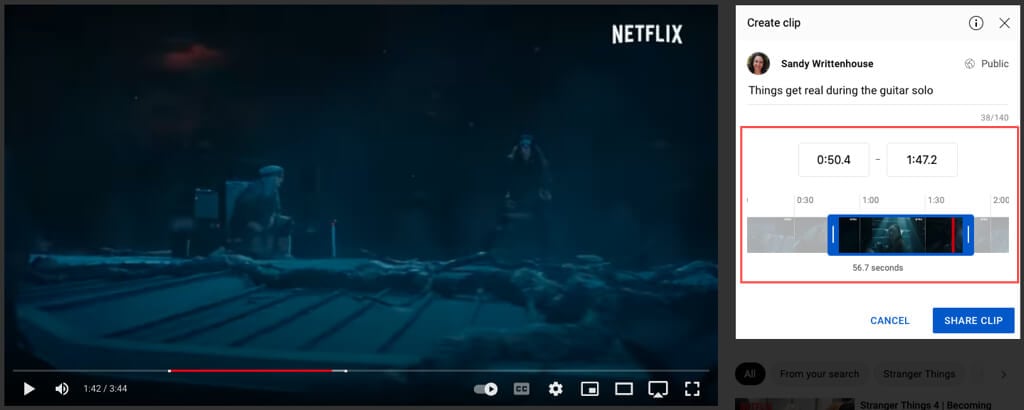
- You can also drag the entire blue section of the slider left or right or the film strip in the background to capture a different section of the video using the same start and end times.
- When you finish with the clip, select Share Clip.
- You can then choose to share it on social media, like Facebook or Twitter, send it in an email, get the embed code for your website, or copy the link and paste it where needed.
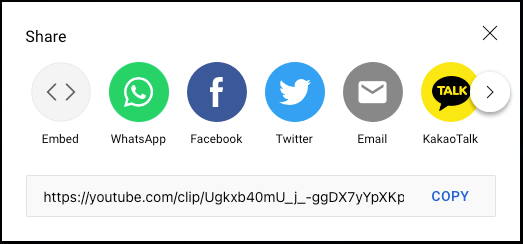
- Use the X on the top right of the Share window when you finish.
Access Your YouTube Clips on the Web
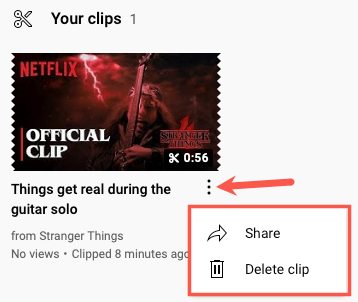
To view the clips you create, pick Library in the left-hand menu. Scroll down the right side to the Your clips section.

To quickly share or delete a clip, select the three dots on the right and pick an action.
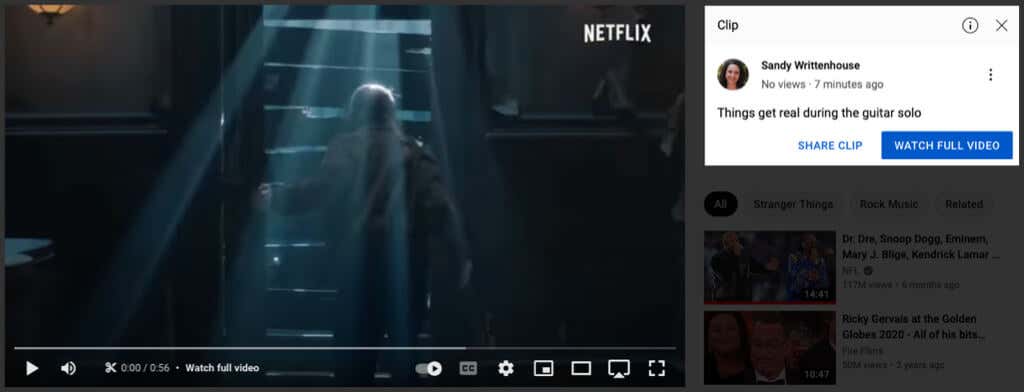
To watch a clip, share it, or see the full video, select the clip.
How to Clip a YouTube Video in the Mobile App
It’s just as easy to create a clip in the YouTube app on Android or iPhone. Open the app and select the video.
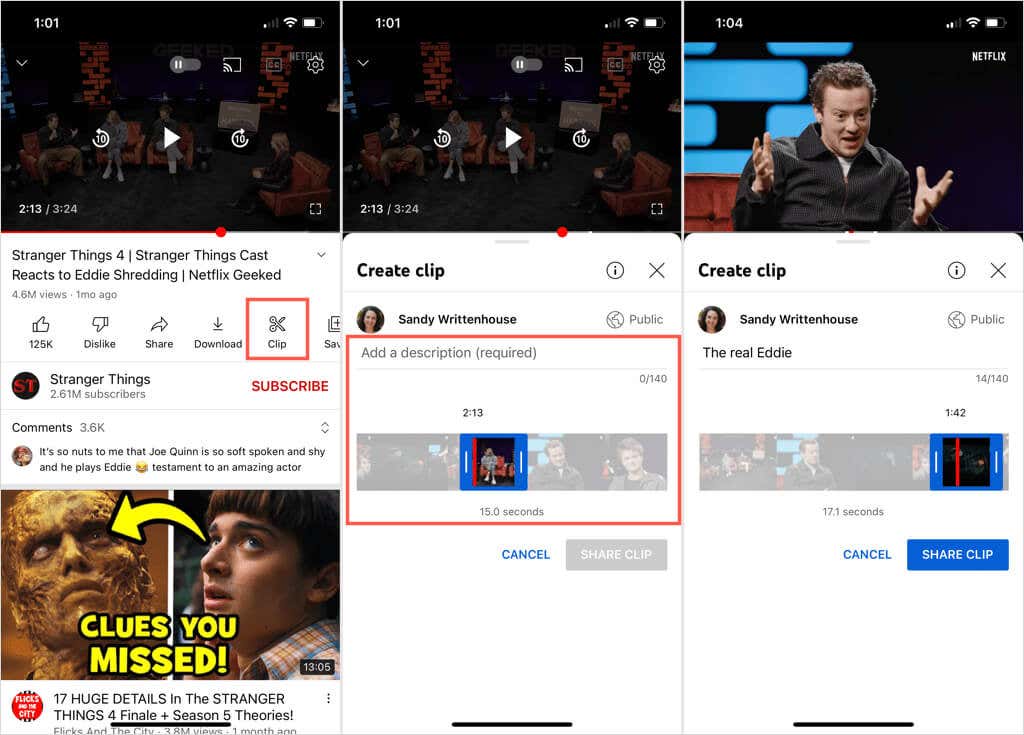
- Choose the Clip button that displays below the video.
- Add a description or title for the clip.
- Drag the left side of the slider to the starting point for the clip and the right side to the ending point. You’ll see a red line inside the strip for the current location of the video.
- Once you have the start and end times set, you can also drag the entire blue section of the slider or the film strip in the background to capture a different portion of the video.
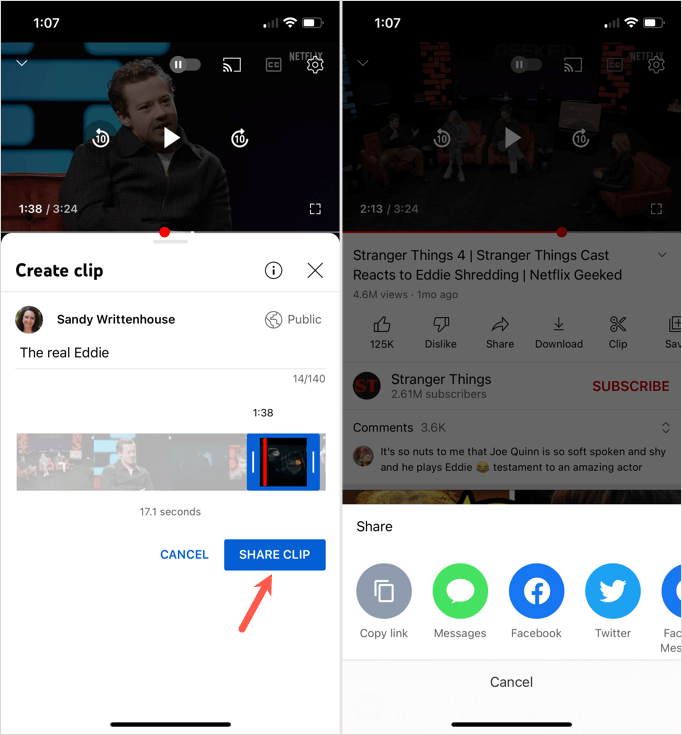
- When you finish with the clip, select Share Clip.
- Choose to share it on social media, send it in an email, share it via text message, or copy the YouTube link and paste it where needed.
Access Your YouTube Clips in the Mobile App
To view your video clips in the mobile app, head to the Library tab and choose Your clips. Tap the three dots next to a clip to share or delete it. Alternatively, choose a clip to open it and then watch, share, or open the full video.

With this tiny bit of video editing, you can create a clip of a lengthy video that your friend or family member will enjoy. You can also use the feature for clips of instructions, music, or a cooking lesson from your favorite YouTube channel.