
Snapchat emojis aren’t just a way to express your feelings and emotions on a social media platform. When you exchange Snaps with someone on the app, Snapchat applies a new emoji to your conversation, indicating a different level of friendship or relationship.
These emojis aren’t set in stone, and you can change friend emojis on your device if you’d like to see a different emoji instead of a default option picked by Snapchat. Here’s how to customize emojis on Snapchat and make them more unique and fitting for your friends on the Snapchat app.
What Are Snapchat Emojis & Where to Find Them
Snapchat friend emojis are a little different from the emojis you send in a text message on WhatsApp or other messaging apps. Friend emojis on Snapchat appear next to your friend’s name and indicate the type of relationship you have with this person on the app. Depending on how many snaps you send and receive from this one person, you’ll see a new emoji appear next to their name on your friends list. It could be a smiley face, yellow heart, pink heart, red heart, and more.
There are Snapchat friend emojis for mutual bfs, super bffs, and mutual besties, as well as Snapstreak emojis which indicate your Snapchat streak is ending soon, like an hourglass or a fire emoji. You can find a full list of emojis which you can come across on Snapchat in our comprehensive Snapchat emoji guide.

The friend emojis on Snapchat change from time to time. However, you can manually customize the default emojis if you want to make them into something more suitable for your friends on the app.
How to Customize Friend Emojis on Snapchat
You can change Snapchat emojis to represent your friends better. The option to customize friend emojis on Snapchat is available on Android and iOS, and the instructions are almost the same, with a few minor differences. Whether you’re an iPhone or Android phone owner, follow the steps below to change your friend emojis on Snapchat.
- Open Snapchat on your smartphone and log into your Snapchat account.
- Select your Bitmoji or your profile picture in the top left corner of the screen to open your profile page.

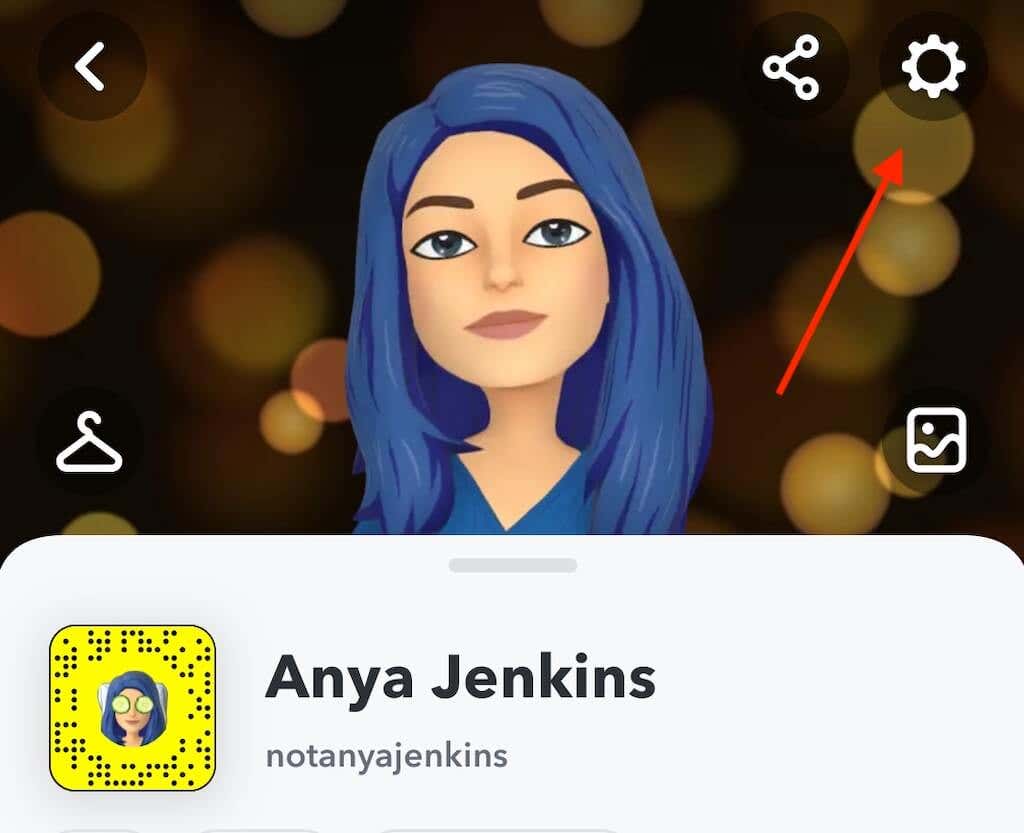
- Select the gear icon (or Settings icon) in the top right corner to open your Profile Settings.
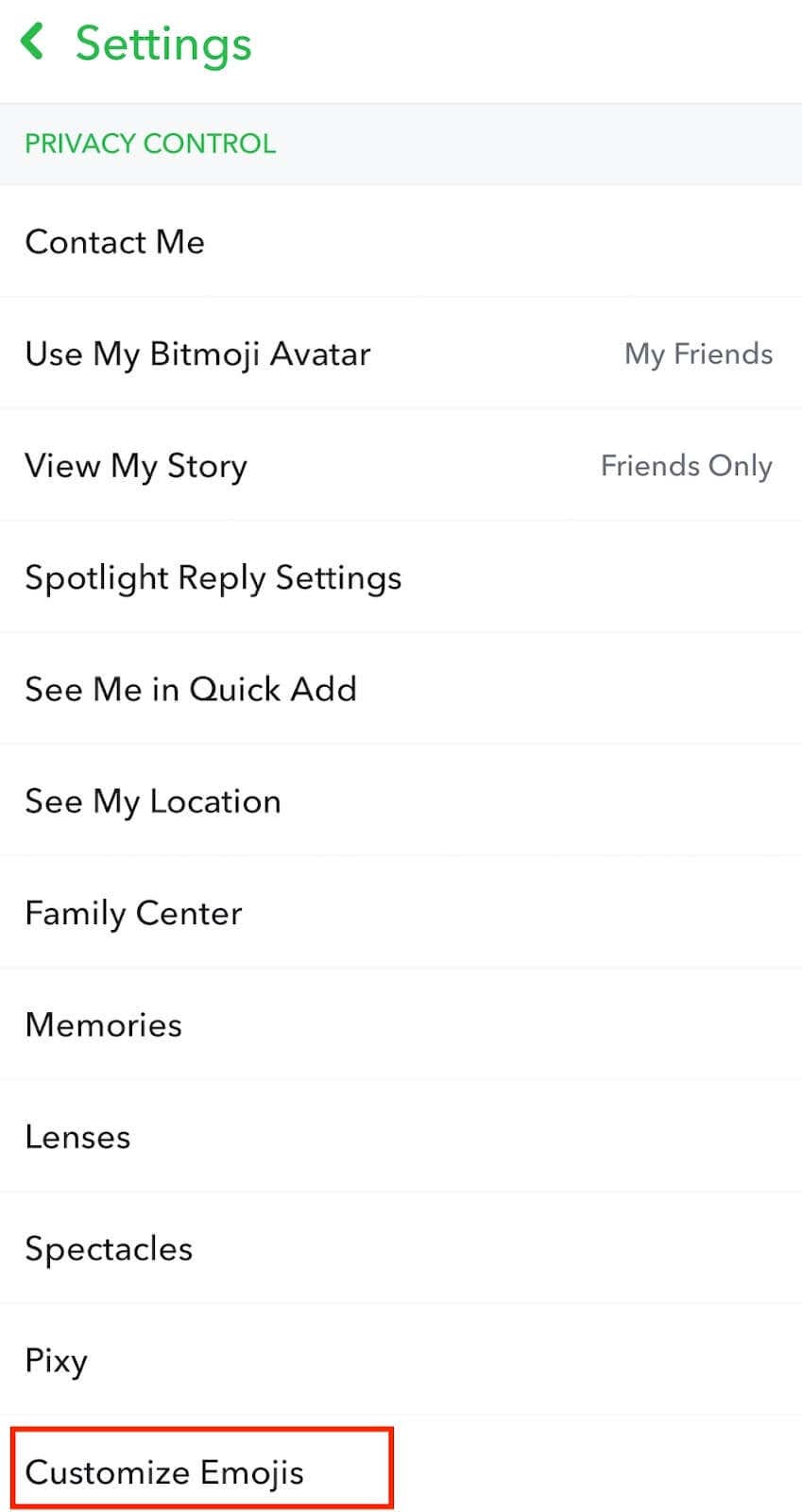
- On Android, scroll down and select Customize Emojis under Privacy Control.
- On iOS, scroll down and select Manage under Additional Services. Then select Friend Emojis.
- You’ll see a list of emojis with descriptions of what they represent on the Snapchat app. Select the emoji you’d like to change and proceed to customize it.
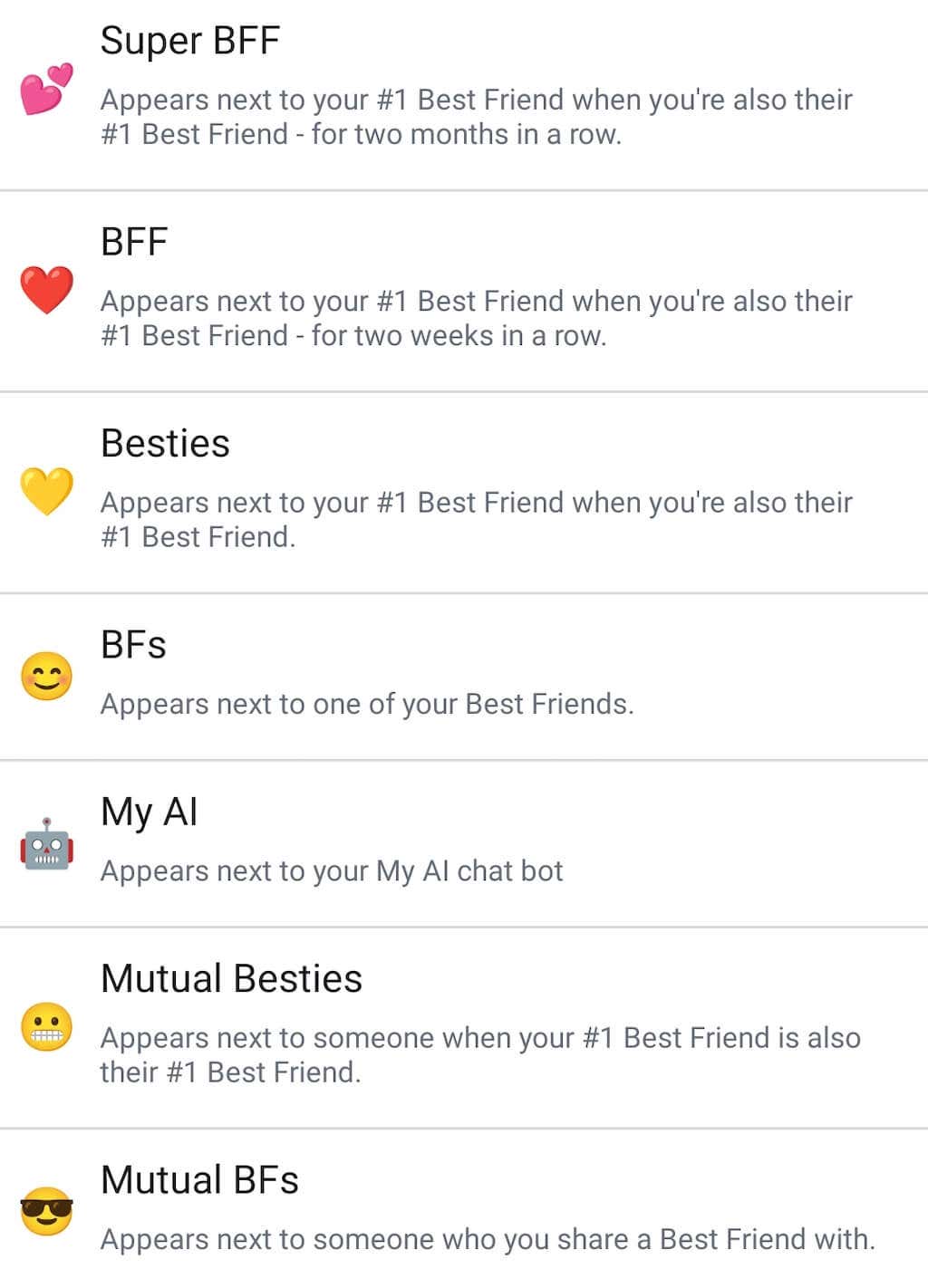
- After choosing the new custom emoji, select the Back arrow to save it.
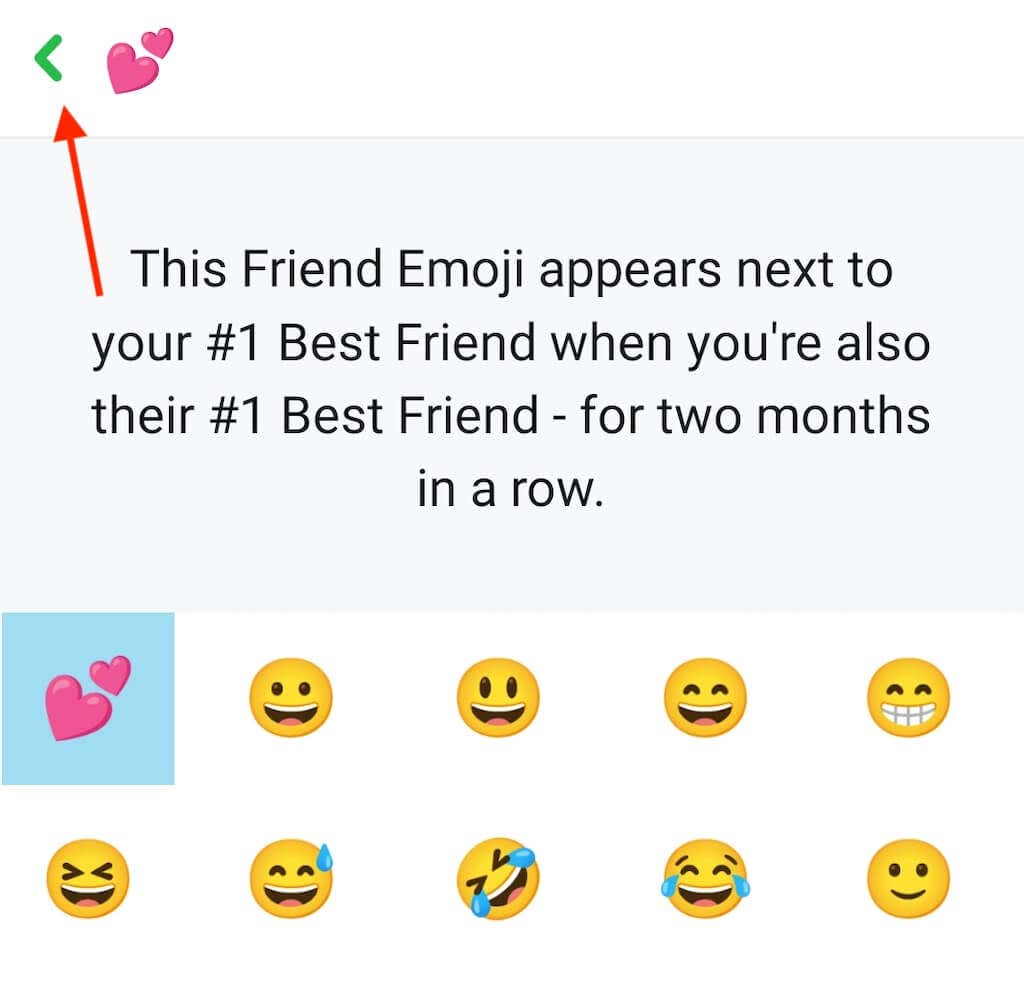
You can repeat this process to change as many emojis as you like.
If you later change your mind and want to go back to the default emoji options, go to the Custom Emojis section, scroll down, and select Reset to default.

After changing your friend emojis, open the home page of Snapchat again and select the speech bubble icon to open the Chat tab. You’ll see your new custom emojis next to the chats with your Snapchat friends.
How to Customize Your Bitmoji on Snapchat
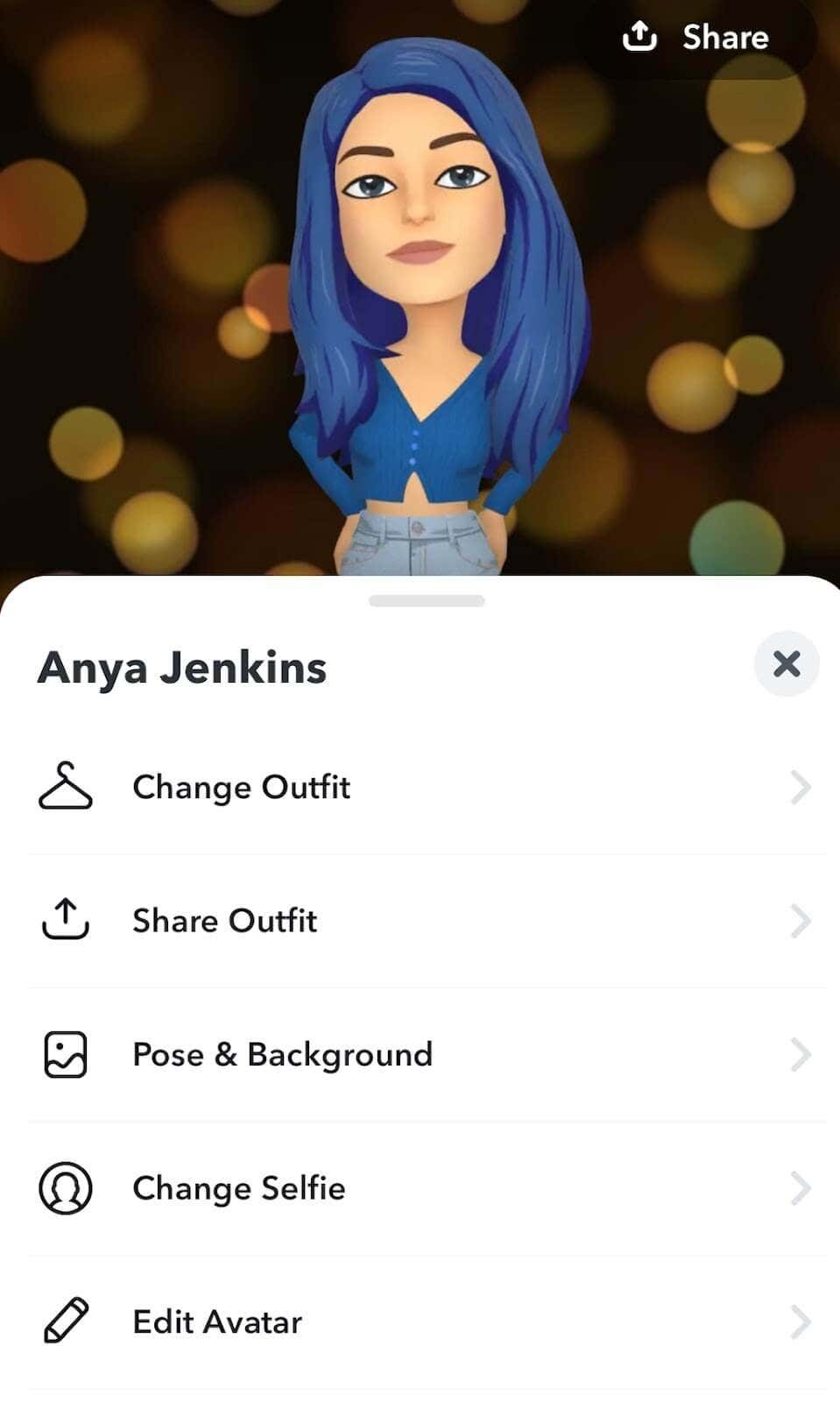
Bitmoji is your cartoon-style avatar on Snapchat and, in a way, is your own custom emoji. You can use it on Snapchat instead of your profile picture, and you can change its appearance regularly. Your Bitmoji appears next to your username in search and in friends lists of other Snapchat users, as well as in stickers in snaps.
You can customize your Bitmoji in your profile settings. If you don’t have a Bitmoji yet, select Create Bitmoji. Otherwise, select your Bitmoji icon and choose one of the customization options: Change Outfit, Pose & Background, Change Selfie, or Edit Avatar.
Choose the Right Emojis for Your Best Friends on Snapchat
Having the same friend emojis displayed on Snapchat can get boring. Spice it up by creating custom emojis for your friends on the app, and then share the results with them in snaps.