
It’s said that anonymity often leads to contempt, and anyone that spends any time online knows this to be true. Unfortunately, it’s often true on Facebook, too—even when your real name is on display for the world to see. Sometimes the only way to avoid an unpleasant encounter is to block someone on Facebook Messenger.
Facebook Messenger makes it easy to block badly-behaving individuals with just a few taps or clicks. Send trolls back under their bridges with a few simple steps.
How To Block Someone On Facebook Messenger From Your Browser
If you prefer to use Facebook Messenger on your computer without the app, you can very quickly and easily block someone.
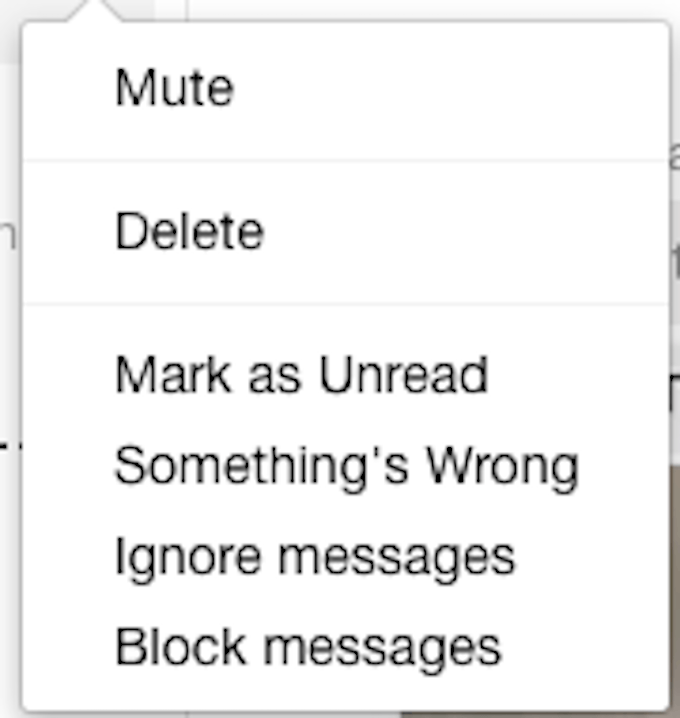
Just find the conversation you want to block in your sidebar and hover your cursor over it. Click the three ellipses that appear. A menu will pop up allowing you to Mute, Delete, Mark as Unread, and several other options. At the bottom of this menu is the option to Block messages. Click this.
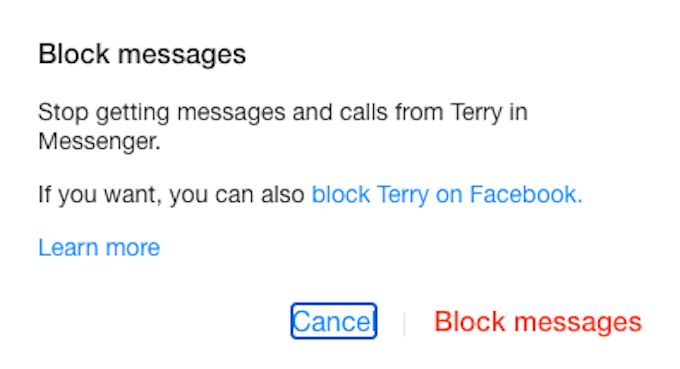
A pop-up will appear warning that you will stop receiving messages and calls from that person. If this is what you want to do, click Block messages. Once you do this, you no longer have to worry about receiving spam or any other kind of message from the individual.
If at any point you change your mind and you want to unblock the person, you can select the chat from the sidebar. At the bottom of the screen is a message saying, “You’ve blocked messages from this person.” Click Unblock now to once more receive messages from them.
How To Block Someone On Facebook Messenger From Your iPhone or iPad
Blocking someone on the go is just as easy as it is from your browser. Open the conversation with the person you wish to block, and then tap their name at the top of the screen.
This will bring up their profile. You can choose from several options, including viewing any photos and videos sent to you (in case you need to report them.) At the bottom is a menu titled Privacy & Support. Tap Block.
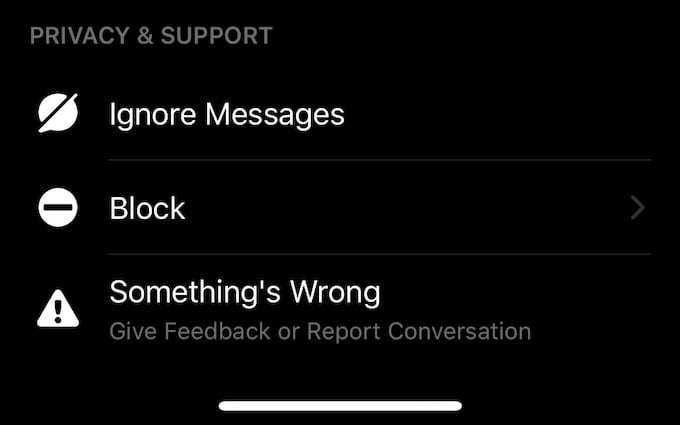
Another screen will appear providing the option to block the person on Messenger or on Facebook altogether. Tap Block on Messenger to stop receiving messages from the person but remain friends.
If you later decide to unblock the person, the option under Privacy & Support will be Unblock. Just tap that, and then select Unblock on Messenger on the next screen to once more send and receive messages from the individual.
How To Block Someone On Facebook Messenger From Your Android
The steps for blocking someone on Facebook Messenger from Android are exactly the same as on iPhone and iPad. Simply open the conversation, tap the individual’s name, scroll down to the bottom of the screen, and tap Block > Block on Messenger.
Blocking On Messenger Versus Blocking On Facebook
If someone (perhaps an older relative) likes to spam you with Facebook chain letters, you might not want to receive messages from them, but you still want to see what they post. Blocking on Facebook Messenger is a great way to circumvent the issue.

However, if you are dealing with someone that is harassing or threatening you, it is better to block them entirely rather than just ignore their messages. In this case, rather than just blocking on Messenger, select the Block on Facebook option. This will completely eliminate their access to your Facebook page and will not allow them to send you messages.
To avoid unwanted messages, make sure your Facebook settings limit how much someone you aren’t friends with can see. Too many users leave their Facebook accounts wide open for the world to see. It is better to restrict all information.
If you are being threatened with physical harm or you feel in danger, contact the proper authorities. Do not assume that blocking the person on social media will make the problem go away. It’s better to be overly cautious.