
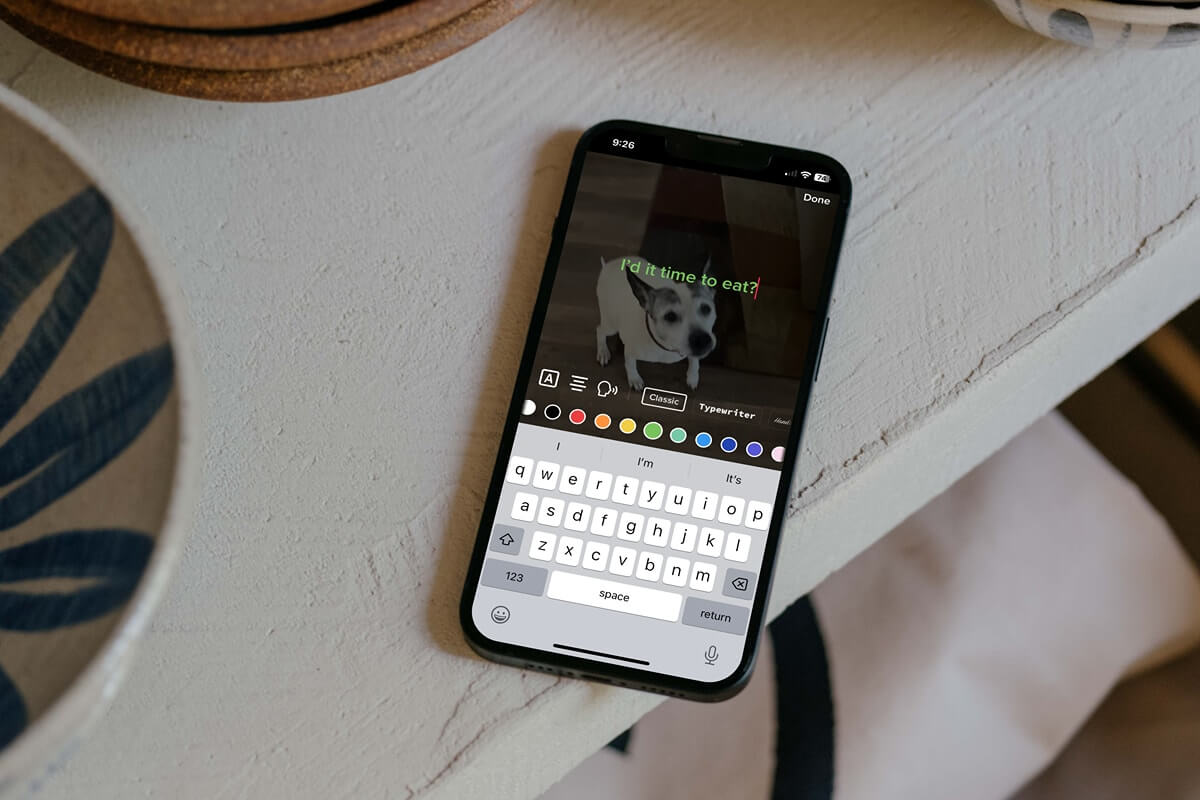
Just like adding snippets of text to photos, you can do the same with videos you post on TikTok. You can include an explanation of the video, a title for your audience to see, or just something fun.
What’s nice about the text feature on TikTok is that you can customize the font style and color. If you save the video as a draft to work on it further before posting it, you can edit the text before your followers see it. We’ll show you how to add text to TikTok videos so you can take advantage of this built-in feature.
How to Add Text to TikTok Videos
If you want to pop some text in a new video right after you capture it, it’s an easy task.Open the TikTok app on Android or iPhone and follow these simple steps.
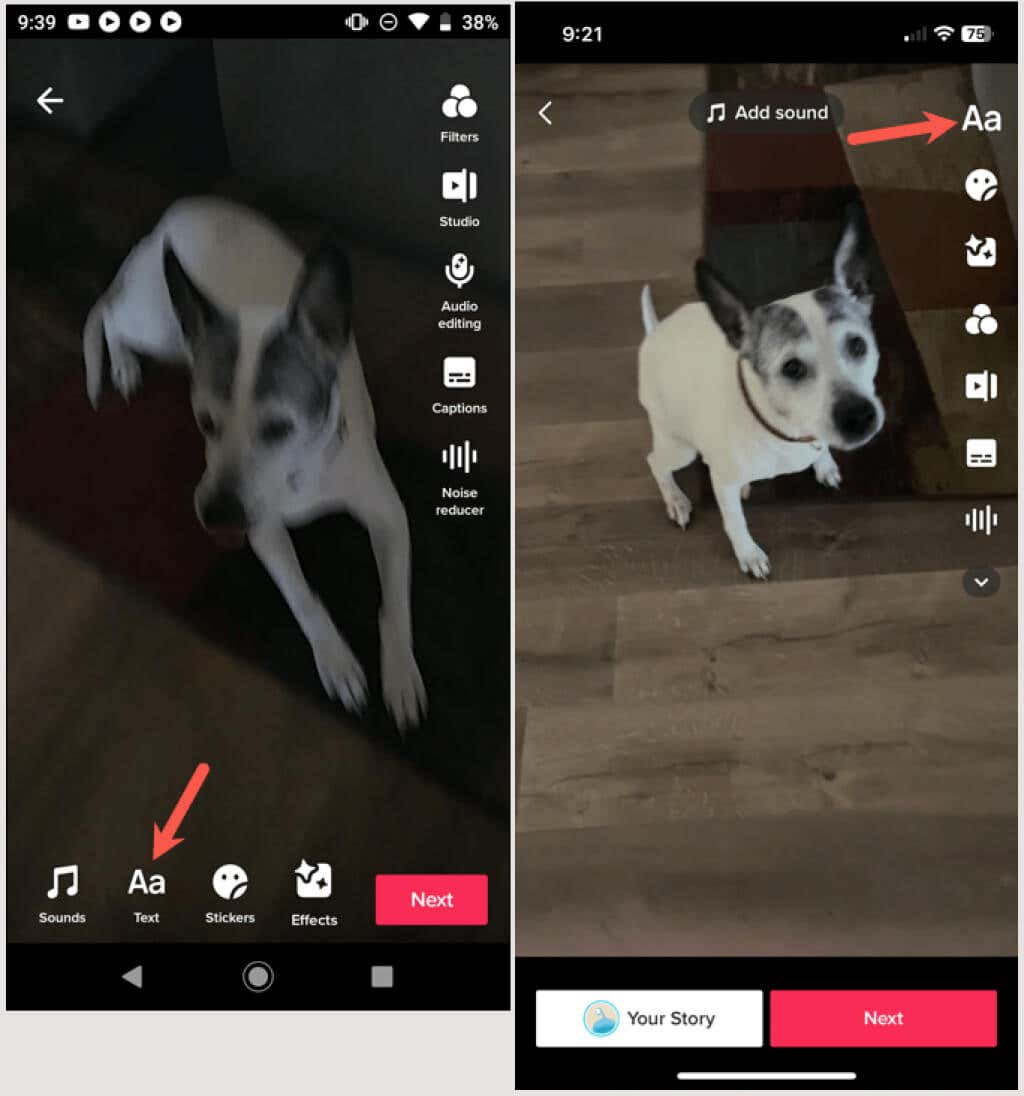
- After you capture your video, you’ll see the tools display along the bottom or right side. These include stickers, filters, and of course, text. Tap the Text icon on the bottom on Android or top right on iPhone.
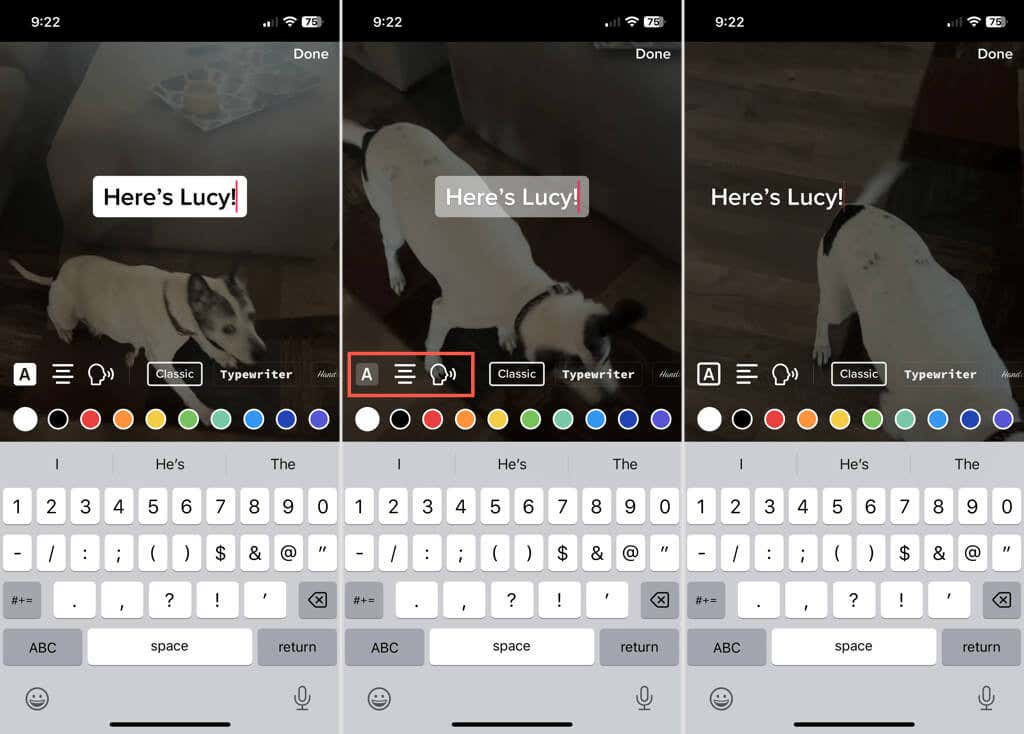
- You’ll then see the customization options along with your keyboard. Type the text you want to add so that you can preview the customizations you choose. The text appears as an overlay on your video.
- On the left, you can add a background, partially transparent background, no background, or outlined letters. Next, you can pick the alignment from left, center, or right and include a voice for text-to-speech if you like.
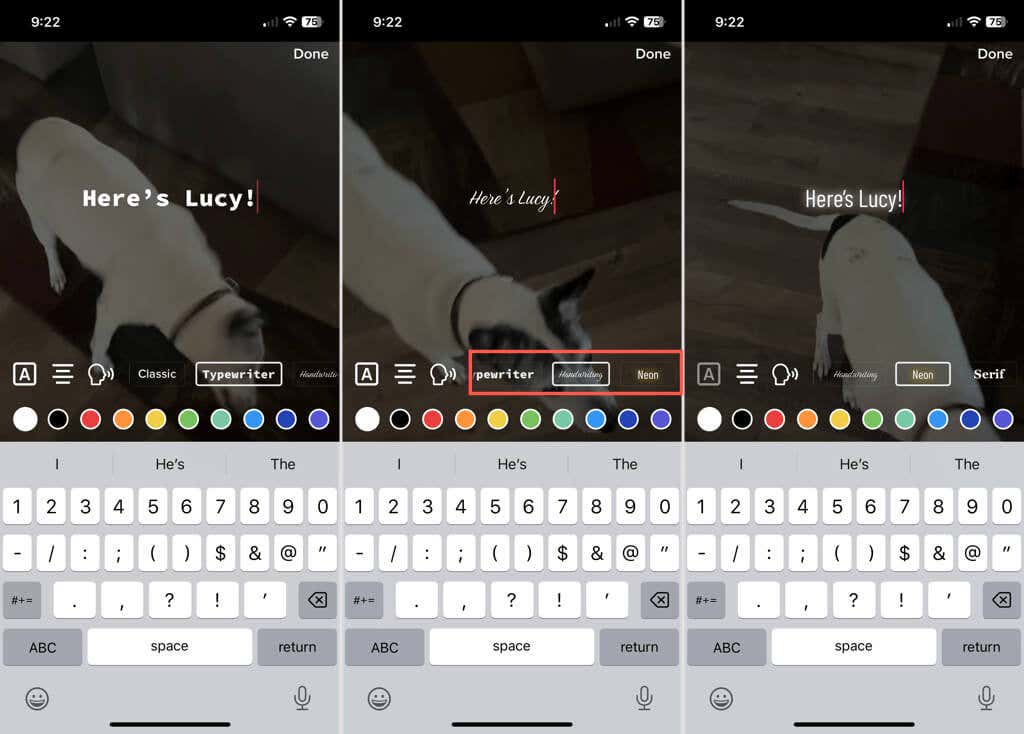
- On the right, choose the font style you’d like to use. You’ll see options for Classic, Typewriter, Handwriting, Neon, and Serif.
- Finally, you can pick the color in the second row. If you use a background or outline for the text, the color will apply to that, otherwise it’ll apply to the font.
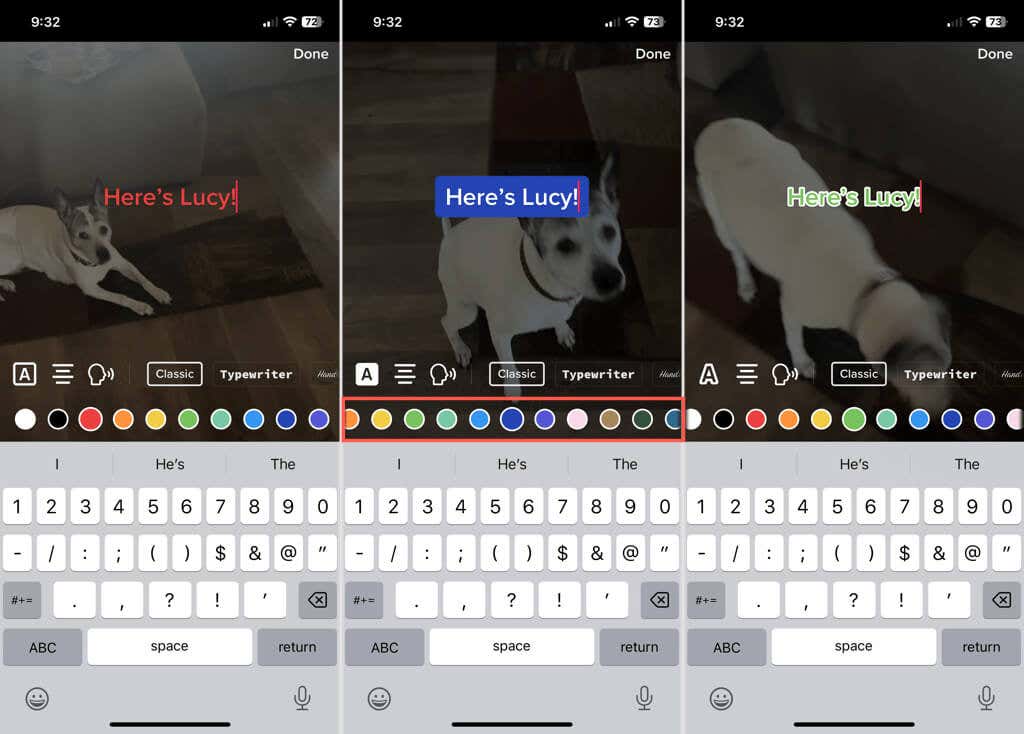
- If you want to move the text to a different location, simply drag the text box with your finger.
- As you adjust the customizations, you can see the changes immediately. When you’re happy with the text, tap Done in the top right corner.
- Add any other effects you’d like to the video and select Next at the bottom when you finish.
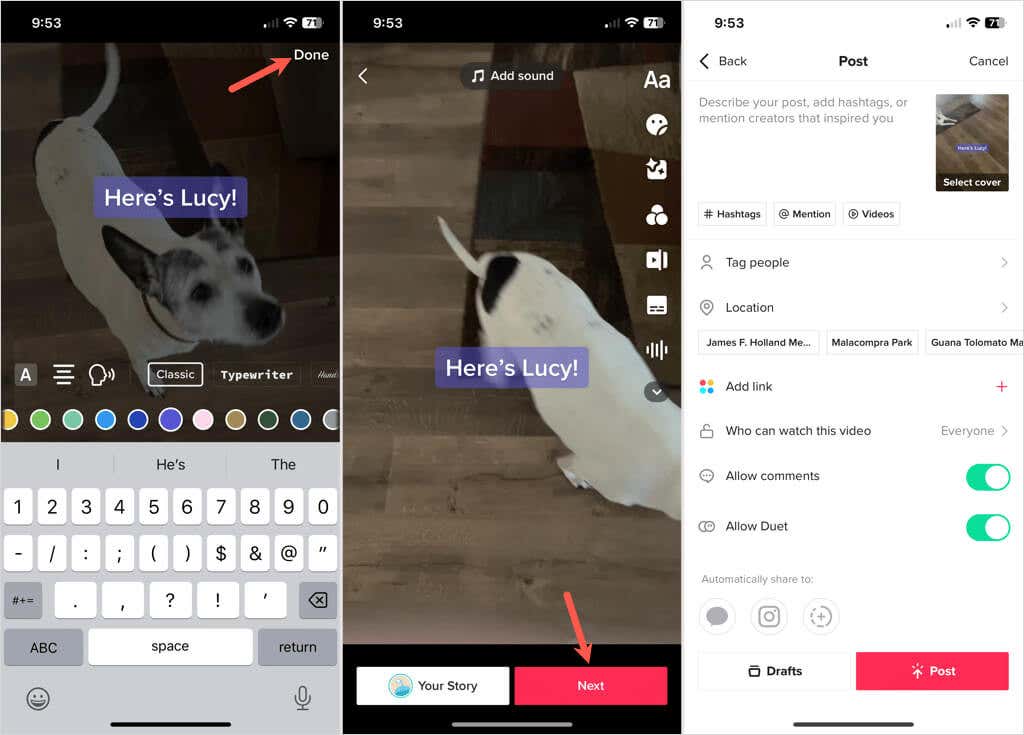
You can then add hashtags, tag people, include a location, or make any other adjustments you’d like, just like any other video you capture and post. To publish the video, pick Post or to save it and publish it later, pick Drafts.
Edit, Add, or Remove Text on a Draft
If you save a video you capture to the Drafts so that you can post it later, you can edit text you added or include new text.
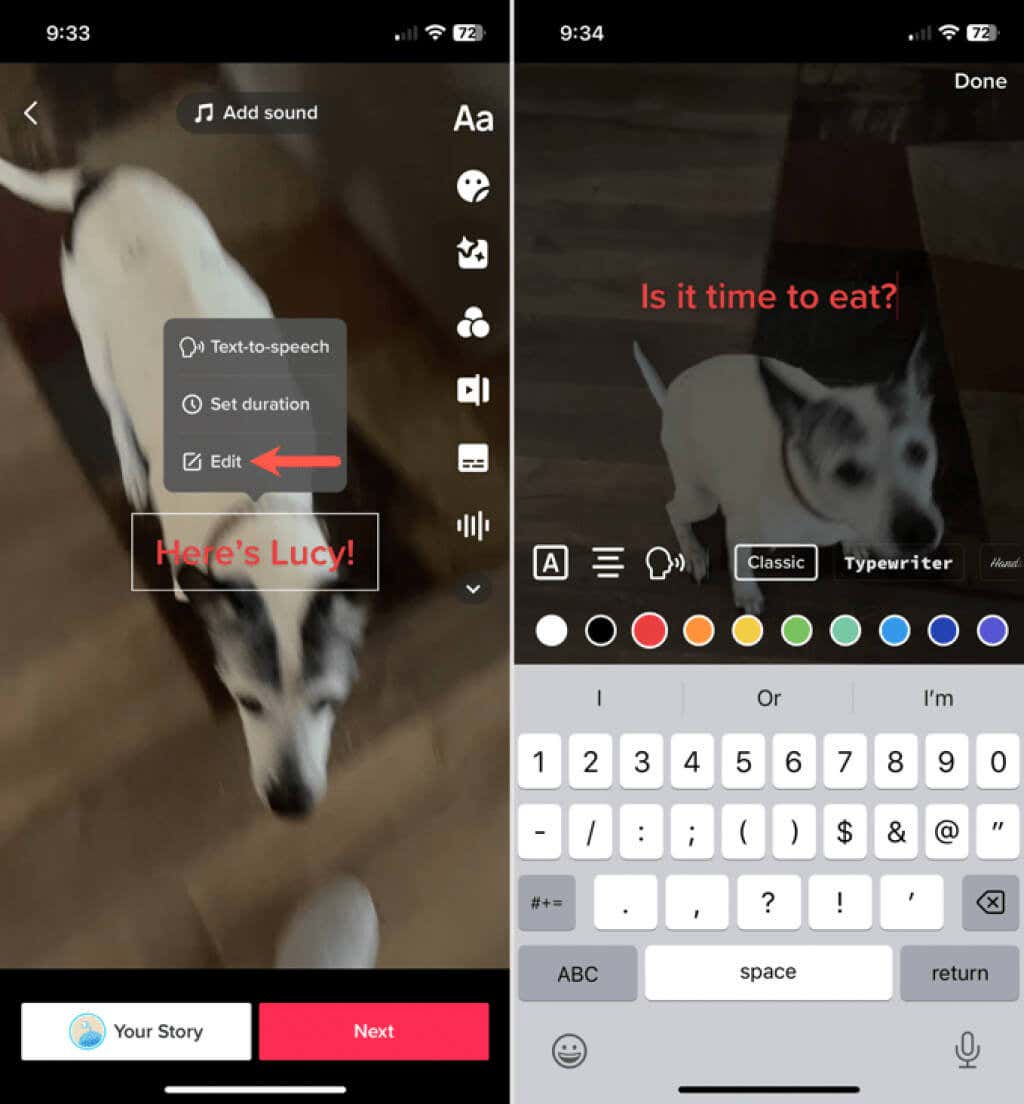
To edit the text, select the video thumbnail in the Drafts section of your profile. Tap the text box on Android or tap and hold on iPhone. Choose Edit from the list of editing options. Make your changes and select Done when you finish.
To add text, select the video in the Drafts section. Select the Text icon to type and customize your text as described earlier. Tap Done when you finish.
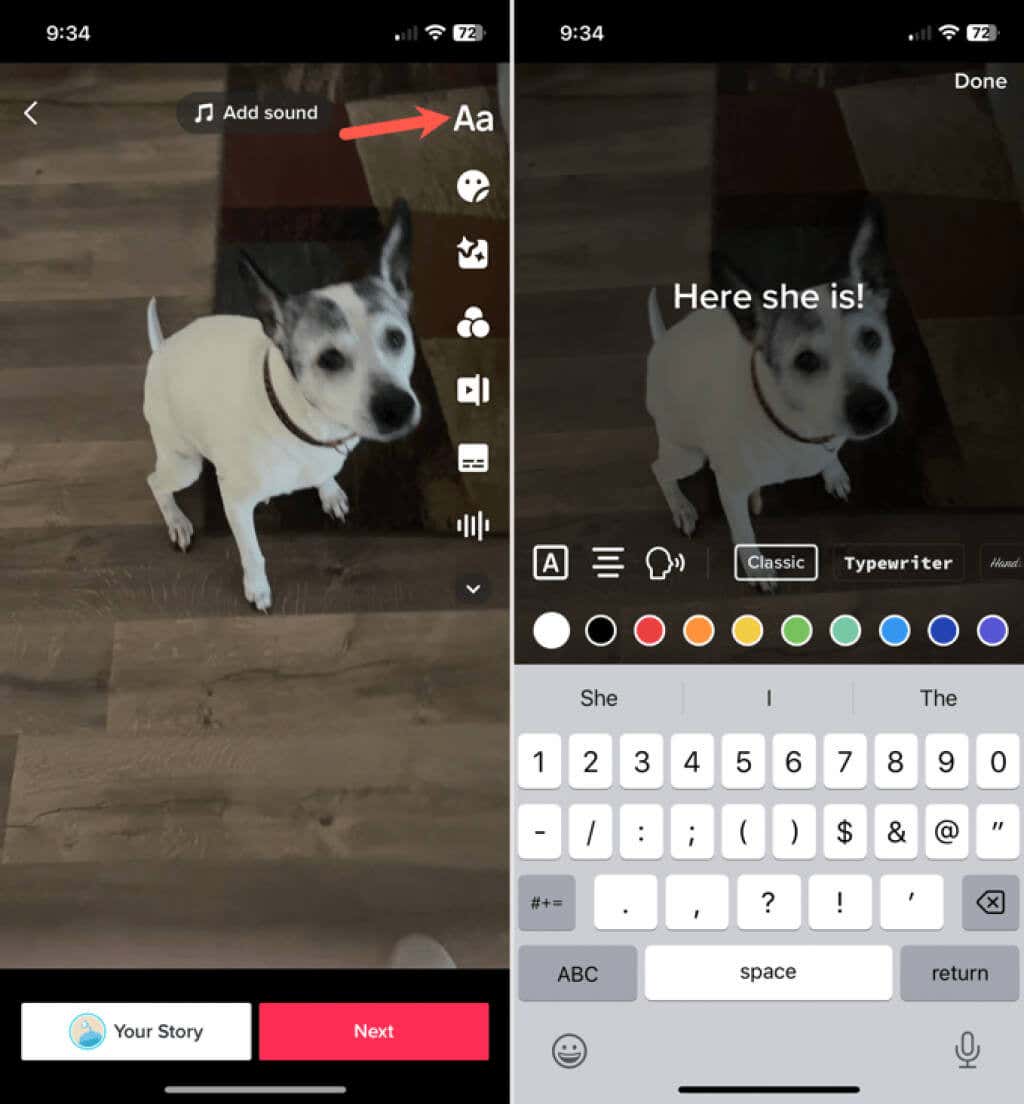
To remove text you’ve added to a Draft, open the video and tap the Text button. Select Edit and then remove all of the text. Tap Done to save your change.
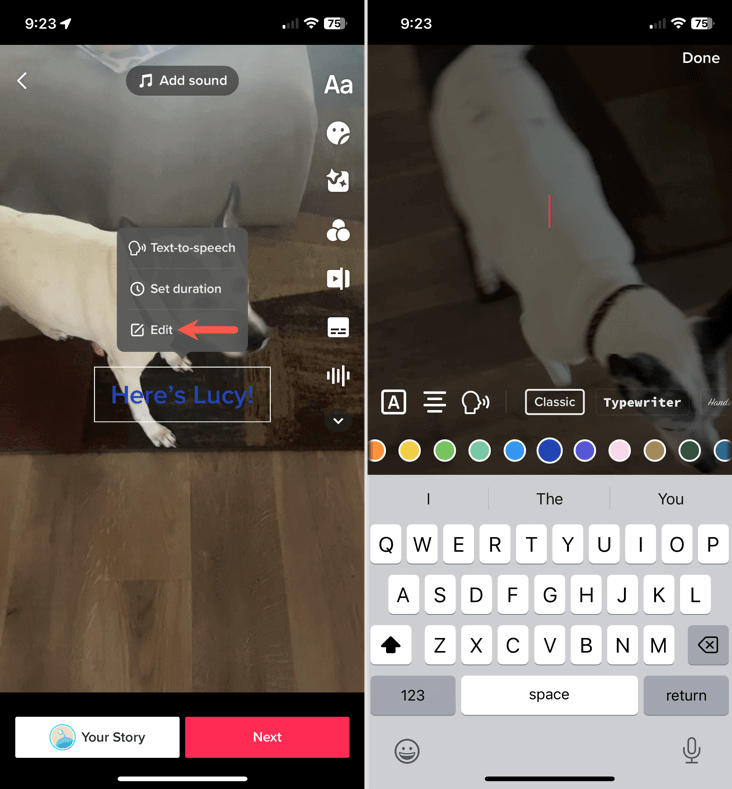
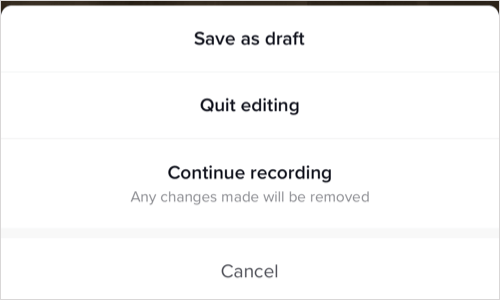
After you edit, add, or remove text from a Draft, you can select Next and move onto publishing the post. Alternatively, tap the arrow on the top left to go back and then choose Save as draft, Quit editing, or Continue recording in the pop-up window per your preference.
Including text on a video can be useful or fun, it’s up to you. Make the most of the text feature on TikTok for your next post; it might just go viral.
Now that you know how to add text to TikTok, take a look at our tutorial for using photos as a slideshow or background on the social media network.