

Unlike other social media platforms that were made especially for your use, Discord is a platform that allows users to build communities and create lasting relationships no matter where they are. If you want to create your own server, the first thing you need to know is how to add friends on Discord so you can invite them to your community.
In this article, we’ll walk you through the different ways to add friends on Discord.
How To Add Friends on Discord Using the Website or Desktop App
While the interface for Discord may look similar to other social media platforms, it can be a bit complicated for some. If you want to add friends using your PC or Mac, follow the steps below:
Adding Friends Directly
- Open the Discord app or visit the website using your browser.
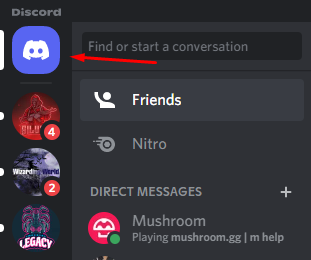
- Select the Home icon on the top-left corner.
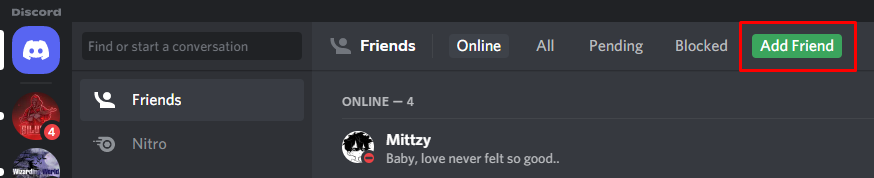
- Press Add Friend.
- Type in the Discord tag of the friend you wish to add.
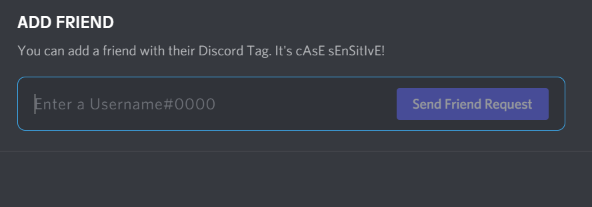
- Press the Send Friend Request button to send your request to the user.

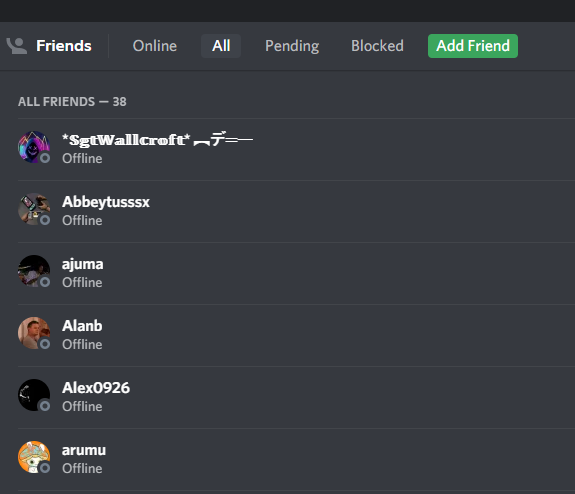
- After your request has been accepted, your new friend will appear on your Friends list.
Adding Friends in a Discord Server
Apart from adding friends directly, you can also add friends you meet on a Discord server. Here’s how:
- Go to the server containing the friend you want to add.
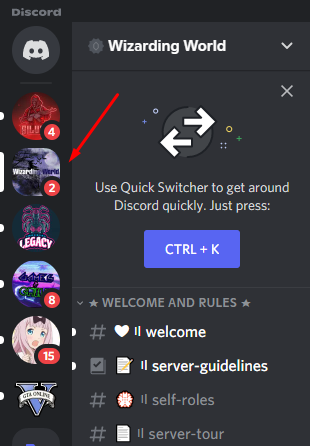
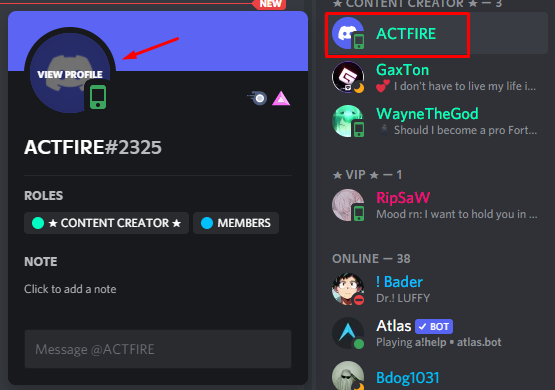
- Look for your friend in the channel user list found on the right-hand side of the screen.

- Once you’ve located the user, press the user’s name, then click the View Profile icon in the user’s profile picture.
- Select the Send Friend Request button. This will send a request to the user.
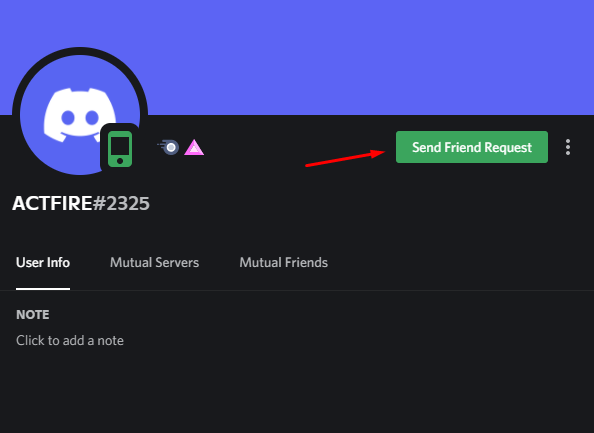
- Once the user accepts your request, Discord will add them to your Friends tab, and you can send them a message, start a voice or video call, and more.
How To Add Friends on Discord Using the Mobile App
Like all social media platforms, Discord also offers a mobile app for Android or iOS phones. Through the app, you can add new friends directly, or you can add a user from a Discord server you’re a member of.
The steps below can be applied on Android and Apple devices, as the Discord mobile app has the same user interface.
Adding Friends Directly
- Open the app and tap the Friends tab on the bottom menu. This will show all your friends and whether they’re currently online or offline.
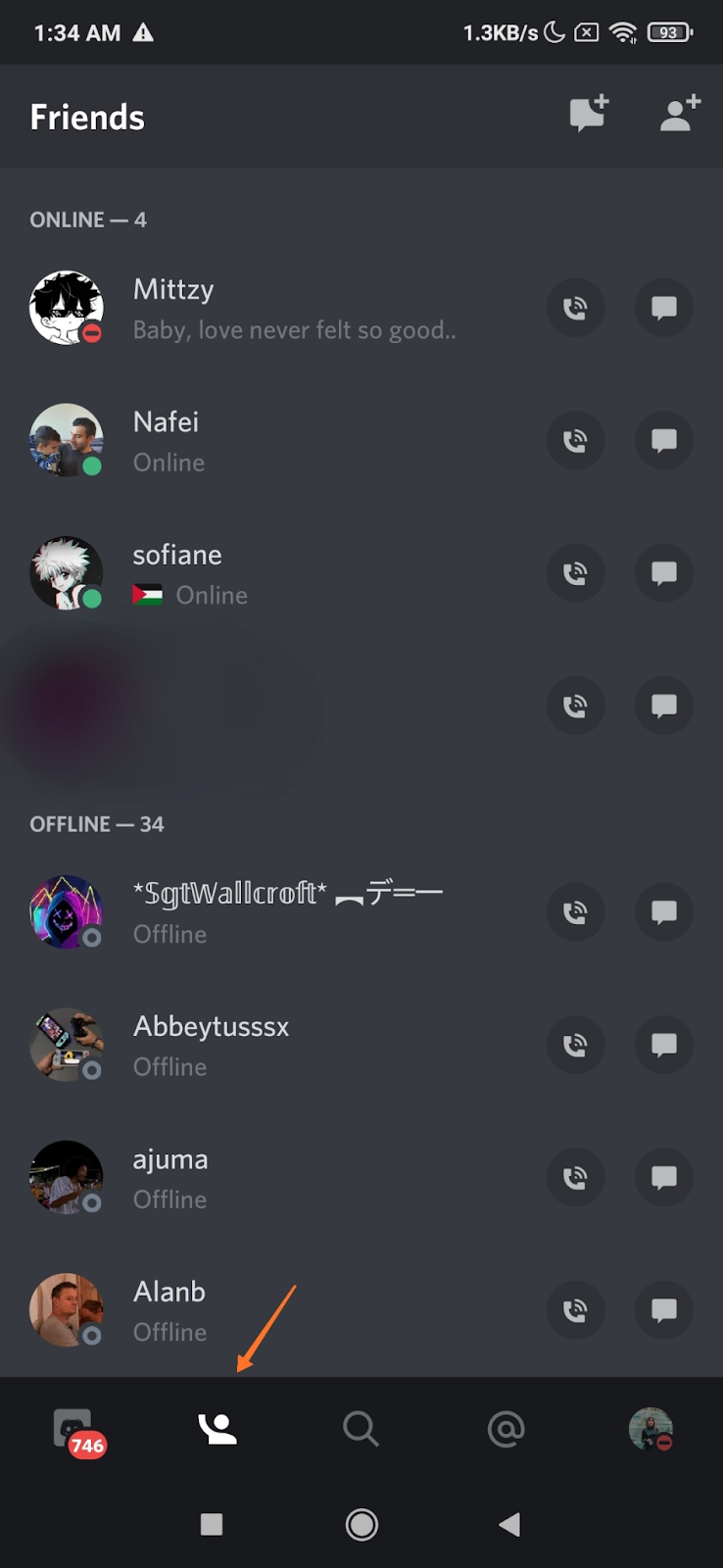
- Tap the Add Friend icon on the top-right corner.
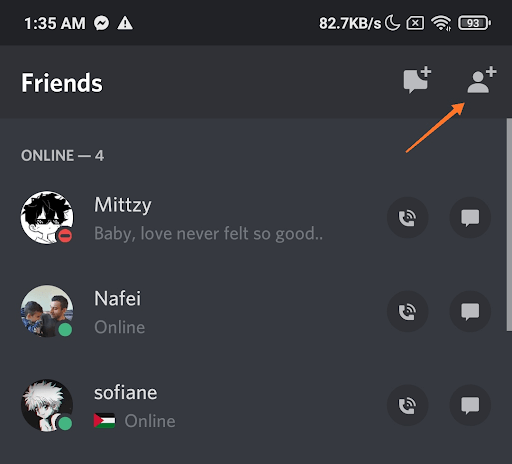
- From here, you’ll need to provide the Discord username or tag of your friend in the box provided.
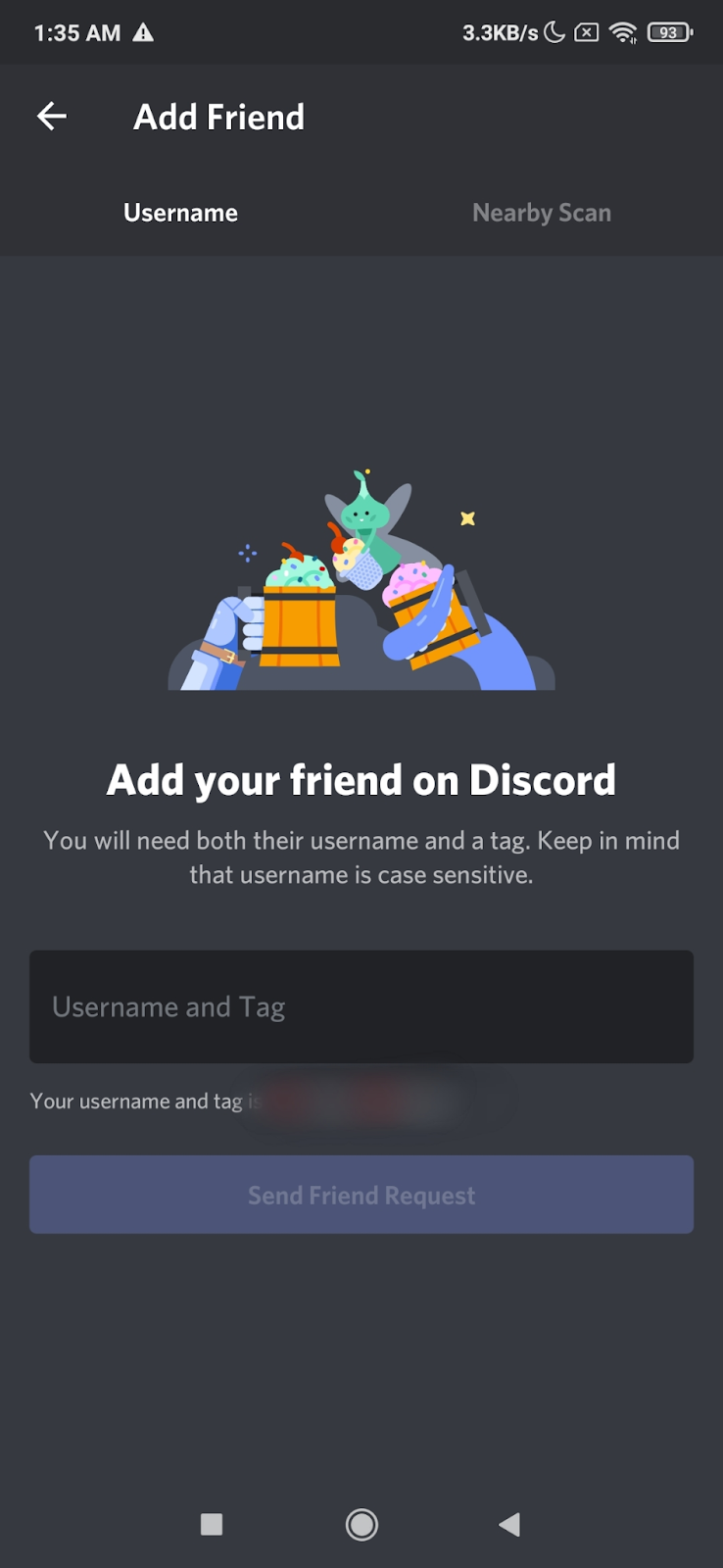
- After typing it in the box, tap the Send Friend Request button.
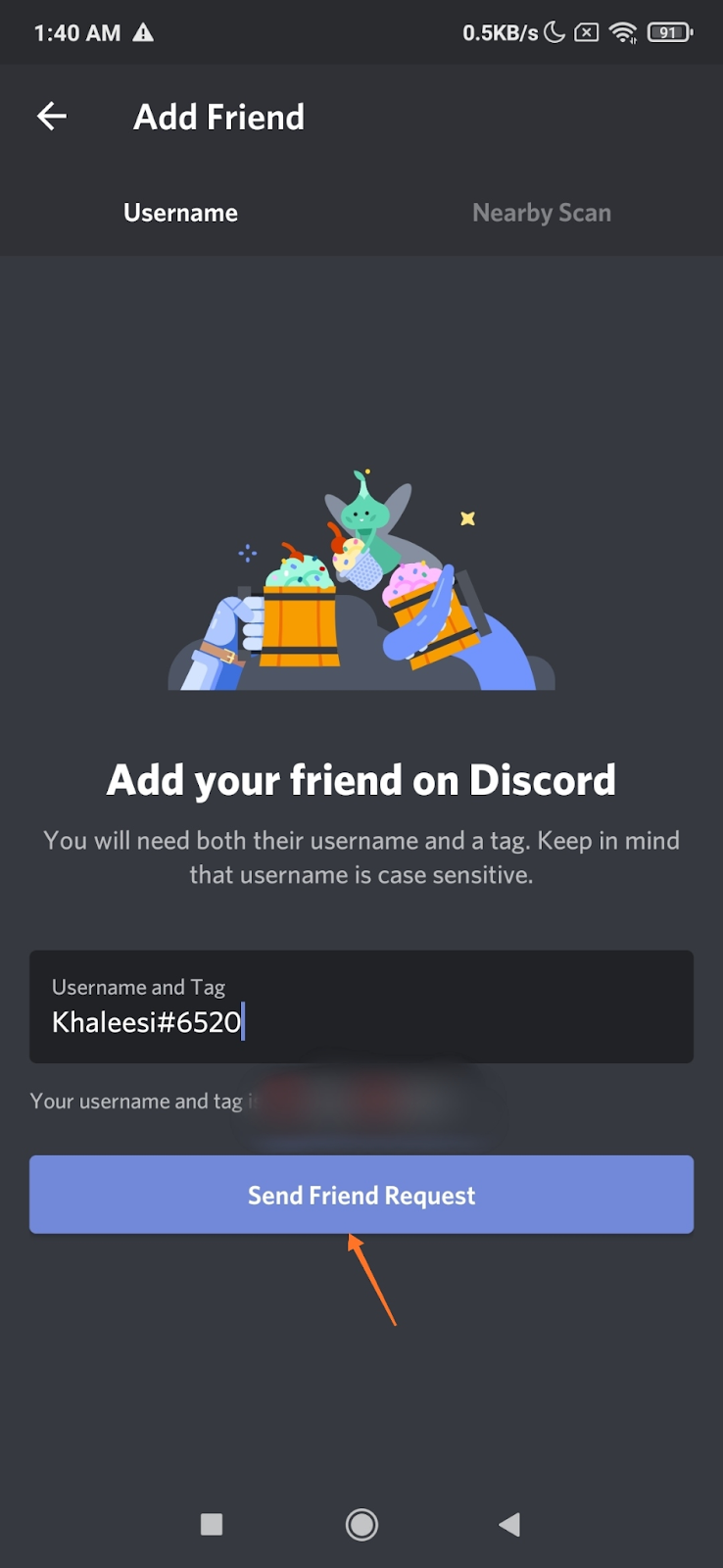
That’s it! All you have to do is wait for your friend to accept your request. Once accepted, your new friend will appear in the Friends tab. Here, you can call or message any user by simply tapping the icons next to their username.
Adding Friends in a Discord Server
If you want to add anyone from a Discord server, follow the steps below:
- Tap the Discord icon found in the left-bottom corner of your screen. This will bring up all your direct messages and channel lists.
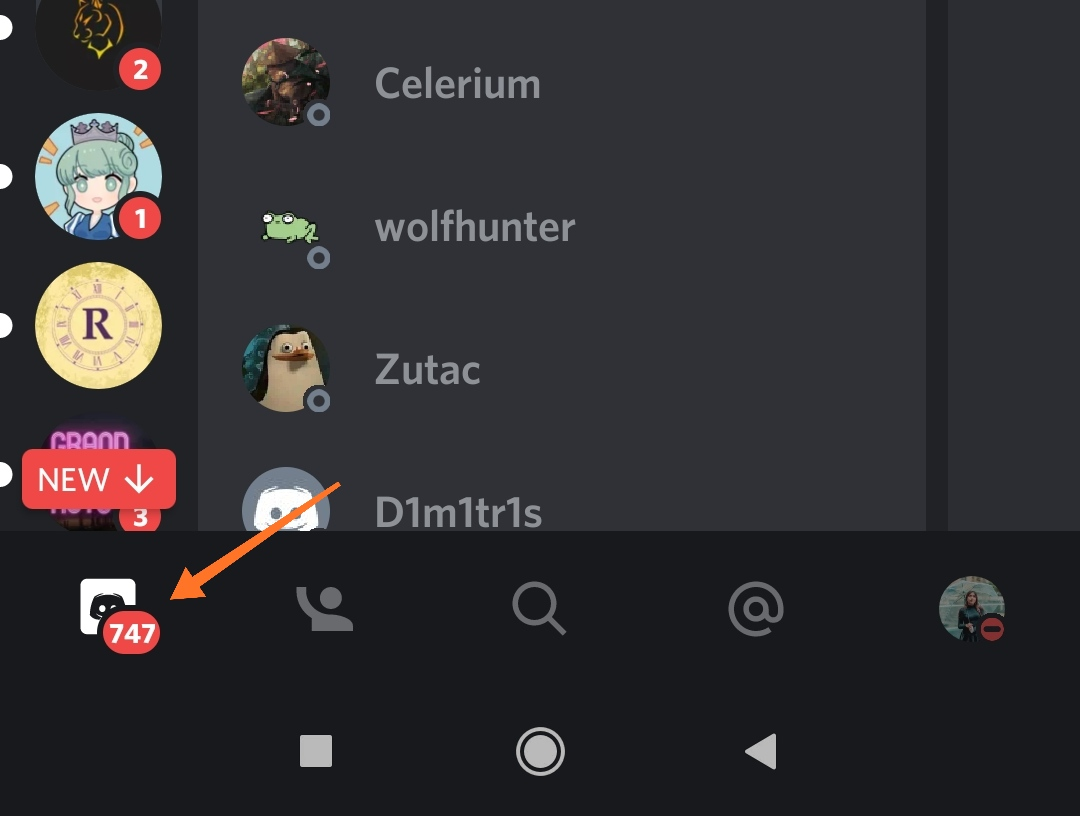
- Then, select the server or channel that contains the friend you wish to add.
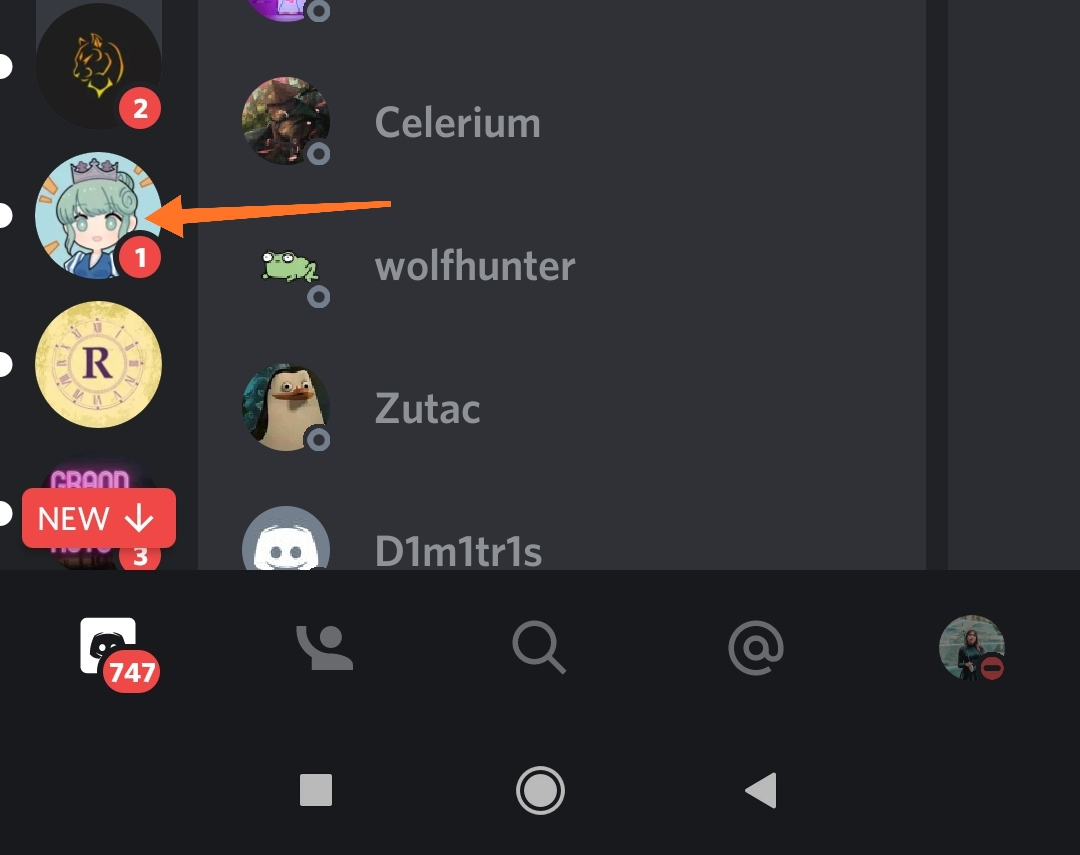
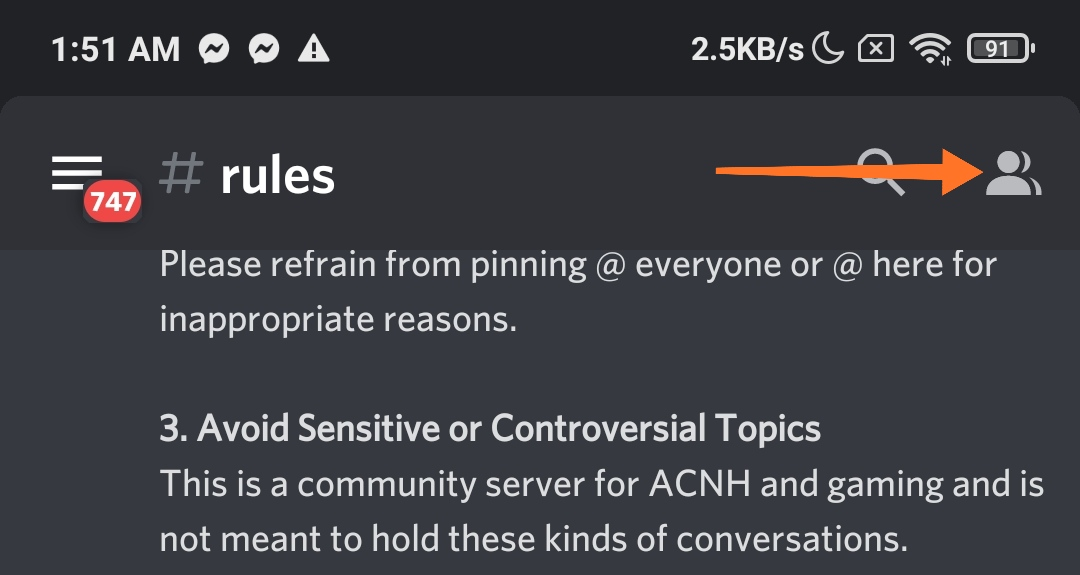
- Tap the User List icon found in the top-right corner of the channel.
- In the channel list, look for the name of your friend. Then, tap it to display their user profile in a pop-up menu.
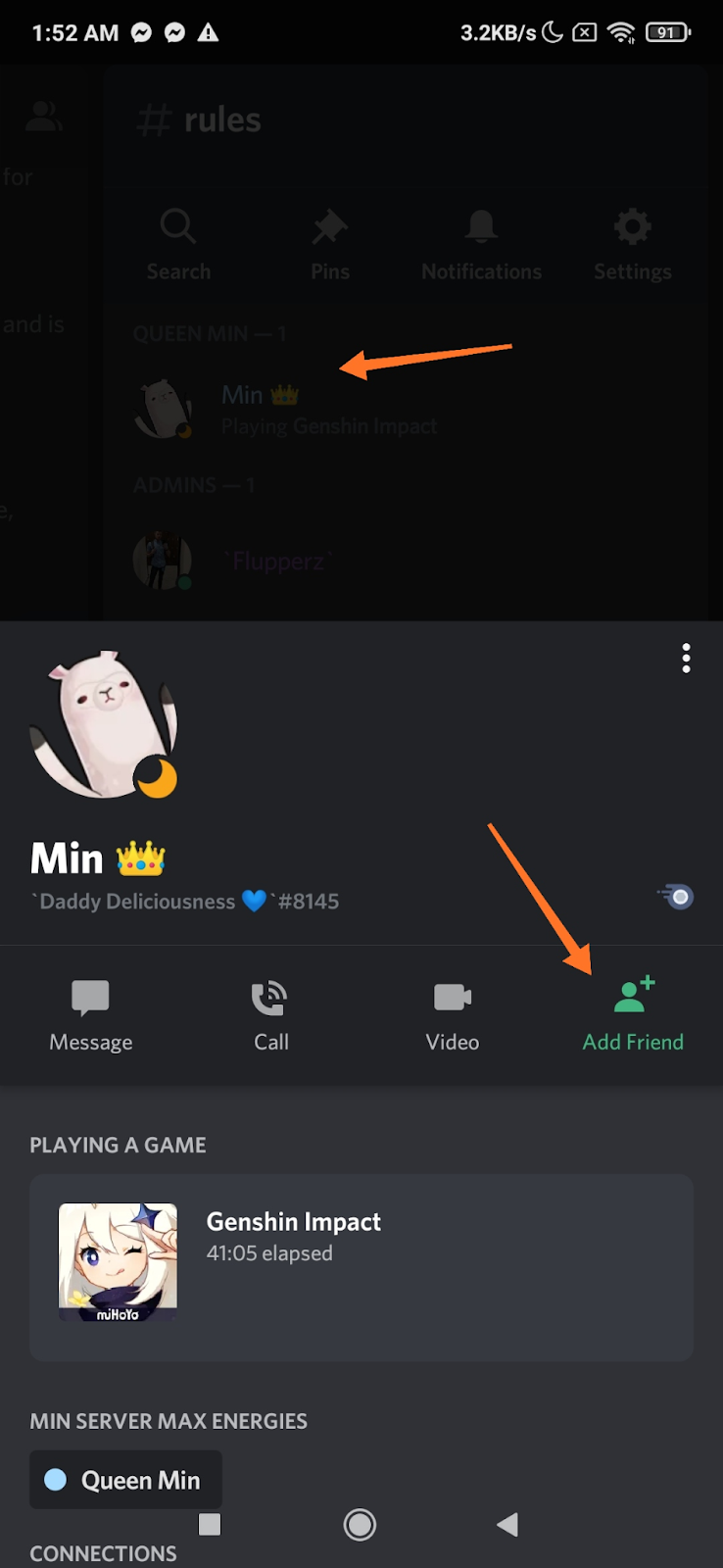
- Tap the Add Friend button to send a friend request.
- Wait for your friend to accept the request. Once done, your friend will appear on your Friends list, and you can start messaging or calling right away.
Building a Better Community
Perhaps most people know Discord as the app that allows people to stream and play other online games. However, it does more than just that. This platform also bridges friends together and provides a means of communication that is way more efficient than other platforms. It may get overwhelming at first because of the unfamiliarity with the platform, but it gets better when you get the hang of it.