

YouTube TV was considered one of the best live TV streaming services back when it first launched in 2017. But since then, many more options have popped up and people have started moving away from YouTube TV to Netflix, Hulu, and other platforms. While some still maintain their YouTube TV membership because they love certain shows, others subscribe for a month or two and then decide to cancel or pause their subscription.
Whatever the case, if you’re considering canceling your YouTube TV subscription as well, we’re here to teach you how to do it both on the Web and on your iOS and Android devices.
How to Cancel a YouTube TV Subscription Through the Web
If you want to cancel your YouTube TV service from your desktop computer, rest assured you can use any Windows, Mac, or Linux device to do so. First, go to your web browser and access the “tv.youtube.com” website.
Follow these steps to complete the cancellation:
1. Once you access tv.youtube.com, find the Sign In button in the top-right corner of your screen and make sure you log in with the right YouTube TV account.
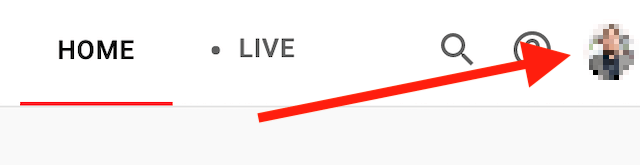
2. Click on your profile photo or avatar at the top-right corner of the browser to open up a pop-up menu.
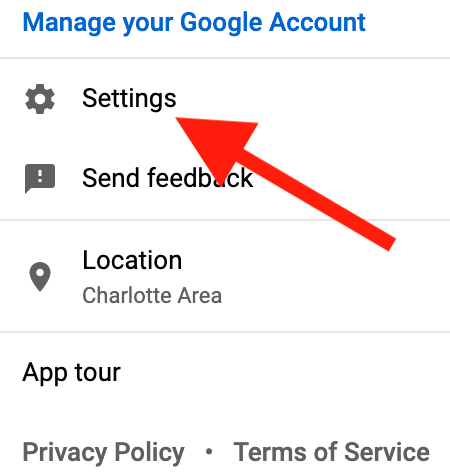
3. Find Settings on this menu and click it.
4. Click Membership at the top of the left sidebar.
5. Select Manage Membership. It should be right next to your YouTube TV subscription plan icon.

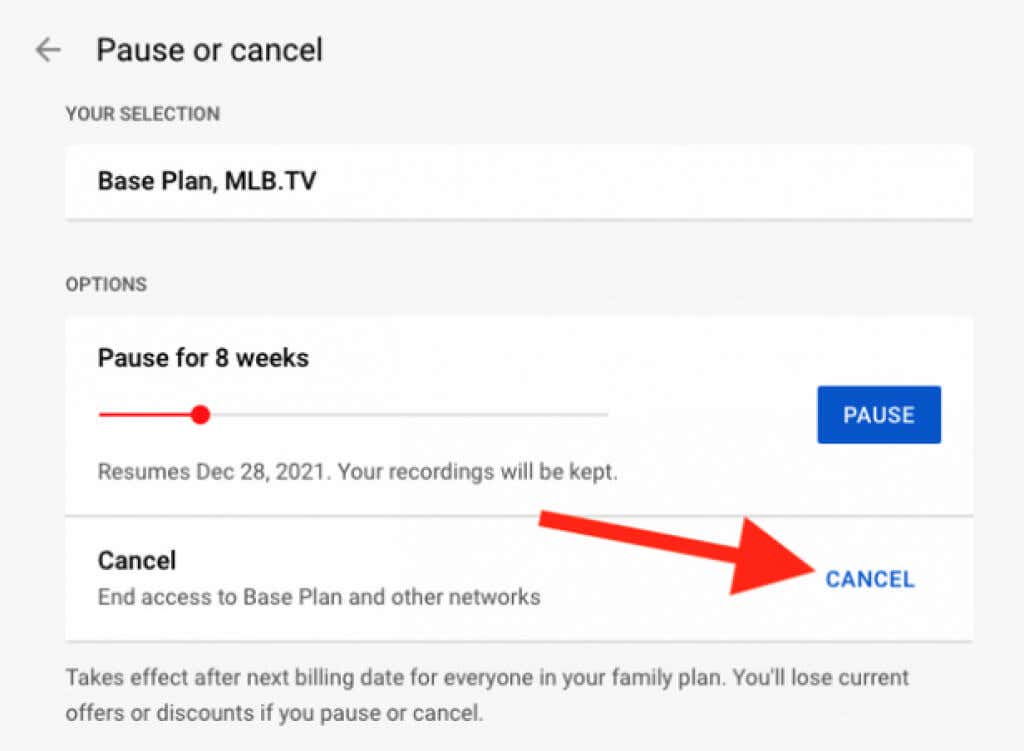
6. Now click Cancel Membership. If you want to cancel your YouTube TV subscription completely, make sure you don’t click Pause here. This option will stop charging you but will reactivate your account and it will start charging you again after the pause period of 8 weeks is over.
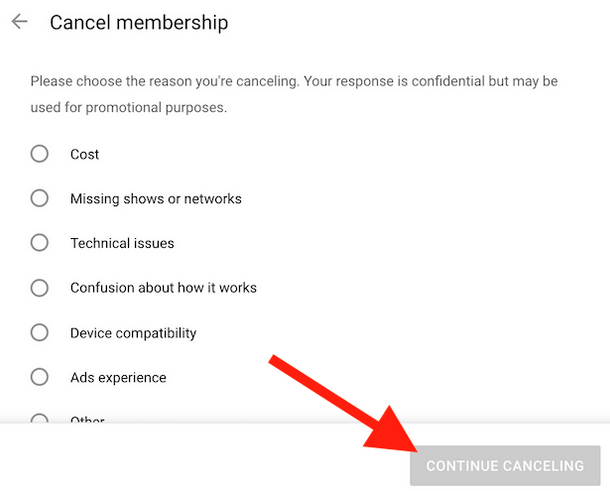
7. Next, you’ll see a list of reasons why you want to cancel your subscription. Select one of the offered reasons. Note that if you select Other, you will have to write an in-depth description of why you chose to cancel your subscription.
8. Click Continue Canceling at the bottom of the pop-up window.
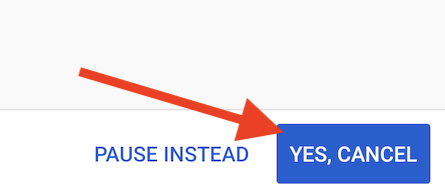
9. Click Yes, Cancel to terminate your subscription.
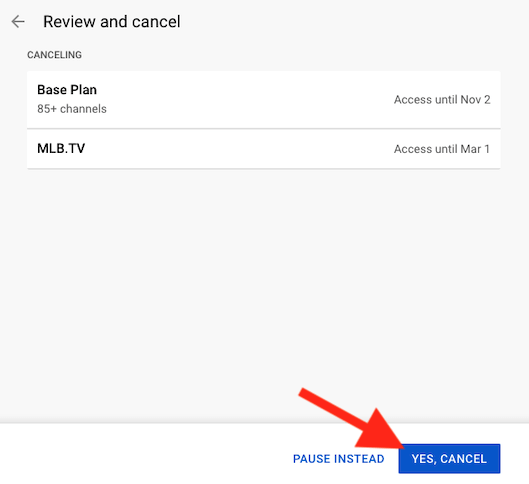
10. Upon canceling the subscription, YouTube TV will send you a confirmation email. Check your inbox to see if you received it.
When the whole cancellation process is complete, you will be taken back to the membership page. To check if the process was successful, look under the YouTube TV logo and you should see Restart Membership.
If you had a free trial, your subscription will simply be deactivated. You will lose access to all the content on this streaming service immediately. However, if you have a paid membership, you will be able to continue using the streaming service for the payment period, until the next billing cycle.
How to Cancel a YouTube TV Subscription from the Mobile App
If you prefer using your smartphone, there are two ways to deactivate your YouTube TV subscription. One of them is from the web, following the steps described above. The only difference is that you would access tv.youtube.com from your smartphone web browser instead of your computer.
The second option is to cancel your subscription through the YouTube TV mobile app. However, you should know that canceling your subscription through the app on an iOS device, like the iPhone or iPad, isn’t possible at this time. You can still do it through the web browser on your Apple device. But if you’re using an Android smartphone or a tablet, you can do it directly from the mobile application.
Follow these steps to cancel YouTube TV from the mobile app:
1. Open the YouTubeTV Android app and go to your profile icon in the top-right corner of the screen.
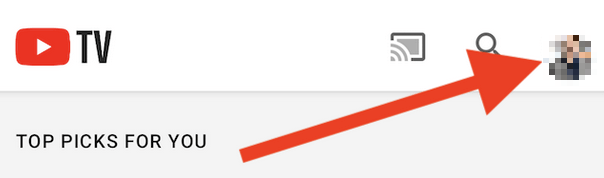
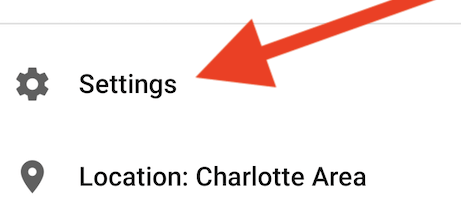
2. When the drop-down menu opens up, select Settings.
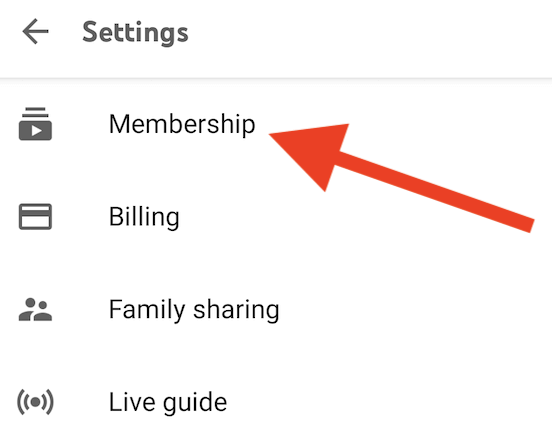
3. Select Membership.
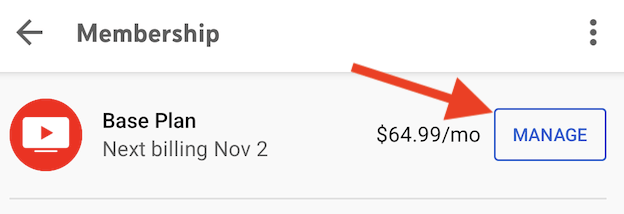
4. Then tap the Manage button right next to your YouTube TV subscription plan.
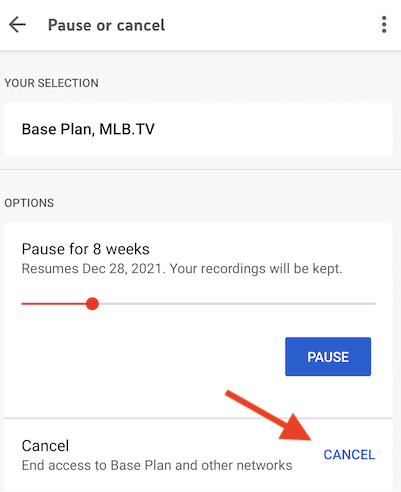
5. Again, if you want to terminate your subscription completely, tap Cancel, and not the Pause button.
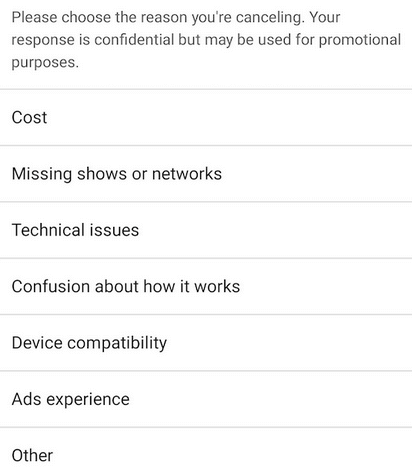
6. Choose the reason why you want to terminate the subscription from the list.
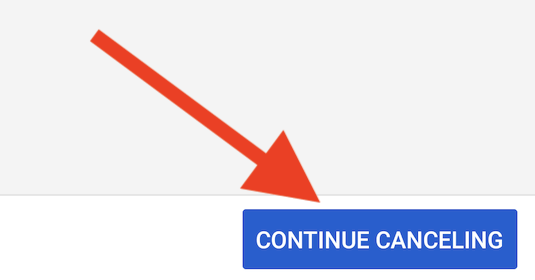
7. As a safety precaution, YouTube TV will once again offer to pause your membership. Instead, select Continue Canceling to proceed.
8. Only now you will go to the final cancellation screen. Tap the Yes, Cancel button to completely and finally terminate your monthly subscription.
Pausing Your YouTube TV Subscription
As you can see, canceling your YouTube TV subscription is not the only option you have. You can always choose to pause the subscription and continue it later. This is a great option especially now with the new price increase. Take a break and return once your favorite show has new episodes you want to watch.
All subscribers can pause their YouTube TV membership for any period between four weeks and six months. You can manually resume the YouTube TV service whenever you want, without waiting for a set period of time to pass.
Pausing your YouTube TV subscription means you won’t be billed for the service anymore, but you also won’t have access to the service. If you choose to do so, keep in mind that your other accounts connected to YouTube TV will also be paused. But when you resume the service, you will again gain full access.