
As an Instagram user, you already know the social media platform is a great place to post your photos. You’ll see pets, people, places, and more from those you follow and you can post those pictures of your own.
What if you want to post more than one photo at a time? Maybe you have two or more pictures that are related or would make more sense being posted together. Here, we’ll show you how to add multiple photos to an Instagram post on the web and in the mobile app.
Post Multiple Photos on the Instagram Website
If the photos you want to share on Instagram are on your computer, you can easily add more than one to a new post on the web.
Visit Instagram.com, sign in, and select the post icon (plus sign) in the top-right navigation.

When the Create New Post window opens, you have the option to drag your photos into the window or upload multiple photos from your computer.

Drag a Group of Photos
If you want to pull the pictures on your computer right into the window, select them all. Then, drag the group of photos onto the Create New Post window.

Select a Group of Photos
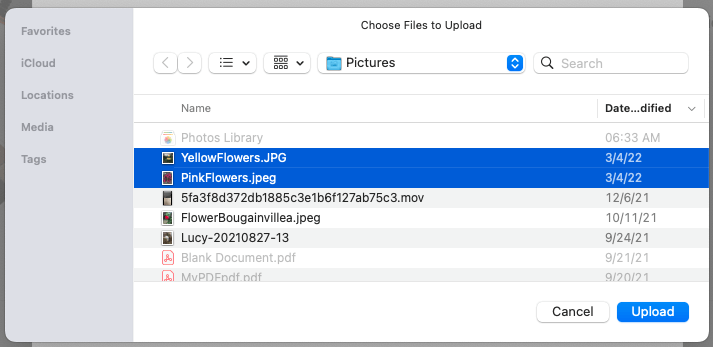
If it’s easier to browse for your photos, choose the Select From Computer button. Locate your photos, select all those you want to post, and pick Upload.
Add More Photos to the Post
Maybe the photos you want to share are in different locations on your computer making it difficult to select them all at the same time. You can still post multiple photos.
- Use one of the above methods to drag or select one or more photos.
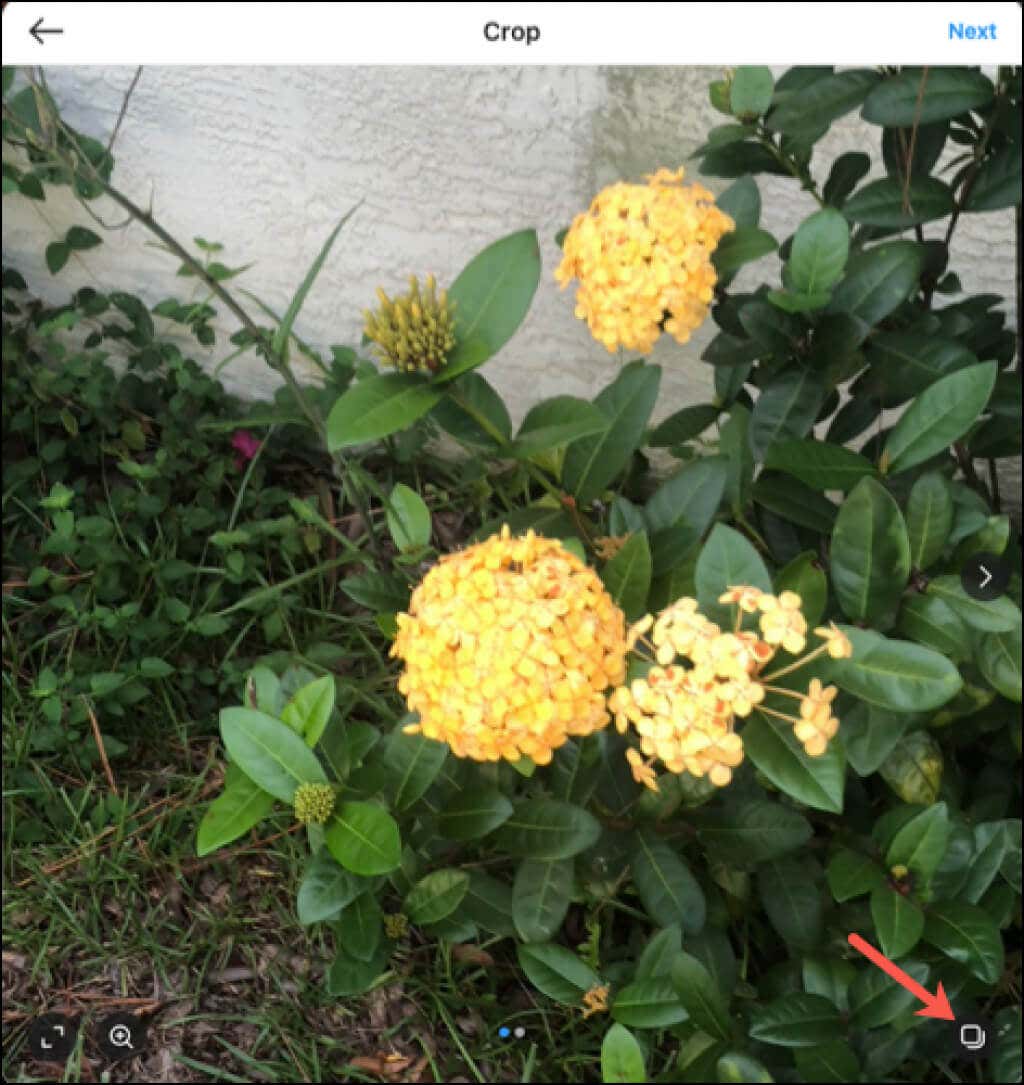
- When the pictures appear in the Create New Post window, choose the select multiple icon in the lower-right corner of the window.
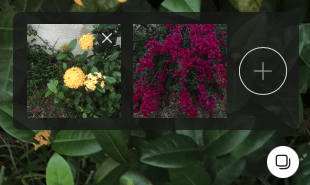
- Click the plus sign in the small pop-up box.
- When the browse dialog box appears, locate the additional photo(s) and select Upload.
- You’ll then see your photos in that small pop-up box where you can drag to rearrange them as shown below.
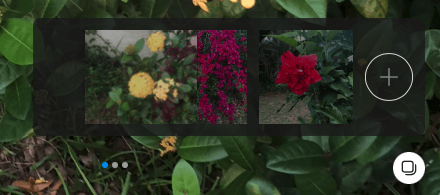
- You can continue this process to include up to 10 photos (or videos).
- When you finish, select Next in the top right corner and use the Filters or Adjustments to enhance your pictures. You can move through each photo using the arrows on the pictures for individual Filters or Adjustments.
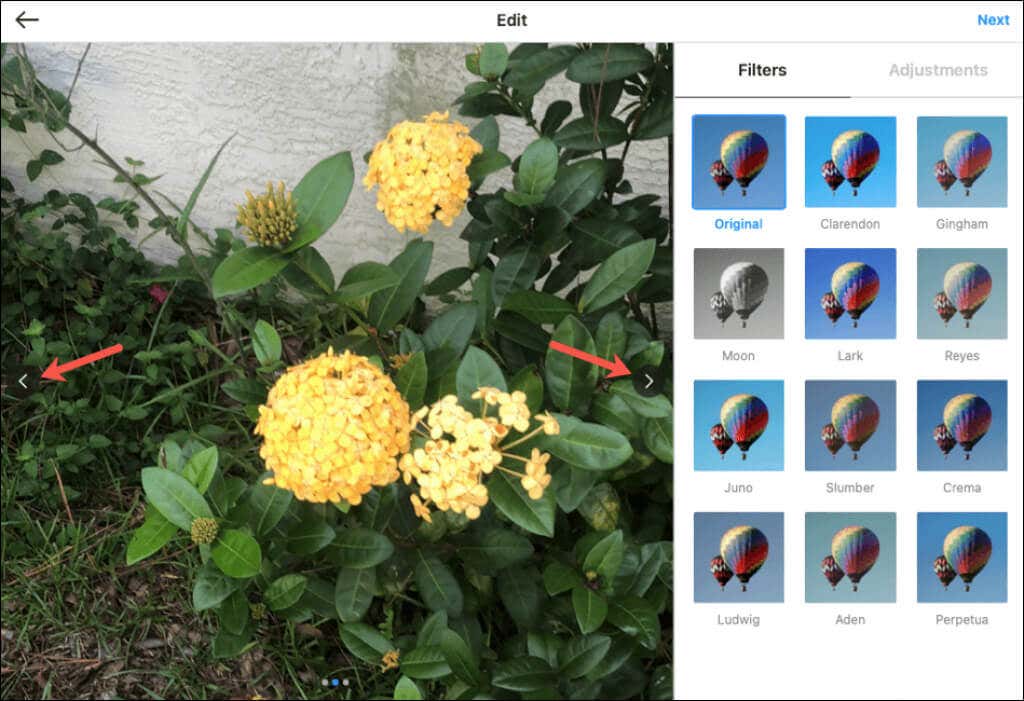
- Select Next and complete your post as you normally would. Tag people, add a caption, or include a location.
- Pick Share to post your photos.
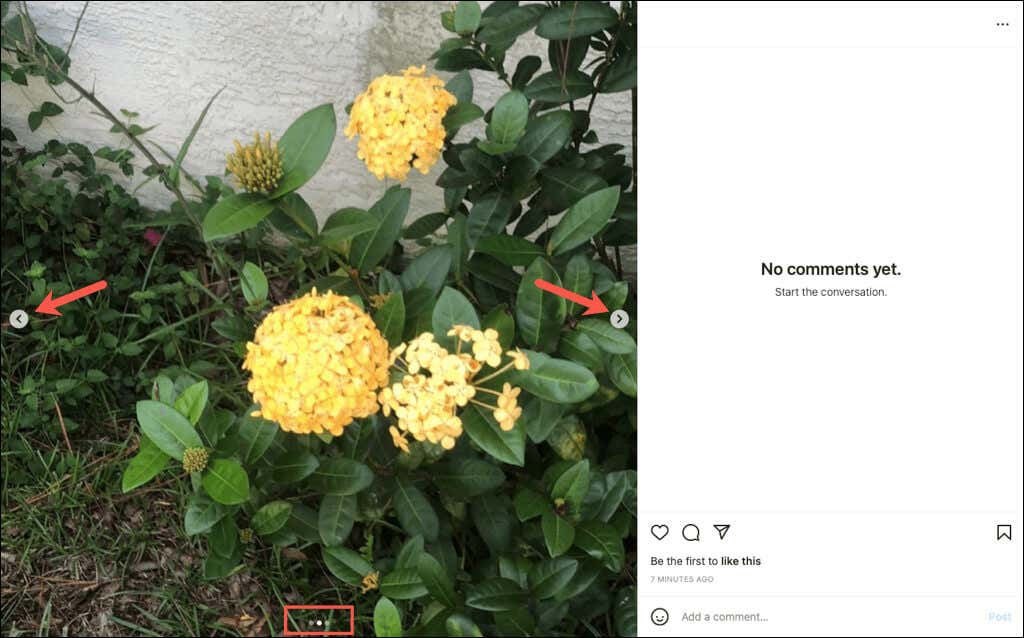
When others view your post on the web, they’ll see arrows on the left and right of the photos to move between them. They’ll also see dots at the bottom for the number of photos you include.
Post Multiple Photos in the Instagram Mobile App
Maybe the pictures you want to post are on your mobile device. You can post multiple photos in the Instagram app on iPhone and Android too.
- Open the Instagram app and tap the plus sign at the top of the screen and pick Post.
- Choose the select multiple button.
- Tap each photo you want to post. You can navigate from your camera roll to albums using the drop-down on the left. This allows you to choose pictures from multiple locations in your photo library.
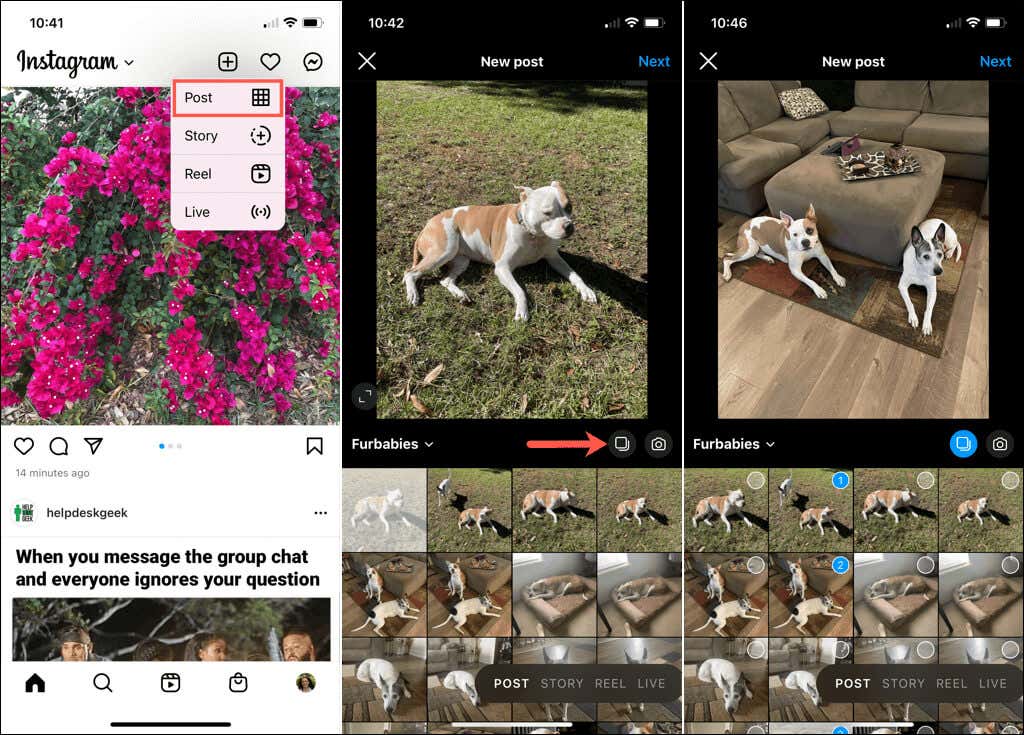
- When you’re done adding photos, tap Next or the arrow.
- To apply a filter to all photos, choose one from the bottom of the screen. You can also select individual pictures to use a filter or adjustment for just that photo.
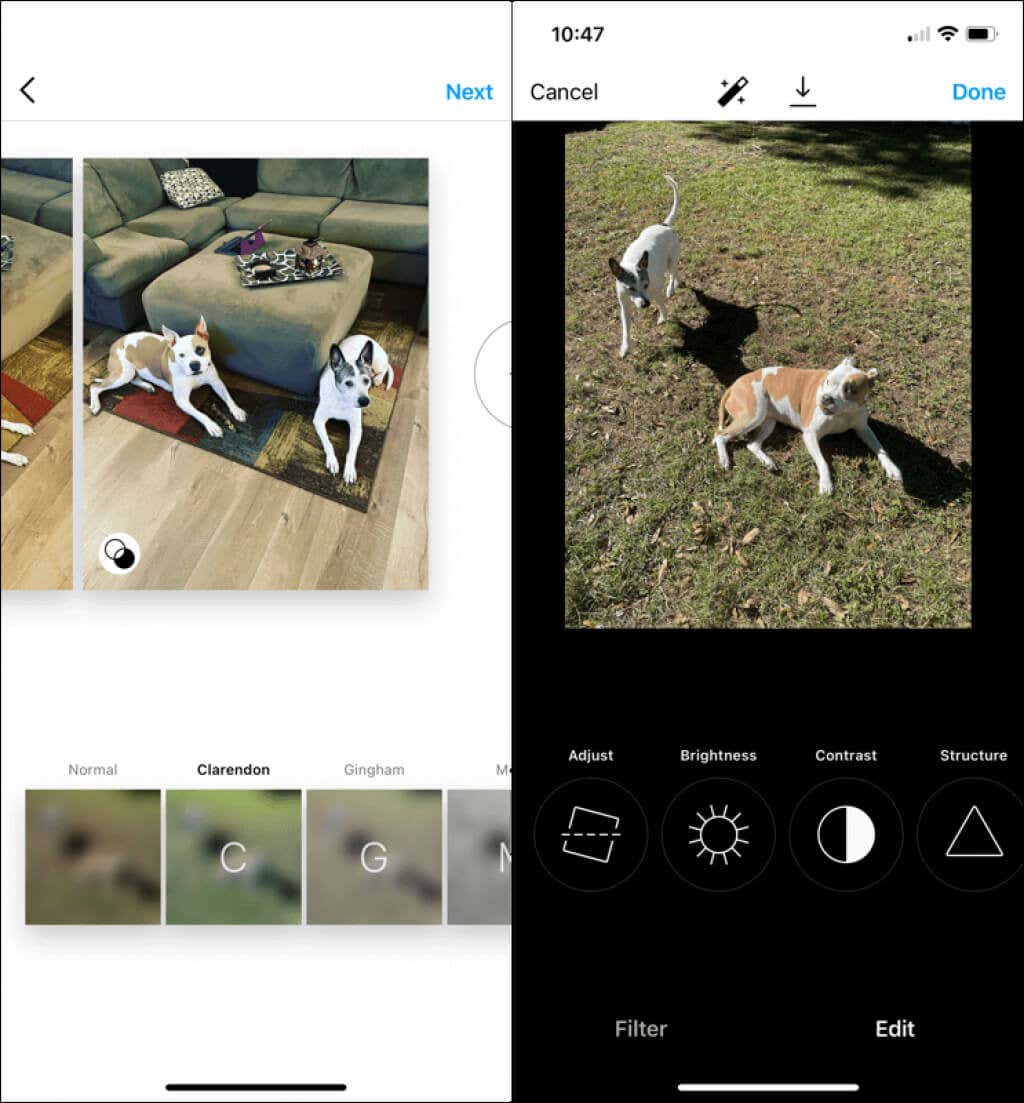
- If you decide to add another photo to the group, tap the plus sign on the top right of the currently selected photos. You can also rearrange the photos by dragging them.
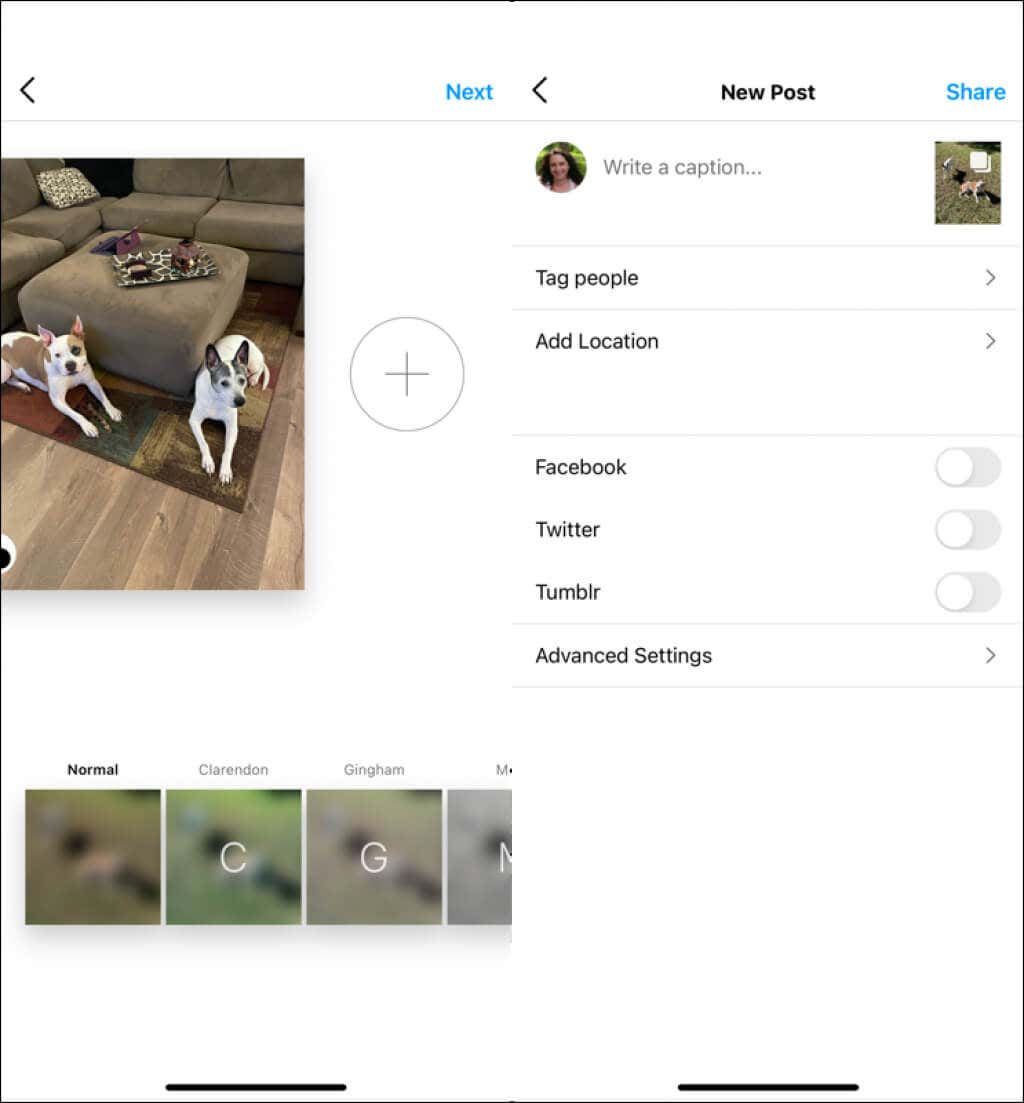
- When you finish, tap Next or the arrow.
- Complete your post as you normally would by adding a caption, hashtags, or location and tap Share to post your photos.
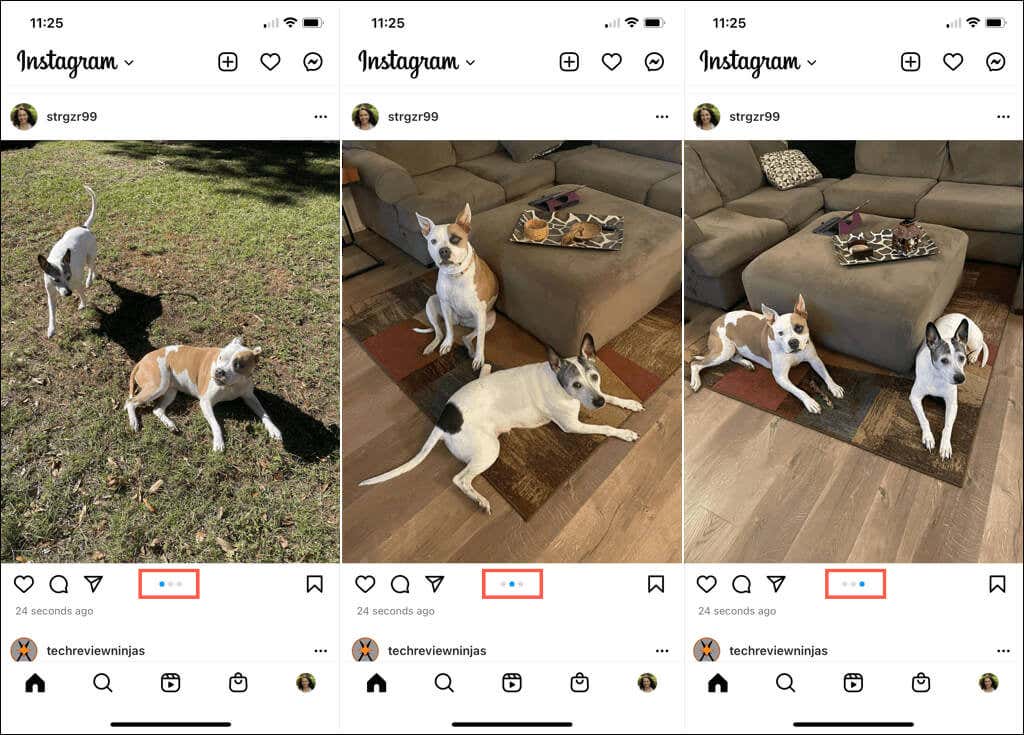
When others view your post in their Instagram feed, they’ll see dots at the bottom of the first photo for the number of pictures included. They can then swipe to see them all.
Now that you know how to add multiple photos to an Instagram post, check out how to create Instagram stories or how to become an influencer on the popular network.