

With less than a month to go before the U.S. election, you may be tired of seeing political Facebook posts day after day. Thankfully, you can change a few settings inside Facebook and scrub your timeline clean.
Not only can you block political posts on Facebook, but you also can report them so Facebook can remove them permanently. Find out how to block political posts on Facebook, so you can enjoy some controversy-free time on your favorite social network.
Snooze to Hide Political Facebook Posts from Friends
Everyone has a friend or acquaintance who stirs the pot by sharing a politically charged post. Want to turn them off until after the election is over? You can block political posts from your friends on Facebook right from your Facebook feed using the following steps.
- Scroll to the political Facebook post you want to hide.
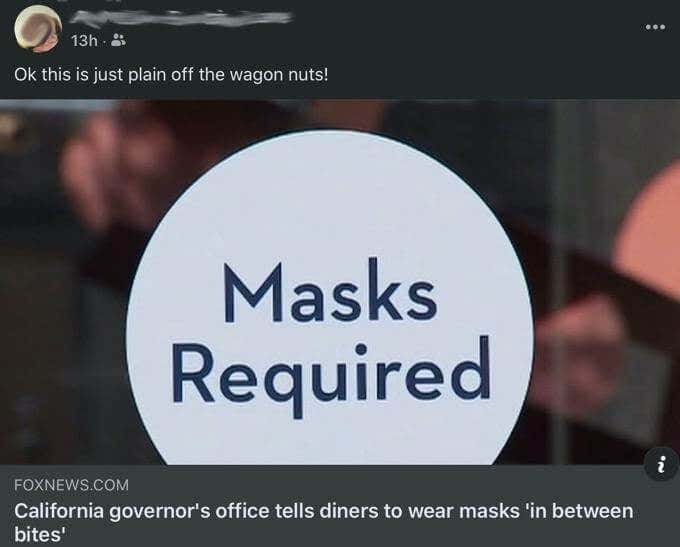
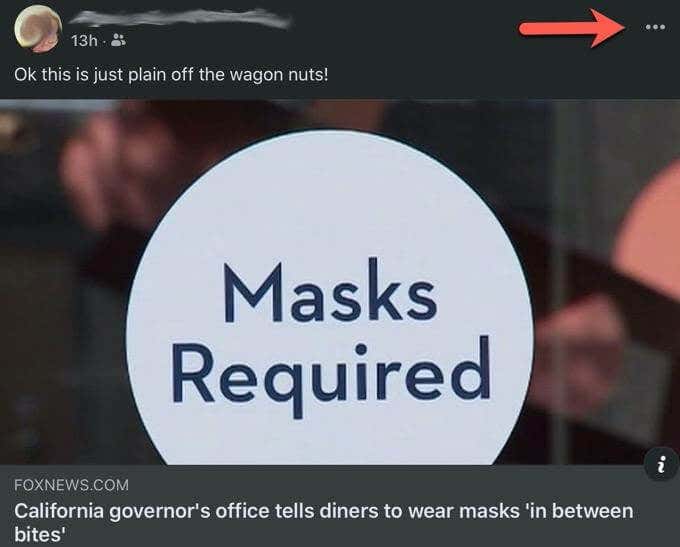
- Select the ellipsis icon in the upper right corner of the post.
- Select Snooze [name of the source] for 30 days.
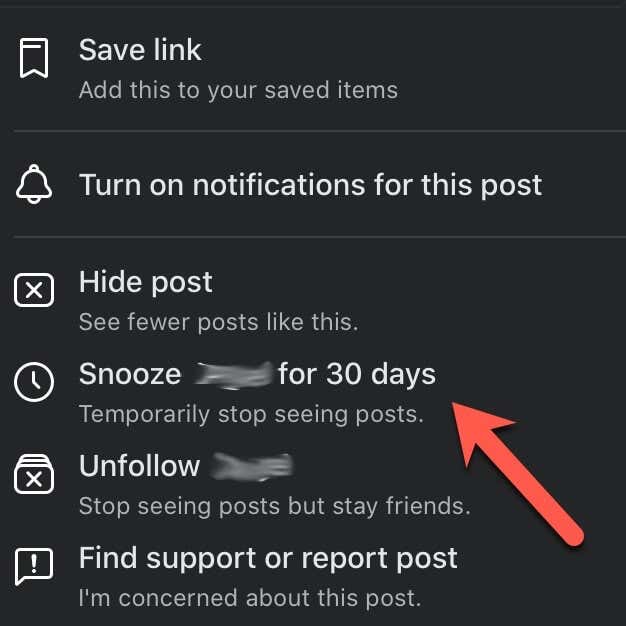
As soon as you select snooze, that post and all posts from the person should disappear. It will be replaced by a small box confirming your choice to snooze that person and an undo button if you change your mind.
Not only does that political Facebook post disappear, but you also won’t see any future posts from the person. Once the election is over, the person will reappear and you will begin seeing their posts again. If you want a more permanent action that’ll last beyond 30 days, select Unfollow to stop seeing the person’s posts while still remaining friends.
Unfollow Groups With Political Facebook Posts
Though many Facebook groups ban political posts, some do not, and they can be an unexpected source of annoying political Facebook posts. Here’s how you can block these political posts from your Facebook feed
- Open the group that you don’t want to see.
- Select the ellipsis icon in the upper right corner of the group page.
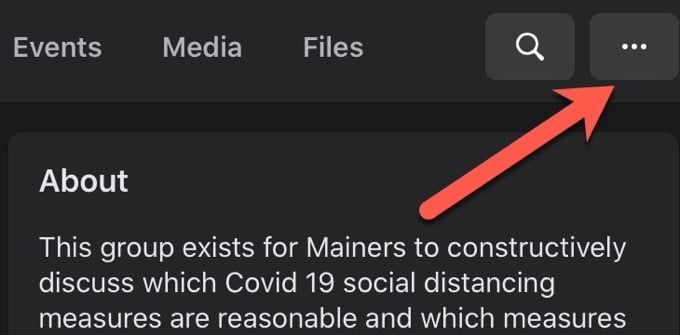
- Select Unfollow Group.
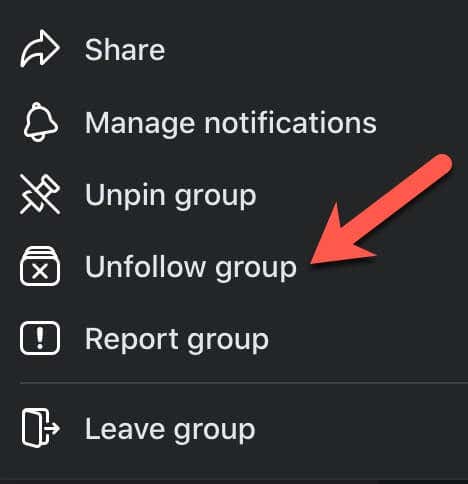
Unfollowing is a great compromise, especially for those who want to temporarily block posts.
This option removes all the group posts from your feed but allows you to remain in the group. You can select the group and view their posts, but they will not automatically show up on your feed. When things have calmed down, you can easily re-follow the group and enjoy reading their posts every day.
Change Facebook Ad Settings to Reduce Political Ads
You also can turn off political ads in the Ad settings of your Facebook profile. Open Facebook in your web browser and follow these steps to cut back on the political Facebook posts that you see.
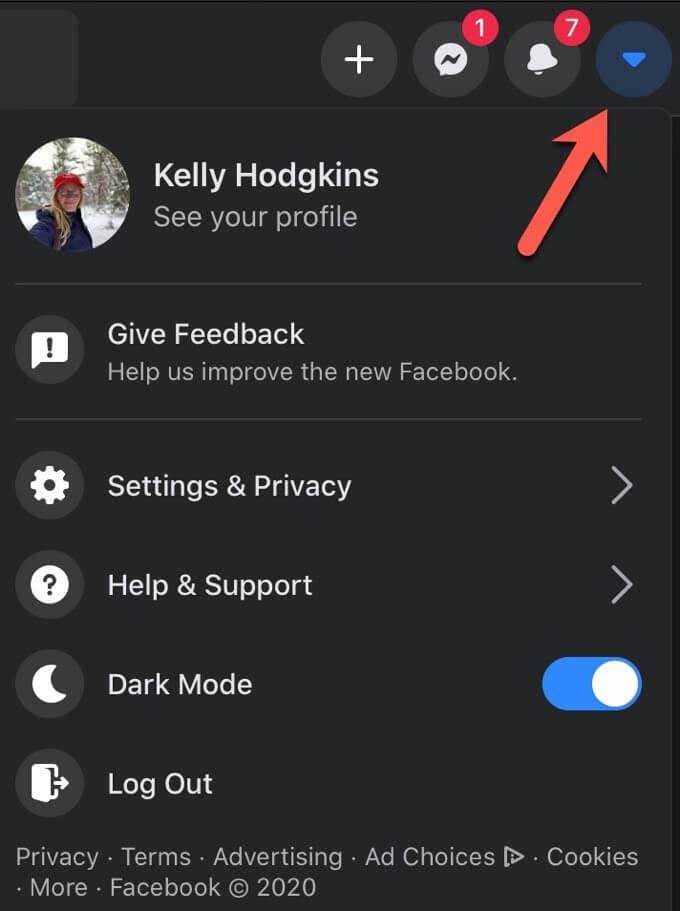
- Select the downward pointing arrow icon in the upper right corner.
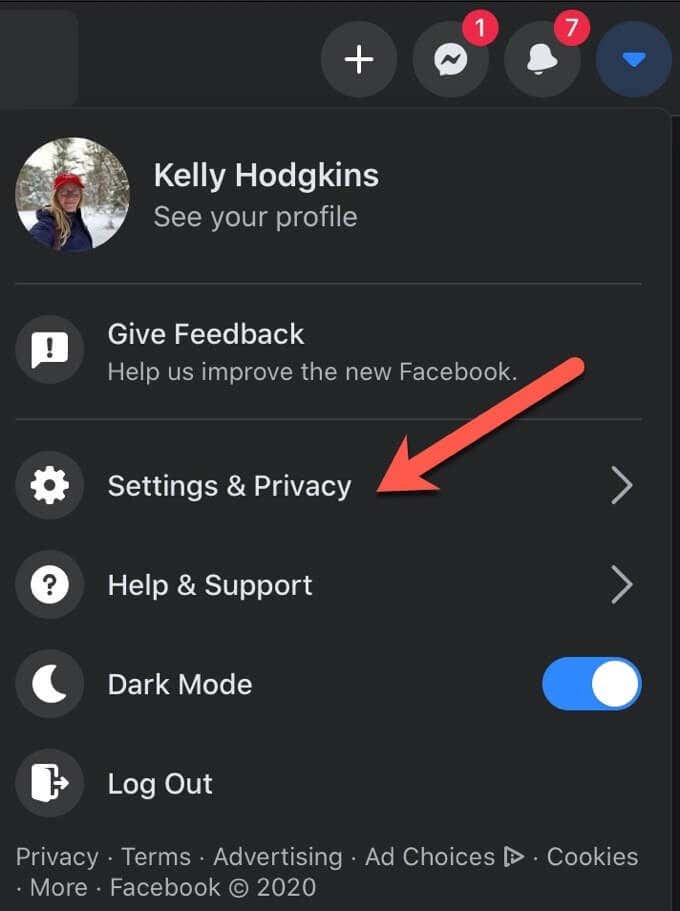
- Select Settings & Privacy.
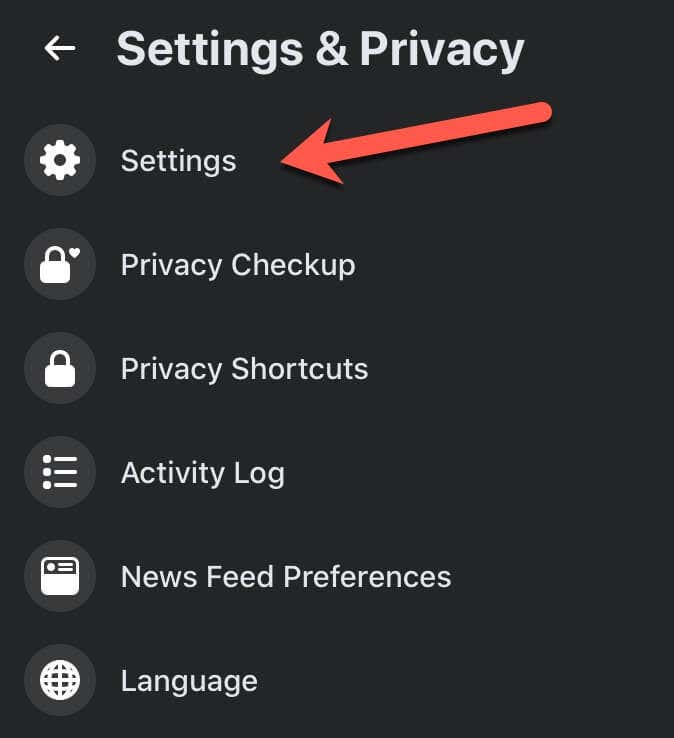
- Then Select Settings to view all your account settings.
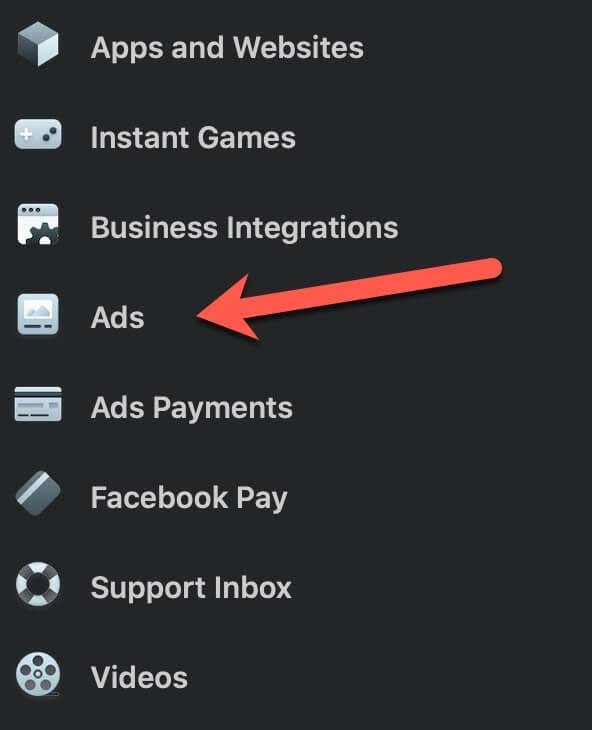
- Scroll down and select Ads in the left column to view your Ad Preferences.
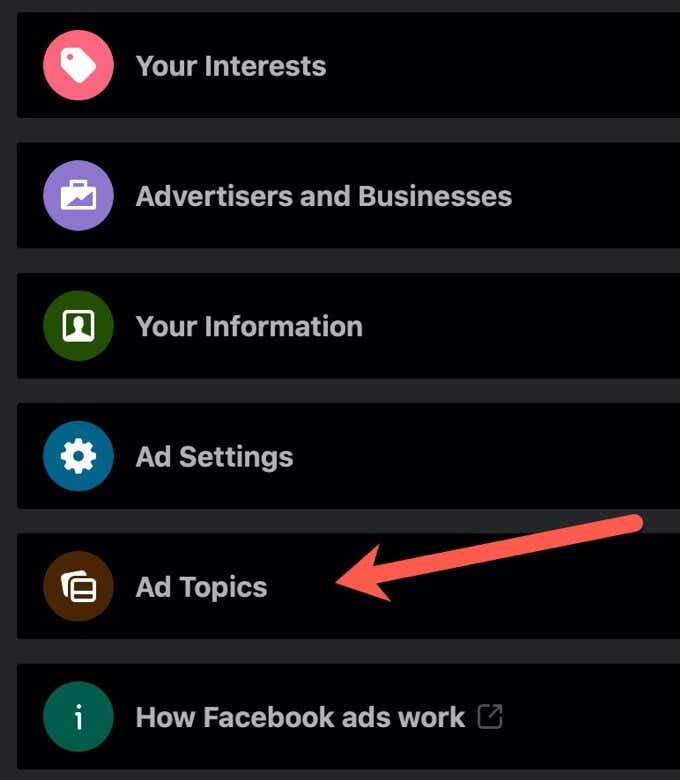
- Select Ad Topics to change which ads that you see.
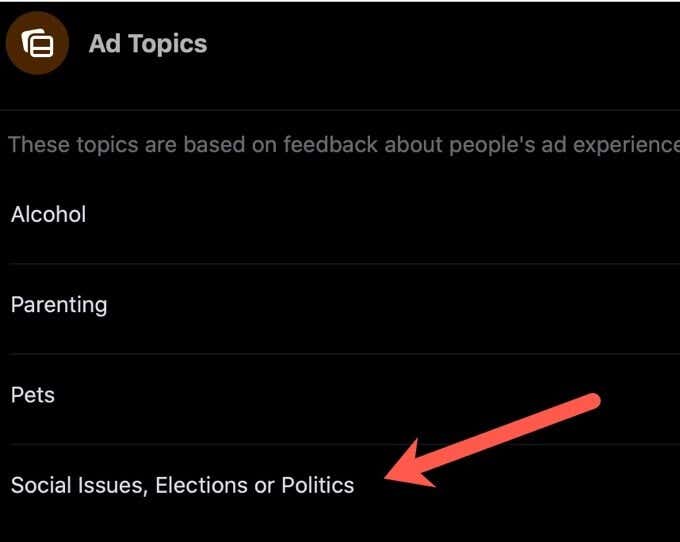
- Find and select the option for Select Social Issues, Elections or Politics.
- Select See fewer ads about this topic.
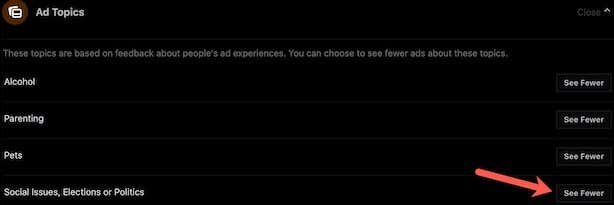
Though it won’t remove all political ads, this single option should significantly cut down on the number of political ads you see.
Hide All Political Facebook Ads by a Specific Advertiser
If you encounter a political ad you really don’t like, you can block the individual or organization that sponsored the political ad in just a few steps.
- Find the advertisement you want to hide.
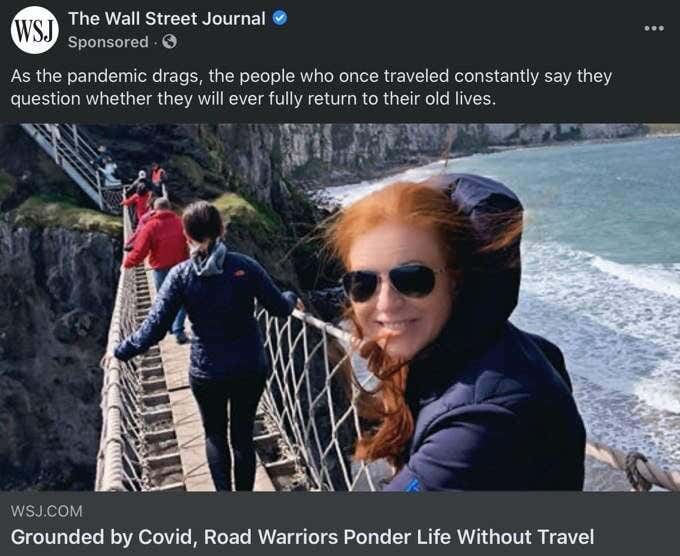
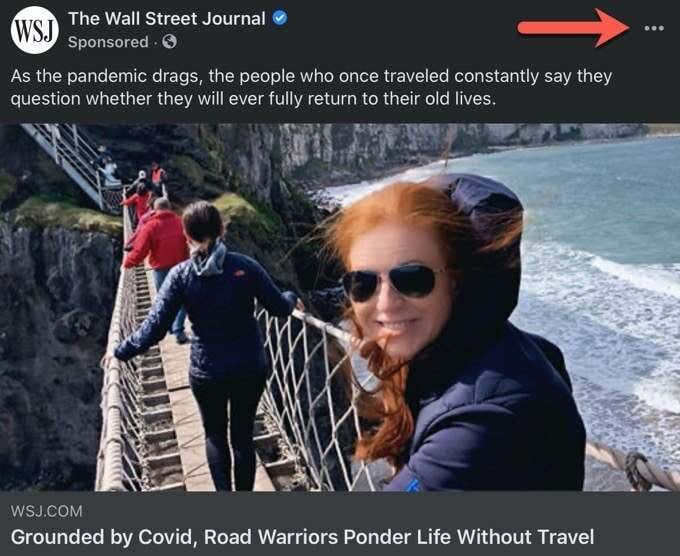
- Select the ellipsis icon in the upper right of the ad.
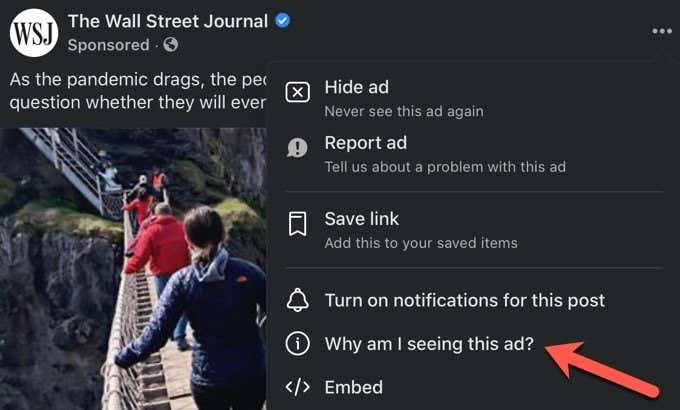
- Select Why am I seeing this ad? which explains why this ad is on your News Feed.
- Select Hide to the right of Hide all ads from this advertiser.
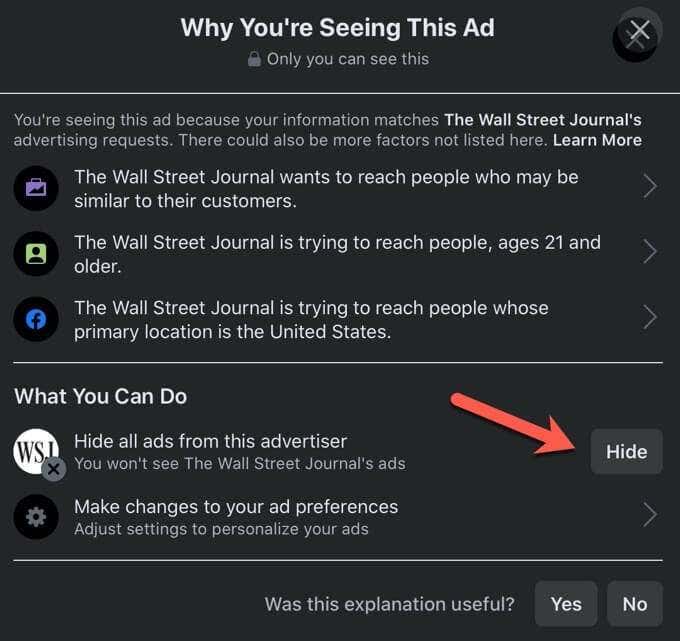
Once you block the advertiser, you should no longer see any existing or future advertisements from this person or group.
Report a Misleading Political Facebook Ad
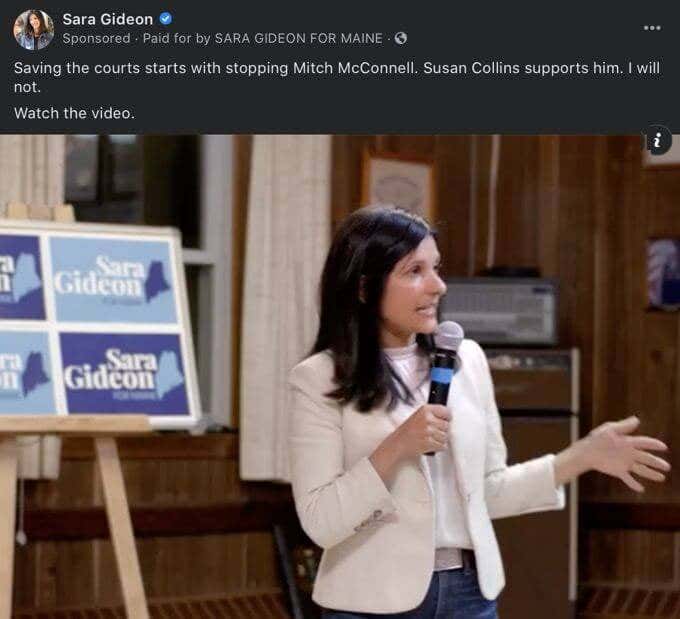
You occasionally may encounter a political Facebook ad that has misleading information or contains fake news. You can report that post to Facebook and ask the social network to remove it. Follow these few simple steps to report a false Facebook advertisement.
- Find the ad that you want to report.
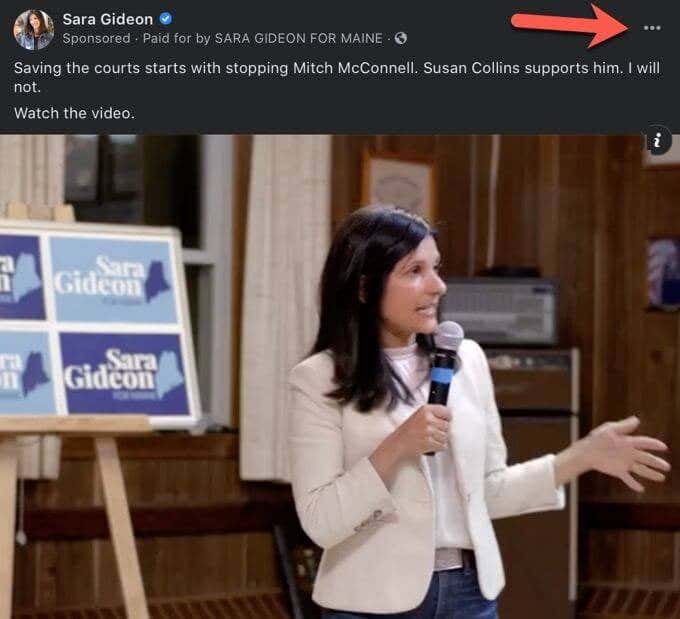
- Select the ellipsis icon in the upper right of the ad.
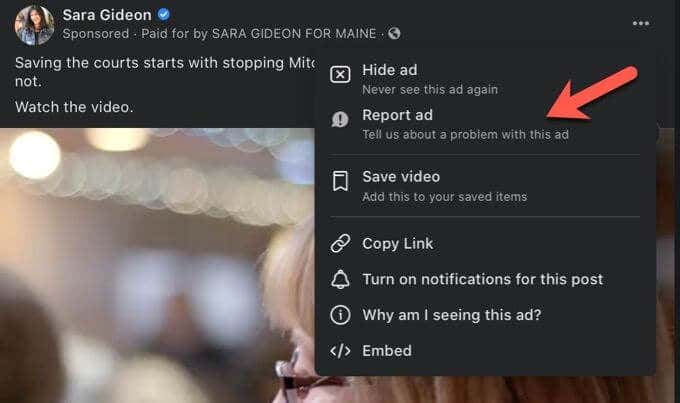
- Click Report ad.
- Choose the reason why you are reporting the ad.
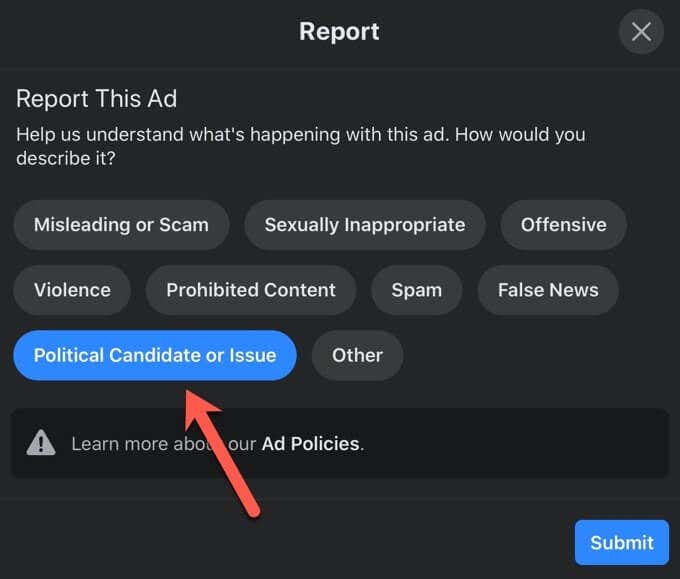
- Select the Submit button to send your report to Facebook.
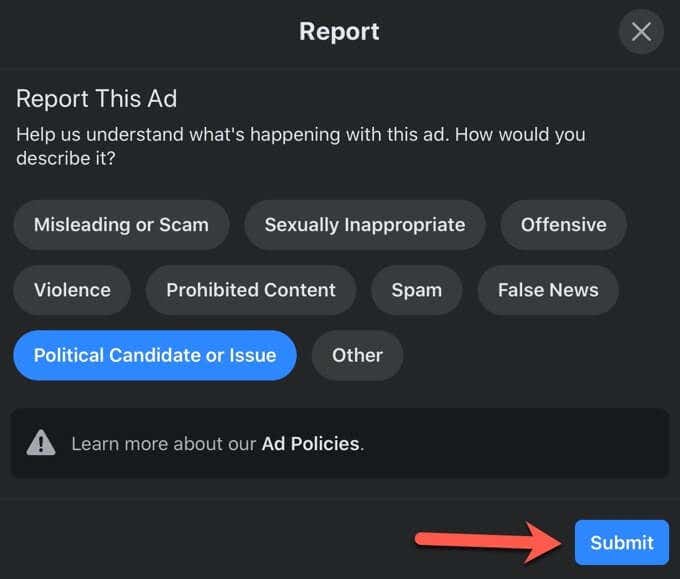
Once reported, the ad will be sent to the Facebook ad review system. This automated tool determines whether the ad violates Facebook’s advertising policies. If it does violate Facebook’s policies, the ad will be removed. Even if the ad isn’t removed, your feedback still is useful. Facebook regularly reviews its ad policies and may change them based on user feedback.
What Facebook Is Doing
Facebook is doing its part by banning any new political ads submitted in the week before the election. Candidates will not be able to launch any last-minute advertisements to sway voters. It will still allow existing ads to run in the waning weeks of the campaign, though.
Unlike Twitter, which has been removing ads it deems to contain lies or misinformation, Facebook has stayed out of the political fray. The social network is only removing advertisements that attempt to dissuade people from voting using the coronavirus pandemic. Facebook isn’t removing controversial ads, but the company is labeling them as misinformation, reducing their overall impact.