

There’s no shortage of on-demand video streaming services today. From Netflix, to Hulu, to Amazon Prime — there are so many alternatives to cable out there, it’s becoming difficult to pick just one. If you’re on Facebook a lot, you might not need to make the choice, since the site has its own streaming platform called Facebook Watch.
Facebook Watch is a free video-on-demand service that Facebook users can use for streaming premium content, as well as sharing their own videos with the community. Facebook Watch also allows you to throw virtual parties with your Facebook friends.
Find out how to use Facebook Watch and how to get the most out of this service.
What Is Facebook Watch?
Facebook Watch is a streaming service integrated with Facebook, like Messenger or Marketplace. It exists separately from your News Feed, however, you can access it through the main Facebook site.
Facebook Watch is free to use and is available on both the mobile app and the Facebook website. You won’t find a lot of network material on Facebook Watch. Instead, you can expect a lot of user-generated content mixed with the professional content produced specifically for Facebook, including original drama and comedy series, talk shows, and lots of fiction works.
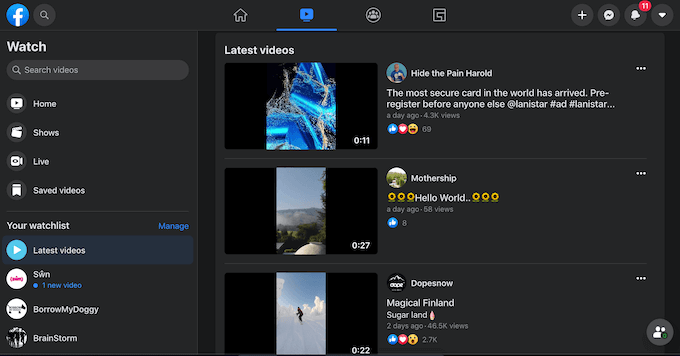
One downside of the service being free is the abundance of ads. If the creator of the video you’re watching has monetized it, you’ll have to sit through a few commercial breaks during the video.
How to Use Facebook Watch
The only requirement that Facebook Watch has is that you need a Facebook account to use Facebook Watch. You don’t need to download or install any additional apps, as all Facebook Watch content can be accessed through the main Facebook’s site.
To start streaming content on Facebook Watch, follow the steps below.
- Open Facebook on your desktop or mobile and sign into your account.
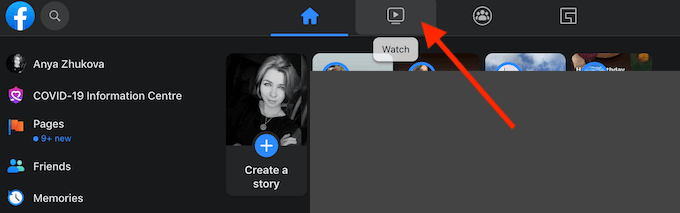
- If you’re using Facebook on your desktop, from the menu on top of the screen, select Watch.
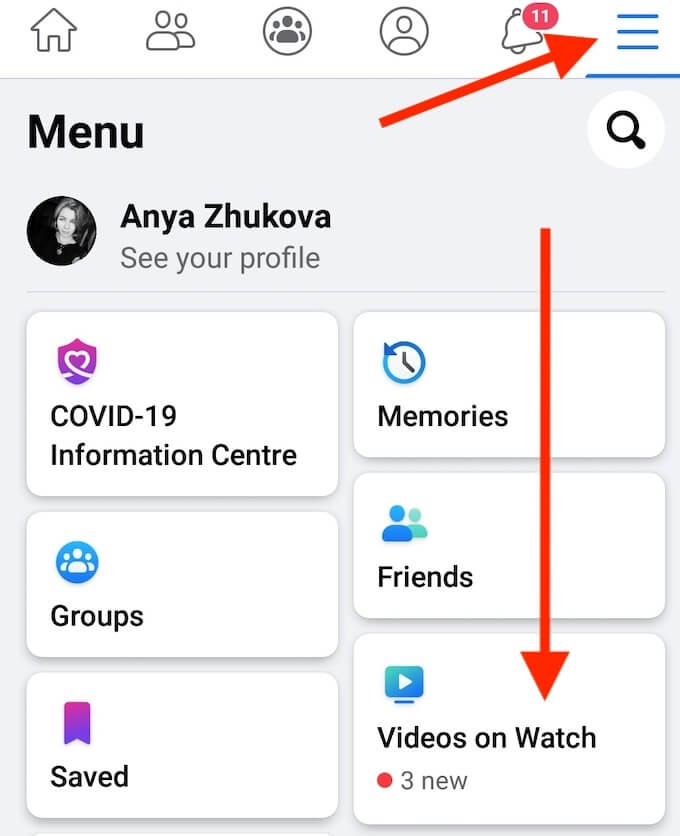
- If you’re using the Facebook app on your smartphone, select the three horizontal lines to open the menu, then select Videos on Watch.
- Select a video or a show you want to watch.
How to Search for Content on Facebook Watch
Facebook Watch is organized like YouTube. There aren’t any channels, but instead there are different content creators who have their own pages with videos on Facebook Watch. Facebook Watch also has a number of its own Originals and series — each of them will also have a dedicated page with the description of the show, users ratings, and episodes.
Here’s how you can navigate Facebook Watch and find the content to stream.
Use the Search Bar
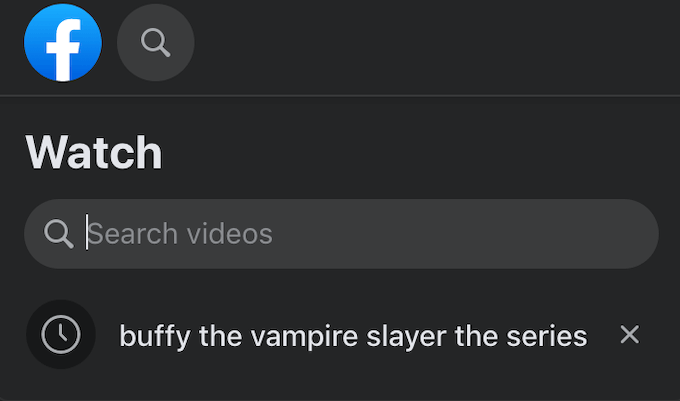
The easiest way to find a video on Facebook Watch is by using the search bar. You can find it in the upper-left corner of the Facebook Watch main page. Type the name of a video or a show you’re looking for into the search bar and see if it’s on Facebook Watch.
Check Out Facebook Watch Top Picks
If you don’t have the name of a specific show or a video you want to watch, you can just scroll through the Facebook Watch Top Picks. They’re videos chosen for you by Facebook based on your interests, hobbies, videos you’ve watched on Facebook in the past, and your location.
Use Facebook Watch Menu
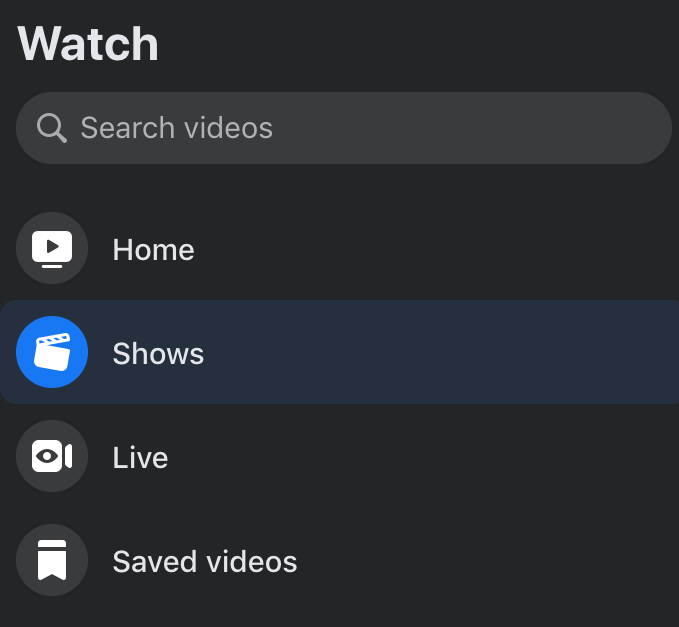
Depending on what type of video content you’re looking for, you can use the Facebook Watch menu to find it. In the upper-left corner of your screen, you can select to search for Shows, or Live streams of sports games.
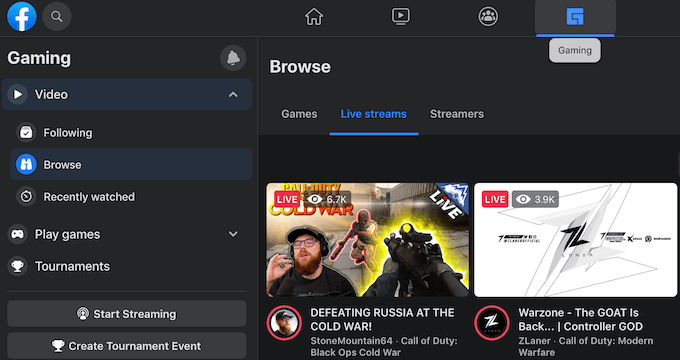
You can also find a section with Gaming videos on Facebook Watch. It’s similar to live streams on Twitch or YouTube gaming. To find live game streams or pre-recorded game videos, select Gaming from the Facebook’s menu on top of the screen. Then join one of the live streams or browse the rest of the videos by the streamers.
Your Watchlist
Facebook Watch allows you to save your favourite video content to your Watchlist where you can access it later. When you select your Watchlist for the first time, you’ll see that you already have all the pages you follow listed there. You can add and remove them from your Watchlist any time.
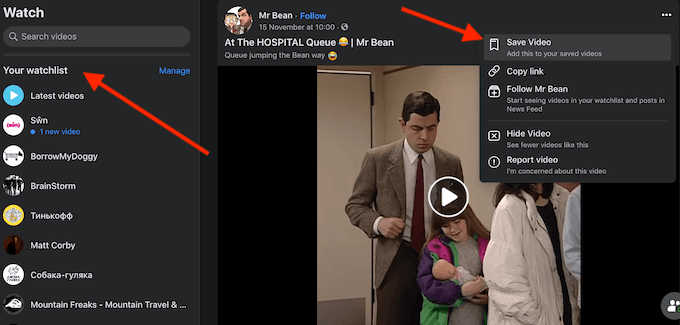
If you want to add a video or a show to your Watchlist, select Follow or Save Video on the video’s page. The video will then appear in your Saved videos and Latest videos lists, so you can quickly access it next time.
How to Host a Facebook Watch Party
Hosting a Facebook Watch party is a great way to watch your favorite videos with friends when you can’t physically be in the same place. Thanks to the Facebook Watch party feature, you can sync your videos and watch them at the same time, while also discussing it using the Facebook Watch party chat in real time.
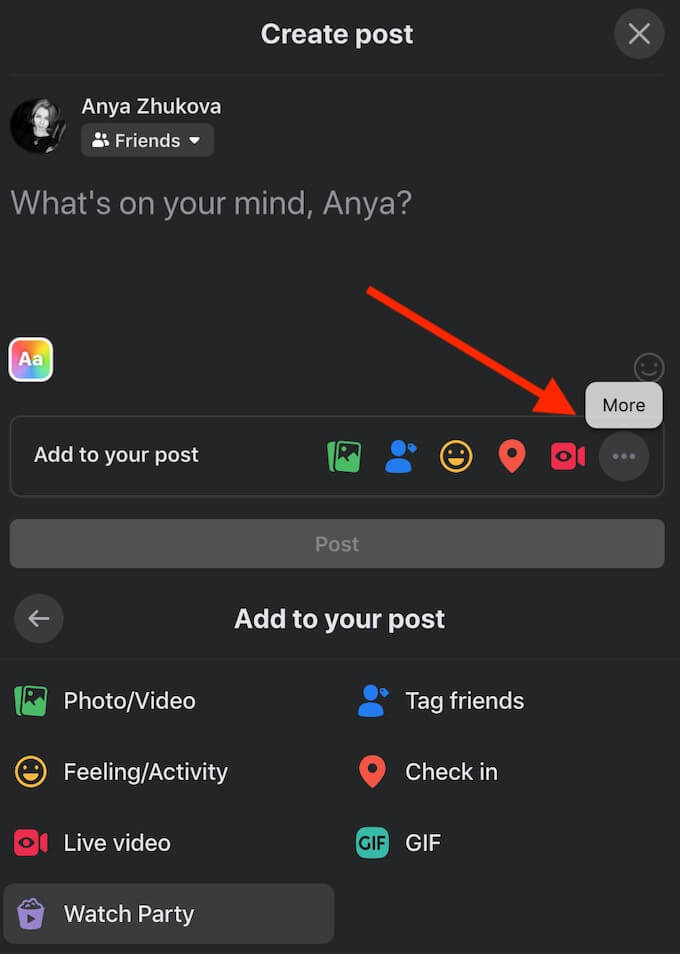
You can start a Facebook Watch party from your timeline, in a group that you’re a member of, or on a page that you’re managing. To host a Facebook Watch party, follow the path Create post > More > Watch Party. Then add videos to the queue and you’re all set to start.
Can You Upload Your Own Videos to Facebook Watch?
Any Facebook user can upload videos to Facebook. However, if you want your video to show up on Facebook Watch, you’ll need to upload them using a Facebook Page and not your personal account.
Even if you post your videos from a Facebook Page, there’s no guarantee they’ll show up on Facebook Watch. All you can do is try to make sure your content looks professional, has a certain message for the audience, and that you’re consistent with your content production. The more videos you post, the more followers your page will have, and it will boost the likelihood of your content on Facebook Watch.
Is Facebook Watch the New YouTube?
While Facebook Watch might seem like a mixed bag, it’s still worth checking out since the service’s completely free. If you’re absolutely opposed to the idea of spending more time on Facebook, or don’t have a Facebook account at all, check out these other streaming services that make great alternatives to YouTube.
Have you used Facebook Watch before? Do you prefer it over other streaming services and why? Share your experience with Facebook Watch in the comments section below.