
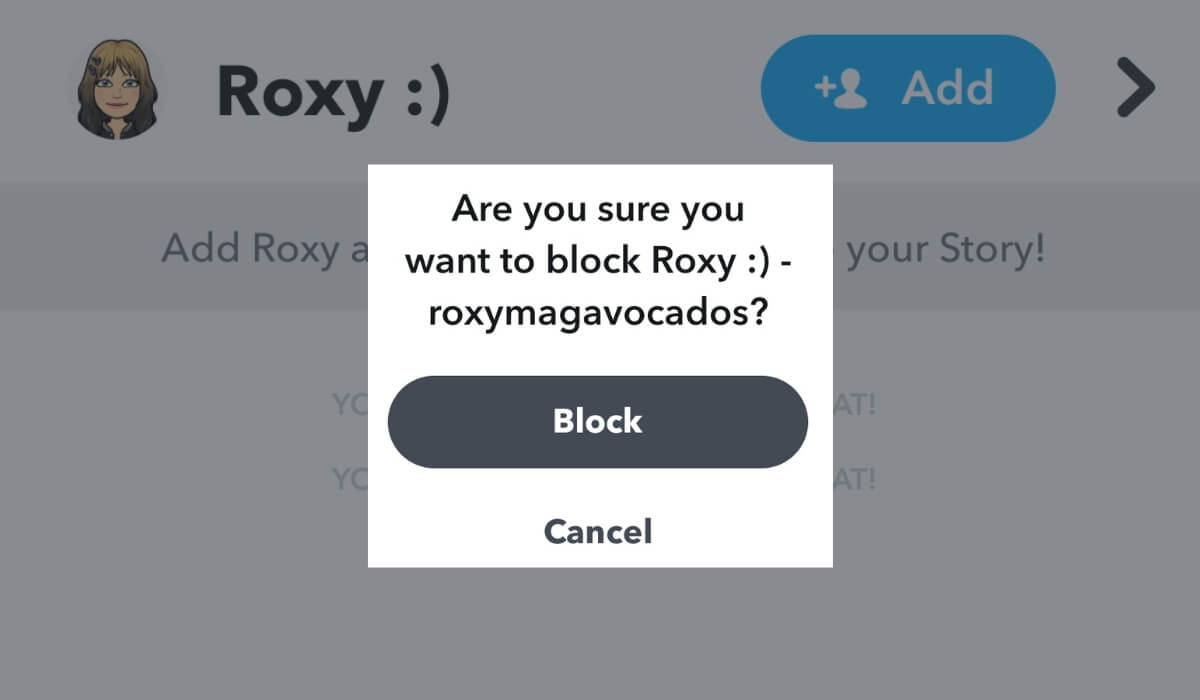
What happens when you block someone on Snapchat? Does blocking someone delete your chat history with them? Do you remain friends with them if you decide to unblock them later? Blocking someone on Snapchat prevents them from seeing your Stories, Charms, and more.
There are many reasons to block someone on social media, including Snapchat. Whether they spam you with unwanted content or they’re just someone you don’t want to see, blocking them removes all traces from your account.
What Happens When You Block Someone on Snapchat
Once you block someone on Snapchat, here are a few things that happen.
Chat History Disappears
Your entire chat history will disappear from your phone. The blocked user can still access your old saved messages from their chat screen. They can open the chat page and send you a message, but you won’t receive it. The blocked user will see the message on their screen appear as Unread. This is similar to how the blocking function works on WhatsApp.
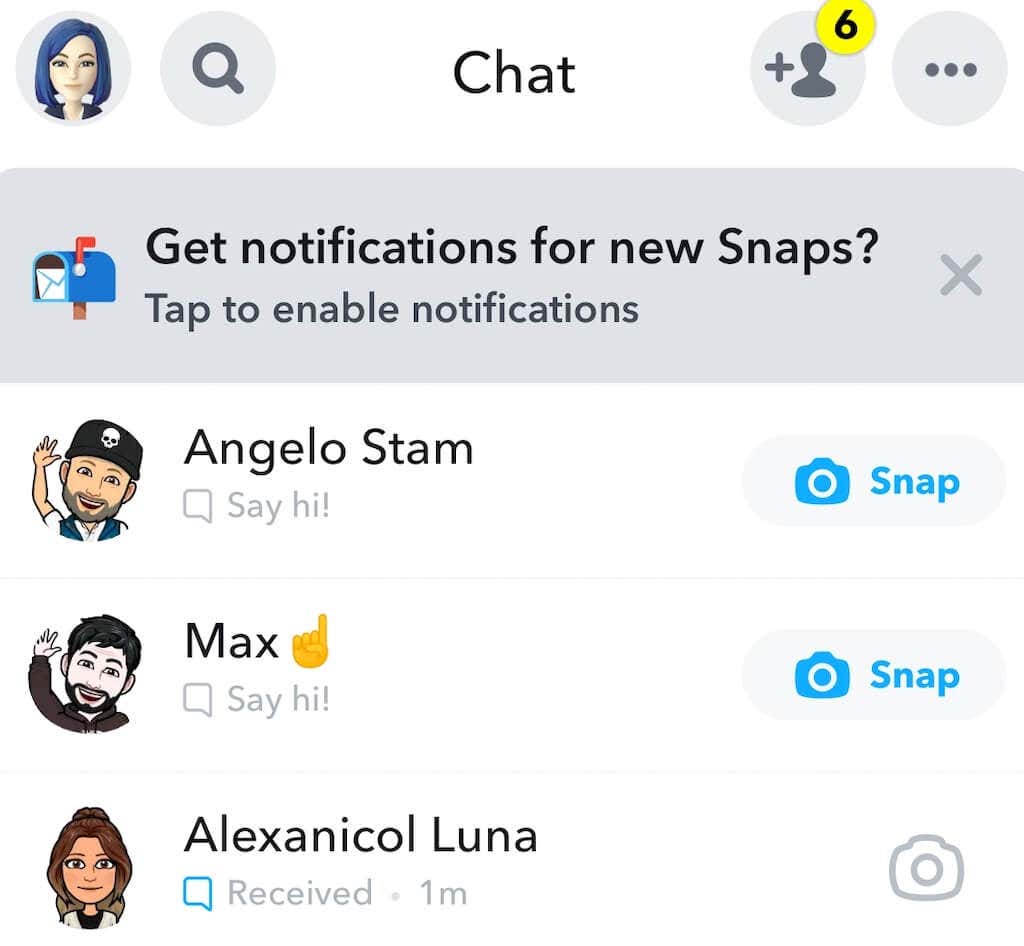
If you unblock the person later, you still won’t receive the message they sent you while they were blocked.
You Won’t Receive Snaps or Videos From the Blocked Contact
The blocked user can try to send you snaps using the Chat menu, but, similar to regular messages, you won’t receive them. Blocked contacts can still view unopened snaps that you sent them on Snapchat.
Blocking someone doesn’t unsend the snaps, so don’t use this measure to undo an accidentally sent snap, as it won’t work. However, once the snap expires (in 24 hours), they will no longer be able to see it.
You Won’t Get Screenshot Notifications
Unfortunately, you won’t get notified if the blocked person takes a screenshot of your chat. The notification will still appear on their side, but you won’t be able to see it as the chat will be removed from your device.
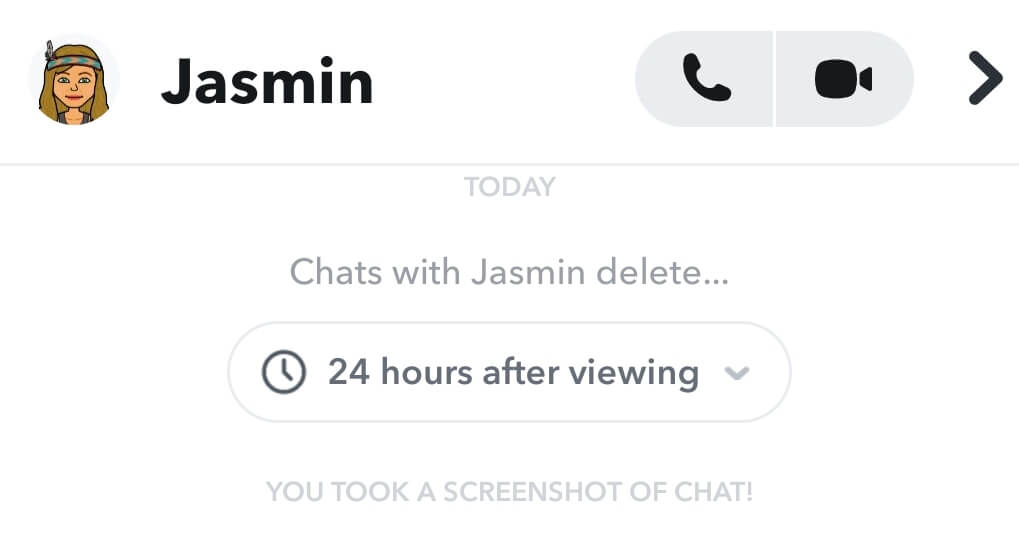
Even if you unblock this person and send them a friend request again, you won’t see if they took screenshots of your conversations.
The Blocked Person Can’t View Your Stories
When you block someone, they won’t be able to see your stories anymore. If you unfriend them instead, they’ll still be able to see your public stories but not your private stories.
The Person You Blocked Won’t Find Your Snapchat Account
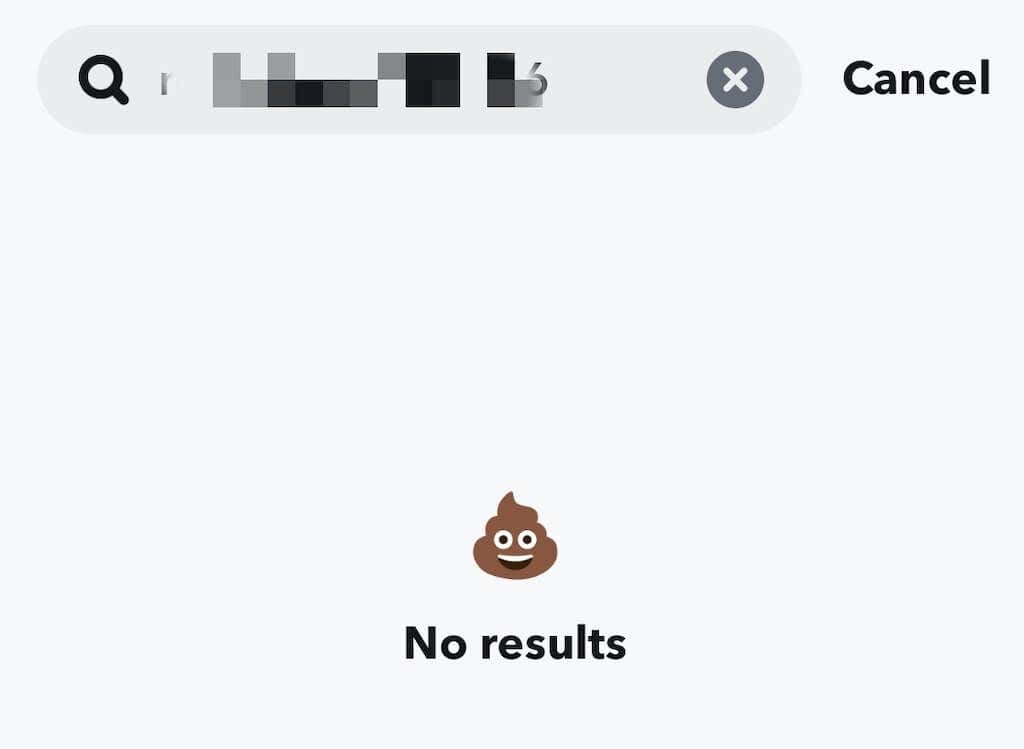
Blocking people prevents them from finding you on Snapchat. If they try to search for your username, your account won’t appear in the results, and it’ll appear as though your account doesn’t exist to them.
Blocking Someone Removes Them from Your Friends List
When you block someone on Snapchat, they stop being your friend. If you want them as friends again, you’ll need to unblock them and resend a friend request.
Do They Get Notified When You Block Them?
When you block someone on Snapchat, the other person isn’t notified. However, there are (indirect) ways they can find out that you blocked them. When you block someone, you’re removed from each other’s friends list. However, Snapchat doesn’t immediately remove you from their friend list unless they refresh their app—i.e., signing out and signing back in.
So, if they don’t sign out of Snapchat, you’ll remain on their friends list, and they won’t find out you blocked them. Snapchat designed this feature to prevent the blocked person from knowing they’ve been blocked.
How to Block Someone on Snapchat
You now know what happens when you block a Snapchat user. This section covers different ways to block someone on Snapchat.
Block Someone from the Chat Screen
- Open Snapchat and swipe to the right to open the Chat window.
- Go through your chat list and select your conversation with the person you want to block.
- Tap the person’s picture or Bitmoji to open their profile, then tap the three-dot menu icon in the top-right corner.
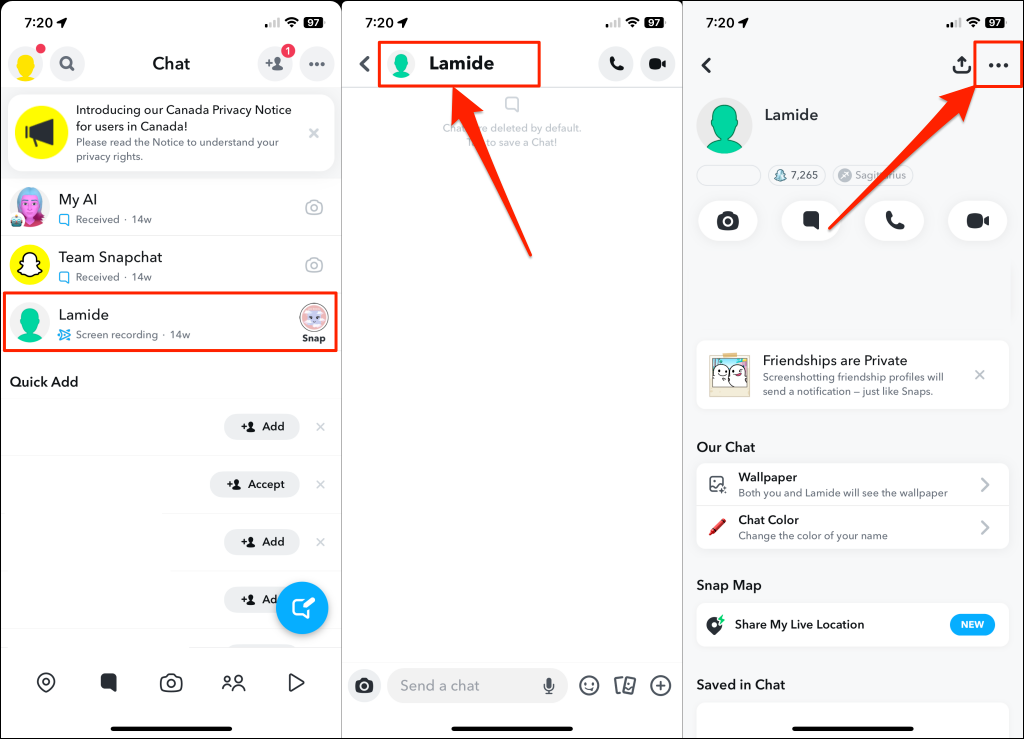
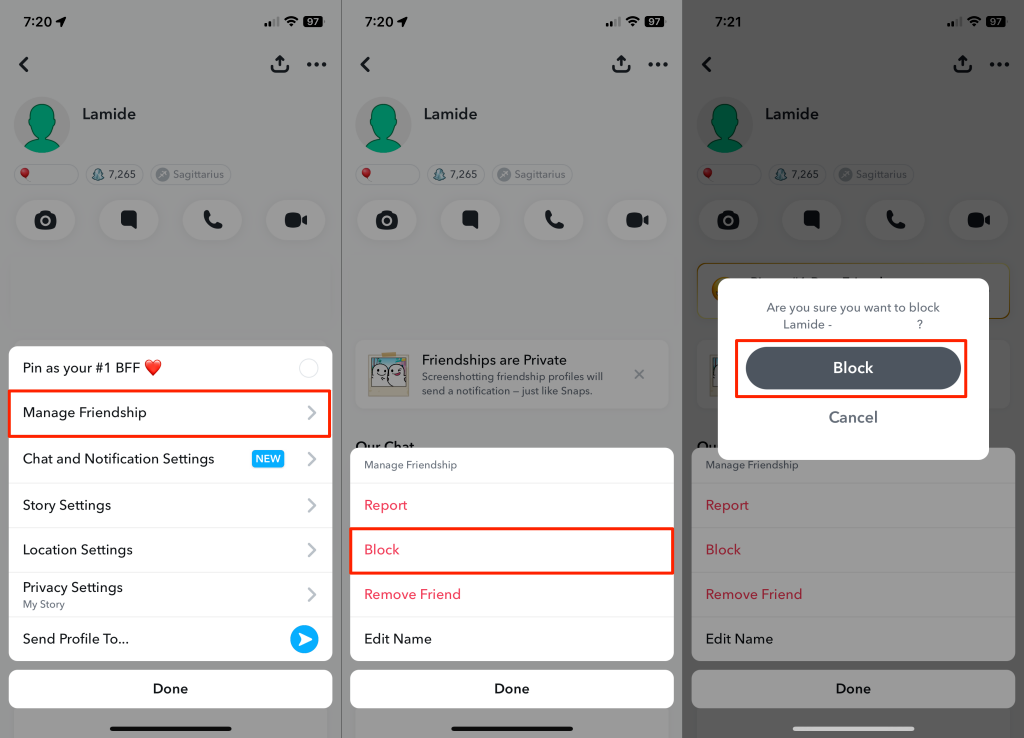
- Select Manage Friendship.
- Tap Block and select Block again on the confirmation pop-up.
Block Someone through Username Search
You can block anyone with a Snapchat username, even if they aren’t your friend or on your friend list. Follow these instructions to block someone on Snapchat through a username search.
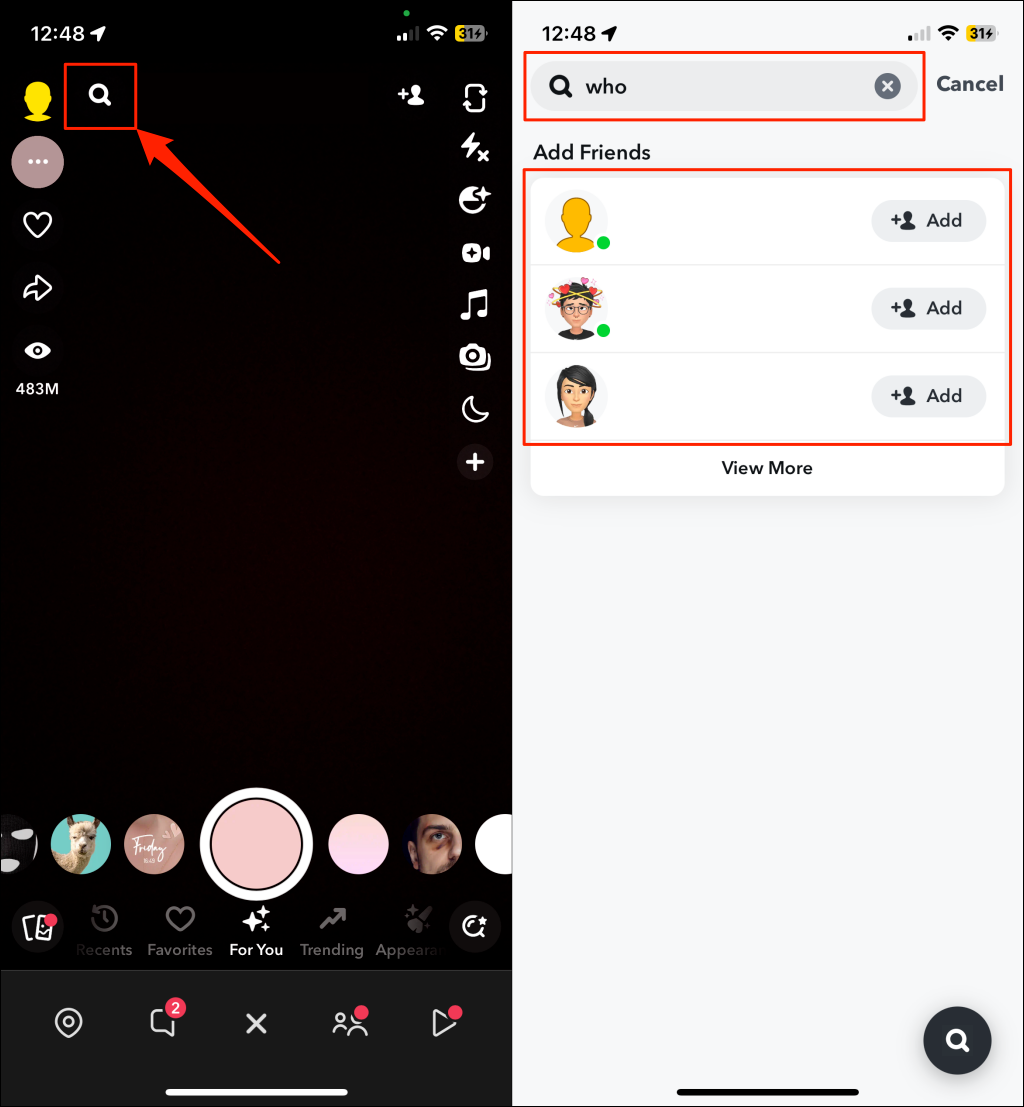
- Open Snapchat the Chat or Camera screen and tap the Search icon in the top-left corner.
- Enter the person’s username and select their account from the result.
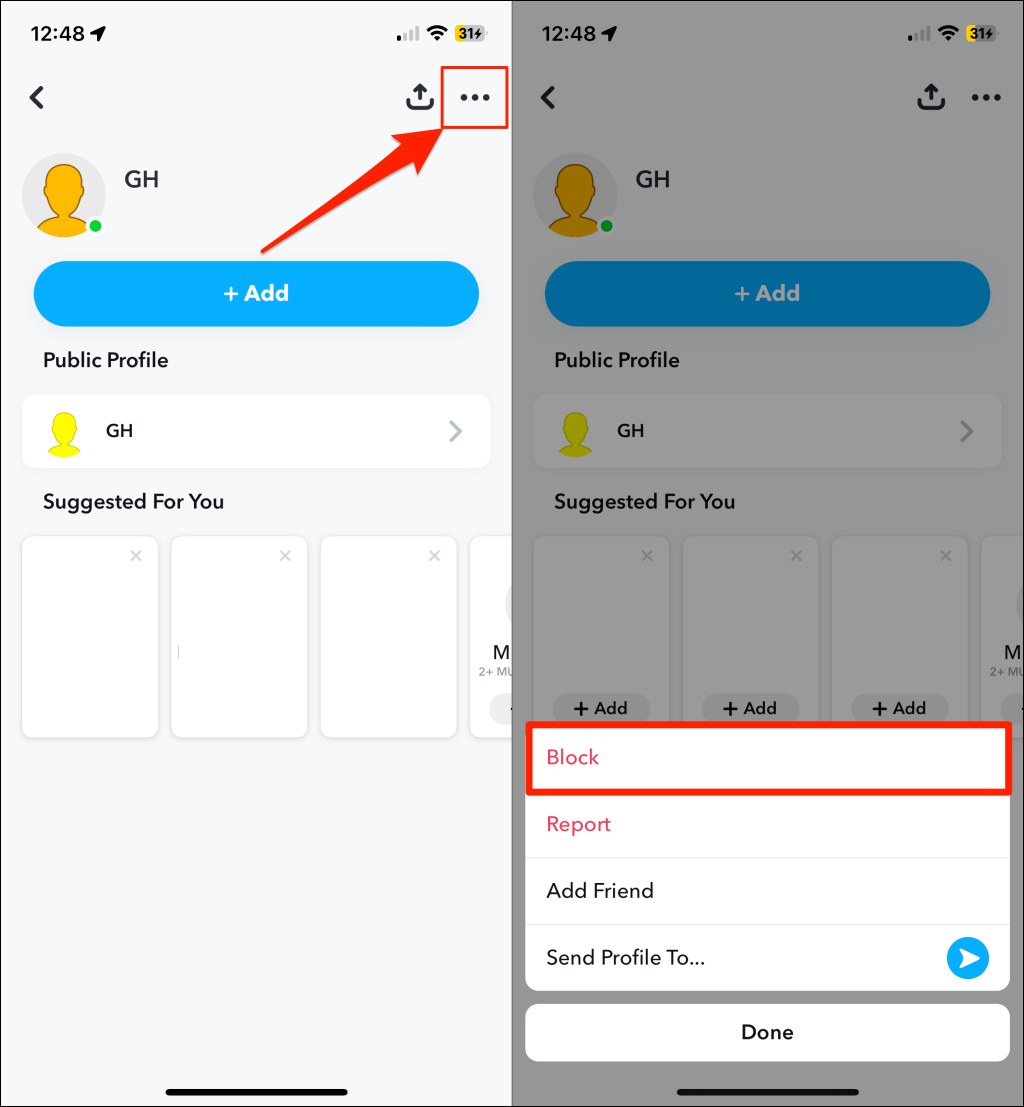
- Tap the three-dot menu icon in the top-right corner and select Block.
- Tap Block again on the confirmation pop-up.
Refer to our comprehensive guide on blocking and unblocking someone on Snapchat. It covers all possible ways to block someone on Snapchat.
Can You Unblock Someone You Previously Blocked?
You can easily unblock the person you previously blocked. However, you’ll need to request or re-add them as a friend. The person will receive a notification about the request and need to accept it. Then you’ll be able to resume communication in chats, and they’ll see your activity on the app.
Can You Block Someone Not in Your Friends List?
You can block people not on your friend list from their profiles. Another way to block someone not on your friends list is to change your Snapchat privacy settings to allow only your friends to contact you. That way, Snapchat automatically blocks people who aren’t your friends from sending you messages or Snaps.
The instructions for doing that are similar for iOS and Android. You can do that in a few simple steps:
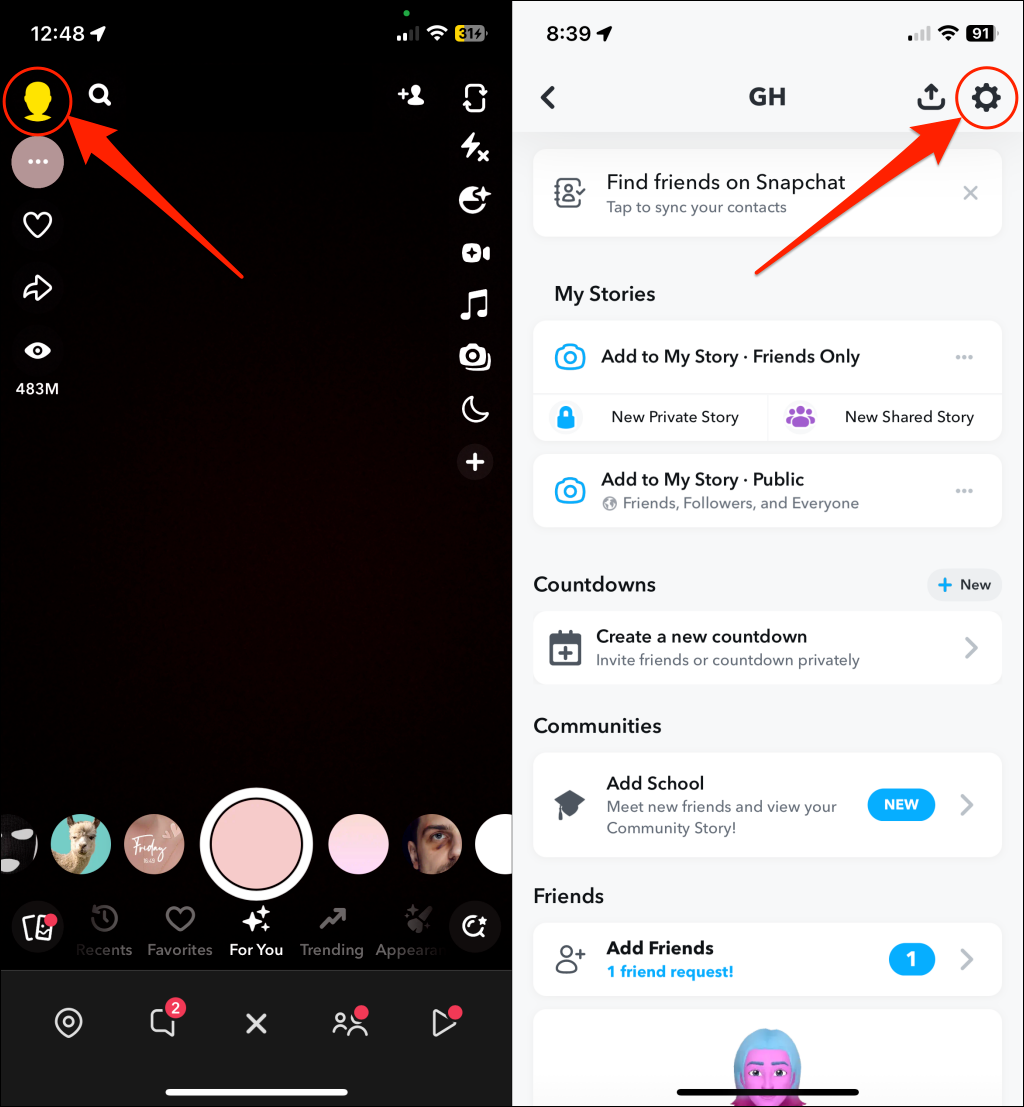
- Open Snapchat and select your profile icon—the Bitmoji avatar in the top left corner.
- In the upper-right corner, select the gear icon to open Settings.
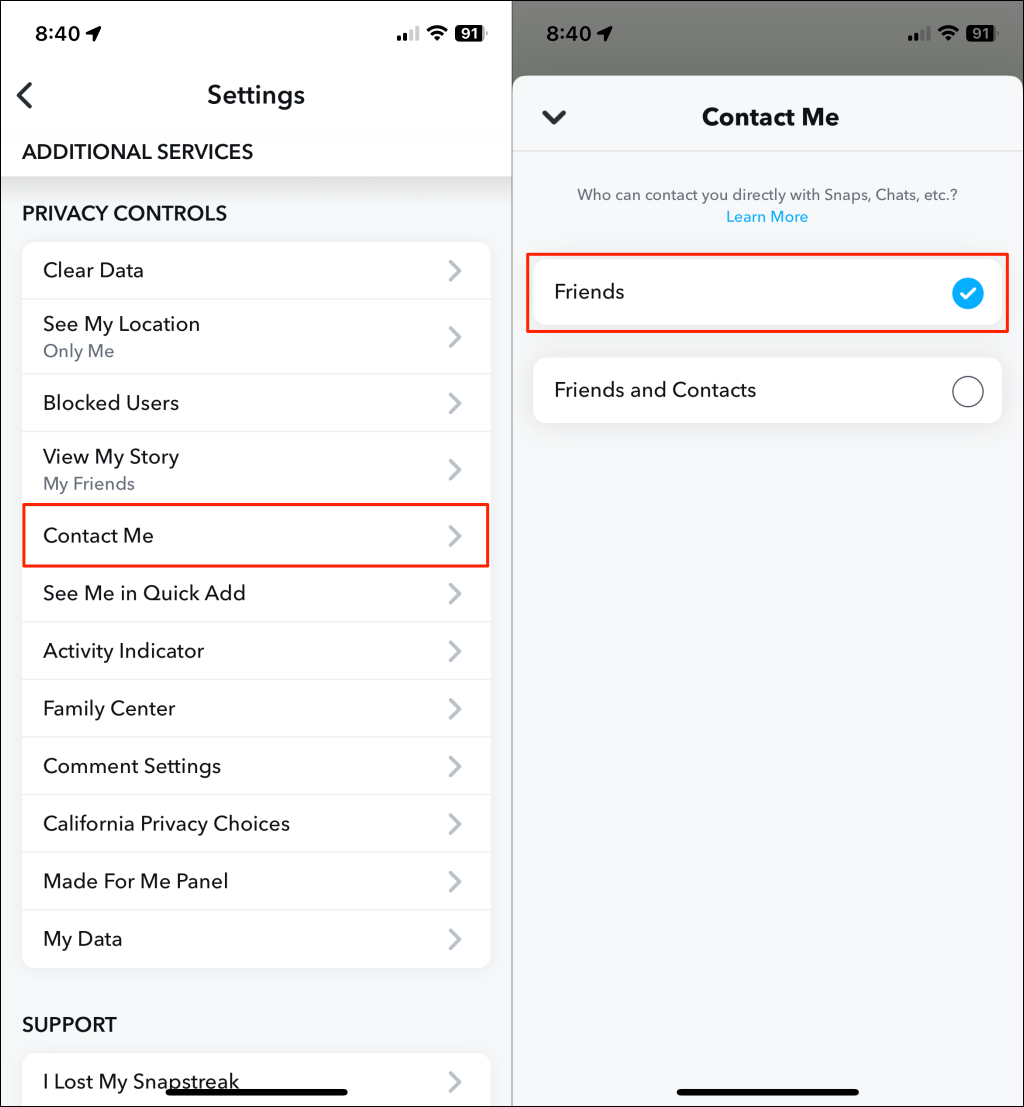
- Scroll down and select Contact Me in the “Privacy Controls” section.
- Select Friends to let only friends message, call, or Snap you.
How to Know if Someone Blocked You on Snapchat
Anyone can block you on Snapchat—your friends or people who know your username. Snapchat doesn’t (you) tell when someone hits that block button on your profile/username. So, how exactly do you know when or if someone blocked you?
If your friend unusually stops sending or viewing Snaps and also stops replying to your messages or answering your Snapchat calls, there’s a chance they blocked you. But there’s one surefire way to confirm that someone on Snapchat blocked you.
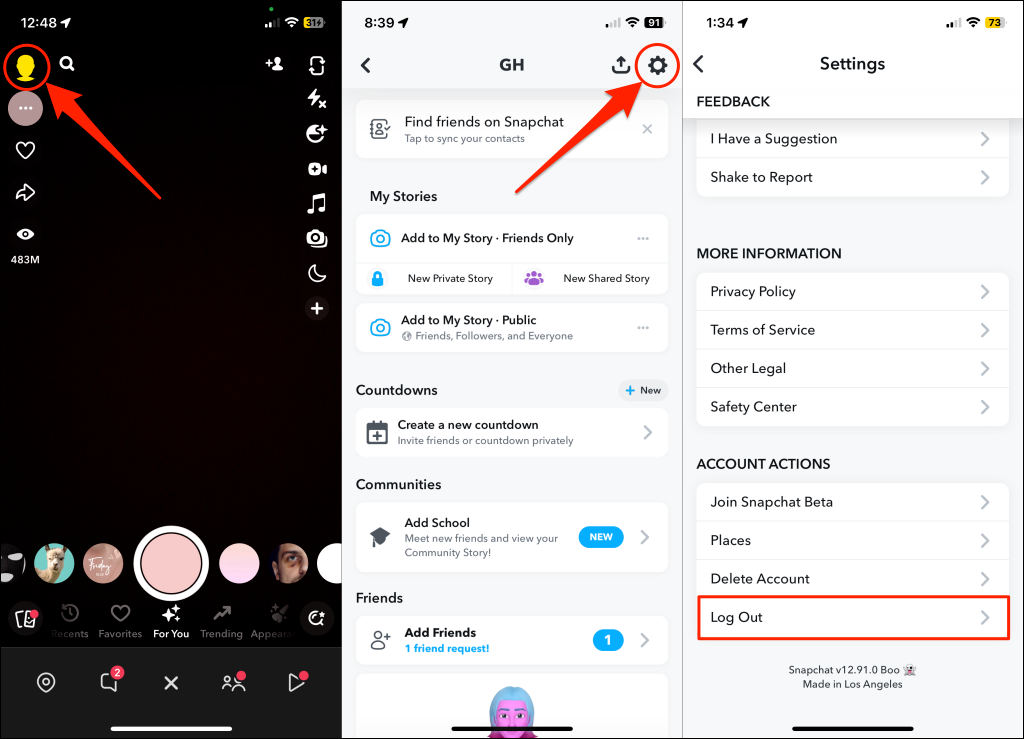
First, sign out of Snapchat and sign back into your account. Open your Snapchat profile, tap the Settings icon, then select Log Out.
Sign back into your account and check your chat history and friend list. Signing out removes people who’ve blocked you from your friend list and chat history. Additionally, you won’t find their accounts when you search for their username.
Alternatives to Blocking Someone on Snapchat
Not sure if you want to block someone on Snapchat? You can opt for alternatives like muting their story, removing them as friends, and changing your privacy settings to allow only friends to contact you.