

Ever sent a message to a friend that you regretted? Facebook Messenger introduced a feature that can help make your text messages disappear after they’re seen.
This tutorial will tell you everything you need to know about Facebook Messenger’s Vanish Mode. What is this feature about, why use it, and how to turn on and off the disappearing messages on Facebook Messenger?
What Is Vanish Mode on Facebook Messenger?
Vanish Mode is a privacy feature on Messenger that is designed to increase the security and safety of Facebook Messenger users. With Vanish Mode, you can exchange sensitive information without worrying that it’ll be saved in a Messenger chat forever. Instead, you can be sure that after you close the chat, Vanish Mode messages get deleted, and neither the sender nor the receiver can access them.
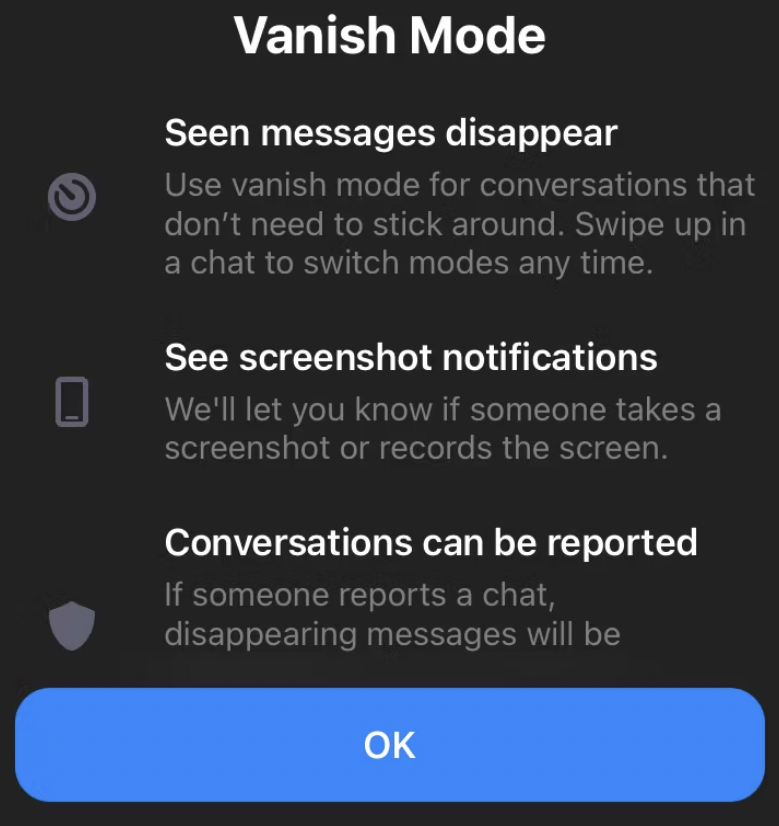
The message can contain text, stickers, emojis, pictures, GIFs, audio, or video. Unlike regular messages, if the receiver tries to take a screenshot of the Vanish Mode chat, Facebook will immediately notify you.
Remember that for Vanish Mode to work correctly, you and the person you’re sending the message to need to have this feature enabled. If the receiver doesn’t have access to Vanish Mode, you won’t be able to automatically delete your messages after sending them.
Vanish Mode vs. Secret Conversation Mode
One of the most common FAQs about vanish Mode is how it’s different from the Secret Conversation Mode on Facebook.

Messenger already has a Secret Conversation Mode that allows you to send self-destructing messages to your contacts. While Vanish Mode is essentially the same, there are a few key differences between the two privacy features.
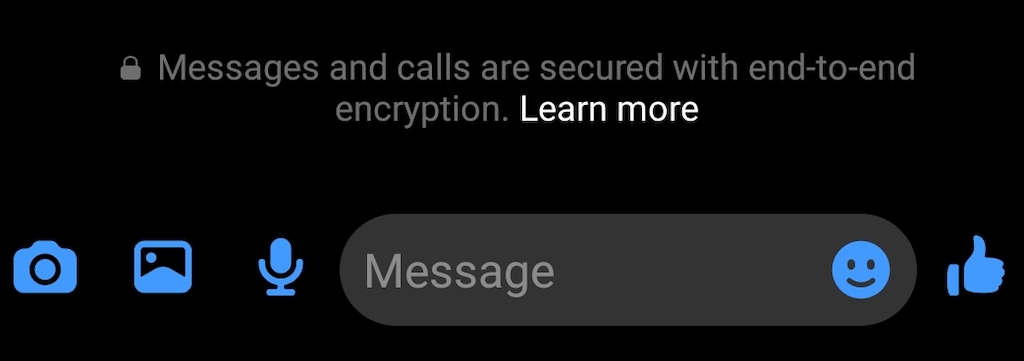
Using the Secret Conversation mode, you can create end-to-end encrypted chats. Messenger doesn’t save the chats from Secret Conversations on their servers; instead, they’re saved on the users’ devices. The sender can also set a deadline after which the messages are removed from the receiver’s chat history. Until then, the receiver can access those messages multiple times.
The messages you sent in Vanish Mode also have end-to-end encryption. However, Vanish Mode messages disappear even from the users’ devices after the recipient views them and you close the chat. That way, the copies of these messages aren’t saved anywhere, making them completely private. Just like the Secret Conversation mode, the Vanish Mode only works in one-on-one chats and not in group chats.
In both modes, you’ll get notified when the other person tries to take a screenshot of the chat thread.
Why Use Vanish Mode on Messenger?
Do you ever wake up in the morning regretting sending messages to someone the previous night? While Vanish Mode won’t make the receiver unsee those messages, it can spare you the embarrassment of having them saved on your smartphone for eternity.
On a serious note, Vanish Mode could be of great help when you need to send a piece of sensitive private information (for example, something work-related) but don’t want the receiver to have a copy of it saved in the chat.
On top of that, Vanish Mode can be a lifesaver if your phone gets lost or your Facebook account gets hacked. Vanish Mode can save your private data from getting into the wrong hands and keep this information confidential.
How to Use Vanish Mode on Facebook Messenger
Now that you know how the Vanish Mode works, here’s how to use it on Facebook Messenger. To access this feature, you need to update your Facebook Messenger app to the latest version. The instructions for enabling Vanish Mode are different for Android and iOS.
How to Enable Vanish Mode on Android
If you’re an Android user, here’s how to switch on the Vanish Mode.
- Open the Messenger app on your smartphone.
- Select the Messenger chat where you want to use Vanish Mode.
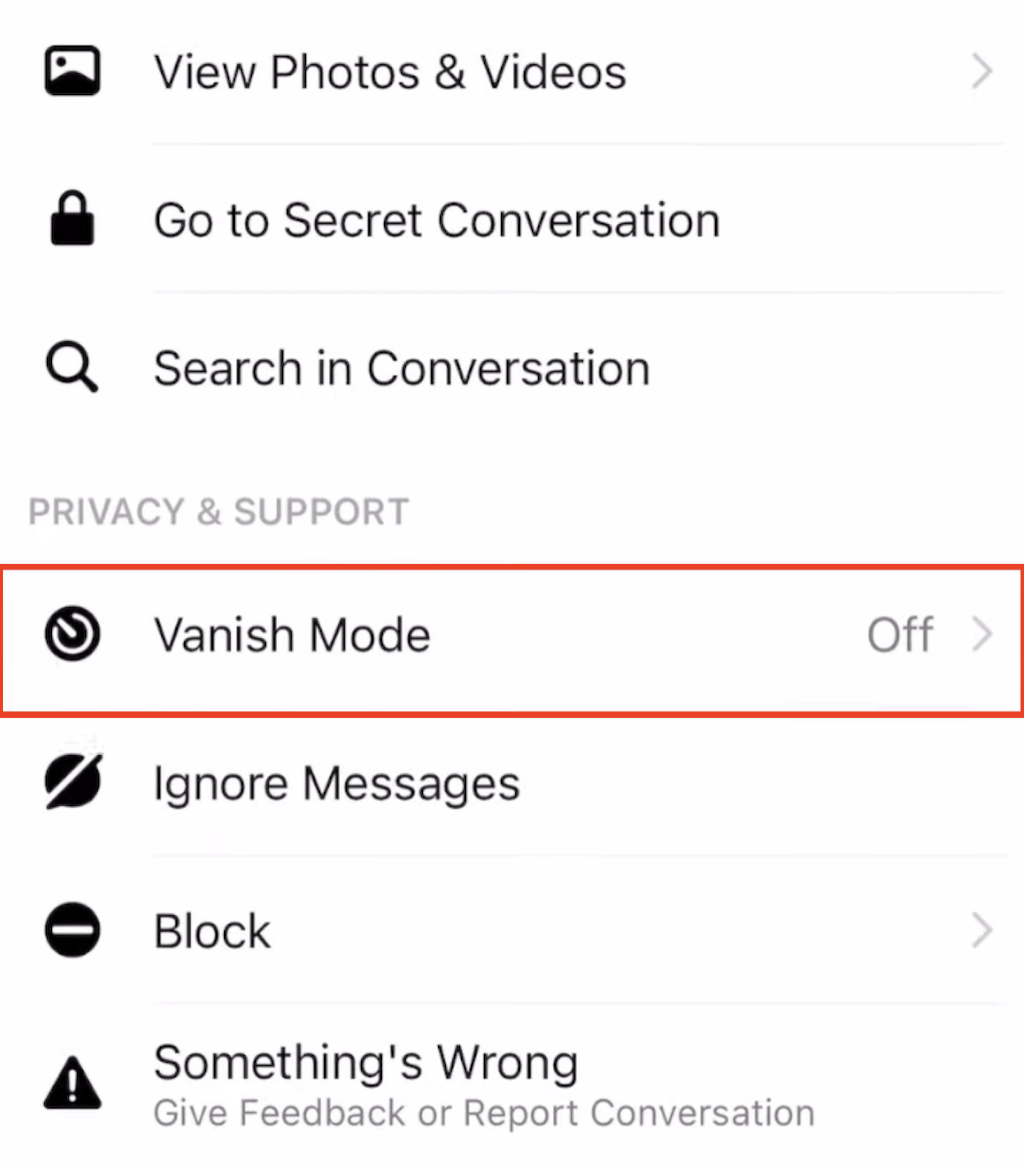
- Select the information icon to open the chat’s menu.

- In the Menu, scroll down and select Vanish Mode. It’ll say Off next to it.
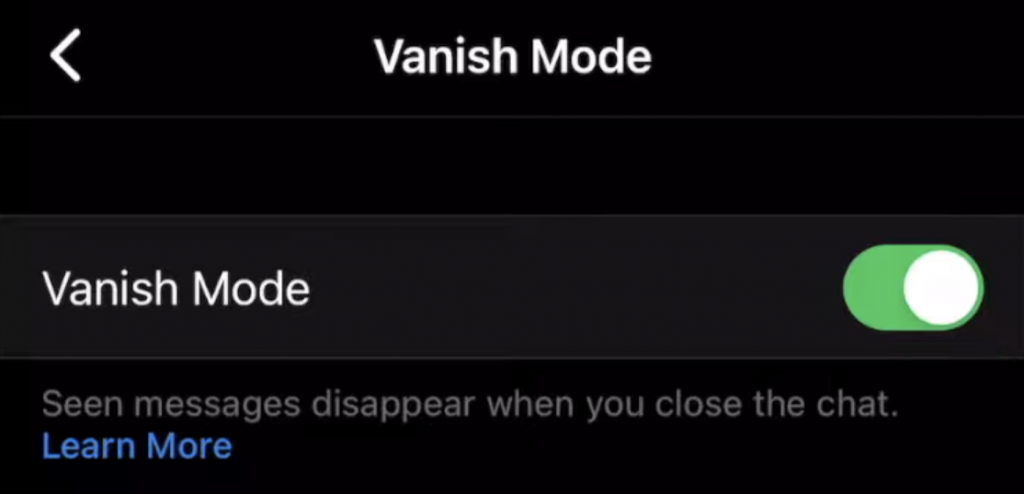
- Switch the Vanish Mode toggle On to enable it.
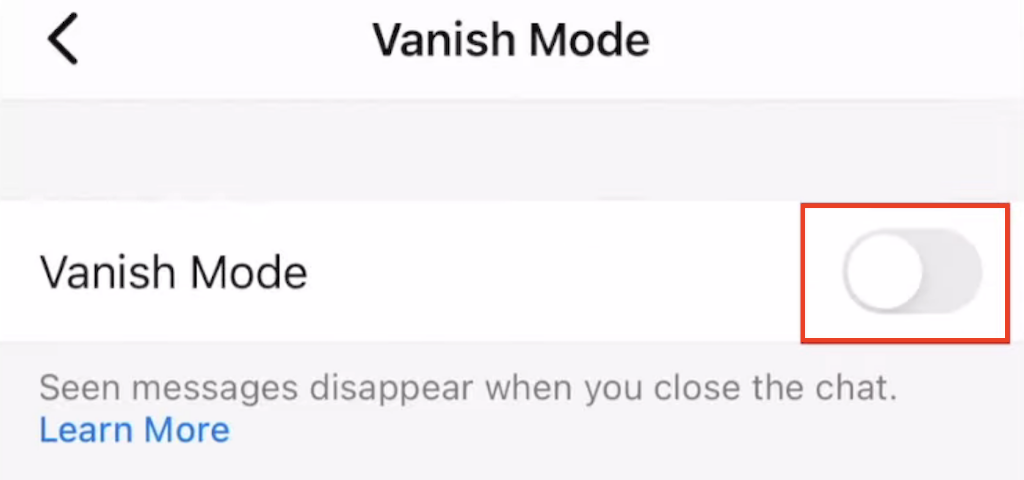
Once you turn on the Vanish Mode, your regular chat will disappear, and instead, you’ll see an empty Vanish Mode chat. Depending on your phone settings and your version of the Messenger app, your chat may also switch to dark mode.
If this is your first time using Vanish Mode, you’ll also get a pop-up window with basic information about how the feature works. All the messages you send in Vanish Mode will disappear after you quit the chat or after you turn off Vanish Mode.
To switch the Vanish Mode off, select Turn Off Vanish Mode on top of the screen.
How to Enable Vanish Mode on iOS
If you’re using Messenger on iPhone or iPad, follow the steps below to turn on Vanish Mode.
- Open Messenger on your device and navigate to the chat where you want to use Vanish Mode.
- On the chat page, swipe up from the bottom of the screen until the message Swipe up to turn on vanish mode appears.

- Let go of the screen to enable Vanish Mode.
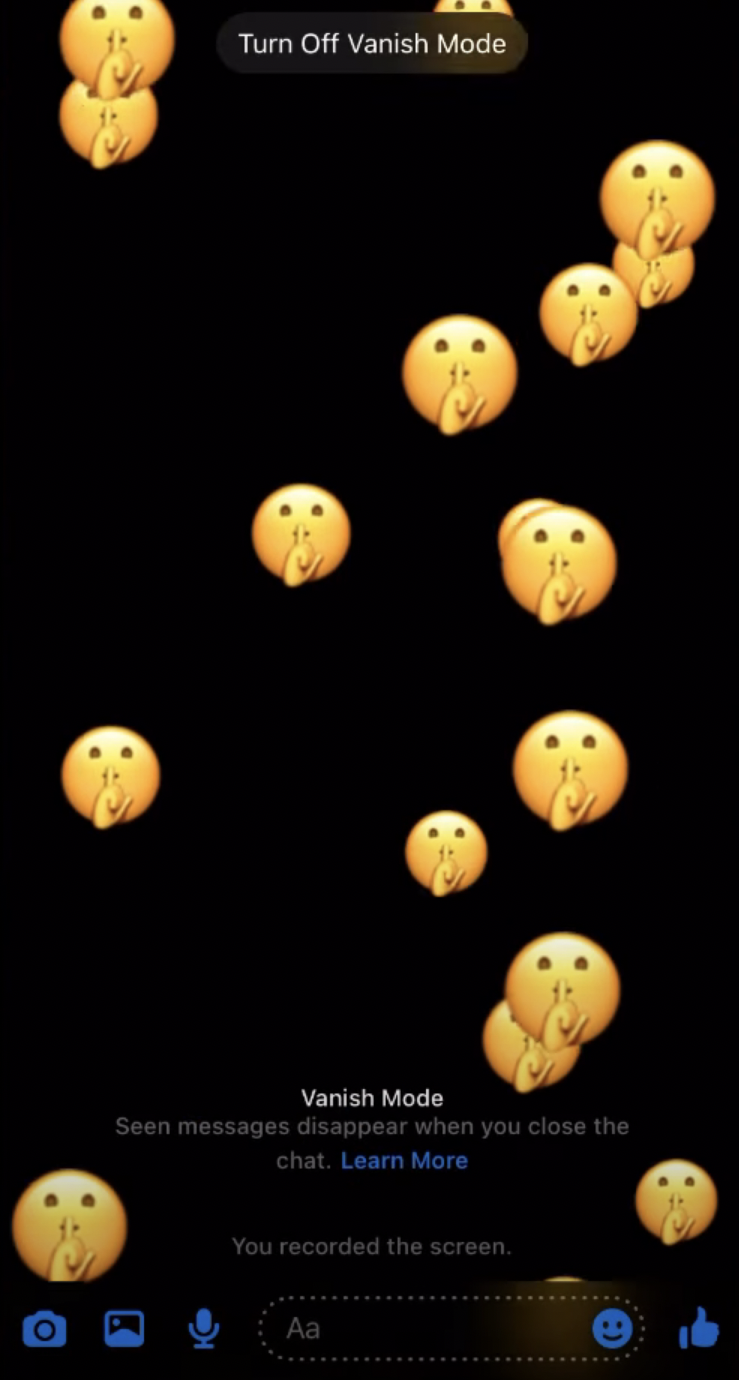
To disable Vanish Mode, swipe up again and select Turn Off Vanish Mode to go back to your normal chat.
Should You Use Vanish Mode?
It’s important to protect your privacy when using social media. Vanish Mode isn’t an entirely new feature, but one that you should certainly take advantage of when exchanging sensitive information on Facebook Messenger. You can find similar features on other messaging apps like Instagram, Telegram, WhatsApp, and Snapchat.