
Skip to content
ONLINE 101010 TECH 010101 TIPS
  • Latest
  • News
  • How-To
  • Social
  • Streaming
  • Gaming
  • Reviews
  • Latest
  • News
  • How-To
  • Social
  • Streaming
  • Gaming
  • Reviews
  1. Home/
  2. Social Media/
  3. How to Use Text to Speech on TikTok

How to Use Text to Speech on TikTok

Sandy Writtenhouse
May 24, 2022
3 min read
 - Kharkov, Ukraine - August 12, 2021: Tiktok social media app. Woman using smartphone with tiktok application. Brand logo photo

To assist those with a vision impairment, you can use the text to speech feature in your TikTok videos. People can hear the text you add once at the beginning of the video, and you can select different voice options.

If you want to give the feature a try, here’s how to use text to speech on TikTok using your mobile phone or tablet.

Add Text to Speech on TikTok

Adding text to speech to your video is easy to do in the TikTok app on Android, iPhone, and iPad.

  1. Capture your video as you usually would. 
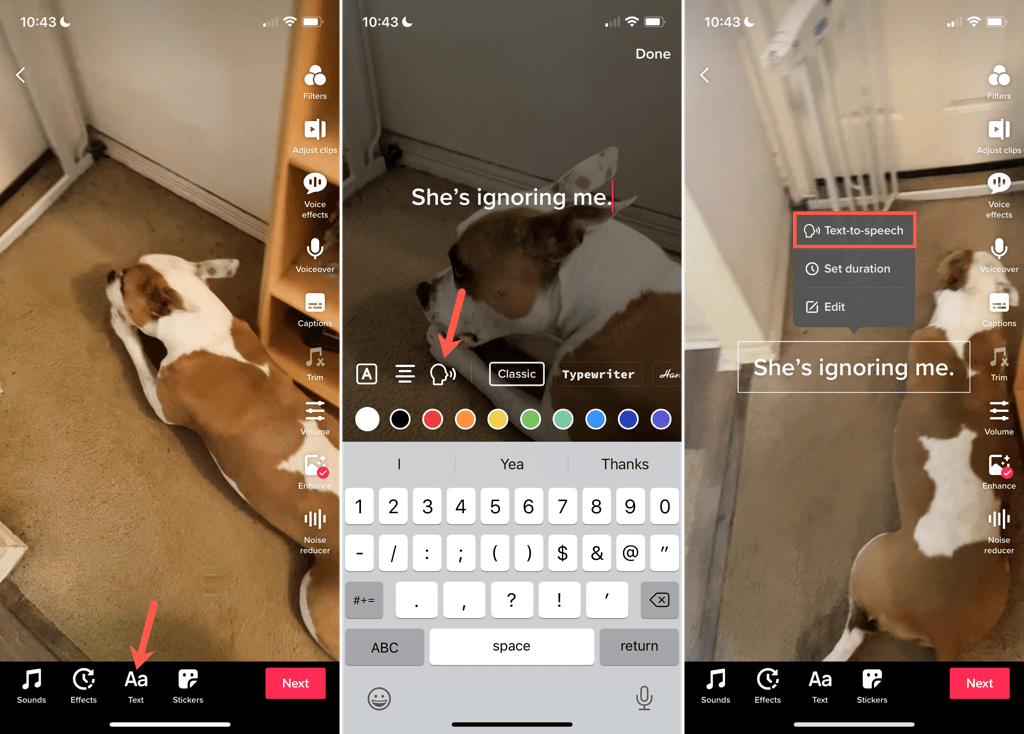
  2. Before tapping Next at the bottom, tap Text. This is at the bottom on mobile phones and the top right on tablets.
  3. Type your text into the text box.
  4. Immediately tap the Text to Speech icon to the left of the font styles and select Done at the top. If you’ve already tapped Done to move on, tap the text box and choose Text to Speech in the pop-up menu.
 - image-94
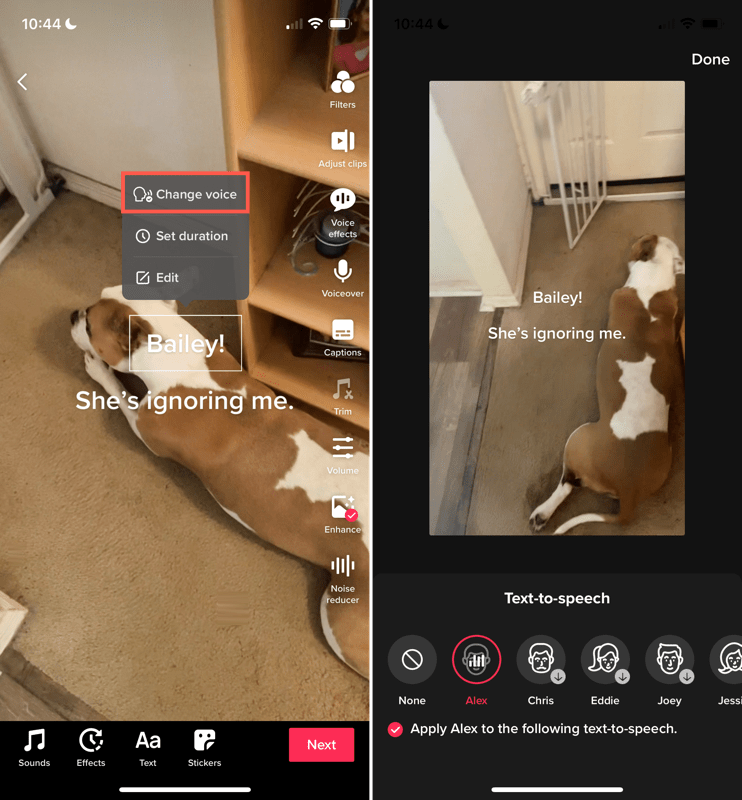
  1. To change the voice, tap the text box and choose Change Voice in the pop-up menu.
  2. Select the text to speech voice you want to use at the bottom of the screen and tap Done.
 - image-95
  1. Tap Next to move on to the next step and post your video or save it as a draft.

You can add text to speech to a video draft you’ve saved the same way.

Set a Duration to Show the Text Box

The text to speech for your video is spoken at the start of your clip. However, the text box remains. Optionally, you can set the duration for the amount of time the text box displays.

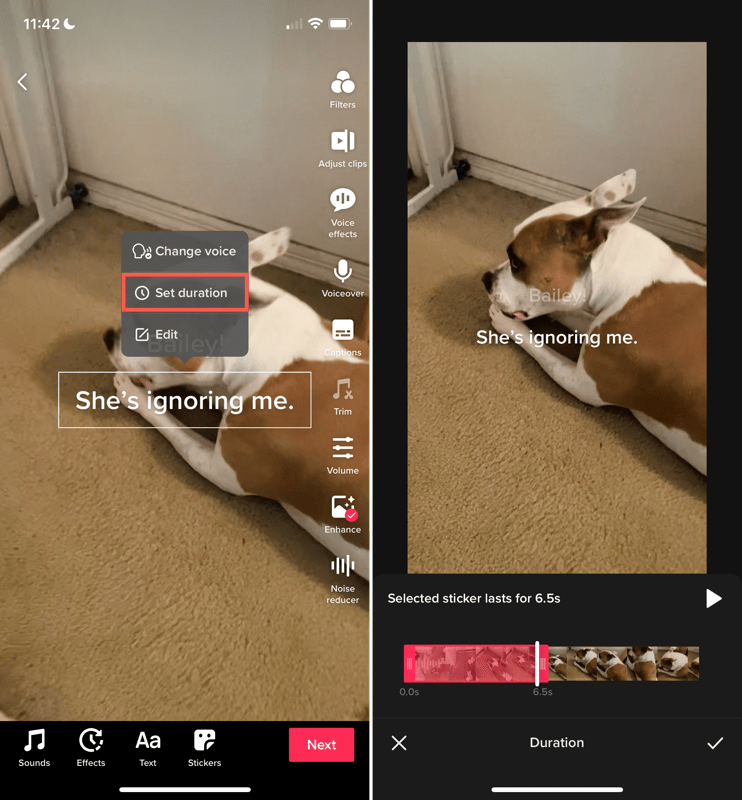
  1. Tap the text box and pick Set Duration in the pop-up menu.
  2. Use the slider at the bottom to adjust how long the text displays. Most likely, you’ll drag from right to left to shorten the time after the narration plays.
  3. Optionally, tap the play button to see a preview and adjust the duration if needed.
  4. Tap the checkmark to apply the change.
 - image-96

Edit the Text

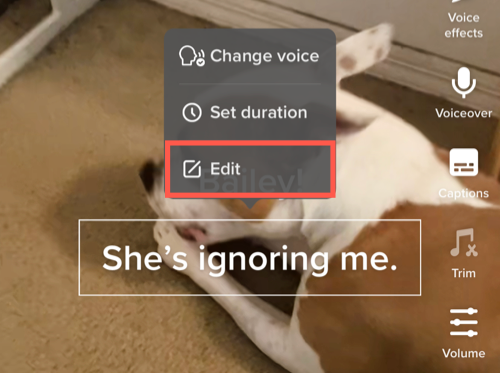
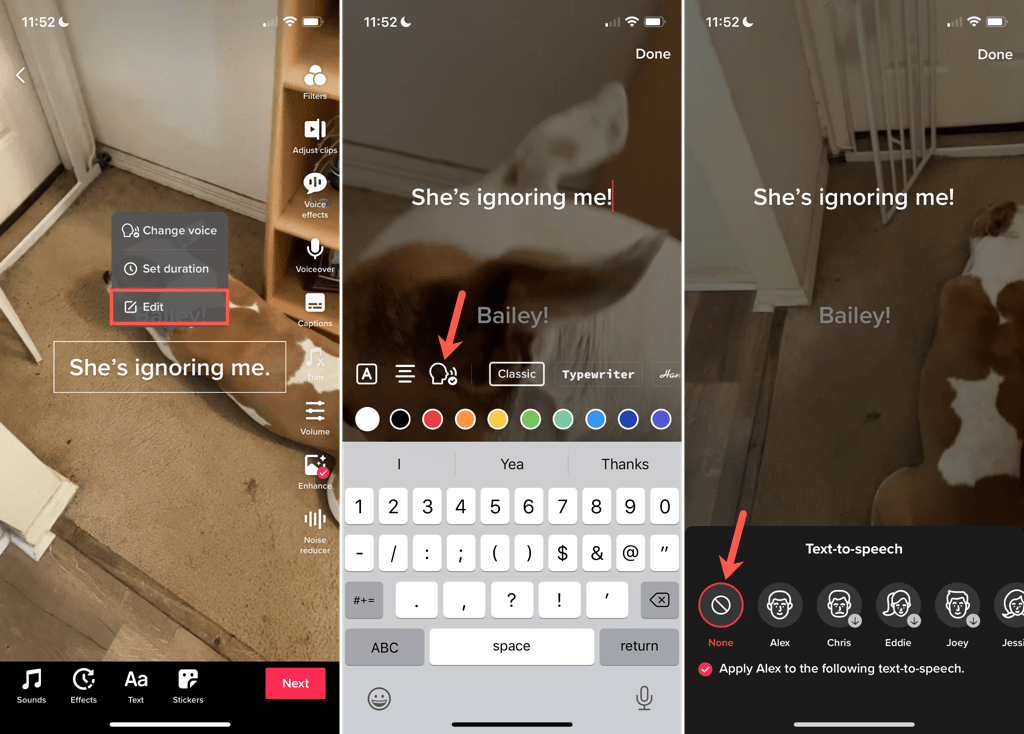
To edit the text you’ve entered, tap the text box and select Edit in the pop-up menu. Make your changes or enter new text and select Done. The spoken text updates automatically.
 - image-97

Remove Text to Speech on TikTok

If you apply the text to speech to your video as described above and change your mind, you can remove it before posting your video.

Do one of the following to turn off text to speech:

  • Select the text box, choose Edit, and tap the Text to Speech icon to remove the checkmark from it.
  • Tap the text box and select Change Voice. Then pick None for the voice.
 - image-98

Adding accessibility features like text to speech on TikTok lets more people enjoy your videos. Hopefully, other social media apps with videos will follow suit!

Tags: TikTok
Share
Written by

Sandy Writtenhouse

Sandy Writtenhouse is a freelance technology writer and former Project, Department, and Program Manager. She turned her education, job experience, and love of technology into a full-time writing career. With all sorts of gadgets in her home and her hands, she seeks to help others make life easier through technology. <a href='https://www.online-tech-tips.com/author/swrittenhouse/'>Read Sandy's Full Bio</a>

View Sandy's Profile

Recent Posts

  •  - personal finance tools
    10 AI Money Apps That Make Mint Look MedievalJun 6, 2025
  •  - smartwatches
    Is a Smartwatch Worth It in 2025 and Beyond?May 20, 2025
  •  - slow wifi
    How to Fix Slow Wi-Fi on Your SmartphoneMay 6, 2025
  • Programmer coding at computer. - vibe coding
    Vibe Coding 101: Your Guide to AI-Powered ProgrammingMar 26, 2025

Search

Categories

  • Gaming (345)
  • How-To (1,119)
  • News (43)
  • Reviews (436)
  • Social Media (461)
  • Streaming (174)
  • Uncategorized (4)

Popular Tags

Adobe AI Alexa Amazon Android Buying Guides ChatGPT Chrome Discord Explainers Facebook FireTV Gadget Reviews Gmail Google Google Docs Google Maps Google Sheets Home Networking Hulu Instagram Internet LinkedIn Minecraft Netflix Nintendo Switch PlayStation Premiere Reddit Remote Work Roblox Roku Roundups Smart Home Snapchat Software Reviews Spotify Steam TikTok Twitch VR WhatsApp Windows X (Twitter) YouTube

Our Publishing Family

Online Tech Tips is part of the AK Internet Consulting publishing family.

  • HELP DESK GEEK
  • THE BACK ROOM TECH
  • SWITCHING TO MAC
  • XBOX ADVISOR

Daily Email Newsletter

Connect With Us

About Online Tech Tips

Online Tech Tips has published easy-to-follow technology tutorials, honest reviews, and practical how-to guides since 2007 — helping millions of readers solve tech problems and get more from their devices.

Learn More →

© 2007-2026 Online Tech Tips.com, LLC.
All Rights Reserved.

  • Home
  • About Us
  • Editorial Standards
  • Contact Us
  • Terms of Use
  • Privacy Policy
Online