
Facebook friends. Hundreds of people that include your close friends and family, as well as someone you met once or twice walking your dog in the park. Just like in real life, you don’t always want to share the same things with every one of those people. The good news is, you don’t have to.
Facebook allows you to create custom friend lists. This comes in handy at times when you have an update you’d like to share with only certain friends. You can create as many friend lists as you like and separate your professional contacts from personal ones.
Facebook custom friends lists will help you keep your Facebook news feed organized. You can also select any friend list to see a feed of posts made by just the people on that list.
Create Facebook Custom Friend Lists
First of all, you’ll need to log into your Facebook account on your desktop. You can’t create Facebook custom friend lists on the mobile app.
Where To Find Your Facebook Custom Friend Lists
- In order to see your custom friend lists, open Facebook on your computer and go to your News Feed.
- Find the Explore section on the left and select Friend Lists. If you can’t find it, click to See More and scroll down.
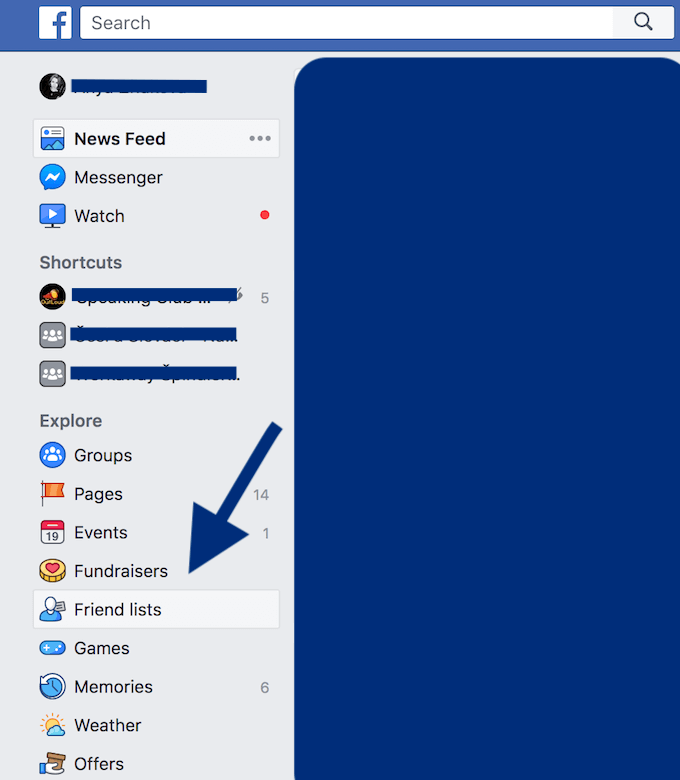
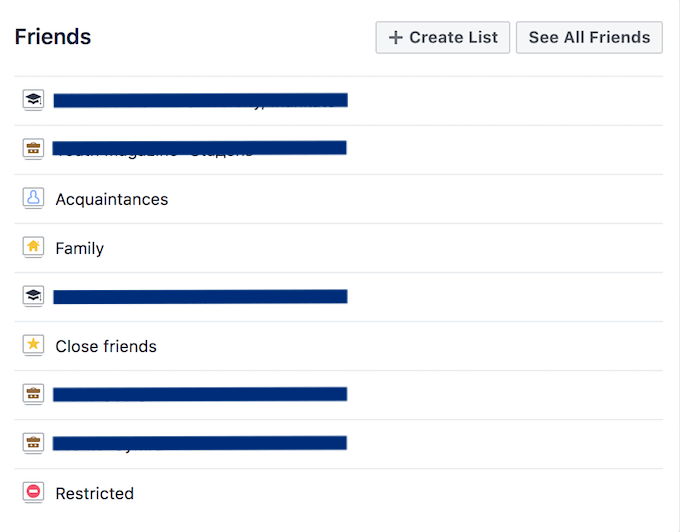
This will take you to a page that shows your current friend lists. You’ll see that by default you already have three of them.
- Close Friends (people you might want to share exclusively with).
- Acquaintances (people you might want to share less with).
- Restricted (people you’ve added as a friend but just don’t want to share with).
Remember that when you add someone to your Restricted list, they will only be able to see the content you set as Public or posts that you tag them in. However, you can create as many new lists as you like.
Alternatively, you can just follow the link facebook.com/bookmarks/lists/ to access your friend lists.
How To Create a New Facebook Custom Friend List
- From your Facebook News Feed, find the Explore section on the left and select Friend Lists.
- Choose Create List.
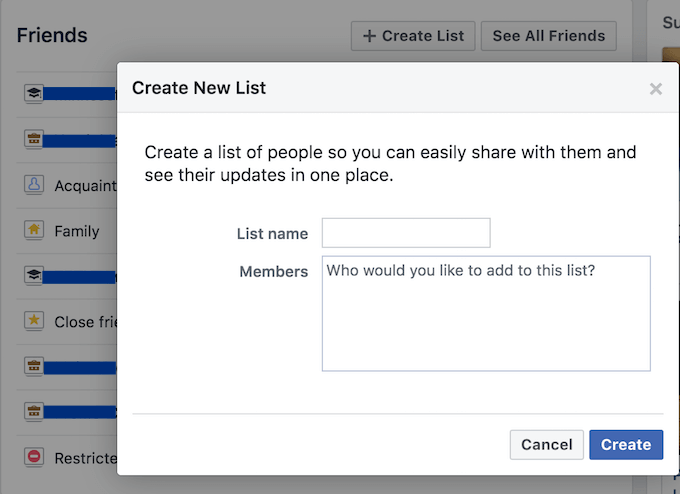
- Name your list and add names of friends who you want to add to this list.
- When you’re finished, click Create. You’ll see the new friend list appear among the ones you have on Facebook by default.
- You can also customize your list later. Click on Manage List in the top right corner to change the name of your list, edit, archive, or delete it.
How To Add/Remove a Friend From a Friend List
Adding someone to your Facebook custom friend list is a fast and easy process.
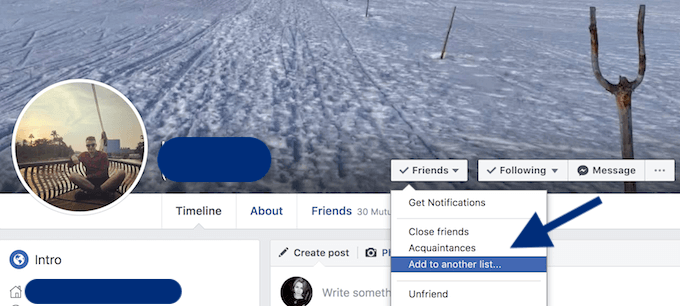
- Go to your friend’s Facebook profile and move your cursor to the Friends button. Then choose the desired friend list from the box.
- Or go to your News Feed and find a post by the friend you’d like to add to a friend list. Hover your cursor over the Friends button. Under Add to another list select the desired custom friend list.
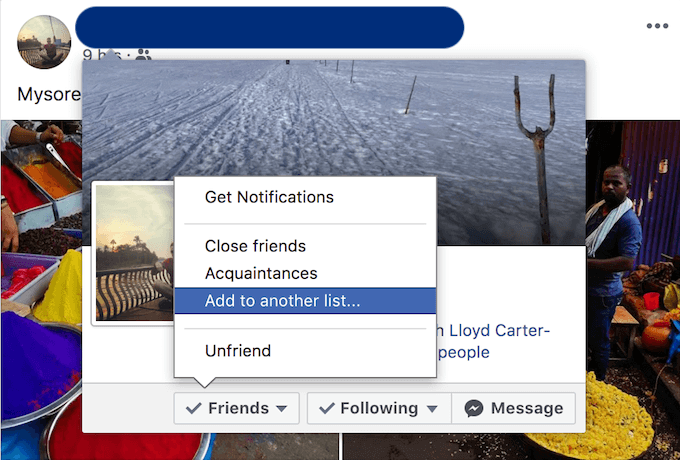
- In order to take someone off a certain friend list, once again move your cursor to the Friends button. Then choose the list that you want to remove them from.
How To Use Your Facebook Custom Friend Lists
Facebook custom friend lists are great if you’re someone who is always looking for ways to improve your Facebook privacy. Here are a few options of how you can make use of this feature for better Facebook experience.
Use Lists To Organize Your Friends On Facebook
When you’ve set up a list, you can post an update on Facebook for specific people. For example, post something for just your colleagues or friends that live in your hometown. Using lists, you can also see updates from specific groups of people.
Click on a friend list and Facebook will generate a news feed that will only contain updates from the people that are on that list.
You can modify your lists at any time, and users won’t get notified when you add or remove them from a certain list.
Use Facebook Custom Friend Lists To Filter Content
When you want to hide your Facebook updates from specific friends, you can do it in individual posts or by tweaking your overall privacy settings.
- By default, Facebook will let you select from the following options: Everyone, Friends Only, or Friends of Friends. Select Customize to apply your custom friend lists instead.
- For individual posts, when sharing a status update, find the lock icon on the bottom right of your post. That way you can control who sees your Facebook content on every single post. You can also do it when editing settings for your photo albums.
Have a Backup Plan
Even though you’re the only person with access to your Facebook custom friend lists, don’t forget what Facebook is all about. Social networking and sharing information. So make sure you have a plan in case one of your friends find out you’ve been sharing information with other friends that they couldn’t see.
If you don’t want people talking, consider hiding your Facebook friends from others completely.