

Telegram channels allow you to host a large audience and to share information with them. An unlimited number of subscribers can join a Telegram channel. In this step-by-step guide, we will show you how to create Telegram channels on mobile and on the web.
We’ll also tell you about the difference between Telegram groups and channels, how to add people to your channel, and some admin controls that you’ll need.
The Difference between a Telegram Channel and a Telegram Group
A Telegram channel is like an admin-only WhatsApp group, where members cannot post anything. You can think of Telegram channels like message boards–you’re allowed to get the latest updates from your favorite news portal, company, or a personality you want to follow.
When you follow these accounts on social media portals, random algorithms may prevent you from seeing their posts sometimes. A Telegram channel allows you to circumvent that limitation. You also get individual links for each post in a Telegram channel, and you can view detailed stats to see how many people viewed each post.
Unlike channels, a Telegram Group by default allows all members to post messages. It also has a limit of 10,000 people per group. Groups are designed for chats between members, and channels are more like broadcasting platforms.
How to Create a Telegram Channel on the Web
To make a channel on the web, go to Telegram Web and log in with your account. When you’ve logged in, click the pencil icon that’s towards the bottom in the left sidebar. Select New Channel. Enter a channel name and an optional description, and then click the right-arrow icon in the lower half of the left sidebar.
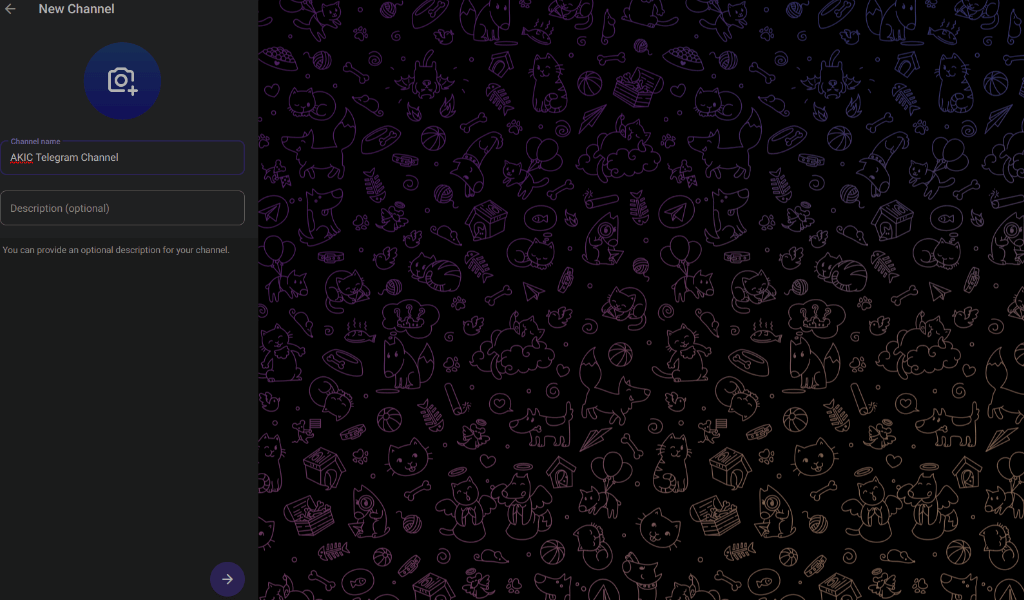
This will create your channel and it’ll have one subscriber, which is your own Telegram account. You’ll also see all your contacts in the left sidebar initially. You can check the box next to each contact you want to add and click the right arrow icon to proceed.
To add new members to your Telegram channel, you can click the name of the channel in Telegram web and copy the channel link. Share this link with those you want to add, or post it on social media to bring new subscribers to your channel.
Telegram’s web app doesn’t allow you to remove subscribers, but you can do that using its desktop or mobile apps.
Private Telegram Channels vs Public Telegram Channels
By default, all Telegram channels created using its web app are private. This means that you’ll have to keep sharing the invite link with Telegram users to bring them to your channel. If a person doesn’t have this invite link, they will not be able to join your channel. On Telegram’s mobile and desktop apps, you can choose which type of channel you want to create during the setup process.
Public Telegram channels can be joined by everyone and are indexed by search engines such as Google. You can easily use Telegram search or other search engines to find and join these channels, and you don’t need any invite links to join such channels. This way you can add subscribers even faster than before.
You can change your private channel to public and vice-versa anytime.
Open your Telegram channel in the web app and click its name at the top. Now click the pencil icon in the top-right corner and then click Channel Type. Click Public Channel to change your channel to public. You can select Private Channel too in case you want to revert to private.
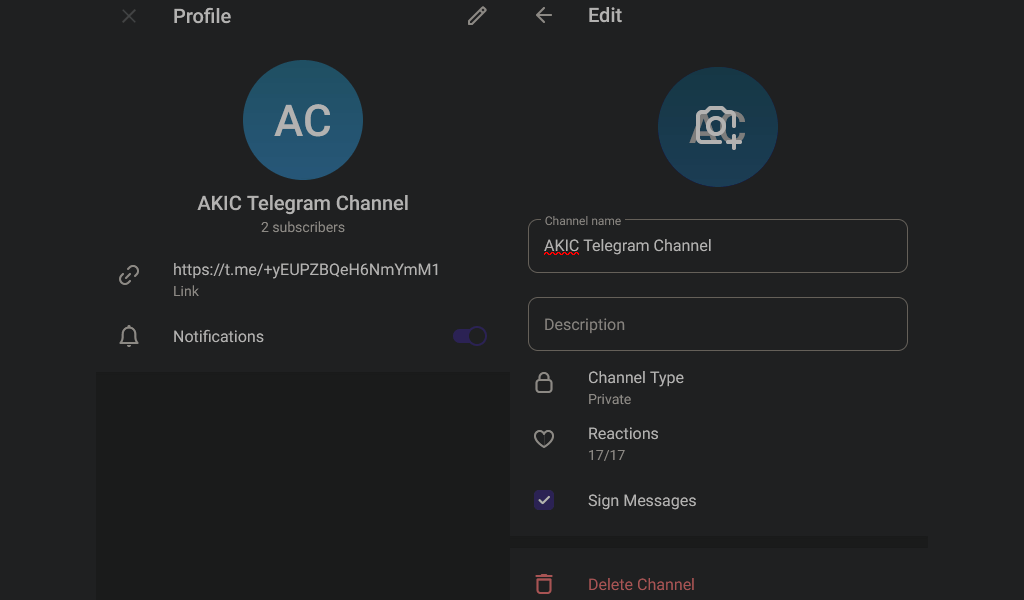
On the same page you can click Revoke Link to invalidate channel invite links at any time. This will prevent people from joining using an older invite link and lets you keep your Telegram channel private.
Useful Admin Controls for Telegram Channels
As the owner of a Telegram channel, you have several helpful administrator privileges that you should use wisely. First let’s take a look at basic customization such as changing the channel’s name and picture.
Click the Telegram channel’s name at the top of the page then click the pencil icon in the top-right corner. You’ll see the forms for channel name and description. You can change these here, and click the camera icon to change the picture.
You also have the ability to restrict people from using emoji reactions entirely, or to restrict a few specific reaction emoji. On the same page, click Reactions and either individually deselect some emoji or disable Enable Reactions.
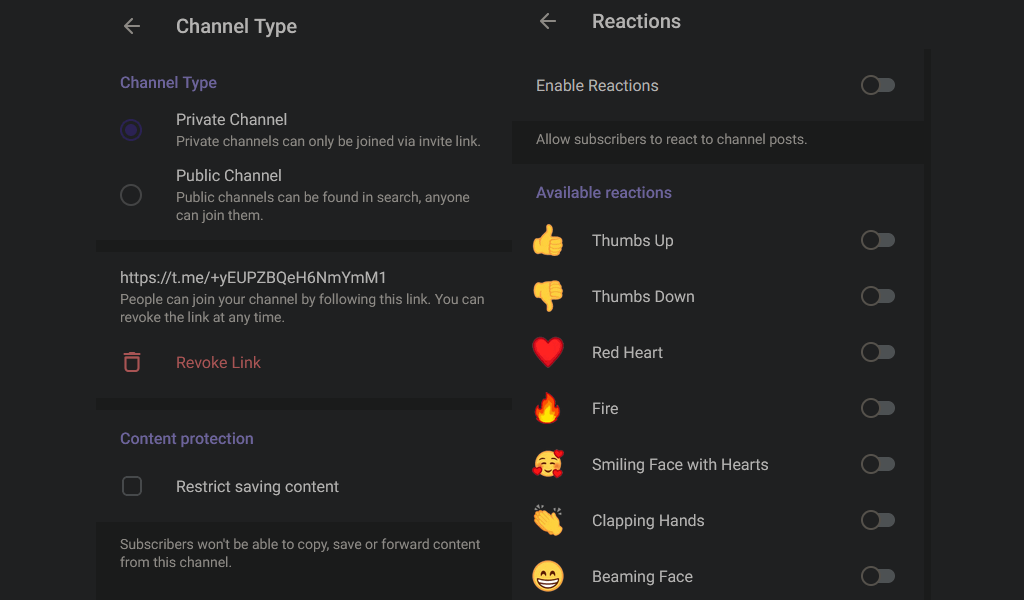
Go back to the previous page and select Channel Type. Under Content Protection, you can click Restrict Saving Content to stop people from copying, forwarding, or saving messages or media you’ve shared in the Telegram channel. However, this doesn’t stop people from taking screenshots or recording anything you share, so be aware of ways to bypass these permissions.
If you don’t want to send notifications for new messages from your channel, you can click the channel’s name in Telegram web and disable Notifications.
How to Create Telegram Channels on Its Desktop Apps
You can also create Telegram channels using its Windows and Mac apps. To do this, open Telegram desktop and select the three-line menu in the top-left corner of the window. Now click New Channel, pick a name and description, and click Create.
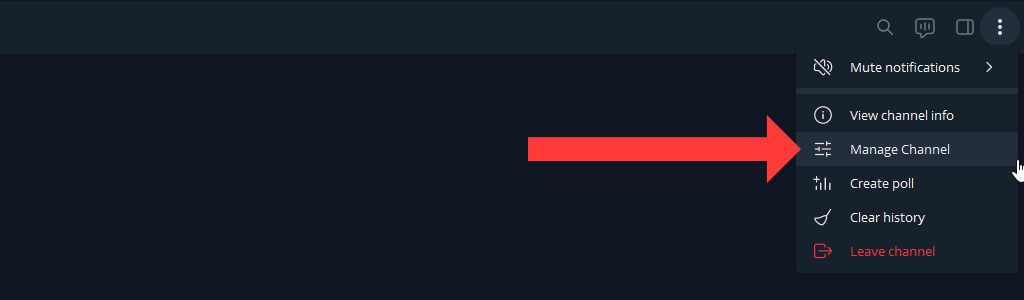
You can choose if you want to create a private or a public channel, and click Next to create a channel on the messaging app. To manage your channel, go to the channel and click the three-dots icon and select the Manage Channel option.
How to Create Telegram Channels on Android, iPhone, and iPad
On the Telegram app on your iOS or Android device, you can tap the New Message icon and select New Channel. Tap Create Channel, enter a name, and description, and tap Next. You can now select the channel type, and click Next twice to make the channel.
You can manage your channel by tapping its name and selecting the Edit option.
Keep the Broadcasts Going
Now that you’re using Telegram channels to good effect, be sure to know how secure the messaging app is. We’ve got a full guide to help you check if your favorite messaging app is secure. You can make the most of your messaging app once you’re aware of its security levels.