

A lot of people like falling asleep listening to music. After all, with the number of relaxing playlists out there, who wouldn’t want to drift off into slumber to the gentle strains of a Japanese flute? The problem is that you might not want it going all night – and YouTube Music doesn’t have a built-in sleep timer that lets you turn it off after a certain amount of time.
The good news is that, even if it lacks that functionality, there are plenty of ways you can stop playing music after a set amount of time just from your iOS or Android device.
Use the Clock App on iOS
iPhone users can easily set a sleep timer through the Clock App on iPhone. It’s not necessarily for YouTube Music specifically, but it works just the same. Here’s how.
- Start playing your song or playlist of choice from YouTube music.
- Open the Clock app.
- Select Timer.
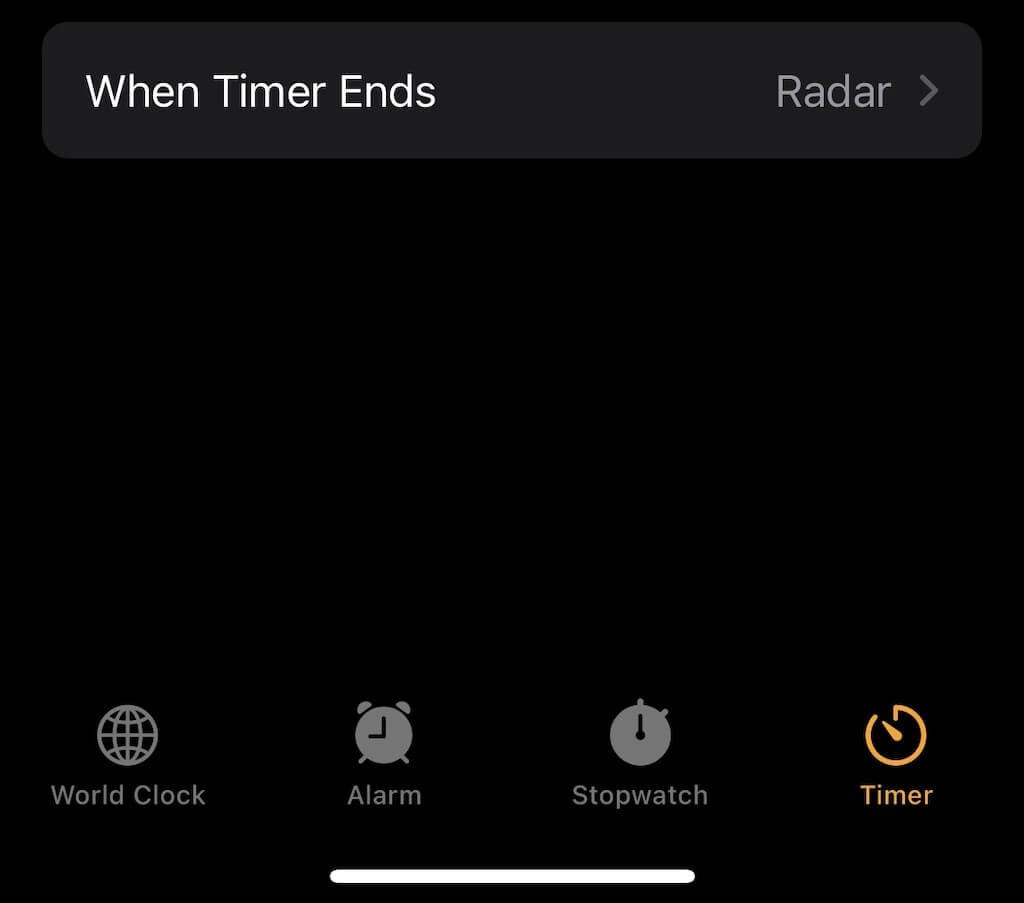
- Select When Timer Ends.
- Scroll to the bottom and select Stop Playing.
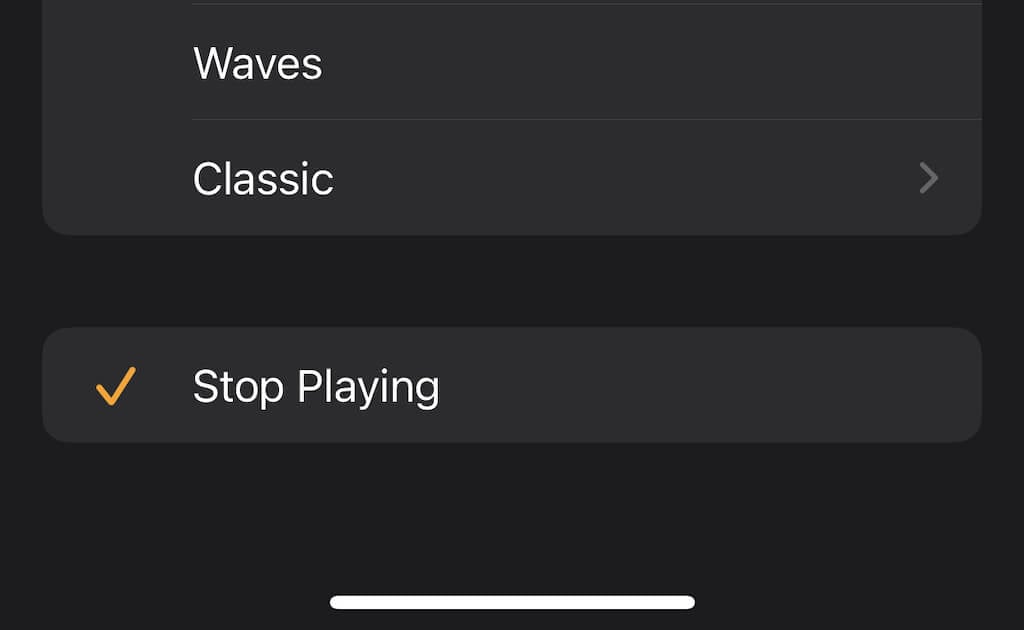
After the timer runs out, whatever is playing on your phone – whether that’s Spotify, a podcast, or something else – will stop and won’t resume until you start it up again.
How to Create a Sleep Timer on Android
Android users don’t have the same ease of use as iOS users; instead, you’ll have to rely on a third-party app to do the work for you. There are several to choose from, like Music Sleep Timer or others like it.
Regardless of which sleep timer app you choose, they all work in pretty similar ways. Select the music you want to play, and then open the app and set a time limit. Once you’ve started that countdown, the music will automatically stop after a set amount of time.
These two are the primary ways to stop playing music on YouTube Music from mobile devices, but they can also be used to stop streaming services like Netflix or Hulu, too.
How to Create a Sleep Timer in Windows
Not everyone listens to music on their phones. If you use a Windows machine to power a sleep timer, then you’ll need a third-party app to take care of it. There are several to choose from, but many are outdated – the best option is Media Sleeper.
- After you install the application, launch it and click Start in the upper-right corner.
- This sets a timer for half an hour. After that timer runs down, your music will stop playing.
The downside to Media Sleeper is that you can’t adjust the timer; it will default to 30 minutes every time, but it’s better than nothing. Another option is to use Windows’ built-in shutdown timer, which will shut down your PC at the end of the time limit.
How to Create a Sleep Timer on Mac
Since Mac doesn’t have its own Clock app, you have to use a different feature to set up a sleep timer for YouTube Music: your battery settings.
- Open System Preferences > Battery.
- Select Power Adapter.
- Make sure Prevent your Mac from automatically sleeping when the display is off is not checked, and then drag the slider to the appropriate time.
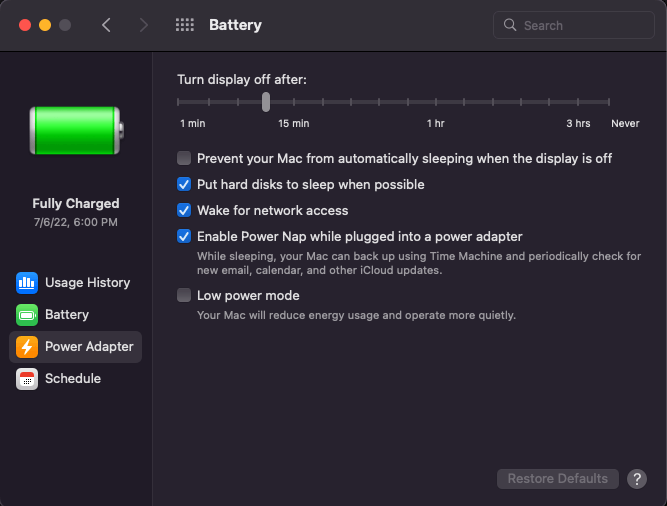
- After the time has passed, your Mac will enter sleep mode – and your music will turn off.
This is a quick, easy fix to the YouTube Sleep Timer problem. Just have your Mac turn off after an appropriate amount of time has passed. You can adjust this setting at any time, too, so you can shorten the length of time for this timer during the work day if needed.
Create a Sleep Timer With a Plugin
Perhaps the easiest way to set up a sleep timer for YouTube Music is through the use of a plugin, like YouTube Sleep Timer. This works for any operating system, as long as you’re using the Chrome browser.
A few things to note: this plugin only works when you’re browsing YouTube or YouTube Music. It needs to be added to Chrome and activated in order to work properly.
- Once the plugin is installed, click the icon in your Chrome toolbar. Again, it only works if you’re on YouTube or YouTube Music.
- Enter the amount of time you want the timer to run for and then select Start.
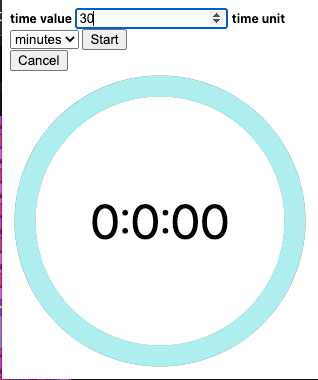
That’s all there is to it. It’s a straightforward, easy way for desktop and laptop users to circumvent the lack of a timer.
The development team at YouTube Music have acknowledged the lack of a timer and say they’re working on a solution. Until that time actually arrives, you’ll need to rely on one of these methods to ensure your music turns off when you want it to and doesn’t just run all night.