
Just like TV and radio shows, social media contains advertisements. While you may not be able to remove ads from your Facebook feed, you do have some control over the types of ads you see.
You can select the ad topics that interest you while deselecting those that do not. You can also allow ads from certain advertisers and hide others. Until and unless the company goes with an ad-free model, why not at least control the kinds of ads that display as your posting, liking, or following on Facebook.
Access Your Facebook Ad Preferences
Whether you use the Facebook website or mobile app, you can access and change your ad preferences.
Access Facebook Ad Preferences on the Web
- Visit Facebook.com, sign in, and select the arrow on the top right.
- Pick Settings & Privacy > Settings.
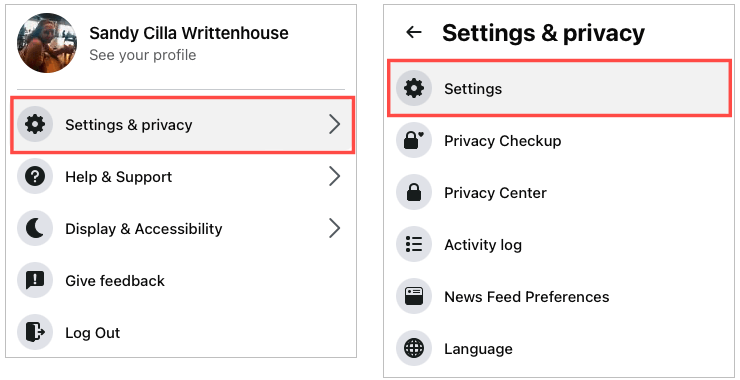
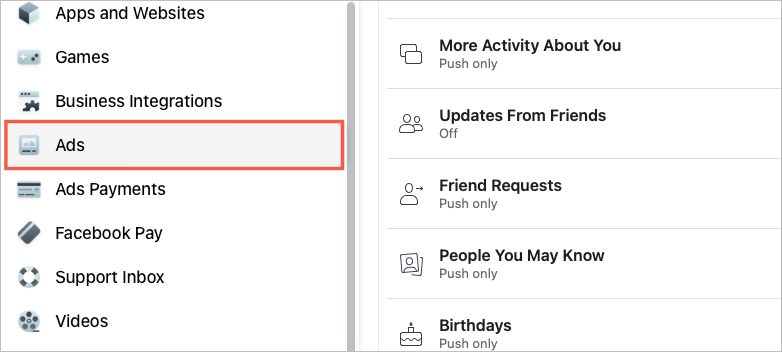
- Choose Ads in the left-hand navigation.
Access Facebook Ad Preferences on the Mobile App
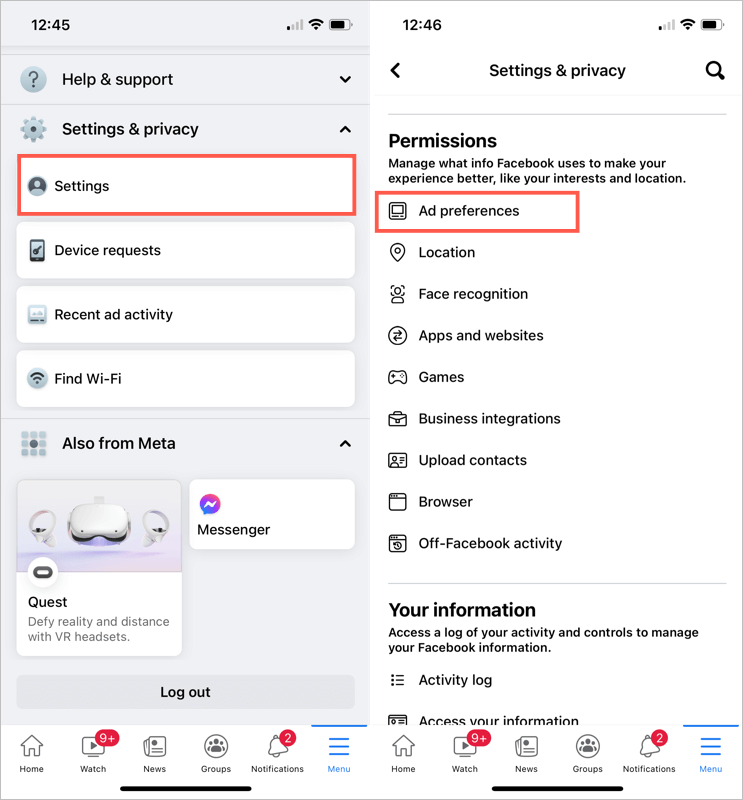
- Open the Facebook app and select the Menu tab.
- Expand Settings & Privacy near the bottom and pick Settings.
- Scroll to Permissions and select Ad preferences.
Once you land on the ad preferences page, use the sections described below to tailor the ads you see to your interests.
Change Your Facebook Ad Preferences
The Ad Preferences page contains three sections: Advertisers, Ad Topics, and Ad Settings. Here’s how they work.
Changing Advertisers Preferences
Select Advertisers to view those you’ve seen most recently. To hide one of the advertisers in the list, pick Hide Ads to the right of their name. Once you do this, the Hide Ads button changes to an Undo button if you change your mind.
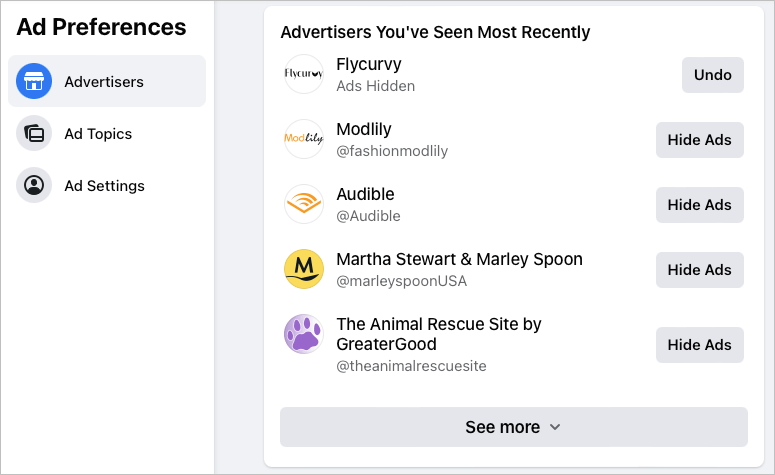
Choose See more at the bottom of the list and do the same for other advertisers you want to hide.
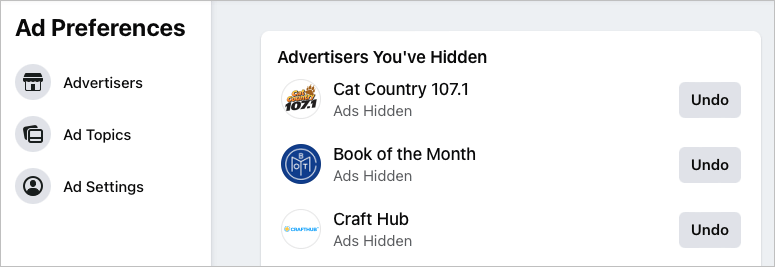
Once you hide an advertiser, you’ll see them in the Advertisers you’ve hidden section at the bottom of that page. You can visit that section and choose Undo to start seeing ads from that advertiser again.
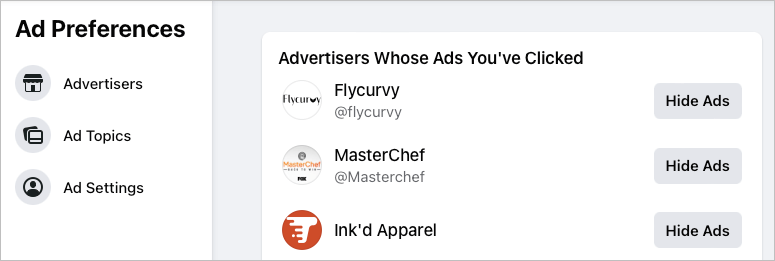
Another way to hide advertisers is by going to the Advertisers whose ads you’ve clicked section on that page. Use the Hide Ads button here to hide those advertisers.
Changing Ad Topics Preferences
Select Ad Topics to see your data-driven topics. These are the ad categories that apply to you based on your Facebook activity. They can range from food to beauty to music to technology and beyond.
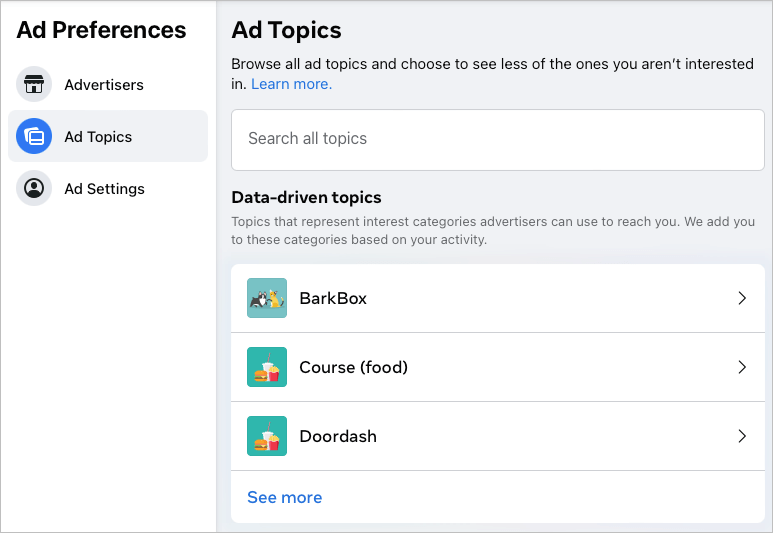
If you want to see fewer ads on a particular topic, select it in the list. Then, pick See Less.
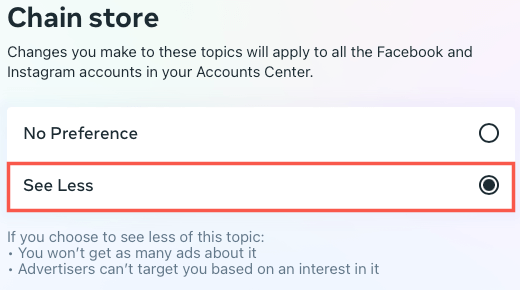
After you take this action, you won’t see as many ads on that topic, and advertisers can’t target you for that interest.
You can select See more at the bottom of the list to see all of the data-driven topics, but there might be a lot of categories to sort through. As an alternative, you can use the Search all topics box at the top to look for a specific ad category.
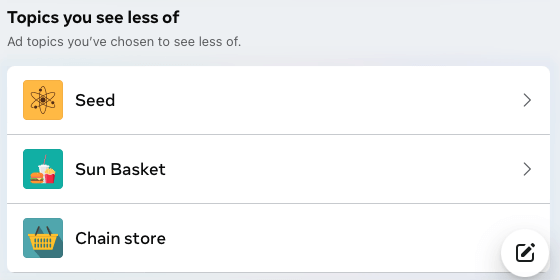
Once you mark ad topics with See Less, you’ll notice these listed at the bottom of the page. So, if you have a change of heart, simply select one and pick No Preference to put it back into your data-driven topics list.
Changing Ad Settings
Select Ad Settings to manage the data used to show you ads. This section includes five areas that you can adjust:
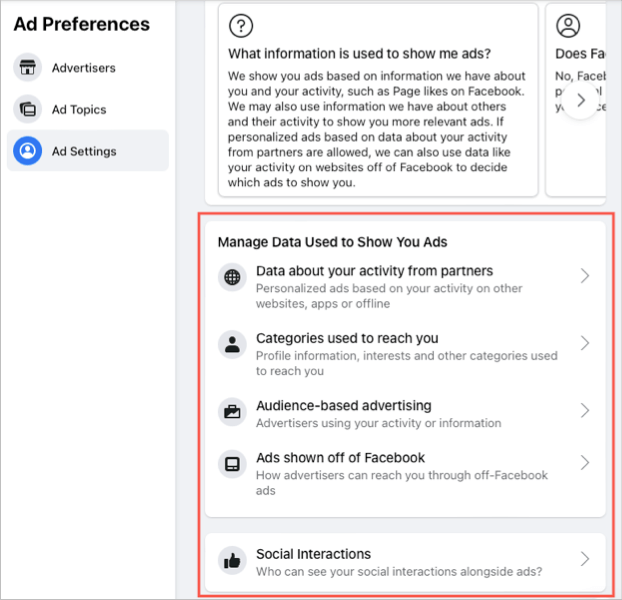
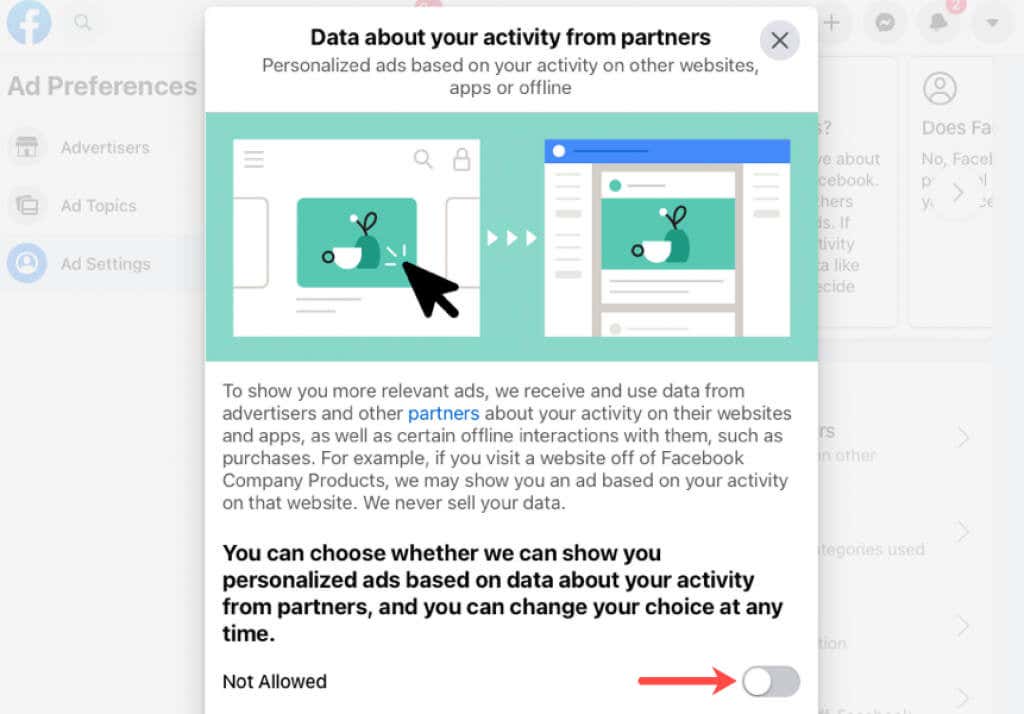
- Data about your activity from partners: This includes personalized ads based on your activity. To stop seeing personalized ads, change the toggle to Not Allowed.
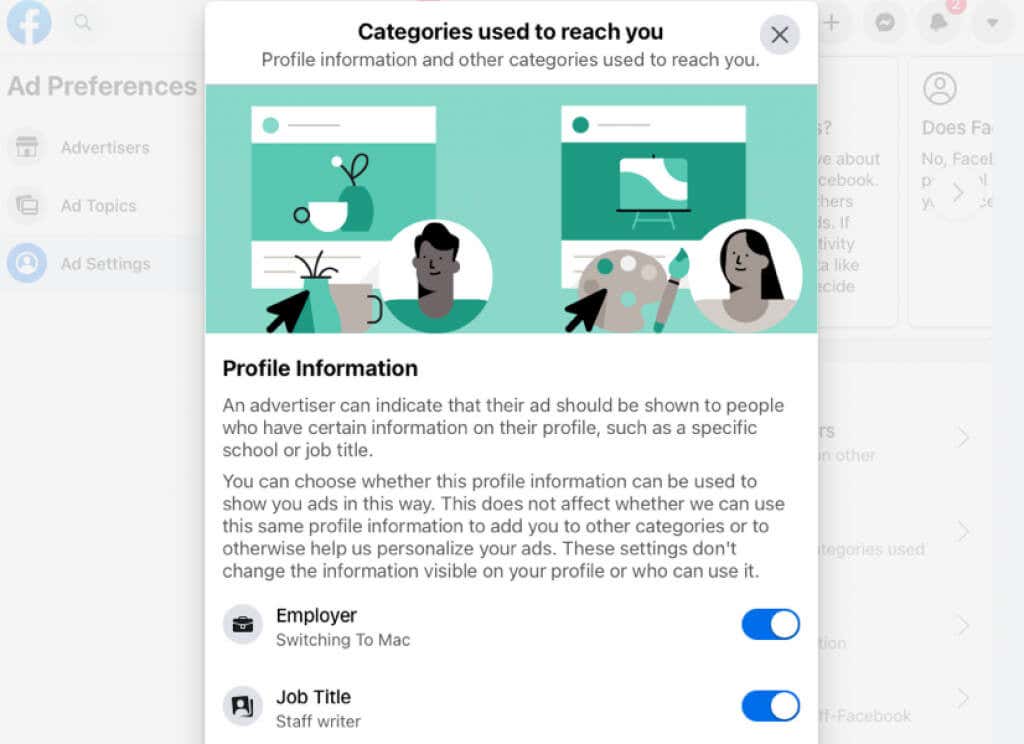
- Categories used to reach you: This includes details from your profile that advertisers use for targeted ads. Use the toggles to enable or disable the items in the list. Also, pick the Other categories option at the bottom to check for additional categories.
- Audience-based advertising: This includes advertisers that use your activity or details for relevant ads.
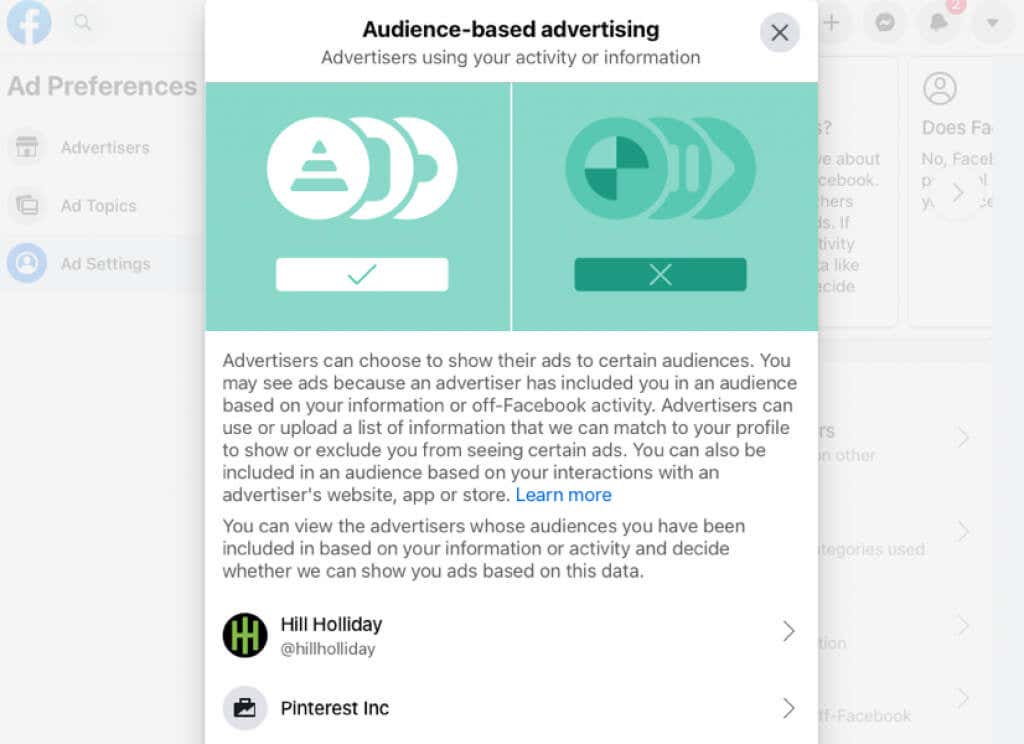
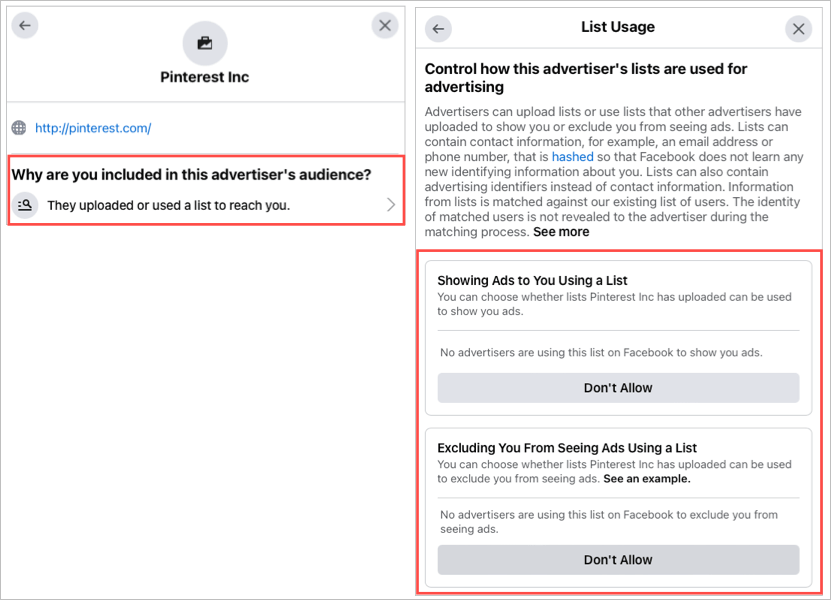
Select an advertiser and you’ll see their details, including a link to their Facebook page. If they used a list to reach you, you’d see this as well. Choose that option to disallow them from showing you ads based on the list and excluding you from ads using a list.
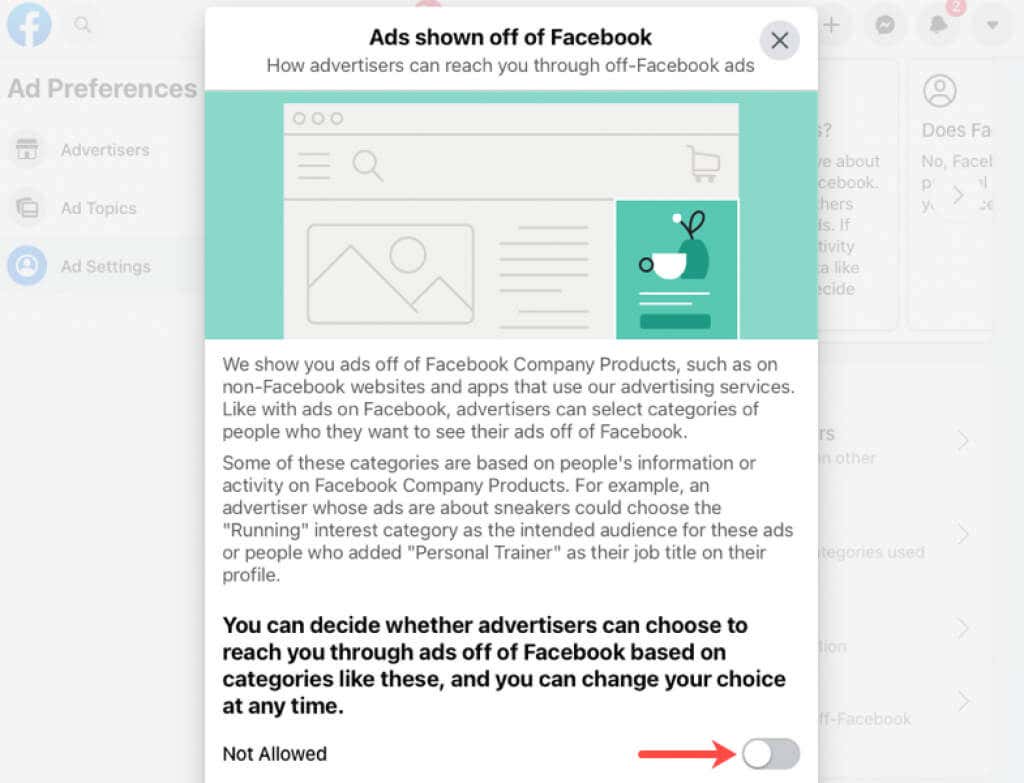
- Ads shown off of Facebook: This includes ads you see on non-Facebook sites or apps that use Facebook’s advertising services. You can change the toggle to Not Allowed.
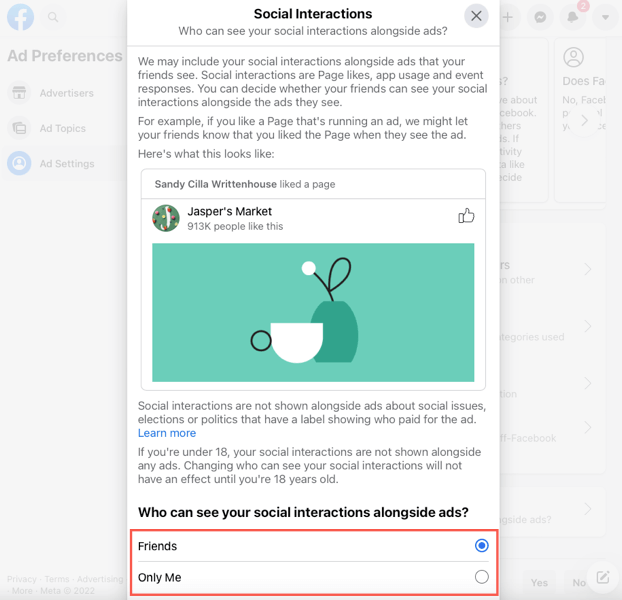
- Social interactions: This includes showing ads based on what your Facebook friends see. As the example reads:
“…if you like a Page that’s running an ad, we might let your friends know that you liked the Page when they see the ad.”
Choose either Friends or Only Me at the bottom of the Social interactions area.
Adjust Ad Preferences in Your Feed
It can take time to adjust your ad preferences in the Facebook settings. Although it’s worth your time, you can also make quick adjustments as you see ads and advertisers in your Facebook news feed.
To hide an ad or advertiser on the web or in the mobile app, select the three dots on the top right to open the drop-down menu.
Choose Hide Ad to stop seeing the ad or Why am I seeing this ad? and then Hide to stop seeing ads from the advertiser.
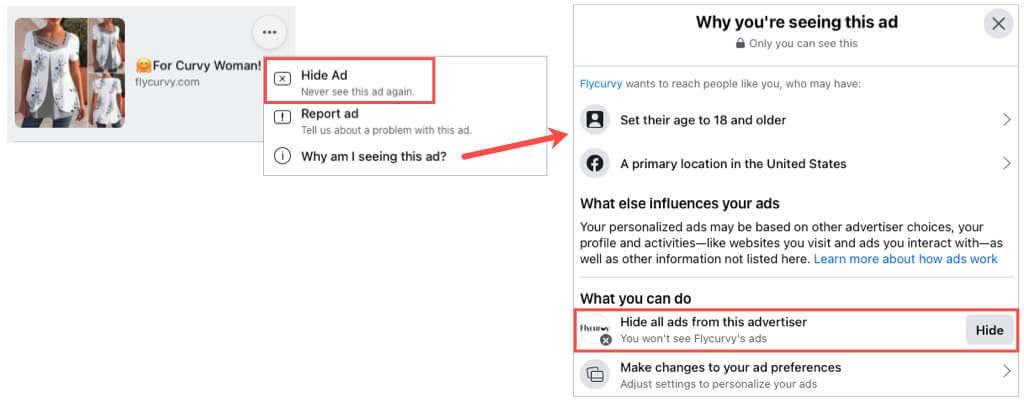
Tip: If you choose Manage changes to your ad preferences below the Hide button, you’ll head directly to the Advertisers section of the ad settings.
Just because you can’t remove ads from your Facebook experience doesn’t mean you have to see those you don’t like. Take a few moments and adjust your Facebook ad preferences.