
Blocking users on social networks essentially erases them from your online space. They won’t be able to see your content, or interact with you in any way online, whether it’s messaging, sending you invites, commenting on your photos and videos, or viewing other details on your profile.
It’s also a good way to declutter your feed when you feel that muting people on Facebook and Instagram isn’t enough anymore. There’s more than one reason why you might want to choose to block someone on Instagram or Facebook, and there are a few different ways to do that.
Why Block Someone On Facebook Or Instagram?
You might want to block someone online if you believe they’ve been stalking you. Whether it’s your ex or someone you’ve never met in real life, by blocking them you’ll restrict their access to your personal information.
Online bullying, harassment, and cyber-attacks can be another reason for blocking users. You can use it to protect yourself from unwanted attention and mean intentions.
The most common reason to block someone on Facebook or Instagram is a real life falling-out between friends or even family members. It often results in unfriending each other on Facebook, Instagram, and other social networks.
However, an unfriended (or unfollowed) user can still see any content or information on the network about you that’s public. Blocking the user will completely cut all your online ties with them and make sure you both protect your privacy.
How To Block Someone On Facebook
On Facebook, you can block any other user. It doesn’t matter if they’re in your friend list, if they follow you, or if there isn’t any connection between the two of you at all. Anyone you block won’t receive any notification about it.
The only way they can find out that you’ve blocked them is if they search for your Facebook profile. They won’t be able to send you messages, friend requests, or see any of your posts anymore.
Block Facebook Users On Your Computer
To block someone on Facebook using your computer, follow these steps:
- In your browser, open Facebook.
- Go to the Facebook profile of the person you want to block. Either find them through your friend list, or put their Facebook name in the search bar.
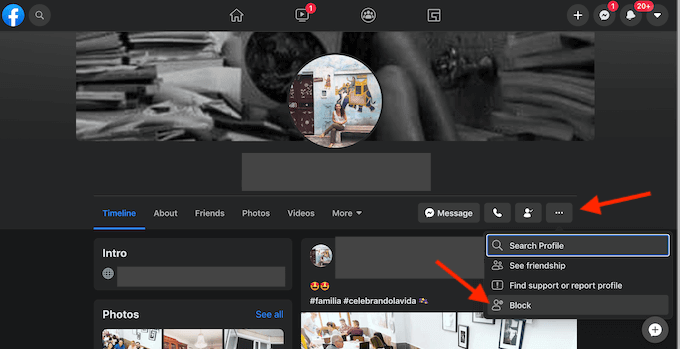
- On their profile, click the three dots next to the Message button.
- From the pop-up menu, choose Block.
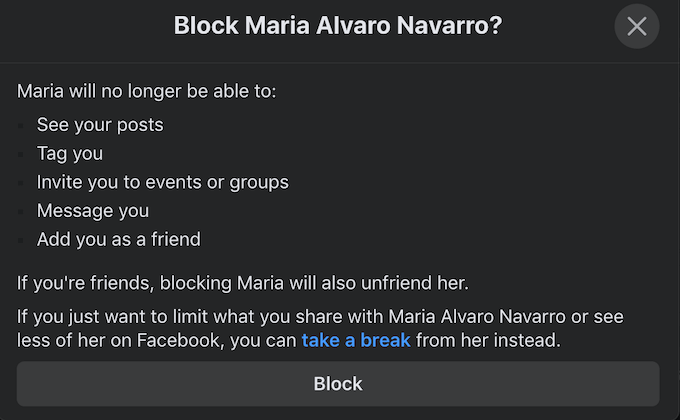
- You’ll be prompted to verify your decision to block the user. Click Block again to confirm.
Block Facebook Users On Your Smartphone
To block someone using your phone, follow these steps:
- Open the Facebook app on your smartphone.
- Navigate to the profile page of the person you want to block.
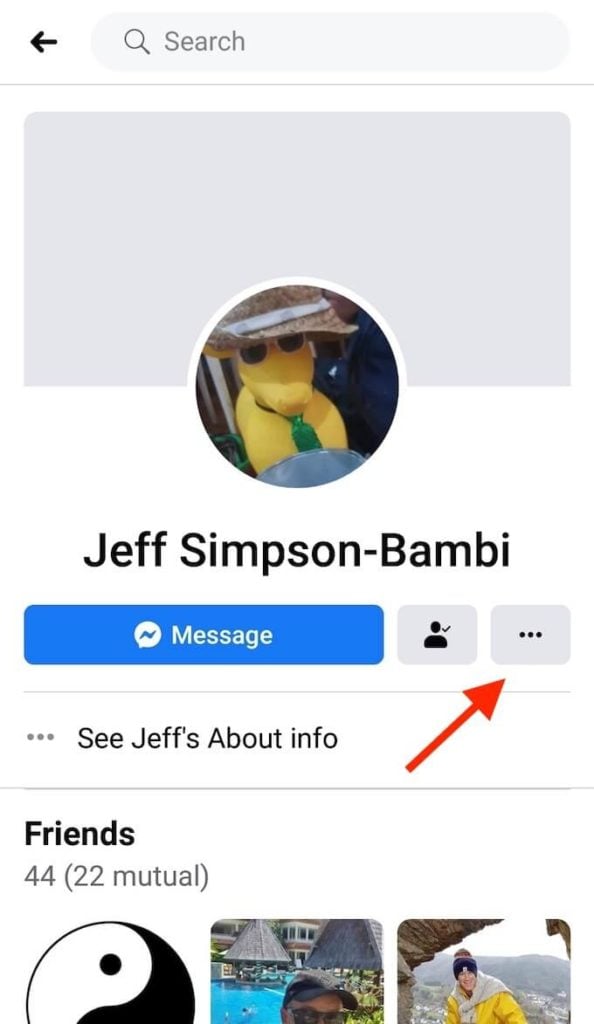
- On their profile, click the three dots button on the right side of the display. This will open the Profile Settings menu.
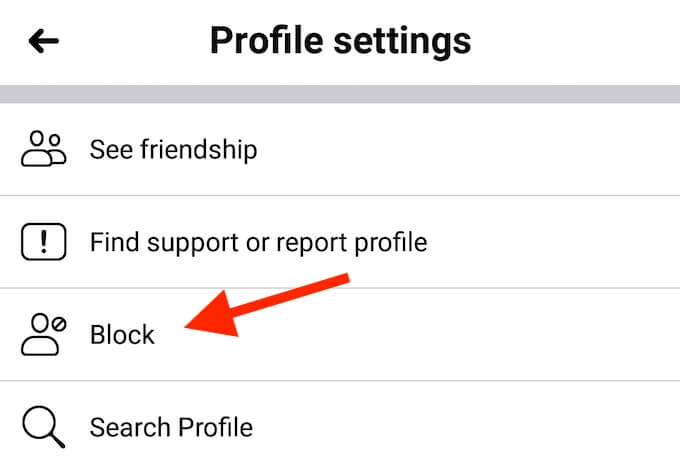
- From the menu, select Block.
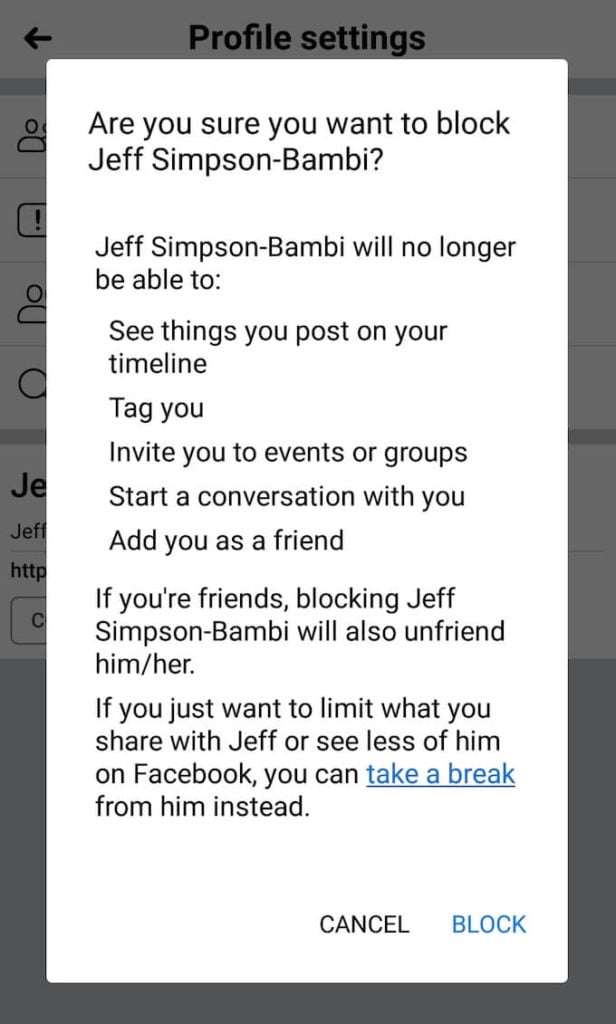
- On the next page, you’ll be prompted to confirm your decision to block the user. Click Block again.
Block Someone On Facebook Messenger
You also have an option to block someone on Facebook Messenger. To do that, do the following:
- Open Messenger on your smartphone or tablet.
- Open the chat with the person you want to block.
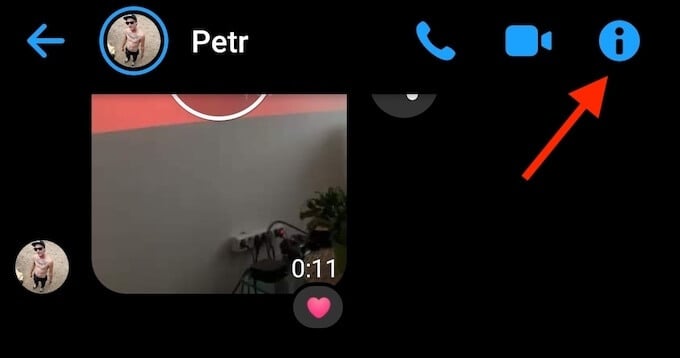
- In the top right corner, click the Information icon to go to their profile.
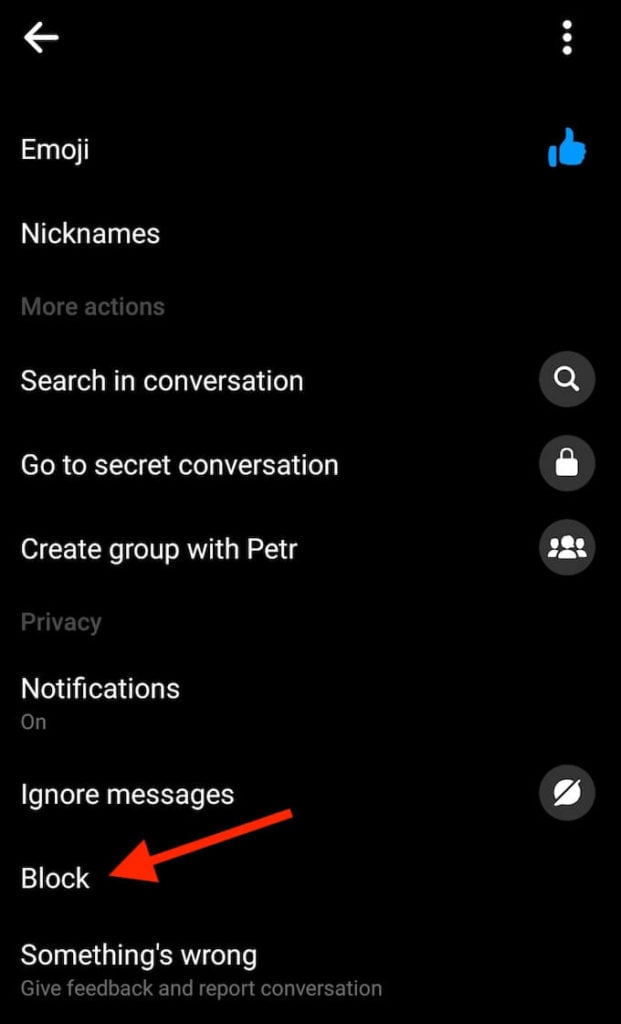
- Scroll down to Privacy and select Block.
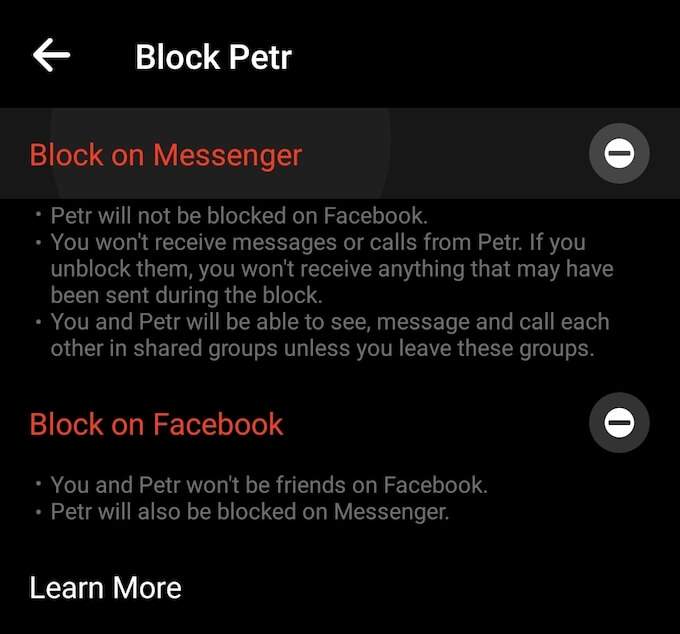
- You’ll get two options to choose from: you can block the user on Messenger only, or also block them on Facebook. Choose the option that works best for you.
How To Unblock Someone On Facebook
In case you accidentally block someone on Facebook, or you decide to unblock someone after some time, you can do it through the Blocking list on the app.
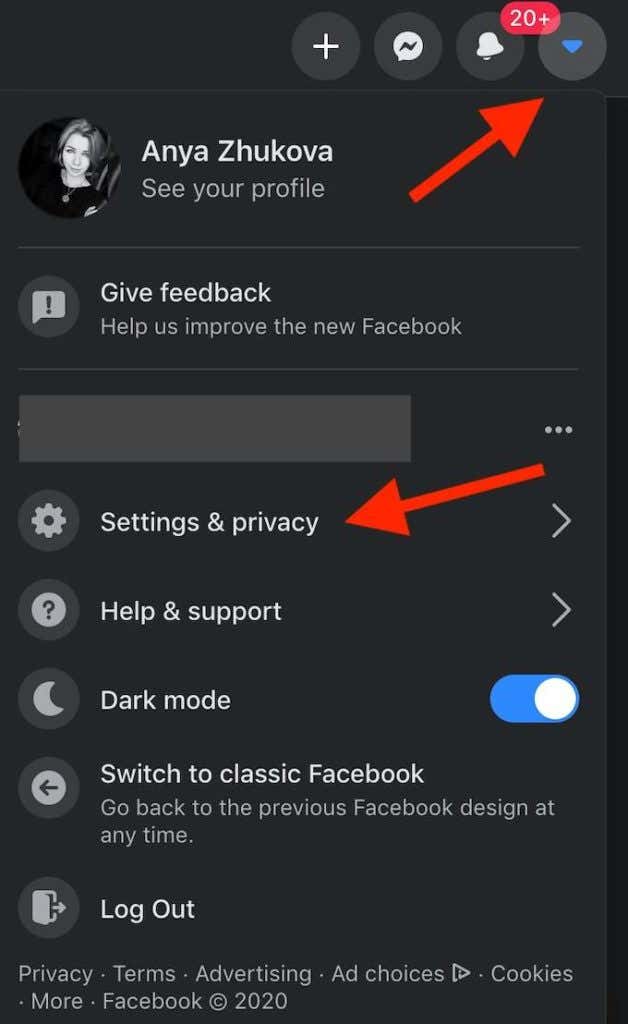
To locate the list, go to the Facebook app. In the top right corner, click on the down arrow and find the Settings & privacy menu.
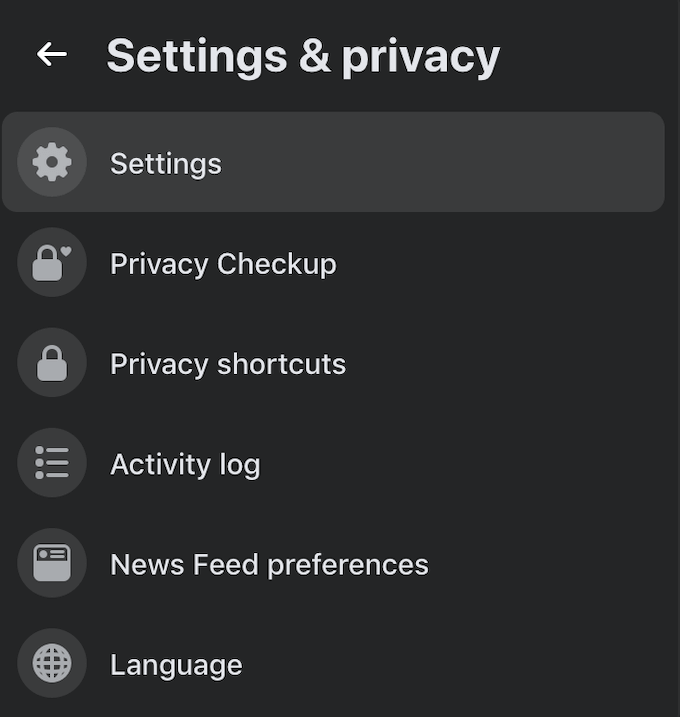
From there, select Settings.
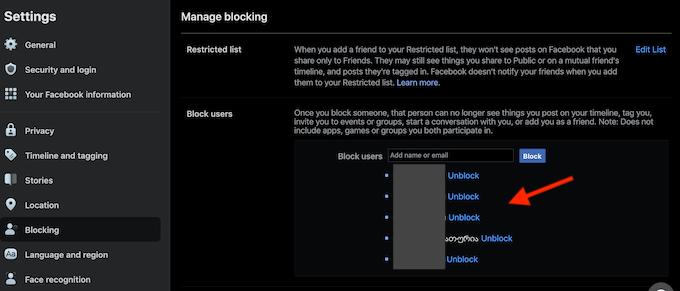
You’ll find the Blocking list on the left side of the menu. Scroll down through the list, find the user that you want to unblock and select Unblock to restore their access to your Facebook profile.
How To Block Someone On Instagram
Since Facebook and Instagram are linked in more than one way, you might want to block the same person on both networks. You can block someone on Instagram using both the smartphone app and your web browser.
Block Instagram Users On Your Phone
- Open the Instagram app and locate the profile of the user you want to block.
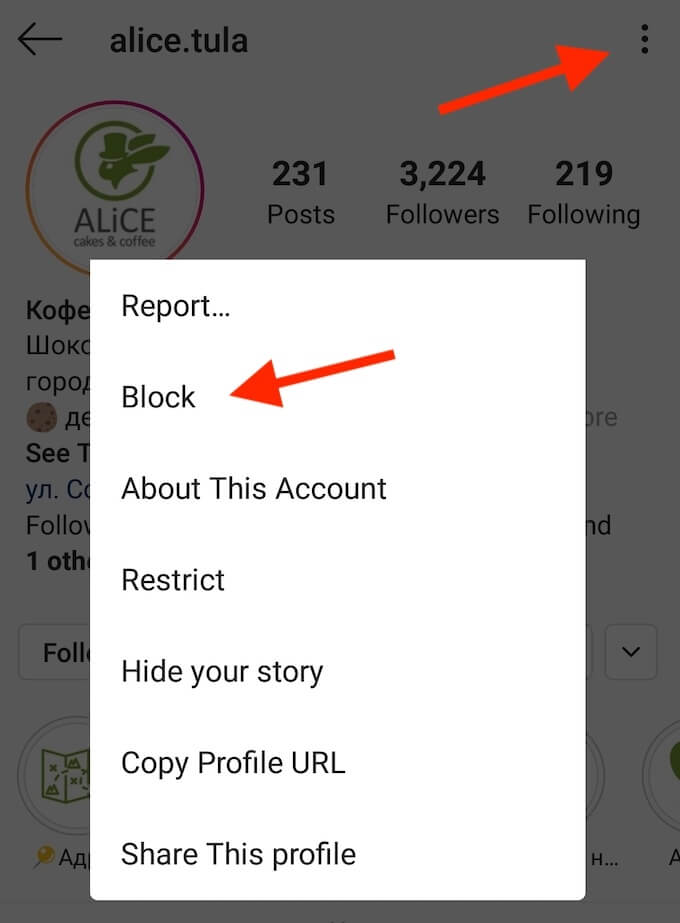
- In the top right corner, tap the three vertical dots menu button.
- From the pop-up menu, select Block.
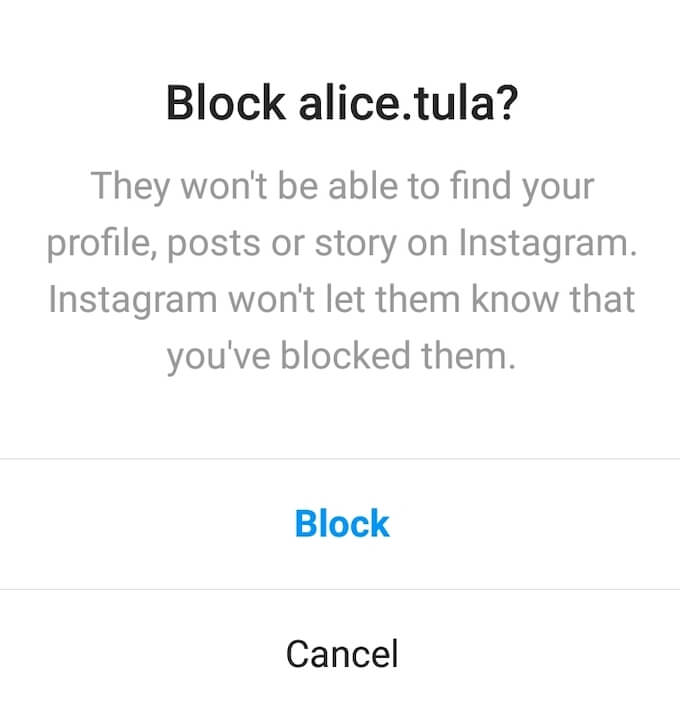
- On the next page you’ll get a warning asking you to verify whether you want to block this Instagram user. Click Block again to confirm.
Block Instagram Users On Your Computer
If you’re using Instagram on your computer, you can block a user via the web browser. To do that, follow these steps:
- Open the Instagram website using your browser.
- Go to the profile of the user you want to block.
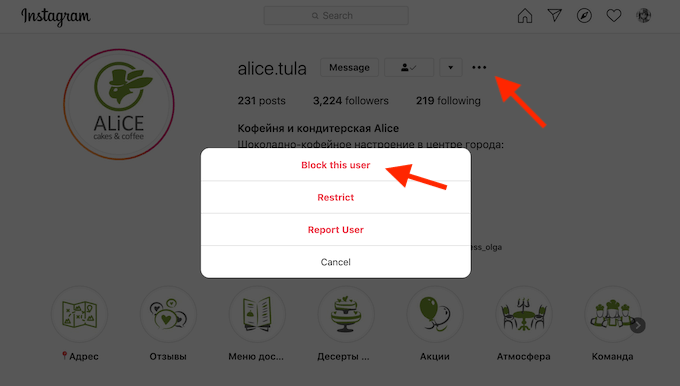
- Find the three dots button on the top of their profile page and click on it.
- From the pop-up menu, select Block this user.
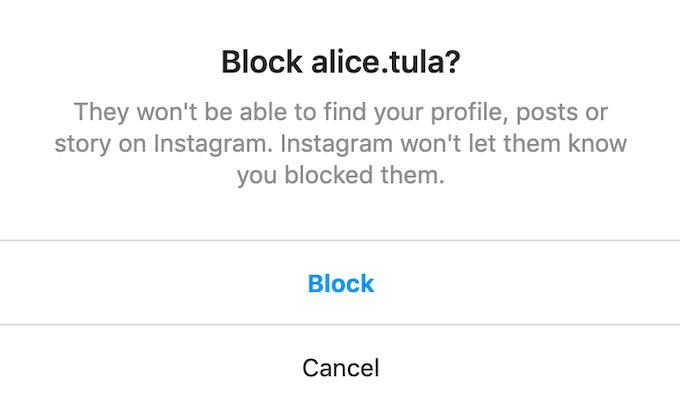
- You’ll see the warning appear asking you to verify whether you want to block this Instagram user. Click Block again to confirm.
How To Unblock Someone On Instagram
If you accidentally blocked someone on Instagram and want to cancel it, there are two ways to go about it.
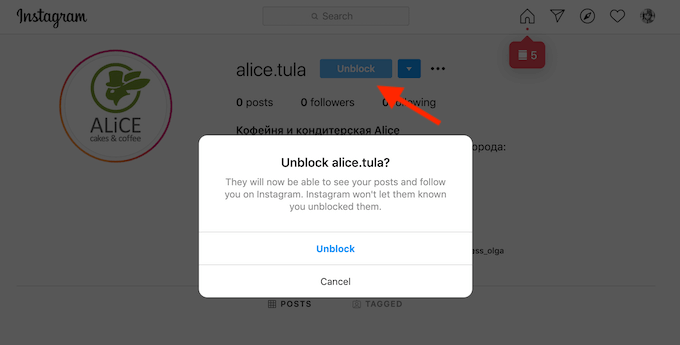
You can do it by simply going to their profile and clicking the Unblock button.
Alternatively, you can unblock users by viewing the list of Blocked Accounts on Instagram.
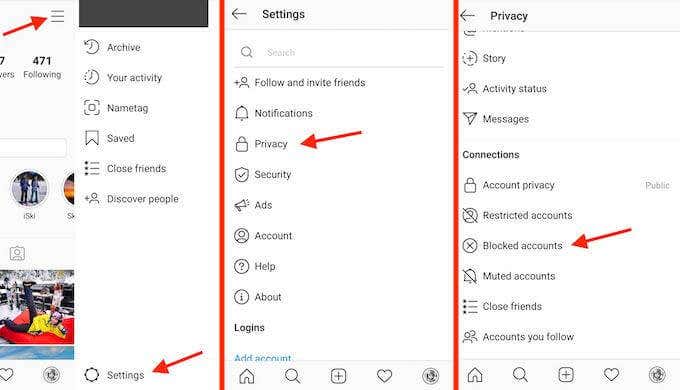
To do that, go to your Instagram profile, and tap the menu button in the top right corner. Then choose Settings > Privacy > Blocked Accounts.
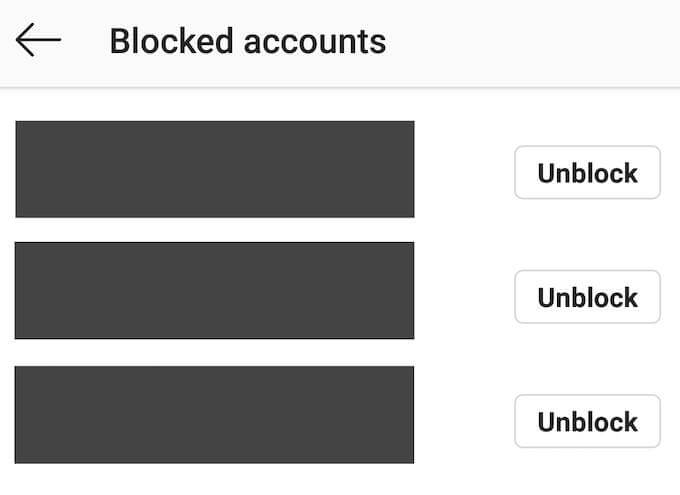
From the list, choose the users you want to unblock and tap on their instagram name. The users won’t be notified when you block or unblock them on Instagram.
Protect Your Privacy Online
If after you block someone on Facebook or Instagram you’re still worried they might get access to your personal information, consider taking it one step further by mass-deleting your Facebook data and Instagram posts, or even deleting your social accounts.
Do you ever block people on social networks? Do you find that effective? Share your thoughts with us in the comments below.