

Discord is the most popular chat program among gamers. Users can create their own servers for their favorite games, for their guild, or just for a group of friends. Whatever the reason, Discord shows when you’re online, what game you’re playing, and much more.
It holds both voice and text chat servers that allow gamers to chat while playing their favorite titles. It also includes an in-game overlay that can be activated by hitting the keyboard shortcut while in-game. The overlay makes it easy to respond to messages, switch chat servers, and more.
If the Discord overlay is not working, here are several different fixes you can try.
Make Sure the Overlay is Enabled
The Discord overlay should be enabled by default, but sometimes users disable it or a glitch causes the overlay to shut off. The first step you should take is to ensure the overlay is activated.
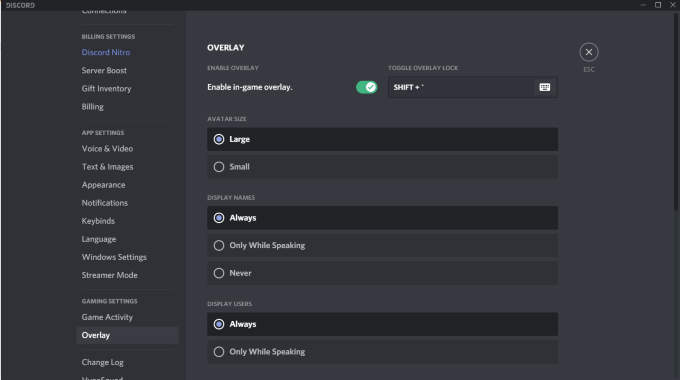
Click the User Settings icon in Discord. This is found to the right of your username, beside the microphone and headphone icons. When this opens, scroll down and click Overlay and ensure the Enable in-game overlay slider is turned on.
If enabled, the slider will be green with a check mark. If not, it will be grey with an “X”.
Ensure Specific Games Are Enabled
The first step is enabling the overlay for all of Discord. If that doesn’t solve your problem, make sure the specific game you want to play has the overlay enabled. Go to User Settings > Game Activity and look at the list.
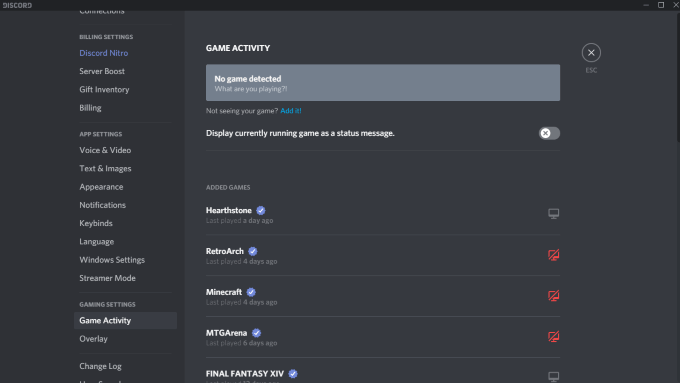
Any game that has the overlay enabled will show a grey monitor beside it. You can also hover your cursor over a game and it will show Overlay: On or Overlay: Off. The monitor will have a red “X” through it as well. You can click the monitor to quickly enable the overlay for that specific title.
Run Discord as Administrator
Many potential glitches like Discord overlay not working can be prevented by opening and running a program as the administrator. This tells your system the program can be trusted and is free of malware and viruses.
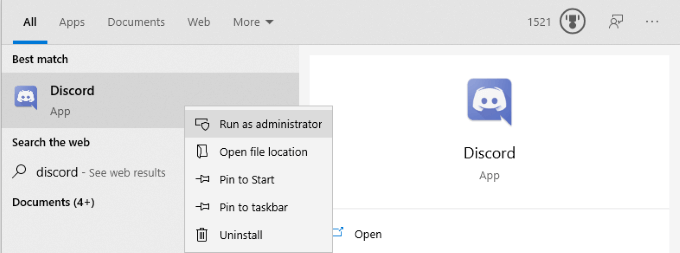
Right-click Discord and choose Run as administrator. This will open the program as normal, but will give it full administrative privileges and circumvent any firewalls or security programs that block it.
Check Your Display Scaling
You can customize the scale of your display from within Windows settings. While this can make text and icons easier to spot, it can also hide the Discord overlay. Sometimes a difference as small as 5% is all it takes to hide the display. The good news is that you can change the scale with just a few clicks.
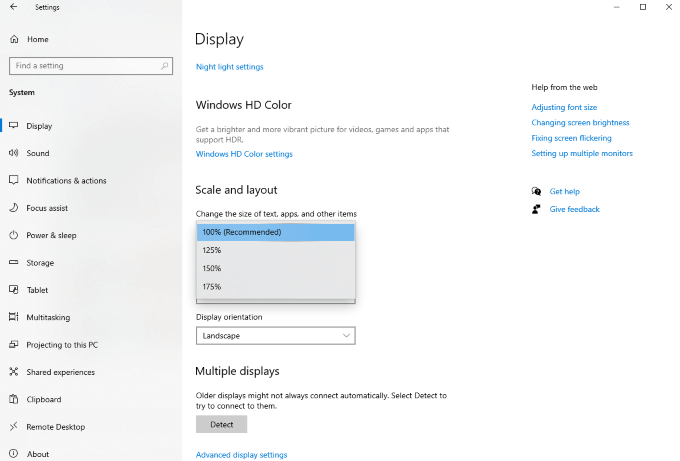
Open Settings > Display and look for the Scale and layout subheading. Look for the option to “Change the size of texts, apps, and other items” and click the drop-down box. Set it back to 100%. Give the system a moment to re-scale before testing Discord once more.
Fully Close Out Discord
A common error among Discord users is that part of the application may remain running in the background even after everything else has closed. If this is the case, Discord might not open when you try to start it, much less run the overlay.
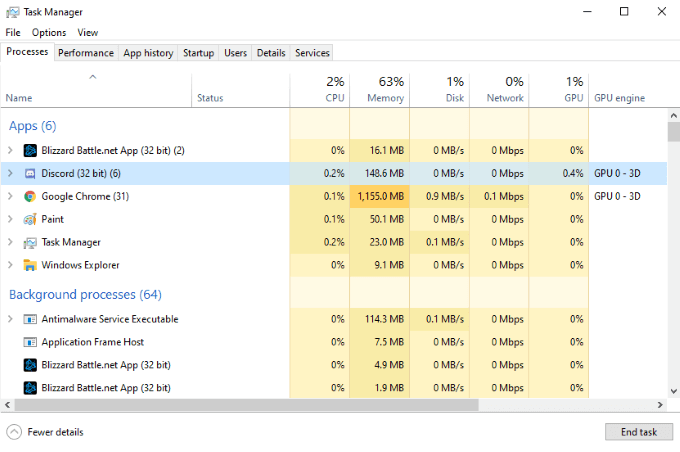
Open your Task Manager and end every process involving Discord. You will likely see multiple processes named Discord (32 bit) or Discord (64 bit) depending on your operating system. End these processes and then re-start Discord.
Restart Your Computer
It’s such a simple step, but one that is often overlooked. Restarting your PC can resolve a majority of issues with almost any program. If fully shutting down Discord doesn’t work, restart your PC before taking any other steps.
Ensure No Other Overlay is Active
Discord isn’t the only program that uses an overlay. Streaming software like OBS and tools like the Xbox Game Bar both generate overlays for use in-game, and sometimes these programs can interfere with Discord’s overlay. Shut down any third-party software that might interfere with Discord.
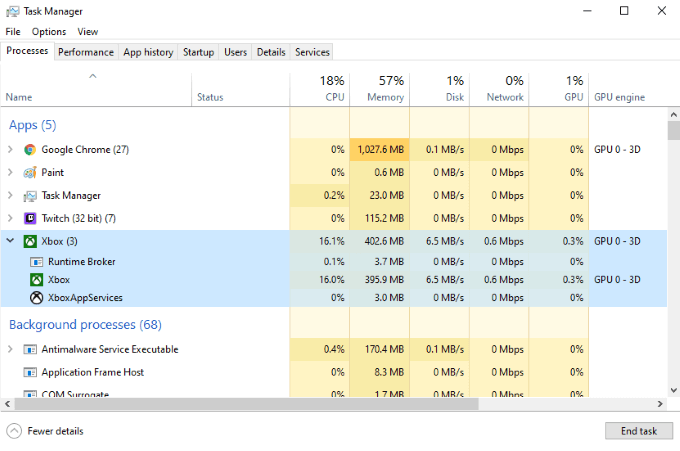
Once you do, restart Discord and then test the Discord overlay once more to confirm if it’s working.
Disable Hardware Acceleration
Hardware acceleration is a feature in many applications that uses resources from the CPU and GPU to ensure the program runs more smoothly. This is particularly useful on weaker systems that can use a bit of additional help. However, hardware acceleration can sometimes interfere with Discord’s overlay.
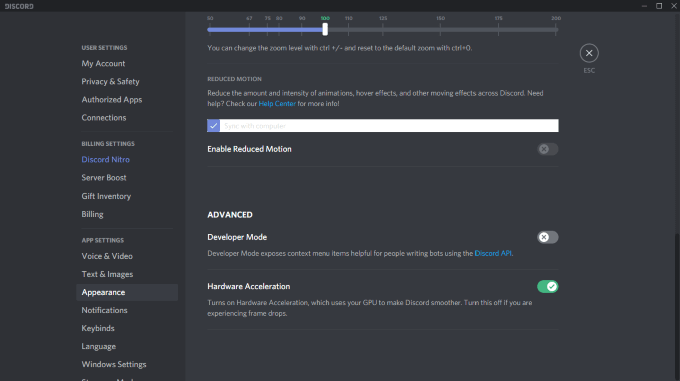
To disable hardware acceleration, open Discord and navigate to Settings > Appearance and then scroll down to Hardware Acceleration. Ensure the toggle beside the option is turned off. Not only can this correct problems with the overlay, but it can also help games run more smoothly while Discord plays in the background.
Re-Install Discord
If all else fails, and the Discord overlay is still not working, you can uninstall and reinstall Discord. There is little at risk in this step. Information related to your account, servers, and more is stored server-side, so even if you wipe your PC, you can regain access to that information by logging back in.
Open Control Panel > Uninstall a program and scroll until you find Discord on the list. Click Discord, then right-click and choose Uninstall. After you have completely removed Discord from your machine, you can reinstall the program by going to Discord’s website.
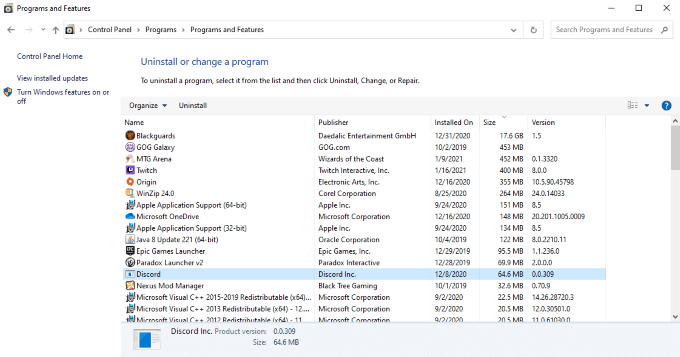
Download the latest version of Discord from the site. Don’t rely on a previous download if you still have one. After you have reinstalled Discord and logged back in, test the overlay.
Discord is a great service that’s worth having, whether you want to play with friends or just find a community of people with the same interests as yourself. There are different Discord servers for cooking, retro gaming, and so much more. If you want to make sure you can remain part of the conversation even in the midst of gameplay, try these different tips to ensure the Discord overlay works.