

Discord is one of the most popular online chat services, especially for gamers. It uses VoIP and instant messaging to keep users connected to one another, and it will also let your friends know what you’re currently playing.
Discord is free to use, although there is an optional premium subscription that will provide users with animated avatars, emojis, and more. It’s also widely compatible across a large range of devices.
Sometimes, Discord may not be opening when you expect it to. If you boot Discord only to receive an error message, try these methods to fix the problem.
1. Update Discord to the Latest Version
Discord receives frequent updates to ensure no one can take advantage of exploits or bad code. Discord may not open if your version isn’t the latest version available. There are several easy fixes for this.
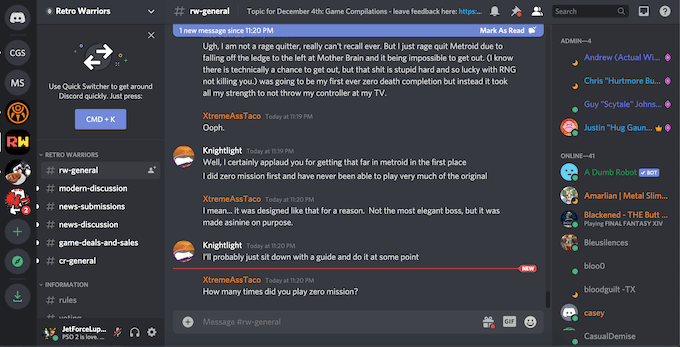
Update Discord to the latest version, and then set the app to automatically update whenever a new version comes available. Be aware, however, that some users note “update loops” in which the new installation file creates an issue and refuses to update the application.
2. Update Your OS
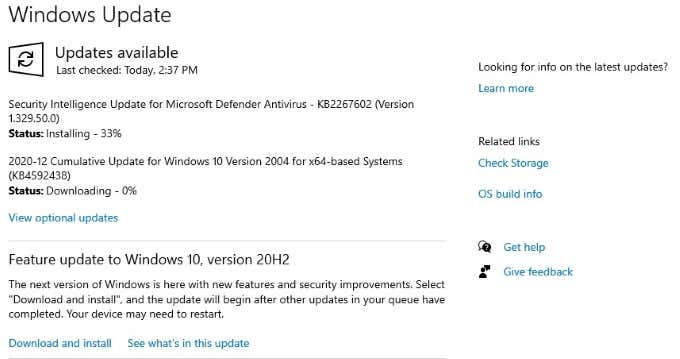
Whether you’re using Windows or macOS, Discord relies on you having the most recent version of your operating system. Keep your OS up to date to avoid any issues in launching applications. If Discord is not opening, make sure there are no necessary system updates and then try again.
3. Close All Other Programs
Some users report that Discord encounters errors if launched with other programs running in the background. Shut down resource-intensive applications like games, photo or video editing software, and particularly antivirus software before you launch Discord.
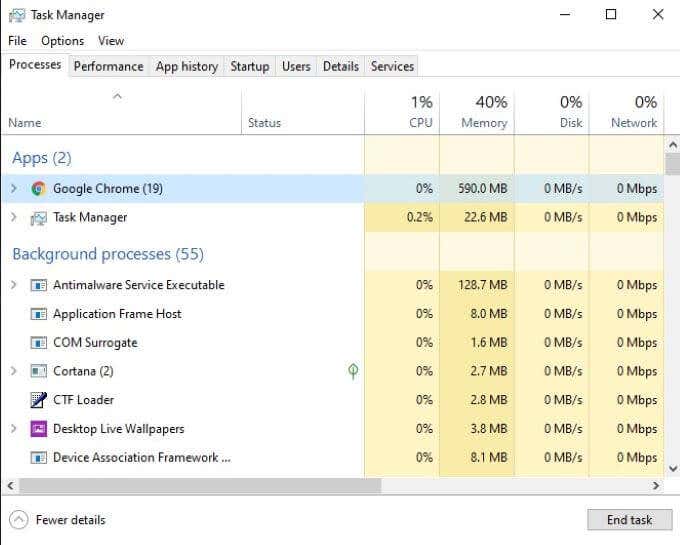
Some antivirus programs have been known to block Discord from starting, while games running in the background can also cause issues. Launch Discord first (or select for it to launch on startup) before you begin playing a game.
4. Clear App Data
One major issue that Discord users encounter is corrupted app data. To correct this, you need to clear and reset the related app data. To do this, first press Windows + R and then type %appdata% in the “Run” box. Press Enter.
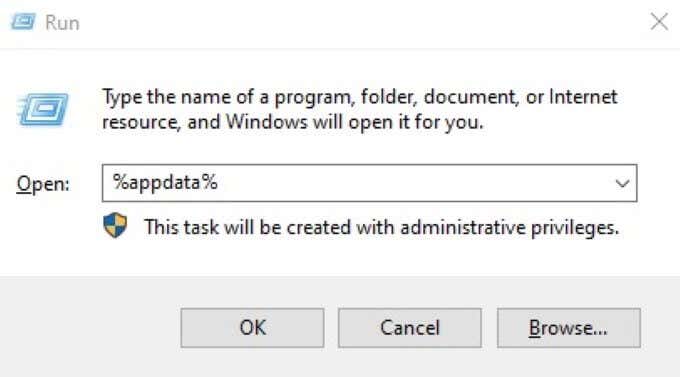
In the window that opens, find Discord and right-click the folder and delete it. Repeat this process, but type %localappdata% instead. Find the Discord folder once again, right-click and delete it.
This clears both the server app data and the local app data. Once you’ve done this, try relaunching Discord.
5. Kill the Background Discord Task
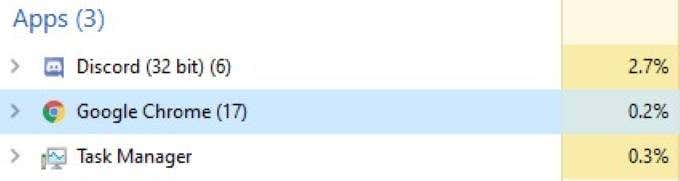
Open Task Manager and look for Discord in the “Processes” tab. Right-click and select “End task.” Re-launch Discord after you’ve done this. Killing the process and restarting the app will often correct any problems that arise when initially launching Discord.
6. Change Date/Time Settings
Discord automatically checks for the date and time on your machine as part of its verification process. If your date and time don’t match what Discord receives from its servers, then the application often will not start.
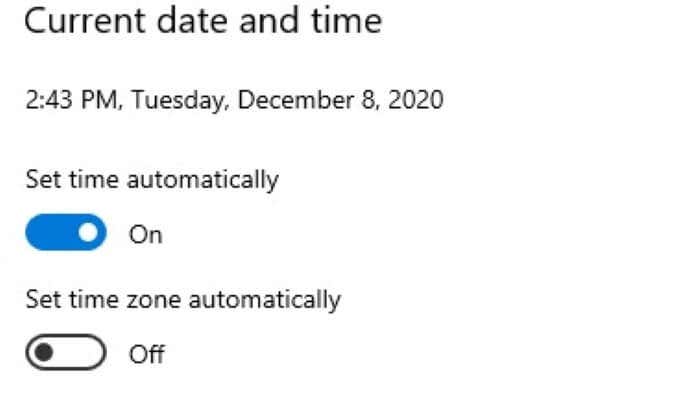
Open your Date/Time settings and make sure you turn on Set time automatically. After you’ve done this, try to launch Discord again.
7. Flush the DNS Settings
Sometimes your internet settings can cause Discord to throw an error. If this happens, you can “flush” the settings and reset them. In many cases, this will correct the problem and allow Discord to boot normally.
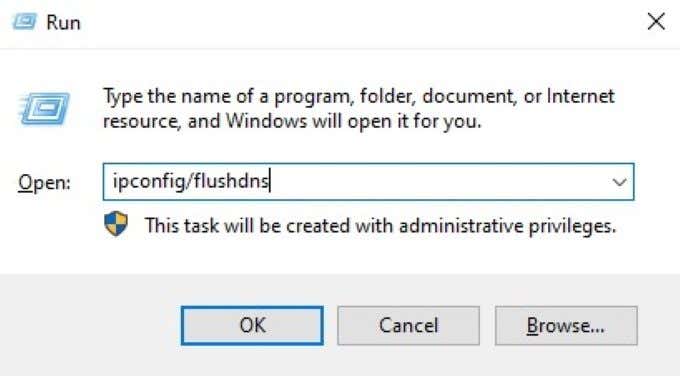
Open the Windows command prompt. You can do this by pressing the Windows key + R and then entering cmd. After you’ve done this, type ipconfig/flushdns and press Enter. Finally, relaunch and check if Discord is still not opening.
8. Open Discord on Web
All versions of Discord sync with one another. If you cannot launch Discord from your desktop, there might be an issue with the information provided from other sources. An easy fix is to open Discord in your web browser and log in.
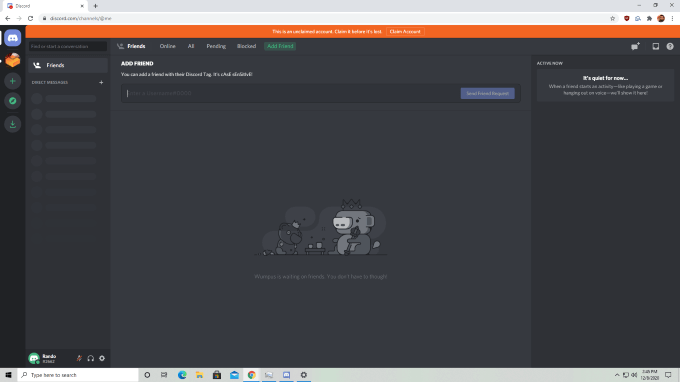
After you’ve logged into the web version of Discord, close your session and try launching the version from your desktop again. Users have reported this as a potential fix for Discord launch issues, but bear in mind that all evidence is anecdotal.
9. Uninstall and Reinstall Discord
If Discord is not opening, there may be a problem in the initial installation or in an update of the program. One of the easiest ways to correct this is to completely uninstall Discord and all related files.

Once you have uninstalled Discord, restart your PC. Navigate to Discord’s website and download the latest installation and setup file. Then re-install the program. This will fix any problems that arise from an earlier glitch in downloading or setting up the software.