

While Discord is well known as a text-based communication platform for gamers and hobbyist communities, it’s also a great way to communicate using your voice or camera. This is especially useful for situations where Discord is minimized, isn’t open, or where using the in-game overlay isn’t appropriate.
This all rests, however, on whether your PC or Mac has a working microphone. If your Discord mic is not working, either from robotic voice issues or with no recorded input detected at all, you’ll need to troubleshoot the problem. Here are several ways you can fix a broken Discord mic issue.
Check Discord Permissions (and Run as Administrator)
All major operating systems, including Windows and macOS, make efforts to limit access to certain hardware like your microphone and webcam to help protect your privacy. If Discord doesn’t have the necessary access, you’ll need to allow it first before you can use your microphone.
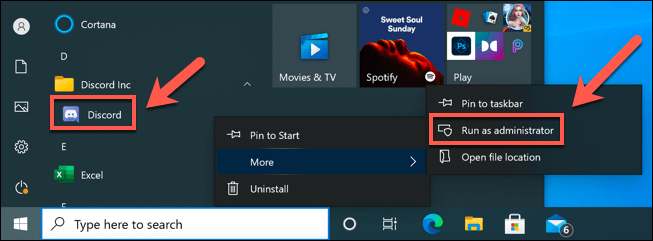
- On Windows, the best way to ensure access to your mic is to first run the app as an administrator. Search for the Discord desktop app in your Start menu listings, then right-click and select More > Run as Administrator to grant it the necessary access.
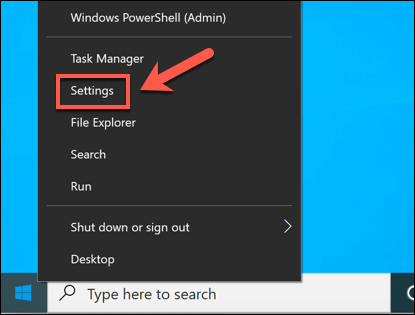
- You may also need to allow Discord access to your microphone in Windows Settings. To do this, right-click the Start menu and select the Settings option.
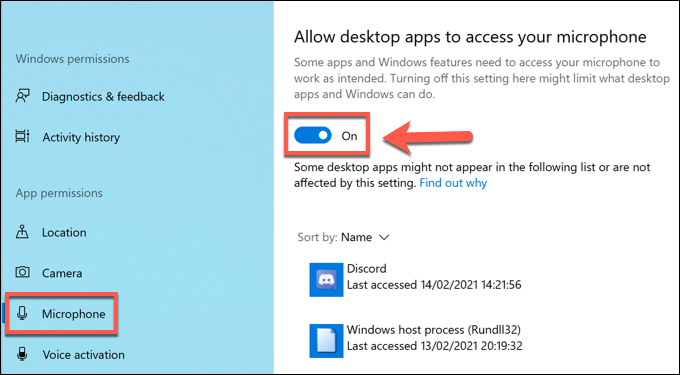
- In the Settings menu, select Privacy > Microphone. Make sure that the Allow apps to access your microphone and Allow desktop apps to access your microphone sliders are enabled. If they aren’t, select both sliders to switch them to the required On position.
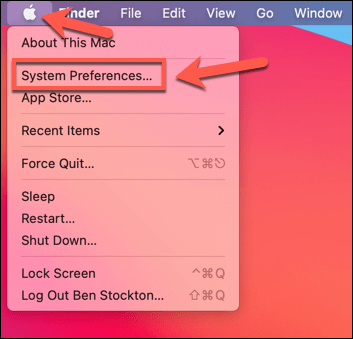
- To grant Mac users access to your microphone, select the Apple menu > System Preferences.
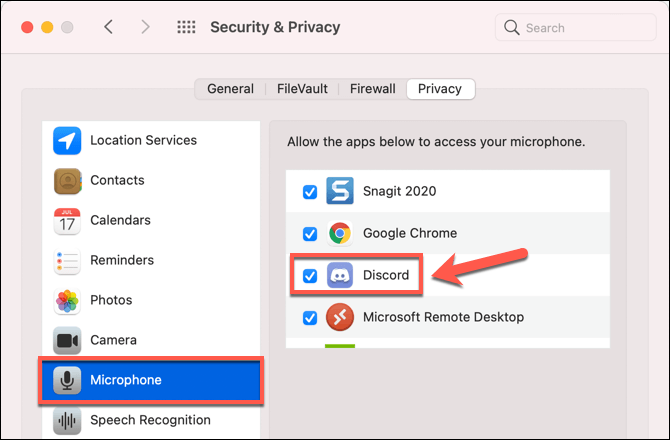
- In the System Preferences menu, select Security & Privacy > Microphone and make sure that the Discord checkbox is enabled. You may need to select the Click the lock to make changes option to unlock these settings first, using your password or TouchID biometrics to authenticate.
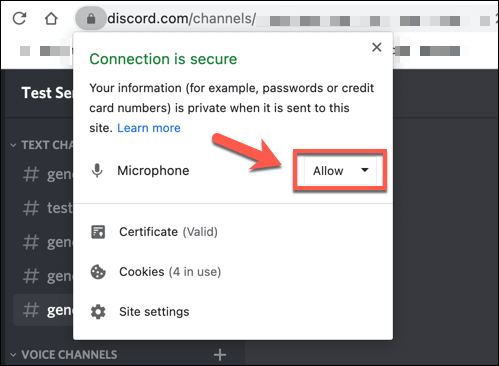
- If you’re using a web browser (such as Chrome) to access the Discord web-based client, you’ll be prompted to grant access when you first make a call. If you aren’t, select the lock icon next to the address bar in Chrome. From the drop-down menu, make sure that the Microphone option is set to Allow.
Switch to Push to Talk Mode
By default, Discord will record and send all mic input to users in a voice channel. Some users, however, have reported that switching to push to talk mode can resolve issues with patchy or broken mic input.
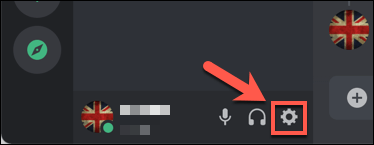
- To do this, open the Discord website or desktop app and select the settings cog icon next to your username.
- In the Settings menu, select the Voice & Video option from the menu. Under Input Mode, select the Push to Talk option. Underneath this, select the Record Keybind option to select a keyboard key to press to enable microphone recording, then press a suitable keyboard key.
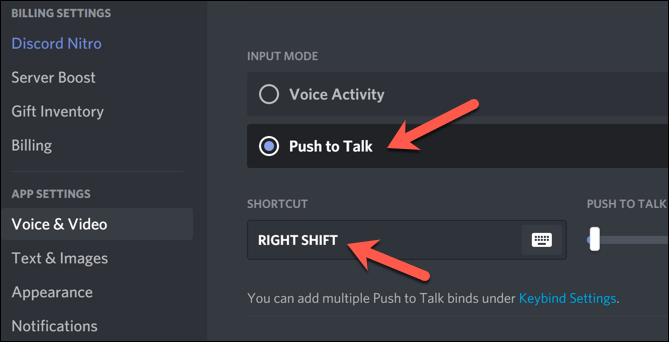
With push to talk enabled, you’ll need to select and hold the key you selected above to allow users to hear you. This should help to resolve certain mic output issues, especially if your mic sensitivity is too high.
Check Microphone Input Volume
If your Discord mic is not working, it’s important to test your microphone to make sure that your system’s microphone input settings are correct. If your mic is muted, has a low volume, or is set to use the wrong input device, your friends might not hear you in a voice or video chat on Discord.
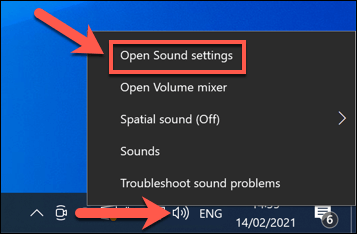
- On Windows, you can check your input settings by right-clicking the Sound icon on the taskbar. From the menu, select the Open sound settings option.
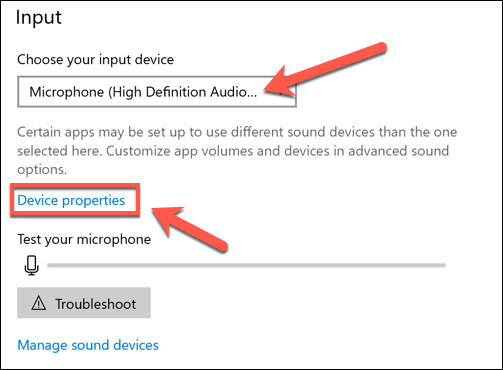
- In the Sound settings menu, make sure that the correct mic is set as the Input device using the drop-down menu. To change volume settings, select the Device properties option.
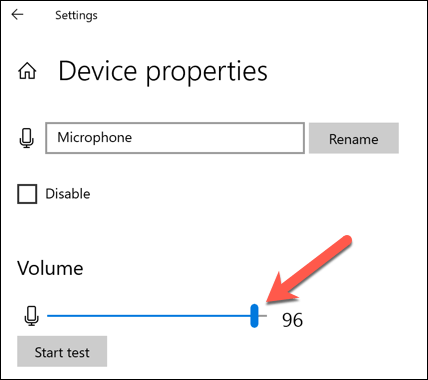
- In the Device Properties menu, make sure to increase the Volume slider to 100%, or to an otherwise suitably high level for others to hear you.
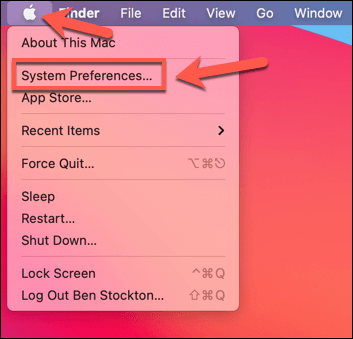
- On Mac, you can do this using the System Preferences menu. Select the Apple menu > System Preferences to open this.
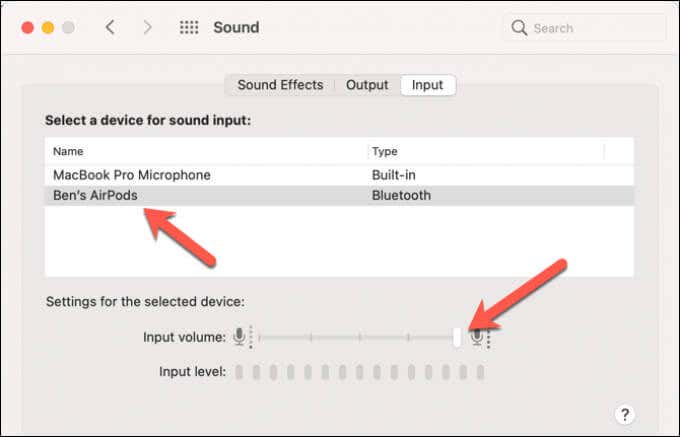
- In the System Preferences menu, select Sound > Input. Make sure the correct microphone is selected, then increase the Input volume slider to a suitably high level for others to hear you.
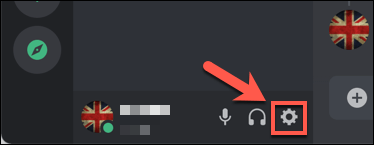
- You can also change the input volume in Discord itself. To do this, select the settings cog icon next to your username in the Discord app or website.
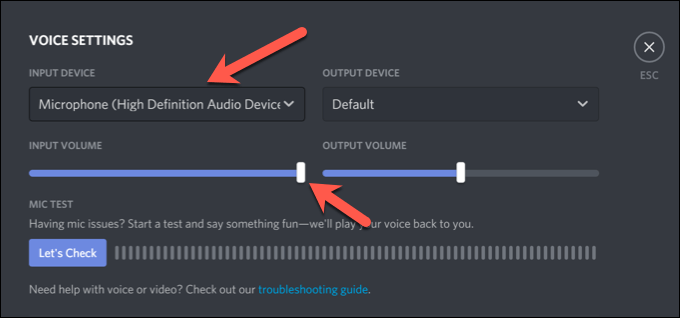
- In the Discord Settings menu, select Voice & Video. Under Voice Settings, make sure the correct microphone device is selected from the Input Device drop-down menu, and increase the Input Volume slider to ensure it’s loud enough for others to hear. You can test this using Discord’s own mic testing facility by selecting the Let’s Check button underneath.
Disable Network Quality of Service Settings on Discord
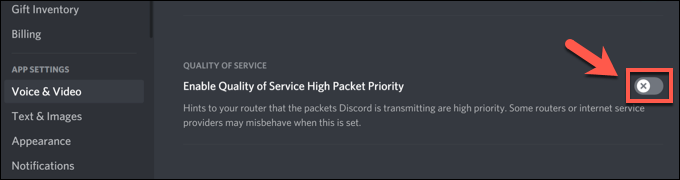
If your Discord mic is working, but it has issues with a bad connection or voice distortions, you may need to disable Discord’s Quality of Service (QoS) settings in the desktop app. Discord uses this to ensure that traffic from Discord is prioritized over your network, but it has been known to cause issues for some users.
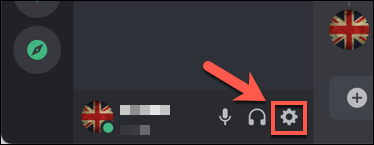
- To disable this, open the Discord app and select the settings cog icon, next to your username in the bottom left.
- In the Discord Settings menu, select Voice & Video, then select the Enable Quality of Service High Packet Priority slider, switching it to the Off position. Once disabled, close and re-open the app.
Reset Discord Voice Settings
If you’ve changed certain settings and caused your Discord mic to stop working, you may need to reset them. You can reset Discord’s voice settings in the app or web client.
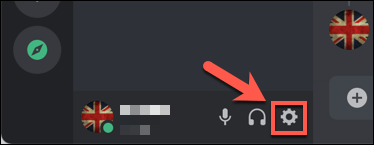
- To do this, open the Discord app or web client and select the settings cog icon in the bottom left corner.
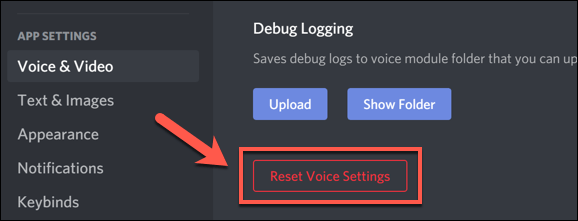
- Under Voice & Video, select the Reset Voice Settings option.
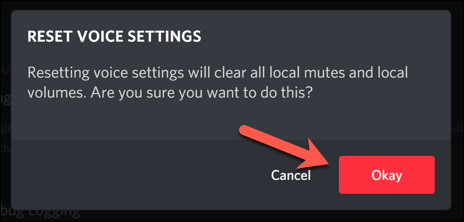
- Discord will ask you to confirm. Select Okay to do this and reset your settings.
Resetting your voice settings will return them to the default configuration. You may need to manually change certain settings (such as your input device and volume levels) at this point to ensure your mic is working correctly.
Consider New Hardware
If your microphone still isn’t working in Discord, it may point to a hardware issue. This is especially true if you discover your microphone isn’t working at all in other apps, including in your operating system’s settings menu.
Switching to new hardware may seem drastic, but if your mic is broken and you can’t fix it locally, this may be your only way to fix the problem. A new microphone can also resolve other issues, such as excess background noise that can leave your voice calls distorted.
A good live streaming microphone makes all the difference when you’re chatting with your friends on Discord and other platforms, especially if you’re currently using a low-quality built-in laptop or webcam microphone for voice communication.
Fixing Discord Issues
The steps above should help you resolve lingering issues with your Discord mic. If it doesn’t work, you may need to think about reinstalling the Discord app or switching to Discord in your browser instead. Of course, if your hardware is the problem, it might be time to upgrade your mic or switch to a new headset instead.
Even if your Discord mic is working, you may need to resolve other issues. For instance, if Discord is stuck on the connecting screen, or if you’re seeing a RTC connecting error, you may need to look at troubleshooting the connection to your internet or local network, especially if packet loss is causing the problem.