

If you use Instagram to keep in touch with friends and family and share funny reels, recipes, or other content, it can be pretty frustrating to discover you can’t reply to Instagram messages. Below, we’ll help answer the question, “Why can’t I reply to messages on Instagram?” as there could be several factors causing the problem. We’ll also talk you through eight fixes to try so you can get back to messaging.
Why Can’t I Reply to Messages on Instagram?
You might have been blocked, you could be logged into the wrong account, or perhaps something else is happening. Here are some fixes to try if you find you can’t reply to messages on Instagram.
1. Check You Haven’t Been Blocked
If you’ve recently disagreed with somebody, chances are they might have blocked you if they no longer want to communicate with you. One surefire way to find out if this is the case is if your messages sent aren’t marked as delivered. Don’t jump to conclusions though — if you’re also unable to tag them in a post, they may have blocked you. If it’s somebody you’re close to, you could always reach out to them via a phone call or message to see if that’s the case.
2. Check Instagram’s Server Status
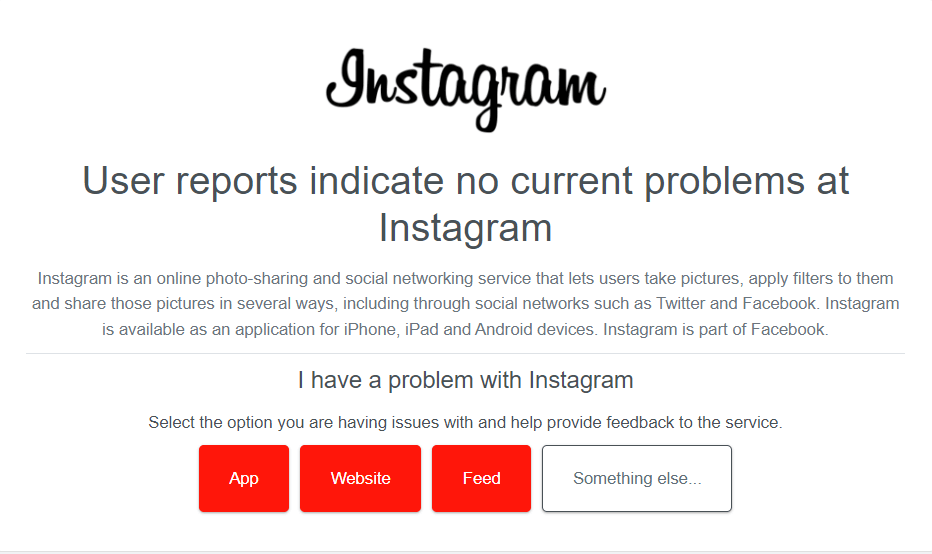
Before assuming somebody has blocked you, make sure that Instagram isn’t at fault. It could be that Meta’s servers are down due to connection problems, maintenance, or bugs. The easiest way to check if Instagram’s servers are down is to use a site like Downdetector.
3. Check You’re Logged Into the Right Account
If you use multiple Instagram accounts and often switch between accounts, make sure you’re logged into the right one! It may sound obvious, but it’s incredibly easy to be logged into the wrong account and try to message somebody who has a private profile, that you don’t follow with your other account.
Related: Learn how to troubleshoot why you can’t post a comment on Instagram and how to turn off Instagram read receipts.
4. Sign Out and in Again
Sometimes Instagram just… glitches, like any other app. If the glitch is related to your account, signing out of your account and back in again might just solve the issue. Plus, you’ll ensure you’re signed into the right account. Here’s how to sign out of your account:
- Tap your profile picture at the bottom right to go to your profile.
- Tap the More Info icon (three stacked lines), then tap Settings and Privacy.
- Scroll down to the bottom and under Login, choose Log Out (Account Name) or Log Out of All Accounts.
- To log back in, just enter your account credentials.

5. Update Instagram
On that note, have you tried updating the app? Perhaps the being unable to reply to messages issue is the result of an app bug. Ensuring you’re running the latest version of Instagram could resolve this. You can update your app manually in the Google Play Store or Apple App Store, though if you’ve got automatic updates turned on, this should happen without you needing to worry about it.
6. Restart Instagram/Clear the Cache
Restarting the app by force-quitting it could help fix the problem, or you could try clearing the app cache, the data stored by the app on your device. On Android devices, you can do this manually, and here’s how:
- Go to Settings > Storage > Apps and select Instagram (on some devices such as Samsung phones, you just need to go to Settings > Apps).
- Tap Storage (or Storage & Cache) > Clear Cache.

Depending on the phone you’re using, these options might vary slightly, but you’ll usually find what you’re after in the App Storage Info section.
7. Restart Your Phone
It might be that the issue isn’t with Instagram but with your phone, particularly if you’ve noticed other apps behaving strangely. Restarting your phone can often help with any issues you’re experiencing, so if you restart it and then open Instagram, you might find you’re now able to reply to messages as usual.
8. Get Some Support
If none of the above fixes are working for you, it’s probably time to reach out to Instagram support, who should hopefully be able to help you resolve the problem. You might find the advice you’re looking for in the Help Center, or you can contact Instagram for help through the app or web version. To report a problem via the app, just follow the below steps:
- Tap your profile picture in the bottom right.
- Then, tap more options (the three stacked lines) in the top right.
- Choose Settings and Privacy.
- Scroll down to More Info and Support, then tap Help.
- Select Report a Problem.
- You can either go back to where the problem occurred and then shake your phone to report the issue, or (and this might be easier), tap Report Problem Without Shaking.
- Follow the on-screen instructions to report your issue to Instagram.

Hopefully, one of these fixes will work to resolve your issue. If all else fails, you can get in touch with Instagram support. They’re sure to get back to you soon and fix the issue, so you won’t be left wondering, “Why can’t I reply to messages on Instagram?”