
Facebook users started reporting that they couldn’t post on Facebook and that posts simply didn’t go through. If you’re one of them, know that there are certain things you could try to fix this issue. It can happen from any device, be it your PC, iPhone, or Android device. This article gives you ten possible fixes to resolve the problem.
Also, check out this troubleshooting guide if you can’t leave comments on your Facebook posts.
Why Can’t I Post on Facebook?
There is no general answer to the question of why can’t you post on the Facebook page because there could be a variety of reasons. However, if you’re trying to post in a Facebook group where you are not an admin or a moderator, you could be temporarily muted or have limited access to the group. You can contact the group admin and clear the issue with them.
That said, here are the other reasons why you’re not able to post on Facebook:
- Your internet connection is bad.
- The Facebook server might be down.
- You’re logged into the wrong Facebook account.
- You’ve broken the Facebook Community standards.
- Browser caching problems.
- You’re having VPN-related issues.
- The Facebook mobile app might have a glitch.
- Using browser extensions that interfere with Facebook.
These are the most common reasons why you can’t post on Facebook. By troubleshooting them, you can quickly fix the issue yourself.
1. Relaunch Facebook
More often than not, you can’t post on Facebook because of the common issues between your web browser and Facebook servers. You could solve these issues by relaunching Facebook and re-logging to your account. The re-established browser and Facebook server connection should clear most bugs.
Here’s how to relog in a web browser:
- Go to the Facebook main page and click on your profile image in the upper right corner of the screen.

- Select Log Out from the drop-down menu.
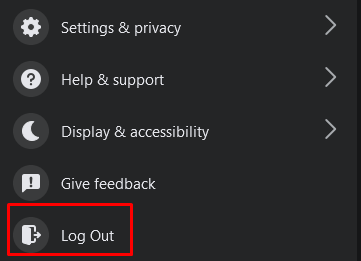
- Close and re-open your web browser and log into Facebook.
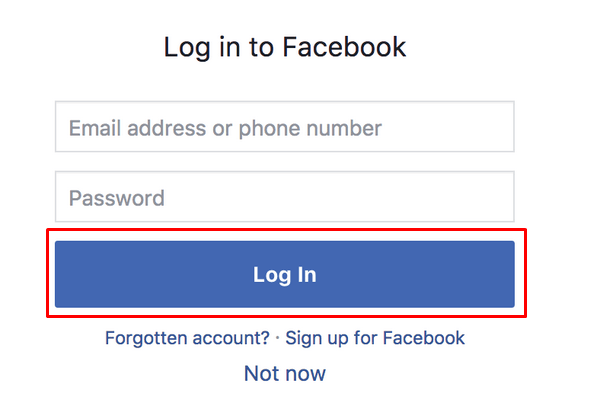
You can try the same steps on your mobile device using a web browser to access Facebook.
2. Check Your Internet Connection
You might have some problems with your router or other internet connectivity devices. So, always check your internet connection. Try resetting your router, and if this doesn’t work, contact your internet service provider.
When experiencing problems with your home network, try accessing your Facebook page using your mobile data. That usually fixes the issue for the time being. Still, you will want to check what’s wrong with your home network.

3. Try Switching Between Wi-Fi and Mobile Internet Connection
Undetected problems with Wi-Fi will also prevent you from posting on Facebook. Try switching between Wi-Fi and mobile data to see any difference. You can also try switching between different Wi-Fi networks and see if this resolves your issue.
4. Check Facebook Server Status
Sometimes the problem might be with the Facebook server. Just like any other server, it can experience issues and go offline. Typically, the Facebook server goes down only temporarily, and no notifications will inform you of this. If this is the case, you should be able to post without problems as soon as it returns online.
You can check the Facebook server status by using the Downdetector website:
- Go to https://downdetector.com/
- Type Facebook in the search bar.
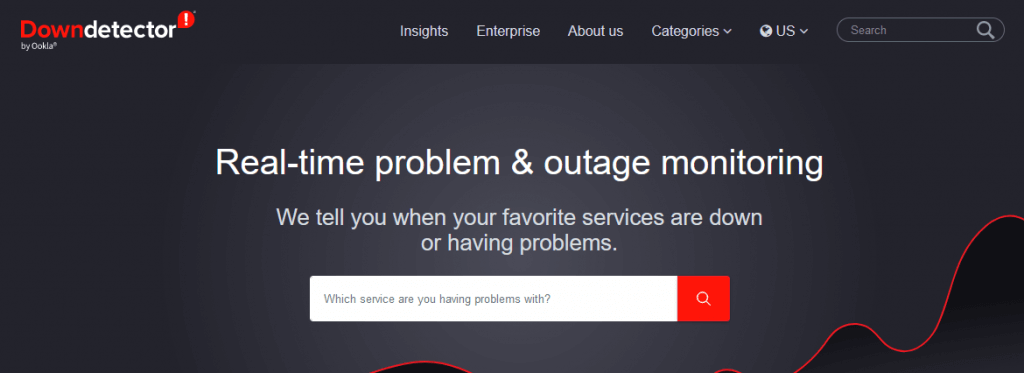
- Because there are different servers for Facebook and Facebook Messenger, you can choose which one you want to check. Select Facebook.
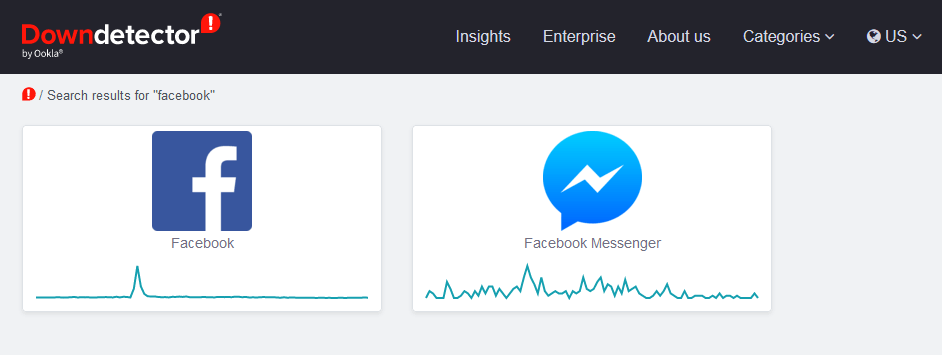
- The next page will display the status of the Facebook server.
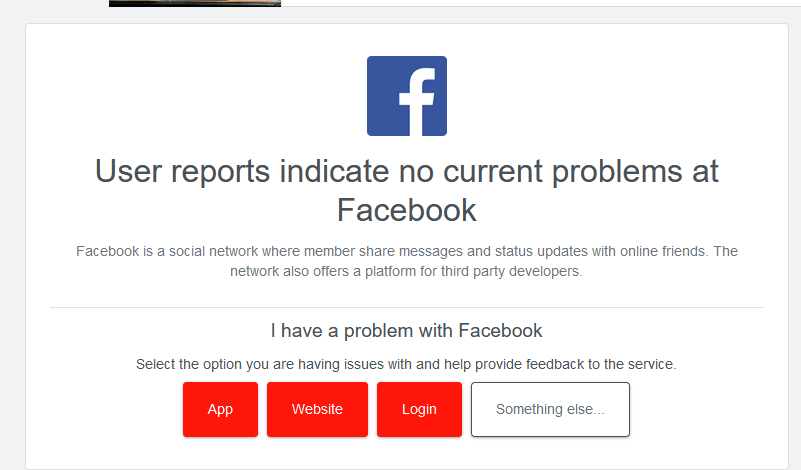
If Downdetector claims there are no problems with the Facebook server at the given moment, continue troubleshooting.
5. Turn Your VPN On or Off
Sometimes, a VPN can interfere with your ability to post on Facebook due to glitchy connection routing. Try turning it off and see if this fixes the issue.

Sometimes, you’ll need to run a VPN to post on Facebook. This can happen if you find yourself in a country where Facebook is banned. If you’re in this situation and still can’t post even though you’re running a VPN, consider switching to a different one.
6. Update the Facebook App
If you can’t post on Facebook from your mobile device, consider updating the Facebook app with the latest version. Outdated apps can create lots of problems.
It doesn’t matter if you’re an iOS or Android user; updating the app is very simple:
- Go to the Google Play store (Android) or the App Store (iOS).
- Type Facebook in the search bar.
- If your app is outdated, you can see an Update button. Tap it, and the update will start automatically.
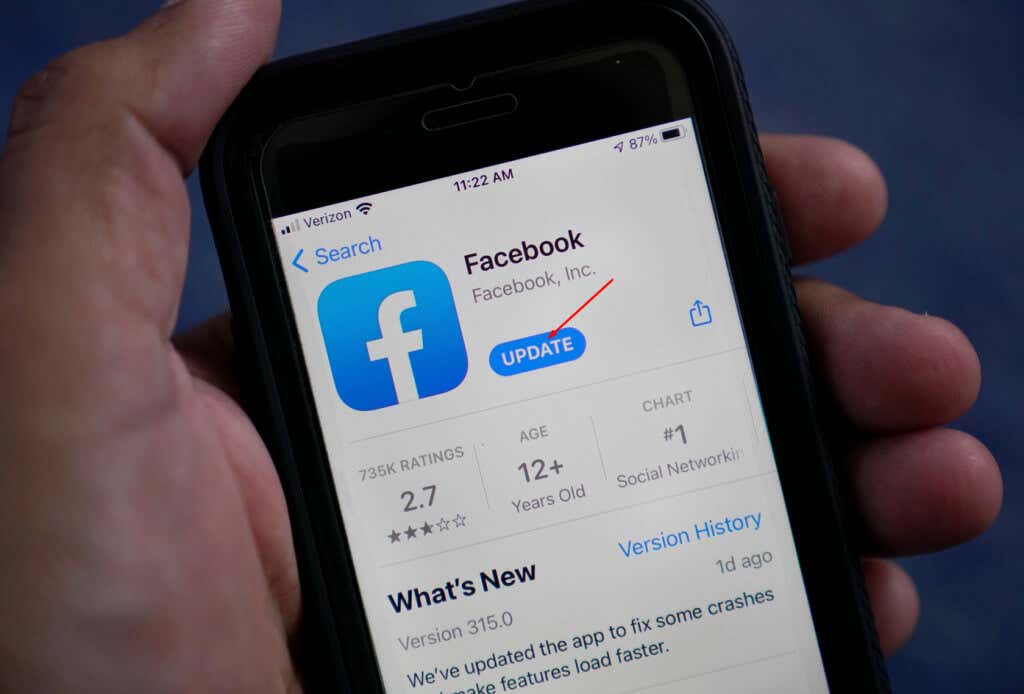
When the update is finished, go to the app and see if you can post now.
7. Reinstall the Facebook App
Sometimes, updating a Facebook app is impossible due to corrupted files or other bugs. You’ll have to reinstall it. To do this:
- Find the Facebook app on your mobile phone and uninstall it. This step will be different depending on the model of your phone.
- Go to Google Play or App Store and type Facebook in the search bar.
- Tap the Install button (Google Play), and the app will be installed automatically. Instead of Install, you’ll have the Get button in the App Store.
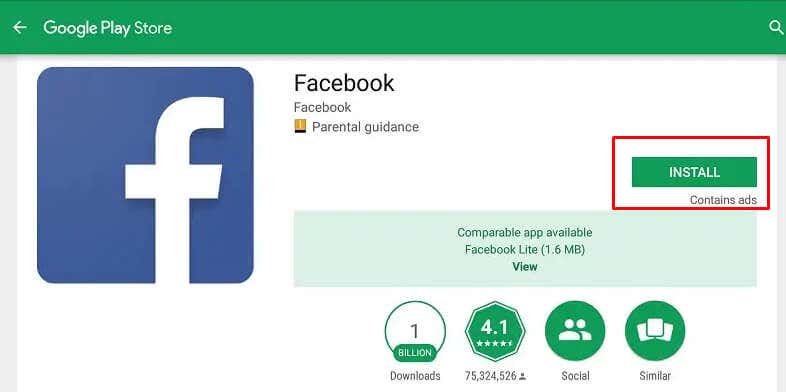
After re-installing the app, try posting something and see if your issue is solved.
8. Try Another Browser
If you suspect your browser is not working properly, try another browser. So if you’re a Chrome user, try Firefox instead. This is the best step to take before trying the next two options. You don’t want to go through the hassle of deleting your browsing data and extensions if it is unnecessary.
9. Delete Browsing Data and Cookies
All browsers store temporary data on your system. This is how they remember websites you visit often and can open them virtually in no time the next time you visit them.
But this data can easily get corrupted and mess with posting on Facebook. If you receive an error message saying, “You can’t post on Facebook,” it could be that one of the browser data files is causing the issue, and you should clear your cache files and cookies.
Don’t worry; websites will still work without issues if you delete these files. The browser will create new temporary files.
Here’s how to delete browsing data and cookies from Google Chrome, Mozilla Firefox, and Microsoft Edge:
Clear Data on Google Chrome
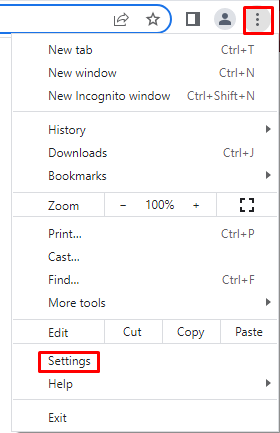
- Open Chrome and go to the three dots menu in the upper right corner. Select Settings from the drop-down menu.
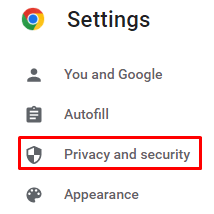
- On the next page select Privacy & Security from the left panel.
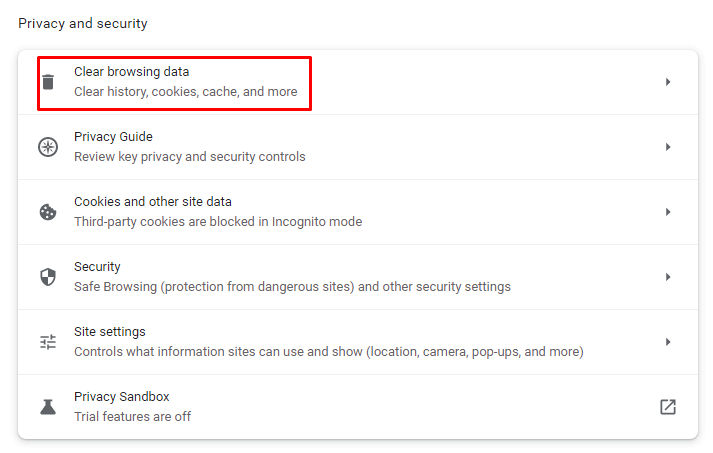
- In the right panel, go to Clear browsing data.
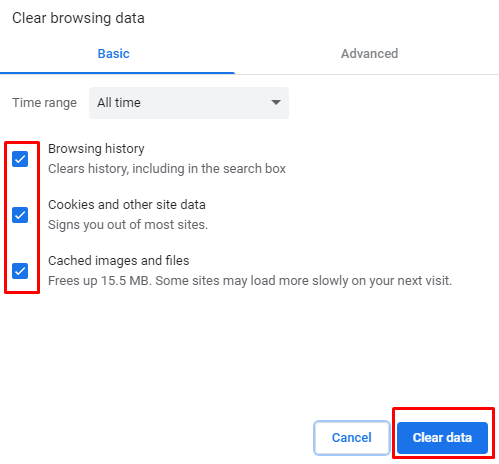
- When a pop-up window opens, select all the content you want to remove and confirm by clicking the Clear data button.
Clear Data on Mozilla Firefox
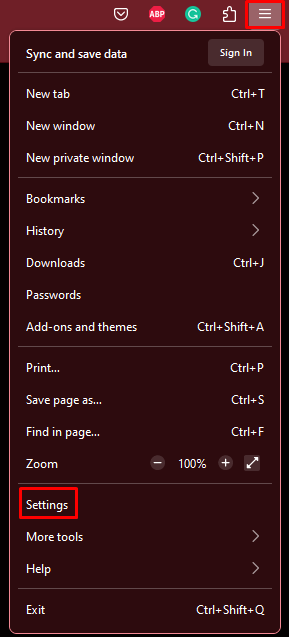
- Open Firefox and go to the hamburger menu in the top right corner. Select Settings from the drop-down menu.
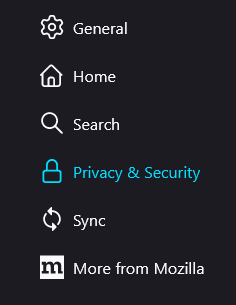
- On the left panel, select Privacy & Security.
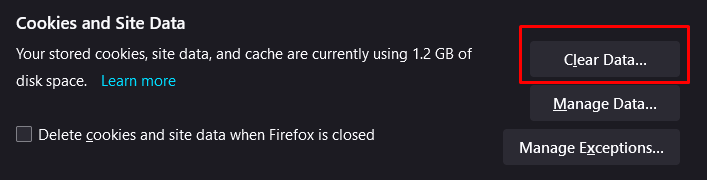
- Scroll down until you reach the Cookies and Site Data section. Click the Clear Data button.
Clear Data on Microsoft Edge
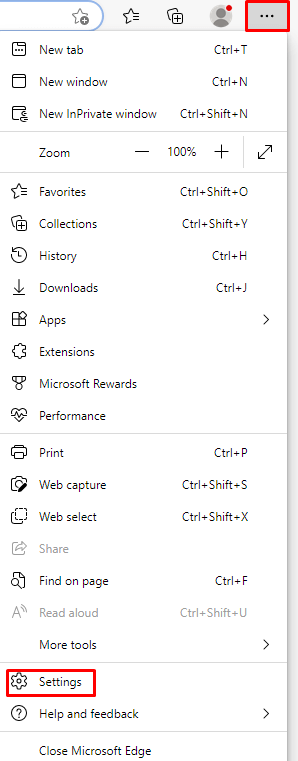
- Open the Microsoft Edge browser. Go to the three-dot menu in the upper-right corner and select Settings from the drop-down menu.
- From the left panel select Privacy, Search, and Services.
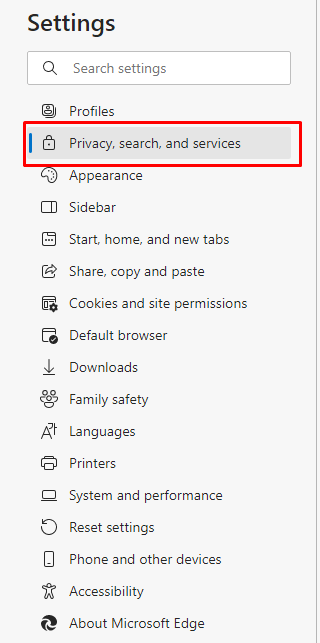
- On the right panel, scroll to Clear Browsing Data. Select Choose what to clear button.
- When a pop-up window opens, click on the Time range drop-down menu, and select All time.
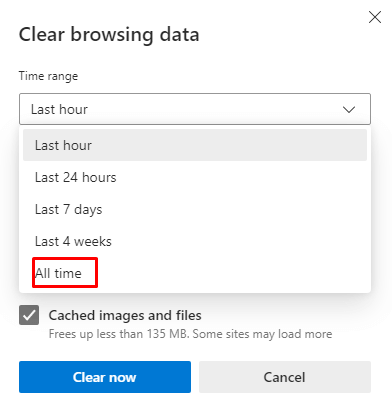
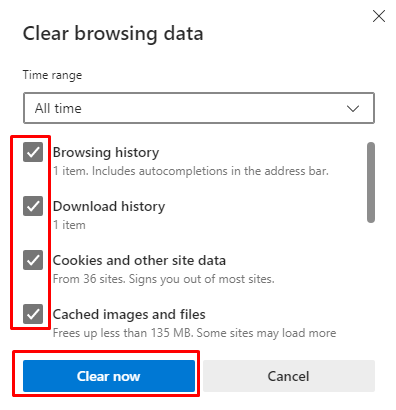
- Select Browsing history, Download history, Cookies and other site data, and Cached images and files to clear. Then click on the Clear now button to execute.
10. Remove Browser Extensions
Various browser extensions make our search engines more personalized and enjoyable. But sometimes, these extensions can interact with some of the websites unpredictably.
Disabling or removing the extensions from your web browser should fix your problems with Facebook. Let’s see how to do it on three already mentioned browsers.
Clear Browser Extensions on Google Chrome
- Open the browser and go to the three dots menu. Select More Tools. Then Extensions.
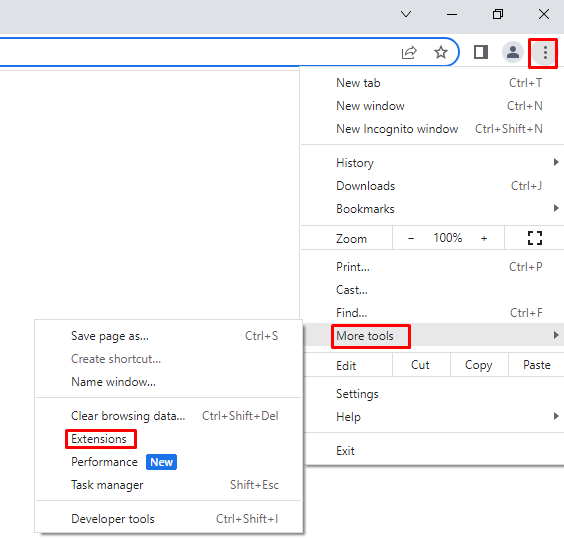
- A new window will open, displaying all the extensions you installed. To disable extensions, simply toggle it off. To remove it, select Remove.
Clear Browser Extensions on Mozilla Firefox
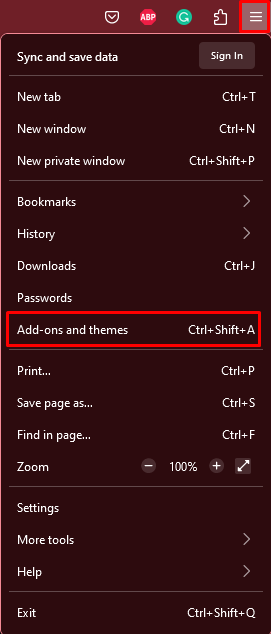
- Open the browser and go to a hamburger menu. Select Addon and Themes from the drop-down menu.
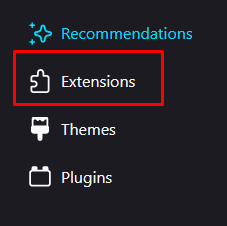
- From the left panel select Extensions.
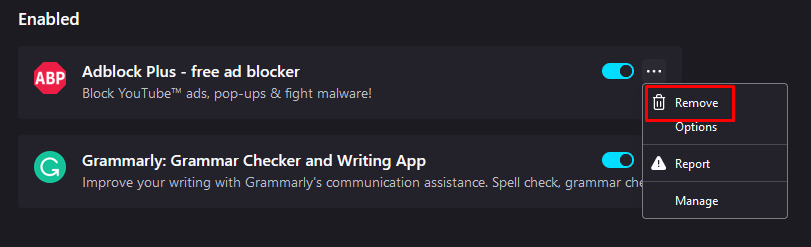
- To disable them, toggle the extension off. To remove them click the three dots next to the toggle switch, and select Remove.
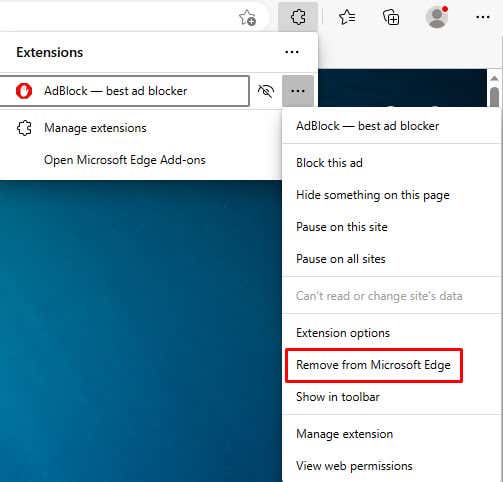
Clear Browser Extensions on Microsoft Edge
- Open the Edge browser and go to the three dots menu. Select Extensions.
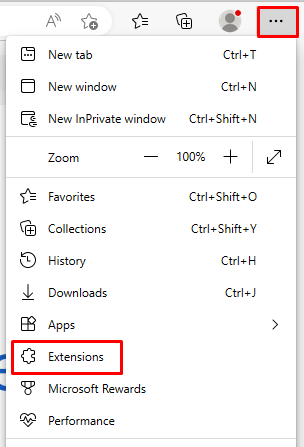
- A pop-up window will open listing all the installed extensions. Here you can deactivate them, or click on the three dots and select Remove from Microsoft Edge.
With some troubleshooting and experimentation, you should be able to resolve most Facebook posting problems quickly and without too much effort. Remember that the key to solving most technical issues is usually trial and error.