

Are you trying to post a comment, but Instagram doesn’t let you do that? There are various reasons this issue occurs, from your app being outdated to your comment going against the platform’s guidelines. We’ll show you how to fix those and a few other items to resolve your problem and post your comment successfully. Let’s get started.
Check Your Phone’s Internet Connection
When you can’t post a comment, check and ensure your phone’s internet connection is working. Instagram requires an active internet connection to allow users to add comments.
You can check your phone’s internet connection status by opening a web browser and launching a site. If your site doesn’t open, your connection is faulty. In this case, toggle off and back on your cellular data, disconnect and reconnect to your Wi-Fi network, or restart your router. If your issue isn’t fixed, reach out to your internet service provider.
Check if Instagram Is Down
After checking your internet connection, ensure Instagram isn’t down. The platform’s servers being down can cause your comment not to go live.
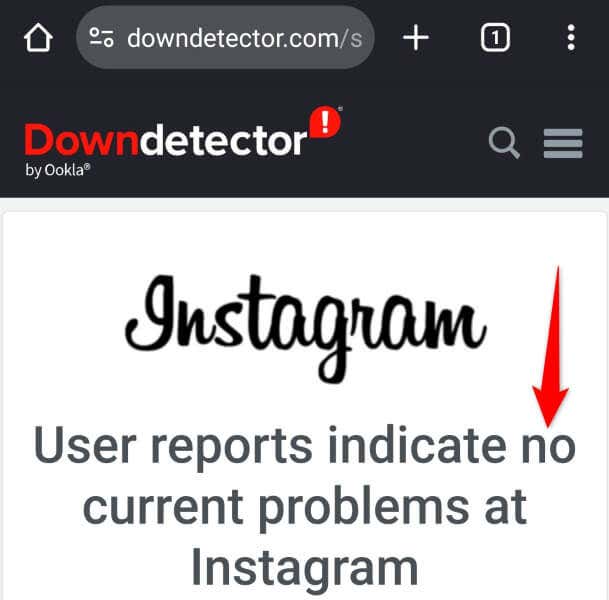
You can check if the platform is down by visiting the Instagram page on Downdetector. This site tells you if an online service is facing an outage. If you find that Instagram is down, wait until the company fixes the issue and brings the service back up.
Update the Instagram App on Your Android or Apple iPhone (iOS)
Instagram recommends updating the app version if you can’t add a comment on the platform. This is because the app’s bugs might be preventing your action, which a newer version of Instagram can fix.
On Android
- Launch Google Play Store on your phone.
- Find Instagram.
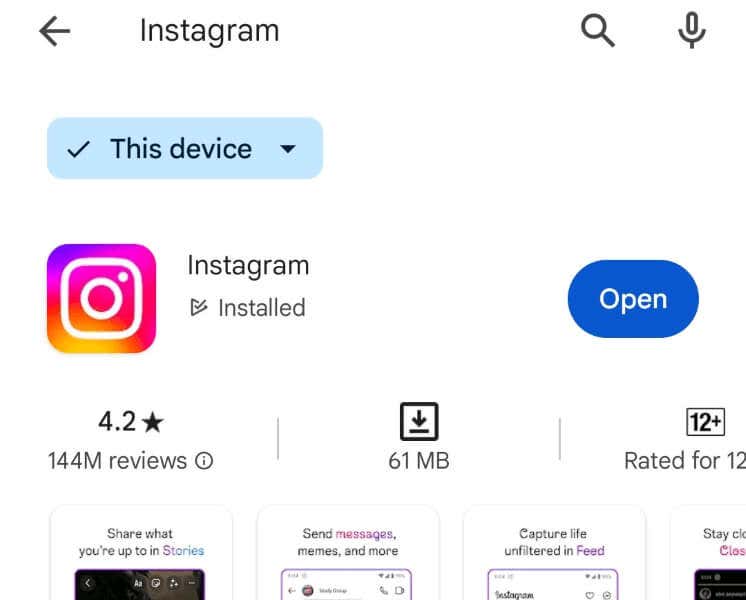
- Tap Update next to Instagram to update the app to the latest version.
On iPhone
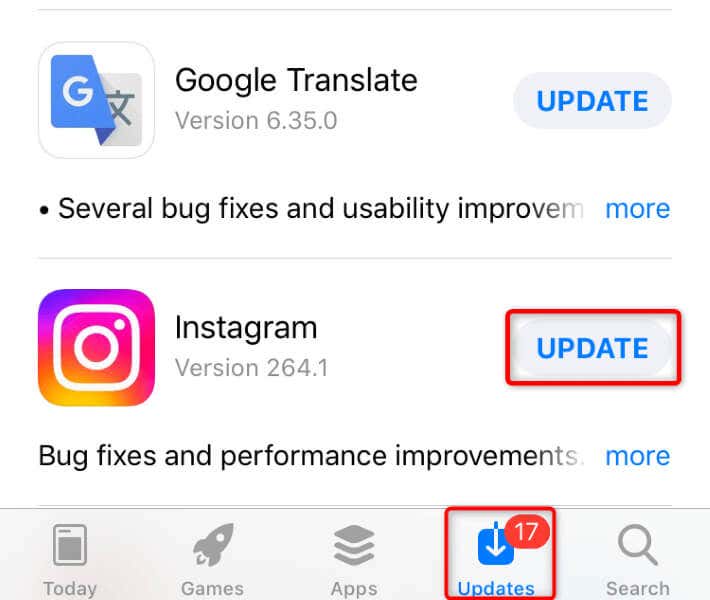
- Open the App Store on your phone.
- Tap Updates in the bottom bar.
- Find Instagram on the app list and choose Update next to the app.
Make Sure Your Comment Adheres to Instagram’s Community Guidelines
Instagram has specific community guidelines that each comment must follow. If your comment goes against these rules, the platform will prevent you from adding that comment.
The guidelines say that your comment must not have more than five mentions. The comment must not contain more than 30 hashtags. You can’t post the same comment multiple times (including emoji). In addition, your comment must not contain words blocked by the platform.
You can tweak your comment if it doesn’t meet the guidelines to fix your posting issues.
Clear Instagram’s Cache on Your Android Device
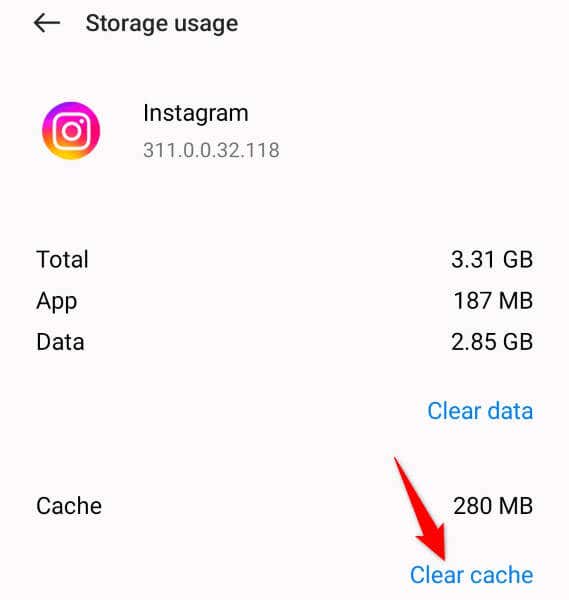
Instagram’s cache files allow the app to improve your experience by preloading certain content. It’s possible this cache has become corrupted, causing you to be unable to post comments. In this case, clear the app cache to resolve your issue. Note that you don’t lose your account data when you do this.
You can only clear an app’s cache on Android; the iPhone doesn’t allow you to do that.
- Tap and hold on Instagram in your app drawer or home screen and choose App info to open the app settings.
- Select Storage usage on the following screen.
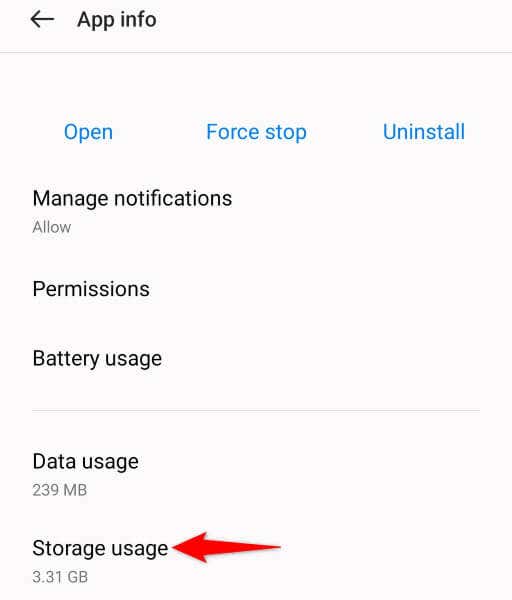
- Choose Clear cache to delete the app’s cached content.
- Relaunch the app on your phone.
Log Out and Back Into Your Instagram Account
If your issue is unresolved, sign out and back into your account in the app to fix your issue. This is because the Instagram app might have a login-session problem, which you can resolve by signing out and back in.
Keep your Instagram logins handy, as you’ll need those credentials to log back into your account.
- Launch Instagram on your phone.
- Select your profile icon in the bottom bar.
- Choose the three horizontal lines in the top-right corner.
- Scroll to the bottom and select Log out [Username].
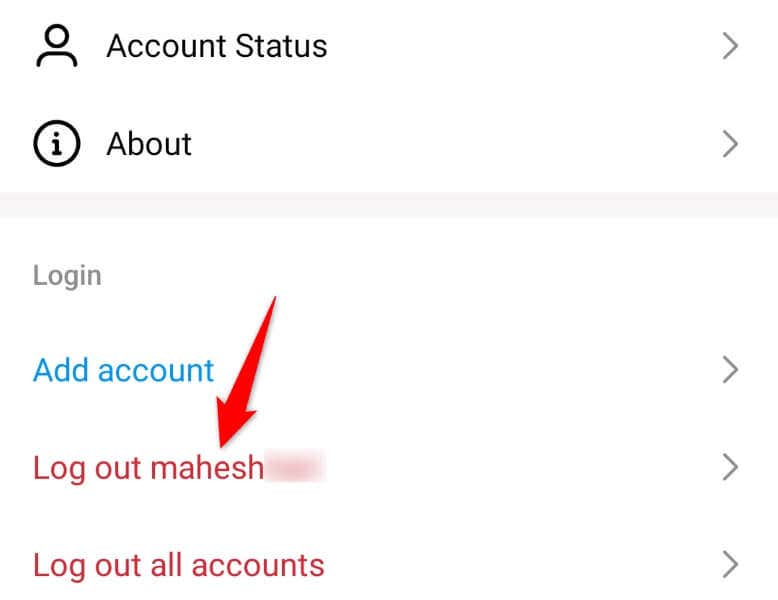
- Sign back into your account.
Fix Instagram Comment Issue by Using a VPN
One reason Instagram restricts your comment is that the platform has banned your IP address. This usually happens when the platform detects malicious activity from your IP. To verify this, toggle your phone’s VPN on or off.
If you’re already using a VPN, your VPN’s IP might be banned. In this case, turn off your VPN service and see if you can post your comment.
If you aren’t using a VPN, get a VPN app and turn on the service. Then, see if Instagram allows you to add your comment. Enabling a VPN service hides your IP address from Instagram, lifting the platform’s restrictions on your IP, if any.
Note that Instagram doesn’t keep an IP address blocked forever. So, if your IP is banned, the platform should unblock it in a few days.
Remove and Reinstall Instagram on Your Phone
If Instagram still doesn’t let you post a comment, your app itself might be faulty. In this case, remove and reinstall the app to resolve your issue. Uninstalling the app deletes all the app files, some of which might be faulty and causing your problem.
Note that you don’t lose your account data when you remove the app. The app syncs back your data when you sign into the app.
On Android
- Tap and hold on Instagram in your phone’s app drawer.
- Select Uninstall in the menu.
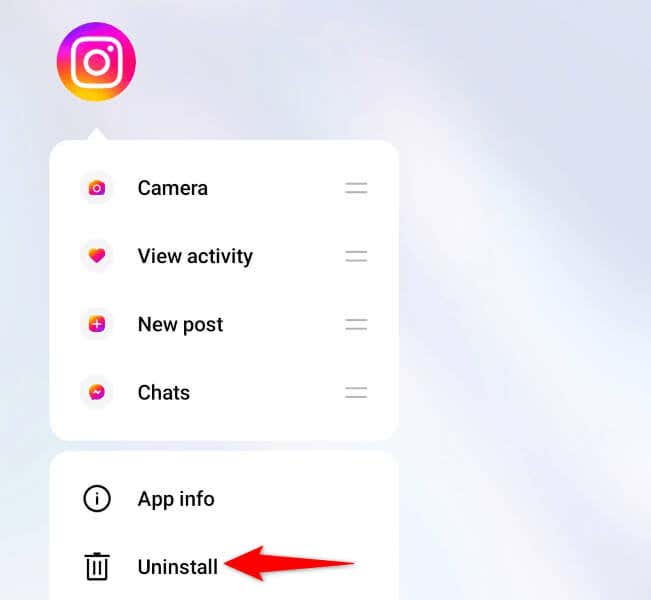
- Choose Uninstall in the prompt.
- Open Google Play Store, find Instagram, and tap Install.
On iPhone
- Tap and hold on Instagram in your app drawer.
- Select Remove App > Delete App in the menu.
- Launch the App Store, find Instagram, and tap the download icon.
Wait for 48 Hours Before Trying to Post a Comment
If the above methods fail to fix your issue, Instagram might have restricted your account. In this case, you have no option but to wait about 48 hours until the company lifts the restrictions from your account.
There are various reasons Instagram restricts an account. You might have posted content that Instagram deems spammy, resulting in a temporary ban.
Troubleshooting Instagram’s Comment Issue
Not being able to post comments means not being able to share your thoughts about specific posts on the platform. If Instagram restricts your comments and you don’t know why, the guide above lists the possible reasons and offers ways to get around the problem.
Once you’ve followed the methods in the guide, your issue should be resolved. You can then post your comments without problems on this social media network.