

Does YouTube default to 360p quality for your videos? At 360p, YouTube videos can appear blurry. Some reasons why YouTube chooses to play your videos in 360p are that your internet connection is slow, you have yet to set the default video quality, your web browser settings are incorrect, and more.
Check if Your Internet Connection Is Slow
The most common reason YouTube plays your videos in 360p is that your internet connection is slow. Your connection speed isn’t fast enough to play videos in higher quality, which forces the platform to choose a lower quality for your video playbacks.
In this case, check if your internet connection is fast enough using a site like Fast or Speedtest. These sites will check your connection’s speed and let you know the current speed.
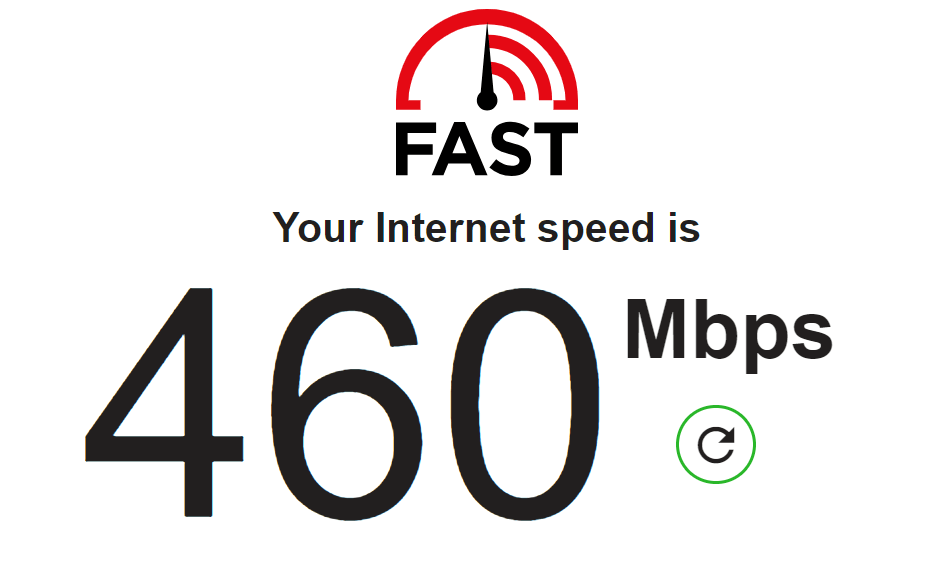
If your connection is slow, contact your internet service provider (ISP) to upgrade to a higher-speed plan.
Manually Change Your YouTube Video’s Playback Quality
If YouTube doesn’t automatically enhance your video quality, manually choose the high-quality option for your video playbacks. You can do this on YouTube’s desktop site as well as YouTube’s app for iPhone, iPad, and Android.
Changing YouTube Playback Quality On Desktop
- Open your preferred web browser and access YouTube.com.
- Start playing your video on the site.
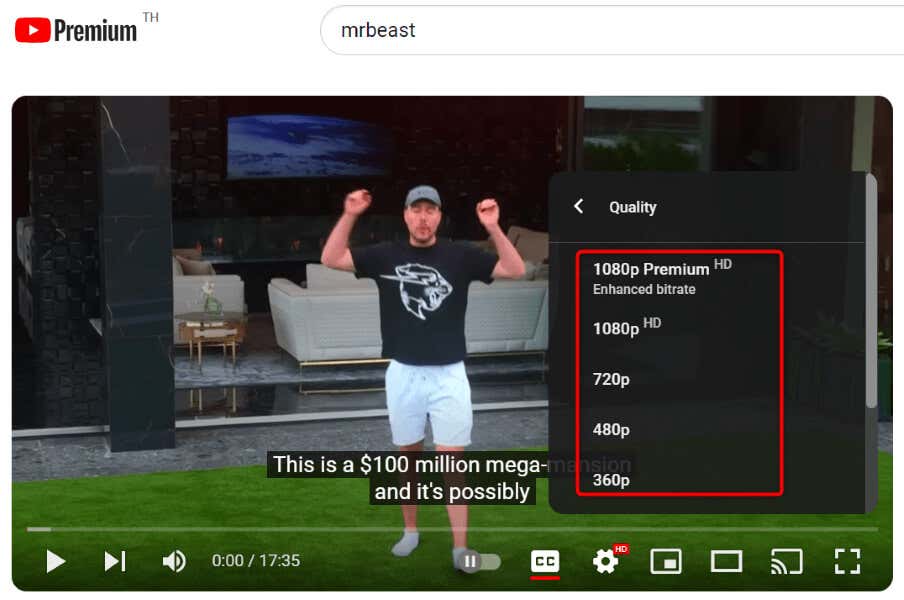
- Select Settings (a gear icon) in the video player’s bottom bar.
- Select Quality and choose your preferred quality.
Changing YouTube Playback Quality On Mobile
- Open the YouTube app on your iPhone, iPad, or Android phone.
- Play a video.
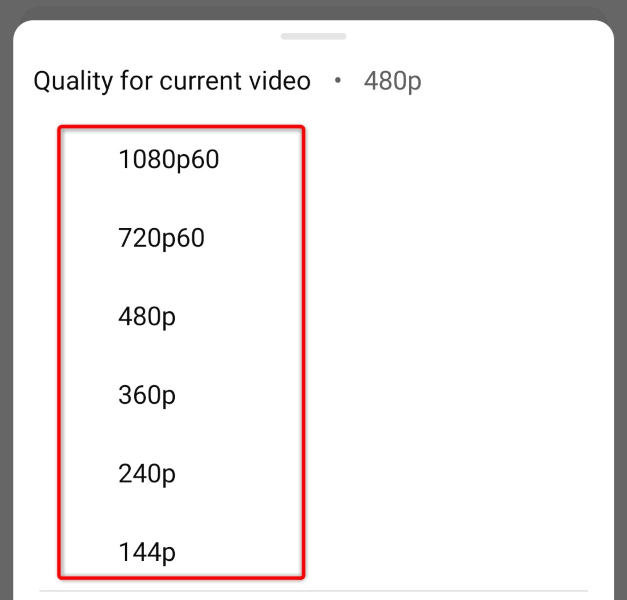
- Select Settings (a gear icon) in the video player’s top-right corner.
- Choose Quality in the menu.
- Select Advanced and choose your preferred video quality.
Set the Default Video Quality in YouTube for Android, iPhone, and iPad
Unlike YouTube’s desktop site, you can set the default video quality in the platform’s app on your iPhone, iPad, or Android device. This means you can fix your YouTube reverting to 360p quality issue by choosing your preferred video resolution in the app.
Note that YouTube will use your chosen video quality for all future video playbacks in the YouTube app on your phone.
- Launch the YouTube app on your phone.
- Select You in the app’s bottom bar.
- Tap Settings (a gear icon) in the top-right corner.
- Select Video quality preferences in the menu.
- Choose Higher picture quality in both Video Quality on Mobile Networks and Video Quality on Wi-Fi sections.
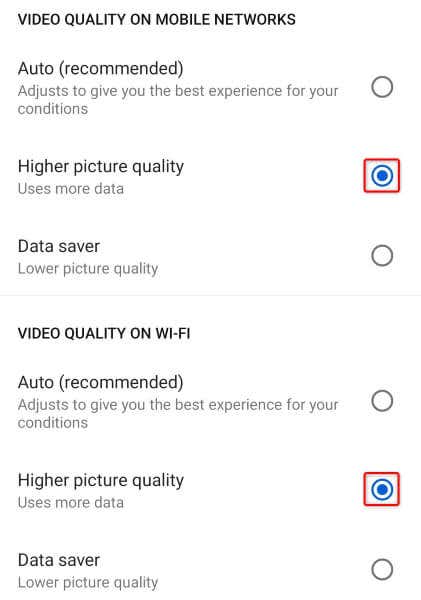
Note that YouTube will use relatively more internet data when you choose to play your videos in high quality. You might want to keep an eye on your data usage if you have a limited data plan.
Clear YouTube’s Cache on Your Android Phone
If YouTube continues to bring your videos to 360p quality, it’s possible the app’s cached files are corrupted. When such corruption happens, your app can cause various random problems.
Luckily, you can fix your app’s bad cache by wiping off the cache on your phone. This doesn’t delete your data in the app and allows you to fix many issues with your app.
Note that you can only clear an app’s cache on Android. The iPhone and iPad don’t allow you to remove an installed app’s cached data.
- Tap and hold on YouTube on your home screen or in your app drawer.
- Select App info in the menu.
- Choose Storage usage on the following screen.
- Select Clear cache to delete your app’s cached data.
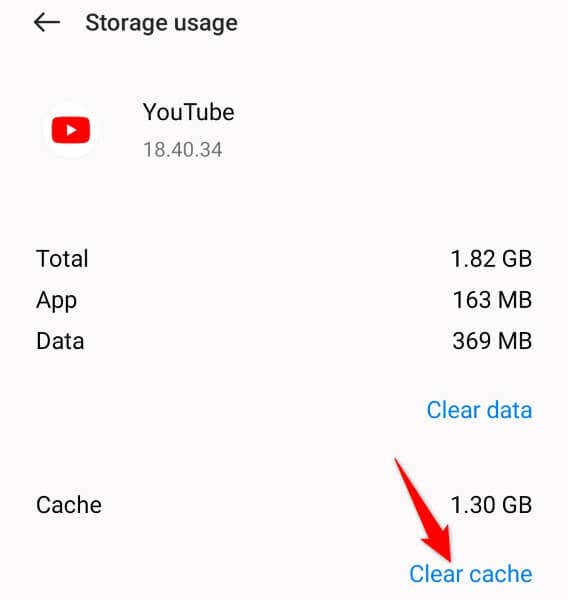
- Launch your YouTube app and play your videos.
Uninstall and Reinstall YouTube on Your iPhone or iPad
If you’re using YouTube on an iPhone or iPad, and the app continues to play your videos in 360p quality, remove and reinstall the app to see if that fixes your issue. This is because your app’s core files might be corrupted, causing the problem.
- Find YouTube on your device’s home screen.
- Tap and hold on the app and select Remove App > Delete App.
- Reinstall the app by opening App Store, finding YouTube, and selecting the download icon.
Reset Your Desktop Web Browser’s Settings
One reason YouTube defaults to 360p video quality on desktop is that your web browser’s settings are configured incorrectly. You or someone else may have tweaked your browser settings incorrectly, causing the problem.
In this case, reset your browser settings, and your issue should be resolved.
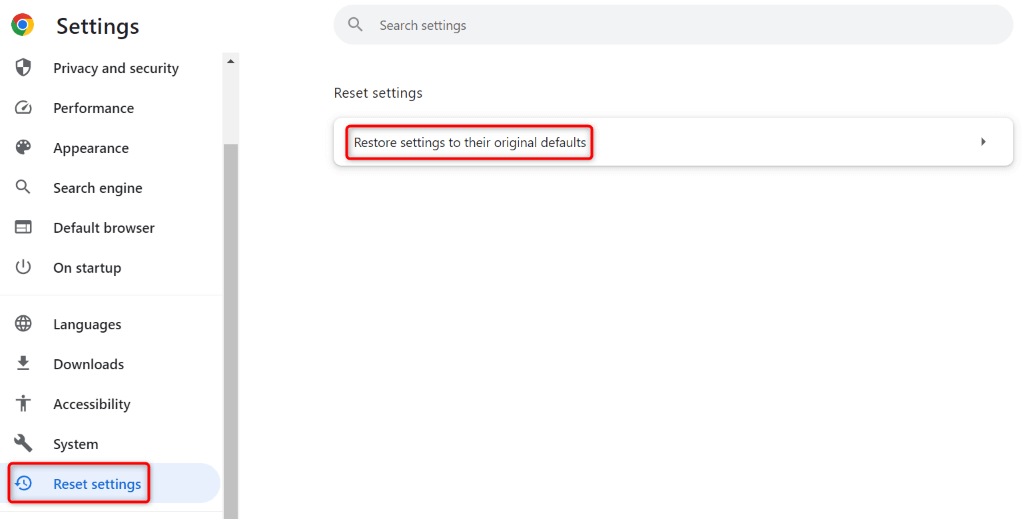
You can reset Google Chrome by opening the browser, selecting the three dots in the top-right corner, choosing Settings, selecting Reset settings in the left sidebar, choosing Restore settings to their original defaults on the right, and selecting Reset settings.
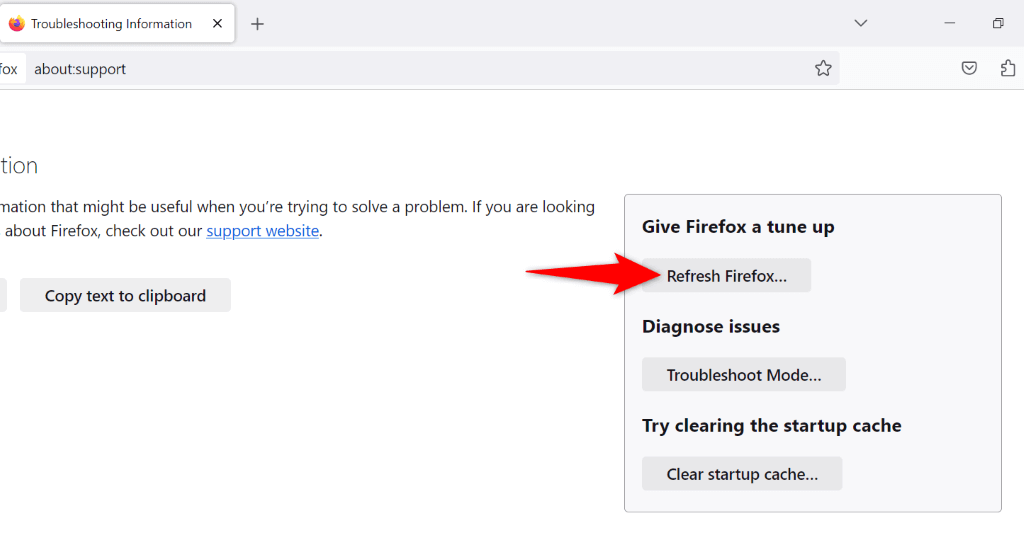
To reset Mozilla Firefox, open the browser, select the three horizontal lines in the top-right corner, choose Help > More troubleshooting information, select Refresh Firefox, and choose Refresh Firefox in the prompt.
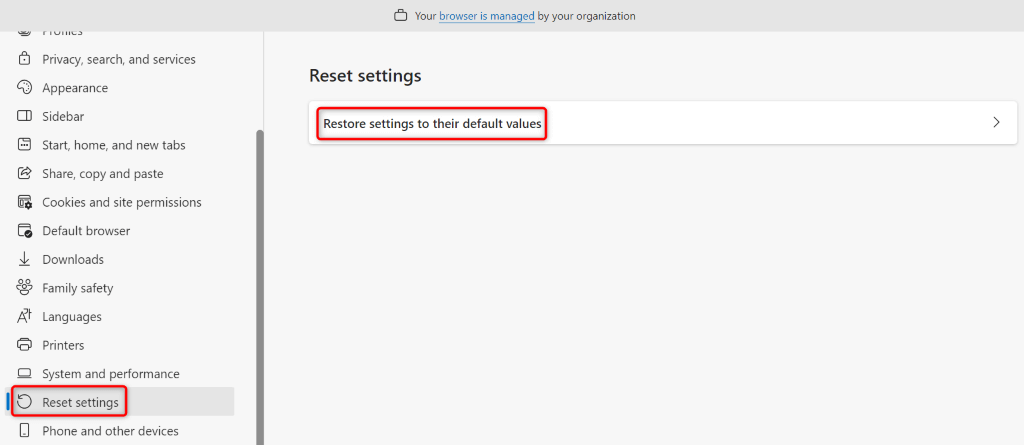
You can bring Microsoft Edge’s settings to the defaults by launching the browser, selecting the three dots in the top-right corner, choosing Settings, selecting Reset settings in the left sidebar, choosing Restore settings to their default values, and selecting Reset.
Close and relaunch your web browser when you’ve reset the settings, then launch YouTube.com and see what quality your videos play in.
Force YouTube to Use Your Specified Video Quality Using a Web Browser Extension
If your issue still isn’t resolved in your desktop web browser, you can utilize a browser extension to force YouTube to use your specified resolution for your videos. This prevents the site from switching to 360p for your video playbacks.
If you’re a Google Chrome or Microsoft Edge user, you can get the Auto HD/4k/8k for YouTube – YouTube Auto HD extension. Mozilla Firefox users can achieve the same in their web browser using the YouTube High Definition add-on.
Once you’ve installed an extension, configure that extension and choose your preferred video quality. Then, YouTube will play all your videos in your chosen resolution.
Prevent YouTube From Switching to 360p Quality for Your Videos
Gone are the days when 360p was considered a good resolution for videos. If YouTube keeps reverting to that quality, use the methods described above, and your issue will be resolved. YouTube will then play your videos in your chosen quality, allowing you to enjoy your watching sessions.