
Skip to content
ONLINE 101010 TECH 010101 TIPS
  • News
  • How-To
  • Social
  • Streaming
  • Gaming
  • Reviews
  • News
  • How-To
  • Social
  • Streaming
  • Gaming
  • Reviews
  1. Home/
  2. Social Media/
  3. How to React to Instagram Messages (Mobile and Web)

How to React to Instagram Messages (Mobile and Web)

Marshall Gunnell
October 16, 2023
3 min read
 - Woman hand holding iPhone X with social networking service Instagram

Instagram took its direct messaging system to a more visual level with its reactions feature. Instead of typing out your feelings in a response to a direct message, you can just “react” with an emoji.

You can take advantage of direct message reactions on both Instagram for the web and mobile application. Here’s how to enhance your direct messaging experience.

What Are Reactions on Instagram?

Instagram reactions are a set of emotive responses that users can send in response to direct messages. Unlike the standard “like” on social media, reactions let you respond with specific emotions.

This is a simplified way to respond without having to type out a full response. For example, instead of responding to a message with “That’s hilarious!”, you could just react to it with a laughing emoji. Or, instead of “OMG! You two look adorable!”, you could simply react with a heart eyes emoji.

How to React to Instagram Messages on iOS or Android

The majority of users use Instagram on the mobile app, and reacting to direct messages is a big part of that experience. Here’s how it’s done.

  1. In the Instagram app on your iOS or Android device and go to the direct message that you’d like to react to.
  2. You can double-tap the message to “quick react” to it. If you want to choose a different emoji, tap and hold the message. A line of emojis will appear. Tap the one you want to use as your reaction.
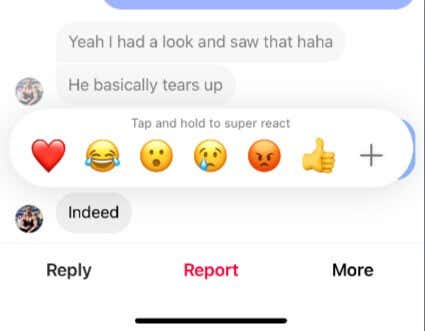
How to React to Instagram Messages on iOS or Android image
  1. If you can’t find the emoji you want to use here, tap the + icon to display all available emojis.
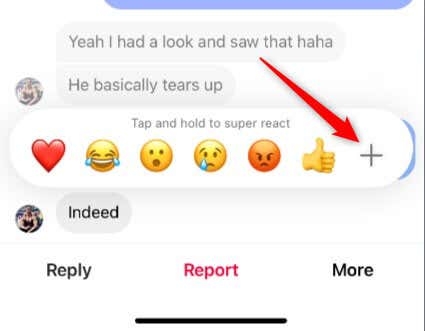
How to React to Instagram Messages on iOS or Android image 2
  1. From this menu, tap the emoji you would like to use
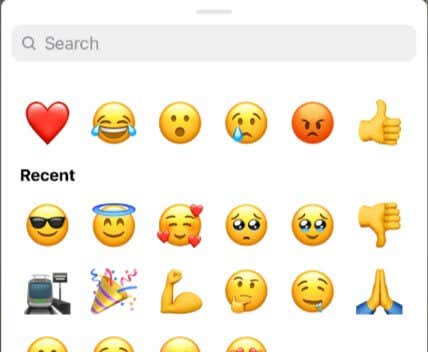
How to React to Instagram Messages on iOS or Android image 3
  1. You can also “super react” by tapping and holding the emoji.

How to React to Instagram Messages on iOS or Android image 4

Once you react to the message, the recipient of the reaction will be notified if they have notifications enabled. If they don’t, they’ll see the reaction next time they look at the message.

How to React to Instagram Messages on the Web

It’s less common to use Instagram on a desktop browser, so certain features like quick react and super react aren’t available on Instagram’s web version. However, you can still react to direct messages.

  1. Go to the official Instagram website on your web browser and go to the direct message that you’d like to react to.
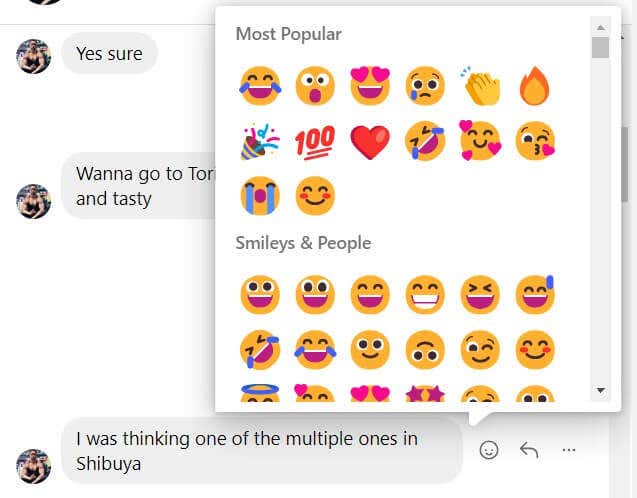
  2. Hover your cursor over the message you want to react to and click the reaction icon.
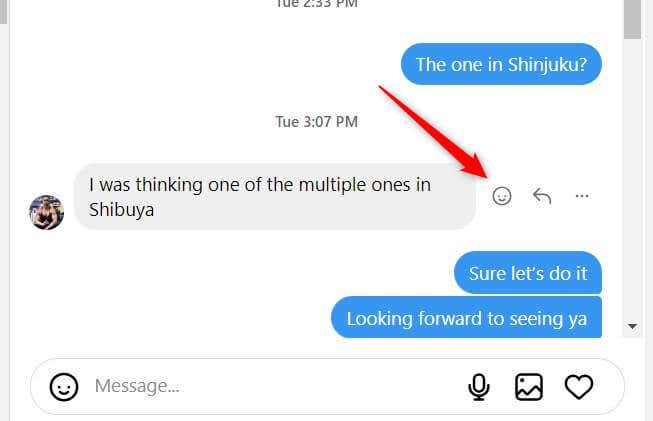
How to React to Instagram Messages on the Web image
  1. A list of all available emojis will appear. Click the emoji you want to use as a reaction.
How to React to Instagram Messages on the Web image 2

The recipient will be notified or see the reaction next time they look at the message.

All Aboard the Emoji Express

Instagram reactions offer users a more dynamic and emotive way to respond to direct messages without having to type out long texts. Whether you’re using the mobile app or the desktop version, there are simple steps to follow to convey your feelings with just an emoji.

Tags: Instagram
Share
Written by

Marshall Gunnell

Marshall is a technical writer based in Tokyo, Japan. His bylines are found on VGKAMI, How-To Geek, PCWorld, Zapier, and many other online magazines. <a href='https://www.online-tech-tips.com/author/mgunnell/'>Read Marshall's Full Bio</a>

View Marshall's Profile

Recent Posts

  • How to Remove Ads from Amazon Prime Video (Complete Guide 2026) - How to Remove Ads from Amazon Prime Video (Complete Guide 2026)
    How to Remove Ads from Amazon Prime Video (Complete Guide 2026)Apr 1, 2026
  •  - featured
    The 8 Best Free Anime Apps and Sites for iPhone and Android in 2026Mar 30, 2026
  • Gmail Not Loading in Chrome? Here's How to Fix It (2026) - Gmail Not Loading in Chrome? Here's How to Fix It (2026)
    Gmail Not Loading in Chrome? Here’s How to Fix It (2026)Mar 28, 2026
  • How to Fix Chrome Extensions Not Working After Update: The Extension Emergency Kit - How to Fix Chrome Extensions Not Working After Update: The Extension Emergency Kit
    How to Fix Chrome Extensions Not Working After Update: The Extension Emergency KitMar 27, 2026

Search

Categories

  • Gaming (346)
  • How-To (1,119)
  • News (44)
  • Reviews (437)
  • Social Media (462)
  • Streaming (174)
  • Uncategorized (4)

Popular Tags

Adobe AI Alexa Amazon Android Buying Guides ChatGPT Chrome Discord Explainers Facebook FireTV Gadget Reviews Gmail Google Google Docs Google Maps Google Sheets Home Networking Hulu Instagram Internet LinkedIn Minecraft Netflix Nintendo Switch PlayStation Premiere Reddit Remote Work Roblox Roku Roundups Smart Home Snapchat Software Reviews Spotify Steam TikTok Twitch VR WhatsApp Windows X (Twitter) YouTube

Our Publishing Family

Online Tech Tips is part of the AK Internet Consulting publishing family.

  • HELP DESK GEEK
  • THE BACK ROOM TECH
  • SWITCHING TO MAC
  • XBOX ADVISOR

Daily Email Newsletter

Connect With Us

About Online Tech Tips

Online Tech Tips has published easy-to-follow technology tutorials, honest reviews, and practical how-to guides since 2007 — helping millions of readers solve tech problems and get more from their devices.

Learn More →

© 2007-2026 Online Tech Tips.com, LLC.
All Rights Reserved.

  • Home
  • About Us
  • Editorial Standards
  • Contact Us
  • Terms of Use
  • Privacy Policy
Online