Skip to content
ONLINE 101010 TECH 010101 TIPS
  • News
  • How-To
  • Social
  • Streaming
  • Gaming
  • Reviews
  • News
  • How-To
  • Social
  • Streaming
  • Gaming
  • Reviews
  1. Home/
  2. Social Media/
  3. How to Delete One Picture Out of Multiple on Instagram

How to Delete One Picture Out of Multiple on Instagram

Nicolae Bochis
March 19, 2023
3 min read
 - Woman looking at photo on social media app, person names on screen are all made up

So you created an Instagram carousel post, but you are not happy with one of the chosen images? Don’t worry, you won’t have to delete the whole post just to make a new one without the unwanted image. There’s a way to delete just one out of the multiple pictures on Instagram after posting. This flexibility is such a welcome feature that the head of IG, Adam Mosseri, announced it personally over his Instagram profile.

How to Delete a Single Photo from a Carousel Post

Follow these steps to delete a single photo from an Instagram carousel post:

  1. Open the Instagram app and log in to your Instagram Account.
  2. Find the carousel and the photo you want to delete from it.
  3. Tap the three dots icon at the top right corner of the screen.

 - how-to-delete-one-picture-out-of-multiple-on-instagram-2-compressed
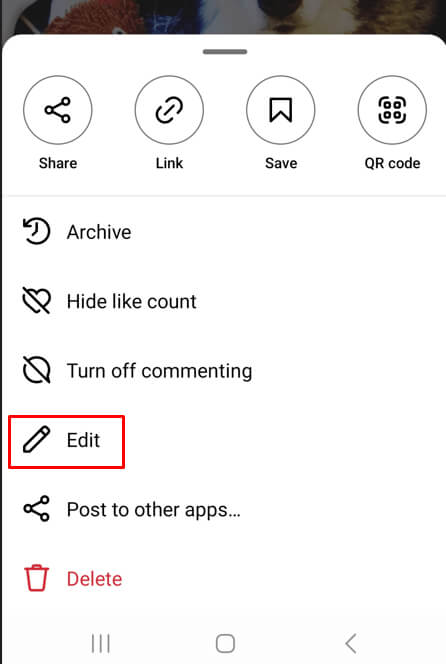
  1. From the menu that pops up, select Edit.
 - how-to-delete-one-picture-out-of-multiple-on-instagram-3-compressed
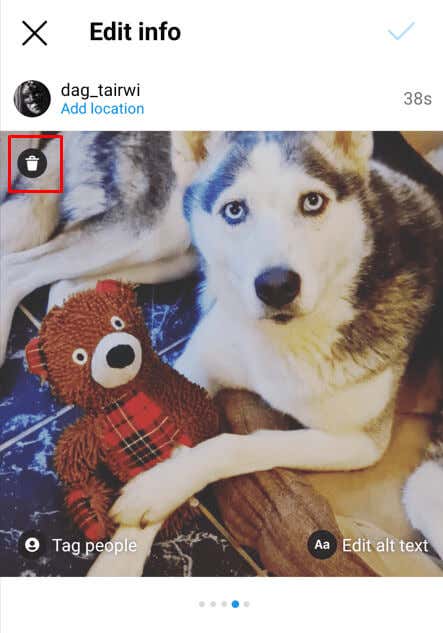
  1. At the top left corner of the image, you’ll find a trash can icon. Tap it to delete the selected photo.
 - how-to-delete-one-picture-out-of-multiple-on-instagram-4-compressed
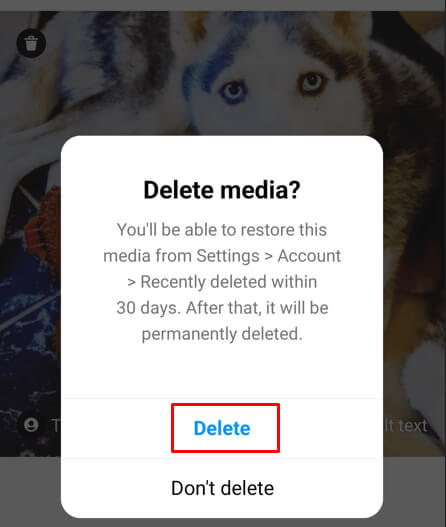
  1. Instagram will ask you to confirm you want to delete the image. Tap Delete to seal the deal.
 - how-to-delete-one-picture-out-of-multiple-on-instagram-5-compressed
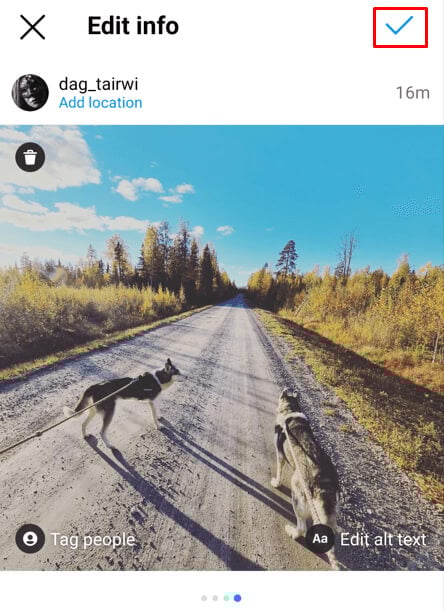
  1. Save the edit by tapping the blue check mark, in the top right corner.
 - how-to-delete-one-picture-out-of-multiple-on-instagram-6-compressed

And that’s it. You successfully deleted one out of multiple photos in an Instagram carousel post.

How to Restore Deleted Photos on Instagram, from the Carousel Post

If you change your mind and you regret deleting the photo, don’t worry. Again, you don’t have to re-upload the whole post just to add the deleted Instagram picture to the carousel post. Here’s how you can restore the deleted photo:

  1. Tap the hamburger menu on your Instagram profile. It’s located at the top right corner of the screen.

 - how-to-delete-one-picture-out-of-multiple-on-instagram-7-compressed
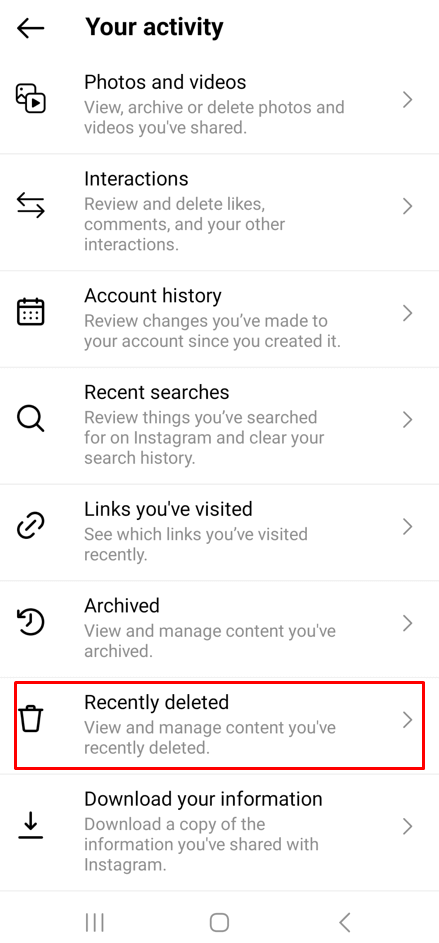
  1. Scroll down until you find the Recently Deleted. Tap that option.
 - how-to-delete-one-picture-out-of-multiple-on-instagram-8-compressed
  1. Here, you’ll find all media you deleted in the past 30 days. Find the photo you want to restore and tap to select it.
  2. Tap the three dots menu at the top right corner, just above the photo.

 - how-to-delete-one-picture-out-of-multiple-on-instagram-9-compressed
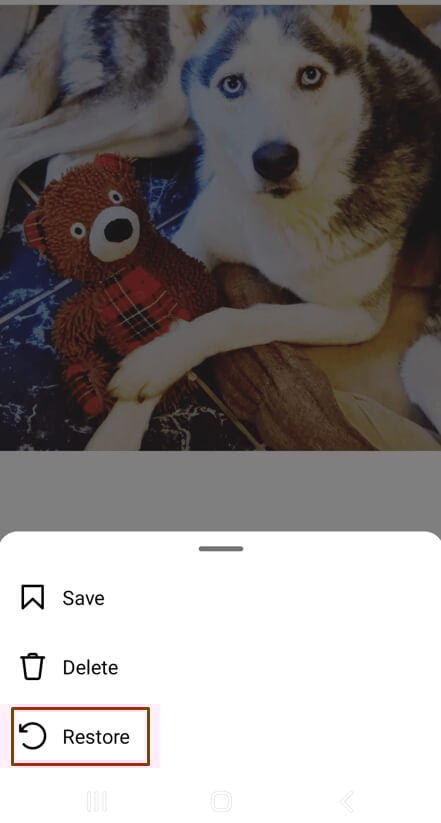
  1. Select Restore from the pop-up menu.
 - how-to-delete-one-picture-out-of-multiple-on-instagram-10-compressed
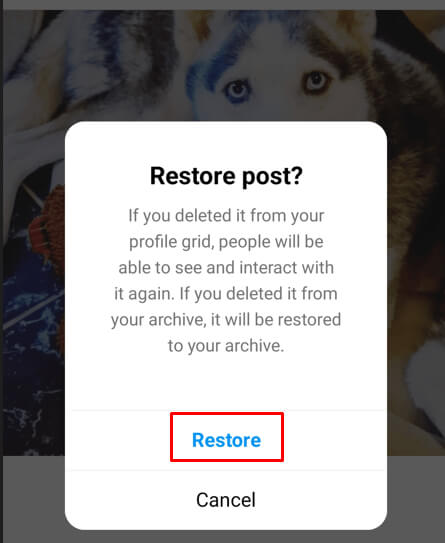
  1. Confirm that you want to Restore this photo.
 - how-to-delete-one-picture-out-of-multiple-on-instagram-11-compressed

Congrats! You managed to restore the deleted photo and you won’t have to upload it again. But remember that you have only 30 days to restore the photos you deleted before Instagram deletes them for good.

Over the years, Instagram has become increasingly user-friendly and accessible. As an avid photographer or just someone posting picture collages for fun, it’s essential to learn all aspects of the platform in order to get the most out of this amazing app. The challenge of picking out one photograph from several can be daunting but with a few helpful tips and tricks, you can make the process easier in no time.

Tags: Instagram
Share
Written by

Nicolae Bochis

Nicolae is a Jack of all trades technology writer with a focus on hardware, programming languages, and AI image-processing software. Over the last five years, he has ghostwritten numerous tech how-to guides and books on a variety of topics ranging from Linux to C# programming and game development. Nicolae loves everything that has to do with technology and his goal is to share his knowledge and experience with others. <a href='https://www.online-tech-tips.com/author/nbochis/'>Read Nicolae's Full Bio</a>

View Nicolae's Profile

Recent Posts

  •  - featured
    The 8 Best Free Anime Apps and Sites for iPhone and Android in 2026Mar 30, 2026
  • Gmail Not Loading in Chrome? Here's How to Fix It (2026) - Gmail Not Loading in Chrome? Here's How to Fix It (2026)
    Gmail Not Loading in Chrome? Here’s How to Fix It (2026)Mar 28, 2026
  • How to Fix Chrome Extensions Not Working After Update: The Extension Emergency Kit - How to Fix Chrome Extensions Not Working After Update: The Extension Emergency Kit
    How to Fix Chrome Extensions Not Working After Update: The Extension Emergency KitMar 27, 2026
  • Steam front page on desktop computer - steam
    How to Fix “Something Went Wrong While Displaying This Content” Error in SteamMar 27, 2026

Search

Categories

  • Gaming (346)
  • How-To (1,118)
  • News (44)
  • Reviews (437)
  • Social Media (462)
  • Streaming (174)
  • Uncategorized (4)

Popular Tags

Adobe AI Alexa Amazon Android Buying Guides ChatGPT Chrome Discord Explainers Facebook FireTV Gadget Reviews Gmail Google Google Docs Google Maps Google Sheets Home Networking Hulu Instagram Internet LinkedIn Minecraft Netflix Nintendo Switch PlayStation Premiere Reddit Remote Work Roblox Roku Roundups Smart Home Snapchat Software Reviews Spotify Steam TikTok Twitch VR WhatsApp Windows X (Twitter) YouTube

Our Publishing Family

Online Tech Tips is part of the AK Internet Consulting publishing family.

  • HELP DESK GEEK
  • THE BACK ROOM TECH
  • SWITCHING TO MAC
  • XBOX ADVISOR

Daily Email Newsletter

Connect With Us

About Online Tech Tips

Online Tech Tips has published easy-to-follow technology tutorials, honest reviews, and practical how-to guides since 2007 — helping millions of readers solve tech problems and get more from their devices.

Learn More →

© 2007-2026 Online Tech Tips.com, LLC.
All Rights Reserved.

  • Home
  • About Us
  • Editorial Standards
  • Contact Us
  • Terms of Use
  • Privacy Policy
Online