
Instagram saves everything you search for in the app—people, places, pages, hashtags, etc. That allows you to revisit and find your previous searches quickly. Although Instagram automatically deletes your searches after 30 days, you can delete them at your convenience. We’ll show you how to clear Instagram search suggestions and history on your mobile phone and desktop.
Why Does Instagram Save Searches?
Instagram saves searches to provide quick access to things you recently searched for—accounts, hashtags, places, etc. Also, Instagram curates personalized ads and suggestions based on your searches, activities, and interactions on the app.
If you use your Instagram search bar in front of a friend or a colleague, they might see your search history. Clearing your Instagram searches eliminates the chances of that happening. Likewise, doing so might reduce the number of search-based personalized ads you receive.
Why Clear Instagram Search Suggestions?
Your search suggestions or history can quickly turn into a threat to your privacy. For example, when someone else accesses your Instagram search and sees the entire list of the profiles you’ve recently visited on the Instagram app. Deleting your search history clears the “Search” tab and performs an Instagram search suggestions reset.
How to Clear Instagram Search History and Suggestions on Mobile

Follow the step-by-step guide below to delete your search data stored on Instagram. The instructions also apply to the Android and iOS Instagram applications.
How to Clear Individual Search Suggestions
You can remove individual search suggestions from Instagram instead of erasing your entire search history. Here’s how:
- Open the Instagram app and tap the Magnifying glass icon next to the Home tab. That opens the Instagram Explore and Search tab.
- Next, tap the search bar at the top of the screen. That’ll bring up your recent searches as suggested accounts or suggested searches. Tap See all in the top-right corner to see your IG search suggestions.
- Tap the X icon next to the specific accounts or search terms you want to remove from the search suggestion screen. Clearing search suggestions also remove the item from your search history.
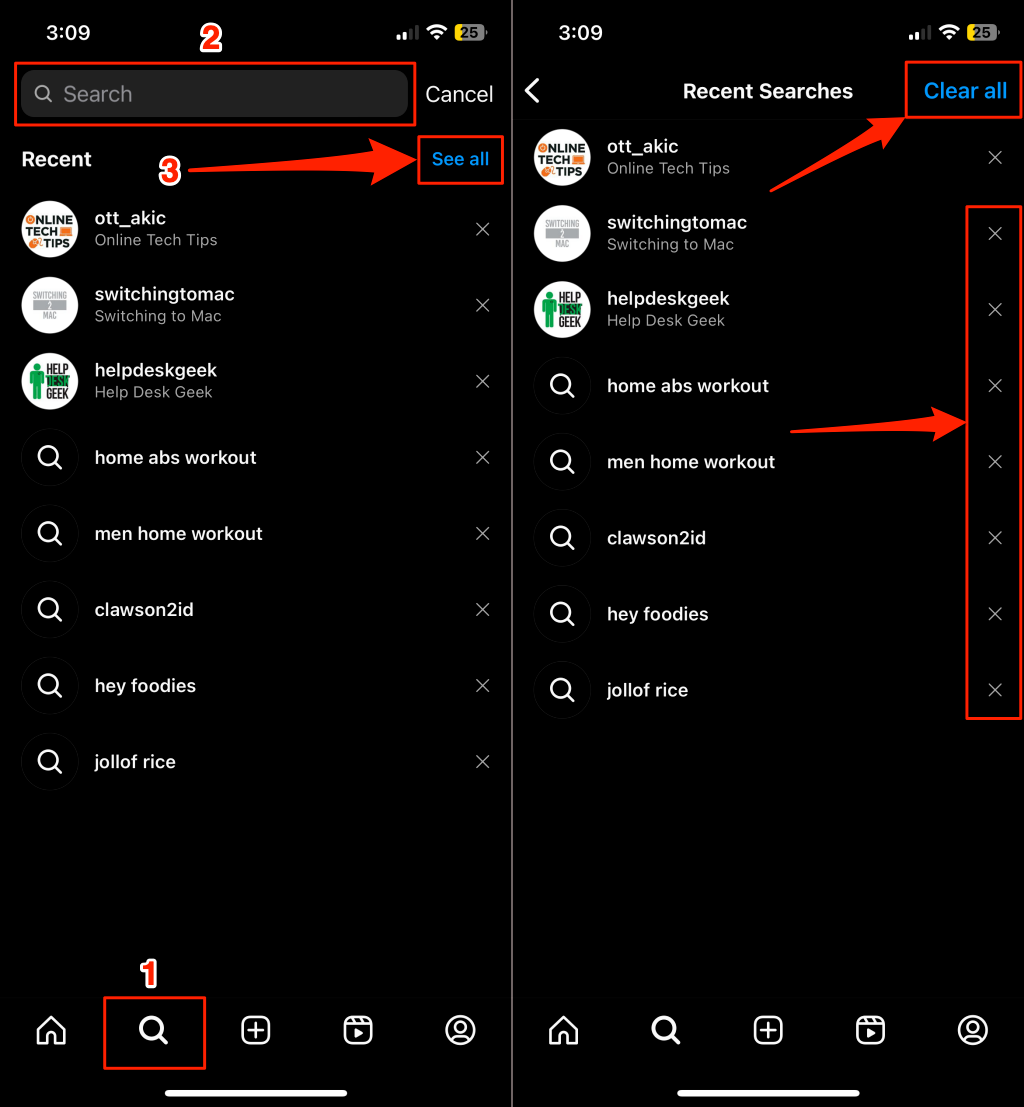
You can use the same method to remove tags and places from your IG search suggestions.
How to Clear Your Entire Instagram Search History
Follow these steps to clear all previous searches made on Instagram.
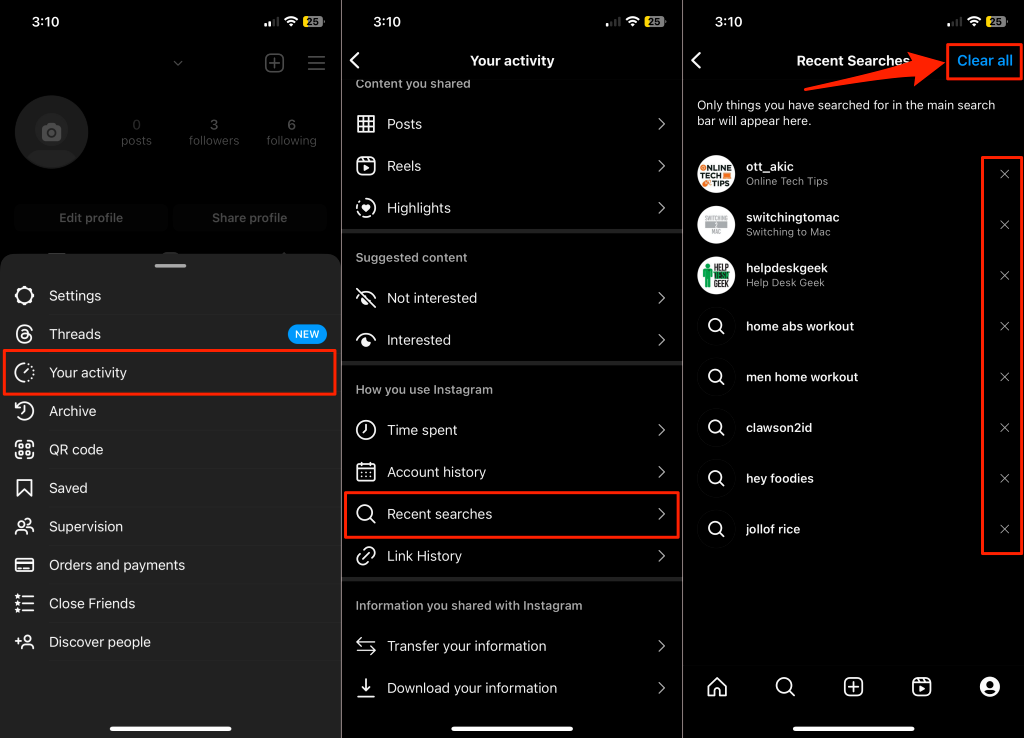
- Open the Instagram app and tap your profile icon/picture in the bottom right corner of the screen.
- Tap the menu icon in the top-right corner and select Your activity.
- Scroll down the “Your activity” screen and select Recent searches.
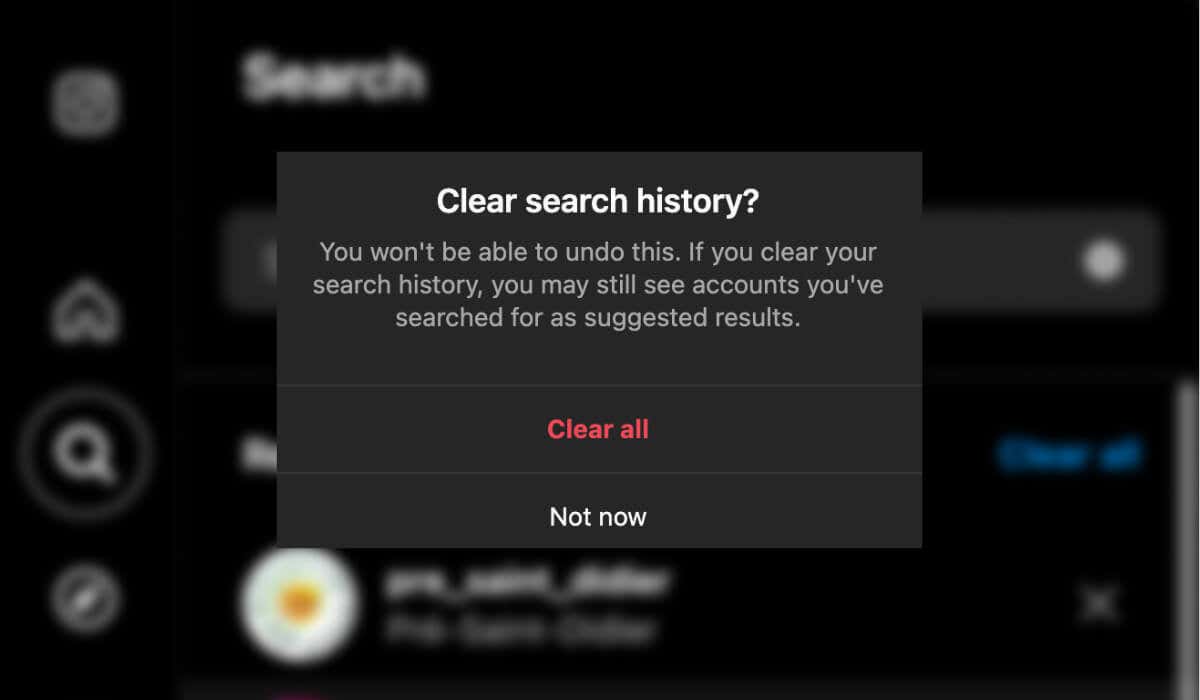
- Tap Clear all in the top right corner and select Clear all on the pop-up. This will empty your entire Instagram search history.
How to Clear Instagram Search Suggestions and History on Web
If you use Instagram on your desktop, you can clear your search history and suggestions through a web browser. As with the mobile app, you can remove an individual item from your recent searches or clear your entire search history. Here’s how to clear Instagram’s search suggestions on the web.
Clear Instagram Searches in the Search Tab
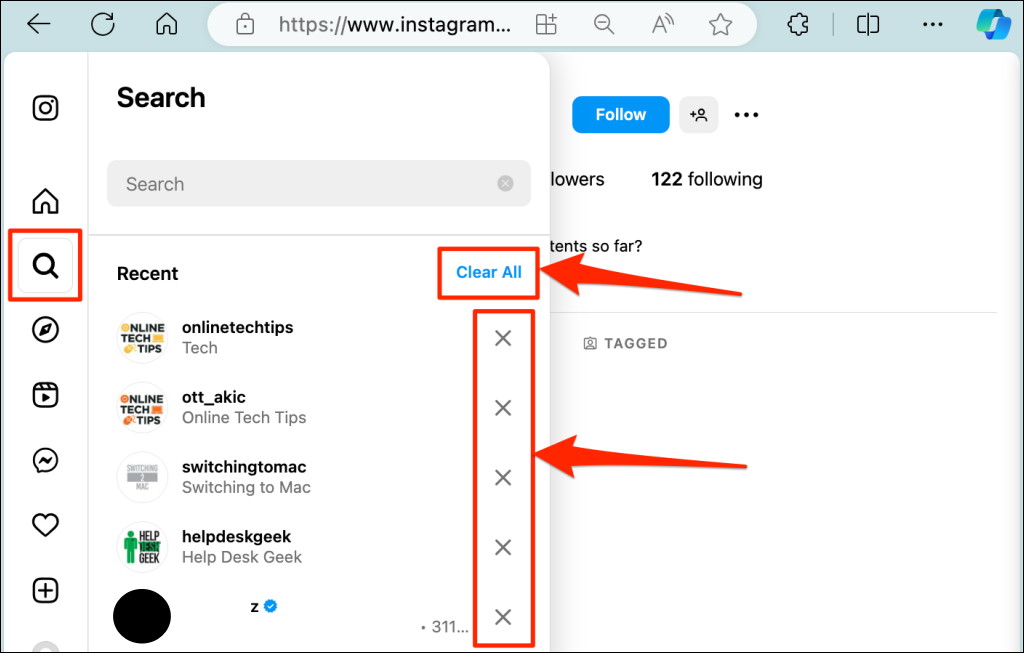
- Log in to your Instagram account on any web browser. Select the magnifying glass icon in the sidebar to open the Search tab.
- Next, select the X icon next to the item you want to remove from your search history.
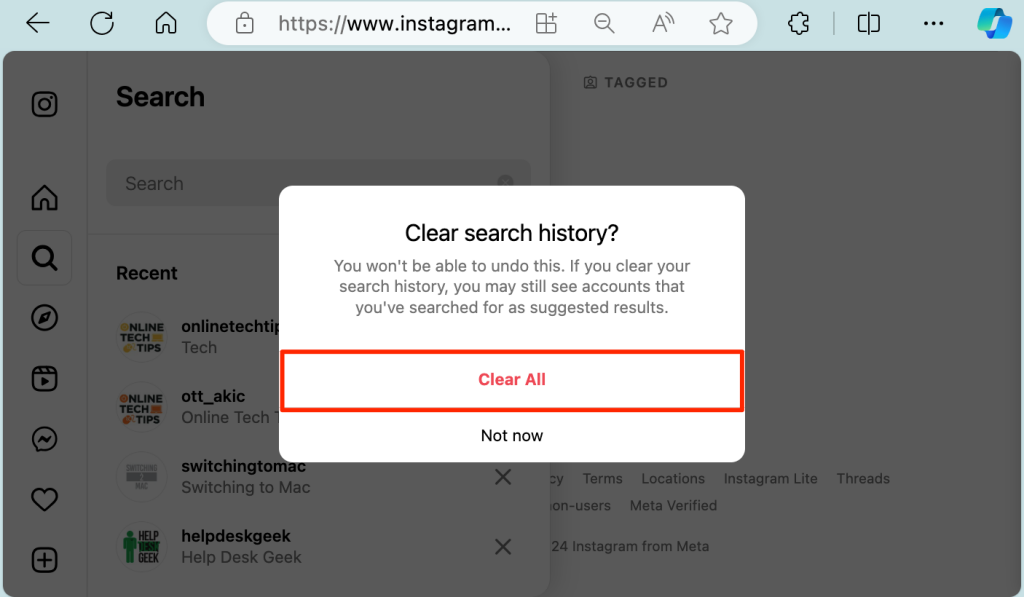
- Alternately, select Clear All to delete your recent search history.
- Choose Clear All on the confirmation screen to proceed.
Clear Instagram Search History in Your Account Settings Menu
Here’s an alternative way to clear IG search suggestions and history on the web app.
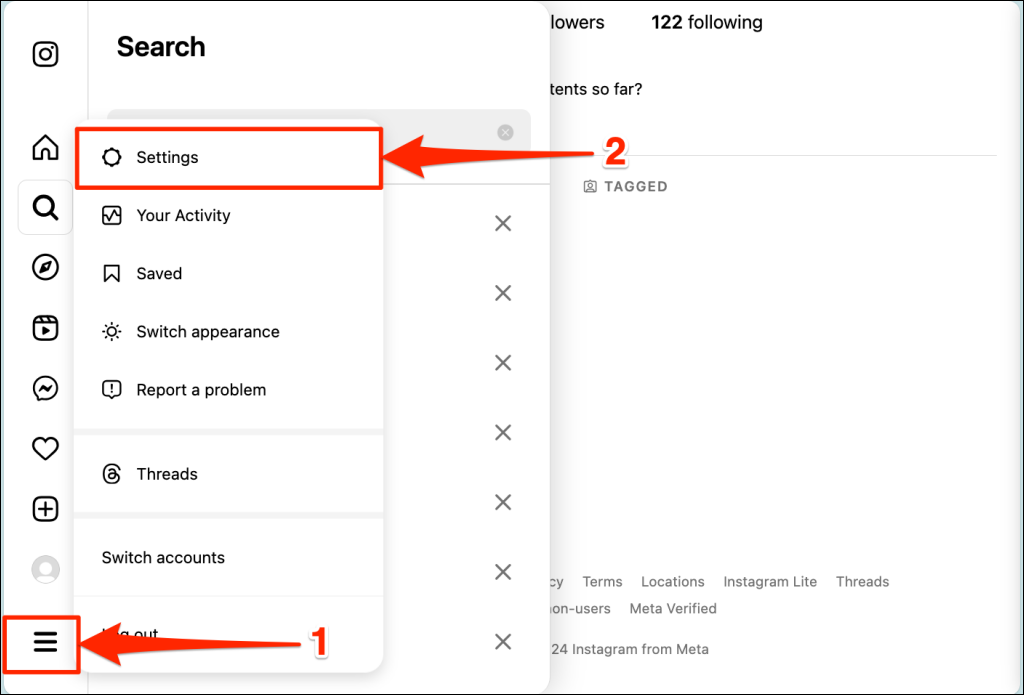
- Select the hamburger menu icon in the bottom-left corner and choose Settings.
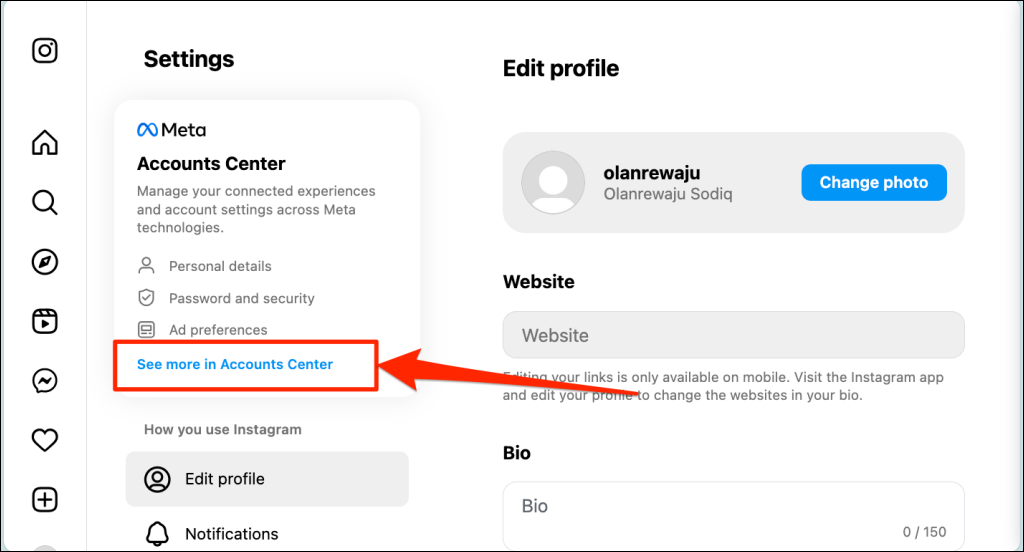
- Select See more in Accounts Center in the “Meta Accounts Center” section.
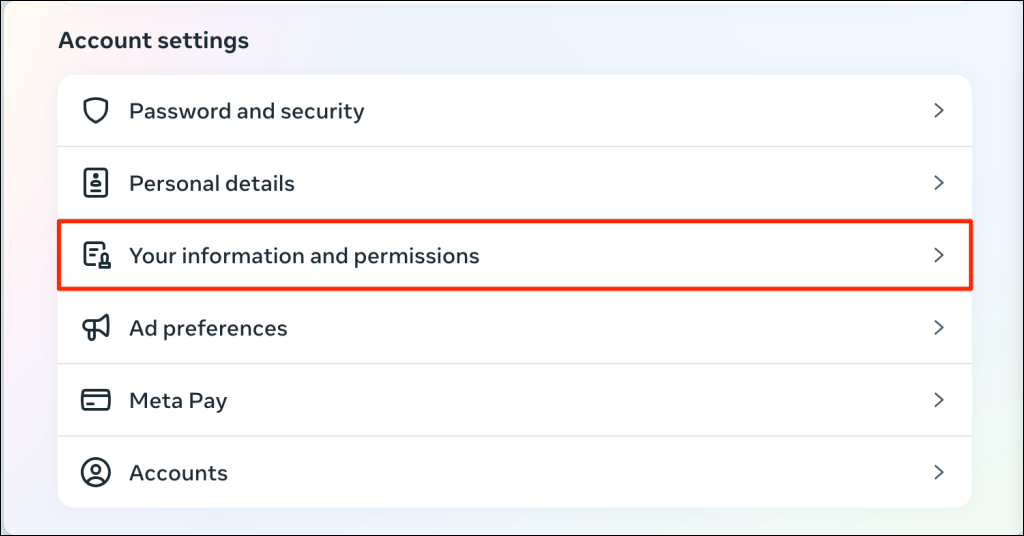
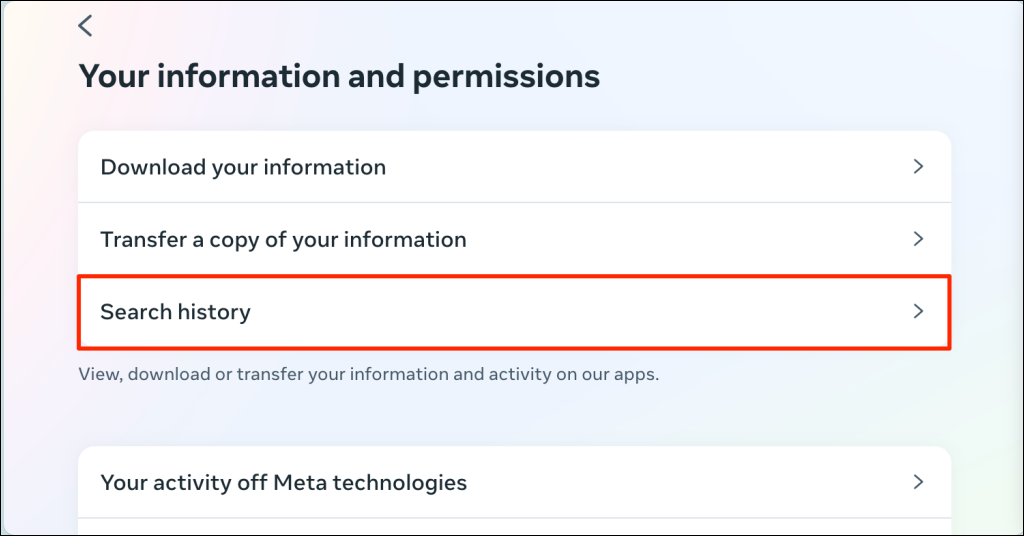
- Next, select Your information and permissions.
- Select Search history.
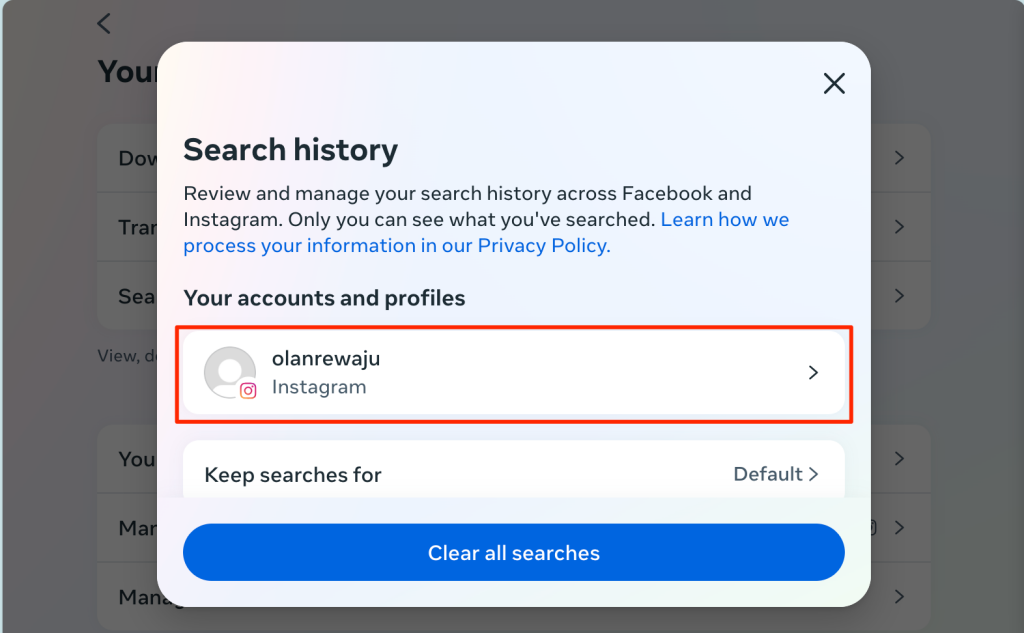
- To delete a specific search from your history, select your account in “Your accounts and profiles.”
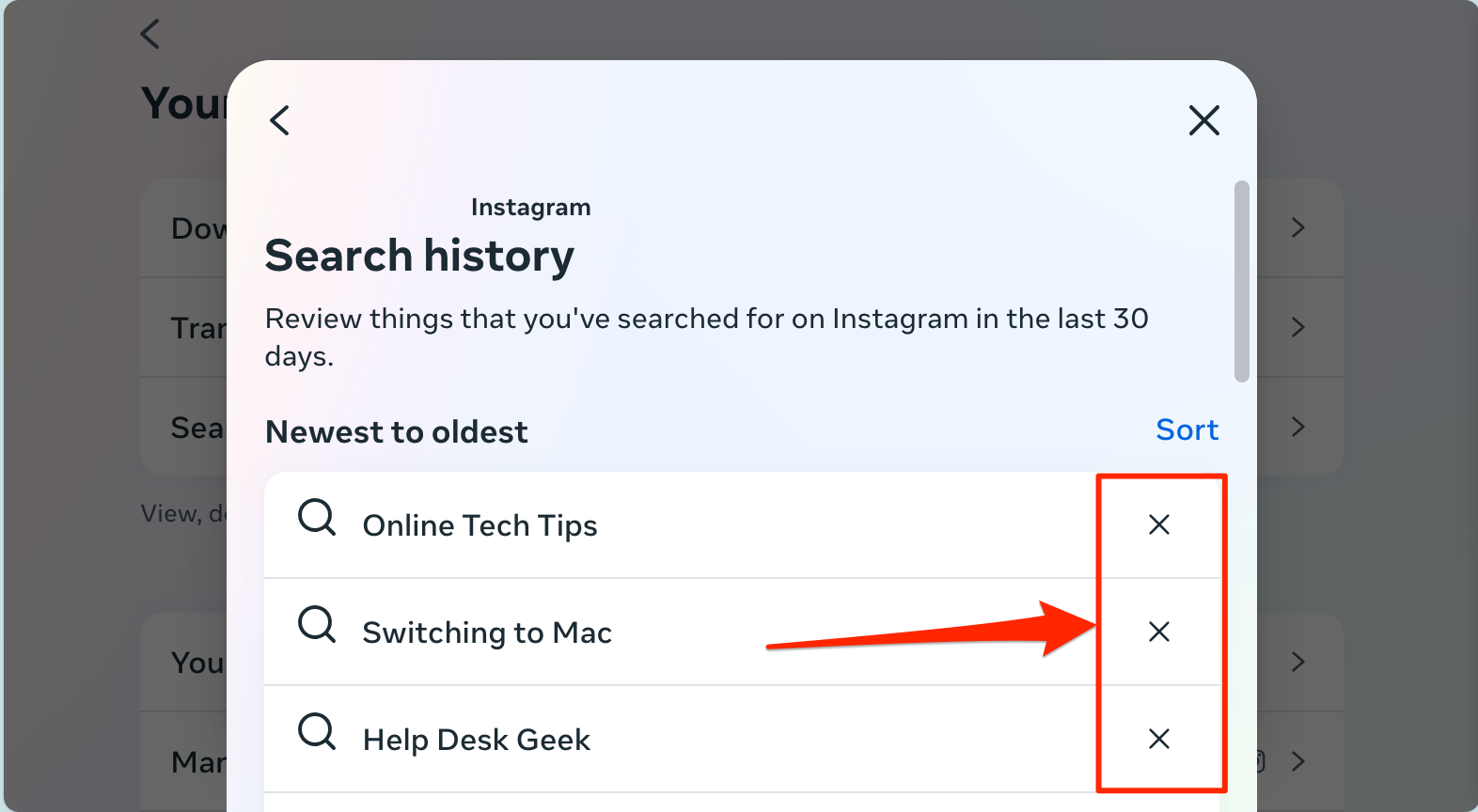
- Instagram sorts your searches from the newest to the oldest—select Sort to reorder the list from oldest to newest. Selecting the X icon next to a search term removes it from your search history.
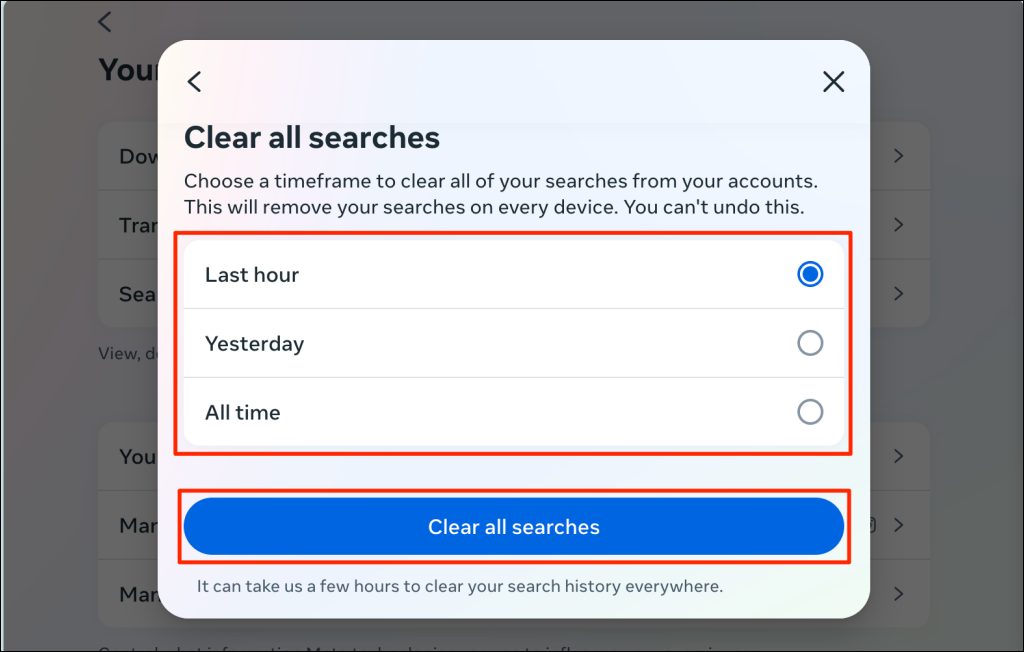
- To delete everything in your search history, return to the “Search history” page (see step #4) and select Clear all searches.
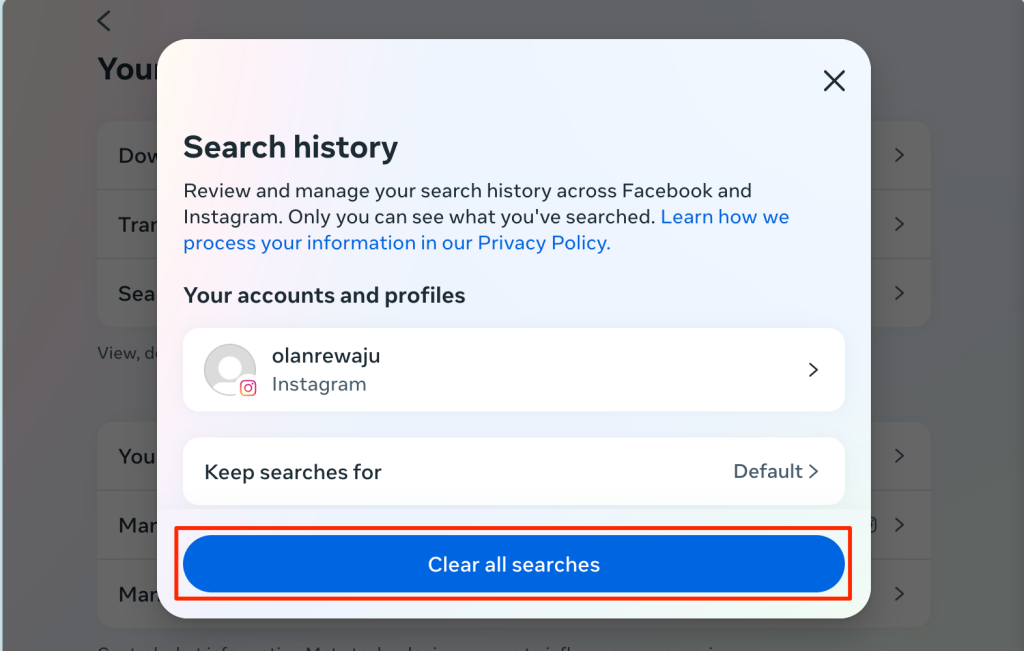
- Afterward, choose a timeframe (Last hour, Yesterday, or All time) and select Clear all searches.
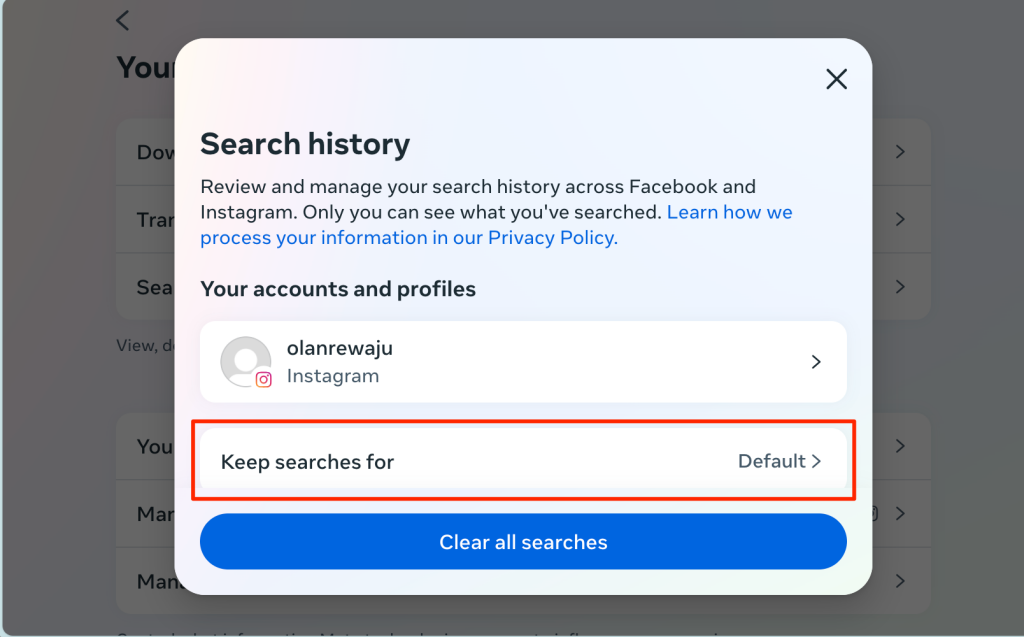
 As mentioned earlier, Instagram auto-deletes your search history after 30 days. You can change the “Auto clear search history” schedule to make Instagram delete your search history at an earlier date or timeframe. This will save you the stress of manual deletion.
- Return to the “Search history” page and select Keep searches for.
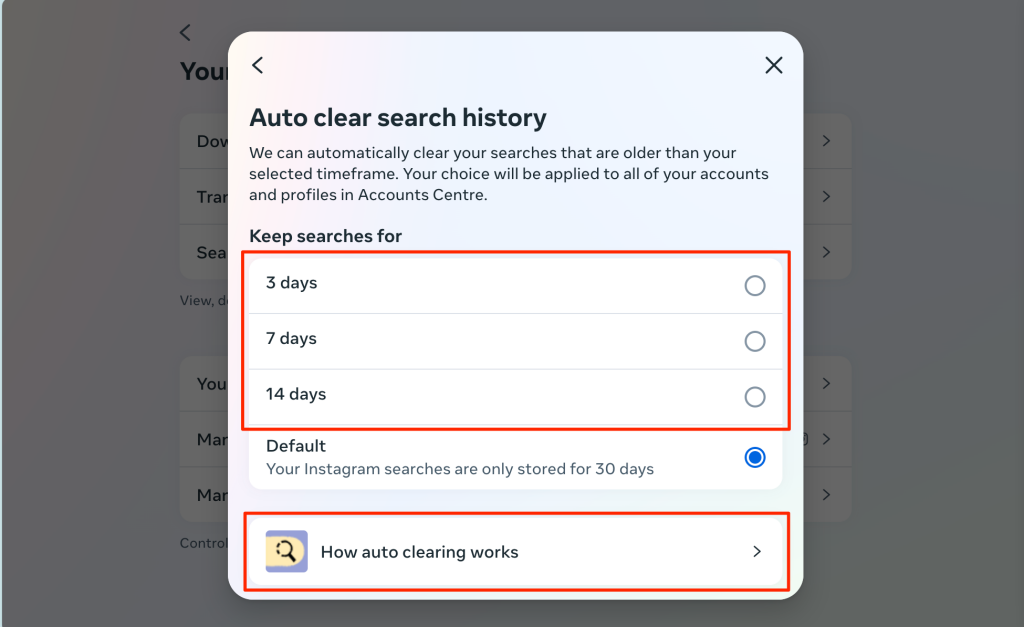
- Choose your preferred auto-deletion timeframe—3 days, 7 days, or 14 days. Select How auto clearing works to learn more about the feature.
How to Block Suggested Accounts on Instagram
Instagram may suggest certain accounts even after you’ve cleared them from your search history multiple times. When you start typing something in the search bar, Instagram immediately suggests an account you had previously searched for. Blocking and unblocking the person/account can stop this from occurring.
- Open the person’s Instagram profile and tap the three dots icon in the top-right corner.
- Tap Block and select Block again on the confirmation screen.
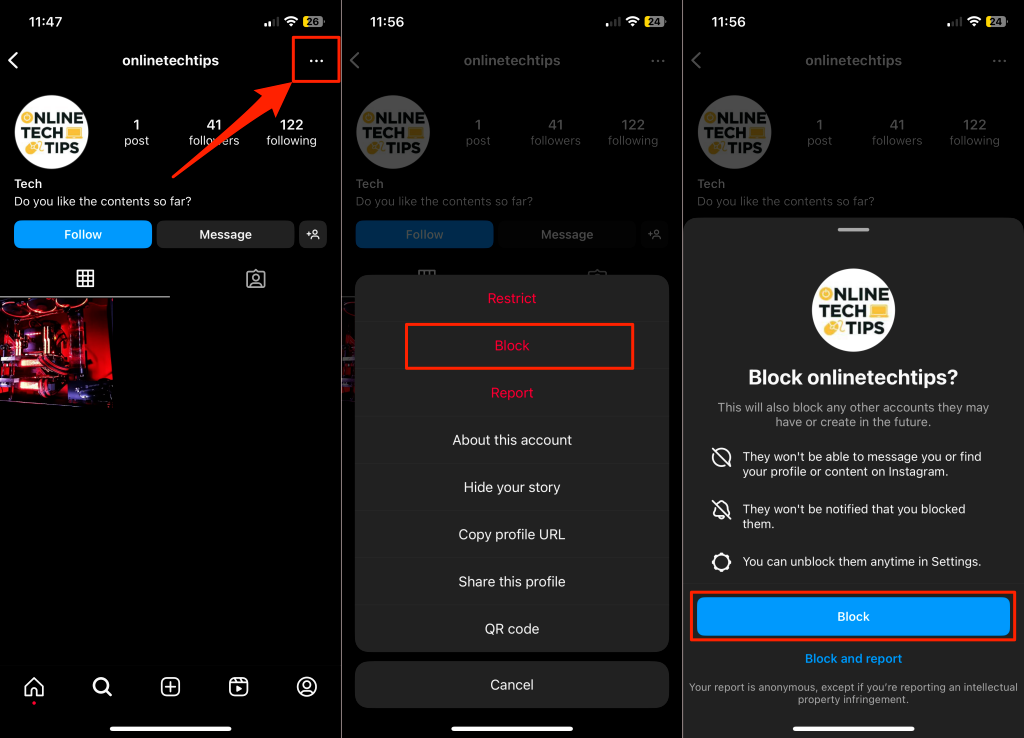
- Wait a few seconds and tap Unblock to unblock the account. Alternately, tap the menu icon and select Unblock.
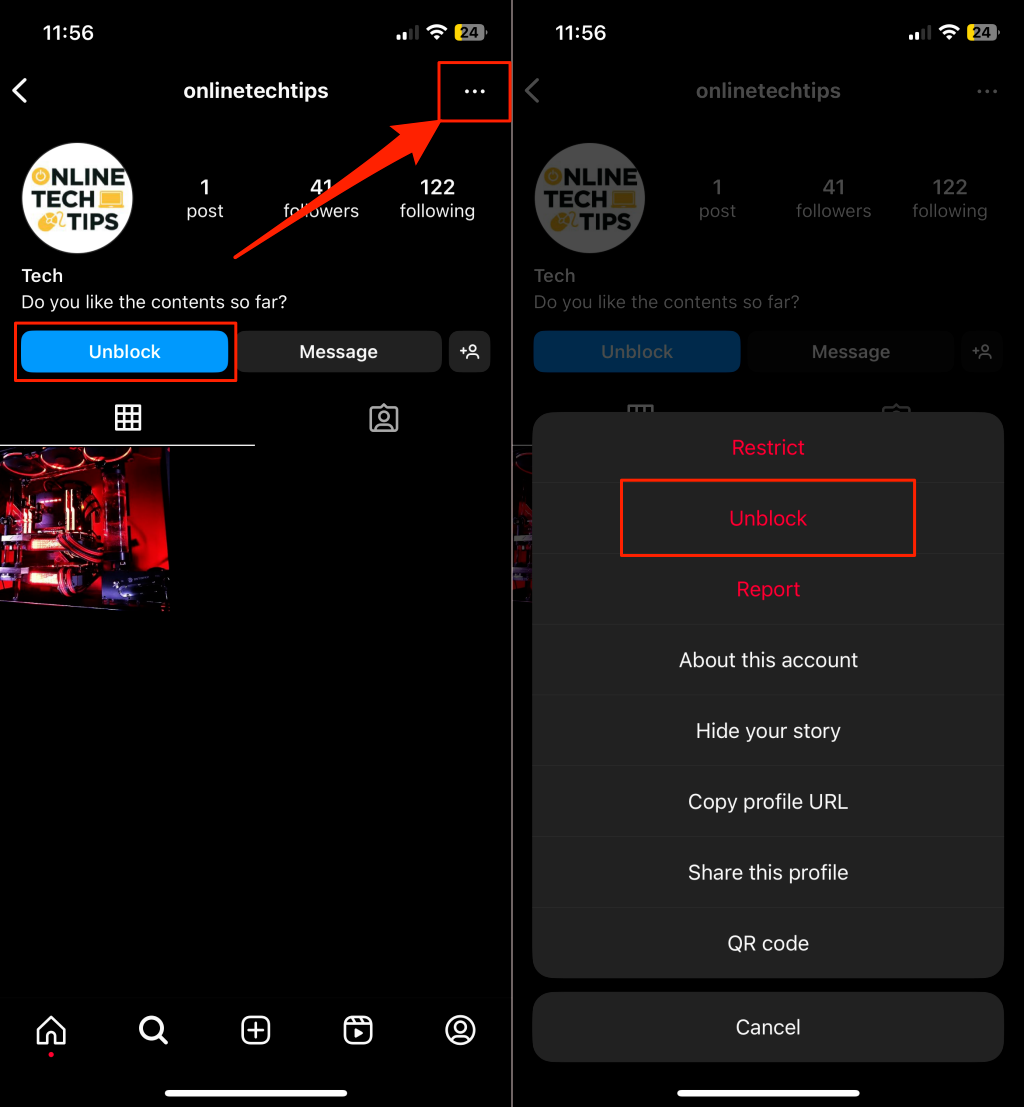
Now, when you search on Instagram, the app won’t suggest the account you just blocked and unblocked. Note that this method only works with accounts you don’t already follow.
Can’t Clear Instagram Search History/Suggestions? Try These Fixes
Sometimes the data and cache that Instagram stores won’t allow you to remove the search suggestions from your Instagram account altogether. Try the following fixes if specific search suggestions reappear in your search no matter how many times you remove them.
1. Force Close and Reopen Instagram
Close the Instagram app if it’s malfunctioning or won’t clear search suggestions and history. If you use an Android phone, consider force-stopping Instagram.
- Tap and hold the Instagram app icon and select the Info (i) icon.
- Tap Force stop and select OK in the confirmation pop-up.
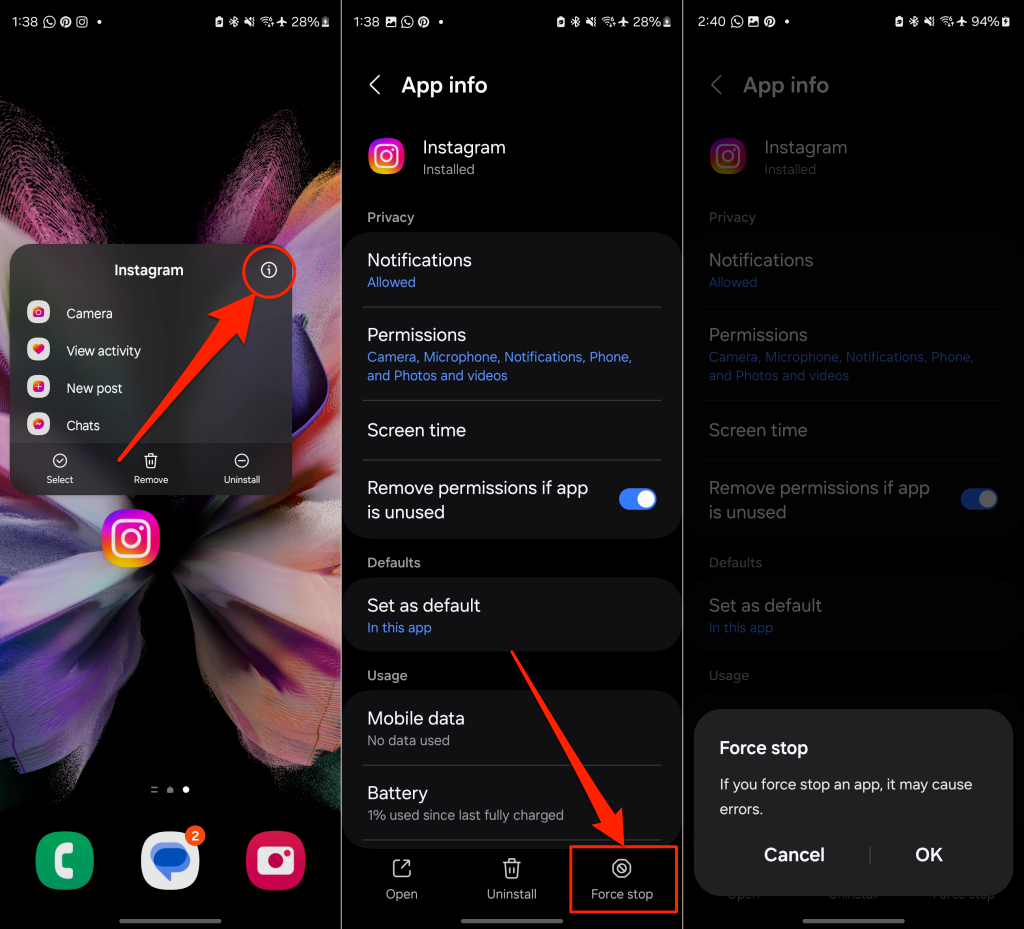
Relaunch Instagram and check if you can clear your search history. If the issue persists, delete Instagram’s cache date.
2. Clear Instagram Cache and Data
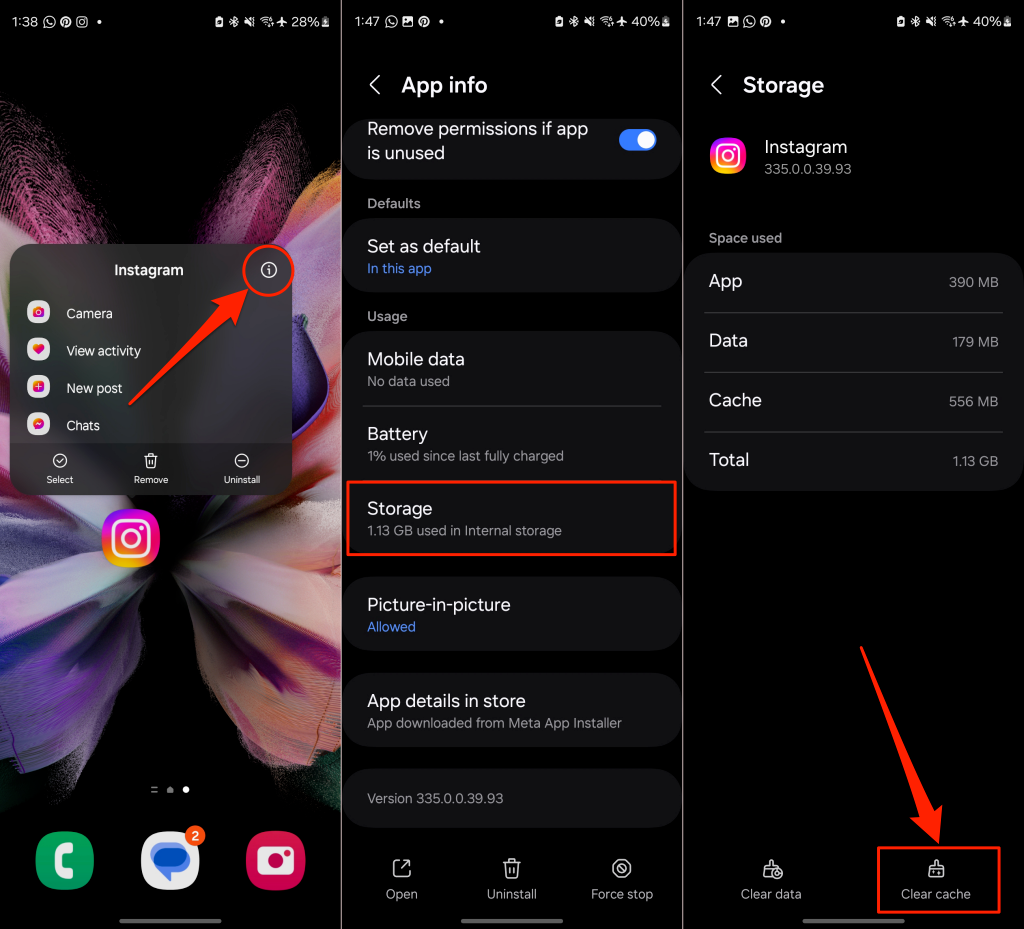
Corrupt cache data (also called temporary files) can cause issues with Android applications. Clearing Instagram’s cache data can get it working correctly again.
- Long-press the Instagram app icon and tap the Info (i) icon.
- Select Storage on the “App info” page.
- Tap Clear cache to delete Instagram’s temporary files from your phone, then reopen Instagram.
3. Update or Reinstall Instagram
Updates to the Instagram app can fix bugs that cause malfunctions. Check your device’s app store and update Instagram to the latest version. If you still can’t clear your search suggestions/history, delete and reinstall Instagram.
Long-press the Instagram app on your phone and tap Uninstall/Remove (Android) or Delete App (iPhone).
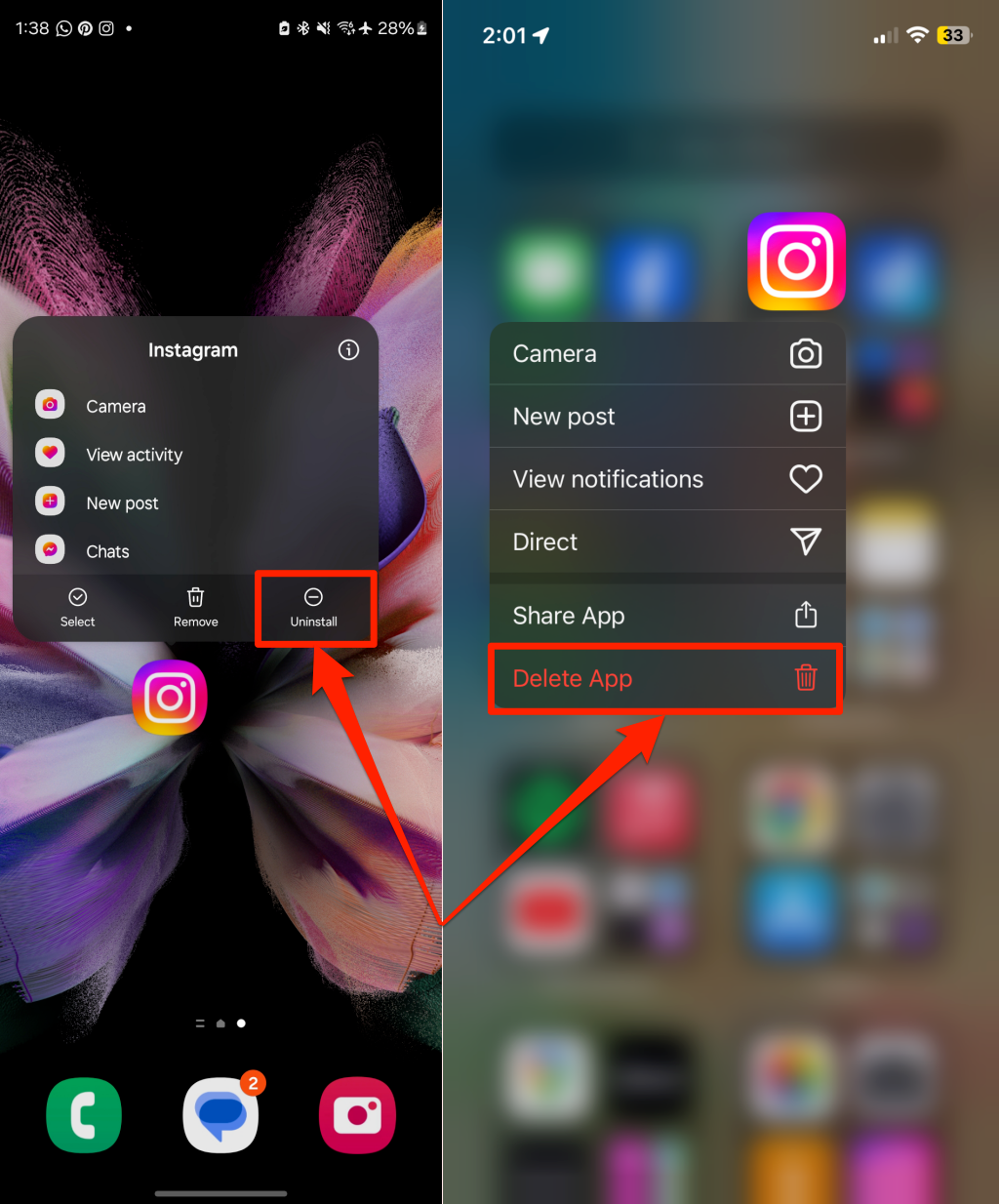
Reinstall the latest Instagram version, sign in to your account, and retry clearing your search suggestions/history.
Keep Your Instagram Search History Away from Prying Eyes
Your search history is linked to your account, not your device. When you clear your search data, Instagram syncs the deletion across devices connected to your account. Say you use Instagram on an iPhone and Android device. Deleting your search history on the iPhone also clears the search history on your Android phone.
Instagram repopulates the Search page as you make newer searches. Ensure you occasionally clear your search history to prevent other people from seeing what you search for on Instagram.