
Discord is one of the most popular voice chat apps for gamers. It’s user-friendly, it lets its users create their own communities as servers, and it has a lot of cool features. Discord is an amazing communication tool that allows users not only to communicate but also to share music. But adding and playing music through is not really as intuitive as you’d expect.
In this article, we’ll show you how to play music on Discord to improve your gaming sessions or just chill with your friends.
Note: At the moment there is no way to play music on Discord in private channels and chats. It can be done only through servers. So you either need to own the server or get permission from the server admins to play music.
1. How to Play Music on Discord Using a Bot
Adding a Discord music bot to your server is the most common and effective way to play music from various streaming platforms such as Spotify, Soundcloud, Twitch, or even YouTube (but not all bots work with YouTube). Adding bots to Discord servers is done through bot websites. You have to invite the bots, and you have to give them the necessary permissions and authorizations to run on your server. The process is the same on Windows and Mac as well as the mobile apps for Android and iOS.
Follow these steps to add Fredboat, one of the most popular Discord music bots:
- Open a web browser and go to the website of the Discord bot you want to add to your server. For this example, we chose Fredbot.
- Look for the Invite To Server button or Add to Discord option.
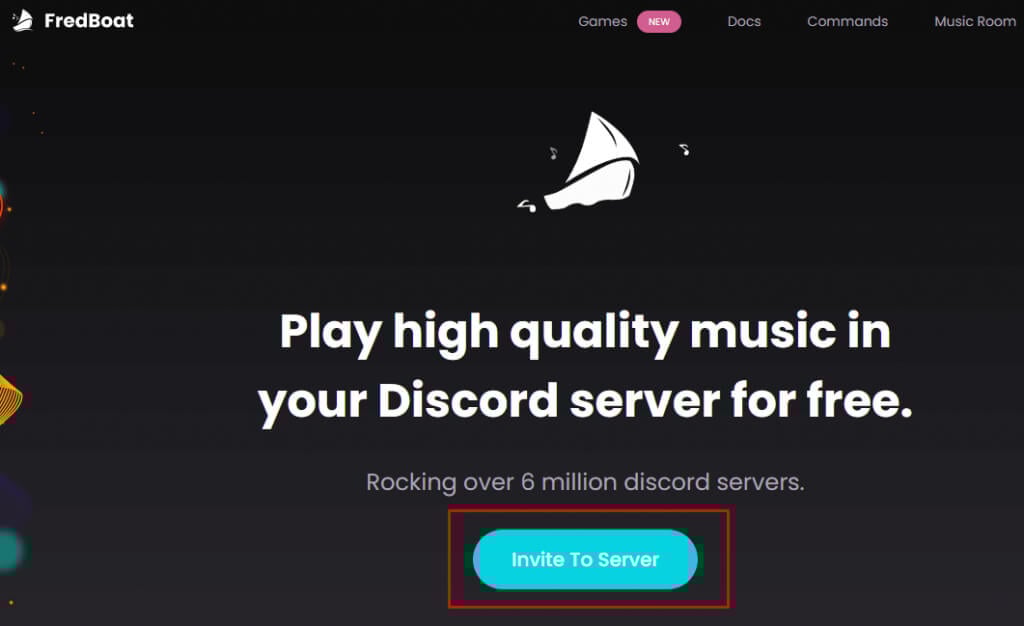
- Once you invite the bot, the website will redirect you to a login page. Insert your Discord credentials or use a QR code to sign in. If you already have the Discord app open on your PC or mobile phone, you’ll automatically log in.
- A pop-up window will open where you need to choose the server to which you are adding the bot.
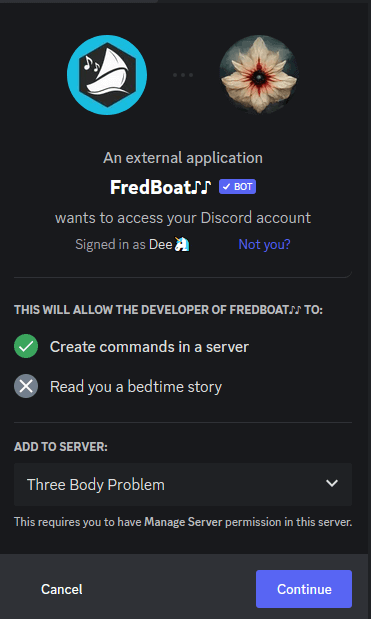
- When the next window pops up, choose the authorizations you want to give to the bot and select Authorize.
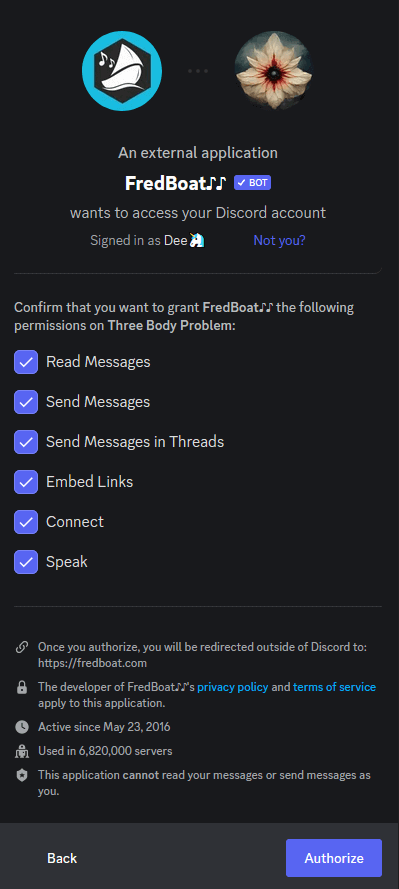
- When the bot installs itself to your server, you will get an automatic message with a couple of basic commands such as /play <song name>. This command pulls up 5 random songs for you to choose from and then you can type /play <number> to pick the song. You can also insert a link to a song instead of typing a song name.
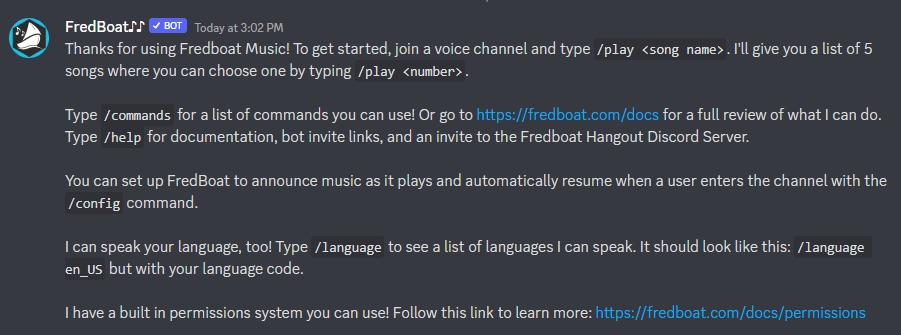
These are just several of the most common commands. To see more, you can check out the Fredboats commands page on the official website.
If you don’t want Fredboat but another music bot, the installation steps are typically the same. If you researched popular music bots for Discord you probably heard of Rhythm and Groovy as well. Unfortunately, the Groovy bot was shut down in August, and the Rythm bot in September 2022. YouTube filed cease-and-desist orders for both bots for violating their third-party terms of service and monetization. But there are still other options out there such as MEE6, Aiode, or Hydra.
2. Play Music on Discord Through the Mic
If you don’t want to use bots, you can always play music on Discord through your microphone. But be aware that the quality of the music will heavily depend on your gear. Even with a high-end mic, the music coming through it can be of lower quality than the one played directly through Discord. Bots typically play high-quality audio.
To ensure the best possible quality, you need to adjust some microphone settings on your PC.
- Open the Control Panel and go to Hardware and Sound.
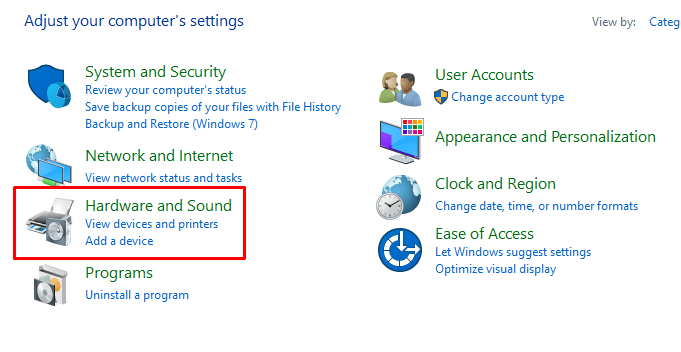
- Under the Sound section find and select Manage audio devices.
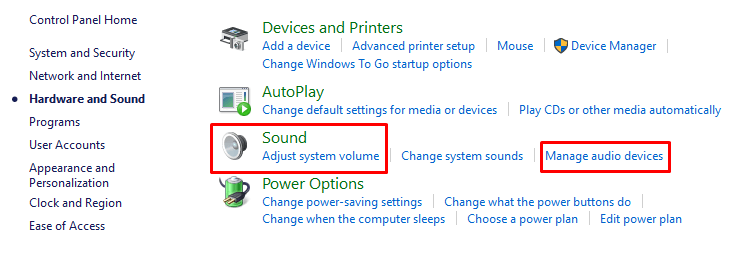
- Go to the Recording tab
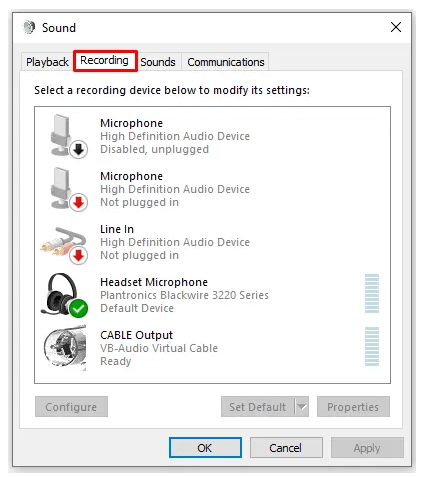
- Enable Stereo Mix and change it to the Default Mic.
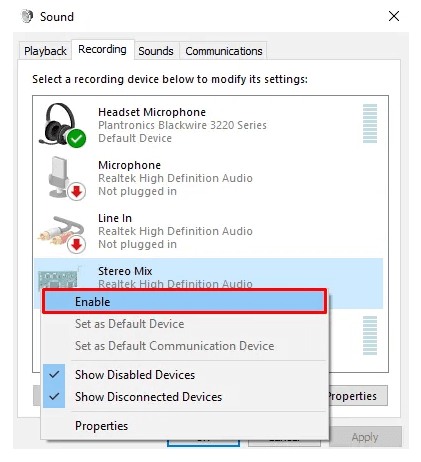
Now you can start playing music through the mic in your chosen Discord channel.
3. How to Play Music on Discord Through Spotify
The most straightforward way to play music on Discord is through Spotify. However, you must have a Spotify Premium account for it to work. You’ll also have to connect your Discord account with your Spotify account.
- Open the Discord app.
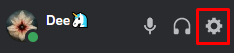
- Select the settings icon in the lower right corner, next to your profile icon.
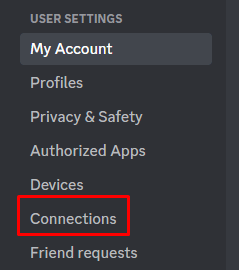
- Choose the Connections option under the User Settings section.
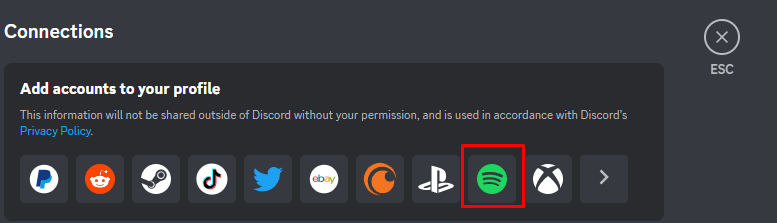
- Search for Spotify’s icon on the list of given options and click on it.
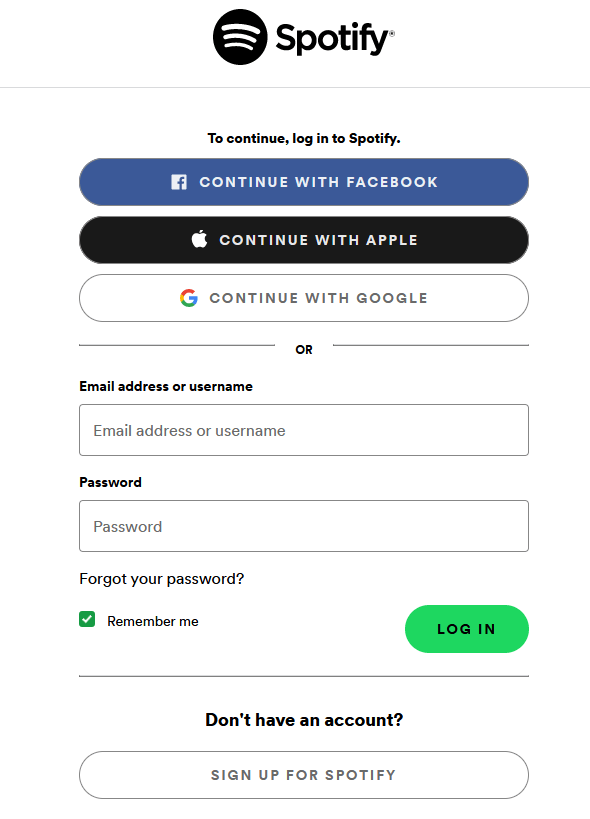
- You’ll be redirected to Spotify’s website. Log in with your Spotify credentials.
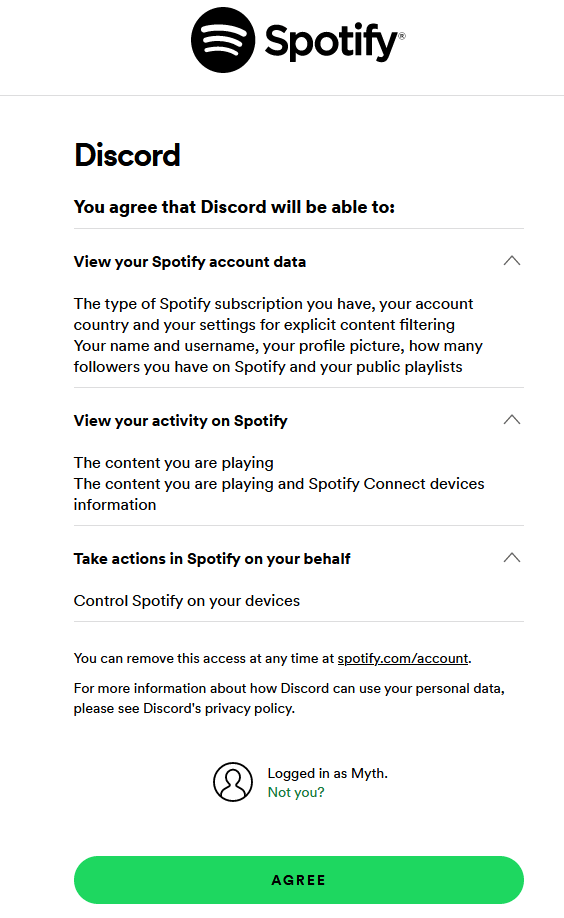
- Agree to authorize Discord to access your Spotify account.
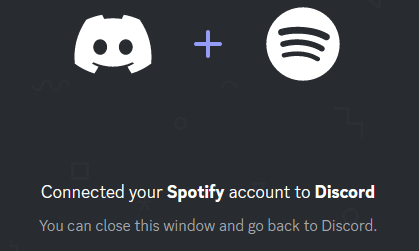
Congrats! Your discord and Spotify accounts are now connected. Spotify’s website will display a notification to let you know the process is finished.
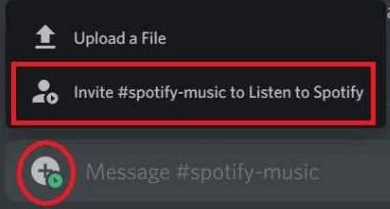
You can toggle Display on Profile and Display Spotify as Your Status so that your friends can see what you’re listening to at any given moment. You can use Discord to invite your friends to listen to your selected Spotify playlist. To do that, go to the plus sign, and in the message box type Invite @Username/#Channelname to Listen to Spotify.
Whatever method you choose, playing music on Discord is a great way to have fun and connect with other people who love music as much as you do. But wait! There’s a fourth method as well: you can use your own voice and sing with your friends. Let us know how that goes in the comments below.