

You can use Facebook to stay in touch with friends, buy or sell products, join fan groups, and more. But problems arise when you get added to groups by other people, especially if that group is designed to spam you or sell you something.
The good news is that Facebook’s privacy controls let you stop others from adding you to Facebook groups. Facebook stopped allowing anyone to add you to a group without permission in 2019, but you can still be plagued with notifications to join groups—an almost equally-as-annoying process.
This is how you can stop people from adding you to groups on Facebook.
Talk to Your Friends
This is a simple solution, but one that’s often overlooked. If your friends are adding you and inviting you to groups, just ask them to stop and say you aren’t interested. If they don’t stop, you can always use one of the other options on this list.
Join and Leave the Group
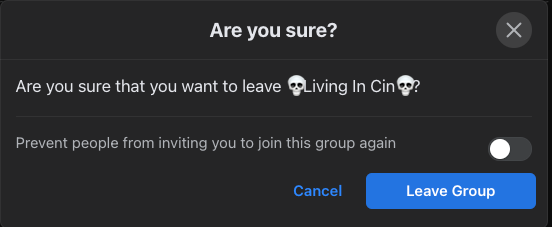
One of the easiest ways to prevent anyone from inviting you back to a group (especially if it’s a spam group) is to join the group and then leave it. Select Leave Group. A confirmation window will appear. You’ll see a toggle beside the option to Prevent people from inviting you to join this group again.
Switch that toggle on, and no one will be able to send you an invite to the group. It effectively blocks any invitation for that one specific community and is an easy way to avoid invites from friends that have been hacked and have not yet regained their accounts.
Block the Facebook Account
If another person on Facebook continues inviting you to groups, you always have the option to block them. It can cause a bit of drama, especially if that person doesn’t react well to boundaries, but it’s an easy way to prevent invitations from coming your way.
If you receive too many unsolicited invitations, it might be time to block people on your Friends list.
- To block or unfriend someone, go to your friends list. Beside that person’s name, select the three dots.

- You can unfriend or block that person by selecting the option in the list. The difference is that if you unfriend someone, you can still visit their profile to see posts. You can’t do that if you block them. Whatever option you choose, that person will not be notified of your action.
Change Group Privacy Settings
If you are an administrator of a group and find that people (or bots) are sending group invites to many people, you can change permissions and who is allowed to do what as part of the group.
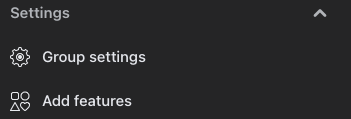
- From the group page, select Group settings in the sidebar on the left-hand side of the screen.
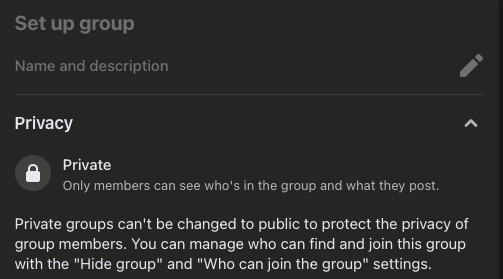
- Beneath Set up group, select the down arrow beside Privacy and choose Private. Once you do this, the group cannot be set to public again. Closed groups must remain that way to protect the privacy of members.
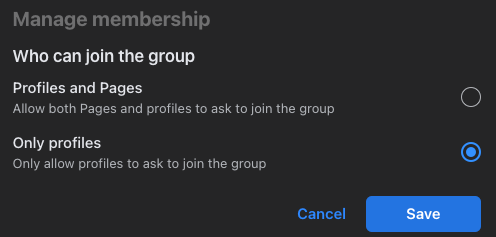
- Scroll down farther. Below Manage membership, select the pencil icon besides Who can join the group and choose Only profiles. Select Save.
These settings also give you other options, like what each group member is allowed to do. Managing a group is a big task (something you should keep in mind if you want to start a new group), so don’t be afraid to trim down the member list to remove spammers or reduce functionality depending on what members are doing.
Stopping unwanted invites is a lot easier than it used to be, but it can still be a bit of an annoyance at the best of times. Don’t be afraid to speak to friends and ask them to stop. If you are invited back to the same group time and time again, just leave it and hit that toggle – it will take less time than arguing will.