

Does the Instagram app keep displaying a “Couldn’t load image. Tap to retry.” error? There are several ways to fix this error and get Instagram images loading again. This tutorial provides a step-by-step guide for troubleshooting issues preventing Instagram from loading pictures.
What is the “Couldn’t Load Image. Tap to Retry” Error on Instagram?
Your Instagram feed should display pictures and reels from people you follow or recommended accounts. When the Instagram app encounters issues loading content, it displays an error message that says, “Couldn’t load images. Tap to retry.”
Closing and reopening the Instagram app can resolve the issue, but that’s not always the case. In the next section, we highlight factors that could trigger image-loading problems in the Instagram application.
Why Instagram Shows the “Couldn’t Load Image. Tap to Retry” Error
A slow or spotty internet connection prevents Instagram from loading images correctly. The “Couldn’t load image. Tap to retry” error message could also be due to Instagram server downtime, corrupt cache files, or bugs in the Instagram application.
How to Fix the “Couldn’t Load Image. Tap to Retry” Instagram Error

As mentioned earlier, restarting the Instagram application can stop the “Couldn’t load image. Tap to retry.” error. If Instagram still isn’t loading images, update the app to the latest version and clear Instagram cache data on your device. Additionally, refresh your mobile data connection, switch to Wi-Fi, restart your phone, or update its operating system.
If the same problem/error persists, sign in to your Instagram account on a web browser and check if posts and reels load correctly. If your browser or computer also doesn’t load any Instagram post, report the issue to Instagram Support. But if Instagram loads photos on the web, follow the instructions below to fix the “Couldn’t load image. Tap to retry.” error on your phone.
Check Instagram Server Status
Sometimes, Instagram servers malfunction and stop working, preventing your device from loading Instagram photos.
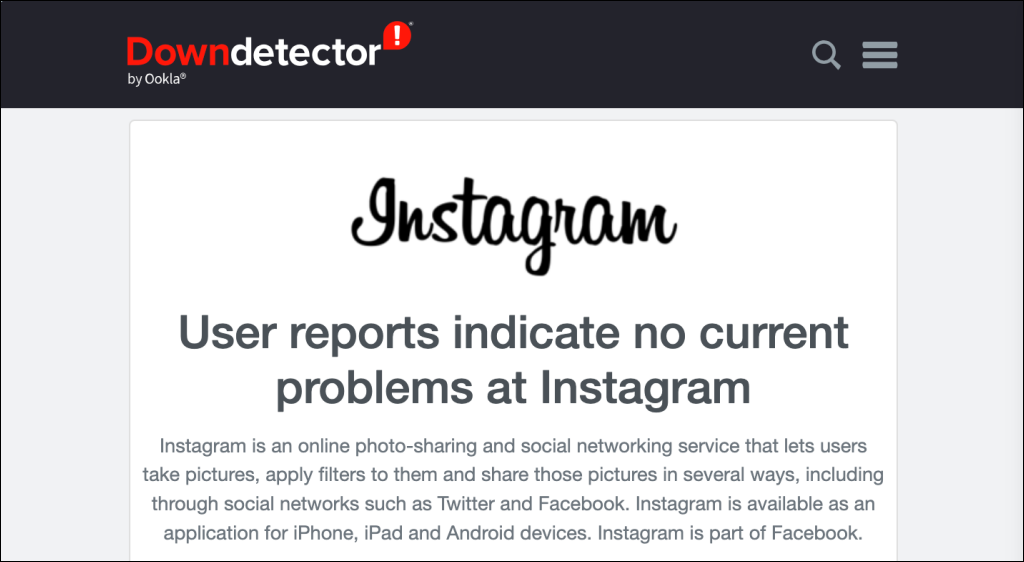
Use third-party website monitoring tools like Downdetector to check if Instagram is experiencing downtime. If the tool says many Instagram users report similar issues, the social network is likely experiencing server-related issues. There isn’t anything you can do but wait until Instagram restores the affected servers.
Clear Instagram’s Cache
Instagram stores temporary files (called cache files) on your phone to speed up and enhance the app’s performance. These files sometimes get corrupt and become problematic, causing the app to malfunction. You can clear cache files without deleting the app data or your personal settings.
You can only clear the Instagram app cache files on Android devices, as the iPhone doesn’t allow you to do that. Close Instagram and follow the steps to clear its cache data.
- Press and hold the Instagram app icon for 3-5 seconds, then tap the Info (i) icon.
- Select Storage (or Storage & cache) on the “App info” screen.
- Tap Clear cache to clear Instagram’s cache files, then reopen Instagram.

Switch from Cellular Data to Wi-Fi (or Vice Versa)
A strong and stable internet connection provides the best experience on Instagram. Switch to a wireless connection if Instagram isn’t loading pictures on mobile data. Conversely, switch to mobile data if you’re using Wi-Fi.
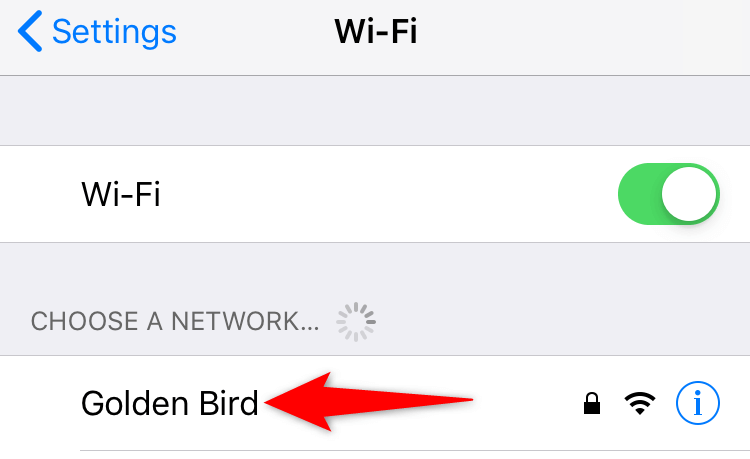
Open your iPhone’s Settings, select Wi-Fi, and connect to your preferred network. If you’re on a wireless network, toggle off the Wi-Fi option to switch to data.
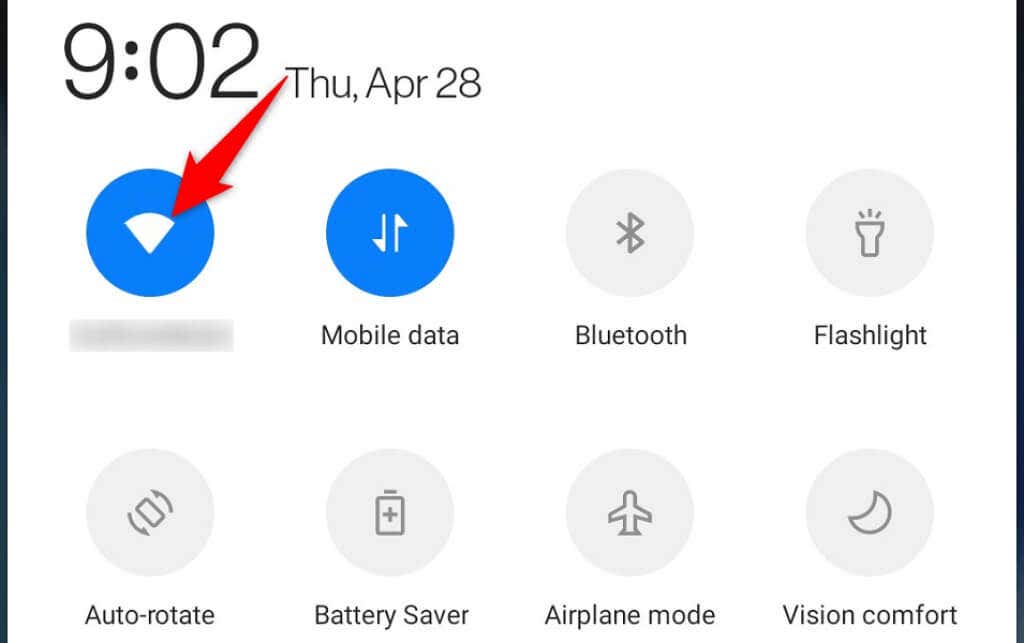
If you’re using mobile data, swipe down from the top of your phone’s screen, long-press the Wi-Fi icon, and join a Wi-Fi network.
Turn Off Your VPN (or Use One)
A Virtual Private Network (VPN) routes your phone’s internet connection through third-party servers, sometimes affecting Instagram’s ability to load and display content. Ironically, VPNs can also fix internet connection issues affecting Instagram.

If you’re using a VPN app, turn it off and see if Instagram photos load without the “Couldn’t load image. Tap to retry.” error. If you don’t use a VPN, install and set up one on your phone, then check if Instagram images load without the error message.
Log Out of Instagram (and Log Back In)
Logging out and back into Instagram re-establishs a connection with your account on Instagram’s servers. That could fix minor synchronization problems preventing the app from loading pictures.
Keep your Instagram login details handy because you’ll need those to log back into your account.
- Open your Instagram profile in the app (tap your profile icon) and tap the menu icon in the top-right corner.
- Scroll down the settings page and tap Log out.
- Close and reopen the app, then sign in to your account.

Update Instagram
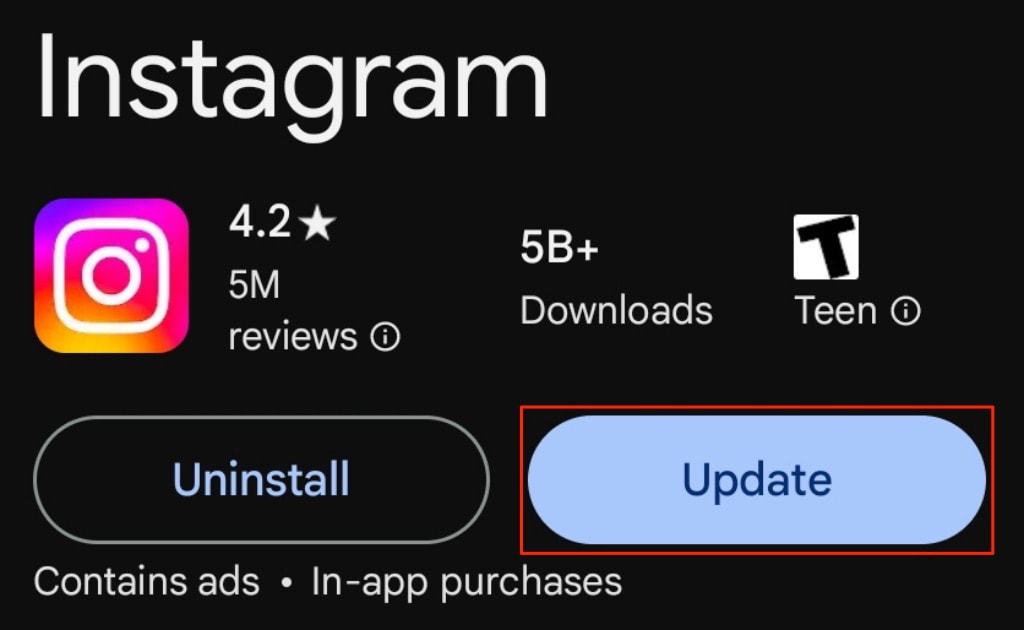
It’s essential to keep your phone’s apps up to date. App updates introduce new features, fix bugs, and squash other performance issues. Check your device’s app store for an update to the Instagram app.
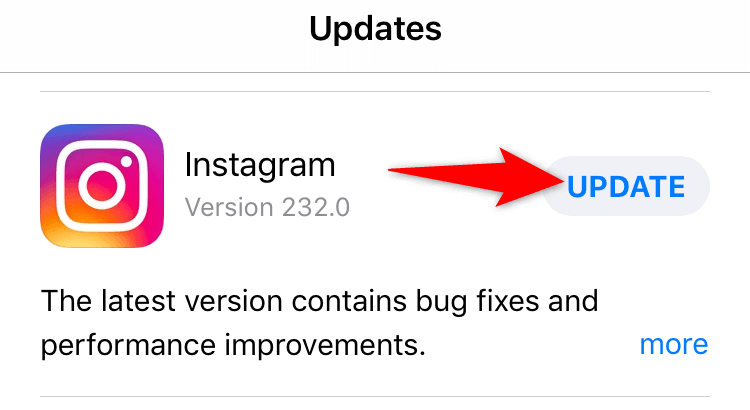
Open the App Store on your iPhone, search for “Instagram,” and tap Update to update Instagram.
If you use an Android, search for “Instagram” in the Google Play Store and tap Update to install the latest version.
Restart Your Phone
Your mobile phone may have a minor glitch that’s preventing the Instagram app from loading content. Reboot your phone and see if the problem is resolved.
If you use an iPhone, open Settings, go to General > Shut Down, and drag the slider to power off your device.

To turn your iPhone back on, press and hold the Side/Top button (until you see the Apple logo).
If you use Instagram on an Android phone, press and hold the Power button, then tap Restart.

Open Instagram and check if restarting your device fixed the image loading error.
Reinstall Instagram
If the “Couldn’t load image. Tap to retry.” error persists, the Instagram app’s core files might be corrupt. This happens for various reasons, including malware or virus infection.
One quick way to fix file corruption is to uninstall and reinstall the app. Doing so clears the app’s existing files and brings in new files from the app store. After reinstalling Instagram, log in to your account and check if you can access content.
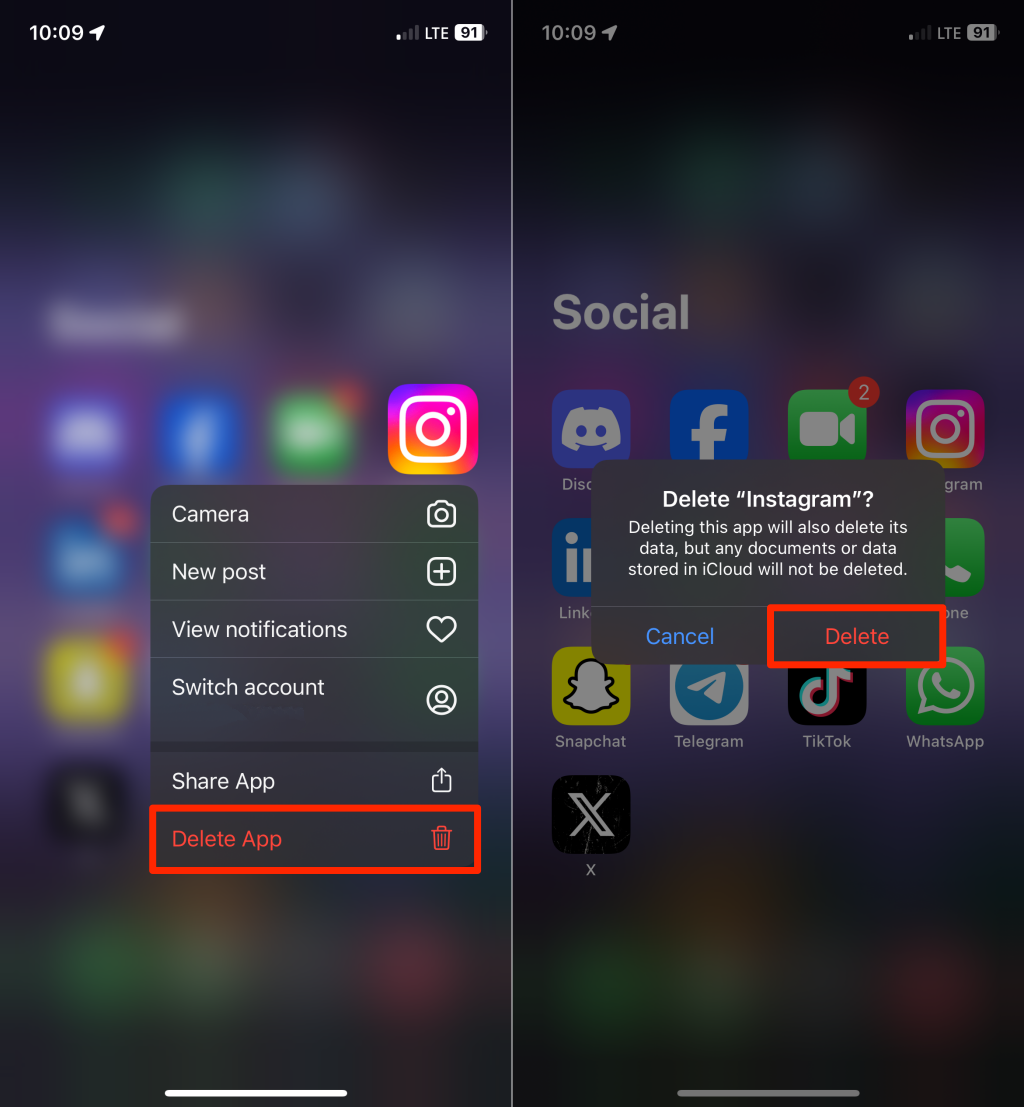
To uninstall Instagram on an iPhone, open your App Library, tap and hold the app icon, then select Delete App > Delete.
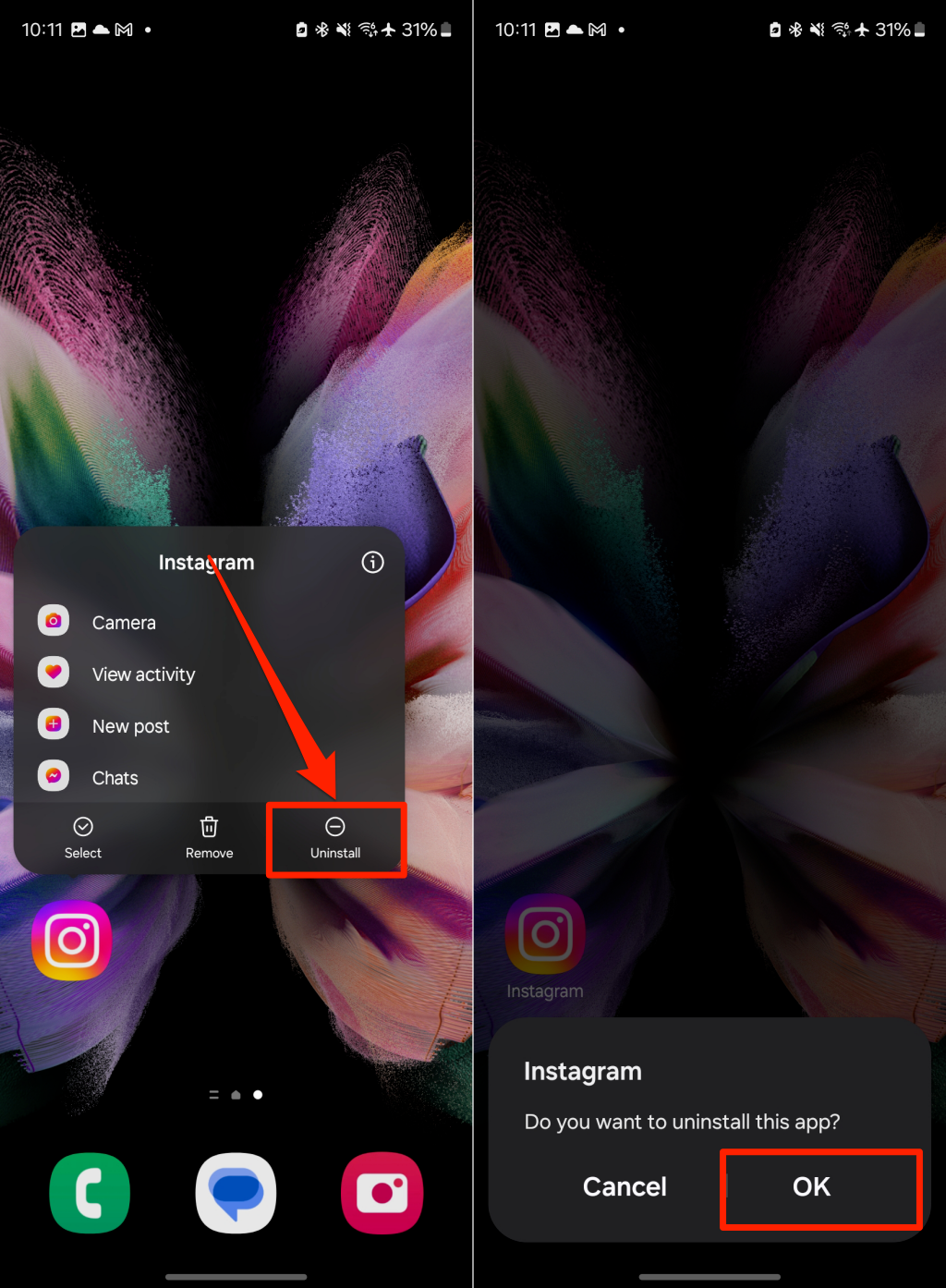
On Android, tap and hold the Instagram app icon, then select Uninstall > OK.
Reinstall Instagram from the App Store (iPhone) or Google Play Store (Android) and sign in to your account. Update your phone’s operating system if the error persists.
Update Your Phone
Instagram won’t work correctly on devices running unsupported or incompatible iOS and Android OS versions. Currently, the latest Instagram app version requires iOS 15.1 (or later) and Android 9 (and or later). If your phone runs an incompatible software version, updating it should get Instagram working again.
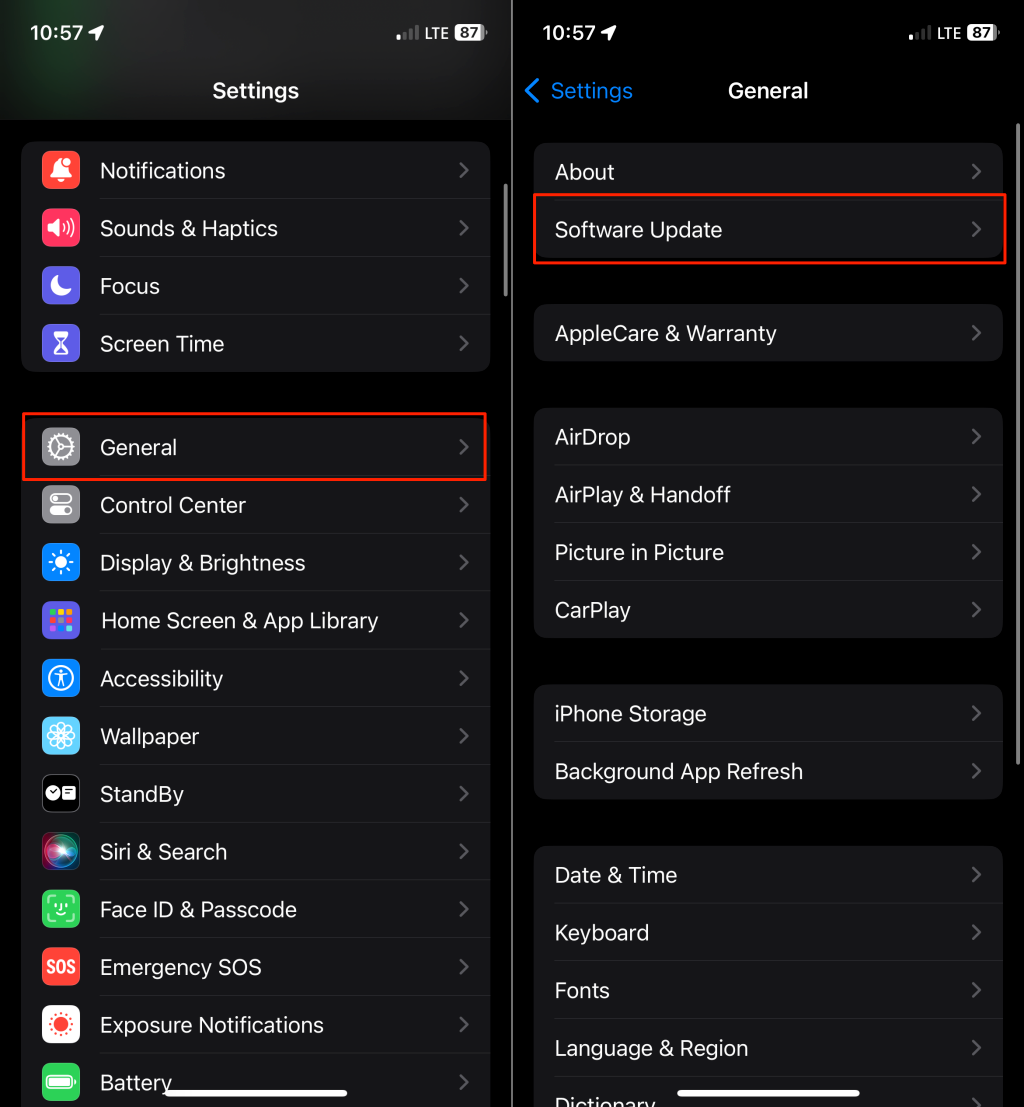
To install iOS updates, open your iPhone Settings app, go to General > Software Update, and tap Download and Install.
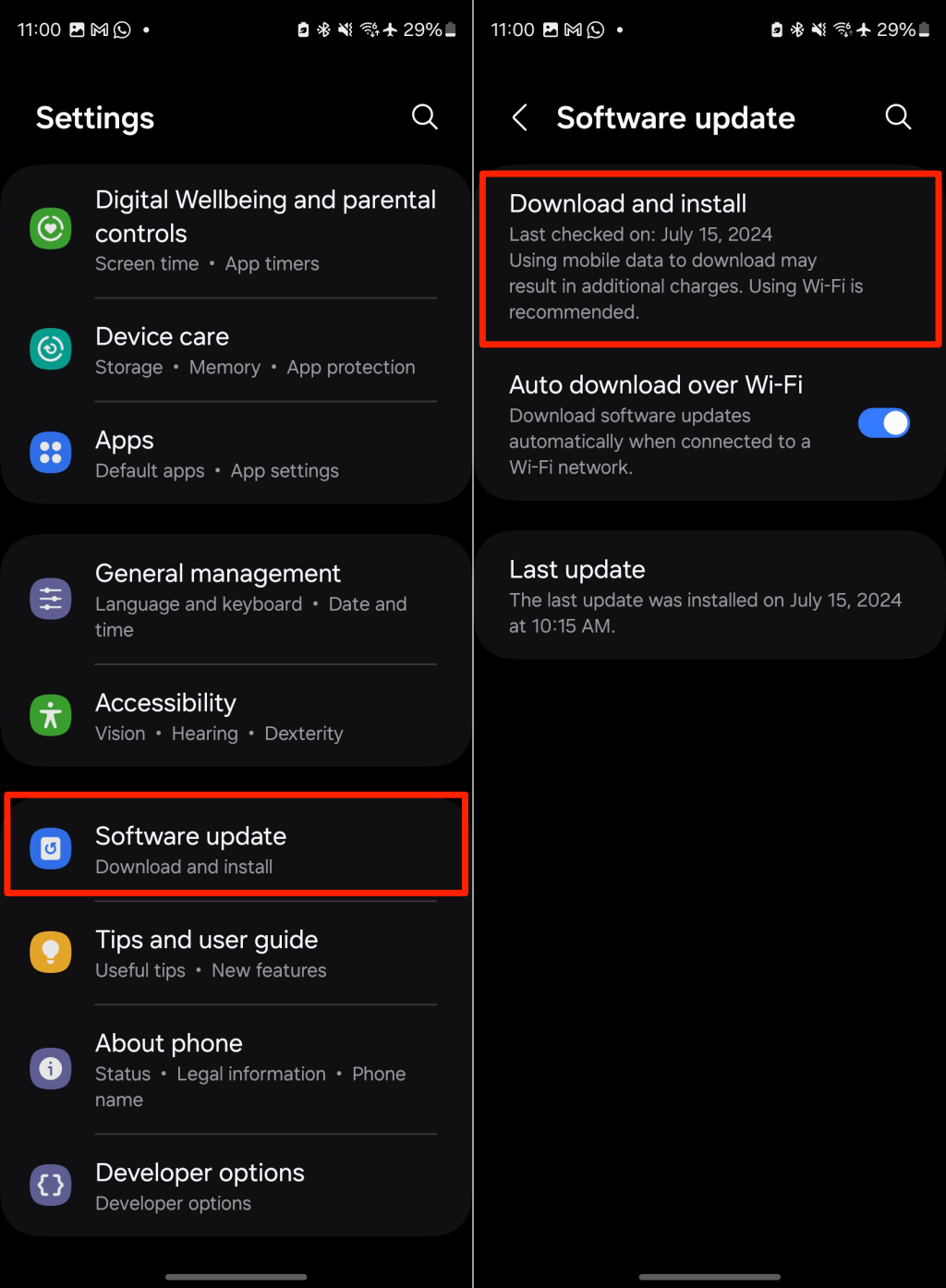
To update an Android phone, go to Settings > System > Software update (or Settings > Software update > Download and install).
Use Instagram on the Web
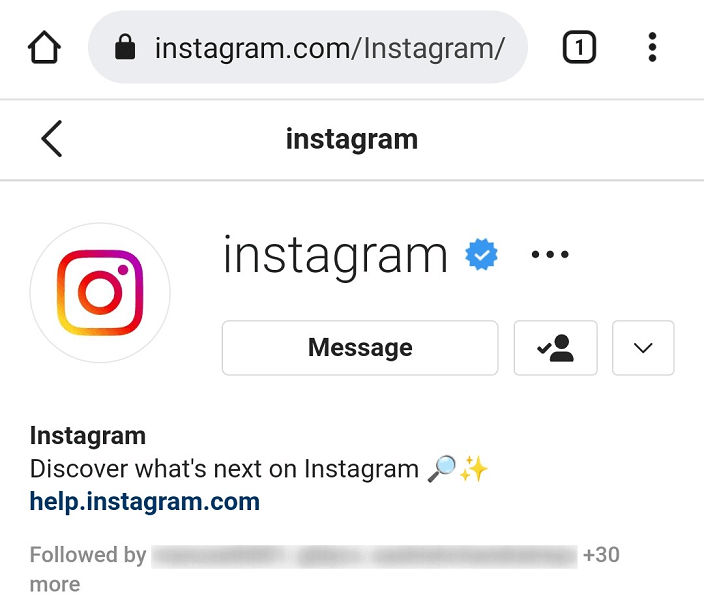
If the error persists, try viewing your Instagram on a web browser.The Instagram web version has nearly all the features of the mobile app. You can send and receive messages, view photos and videos, and change various account settings via Instagram web.
Conclusion
The “Couldn’t load image. Tap to retry” error is usually due to an unstable internet connection, but corrupt cache files and temporary system glitches can also be the culprit. You should be able to fix this Instagram issue using the troubleshooting steps described above.