
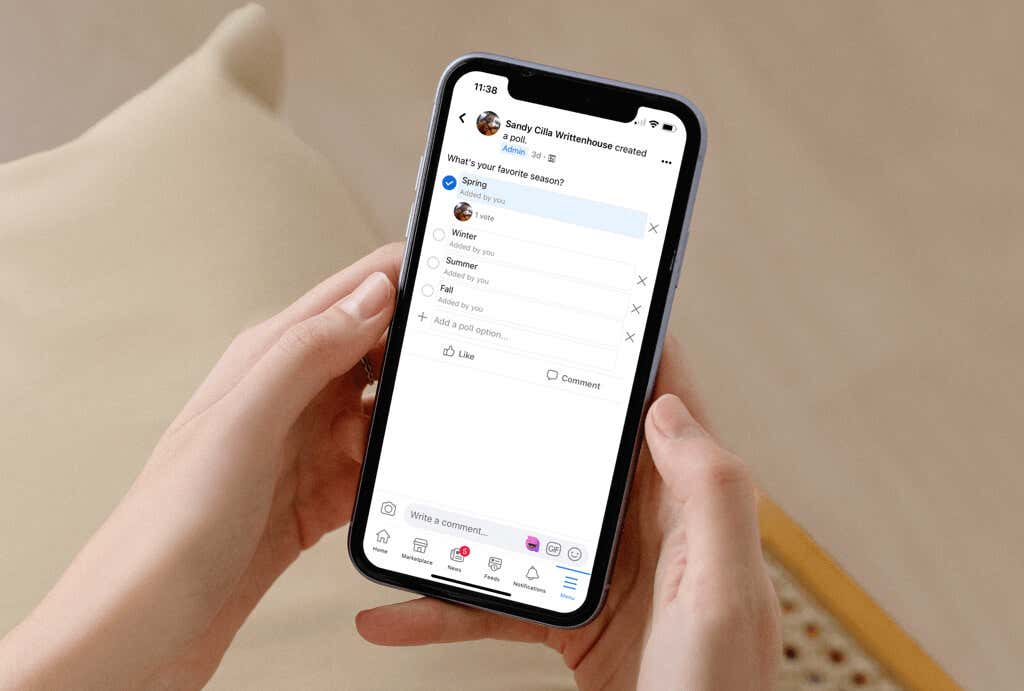
Polls are convenient tools for gathering opinions from others. With the number of opinions you can gather on social media, that makes Facebook a good spot to create a poll, right?
It seems the Facebook polls feature has changed over time which can make it difficult to find. At one time, you could create a poll in the Publishing Tools for a Facebook page you manage. However, this currently no longer exists.
As of this writing, you can create a poll in a Group that you belong to or manage. You can also make a smaller version of a poll when you create a Story on your mobile device.
Let’s look at your options so you know where and how to create a poll on Facebook.
Create a Poll in a Facebook Group
If you belong to or manage a Facebook Group, you can create a poll on the Facebook website or in the mobile app. Plus, gathering opinions from group members with a similar interest might be ideal.
Create a Poll on the Web
- Head to Facebook.com, log in, and select the Groups tab at the top.
- Choose a Group on the left below Groups You Manage or Groups You’ve Joined.
- On the Group page to the right, you may see Poll listed as an option below the Write Something box where you normally add a post. If so, select it.
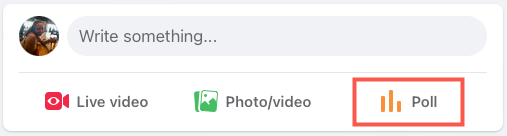
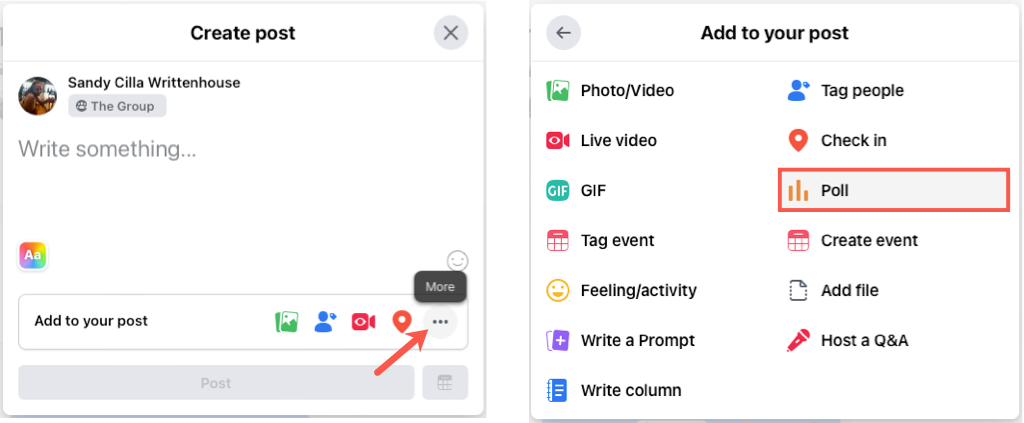
- If not, click inside the Write Something field to open the Create Post box. Then, choose the three dots for More options and pick Poll.
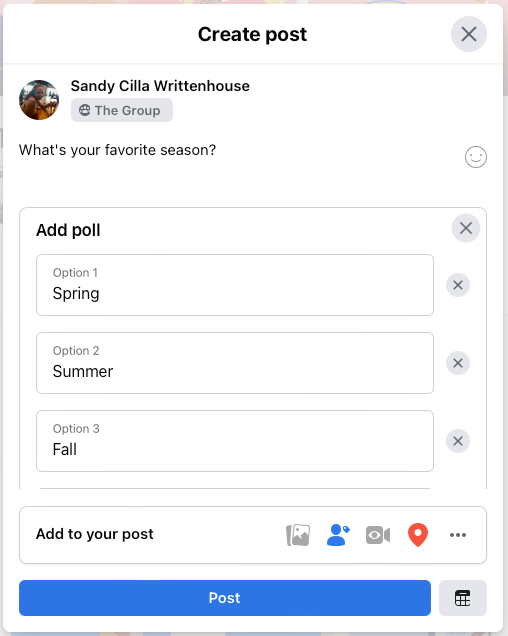
- Add your poll question in the Write Something spot at the top.
- Enter the answers in the Option boxes. If you have more than three answers, select Add Option to include more. If you change your mind, select the X to the right to remove one.
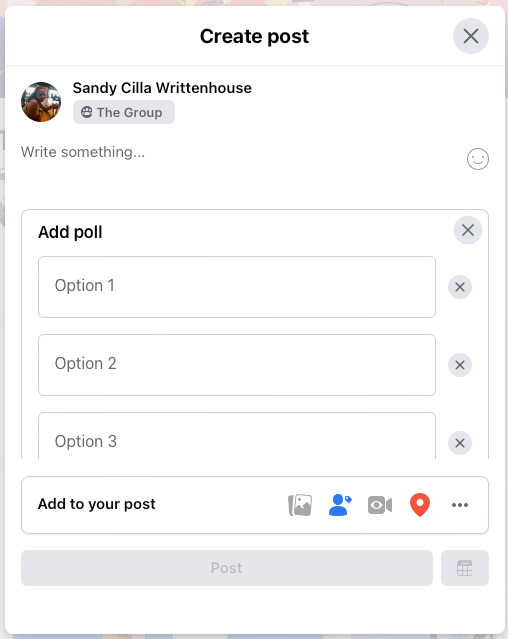
- To the right of Add Option, select the gear icon to adjust two controls for the poll. You can allow people to choose multiple answers, allow anyone to add options (answers), or both.
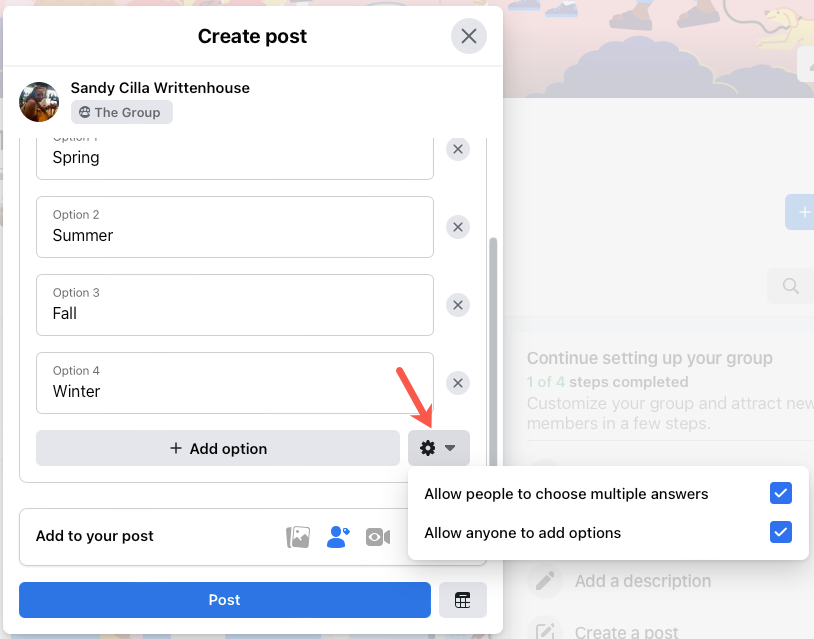
- Optionally, pick an addition in the Add to your post section such as an image, tag, or activity.
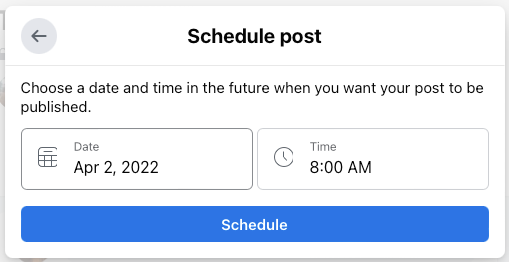
- To schedule the posting of your poll, select the calendar icon on the bottom right, pick the date and time, and hit Schedule.
- If you don’t schedule the poll, select the Post when you finish.
Create a Poll on Your Mobile Device
You can create a poll in a Group in the Facebook mobile app with all the same options as on the web.
- Open the Facebook app on your device, select the Menu tab, and pick Groups.
- Choose a group at the top or tap Your Groups and pick the one you want.
- If you see Poll listed as an option below the Write Something text box, select it. If not, tap inside the Write Something field and select Poll in the pop-up at the bottom of the screen.
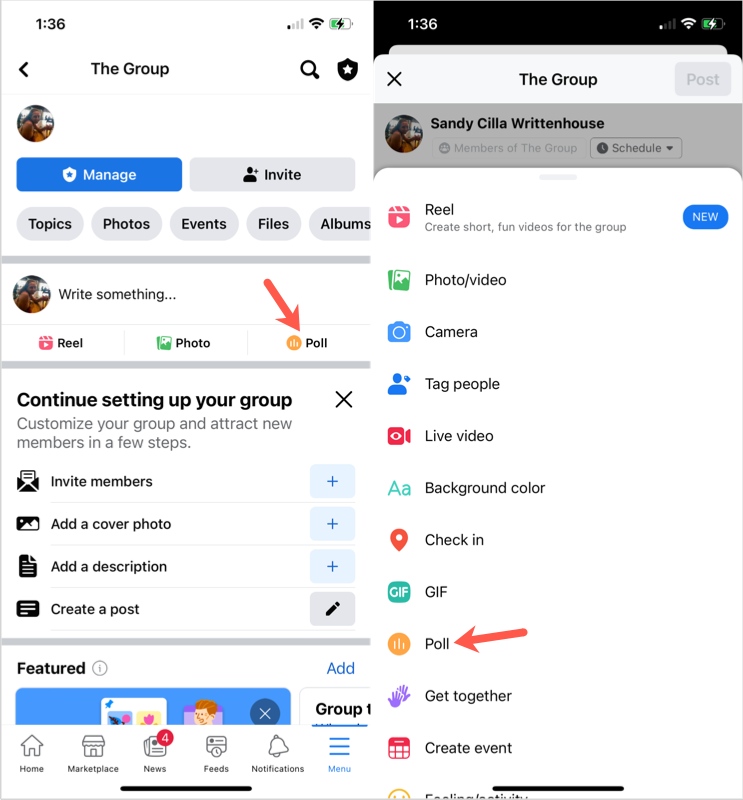
- Add your poll question in the Ask a question spot at the top.
- Enter your first answer in the Add a poll option box. Tap Done on the keyboard and then enter the next answer. Continue until you’ve entered them all. If you change your mind about an answer, select the X to the right to remove it.
- To the right of the Add a poll option field, tap the gear icon to adjust other controls for the poll. You can allow people to choose multiple answers, let anyone add options (answers), or allow both.
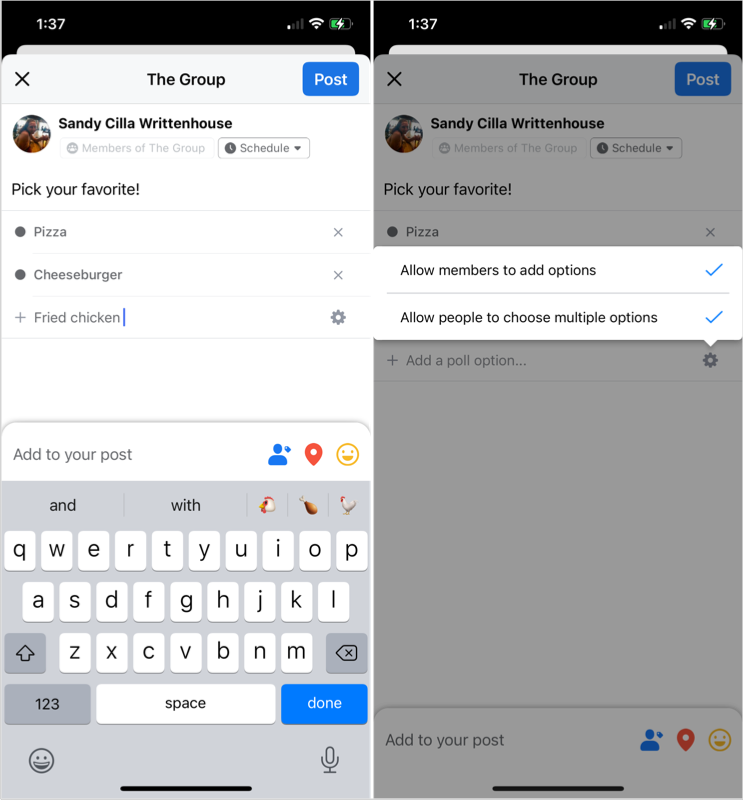
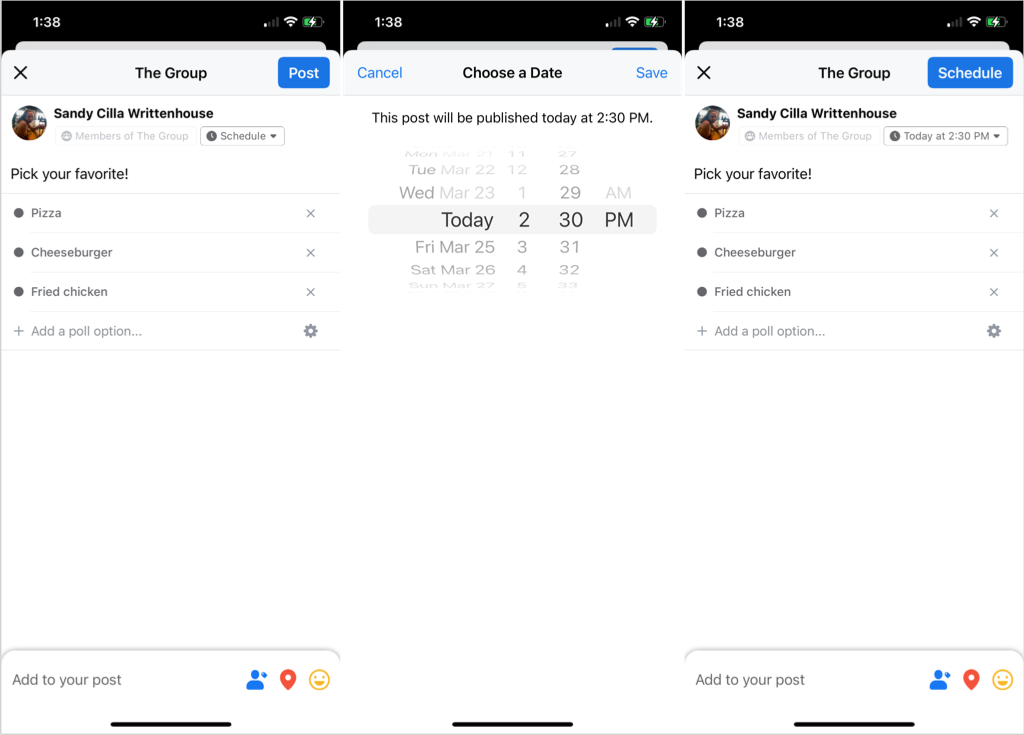
- To schedule the posting of your poll, tap Schedule at the top, pick the date and time, and select Save.
- When you finish, tap Post, or Schedule if you set the date and time.
Create a Poll in Your Story
As mentioned, you can create a small version of a poll with two answers for a personal account or Facebook business page you manage by creating a story. Unfortunately, this option is currently only available in the Facebook mobile app on Android and iOS, not on the web.
- Open the Facebook app, go to the Home tab, and tap Create Story near the top.
- Select the kind of story you’d like to create. The poll feature works with all types except Text.
- Create your story per the type you chose above, but don’t post it yet.
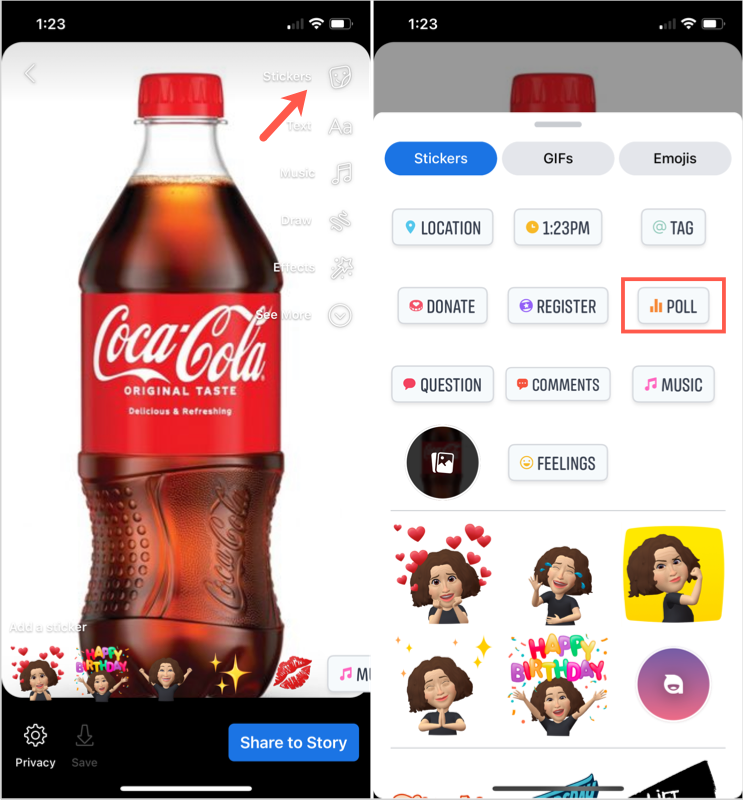
- Tap the Stickers icon at the top or on the right side depending on your story type. Choose Poll in the list of options on the Stickers tab.
- You’ll then see a field to enter your question along with Yes and No answers. Type your question and optionally select Yes or No to use your own text or emojis from your keyboard as the answer options.
- Tap Done at the top and when you finish creating your story, tap Share to Story.
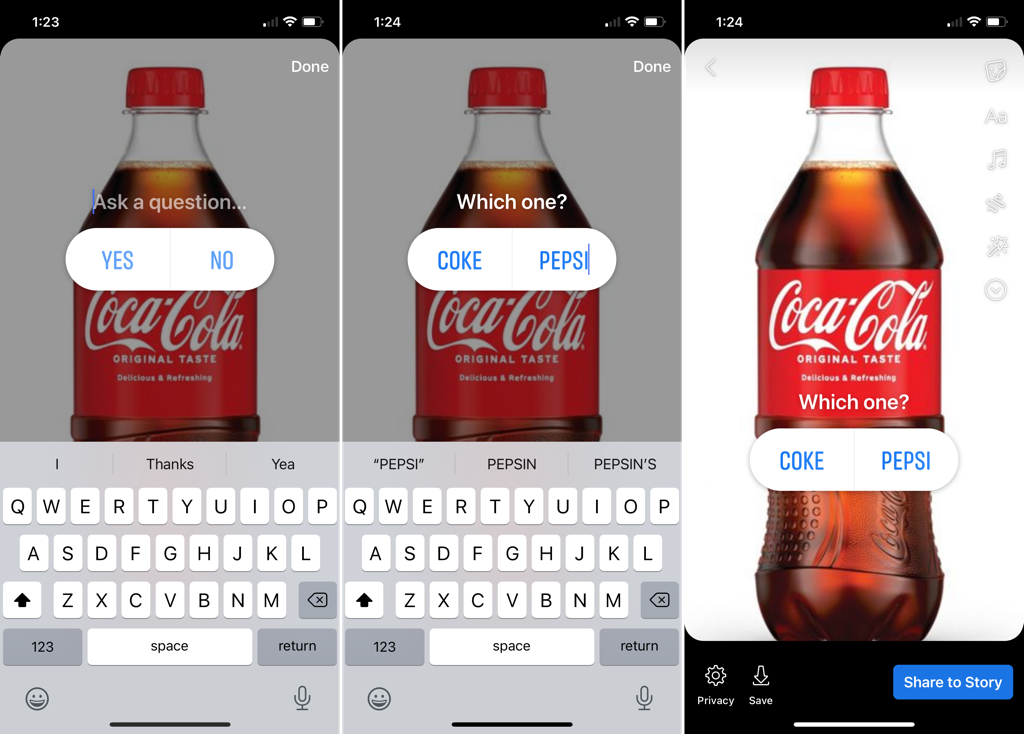
While this poll is a bit different than the one you can create in a group with several possible answers, it still gives you a way to ask a simple question and receive one of two answers from your Facebook friends.
View Poll Results
Regardless of which type of poll you create or where, you can see the results by viewing the post or story.
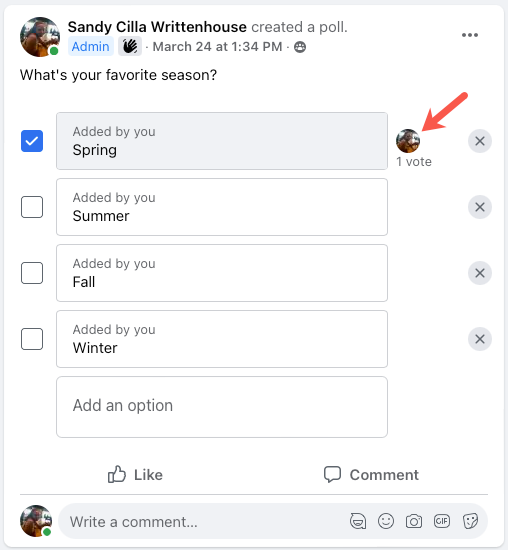
For a group post, simply view the poll post to see the number of votes per answer and who voted.
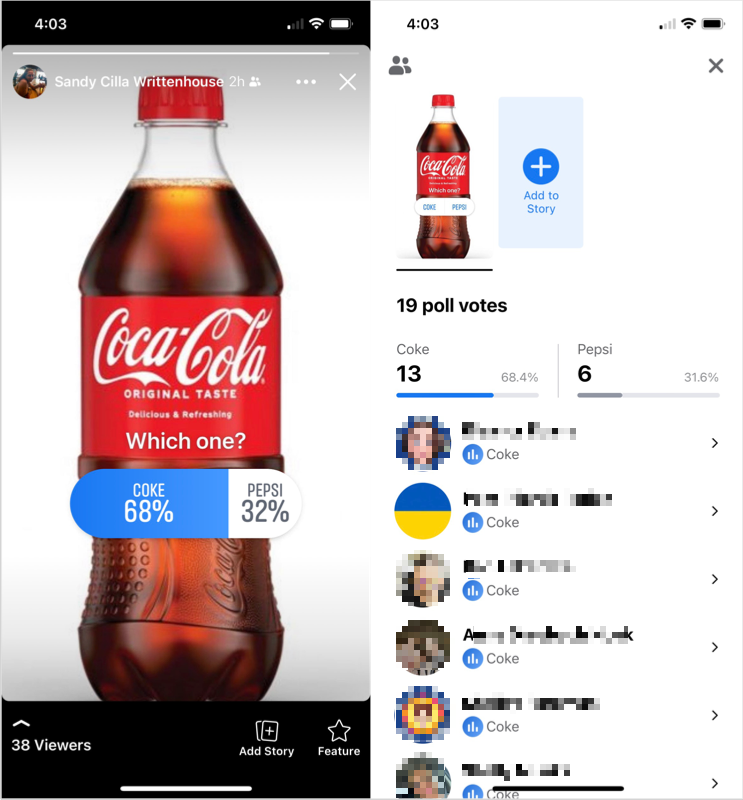
For a story, open your story for results at a glance or swipe up on the story to see the exact number of votes and who voted.
Remember, Facebook stories disappear from the News Feed after 24 hours. However, if you save stories to the archive in your Facebook account, you can view them there after they vanish.
Now that you know how to create a poll on Facebook in a group with several answers or in a story with only two, it’s time to go get some answers!
For more, look at how to run a Microsoft Teams poll during meetings.