

Want to compose a lengthy post on Twitter but afraid that everything you want to say won’t fit in a single tweet? The easiest option is to post a series of tweets and combine them into a Twitter thread (or a tweet thread).
With the tweet thread, you don’t have to limit yourself to the standard 280 characters. Instead, you can use this social media platform to provide additional context or arguments for your point, as well as update it later with more information. Below you’ll find more information about what Twitter threads look like and how you can create your first one.
What’s a Twitter Thread?
It used to be that every tweet had a strict character limit of 140 characters, and that’s all you could write in a single post on Twitter. However, as the platform evolved, Twitter users kept asking for more space to express themselves. Since Twitter didn’t want its users to switch to a different platform like Snapchat or Instagram, they introduced new post formats.
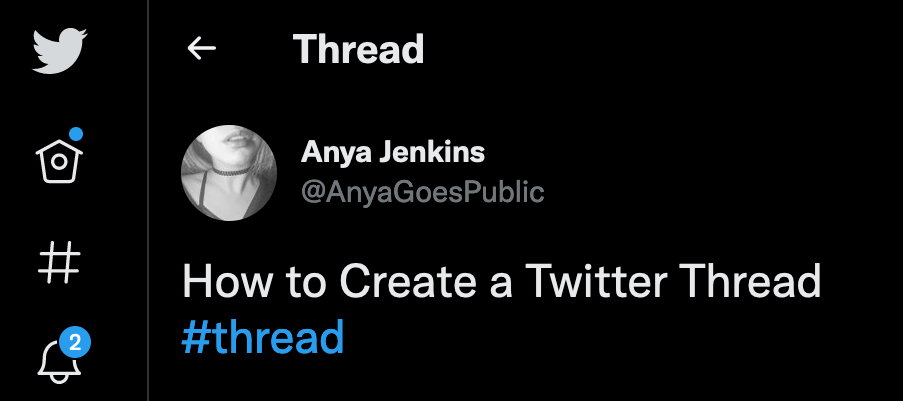
Today you can publish longer tweets, polls, GIFs, images and videos, fleets, and threads. Twitter thread is a relatively new feature.

A thread on Twitter is a series of connected tweets posted by the same Twitter user. They’re linked together by the Reply function and appear as one continuous tweet with the second and other additional tweets attached to the original tweet-like comments.
How to Find and View Threads on Twitter
If it’s a thread from someone you follow, you’ll see it on your timeline as several tweets connected by a straight line. If the thread has four or more tweets, the tweets are truncated. To expand and see the entire thread, you need to select the Show this thread option next to the individual tweet.

On your profile, a thread will appear as separate tweets, posted in reverse chronological order. Every tweet that belongs to a thread will have the same Show this thread option displayed next. When you Retweet or Quote Tweet that belongs to a thread, the retweet will also include the Show this thread message so that other people can select it to see the entire thread.
Users usually mark their Twitter threads with the #thread to distinguish them from normal tweets and avoid their followers jumping on commenting on the first tweet before the whole thread is complete.
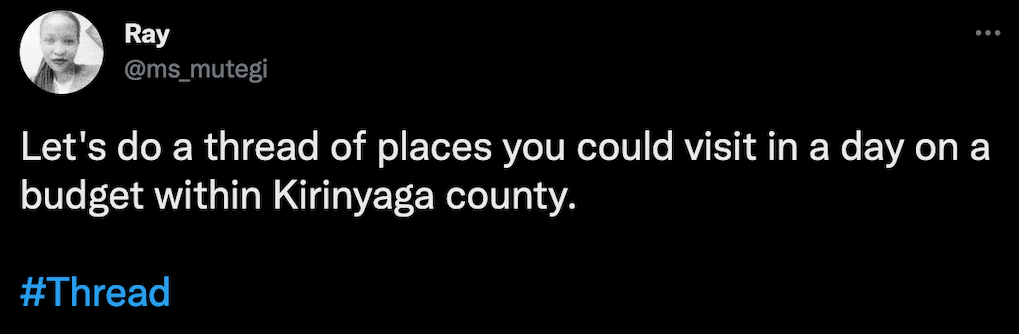
To make sure your followers read the tweets in your thread in the correct order, you can also number the posts in your thread: e.g., 1/5, 2/5, etc. If you mention someone in a thread, they’ll receive a standard notification on Twitter about it.
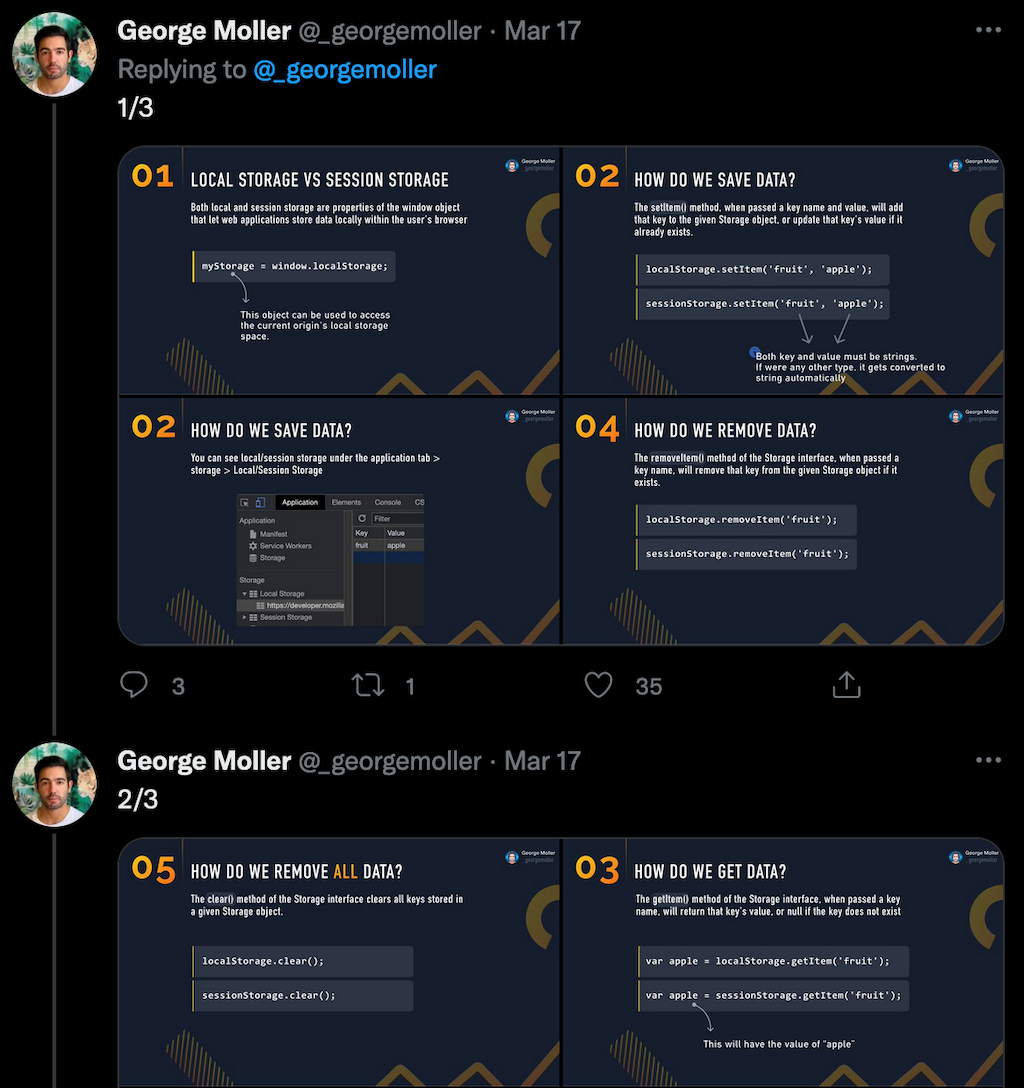
Twitter Thread vs Tweetstorm
If you have heard of tweetstorms before, learning about Twitter threads might be confusing, as they seem one and the same. While threads and tweetstorms can be the same thing, it’s not always the case.
When a user posts a number of tweets quickly, one after the other, that’s called a tweetstorm. However, they only become a thread if these tweets are also replies to one another and are connected in that way. If the tweets aren’t linked together with the Reply function, they remain individual tweets that can be a part of a tweetstorm, even if they have no connection to each other.
You can also find the word tweetstorm used in relation to something different. When many different users tweet about the same topic (e.g., using the same hashtags or links), some people call that a tweetstorm too. However, this usage example is a lot less common nowadays.
How to Create Your First Thread on Twitter
There are two different ways that you can use to create a thread on your Twitter account. You can use both the Twitter website and the mobile app. Follow the steps in our tutorials to create your first thread on Twitter.
How to Create a Twitter Thread Using the Reply Function
The easiest way to make a thread on Twitter is to publish a tweet and then use the reply function to add more tweets to your thread. To make your first thread on Twitter, follow the steps below. The steps are the same for Android, iOS, and desktop users.
- Open the Twitter app or website, and log into your account.
- Open the Home page, then start typing your first tweet under What’s happening (or select the Compose icon if you’re using the mobile app).

- Select Tweet.
- Once your first tweet is published, select Reply under it.

- When the new tweet’s ready, select the Tweet button to publish it.
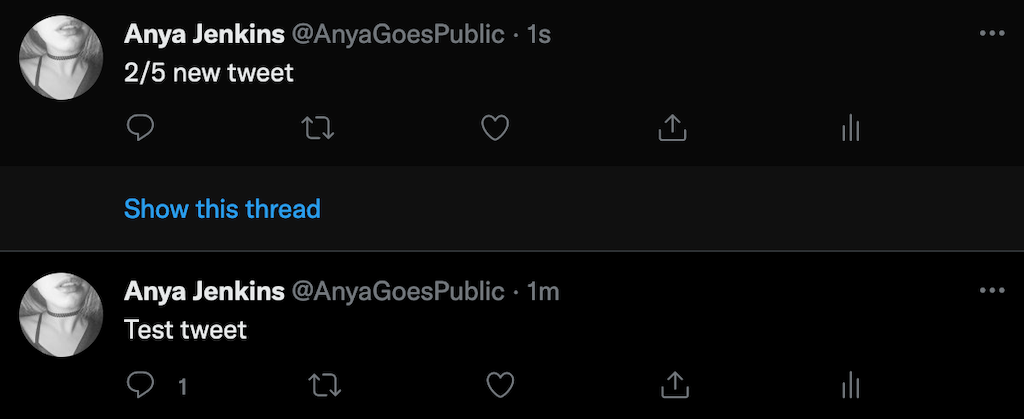
You’ll now see a Show this thread message appear next to your second tweet. You can continue publishing new tweets using the Reply function until you’re down to the last tweet of your thread.
This method is easy to use but the main problem here is that your followers might not know that this is a thread you’re creating and start asking questions in the replies that you’re going to answer in the following tweets. If you choose this method, make sure to include #thread in your first tweet, and number any following tweets to let your followers know there are more posts coming.
How to Create a Twitter Thread Using the Threads Tool
Another way to avoid a situation where your followers start commenting on your posts before the thread’s finished is to create it using Twitter’s built-in threads feature. It allows you to create an entire Twitter thread with however many tweets you like and then publish them all at once.
To make a new thread on Twitter using the threads tool, follow the steps below. The steps are the same for all Twitter apps and Twitter website.
- On Twitter, start typing your first tweet under What’s happening (for desktop users) or select the Compose icon to create your first tweet (for mobile users).
- Select the blue + icon (for desktop users) or Continue thread (for mobile users) to add the next tweet to the thread.
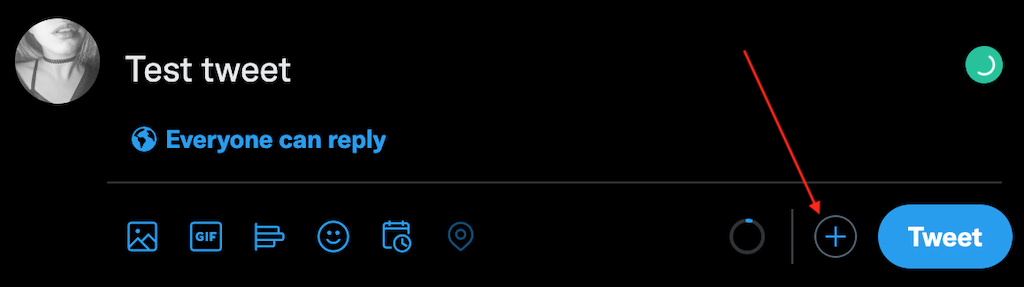
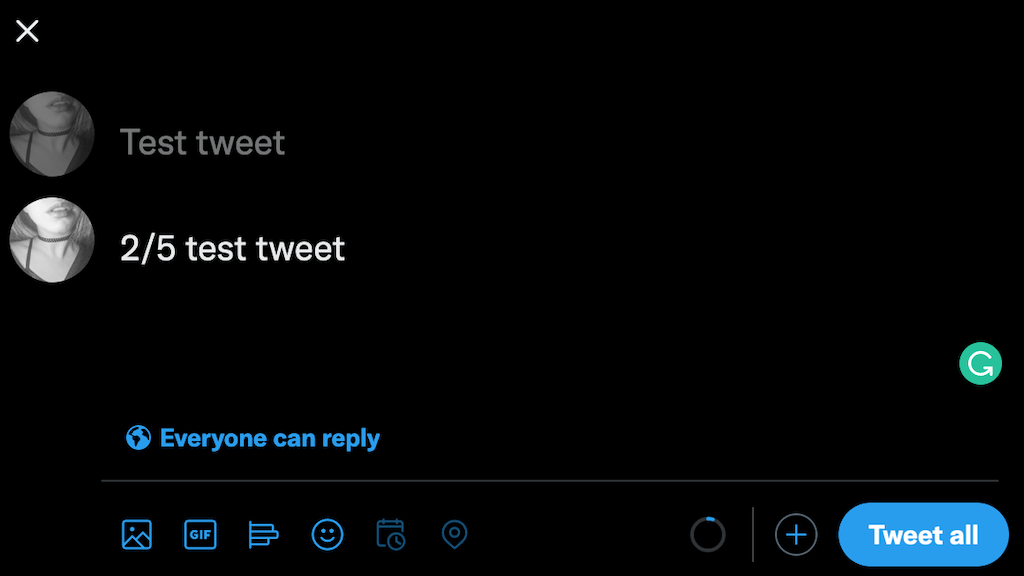
- Type in your second tweet. Then select the + icon again to add another tweet.
- When you’re ready to publish your thread, select Tweet all.
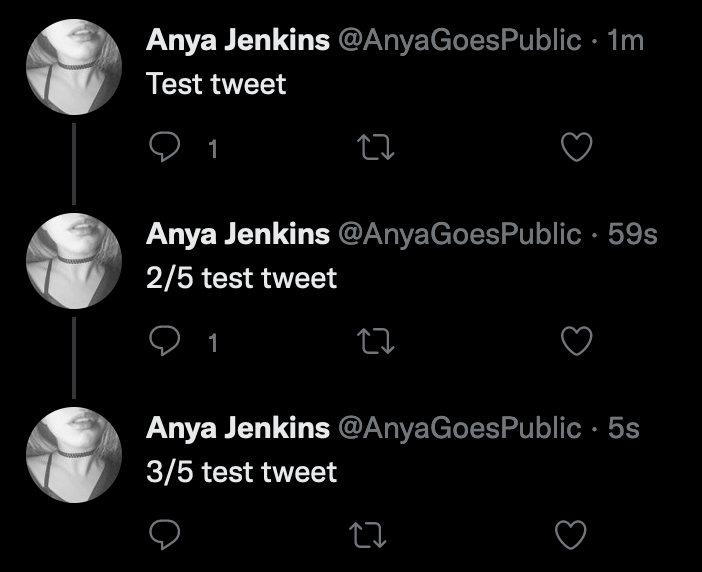
You’ll now see your thread appear in your Twitter feed.
You can add more tweets after publishing your thread. To do that, open any individual tweets in your thread, scroll down and select Add another tweet.
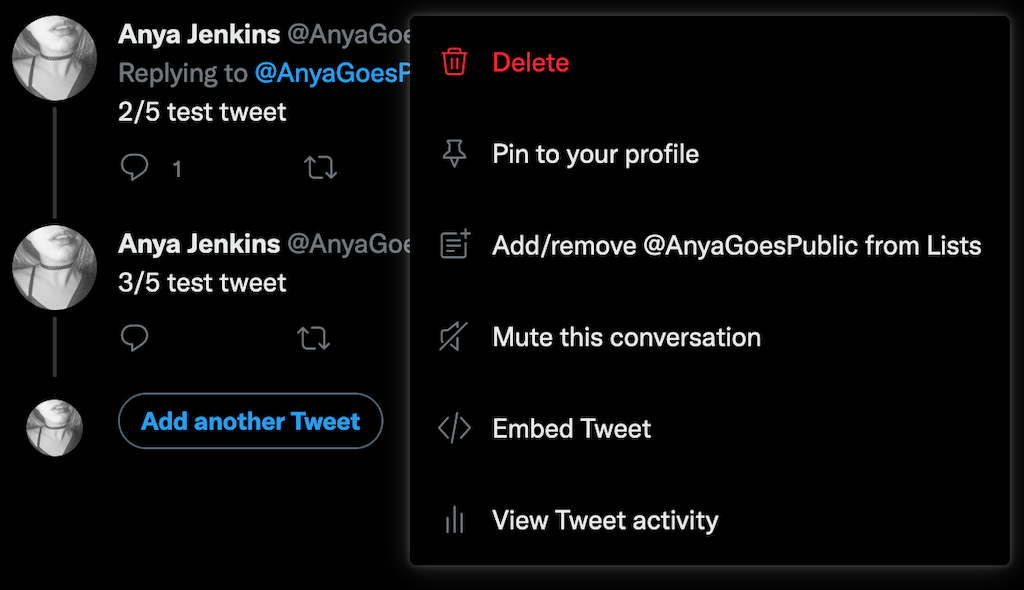
You can also delete any of the individual tweets from your thread. To do that, open the tweet that you want to remove, select the three horizontal dots icon on the right side, and select Delete.
Tips on Creating Engaging Twitter Threads
Threads are great for driving your engagement rates on Twitter. You can use this tool to get rewards from Twitter, like gaining new followers and becoming more discoverable by other users. However, to get the most out of Twitter threads, here are a few things that you need to keep in mind.
- Avoid using only plain text when writing your threads. Instead, use different types of media to accompany your posts, like GIFs, images, videos, and links. It’s a great way to add diversity into your tweets and keep your audience engaged, especially if it’s a long thread.
- While composing your thread, don’t forget about hashtags. Tweet like a pro, and make sure to use at least one hashtag in each of the tweets to make your thread more discoverable by the users that don’t follow you yet.
- If it’s a short thread, number your posts to create a better structure and help your followers read the tweets in the right order. However, if it’s a long thread, avoid numbering your posts, as seeing the final number of 23+ posts can scare people away.
- When people start commenting in your threads, engage with their comments as soon as possible and move the conversation further. Your thread may contain the most helpful info, but if it doesn’t get engagement from other users, the Twitter algorithm won’t show it to anyone outside your followers’ circle.
Use Threads to Tell Better Stories on Twitter
Twitter offers plenty of tools to help you capture your audience’s interest. Twitter threads are no exception. Use threads to tell better stories, engage with your audience, and make your Twitter account more discoverable for other users.