
LinkedIn is a powerful tool for anyone looking for a new job or to connect with others with similar career interests, and one of the easiest ways to let recruiters know you’re on the market for a new job is the “Open to Work” feature.
This feature actively alerts LinkedIn recruiters that you’re job hunting. You should understand the benefits, as well as the downsides, of this LinkedIn feature and take the time to optimize your profile.
What Is “Open to Work?”
LinkedIn’s Open to Work is a relatively new feature that allows you to let your entire network know that you’re in the job market. There are two options to choose from:
- All LinkedIn Members lets everyone, even those you currently work with, that you’re searching for a job. It adds the OpenToWork photo frame around your existing profile picture. This option is considered a more “passive” way to look for work, and some recruiters say it’s less effective.
- Recruiters only alerts only those using the LinkedIn Recruiter feature. If you already have a full-time job, the Recruiters only option prevents anyone who works at your current company from seeing the alert. While it does help keep your search private (since many companies don’t want you to actively look for work while you’re employed), LinkedIn says it can’t guarantee complete privacy.
How to Enable OpenToWork
It’s easy to show recruiters that you’re open to opportunities.
- Select the Me icon in the top-right corner on the LinkedIn homepage.
- Select View profile.
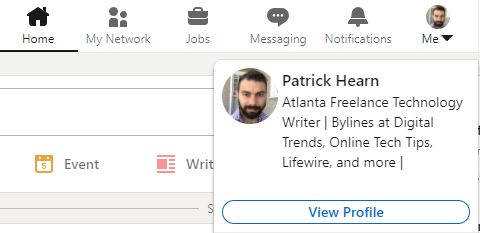
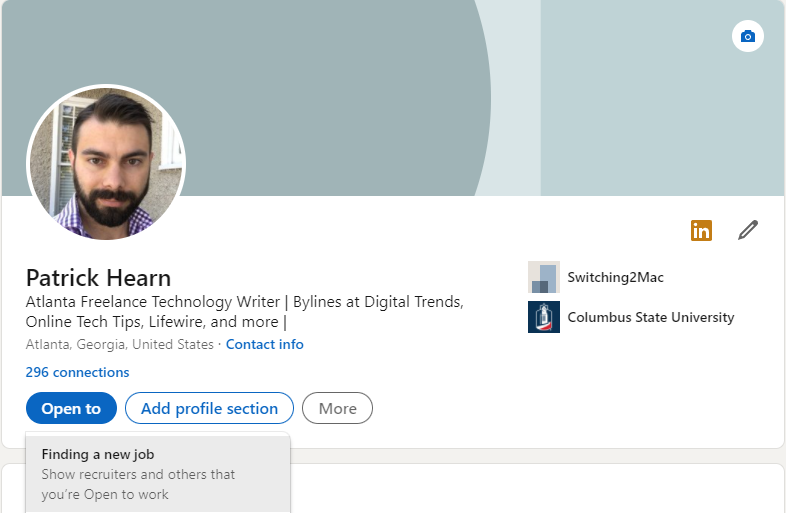
- Select Open to > Finding a new job.
- Select the kind of work you’re looking for. You can choose from among potential job titles, workplaces, job locations, and even your start date. You can also choose the type of job you want between full-time, contract, part-time, internships, and/or temporary work.
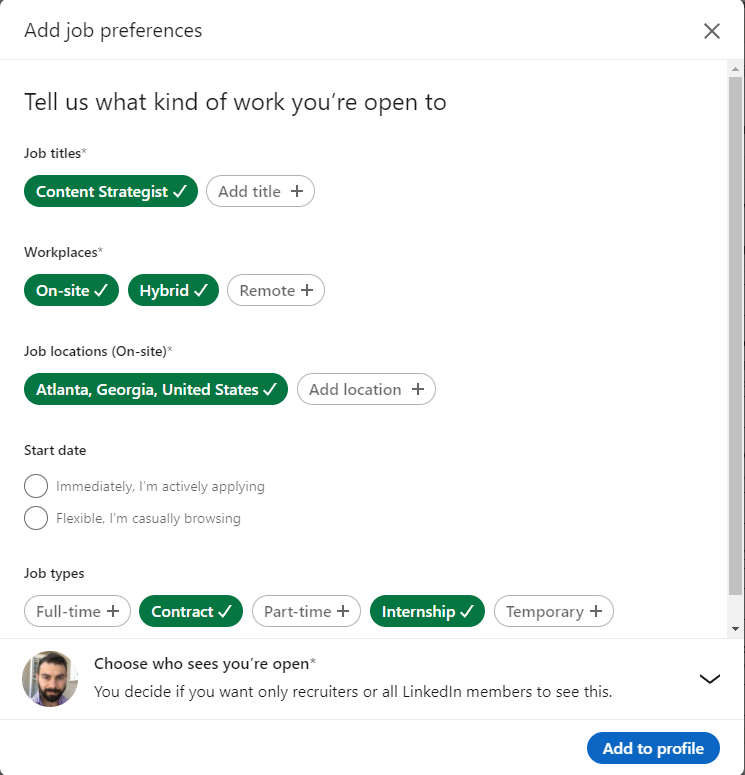
- Beside Choose who sees you’re open, select the down arrow. Select All LinkedIn members or Recruiters only.
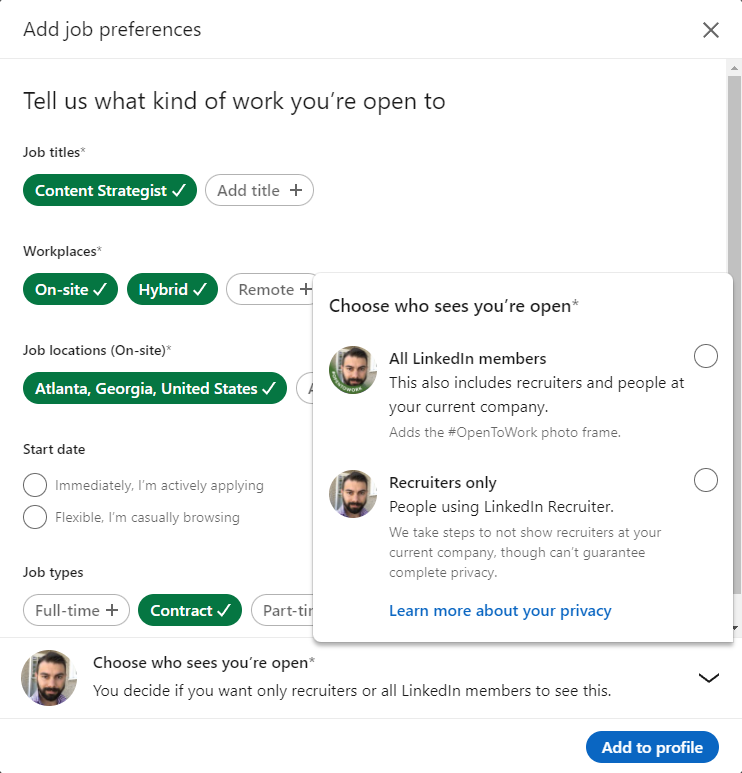
- Select Add to profile.
Most recruiters will reach out to you through LinkedIn’s InMail feature. Make sure you respond, even if it’s just to let them know you aren’t interested. Failing to respond to these messages will result in LinkedIn reaching out to confirm you’re still interested. If you don’t respond to this message, LinkedIn will remove Open To Work from your profile.
Risks Of Using Open To Work
Job seekers have to be careful when using this feature. While it can be a useful tool for finding new job opportunities, it can also put your existing job at risk. If you’re a contract worker or freelancer, the Open To Work is almost risk-free – you’re under no obligation or expectation to continue working for the same client exclusively.
However, if you’re a full-time worker in the traditional market, starting a new job search comes with risks. Companies can use your search for new work against you and terminate your employment with them. Just as you wouldn’t speak out against your company on social media, you have to be careful about your LinkedIn presence.
While the Recruiters only option provides some privacy, there are stories about recruiters asking friends at different organizations to look into their company to find out who is looking for work. While there is no guarantee looking for a new job will cost you the one you already have, you should be aware of the risks.
How to Make the Most of Open To Work
Think of your LinkedIn profile like a hook. Recruiters will glance at it for only a few seconds before deciding to dig deeper or move on. Use that brief intro period to impress them and get them to look closer. When a recruiter passes your profile on to hiring managers, that optimization will give you a better chance at landing the job.
Start with your profile photo. It should be at least 400 by 400 pixels. A professional photo is worth the price. It should show your face, and you should be well-groomed in the photo. Finally, in your privacy options, ensure your profile photo is visible to All LinkedIn members.
Next, take full advantage of your LinkedIn headline. This is the 220-character description of who you are that appears under your profile photo. Include a succinct report of what you do, as well as your current position. If you’re a freelancer, including your email or phone number is also helpful.

You have the most flexibility in the About profile section. This is where you can explain your story: who you are, what inspires you, and your past accomplishments. You have 2,000 characters to work with here. Write freely, but utilize keywords and update this section often as your career grows.
Bear in mind that readers will only see about 265 characters before they have to select “See more.” These first 265 must be engaging enough to make someone want to see what else you have to say.
Fill out your work experience, too – but feel free to leave off past positions that aren’t relevant to your search. If you are building a career as a freelance coder, it’s okay to not include your time working as a lifeguard. However, if asked in an interview, be honest about your work history.
Finally, edit your profile URL. The generic LinkedIn URL might work for the average profile, but you want yours to stand out. This is easy to do.
- Select the Me icon > View Profile.
- In the upper-right corner, select Edit public profile & URL.
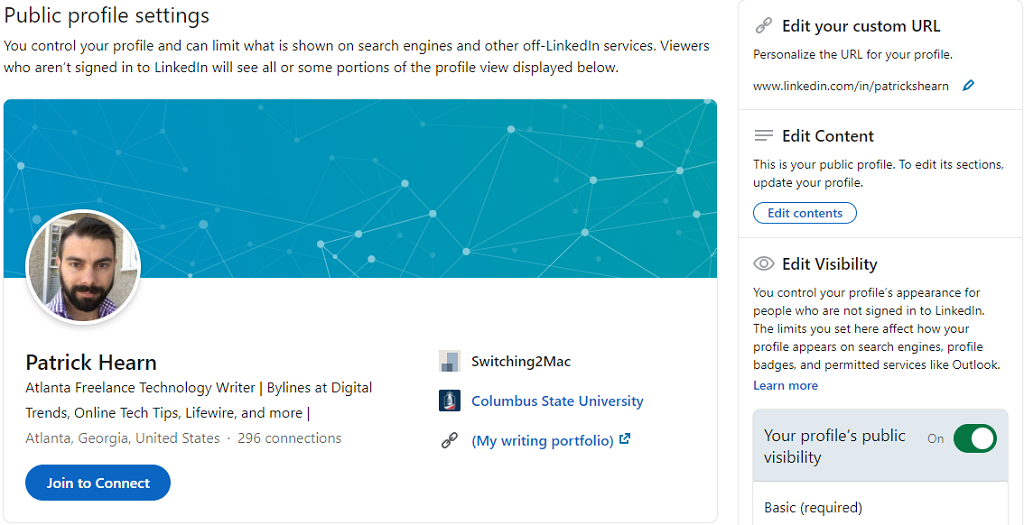
- Select the pencil icon beside your LinkedIn URL and enter a new URL, then select Save.
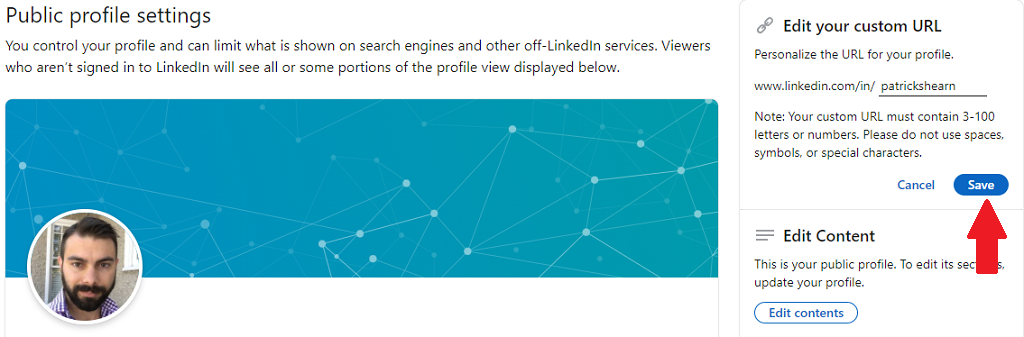
Your URL can be as little as three characters or as many as 100. Keeping it short and simple (like your name) is the best bet here.
Optimize your LinkedIn profile before you start your job search. You’ll get better results and more offers that way, and you’ll soon have the job you’re looking for.