
Facebook isn’t just a social network. It helps you stay in touch with your friends, keep up with the news feed, promote your business, and so much more. But no matter how popular it is, sometimes Facebook doesn’t work, and it’s not always your fault.
In this article, we will help you figure out why Facebook is not working. We’ll take you through a set of easy-to-follow troubleshooting steps and provide you with the right solutions.
1. Check Your Internet Connection
A bad internet connection or Wi-Fi signal can prevent you from accessing Facebook. Check if your device is connected to the internet correctly. This might sound like a no-brainer, but make sure your ethernet cable is plugged in and that your router is on. Also, check out our beginner-friendly guide on setting up an internet connection.
2. Is Facebook Down?
Before resetting your iPhone or restarting your router, you should check if Facebook is down. Like any other app or website, Facebook might have server-wide issues causing you and others to lose connection to the platform.
If you have another device like an iPad or Android smartphone ready, you can try logging into your Facebook account to see if it’s working. That said, a more elegant solution is to check DownDetector.
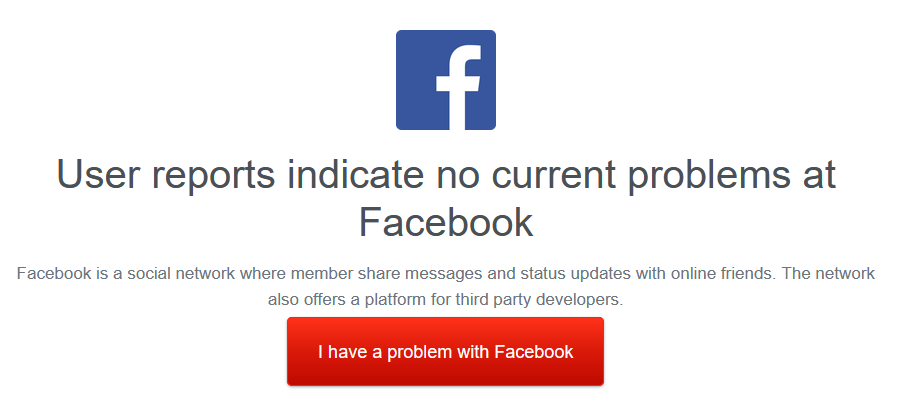
Down Detector is a website where anyone can report connection problems with various websites and online platforms. When there are many user-generated reports, chances are there’s an outage. On a side note, you can also use Down Detector to check if Netflix is down. It also works for other services like Whatsapp, Xbox Live, Gmail, and more.
3. Refresh Your Browser
If you use the Facebook website instead of the app, refresh your browser. This can fix almost any browser-related glitch. All you need to do is hit the Reload or Refresh button while you’re on your Facebook page. You’ll find the button in the top-left corner on most browsers.
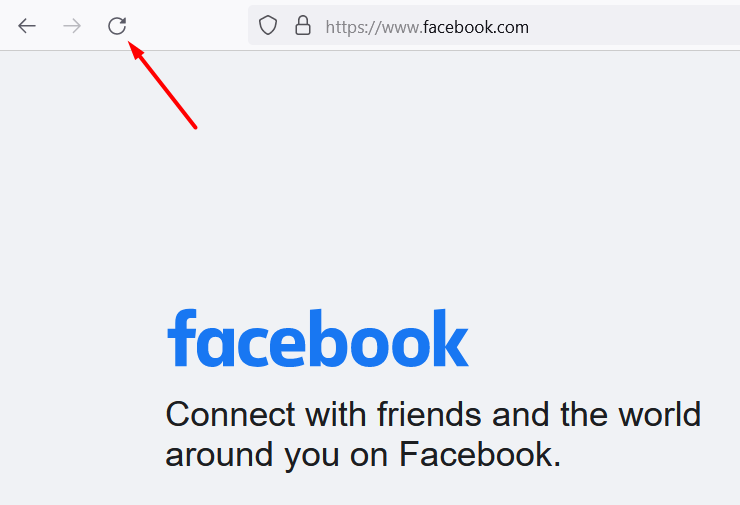
If Facebook is still not working, close all your browser tabs and launch the Facebook website in a new window. You can also try a different browser like Firefox, Google Chrome, Safari, and other browsers you may haven’t heard of. Sometimes, a glitch or a browser update can temporarily prevent accessing your Facebook page.
4. Log Out and Restart the App
If you use the Facebook website instead of the app or Messenger, you can ignore this step.
Sometimes, all it takes to fix Facebook on your iPhone, iPad, Android, or Microsoft Surface tablet is closing and opening the app. Many Facebook issues are caused by a software glitch that is nearly impossible to track. So log out of your Facebook account, close the app, start it back up, and relog.
5. Clear Cache and Data
Web browsers collect and store a lot of data over time. At some point, something causes a glitch, and it prevents you from logging into your Facebook account. The solution is to clear your browser’s cache and data.
The steps to clear data and cache depends on the browser and device you use. The steps you need to take on Apple Safari will be different from Chrome or Firefox. Fortunately, we pieced together a detailed guide on how to clear the cache of any web browser, so make sure you check it out before going to the next troubleshooting step.
6. Restart Your Device
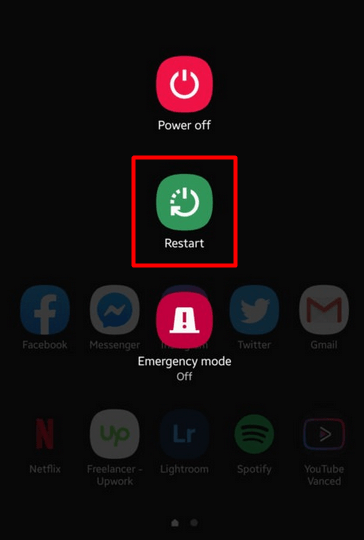
When your computer, Android, or iOS device is on for too long, mysterious things start happening. The apps, services, and operations running in the background can cause various glitches. That’s why it’s good to restart your device now and then.
7. Update or Reinstall the Facebook App
Make sure you run the latest version of the Facebook app. Check for any notifications that might be asking you to update the app. Otherwise, you’ll encounter compatibility issues, and Facebook will stop working or misbehave. You can update the app from the Google Play Store and Apple’s App Store, respectively, or you can remove it and reinstall it from scratch.
- For Android, go to this official Play Store page.
- For iOS, go to this official App Store page.
8. Flush the DNS Cache
DNS problems might be interfering when you attempt to connect to Facebook. The Domain Name Server receives a request from your computer when you type a website address, and it converts it into the IP address of a specific server. Your device stores information on all the sites you visit inside the DNS cache. That’s how websites load faster the next time you visit them.
That said, a glitch in the DNS cache can prevent you from accessing the Facebook website. To solve this problem, you need to flush the cache. Here’s how to do it on Windows:
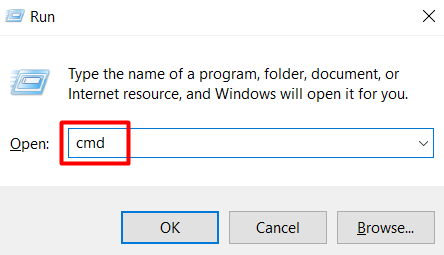
1. Hold the Windows key + R to open the Run window. Type cmd and click on the OK button.
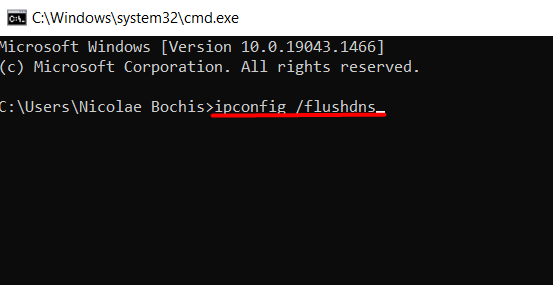
2. Type the following command in the Command Prompt console and press Enter:
ipconfig /flushdns
If you’re using a different device that doesn’t run on Windows, read our extensive guide on clearing DNS cache on Windows, Mac, Android, and iOS.
9. Facebook Is Down for Maintenance
If Facebook is not working for you or you can’t log into your Facebook account, the platform might be undergoing maintenance. You should see a message or notification about this, and all you can do is wait.
Other Annoying Facebook Issues
Can you connect to the Facebook website, app, or Messenger, but something’s not quite right? There might not be an outage, but is Facebook really working if you can’t play videos or upload photos? Let’s briefly look at three issues that prevent you from using your favorite social media.
You Can’t Upload Photos
Facebook without the ability to upload photos isn’t really Facebook. This is a common complaint, but there are a couple of possible solutions to this problem:
1. Update your browser or the Facebook app, depending on what you use. Out-of-date software can cause unexpected issues because it’s no longer compatible with Facebook’s features.
2. Check the image format. Facebook supports JPEG, PNG, BMP, and TIFF, to name some of the more popular formats. Make sure you export your photos in a supported format, and you keep them under 15MB.
3. Check for any emails from Facebook. Facebook will sometimes block people because of uploading any content deemed abusive or inappropriate. This block prevents you from uploading any image files.
You Can’t Upload Videos
Everything in the above section about uploading photos applies to videos as well. Ensure the Facebook app is up-to-date, export videos in a supported format, and keep the file size under 4GB.
You Can’t Play Videos
Sometimes videos stop playing because of a browser or app-related glitch. All you need to do in most cases is restart your browser. If that doesn’t work, try a different browser or restart your device.
Did you solve your Facebook issues? Let us know what worked for you in the comments below!