
Getting promoted is always exciting. Normally, when you want to share your news with your friends or colleagues online, you turn to social media. However, in case of a promotion you might want to turn to one particular network – LinkedIn.
LinkedIn is a popular social networking platform for business people. Its focus on business makes it ideal for career news, such as promotions or job searches.
Here’s how you can add a recent promotion to your LinkedIn profile, as well as notify other users on your network about it.
Why Show Off Your Promotion on LinkedIn?
Sharing the news of your promotion on LinkedIn comes with a number of benefits. Here are a few possible reasons for adding information about your promotion to your LinkedIn profile:
Adding a promotion helps you keep your LinkedIn resume up-to-date.
A smart resume on LinkedIn is the one that displays current information about your skills and your professional accomplishments. Many users create their LinkedIn profile and never update it afterward. That’s a faulty approach, especially if you want to expand your professional network or change your occupation in the future.
You’ll have better chances of getting a higher role next time.
Next time when you use LinkedIn to find a new job, you can expect employers to offer you a similar or a higher role than the one that’s listed in your resume. That’s why it’s important to list your highest professional accomplishments in your LinkedIn profile.

Show your current employer that you enjoy working for them.
Contrary to popular opinion, having a LinkedIn profile doesn’t tell your employer that you’re looking to leave your current position and are searching for a new job. Instead, if you have a LinkedIn profile with your current role listed, this tells your employer that you enjoy your work.
Adding your promotion to your LinkedIn can be a way of showing that you’re proud of working with this team and that you value your employer’s decision to promote you.
How to Add a Promotion on LinkedIn
If you got promoted recently, it’s time to add it to your LinkedIn profile. Here’s how to do it on your computer.
- Open LinkedIn on your computer and sign into your account.
- Go to your profile’s page. To do that, select your profile picture, either in the upper-left or upper-right corner of the screen.
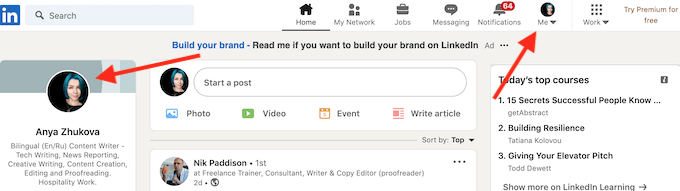
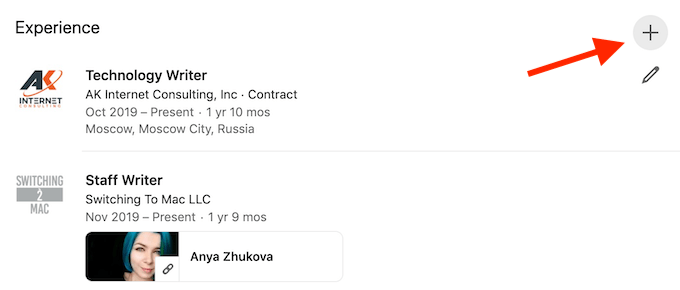
- Scroll down until you see the Experience section.
- In this section, select the + icon on the right side.
- Fill in the details of your new role in the Add experience window, including your Title, Employment type, Company name, Location, Start date, and any other details. Here you can also select to End current position as of now or not.
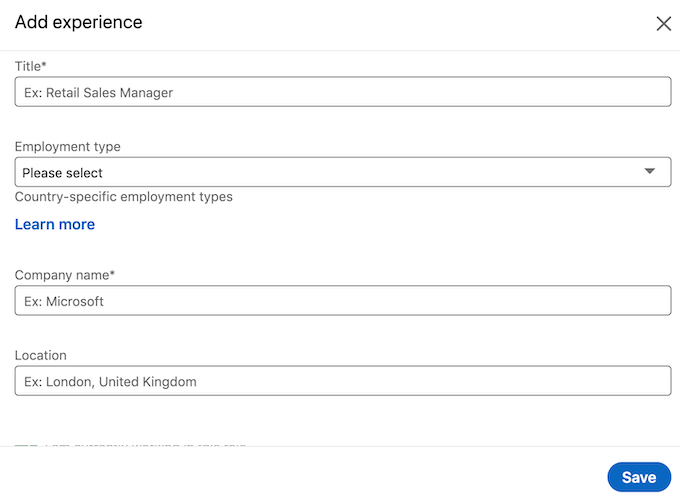
- Once you’re finished, select Save.
Your promotion will now be added to your LinkedIn resume. The steps are the same whether you’re using LinkedIn on your computer via a browser or the LinkedIn app on your smartphone.
How to Add a New Job Title on LinkedIn
Another way to add a promotion is to edit the Experience section of your LinkedIn profile without adding a new position. You can simply change the job title of the latest job that you’ve listed on your profile. To do that, follow the steps below.
- Open LinkedIn and log into your account.
- Select your profile picture to open your profile page.
- Scroll down until you see the Experience section.
- Find the position that you want to change the title of. Then select the pencil icon on the right side from it.
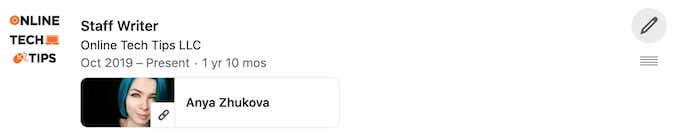
- In the Edit experience window, delete your old title and enter your new one. You can also change any other details about your new position, like Headline, Description, Start date and more.
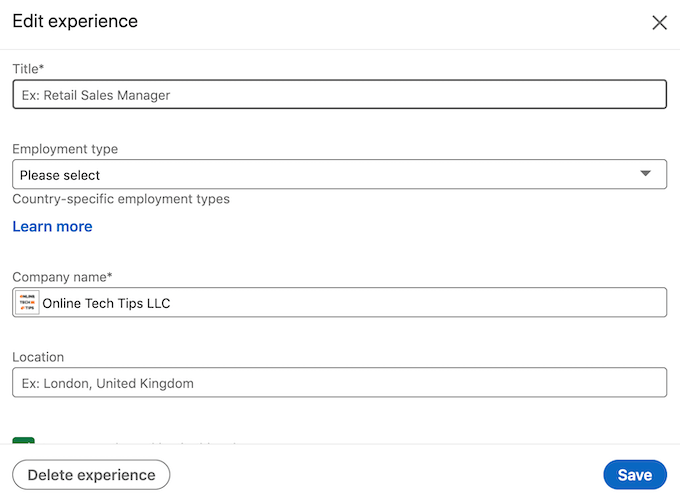
- After you’re finished editing, select Save to confirm.
Your new job title is now saved and displayed on your profile. The steps are the same no matter what device you’re using: Your computer and the web version of LinkedIn, or the LinkedIn app on your smartphone.
How to Notify People on Your Network About Your Promotion
LinkedIn is all about networking. Among other things, this means that your network should be aware of the changes in your career. When adding a promotion to your LinkedIn resume, you can make sure your LinkedIn connections don’t miss this by enabling a special notification.
If you want to notify your network on LinkedIn about your promotion, follow the steps below.
- Open your LinkedIn profile and find the new job role that you want to notify your LinkedIn connections about.
- Next to the position, select the pencil icon to edit it.
- On top of the Edit experience window, find the Notify network section. Select the toggle next to it to enable notifications.
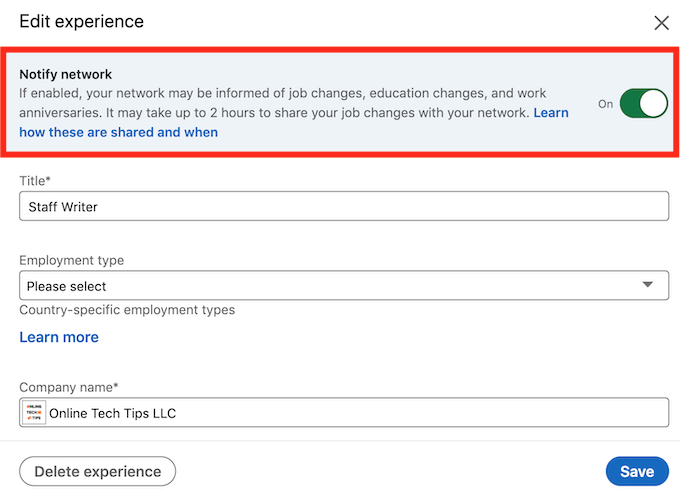
- Select Save when you’re finished.
Now your network on LinkedIn will be informed about your job changes.
Other Ways to Tell Your LinkedIn Network About Your Promotion
Updating the Experience section of your profile isn’t the only way that you can share the news of your promotion on LinkedIn. One of the first things that anyone sees when they visit your LinkedIn profile is the Featured section. You can use it to create a post announcing your promotion.
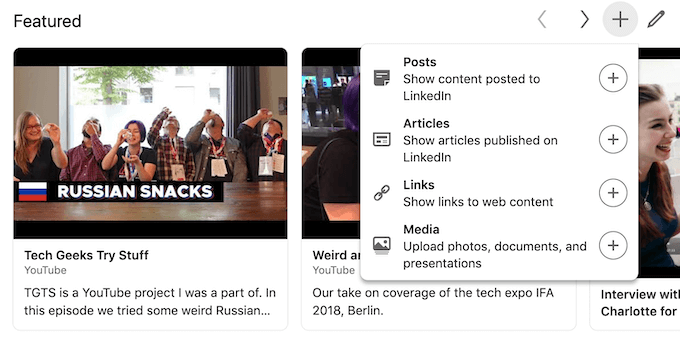
There are a few different ways that you can go about it:
- Create a short public post about your promotion that will appear on your profile. Your connections will see this post when they scroll through their feed on LinkedIn.
- Write an article about your promotion and get it published on LinkedIn. If you’re a skilled writer, this is probably the best way for you to announce your promotion. You can also include other details like your new duties and responsibilities here.
- Add a link to another web page with your promotion announcement. If your promotion is already announced elsewhere, this is the quickest and easiest way to share the news with others on LinkedIn.
- Finally, you can add other types of media files, like pictures of videos that include the news of your promotion.
Time to Tell Everyone About Your Promotion
Now all that’s left to add a promotion to LinkedIn is to choose your favorite way to share the news of your promotion with other LinkedIn users and wait for the congratulations messages.
Do you update your LinkedIn profile every time you get promoted, or would you rather create a public post to notify your connections about it instead? Share your thoughts on the topic in the comments section below.