
Many people now use Discord to connect with fellow gamers and for personal and business communication. To avoid confusion or accidental mix-ups, you can create separate servers for different groups of people.
When you make a new Discord server, you’ll need to add people to it by sending out invitation links. You can send the invites both from desktop and from the mobile app. You can also customize Discord invites by changing the expiration date and limit it to some users. In this article, we’ll explain how to send and customize your invites on Discord.
How to Send an Invite on Discord
So you’re making a Discord server and need to populate it with people. That means sending out Discord invites for them to join the chat. You can send Discord invites both on mobile or the desktop app.
How to Add Someone on Discord on Your Computer
To send an invite on Discord from your desktop, follow the steps below. The instructions are the same for Windows and Mac.
- Open Discord on your computer.
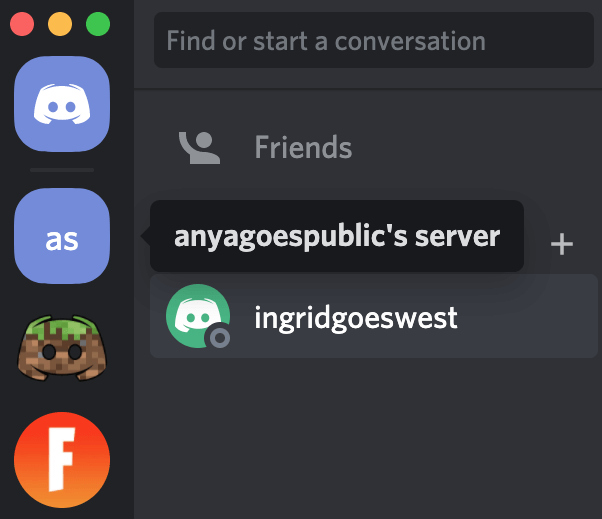
- Select the server that you want to add new users to.
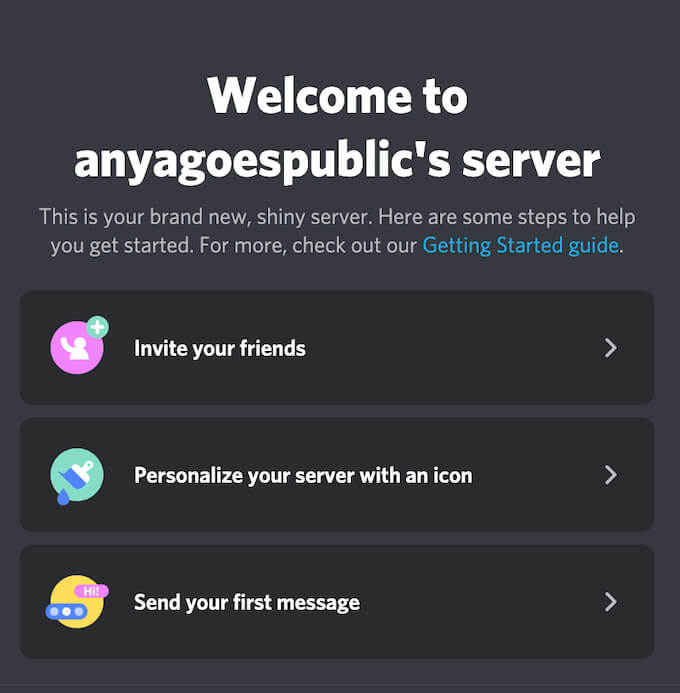
- If you just created a new server, you’ll see a welcome message appear on the main screen. Under the welcome message, select Invite your friends to add people.
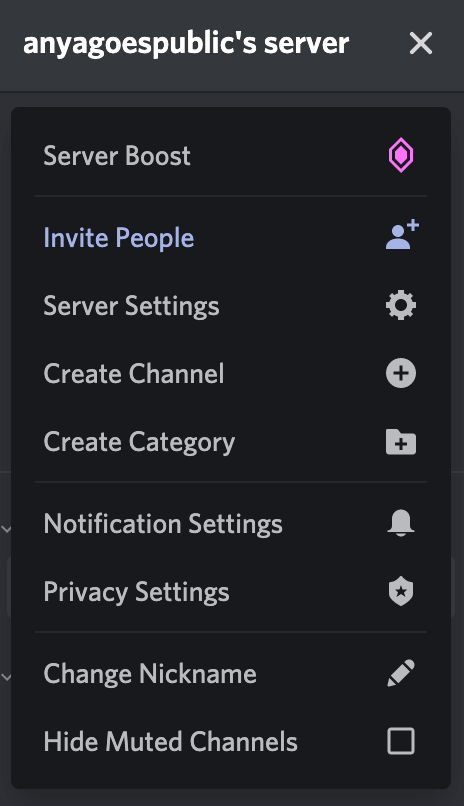
If it’s a server that you created a while ago, select the down-arrow in the upper-left corner of the screen to open the drop-down menu. From the server’s menu, select Invite People.
- You’ll see an invite menu appear on the screen.
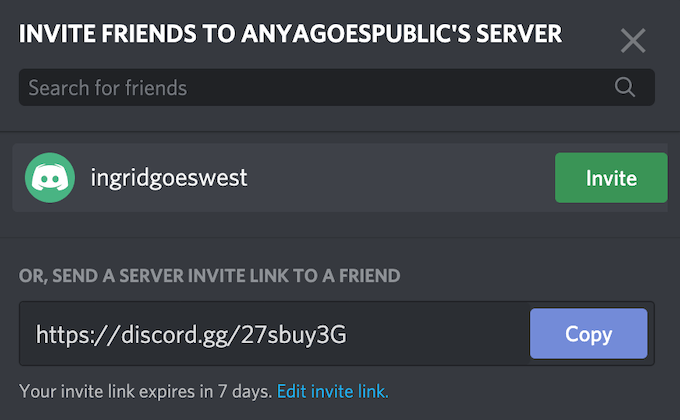
Here you have three options. You can use the Search for friends search bar to find your friends on Discord using their usernames and add them to your server. You can also select to Invite friends that you already have in your Discord friends list. Alternatively, select Copy to copy the invitation link and send it to anyone you’d like to join your server.
How to Add Someone on the Discord Mobile App
To send an invite on Discord from your mobile, follow the steps below. The instructions are the same for Android and iOS.
- Open the Discord app on your smartphone.
- Select the server that you want to add new users to.
- If you just created a new server, you’ll see a welcome message appear on the main screen. Under the welcome message, select Invite your friends to add people.
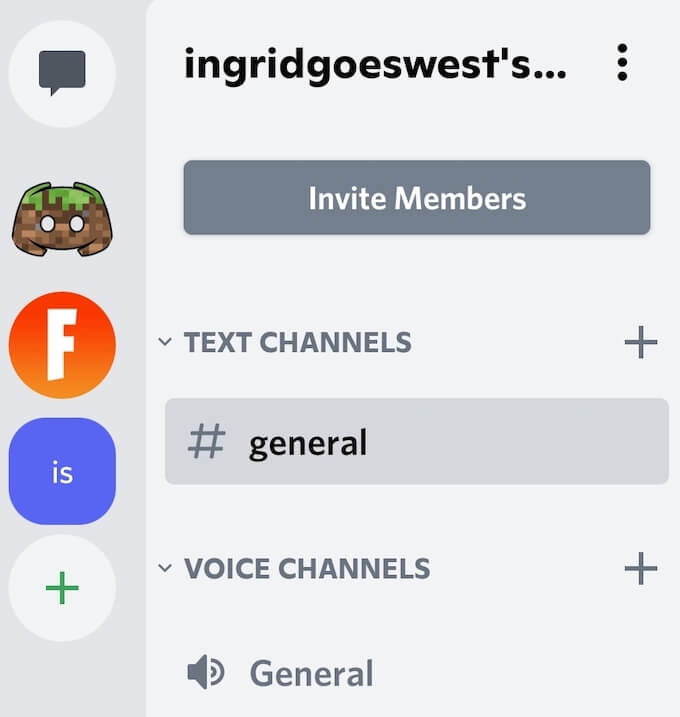
- If you want to add new people to a server that already exists, select Invite Members under the server’s name.
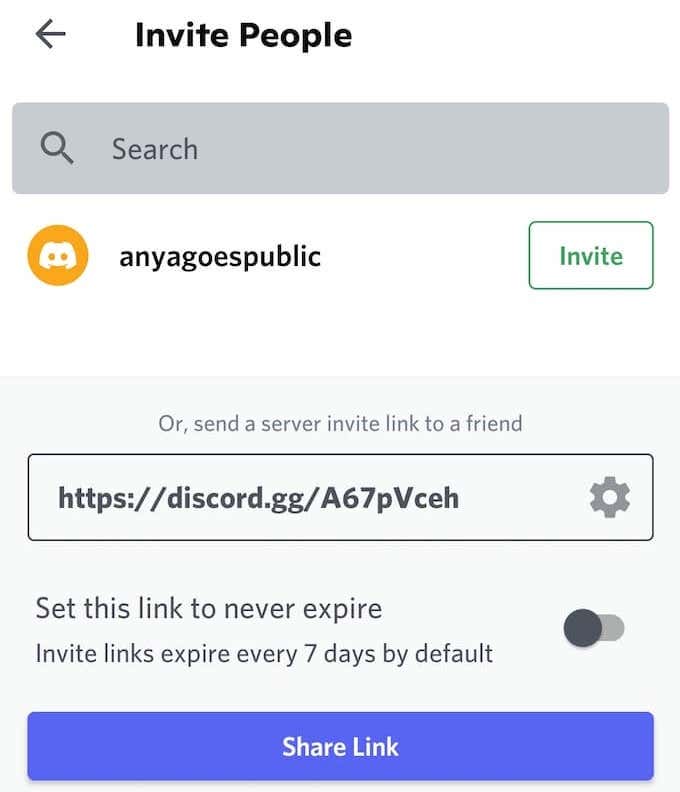
Like the Discord desktop app, the mobile version gives you three options to add friends to your Discord server. You can use the Search for friends search bar to find your friends on Discord using their usernames and add them to your server.
You can also select to Invite friends that you already have in your Discord friends list. Alternatively, choose Share Link to copy the invitation link and send it to anyone you’d like to join your server.
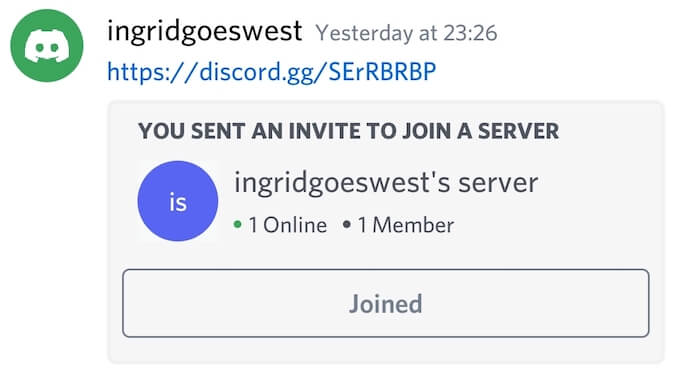
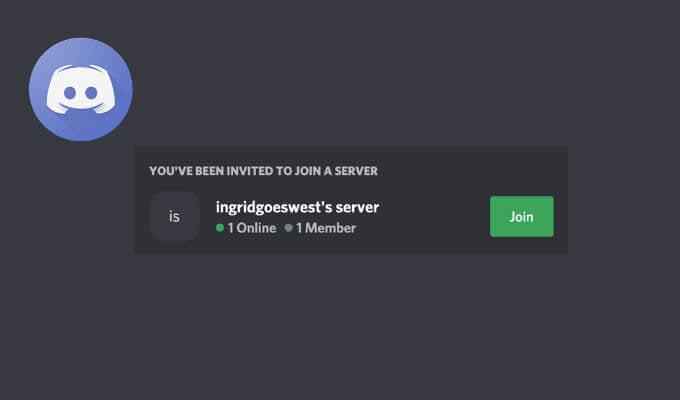
When you’re finished, the user you invited will receive a message on Discord with the invitation link. After they select Join, they’ll become a member of your Discord server.
How to Customize Your Discord Invite
Discord allows you to customize the invitation links for your server. You can set and change the expiration date of your Discord invites and set the number of uses for your links. The customization options are the same on both desktop and mobile versions of the app.
To customize your Discord invite, follow the steps below.
- Open the Discord app and select the server that you’d like to invite new users to.
- Repeat steps 3 & 4 from the section above.
- In the invitation link menu, select to Edit invite link to open the Server Invite Link Settings.

Under Expire After you can change the expiration date of your Discord invite. The mobile app only gives you three options here: the standard 7 days, 1 day, or No Limit. The desktop app gives you more room and allows you to select anything from 30 minutes to Never.
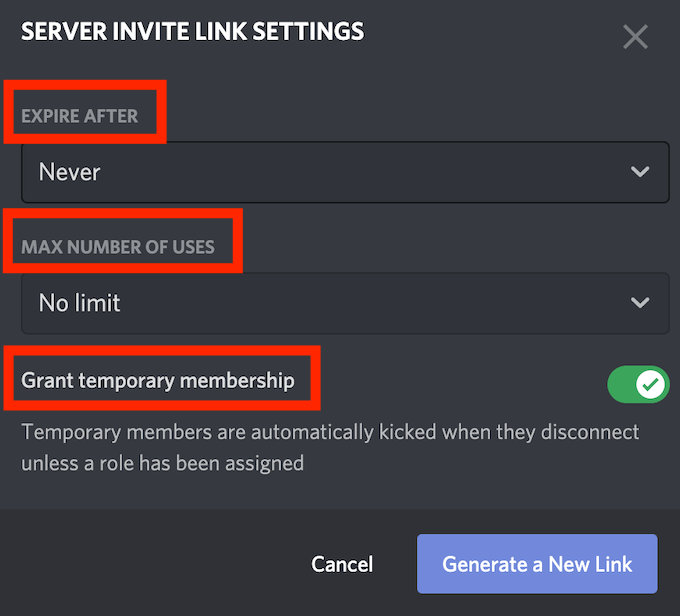
Under Max Number of Uses, you can set how many people can use this particular invitation link. The mobile app again gives you only three options: 1, 10, or unlimited. If you’re using the desktop app, you get seven different options from 1 use, to 100 uses, to unlimited.
You can also enable the Grant temporary membership feature on this menu. This will allow Discord to moderate your server and automatically kick users out of your server once they disconnect (or leave).
- When you’re happy with the settings, select Generate a New Link to confirm.
Now that your link is ready, you can copy and share it with the users that you want to join your Discord server.
Make Your New Discord Server Crowded
If you just want more people to join your Discord server, you can tweak the invite settings to disable the expiration date and maximize the number of uses of your invitation link. However, if you’re picky and want to keep your Discord channel private, pay closer attention to these settings and make sure you only share this link with the right people.
Have you ever had to send Discord invites before? What’re your optimal settings for a Discord invite? Share your experience with invitation links on Discord in the comments section below.