

The Discord platform is perfect for creating a community together online, but it requires your members to open Discord itself to use the platform—or does it? Thanks to Discord widgets, you can embed Discord into your own site, allowing users to see who’s online on your Discord server, post messages directly, and more.
There are a few ways you can add a Discord server widget to your site. The easiest way is to use Discord’s own widget system, but this is quite basic. If you need something more advanced, you may need to look at a third-party alternative like WidgetBot. Here’s what you’ll need to know to add a Discord widget to your website.
What Is a Discord Widget and How Can It Be Used?
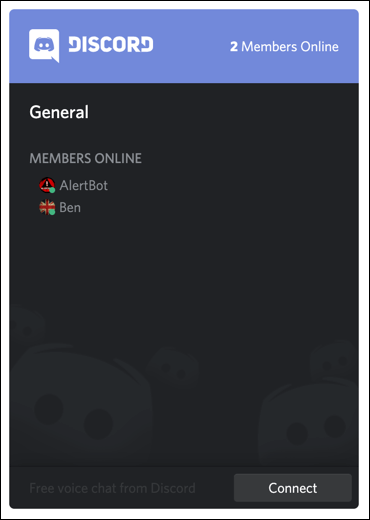
A Discord widget is an embedded version of the Discord client that you can integrate into pages on a website. Depending on the type of widget you use, this can show your members and channel list, provide a quick invite link to new users, and allow users to chat directly without visiting the Discord website or using the client.
The built-in widget is an advertisement tool for your server, allowing you to show off your members and gain new ones through your site. However, it doesn’t allow you to send messages or interact with the server, other than joining it using the integrated invite link.
If you want to use a more advanced widget, you can use a third-party alternative called WidgetBot. WidgetBot looks almost exactly like the Discord client, allowing users to sign in, send messages, switch between channels, and use everything that Discord has to offer—all within an embedded widget on your site.
While the setup process for WidgetBot is a little more complex, it offers a more functional alternative to users than Discord’s own widget system. Both types of widgets allow server owners to quickly advertise their server to new users, however, making it a better alternative than Slack, which offers no similar marketing features.
Embedding a Standard Discord Server Widget
There are two stages to adding a standard Discord server widget to your website. You’ll first need to enable the widget, then copy the auto-generated HTML code from Discord’s server settings to embed it into your website.
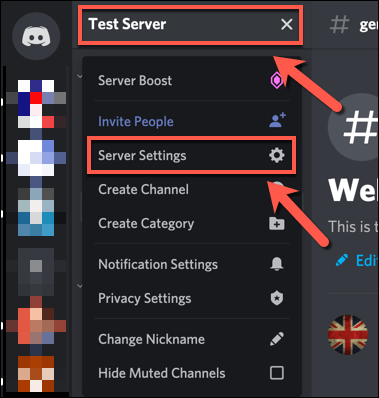
- To start, open the Discord website or desktop client and sign in, then select your server from the server icons on the left. Select your server name at the top of the channel list, then select Server Settings from the drop-down menu.
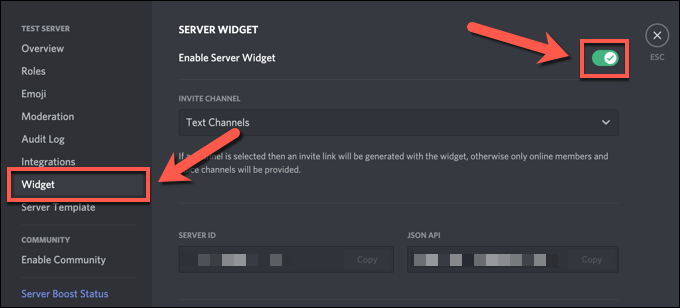
- In the Discord settings menu, select Widget. To enable the widget on your server, select the Enable Server Widget slider, placing it in the On position (in green).
- With the server widget activated for your server, you can now copy the necessary HTML code to embed it into your website. Scroll down to the bottom of the Widget menu, then select Copy in the Premade Widget code box.
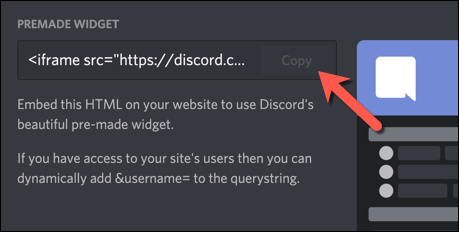
Once you’ve copied the code snippet containing the premade Discord widget, you can then integrate it into your website code. The widget will allow users to view the active member list and sign up to your server. If you need a more advanced widget, however, you’ll need to use WidgetBot.
Creating Custom Discord Widgets Using WidgetBot
Discord’s widget is a great way to add a more advanced invitation link to your server, but other than showing off your members list, it doesn’t offer much else. If you want to integrate a (near) fully functional version of the Discord client into your website, you can use WidgetBot to do it.
WidgetBot is a fully embedded version of Discord that you can tailor to your needs. Size, functionality, channel support, guest memberships, and more—all can be used in a WidgetBot widget on your site to bring in new users and chat with them directly without needing to visit the Discord website or use the client app.
Some features, such as read-only channels and custom widget themes, require a paid membership. However, the core features (including sending messages and joining the server directly) are supported for free.
Adding WidgetBot to Your Server
To begin, you’ll need to add WidgetBot itself to your server. WidgetBot works by adding the WidgetBot bot to your server, so you’ll need to do that first.
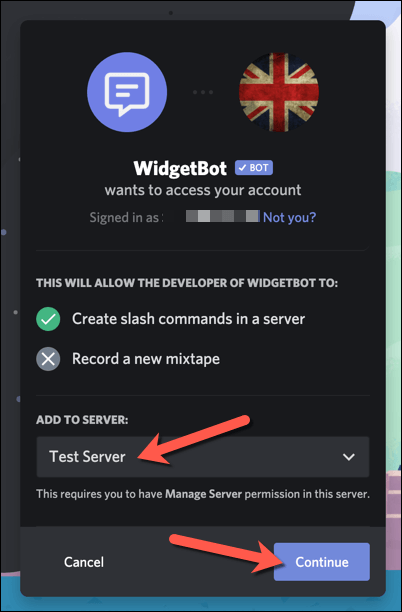
- Open the WidgetBot invitation link and sign in to Discord to proceed. You’ll need to select your server from the list, then select Continue to proceed.
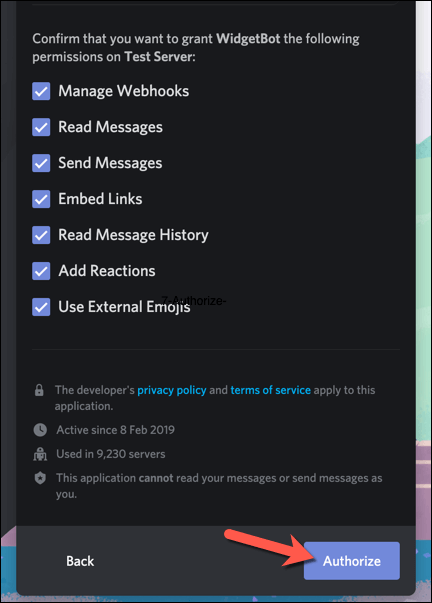
- At the next stage, you’ll be asked which permissions you want to grant WidgetBot. Leave all of the checkboxes enabled, then select Authorize to proceed. Return to your server once this process is complete.
Embedding WidgetBot on Your Website
Once WidgetBot is running on your server, you can then proceed to add a WidgetBot widget to your website. There are several types of widget you can use, but the simplest way to add a basic widget is to use the ??crate command on your server.
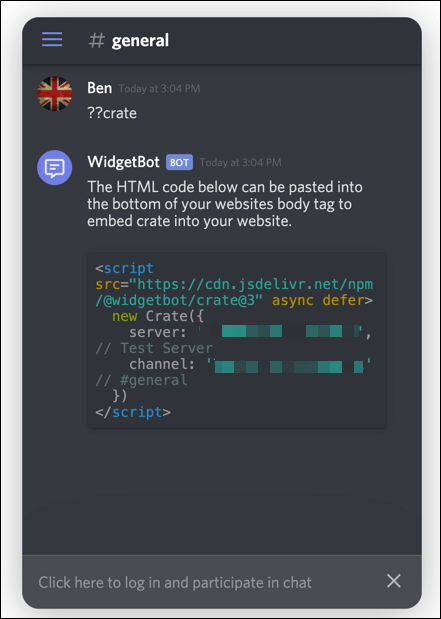
This generates an HTML code snippet that you can easily embed into your web pages, creating a Discord chat icon in the bottom-right corner. Once pressed, this opens a small (and fully functional) Discord client for your web users.
- To begin, open the Discord website or client and select your server from the list on the left. In a suitably private channel on your server containing the WidgetBot bot, type ??crate into the message box, then send the message.

- Sending ??crate in your server will cause the bot to automatically generate a HTML code snippet that you can embed. Select the code from the message, then right-click > Copy or select Ctrl + C on your keyboard.
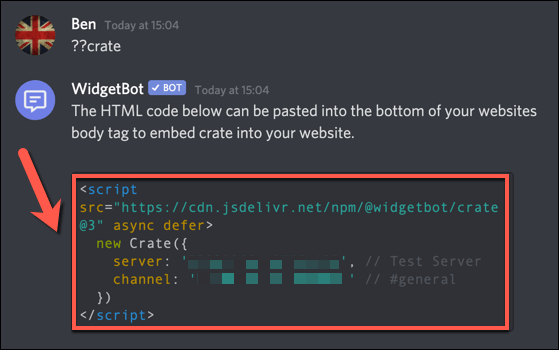
- With the code copied to your clipboard, paste the code into your website HTML and publish. The code itself will create a Discord icon in the bottom-right—select this to view and interact with the widget, including posting messages to your server directly.
If you’d prefer to use a different type of WidgetBot widget, you can learn more about each type of widget, including how to create and embed them into your website, by visiting the WidgetBot documentation website.
Making Use of Discord Widgets
A Discord server widget is a good way to advertise your community to new visitors to your website, giving you another way to increase membership. Once you’ve built up your server, you can then think about how to use Discord effectively. You can start by adding bots to your server to increase functionality, from music bots to moderation.
If you’re having trouble with Discord, however, there are solutions. For instance, errors like a Discord fatal Javascript error can usually be fixed by reinstalling the app, while Discord connection issues could point to a problem with your DNS settings. There are a number of Discord alternatives you can try, too, if you still have issues.