

The Discord platform isn’t just for gamers. It’s a community built around regular text, voice, and video communication online. It’s easy enough to make your own discord server and chat with your friends, but while Discord errors are rare, they can stop you from using the platform.
One unfortunate error that can plague Discord users is a streaming sound issue, preventing users from hearing audio while you’re sharing your screen on Discord (and vice versa). If a Discord stream has no sound, you’ll need to troubleshoot the issue by following the steps below.
1. Check Your Audio Settings
Before you consider more drastic approaches to this issue, the first thing you should do is check your audio settings. You’ll need to set your PC or Mac to use the correct output device (for instance, switching to headphones or external speakers), as well as ensure that the volume levels are high enough.
For Windows users, in particular, this means checking that the audio level for Discord is high enough to hear the audio. Windows allows you to control volume for individual running apps—if the volume is set too low, you won’t be able to hear the stream.
As these volume levels are also used by Discord to determine what others can hear as you’re streaming, it’s important to set them to an appropriate level.
On Windows
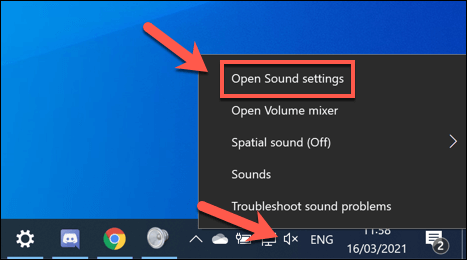
- To check your audio settings on Windows, right-click the audio icon in the notifications area of the task bar. From the menu, select the Open Sound settings option.
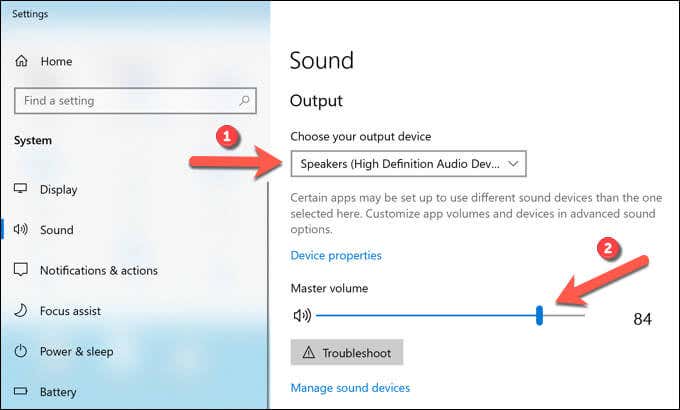
- In the Sound settings menu, select the correct output device (for instance, headphones or speakers) from the Choose your output device drop-down menu. Once selected, move the Master volume slider to the right to a level high enough to hear the audio.
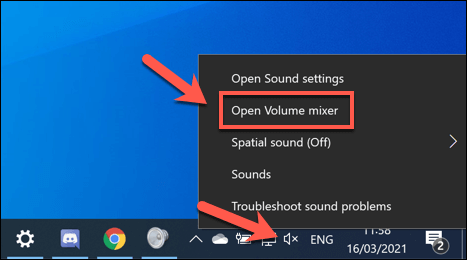
- To check the individual volume levels for open apps, you’ll need to open the sound volume mixer (making sure that the Discord client is open first). Right-click the audio icon on the taskbar, then select the Open Volume Mixer option.
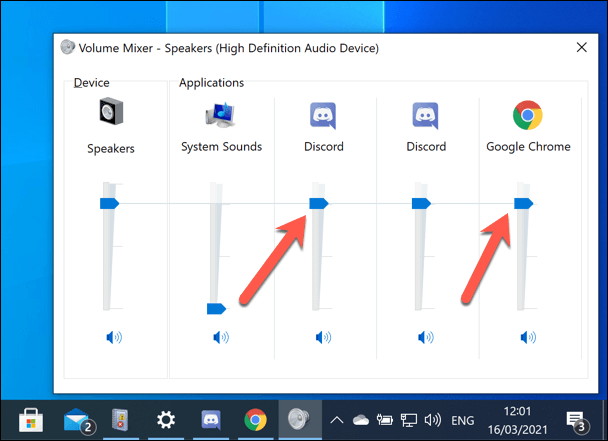
- In the Volume Mixer window, move the slider for the Discord app upwards to ensure the volume level is high enough. If it isn’t listed, make sure to select and move the Speakers slider upwards instead. If you’re using the Discord web client, make sure to move the slider for your chosen browser (e.g. Chrome) upwards. If you’re streaming yourself, make sure that any applications you’re screen sharing (such as a game or web browser) have sufficient volume set in the volume mixer.
On Mac
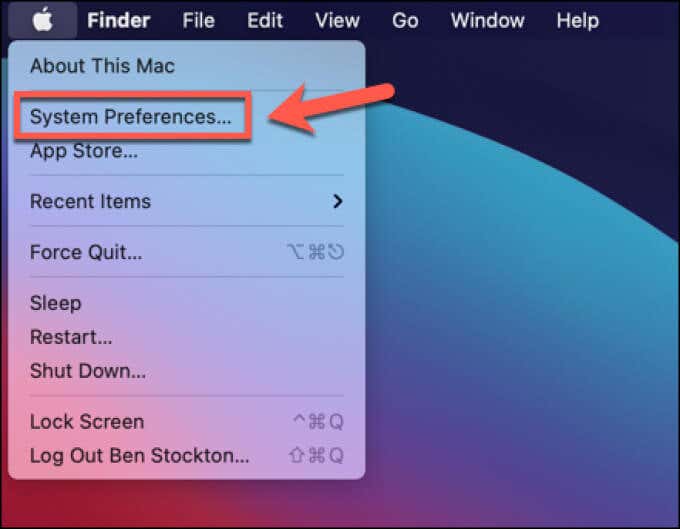
- To check your audio settings are correctly configured on Mac, you’ll need to open the System Preferences menu. To do this, select the Apple menu icon > System Preferences.
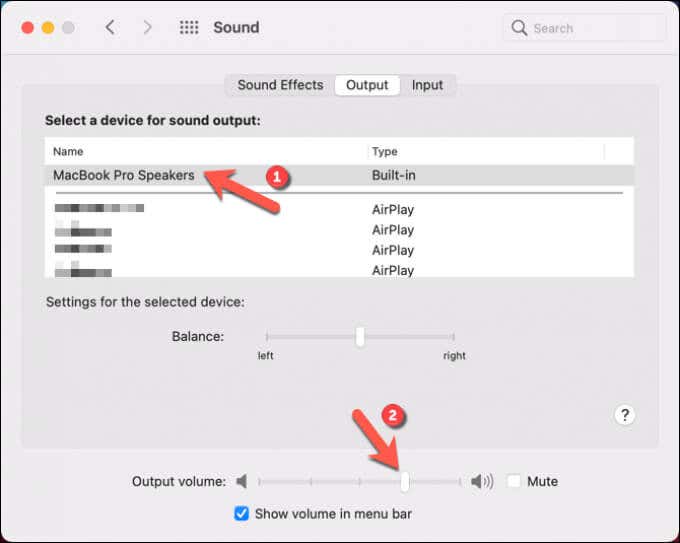
- In the System Preferences menu, select Sound > Output. Select the correct device for sound output (e.g. headphones or speakers) from the list provided, then move the Output volume slider to the right to set the volume. If the Mute checkbox is enabled, make sure to uncheck this.
2. Use Applications in Windowed Mode
If you’re trying to stream a full-screen game on Discord, you may run into issues. This is because Discord (at present) doesn’t support streaming while full-screen applications are open.
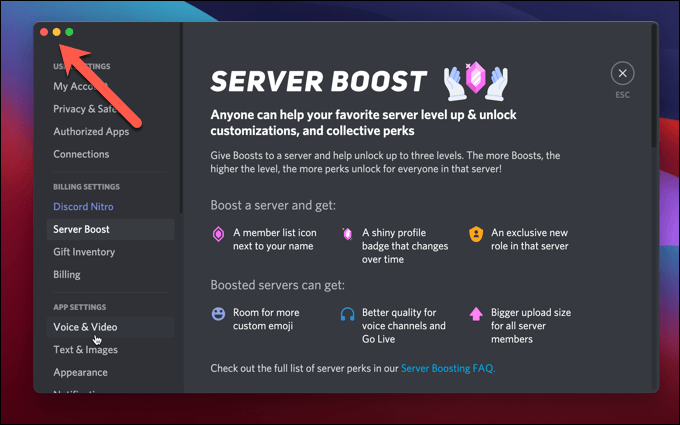
This could prevent you (and your audience) from hearing or seeing content as you stream. Where possible, make sure to only use applications that are in windowed mode (either maximized or smaller). If the game enters full screen automatically, you may need to check the settings to change the default display mode.
3. Reset Discord Audio Settings
While changes to Discord’s audio settings can help to improve the quality of a stream or call, it can also cause conflicts if the wrong settings are changed. The best way to resolve this issue is to reset Discord’s audio settings to the default configuration.
If you want to change your audio configuration, reset your voice settings first and start with the defaults to limit potential conflicts.
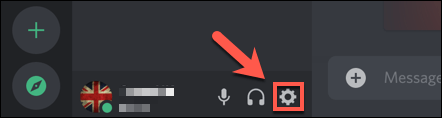
- To do this, open the Discord desktop app or website and sign in, then select the Settings icon on the bottom left.
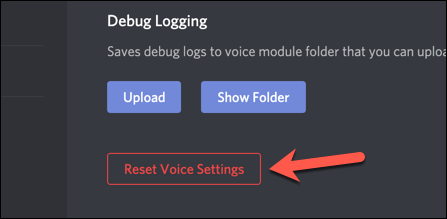
- In the Settings menu, select the Voice & Video tab, then select the Reset Voice Settings option at the bottom.
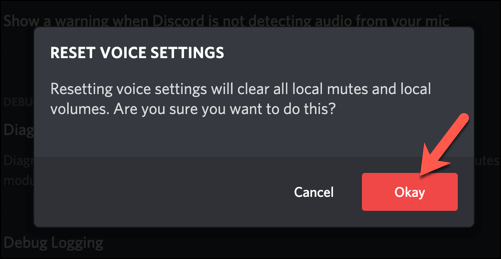
- Discord will ask you for confirmation. Select the Okay button to reset your settings.
4. Change Discord Audio Settings
If your Discord stream has no sound after resetting Discord’s voice settings to the default configuration, you may need to change some of the audio settings manually. You can do this in either the Discord app or using the web client.
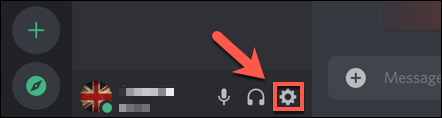
- To start, open Discord and select the Settings icon on the bottom left.
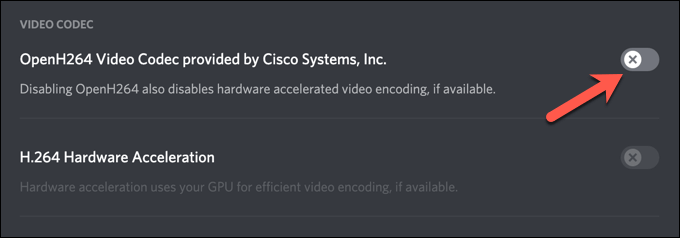
- Select Voice & Video from the left-hand menu. If you’re using the desktop app, select the OpenH264 Video Codec slider to switch to an alternative audio codec and disable hardware acceleration.
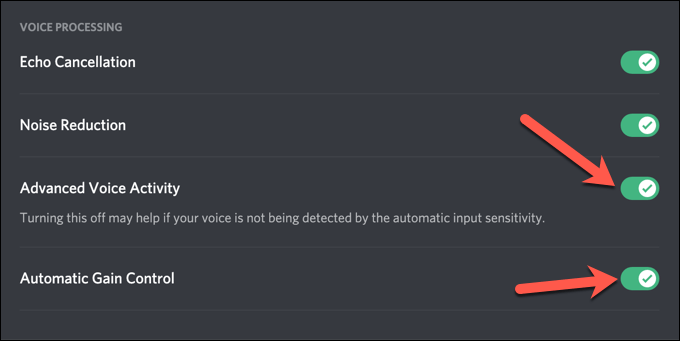
- You can also disable some voice processing features. Select the slider next to the Advanced Voice Activity and Automatic Gain Control features if certain audio devices (such as your Discord mic) aren’t working as intended.
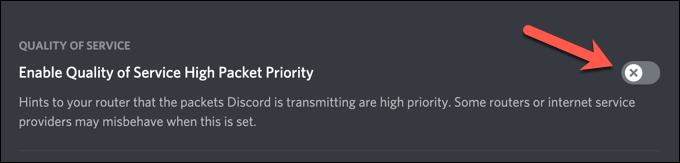
- Finally, Discord uses Quality of Service (QoS) to ensure Discord calls and streaming has priority over other local network traffic, but this can cause some issues. To disable this feature, toggle the Enable Quality of Service High Packet Priority slider to disable it, turning the slider gray.
5. Reinstall the Discord App (or Switch to Discord Canary)
In certain rare circumstances, the Discord client itself could be the problem. Reinstalling the Discord app (or switching to it, if you’re using the web client) could be a good fix for potential streaming issues, ensuring the latest updates are installed.
If you’re having trouble, however, you may want to give Discord Canary a try. This is an alpha test build of the Discord client that allows you to test new features and try out new bug fixes ahead of other users.
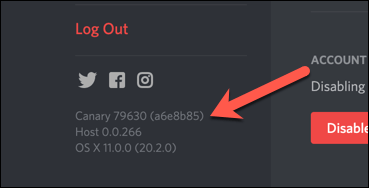
While a Discord Canary test build can be unstable, it may resolve certain audio issues, thanks to the latest bug fixes. You can download either the latest stable release or Canary build from the Discord website.
6. Check Your Audio Drivers
Windows should install audio drivers automatically, but if you’re using a new PC or if you’re just installed new hardware, you may need to install them yourself to ensure that your audio devices work correctly in Discord.
- To do this on Windows, right-click the Start menu and select the Device Manager option.
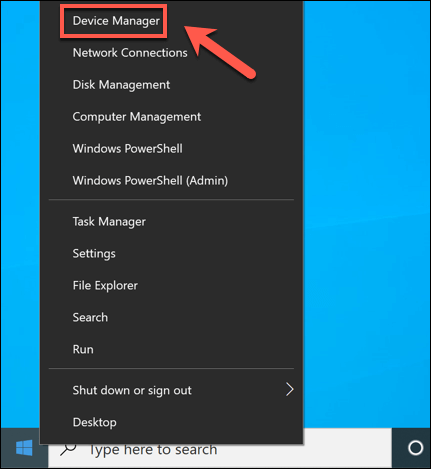
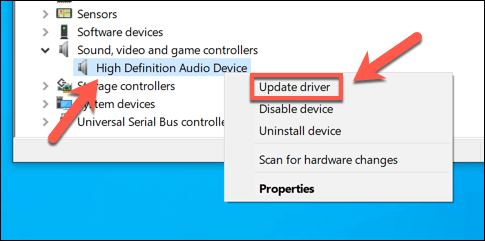
- In the Device Manager window, open the Sound, video and game controllers category, then right-click your audio device and select the Update driver option.
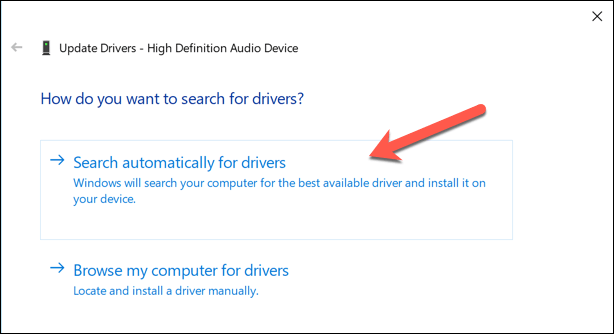
- In the Update Drivers menu, select the Search automatically for drivers option.
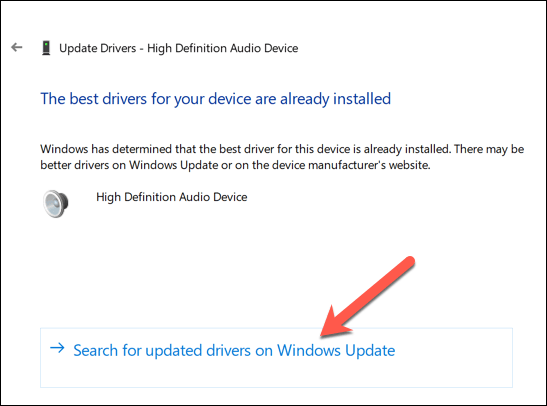
- If a newer driver is available on your PC, Windows will automatically install it. Otherwise, select the Search for updated drivers on Windows Update option.
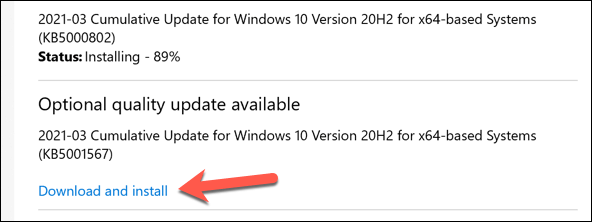
- Windows Update will launch in a new window. If any updates are detected, select the Download and install option. Allow the process to complete, then restart your PC.
If Windows can’t find suitable drivers for your device, look for drivers on the manufacturer website. For instance, if you’ve installed a new motherboard, you may need to install new audio chipset drivers for your PC’s audio output to work correctly.
Building a Discord Community
The steps above should help to solve a problem where a Discord stream has no sound, as well as help to fix other issues, such as a robotic voice on stream and RTC connection issues. Once you’re up and running, you can begin to build up your community by adding new Discord bots to play music or help with moderation.
Of course, Discord isn’t the only platform for communities to organize around. There are a number of Discord alternatives you can try, from Slack to TeamSpeak. Gamers may still prefer Discord, however, as gaming-specific features like the in-game overlays make multiplayer games more fun.