
When creating a resume on LinkedIn, people often dismiss the Skills & Endorsements section as irrelevant. In this section, there’s no restriction to what skills you can add, and pretty much anyone can endorse you no matter the expertise.
However, every section that you have on your LinkedIn profile can be used to showcase your professional knowledge and experience. The Skills & Endorsements section is no different. LinkedIn recently rolled out an algorithm that added structure to the endorsement process, making now the best time to learn how to endorse someone on LinkedIn and how to get endorsed yourself.
Why Endorsements on LinkedIn Matter
Endorsements is a LinkedIn feature that gives you an opportunity to share your knowledge and opinion about someone else’s skills with other users on LinkedIn. You can go on someone’s LinkedIn page, find a skill that you think they’ve mastered, and endorse them for it.
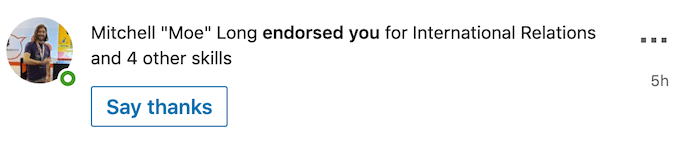
To start with, endorsements validate you as a specialist in your field. It’s a way for the people that work or used to work with you to verify the information you share about yourself on your LinkedIn resume.

This feature also allows you to stay in touch with your connections without actively interacting with them. When you endorse someone on LinkedIn, at the very least you remind them about yourself. In most cases, people tend to return the favor and endorse you back.
How the New and Updated Skills & Endorsements Work
Linkedin has recently added an algorithm to make the Skills & Endorsements section more efficient.
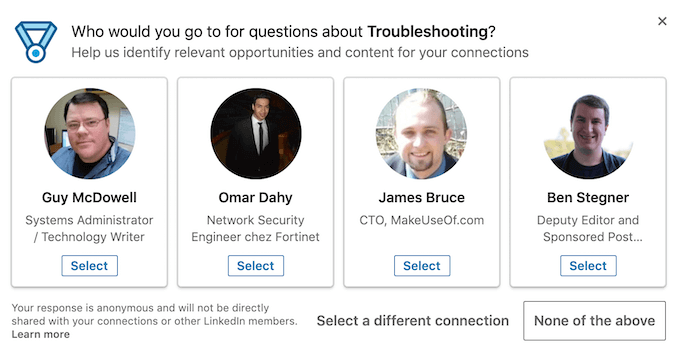
You can still choose any type of skill you want, from WordPress to Online Dating, and add up to 50 of those skills to your profile. However, the way people endorse you for your skills has changed.
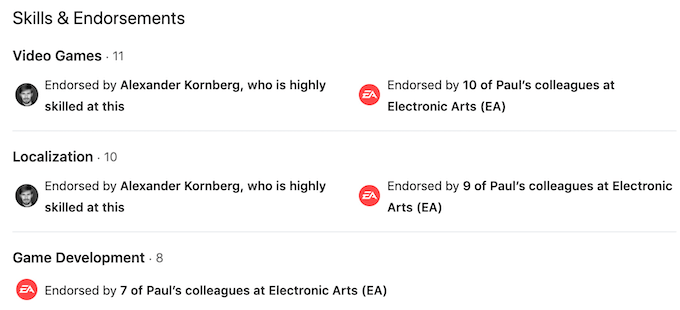
When someone visits your profile, LinkedIn will analyze your profile and offer to the other user to endorse you for a skill that’s also applicable to them. That means that you won’t just get endorsements from your friends and colleagues, but also from people who are knowledgeable about those skills.
How to Endorse Someone on LinkedIn
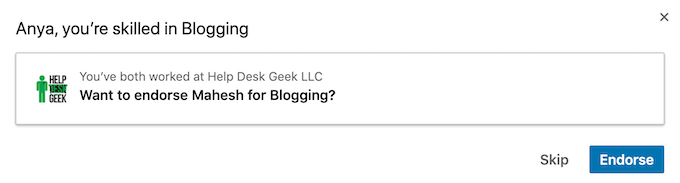
Thanks to the new algorithm that LinkedIn is using for user endorsements, you don’t even have to look around someone’s profile to find the skills that you can endorse them for. When you open a user’s page, LinkedIn will prompt you to endorse them for a skill that you have in common. Then you can either Skip or Endorse them.
Alternatively, follow the steps below to endorse someone on LinkedIn.
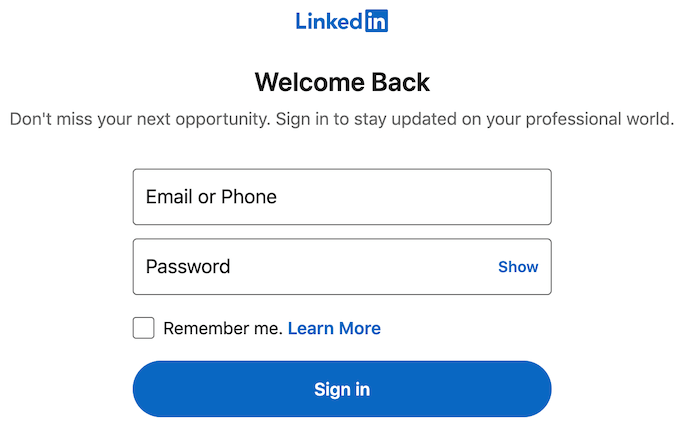
- Open LinkedIn and sign into your account.
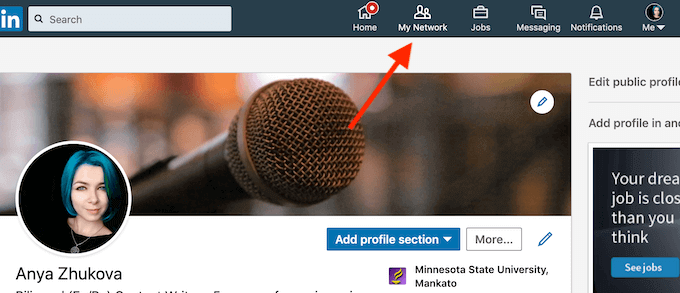
- Select My Network from the LinkedIn menu on top of the screen.
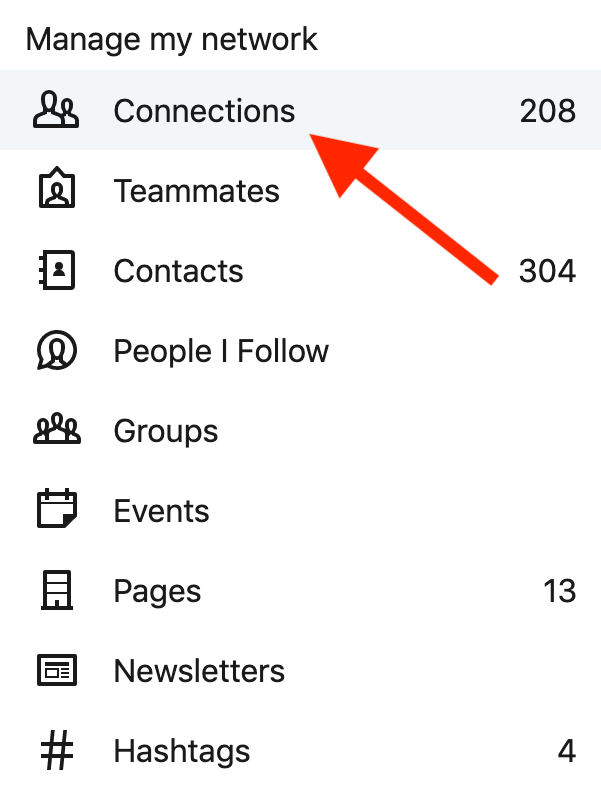
- Select Connections from the Manage my network menu on the left.
- In your connections, find the person you want to endorse and go to their profile. You can also search for that person using LinkedIn’s Search bar.
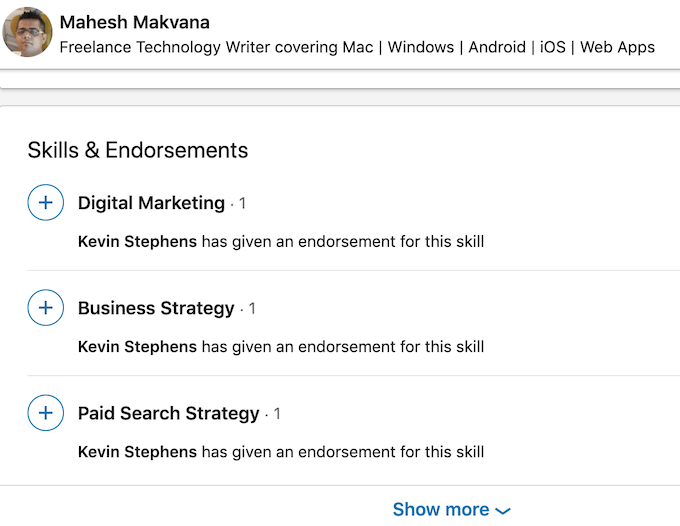
- Scroll down until you see the Skills & Endorsements section.
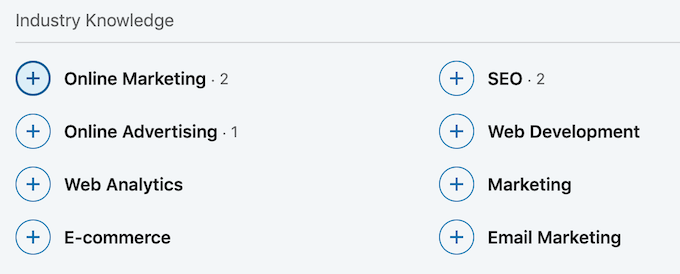
- Select the skill that you’d like to endorse the user for.
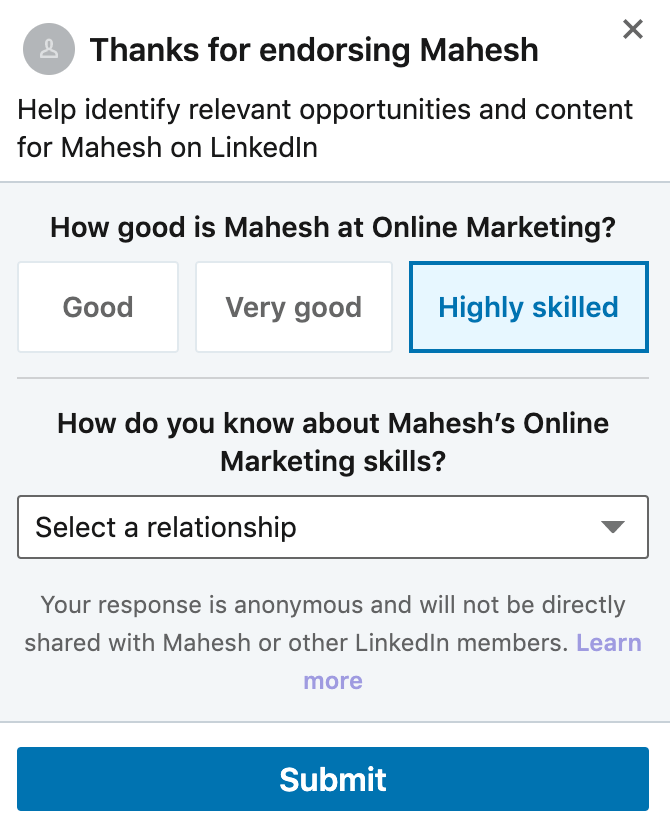
- Additionally, you can answer the questions in the pop-up menu about how skilled the user is (Good, Very good, or Highly skilled), and how you know about their expertise.
- Select Submit to add the endorsement to the user’s profile.
How to Get Endorsed on LinkedIn
Before you can get endorsed on LinkedIn, check if you have the Skills section added to your profile.
To add this section to your LinkedIn page, follow the steps below.
- Go to your LinkedIn profile page.
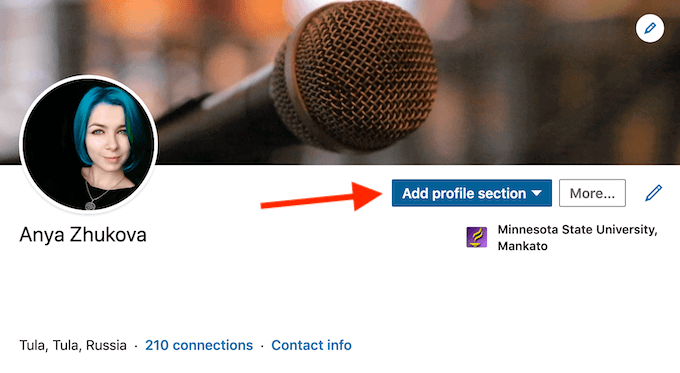
- On top of the page, select Add profile section.
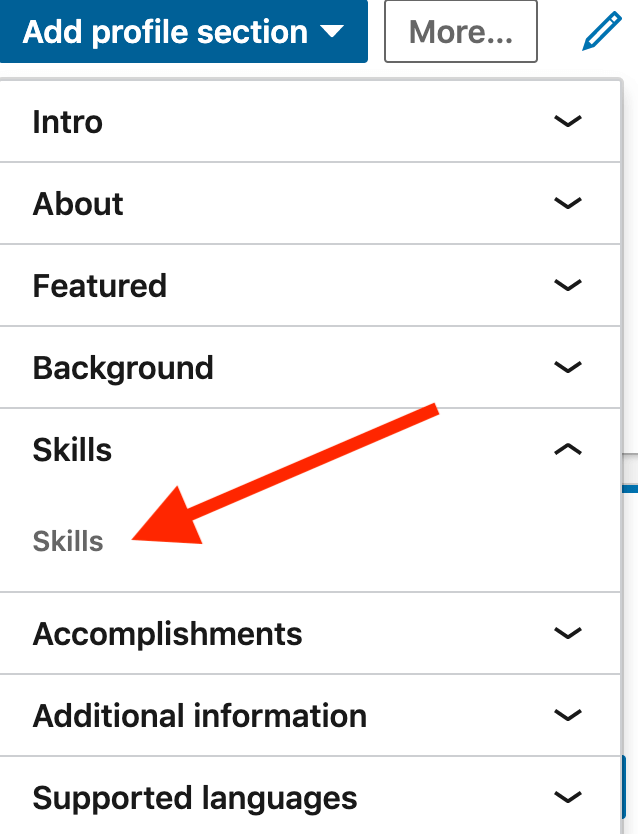
- From the down-arrow menu, select Skills.
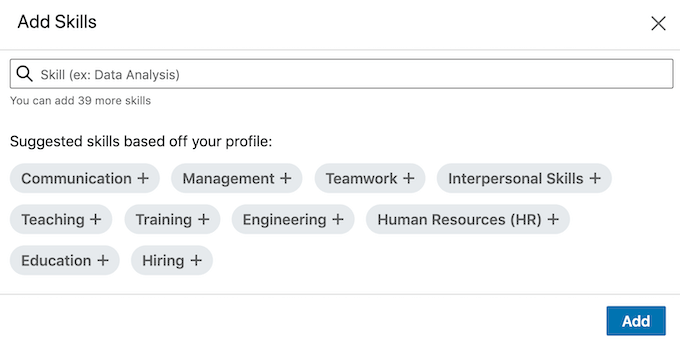
- Pick some of the Suggested skills based off your profile, or add your own skills using the search bar. It’s recommended to add at least 5 skills to your profile.
Now you can get endorsements from your connections and other users on LinkedIn. There’s no one strategy on how to get someone to endorse you. Normally, when you endorse someone they tend to endorse you back. Meaning that if you want to see more activity on your own Skills & Endorsements section, you should start by endorsing people for their skills yourself.
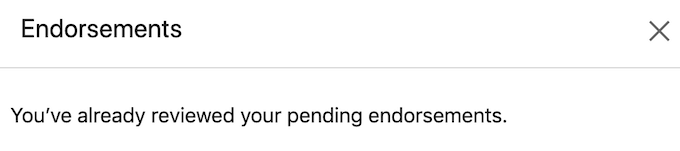
When someone endorses you, LinkedIn won’t automatically add the endorsement to your profile. Instead, you will receive a notification either on your LinkedIn account or via email. The endorsement will only be added to your profile after you view the notification and accept it.
Are All Endorsements Good?
One more feature that LinkedIn added to the section is an ability to remove unwanted skills and hide the people that endorsed you for them.
This might seem unnecessary, but having a bunch of skills that aren’t relevant to your field of work or your resume in general isn’t the best LinkedIn strategy. Your Skills & Endorsements section should back up the professional experience that you list on your profile. So it’s best to avoid getting endorsed by random strangers for something they know nothing about.
How to Turn Off Endorsements
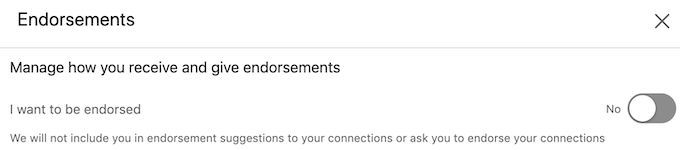
If you feel like you’ve been getting too many endorsements from people that you don’t want to have recommendations from, you can turn off endorsements on LinkedIn.
- Go to your LinkedIn profile page.
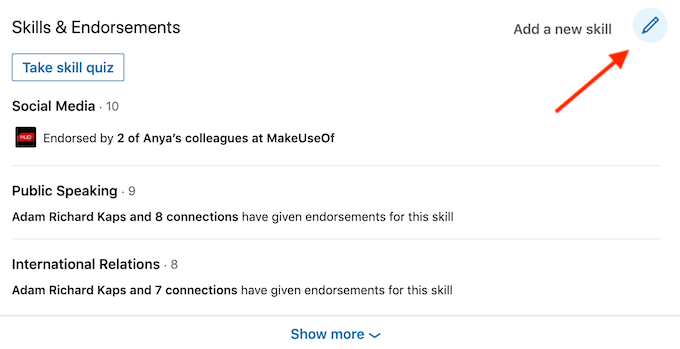
- Scroll down until you see the Skills & Endorsements section.
- Select the pencil icon to edit the section.
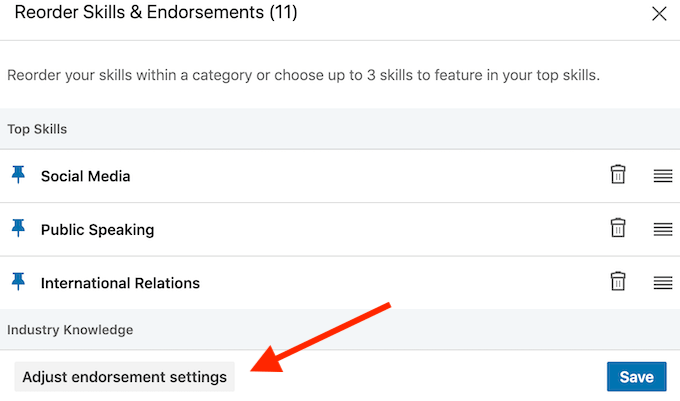
- In the pop up window, select Adjust endorsement settings.
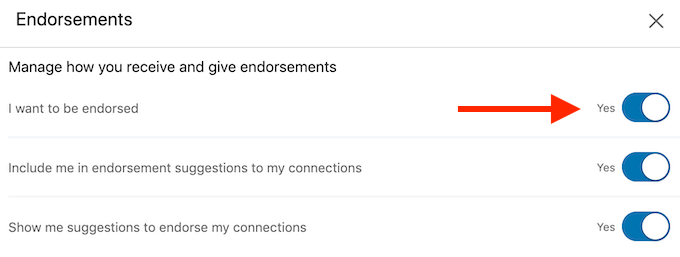
- Toggle off I want to be endorsed to turn off endorsements on your page.
Use Endorsements to Stand Out on LinkedIn
Upgrading the Skills & Endorsements section of your profile is a great way to get more out of LinkedIn without paying for the Premium subscription. Getting endorsed by your connections and other experts in your field will validate your professional experience and make you stand out among other specialists.
Do you endorse people on LinkedIn? What’s your strategy for getting them to endorse you back? Share your best LinkedIn practices with us in the comments section below.