
Today thanks to the many apps that offer photo filters you don’t need to have a smartphone with a top of the line camera to produce excellent shots. When it comes to social media, filters play an even bigger role. They can transform your pictures and stories and make your content more engaging. On Snapchat, you can now create your own filters.
Depending on your purpose, place, and audience you can make different custom filters to entertain your Snapchat followers. Some filters only work in specific locations, while others are only suitable for special events. There are also filters that you can create and use for free, while for others you’ll have to pay.
Let’s take a look at how to make a Snapchat filter.
Decide What Type Of Filter You’re After
When it comes to making a custom Snapchat filter, it’s best to begin with setting your goals.
For example, you can create a free Community filter. If it’s a place that you want to tie your filter to, you can choose to create a Geofilter. It will only work in a specific location, so you can choose to set it in a place that has some significance to you (like a park, university, or your favourite cafe, etc). You can also create a free Moment filter that will represent some sort of event. It can be anything from a public concert to a shopping trip with your friends.

Another option is making a paid Snapchat filter. It’s a more suitable alternative if you want to celebrate a special event like a wedding or someone’s birthday. It’s also a good choice for businesses or any other type of advertising.
You can make a Snapchat filter using the Snapchat mobile app or through their website. After you submit it, it takes a couple of hours for Snapchat to approve it. Then you can enjoy using your own Snapchat filter on the app.
How To Make A Free Snapchat Filter
Snapchat offers an option to create your own Snapchat filters for free, but they have to be Community filters and they come with some limitations. You can only create them using your web browser, and Snapchat doesn’t offer any templates. The design needs to be 100% original.
The most important part, however, is that you follow Snapchat’s guidelines when you create the filter. Here’s how to do it.
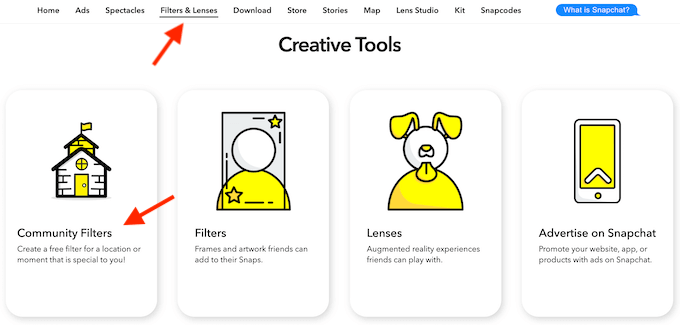
- Go to Snapchat web, and choose Filters & Lenses from the site’s ribbon menu.
- Scroll down to Creative Tools, and select Community Filters.
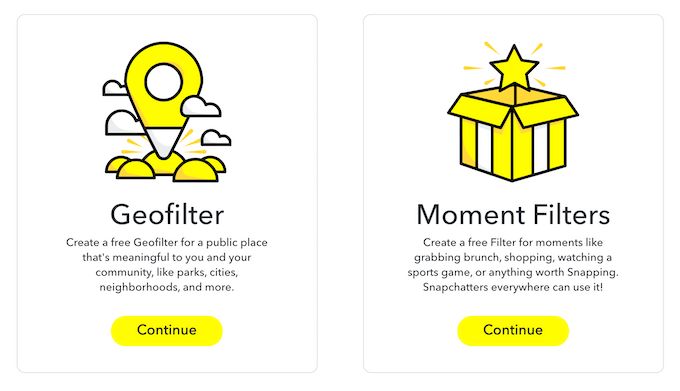
- Now depending on your occasion, choose between Geofilter and Moment Filters.
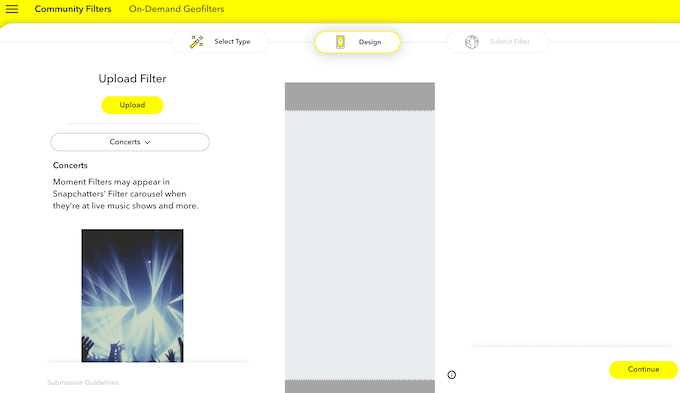
- If it’s a Moment Filter, all you need to do is to upload your design and then submit it to Snapchat.
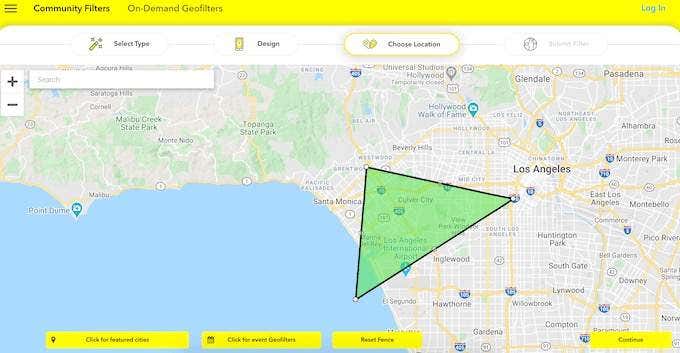
- With Geofilter you will also have to set the zone on the map where you’d like that filter to apply.
To create the original design for your filter, Snapchat recommends you use software like Adobe Photoshop and Adobe Illustrator.
Make sure you provide all the relevant information with your filter, like dates or an event description. Then, as long as you follow the official guidelines, your custom filter should be approved and ready to use within hours.
How To Make A Paid Snapchat Filter On Your Computer
If you don’t mind paying a little and want to save yourself time and effort, you can make a paid Snapchat filter. Here’s how to do it from your computer.
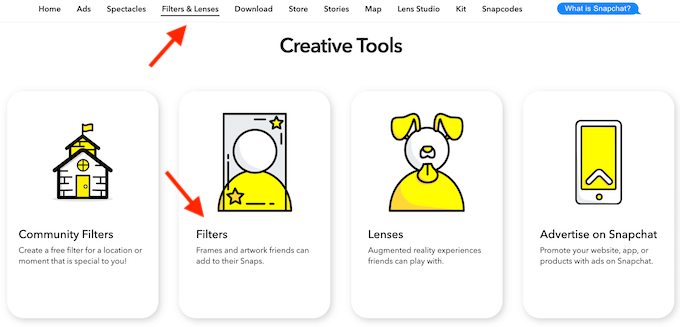
- On Snapchat web, go to Filters & Lenses.
- Scroll down to Creative Tools, and select Filters.
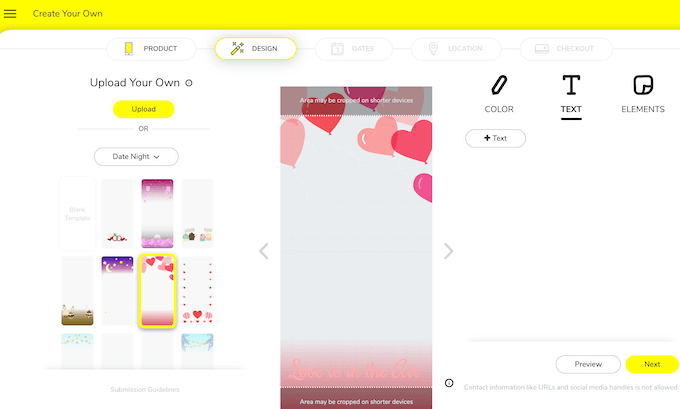
- Here, instead of creating your own design from scratch, you can choose from a variety of templates. You also get more customization options, like changing fonts, colours, and adding pictures.
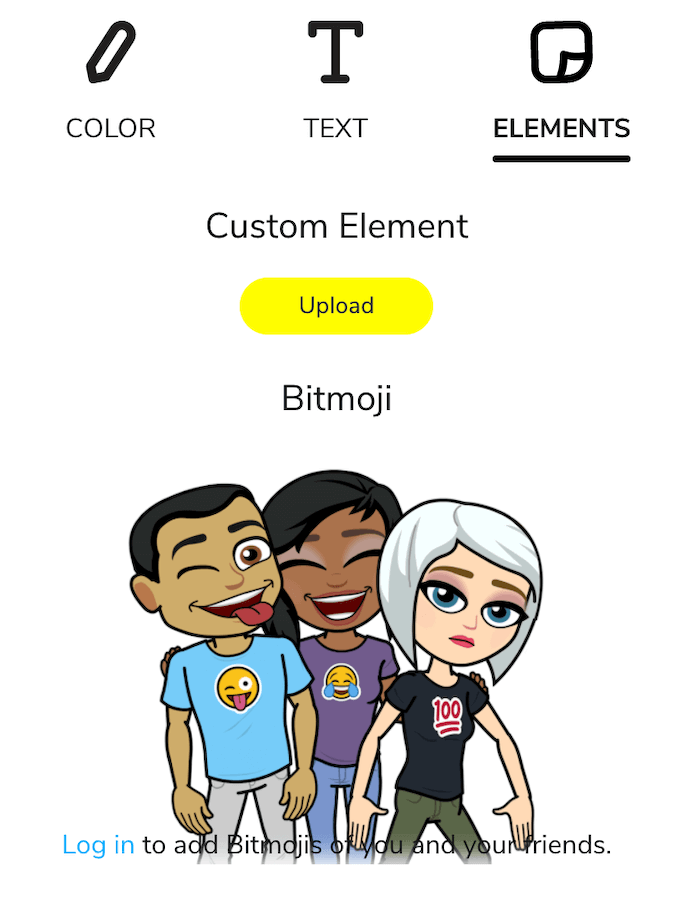
You can also use Bitmoji to add a little cartoon version of yourself and your friends to your filter.
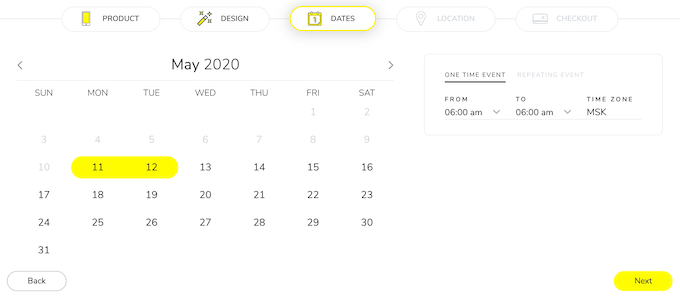
- After you finish the design, go to Dates and choose the start and end date for your filter. You can make it a One Time Event, or a Repeating Event to run it on certain days, or time of day.
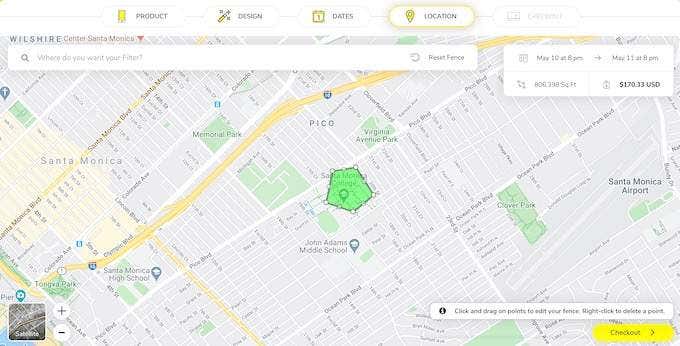
- Under Location, draw a fence to select the area for your Geofilter. All Snapchat users on the inside of that fence will be able to use your filter.
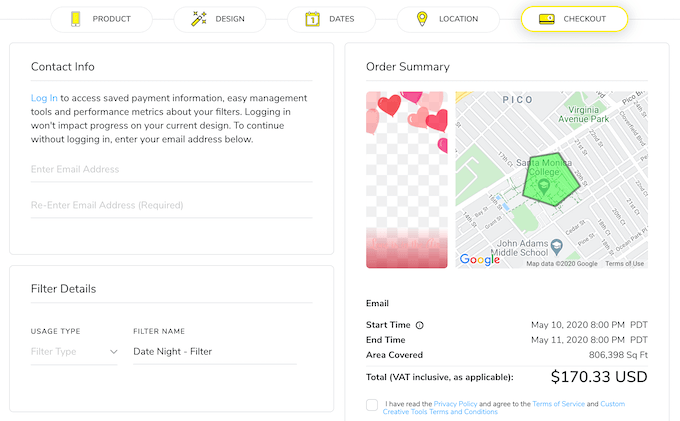
- Go to Checkout to pay and submit your filter.
The Snapchat filter price varies. It depends on two factors: the size of the area where you want to run it, and how long you want the filter to be available for the users.
How To Make a Snapchat Filter In The App
You can also submit your custom Snapchat filter on your iPhone. The process is pretty much the same, with the only difference being finding the iOS-only feature within the app.
To locate it, open Snapchat on your iPhone and go to your profile. Then go to Settings to find Filter and Lenses. After you select Filter, Snapchat will take you to a similar customization screen to design it.
Follow the same algorithm, create your own design, set the dates, and the area, then pay and submit your Snapchat filter for approval.
How To Use Your Custom Snapchat Filter
Once you receive the email from Snapchat confirming your filter is live, you can start adding it to your snaps.
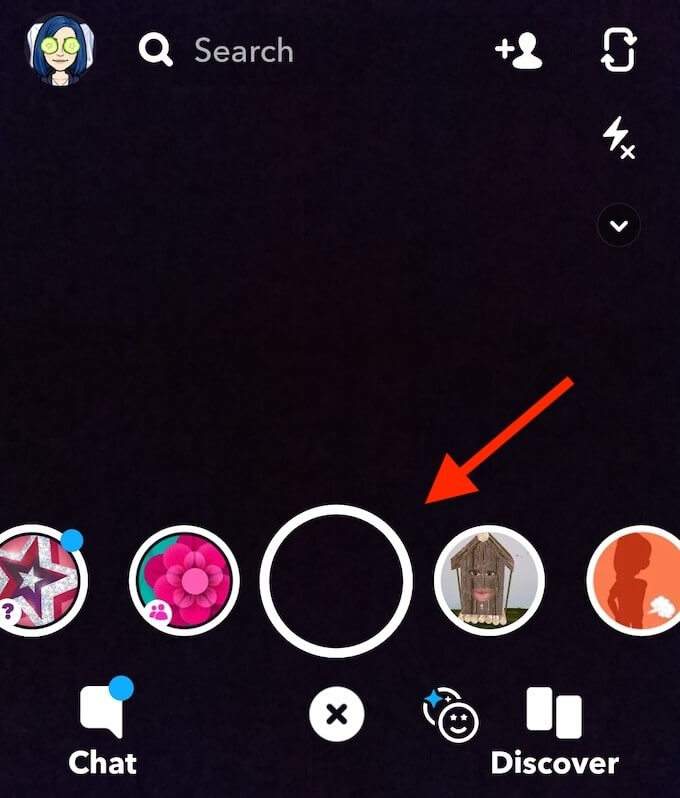
You’ll find it among your filters when you open the app by swiping left and right. Make sure your Snapchat privacy settings are set to allow the app to access your location. Then you’ll be able to use yours and other people’s geofilters specific to your area.
Customize Your Snapchat Further
Once you go through an experience of creating and using your own Snapchat filters, you’ll probably want to do even more to personalize your snaps and make them more relatable. Luckily, Snapchat offers a lot of ways to do it: from making your own lenses to creating deepfake videos with you and your friends.
Have you tried to make a Snapchat filter? Was it a success with other users? Share your Snapchat experience with us in the comments below.